Create categories and subcategories
Categories organize supplies and line items in a two-level tree. Supplies and line items each have their own tree.
How to complete catalog categories
- 01
Create a category
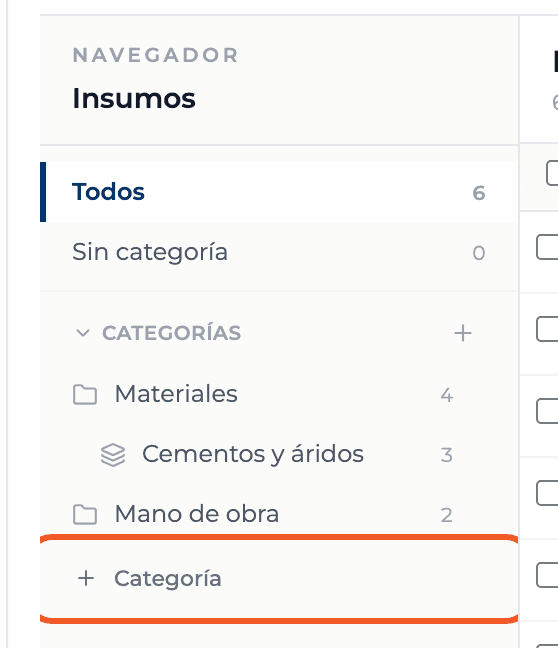
In the navigator select + Category (or the + next to Categories). The New category dialog opens for the active tab.
- 02
Check the name and code
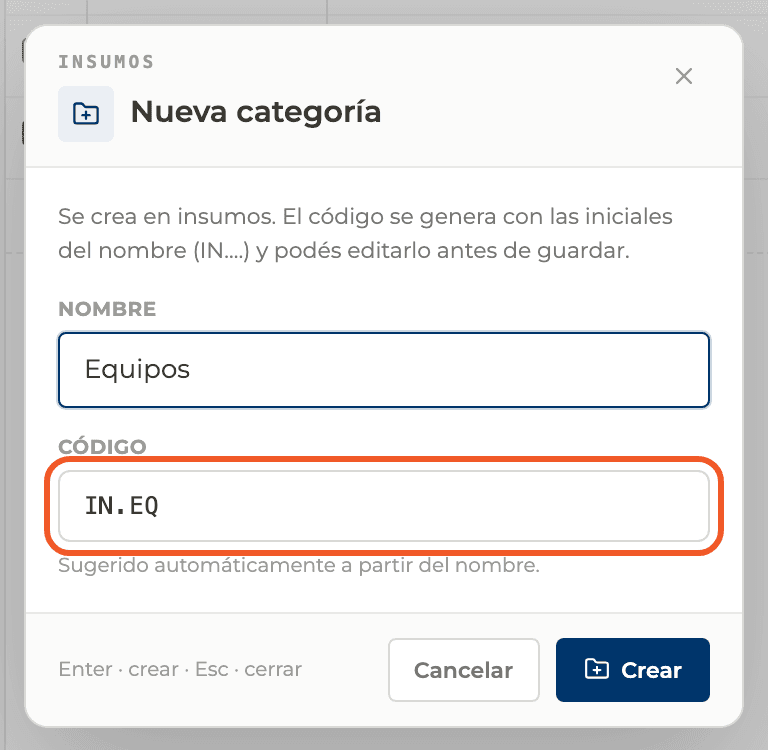
Type the Name, for example "Labor". The Code is suggested with the tab prefix (IN. for supplies, RU. for line items) and the initials, such as IN.MO; you can edit it before selecting Create.
- 03
Create a subcategory
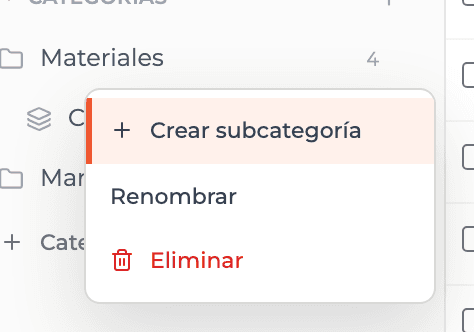
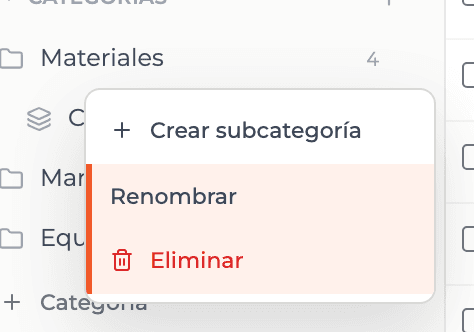
Hover over a category, open its ... menu and choose Create subcategory.
- 04
Check its code
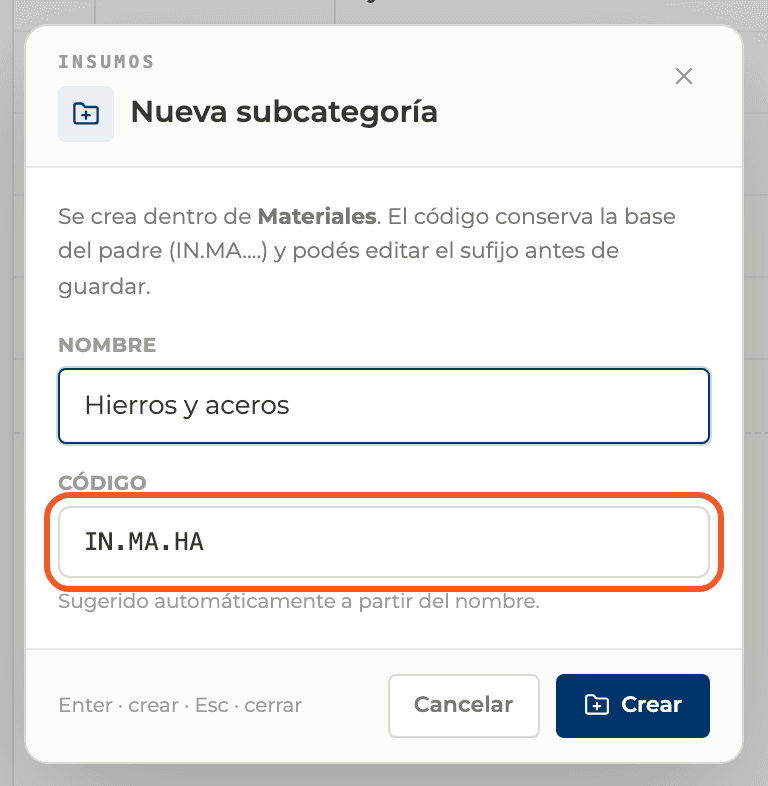
The subcategory keeps the category's code as a base, for example IN.MA.CA inside Materials, and you can edit the ending before creating it.
- 05
Rename or delete
From the same ... menu you can Rename or Delete. A category that has items or subcategories cannot be deleted until you move or delete them.
What you'll learn
How create categories and subcategories works inside Perfour.
What information you need and how it stays connected to Catalog.
How to preserve traceability and find the record later.
Frequently asked questions
Can I create subcategories inside subcategories?+
No. The tree has two levels: category and subcategory.
How do I move an item to another category?+
With Move, from the row's ... menu or from the selection bar.