Create and edit supplies
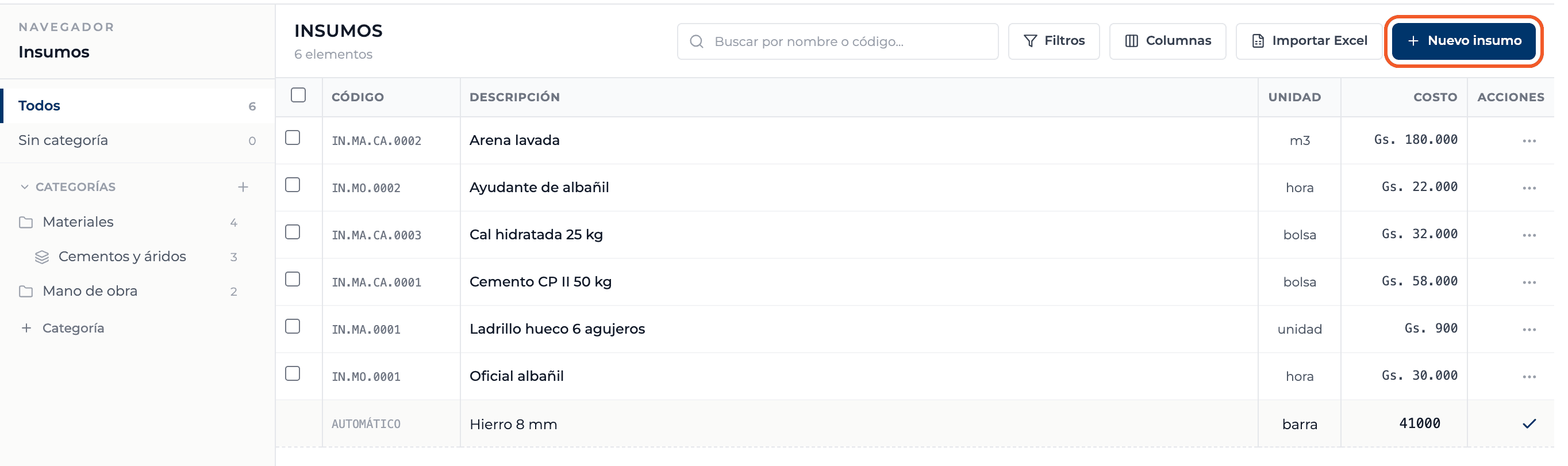
A supply is the smallest cost unit: a bag of cement, one hour of a mason or one day of a concrete mixer. You add and edit it right in the grid, like a spreadsheet.
How to complete new supply
- 01
Choose the category
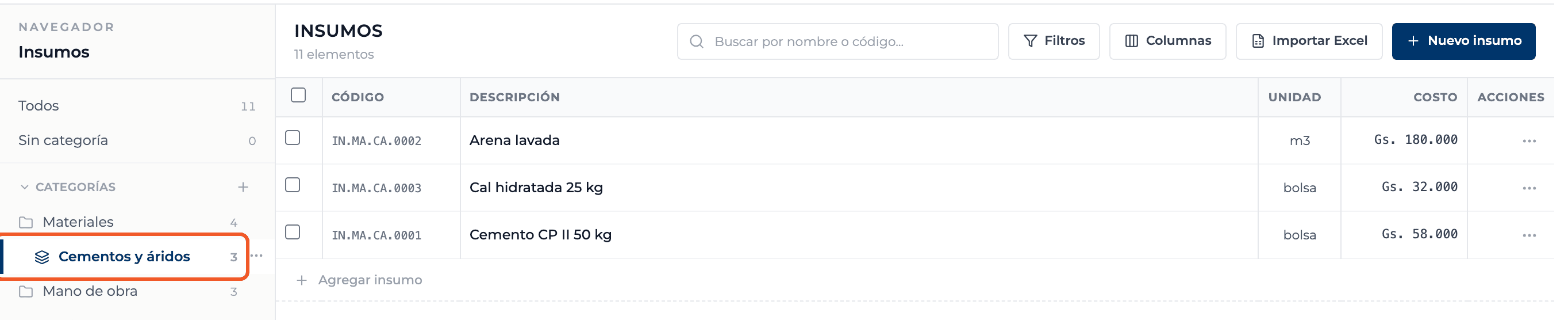
In the Supplies tab select, in the navigator, the category or subcategory for the supply. If you choose none, it stays Uncategorized.
- 02
Start a new row
Select New supply at the top right, or Add supply at the bottom of the grid. An input row appears.
- 03
Fill in the row
The Code says Automatic: the system assigns it from the category. Fill in Description (required), Unit (for example bag, m3 or hour) and Cost.

- 04
Save
Press Enter or the check mark. The row stays ready for the next supply; Esc closes it.

- 05
Edit in the cell
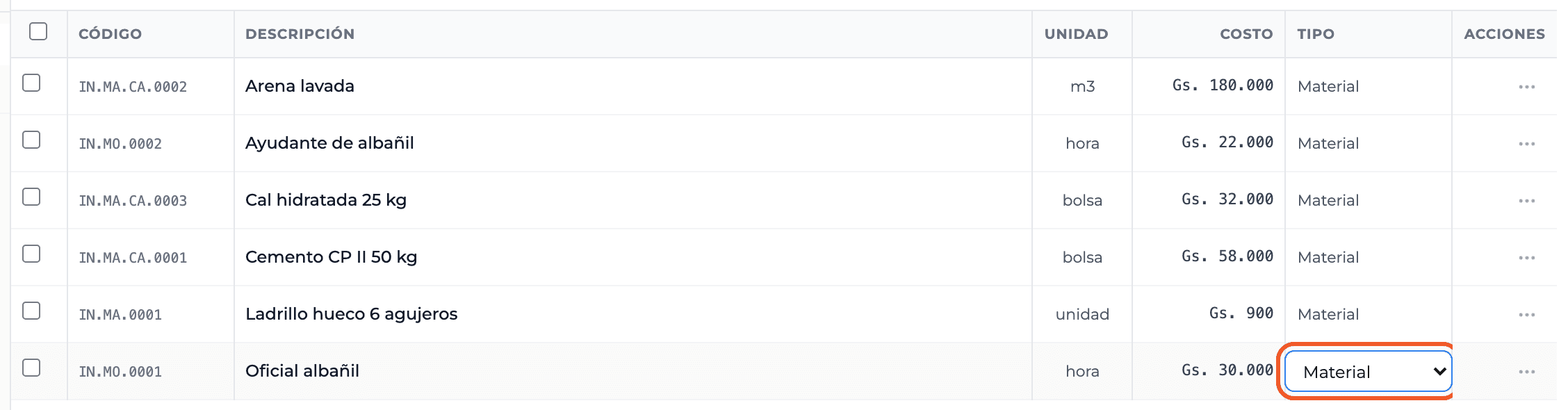
Click the description, unit, cost, type or currency and change it; Enter saves and Esc cancels. Type and Currency appear once you turn them on in Columns.
What you'll learn
How create and edit supplies works inside Perfour.
What information you need and how it stays connected to Catalog.
How to preserve traceability and find the record later.
Frequently asked questions
How is the code defined?+
It is automatic and depends on the category: for example, IN.MA.CA.0001 for the first supply in Materials › Cement and aggregates.
I added labor and it shows as Material+
Every new supply is created as Material. Turn on the Type column from Columns and change it in the cell.
If I change a supply's cost, are my budgets updated?+
Not automatically: the budget keeps the cost from the moment you added the supply.