Move and delete catalog items
Reorganize the catalog by moving supplies or line items between categories, and delete the ones you no longer use.
How to complete catalog organization
- 01
Open the row menu
Select ... at the end of the row. You will see Edit, Move, Add to budget and Delete.

- 02
Move one item
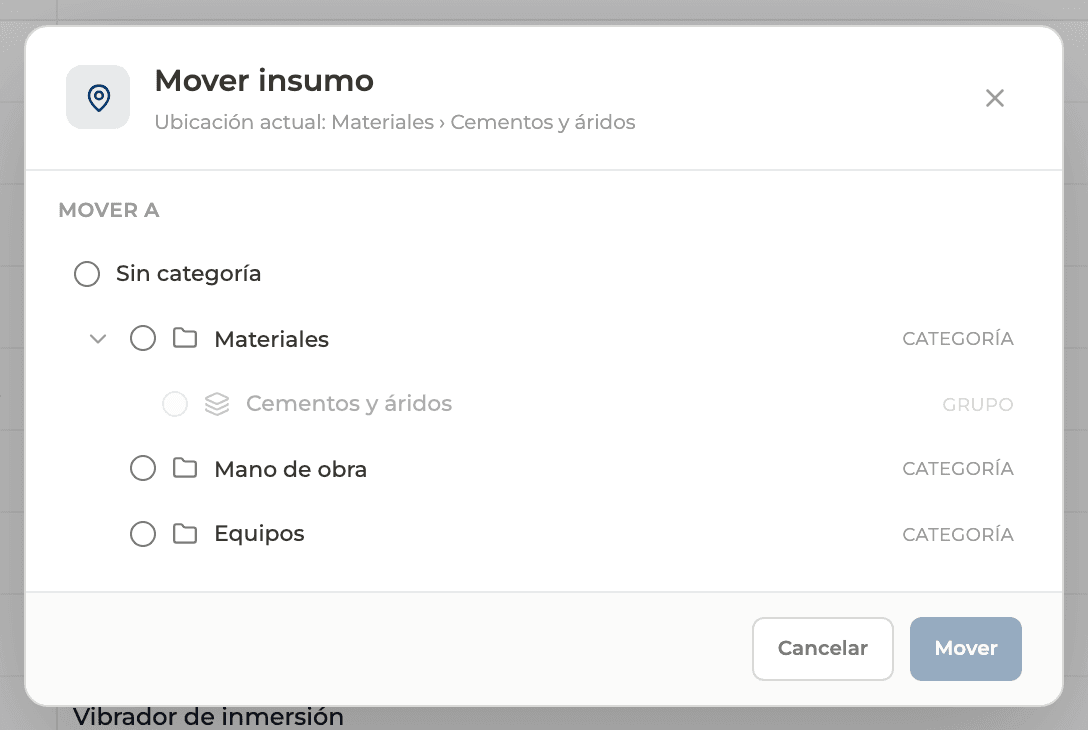
Move opens a dialog with the current location and the category tree. Choose the destination, or Uncategorized, and confirm with Move.
- 03
Move several at once
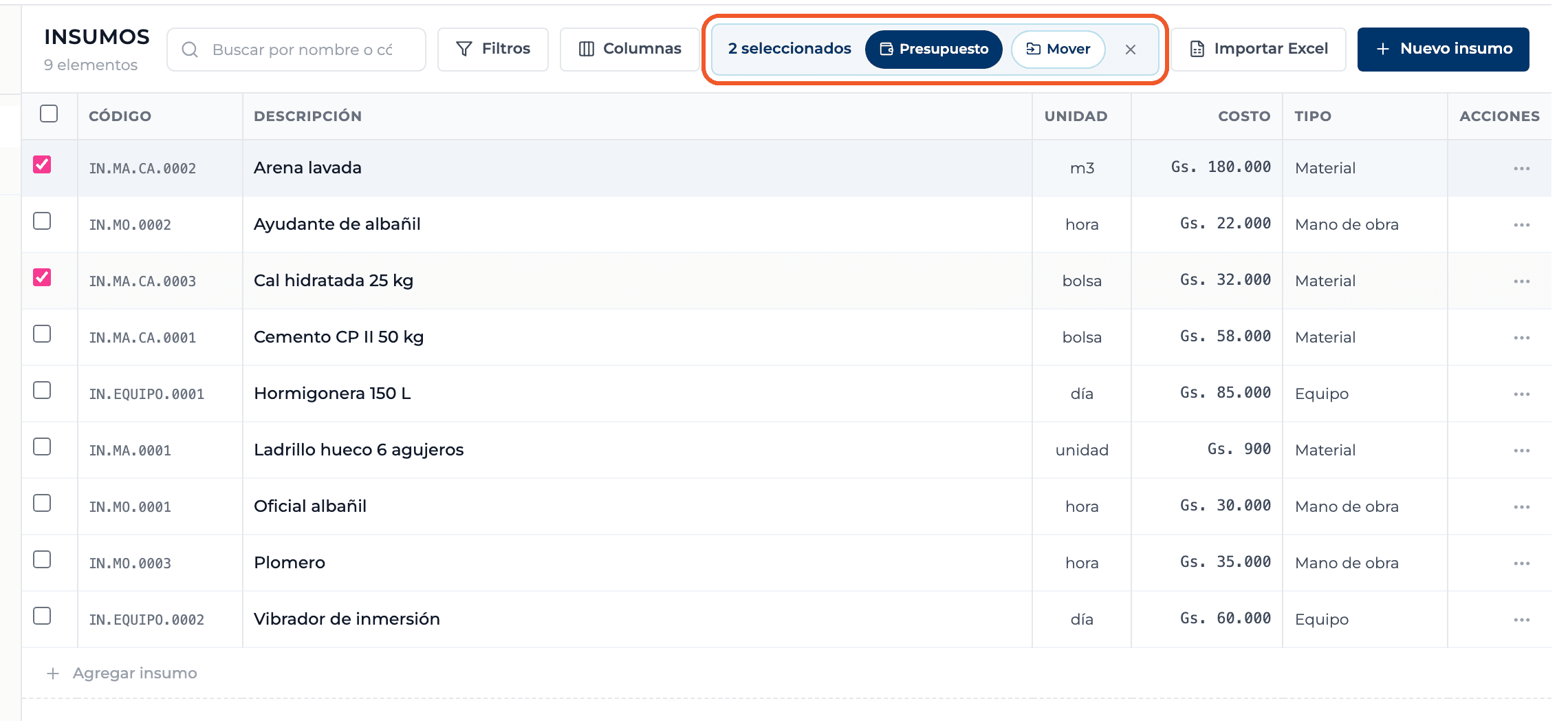
Tick the row checkboxes and use Move in the selection bar.
- 04
Delete
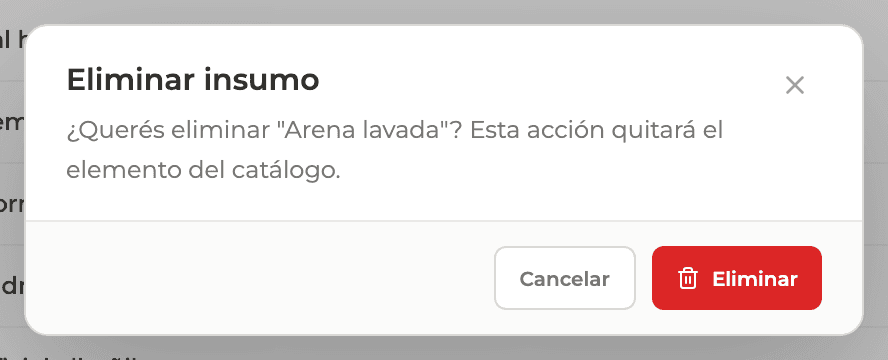
Delete asks for confirmation: the item is no longer available in the catalog. You can also delete several from the selection.
What you'll learn
How move and delete catalog items works inside Perfour.
What information you need and how it stays connected to Catalog.
How to preserve traceability and find the record later.
Frequently asked questions
If I delete a supply, does it disappear from my budgets?+
No. Line items you already added to a budget keep their own copy.
I can't move or delete an item+
You are in a read-only catalog, such as the general Perfour catalog.