Navigate, search, filter and choose columns
The catalog screen has a category navigator on the left and a grid with search, filters, columns and multi-select.
How to complete catalog navigation
- 01
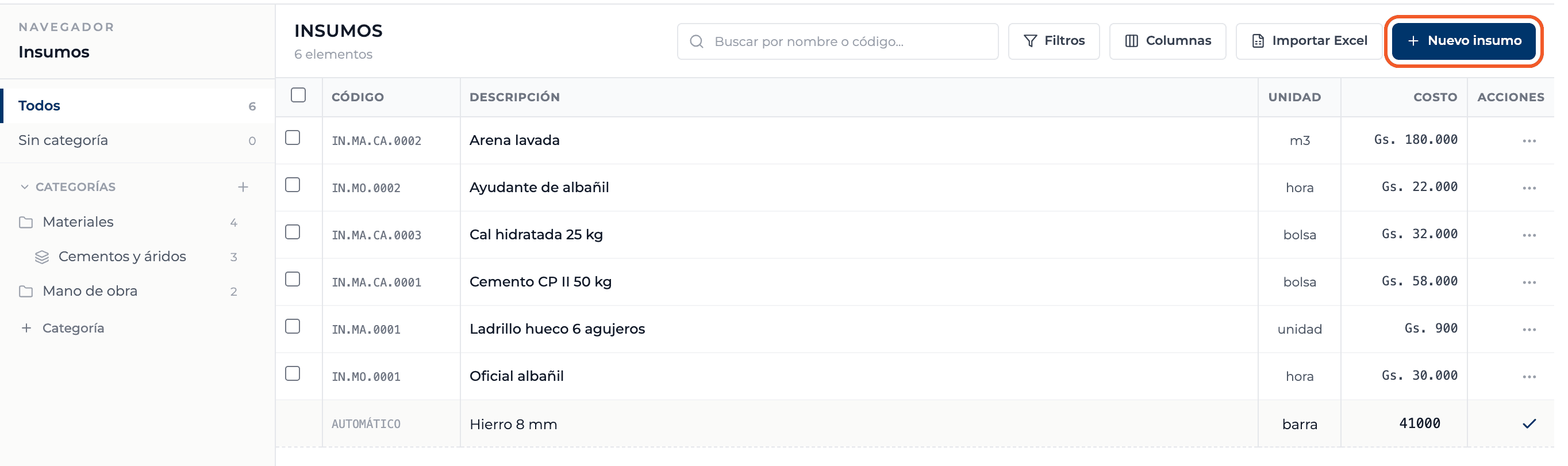
Browse categories
On the left you see All, Uncategorized and the Categories tree with its subcategories and item counts. Click one to filter the grid.
- 02
Search
Type a name or code in the search box. The grid filters as you type.

- 03
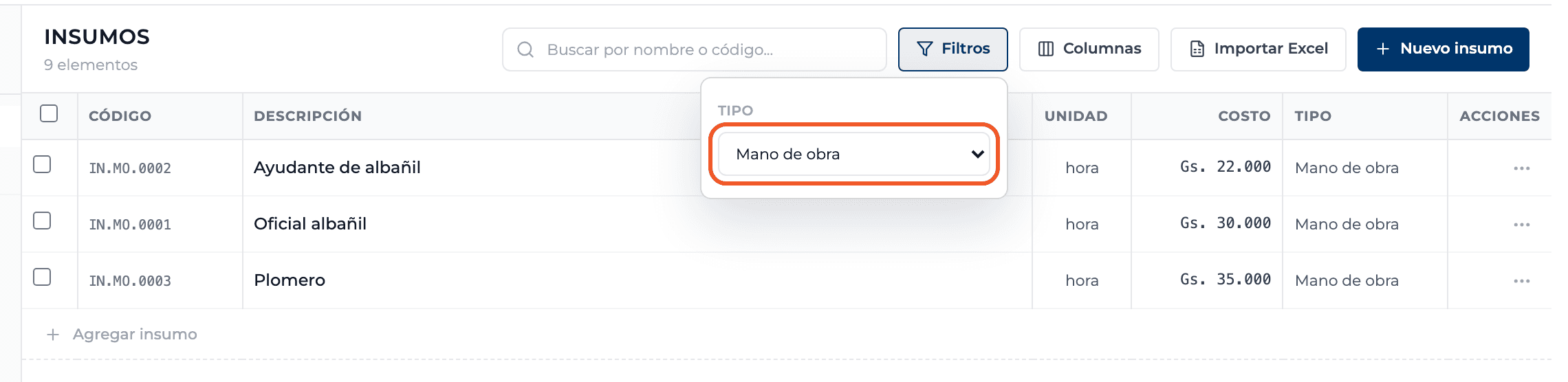
Filter by type
Under Filters choose a Type: Material, Labor, Equipment, Subcontract, Service or Other. To see everything again, choose All types.
- 04
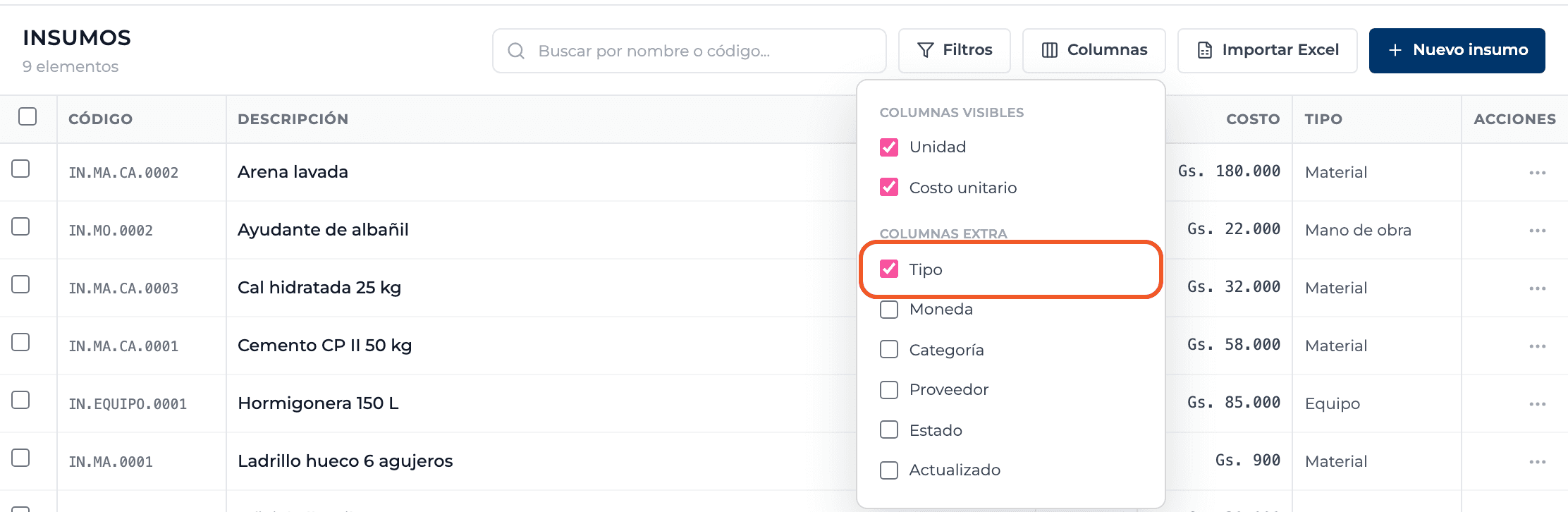
Choose columns
Under Columns you turn on extra columns such as Type, Currency, Category, Supplier, Status or Updated. Your choice is saved in your browser.
- 05
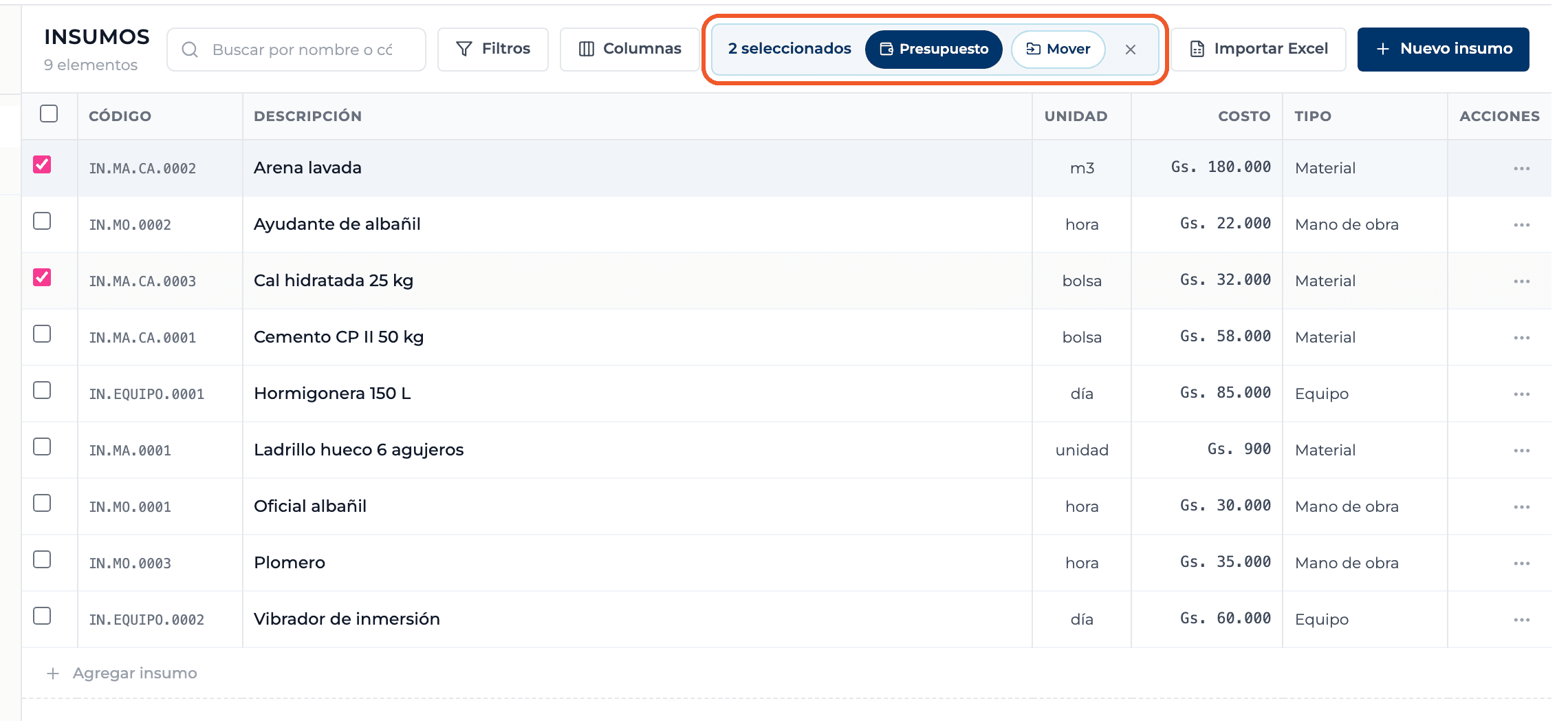
Select several rows
Tick the row checkboxes. A bar shows how many are selected with the Budget and Move actions; the X clears the selection.
What you'll learn
How navigate, search, filter and choose columns works inside Perfour.
What information you need and how it stays connected to Catalog.
How to preserve traceability and find the record later.
Frequently asked questions
Why can't I see the editing buttons?+
You are in a read-only catalog, such as the general Perfour catalog or a global supplier's catalog.
I can't find the Type column+
It is an extra column: turn it on from Columns.