Choose or create a client from New project
Every project needs a client. In the New project panel you can choose an existing one or create it on the spot, without leaving the panel.
How to complete project client
- 01
Open New project
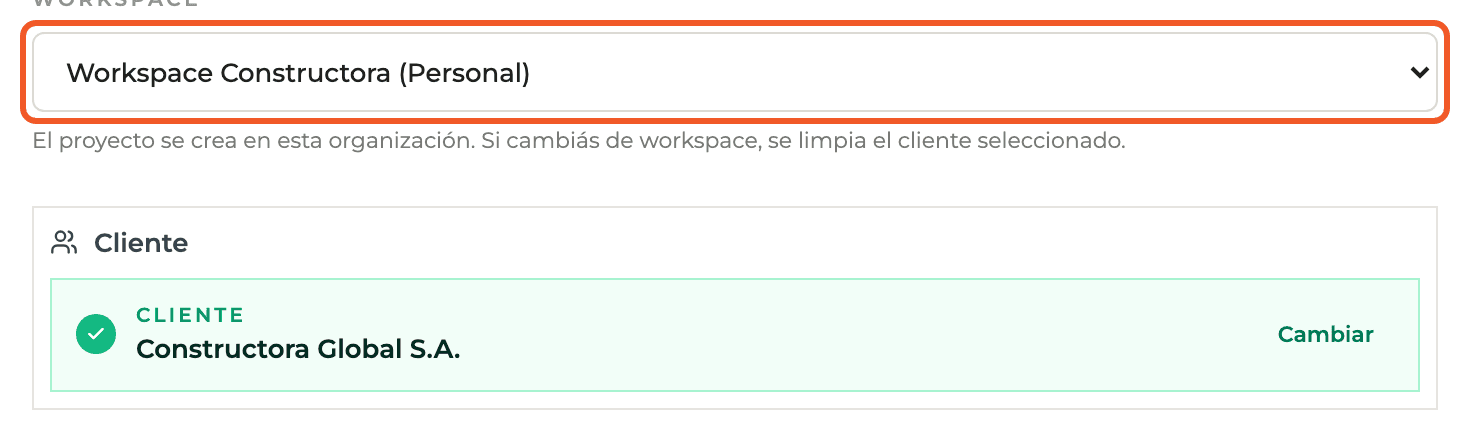
In Projects select New project. Enter the name and choose the Workspace (the organization) first: each client belongs to an organization.

- 02
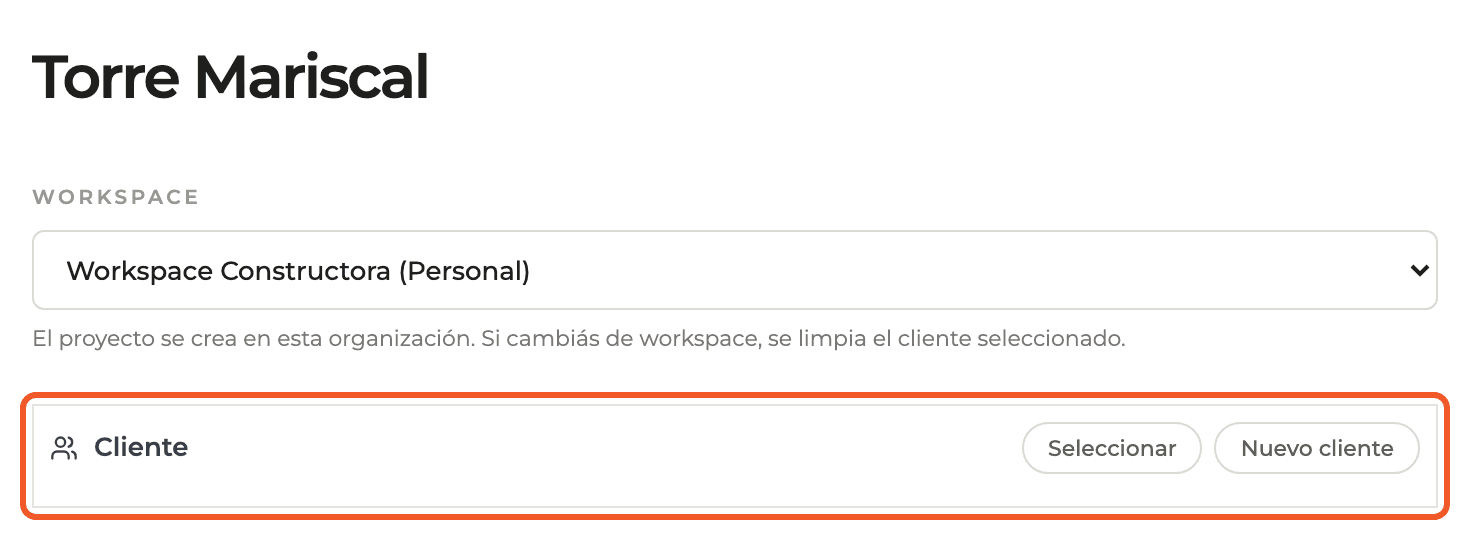
Find the Client block
With no client chosen you see two buttons: Select and New client. If you try to create the project without a client, the block is highlighted in red as required.
- 03
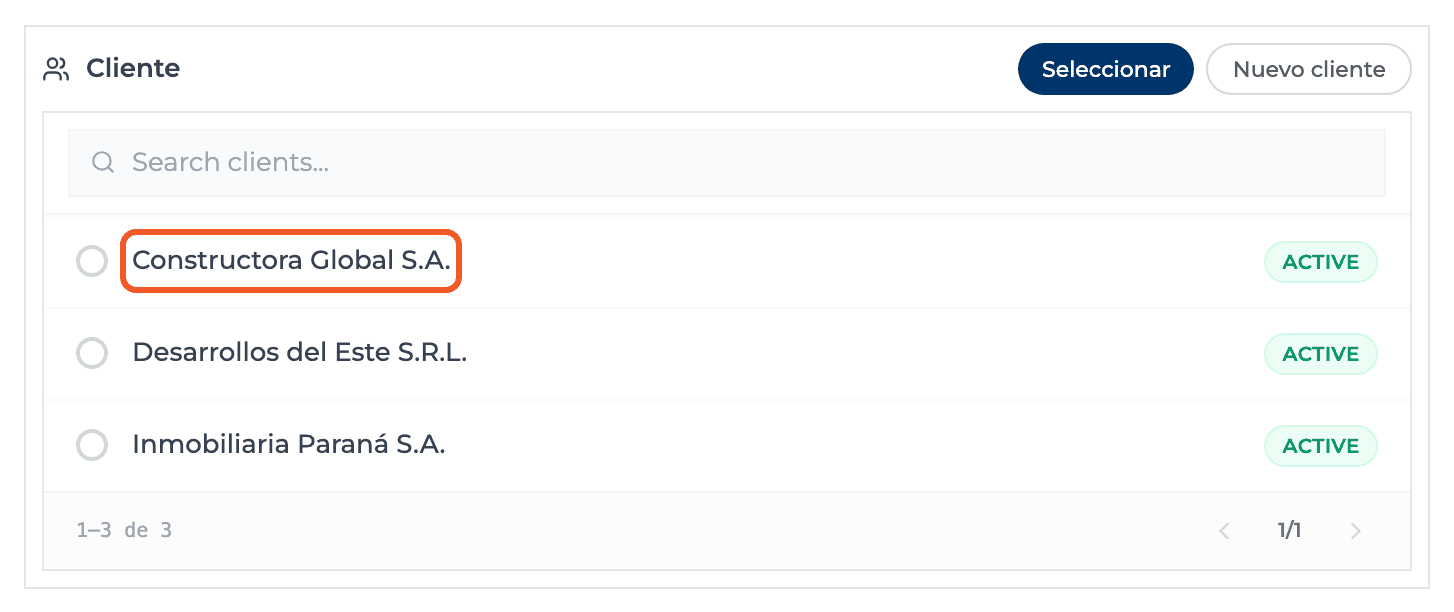
Choose an existing client
Select lists that organization's clients, with a Search clients... box. Pick one and a green card shows its name with a Change button.
- 04
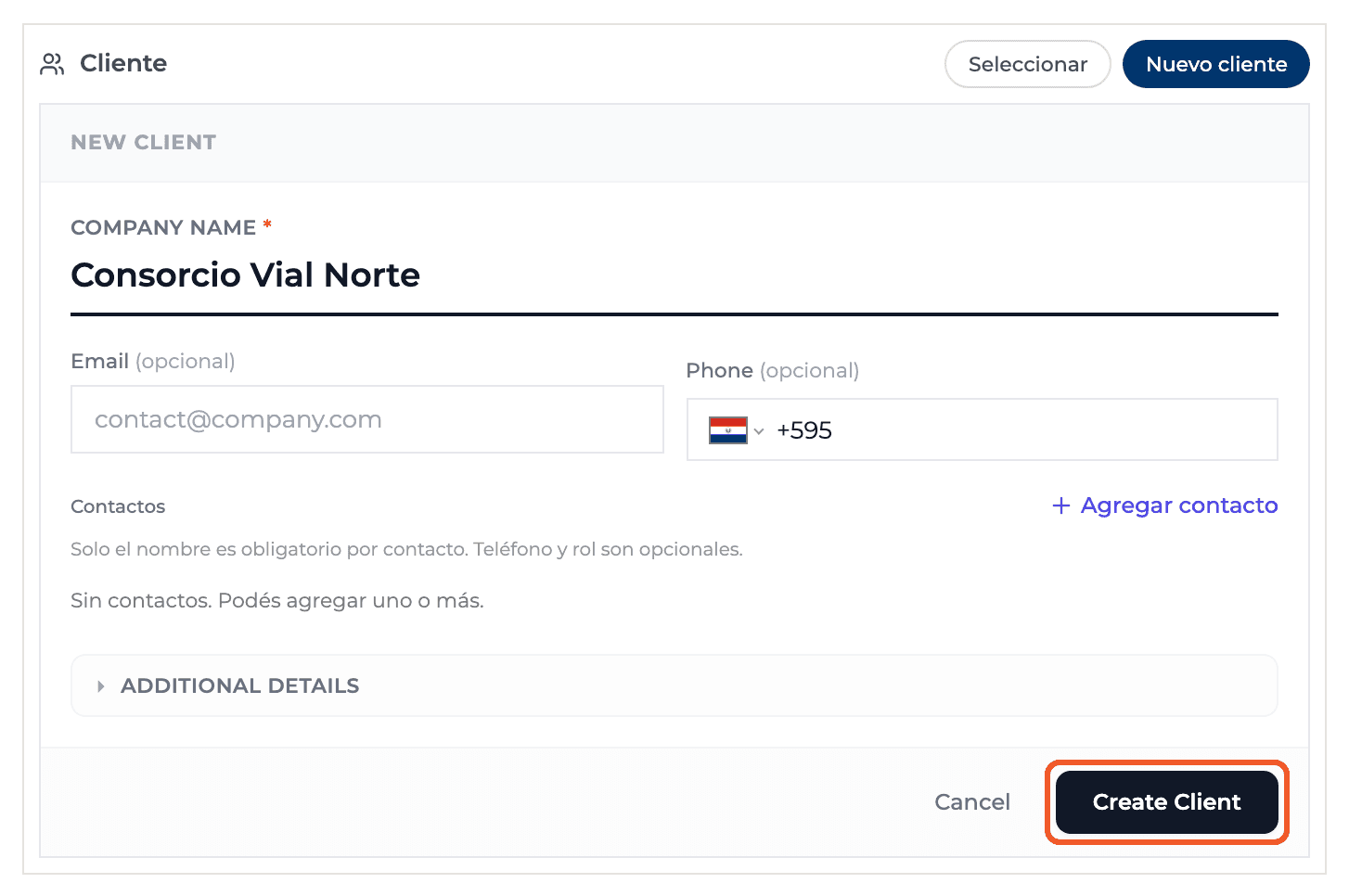
Or create it on the spot
New client opens a form inside the panel: Company name (required), Email, Phone, contacts and, under ADDITIONAL DETAILS, the remaining details. Select Create Client and the client is created and chosen for the project.
- 05
If you change the organization
Changing the Workspace clears the chosen client, because it belongs to the previous organization. Choose it again or create it in the new one.
What you'll learn
How choose or create a client from new project works inside Perfour.
What information you need and how it stays connected to Clients.
How to preserve traceability and find the record later.
Frequently asked questions
Does the client I create here appear in Clients?+
Yes. It is registered in the project's organization and shows up in the Clients directory.
Why can't I find a client that already exists?+
The list only shows clients from the organization selected in Workspace. Check that it is the right one.