Visual guide
Prepare a progress certificate
Explore the progress sheet, history and available certificate creation modes.
6 minutes
Step by step
Follow each step on screen
- 01
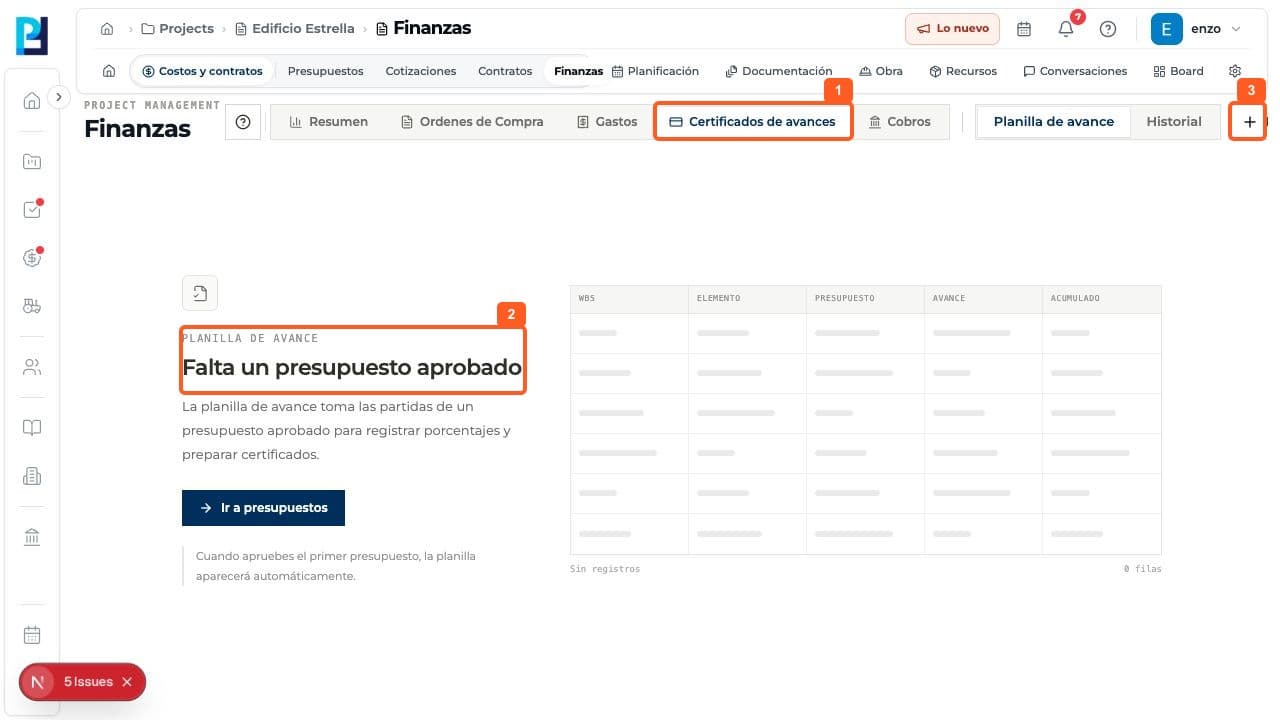
Open Finance > Progress certificates > Progress sheet.
- 02
If an approved budget is missing, use Go to budgets. The sheet depends on an approved budget's items.
- 03
Select New certificate to open the form.
- 04
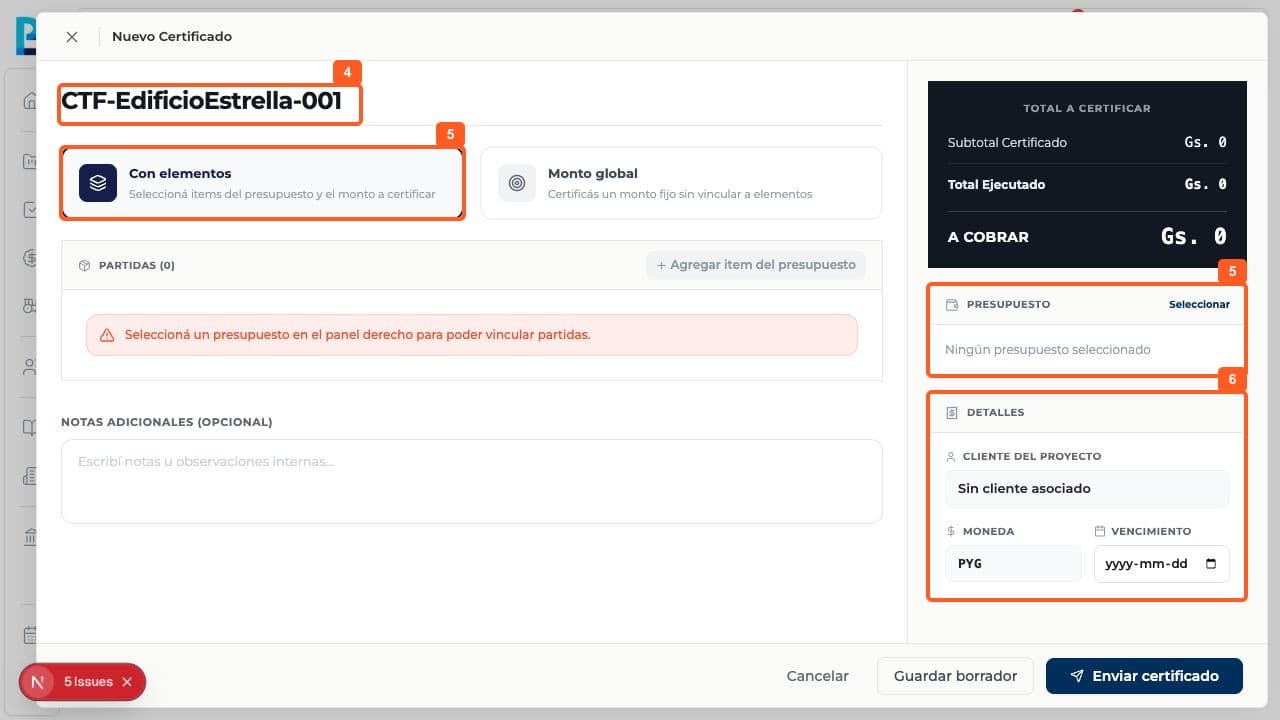
Review the suggested certificate number.
- 05
With items, select a budget and add the items to certify. The add control is disabled without a budget.
- 06
Review the client, currency and due date. The example showed No linked client.
- 07
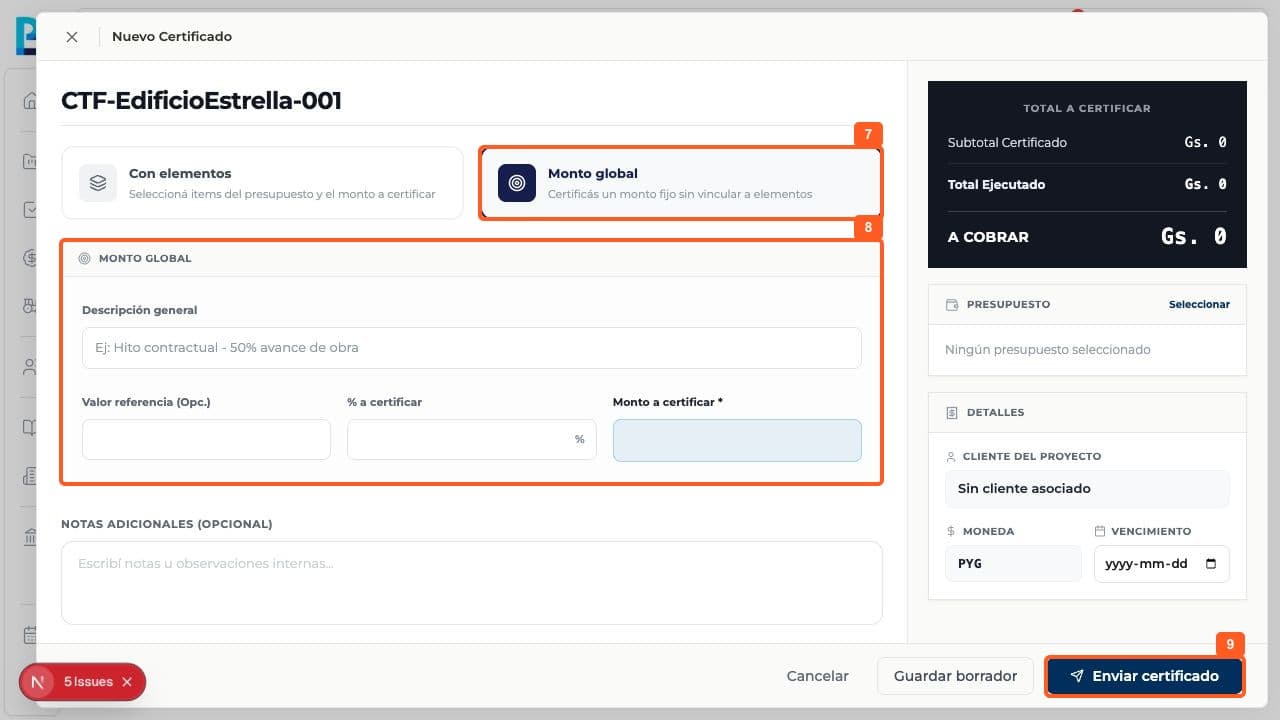
Alternatively choose Lump sum to certify a fixed amount without linked items.
- 08
In that mode, enter description, optional reference value, percentage and amount to certify; review calculations and notes.
- 09
The form offers Save draft and Send certificate. Do not send before checking the contract data and amount.
- 10
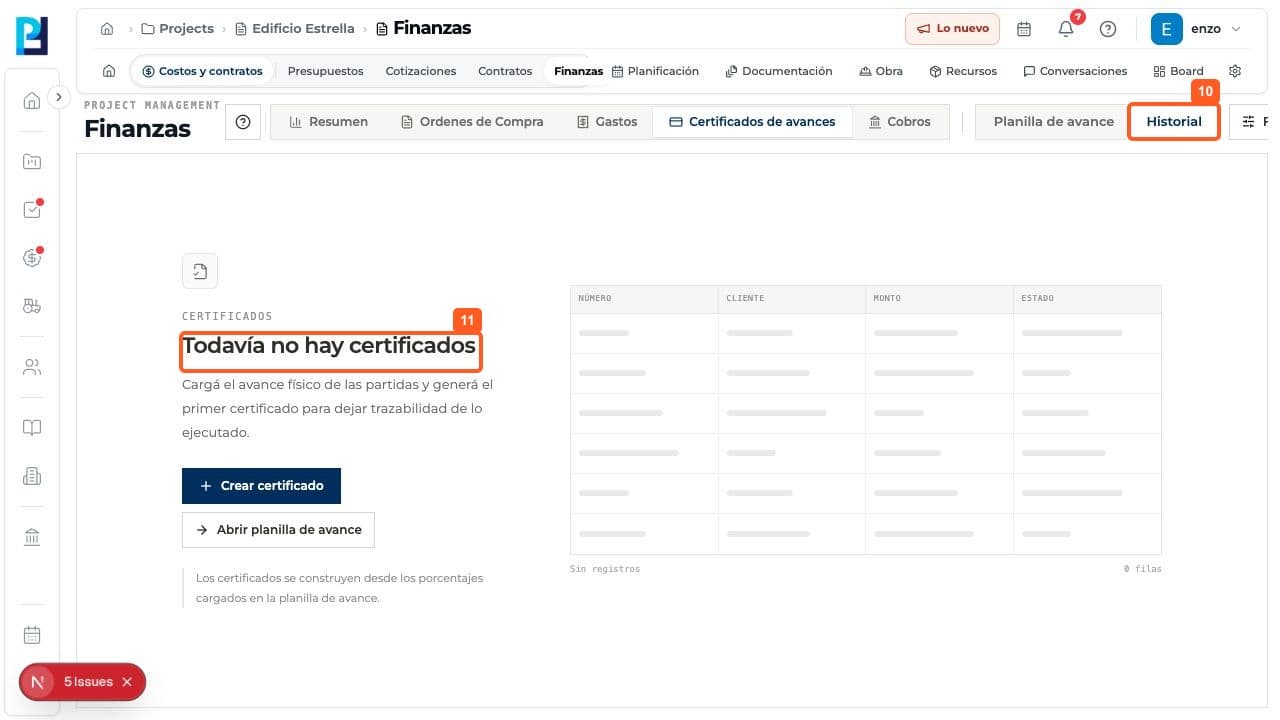
Return to Certificates > History to inspect existing certificates.
- 11
The example project showed No certificates yet.
FAQ
Frequently asked questions
What was verified and what remains untested?+
No certificate was saved or sent. Item selection, progress calculation and post-send status were not verified because an approved budget was unavailable.
Keep learning
View module