Visual guide
Prepare a purchase order
Find how to start a purchase order and identify the required information before linking items.
3 minutes
Step by step
Follow each step on screen
- 01
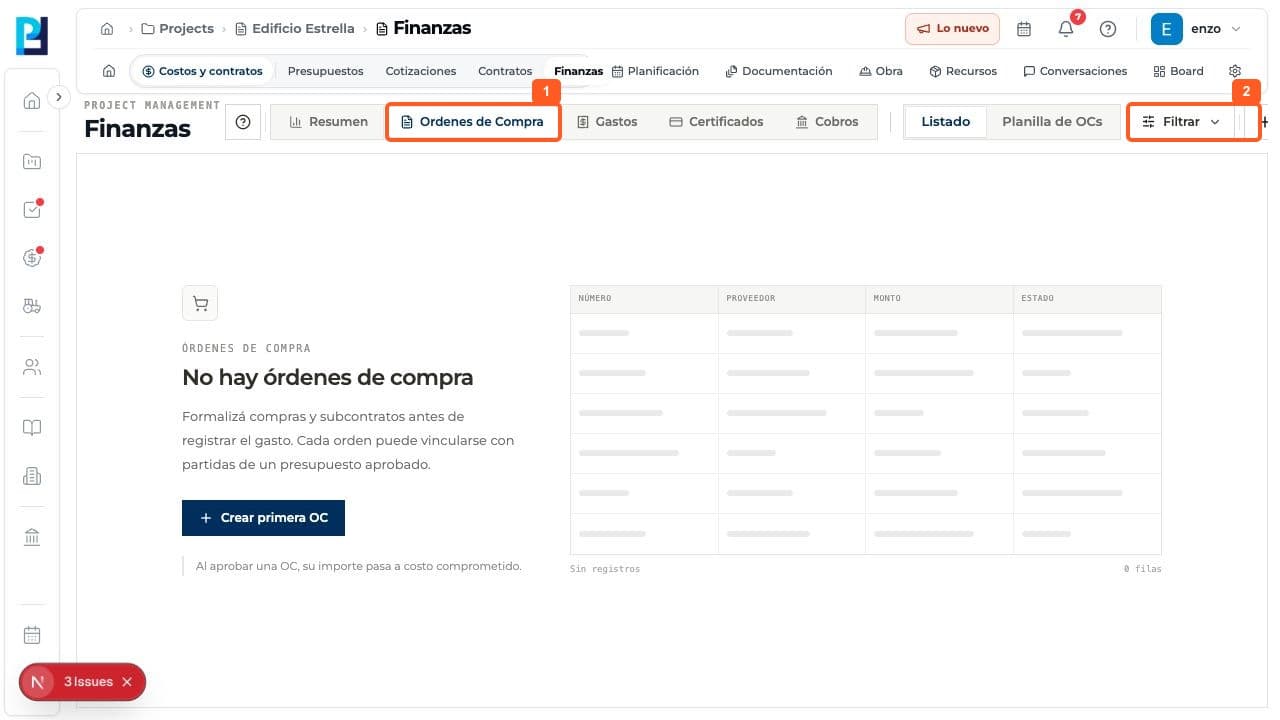
Open Finance > Purchase orders.
- 02
Select New PO. Create first PO is also available in the empty state.
- 03
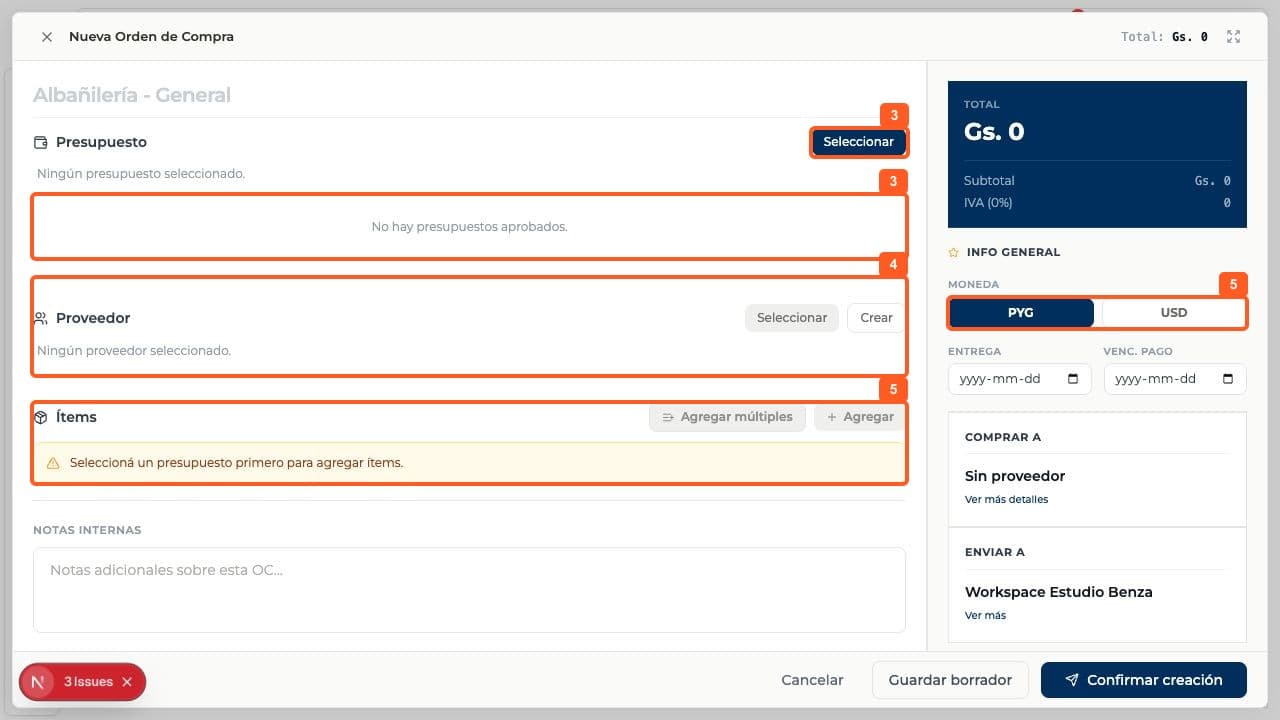
Under Budget, select Choose. The test showed No approved budgets.
- 04
When an approved budget is available, select it and then select or create the supplier.
- 05
Add budget items and review currency, delivery, due date, notes and total. Item controls stay disabled until a budget is chosen.
FAQ
Frequently asked questions
What was verified and what remains untested?+
Neither Save draft nor Confirm creation was used. Budget, supplier, items, creation and approval still need a valid test case.