Create a quick to-do from the list
The fastest way to add an item: an editable row at the top of the list with name, assignee, status, priority and due date on one line.

How to complete quick add
- 01
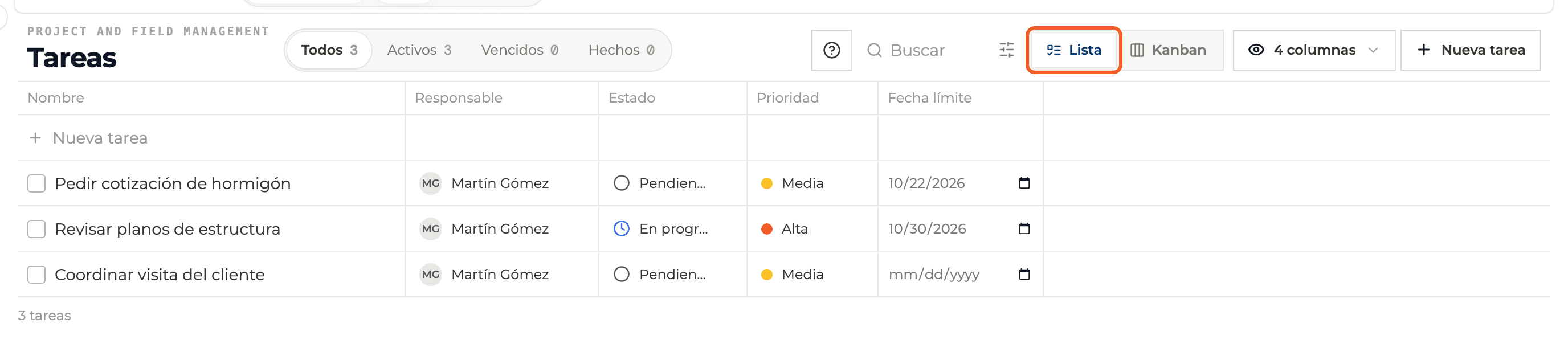
Switch to List view
In the header choose List. The quick row only exists in this view.
- 02
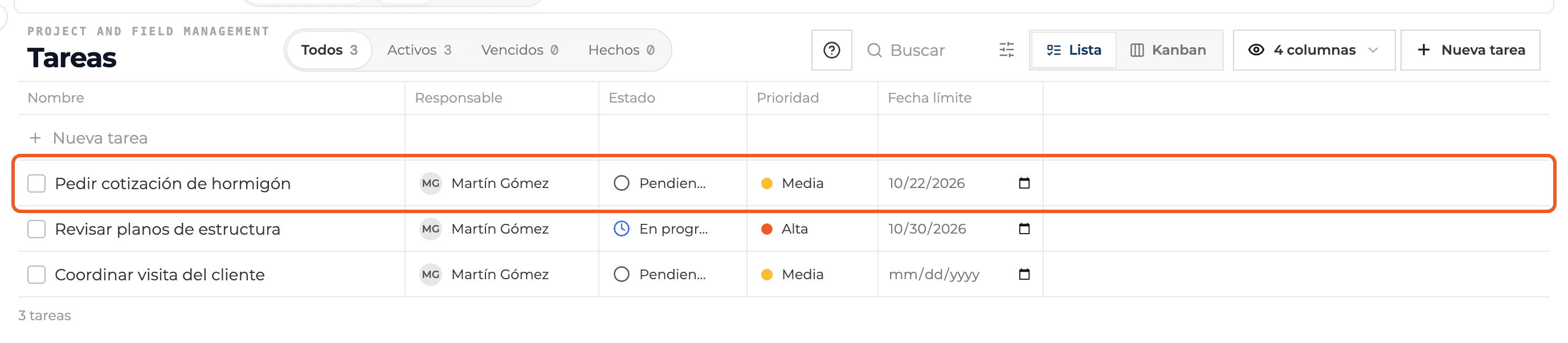
Open the row
Click the first row, + New task. It becomes an editable row with the cursor in the task name.

- 03
Fill in the row
Type the name (at least 2 characters) and optionally pick Assignee, Status (Pending by default), Priority (Medium by default) and Due date.
- 04
Save
Press Enter or the check mark. The to-do appears in the list and the row is ready for the next one. Esc discards it.
- 05
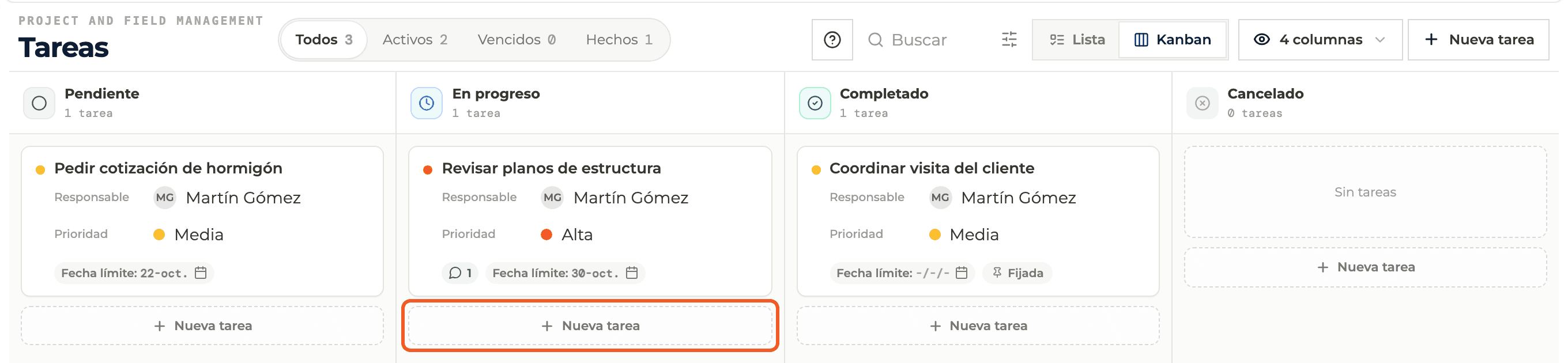
From the Kanban board
At the bottom of each column, + New task opens the full panel with that column's status already selected.
What you'll learn
How create a quick to-do from the list works inside Perfour.
What information you need and how it stays connected to To-do Tasks.
How to preserve traceability and find the record later.
Frequently asked questions
Can I add several assignees from the row?+
No: the row takes one person. For more, open the to-do and use Assignees.
Where do I write the description?+
The quick row has none. Open the to-do afterwards to add it.