Complete, reopen, pin and delete to-dos
How a to-do moves through its statuses and what each action does.
How to complete to-do statuses
- 01
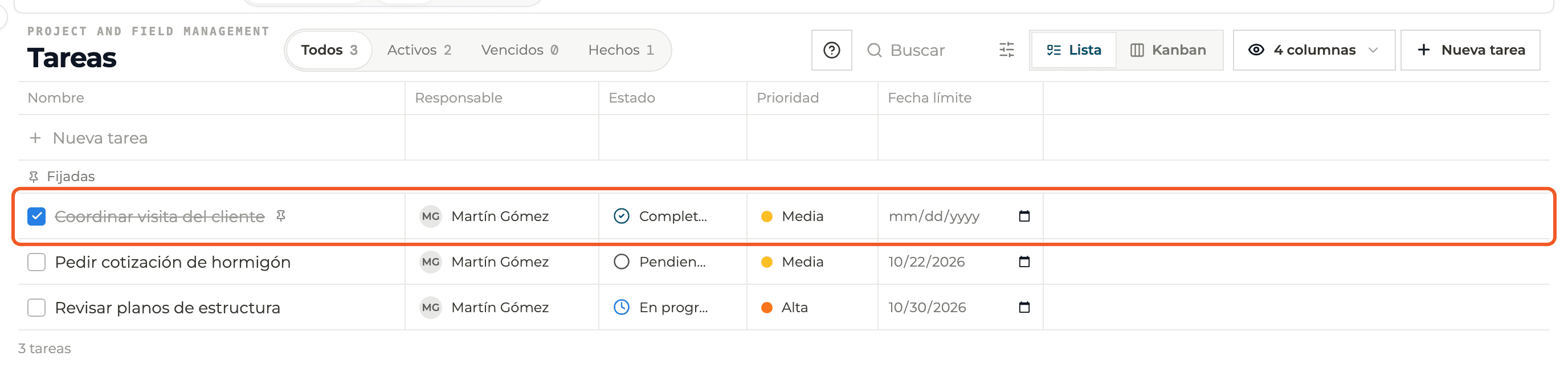
Complete with the checkbox
In List view, tick the box to the left of the name.
- 02
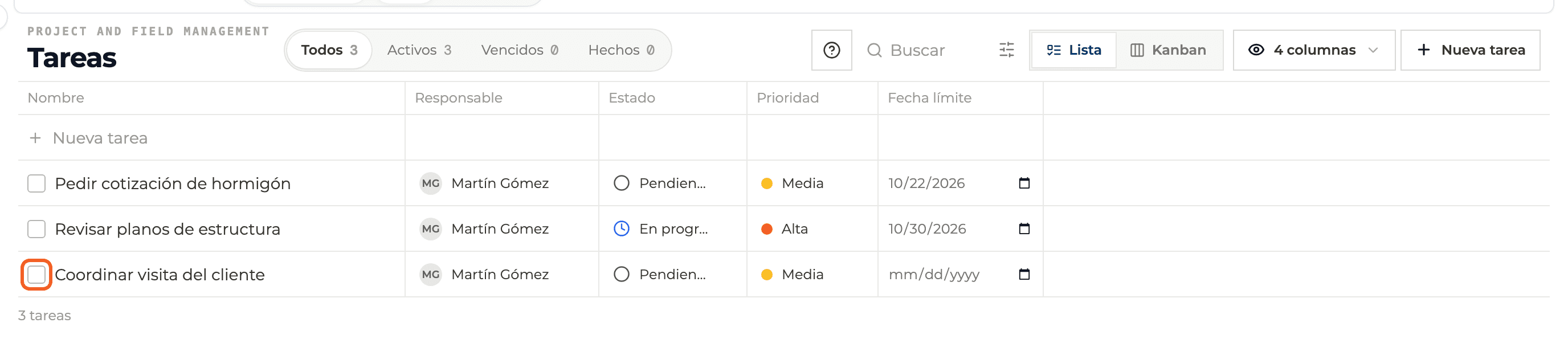
See the result
The to-do becomes Completed and its name is struck through. Unticking reopens it.
- 03
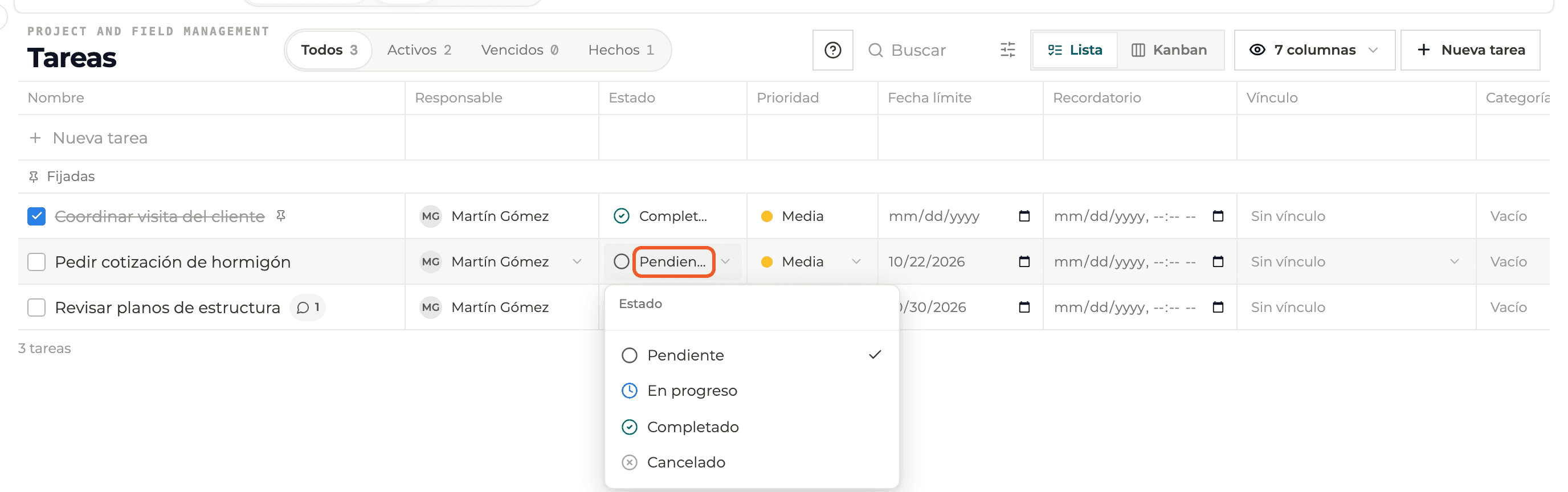
Change status by hand
In the list's Status column, or in the panel, choose Pending, In progress, Completed or Cancelled.
- 04
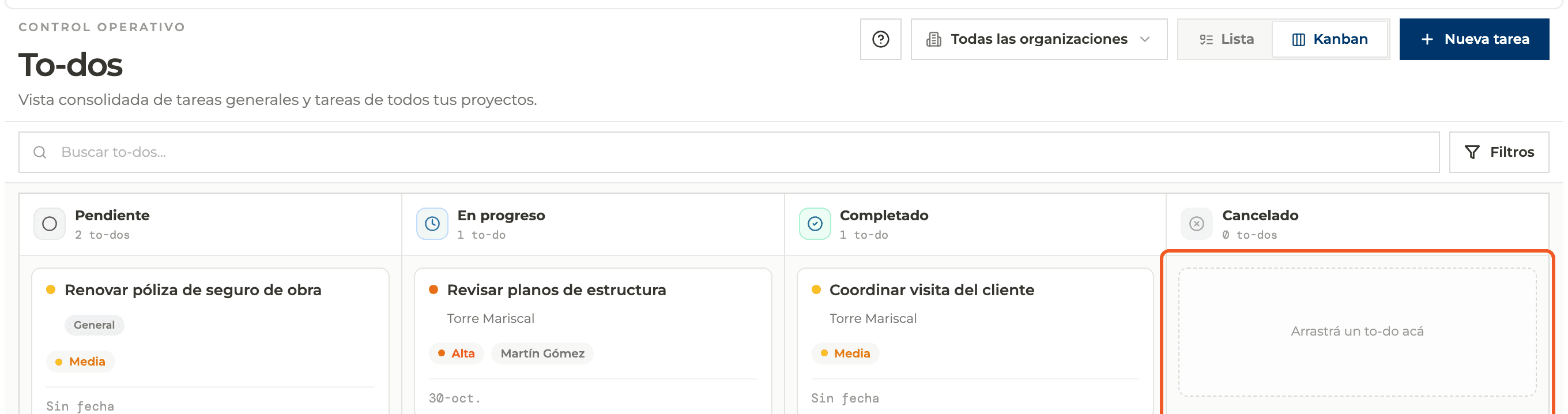
Drag on the Kanban board
Drop the card on the column of the status you want.
- 05
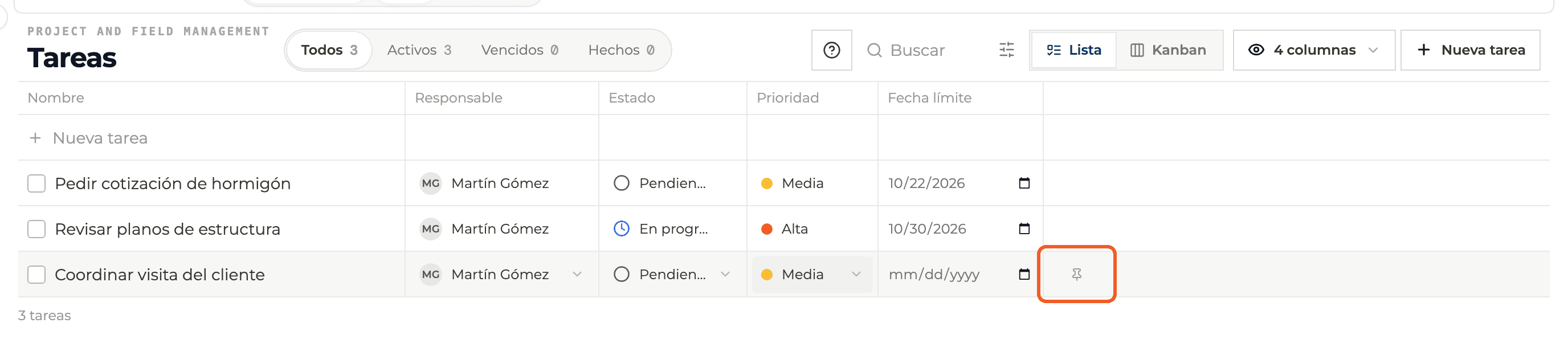
Pin a to-do
In List view hover over the row and select the pin in the last column.
- 06
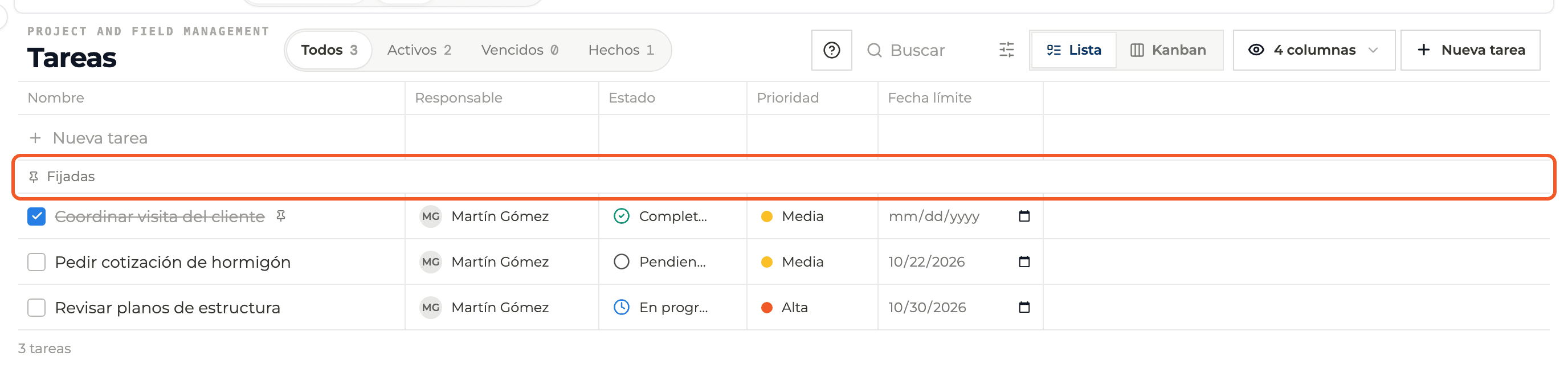
Find pinned items
They are grouped at the top, under Pinned.
- 07
Delete
In the panel, the trash icon at the top right. It asks for confirmation and cannot be undone.

What you'll learn
How complete, reopen, pin and delete to-dos works inside Perfour.
What information you need and how it stays connected to To-do Tasks.
How to preserve traceability and find the record later.
Frequently asked questions
What is the difference between Completed and Cancelled?+
Completed means it was done; Cancelled, that it no longer applies. Neither counts as overdue.
I ticked the box and nothing happened+
You may not have permission to change the status, or the to-do is Cancelled.