Views, tabs, filters and columns
How to arrange the Tasks screen so you only see what matters to you.
How to complete views and filters
- 01
Choose the view
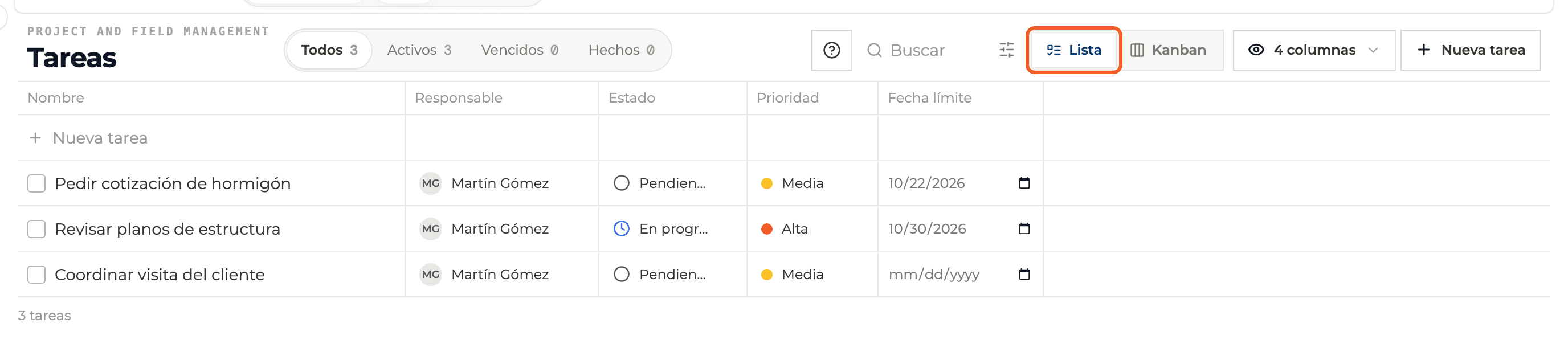
Switch between List and Kanban with the header buttons.
- 02
Use the tabs
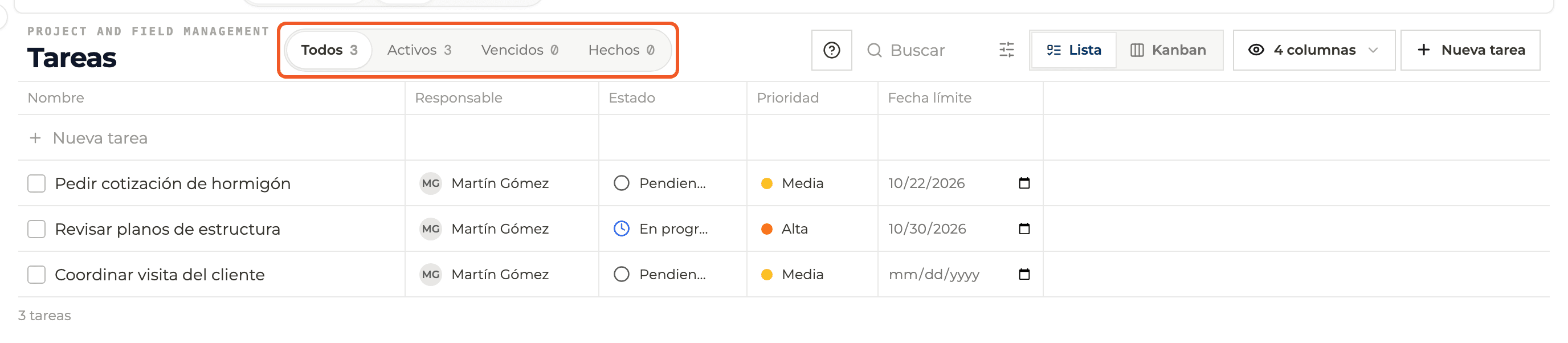
All, Active (Pending and In progress), Overdue and Done, each with its count.
- 03
Search by text
Type in Search; the list filters instantly.

- 04
Open the filters
The filter button shows Priority, Category, Due from, Due until and Only mine. Clear filters resets them.

- 05
Choose columns
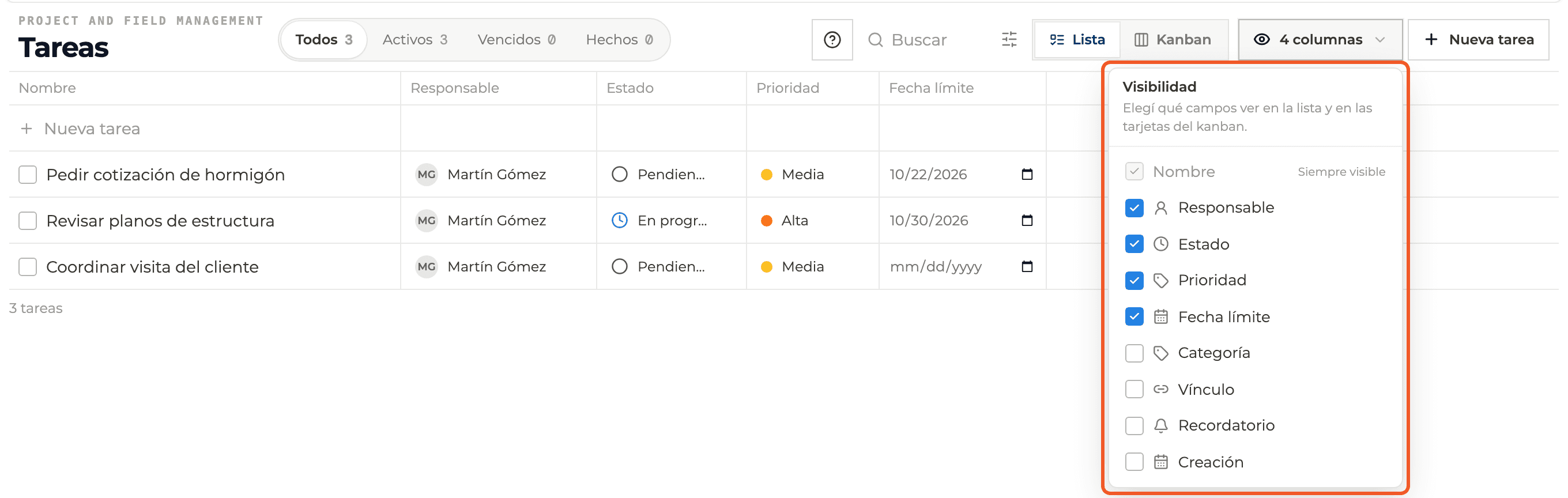
In the columns button, Visibility section, tick Assignee, Status, Priority, Due date, Category, Link, Reminder or Created. Name is always shown.
- 06
Review what is done
The Done tab shows only completed to-dos.

What you'll learn
How views, tabs, filters and columns works inside Perfour.
What information you need and how it stays connected to To-do Tasks.
How to preserve traceability and find the record later.
Frequently asked questions
Are my columns saved?+
Yes, in your browser and per project.
What does Only mine measure?+
To-dos where you are an assignee.