Add your own supplier
Register a supplier for your organization by hand, with its details, trades, contacts and internal notes.
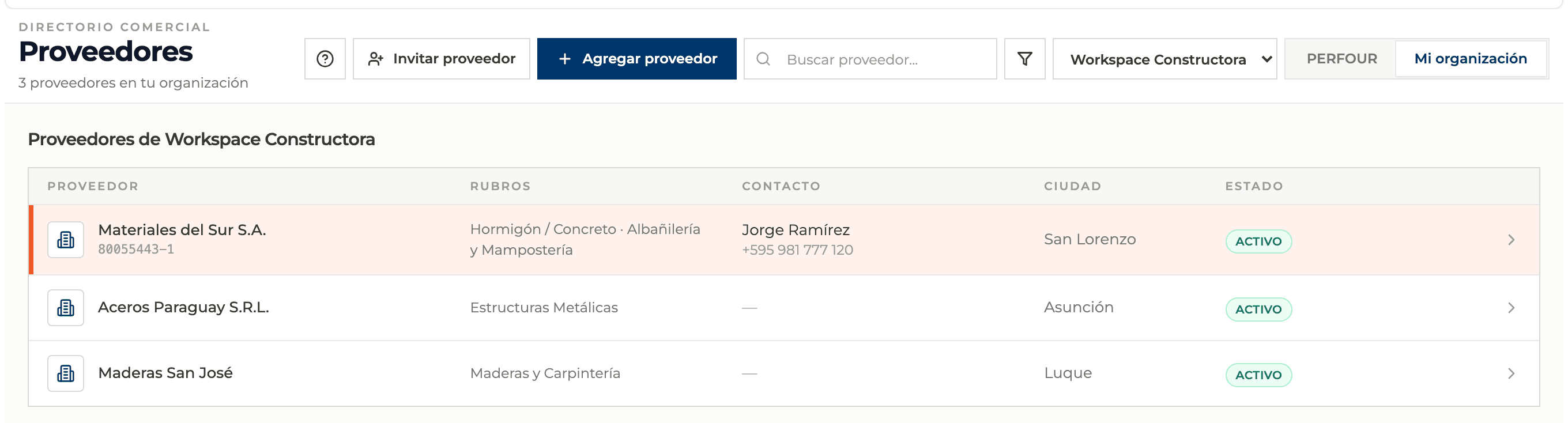
How to complete new supplier
- 01
Open the panel
In Suppliers switch to My organization and select Add supplier. The New supplier panel opens; the top shows which organization it will be created in.

- 02
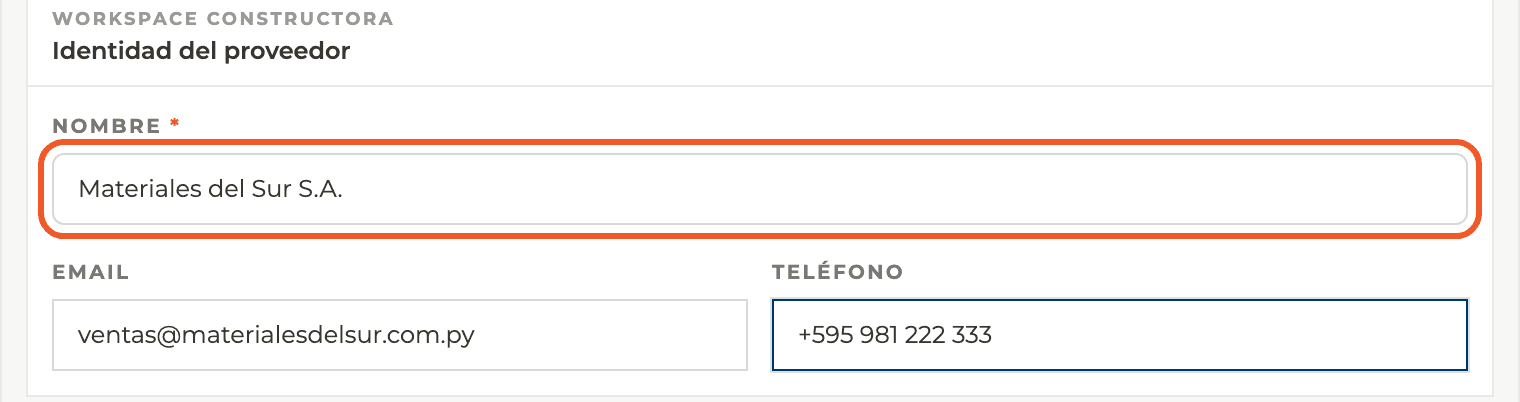
Fill in the identity
Name is the only required field. Add Email and Phone if you have them.
- 03
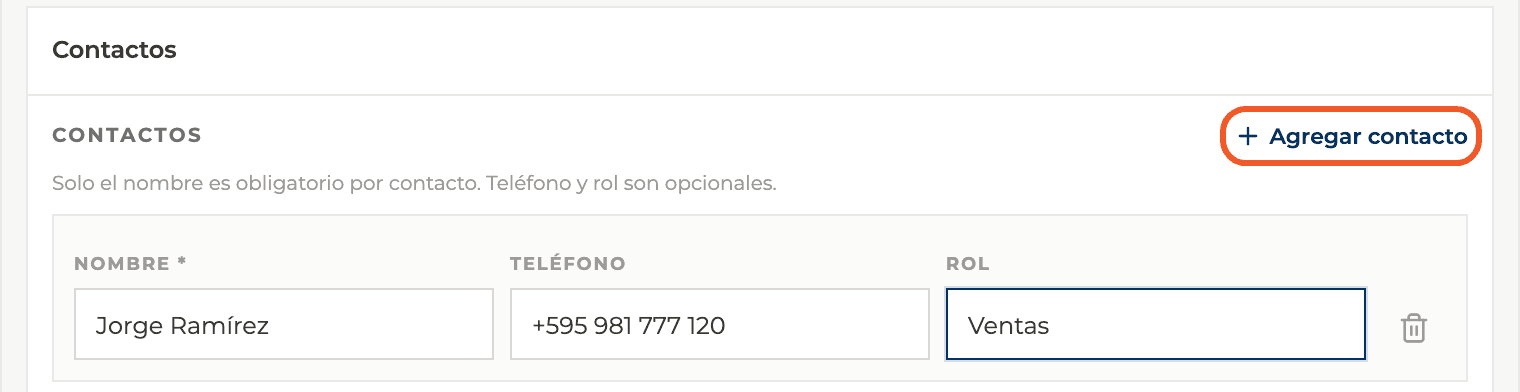
Add contacts
Select Add contact and fill in Name (required), Phone and Role, for example "Sales". Contacts without a name are not saved.
- 04
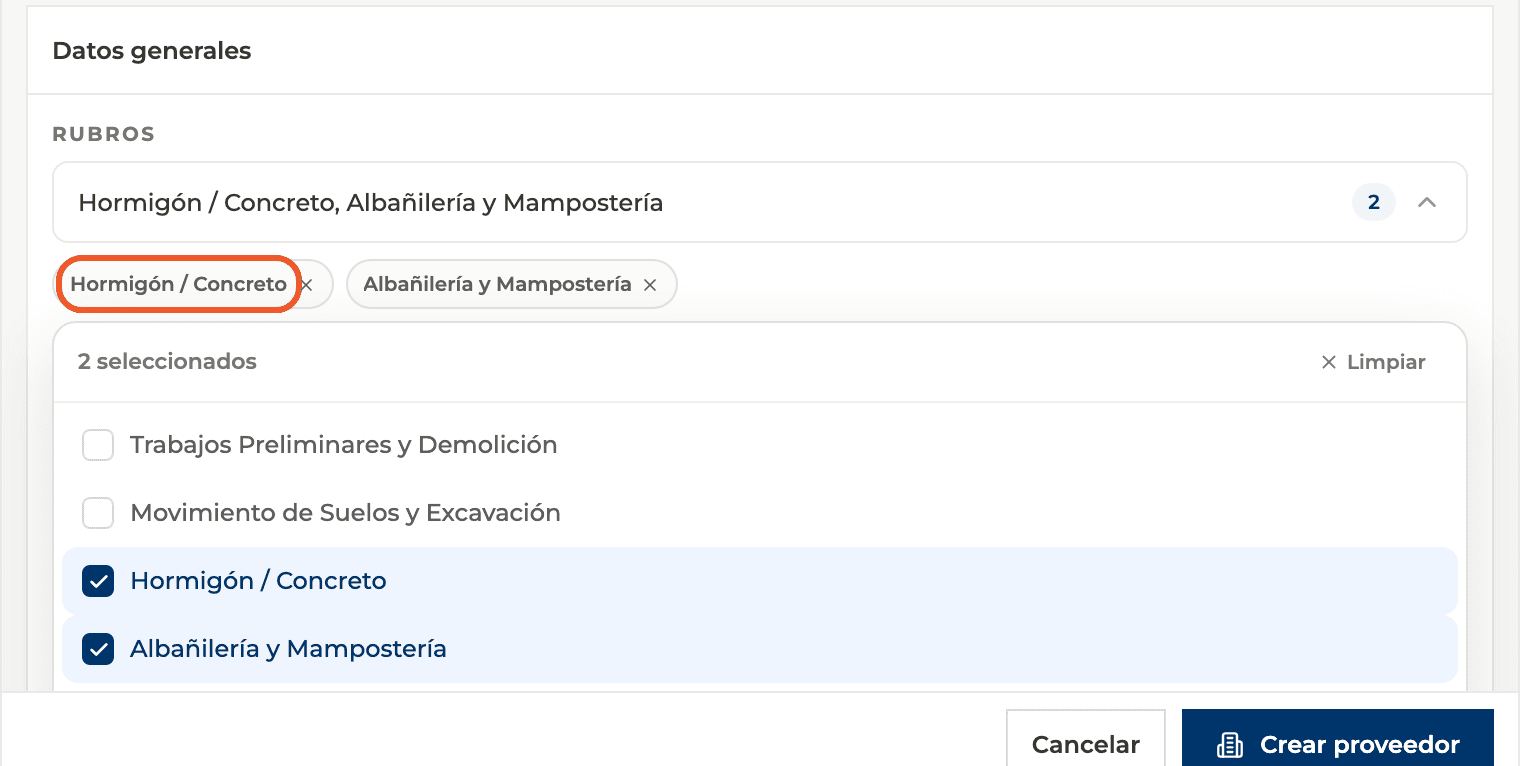
Fill in the general details
Under Trades pick one or more from the list. Then add the tax ID, website, city, country (Paraguay by default) and address. Everything is optional.
- 05
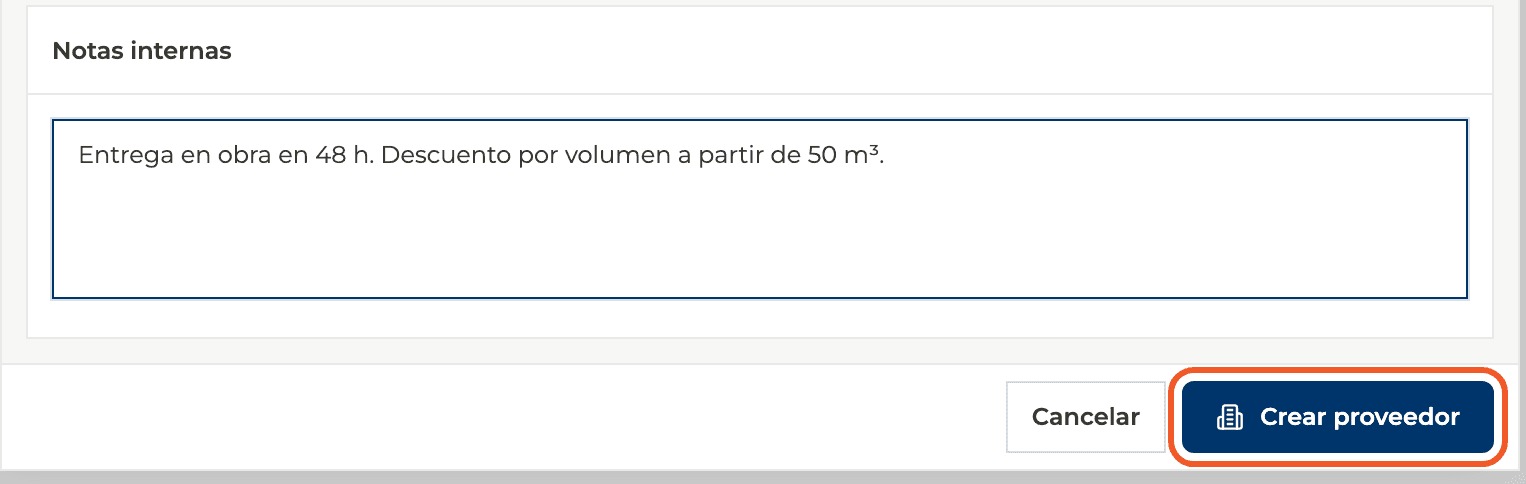
Leave internal notes and create
Use Internal notes for what your team needs to know, such as delivery times or discounts. Then select Create supplier.
- 06
Check the table
The panel closes and the supplier appears in My organization, with its trades, main contact and city.
What you'll learn
How add your own supplier works inside Perfour.
What information you need and how it stays connected to Suppliers.
How to preserve traceability and find the record later.
Frequently asked questions
Which field is required?+
Only the supplier name.
Can the supplier sign in to Perfour with this?+
No: it is only a commercial record. If you want the supplier to enter its own details and catalog, use Invite supplier.
Can I add its catalog when creating it?+
Not from this panel. If you invite the supplier, it can add an initial catalog while completing its profile.