Search, filter by trade and page through the directory
The controls at the top of the supplier directory and what each one does.
How to complete supplier search
- 01
Search
Type in the search box at the top right. The list filters as you type and goes back to the first page.

- 02
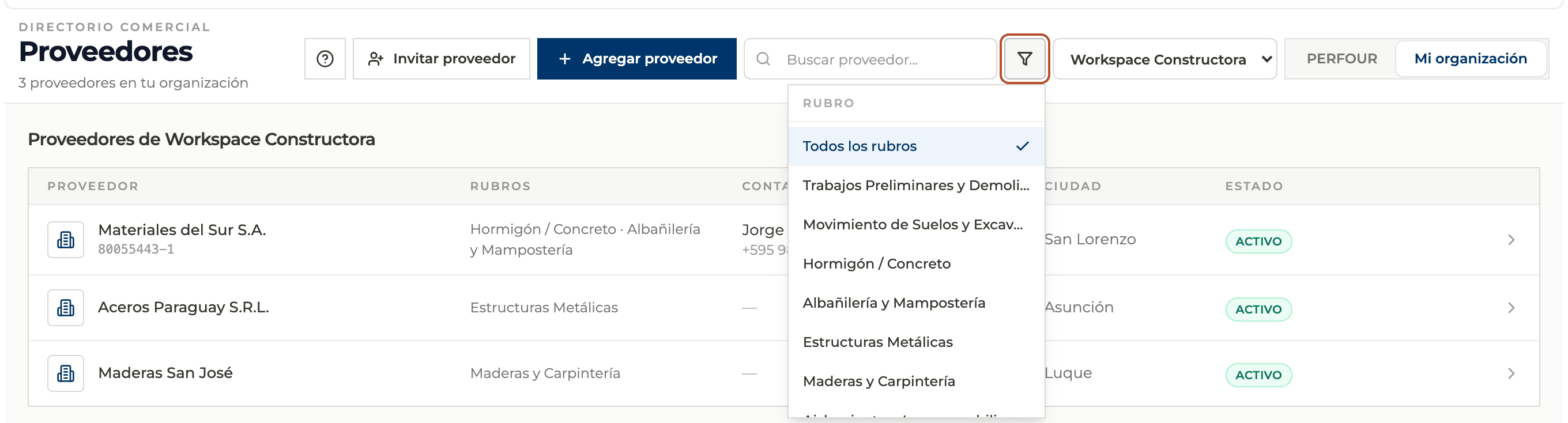
Filter by trade
Select the funnel button and pick a trade, for example Concrete or Structural Steel. To see everything again, choose All trades.
- 03
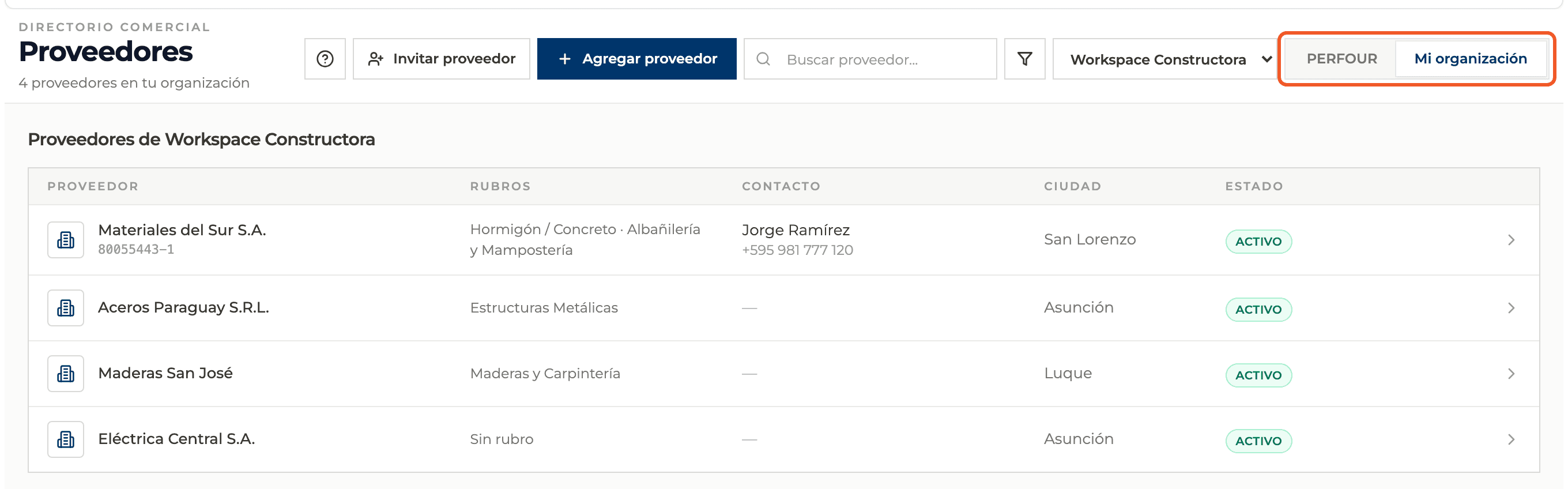
Switch views
Moving between PERFOUR and My organization clears the search and the filter.
- 04
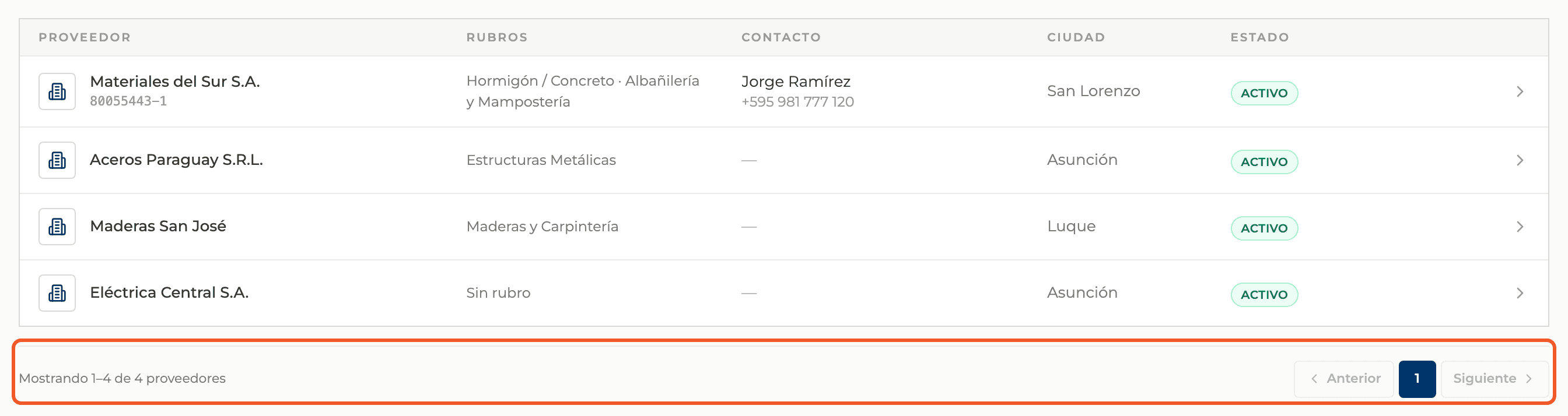
Page through results
The directory shows 20 suppliers per page. At the bottom you see how many are shown and the Previous and Next buttons.
- 05
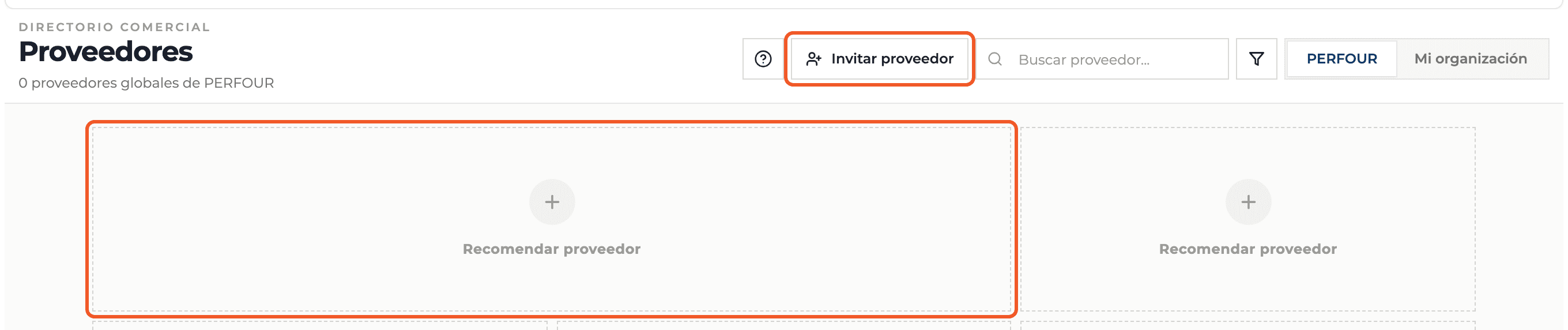
Use each view's buttons
PERFOUR offers Invite supplier and the Recommend supplier card. My organization offers Invite supplier and Add supplier.
What you'll learn
How search, filter by trade and page through the directory works inside Perfour.
What information you need and how it stays connected to Suppliers.
How to preserve traceability and find the record later.
Frequently asked questions
I searched for a supplier and it does not appear+
Check that you are in the right view (PERFOUR or My organization), in the right organization and with no trade filter applied.