The supplier profile: tabs and editing
Each supplier has a profile with its catalog, quotes, contracts, assigned budget, financial transactions and company details.

How to complete supplier profile
- 01
Open the profile
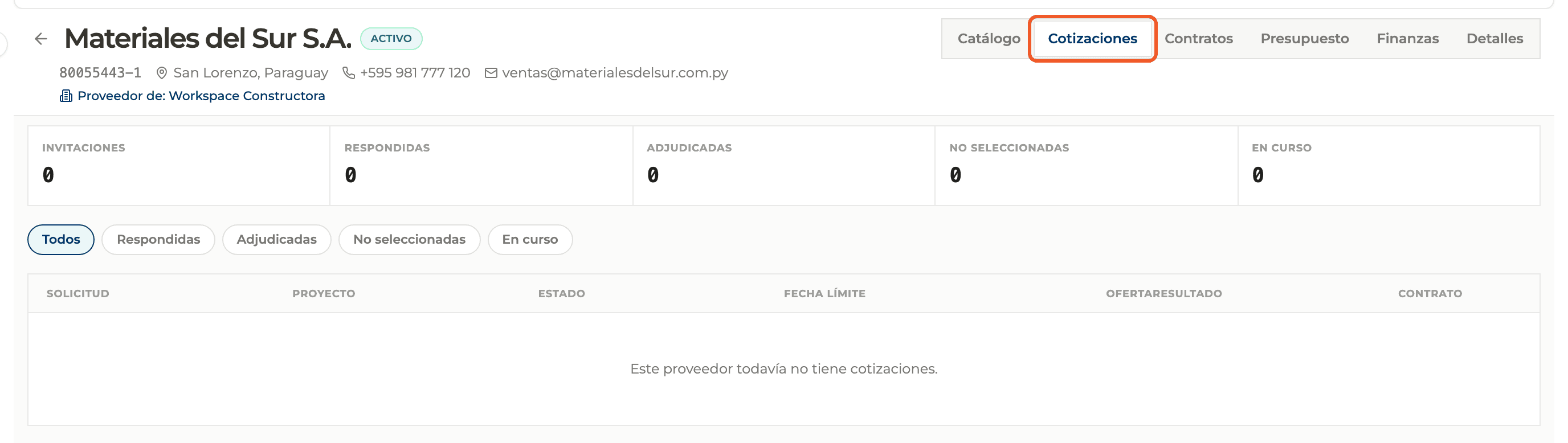
Select the supplier in the directory. The header shows its name, status, tax ID, city, contact and the organization it belongs to.
- 02
Browse the catalog
The Catalog tab has three views: Products, Supplies and Trades, with search and grid or list display.

- 03
Check the other tabs
Quotes shows its offers and awards; Contracts, the contracts with that supplier; Budget, what is assigned per project; and Finance, purchase orders, certificates and payments. The active tab stays in the link, so you can share it.
- 04
Edit its details
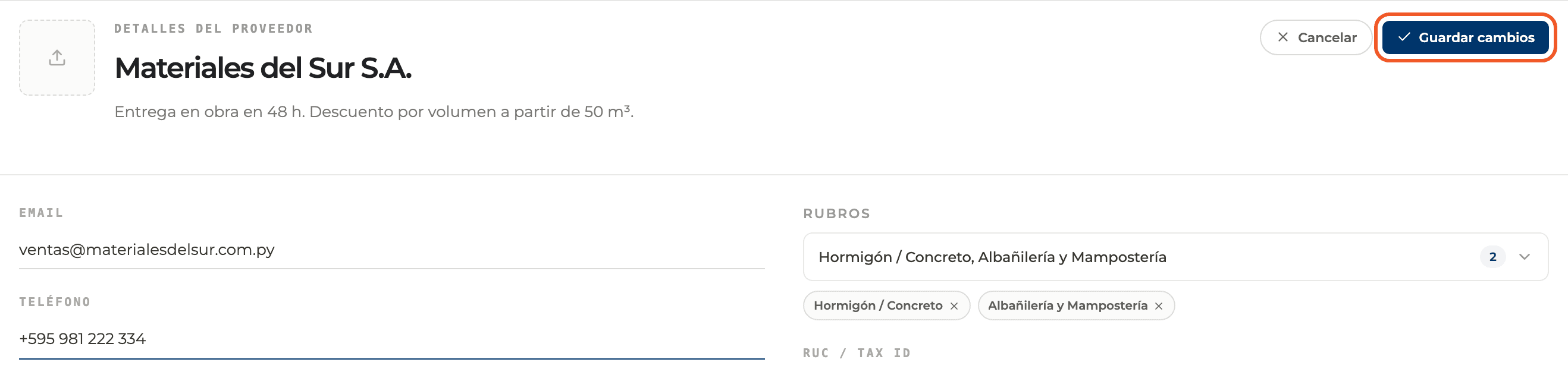
Under Details the fields are edited in place: name, notes, email, phone, trades, tax ID, website, city, address, country and bank account. When you change something, Cancel and Save changes appear.
- 05
Who can edit
A supplier in your organization can be edited by whoever created it or by any member who is not a Viewer. PERFOUR suppliers are edited only by the Perfour team; everyone else sees them read-only.
What you'll learn
How the supplier profile: tabs and editing works inside Perfour.
What information you need and how it stays connected to Suppliers.
How to preserve traceability and find the record later.
Frequently asked questions
The Quotes, Contracts, Budget and Finance tabs are empty+
They fill in as you use the supplier in those modules of your projects.
How do I assign trades to a supplier that registered through an invitation?+
Open its profile, go to Details, pick the trades and select Save changes.