Use a supplier in your projects
The directory is the starting point for working with suppliers on your jobs. There is no button to link one to a project: the link appears when you use it in a module.

How to complete suppliers in projects
- 01
Budgets
Assign the supplier to one or more budget line items. Its profile shows them in the Budget tab.
- 02
Quotes
Invite it to quote. Its offers and awards appear in the Quotes tab of its profile.
- 03
Contracts
When you award or formalize a contract with the supplier, it appears in the Contracts tab.
- 04
Finance
Purchase orders, certificates and payments with that supplier appear in the Finance tab, with the committed total.
- 05
Access for someone from the supplier
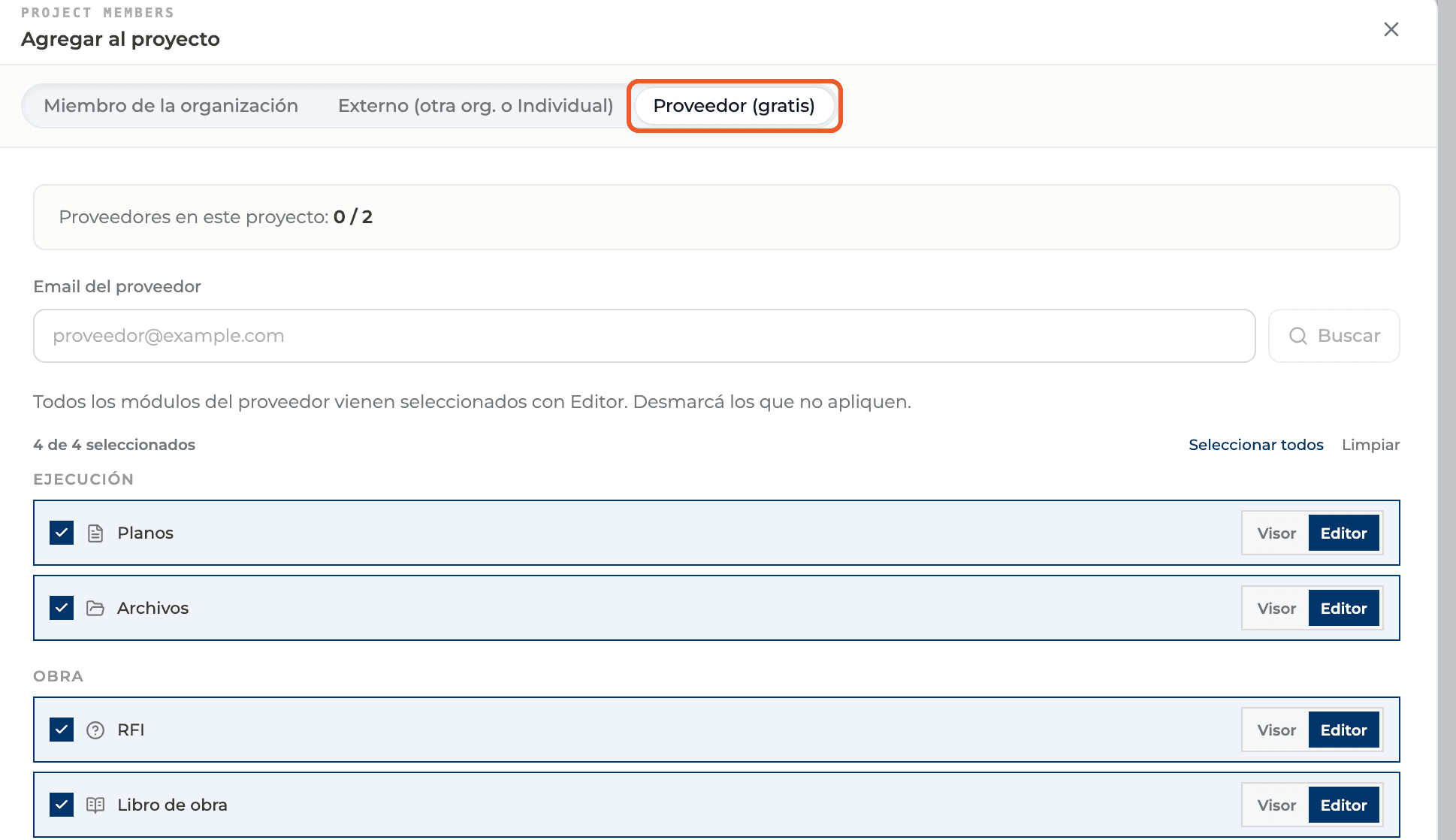
If you want someone from the supplier to join the project with their own account, go to Settings → Members → Invite member → free Supplier. A project can have up to 2, and they only access Drawings, Files, RFI and Daily logs, as Viewer or Editor.
What you'll learn
How use a supplier in your projects works inside Perfour.
What information you need and how it stays connected to Suppliers.
How to preserve traceability and find the record later.
Frequently asked questions
Is a directory supplier the same as a free Supplier member of a project?+
No. The directory keeps a company's commercial record, with no Perfour access. A free Supplier member is a person with an account who joins the project.
If I use a supplier in a project, does it stay in the directory?+
Yes. The directory belongs to the organization, not to the project.