Visual guide
Prepare a client contract
Walk through the client contract wizard up to Review without creating or signing a contract.
5 minutes
Step by step
Follow each step on screen
- 01
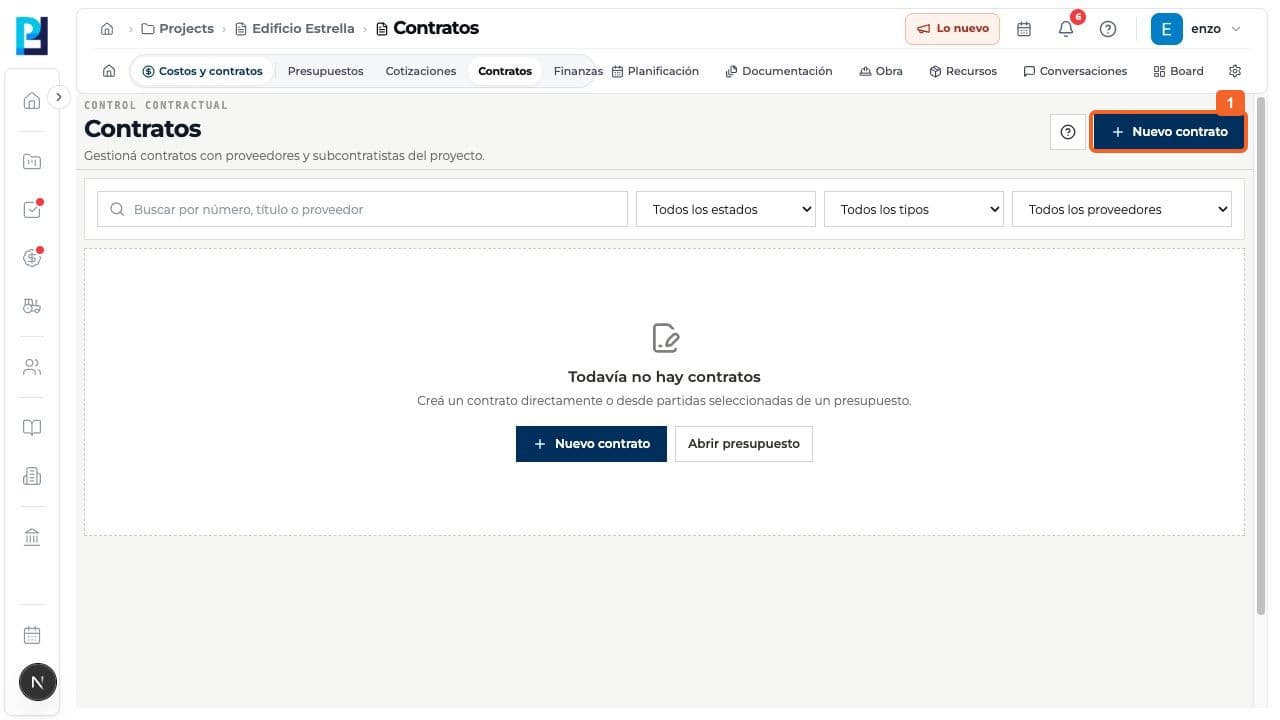
Open Costs and contracts > Contracts and select New contract.
- 02
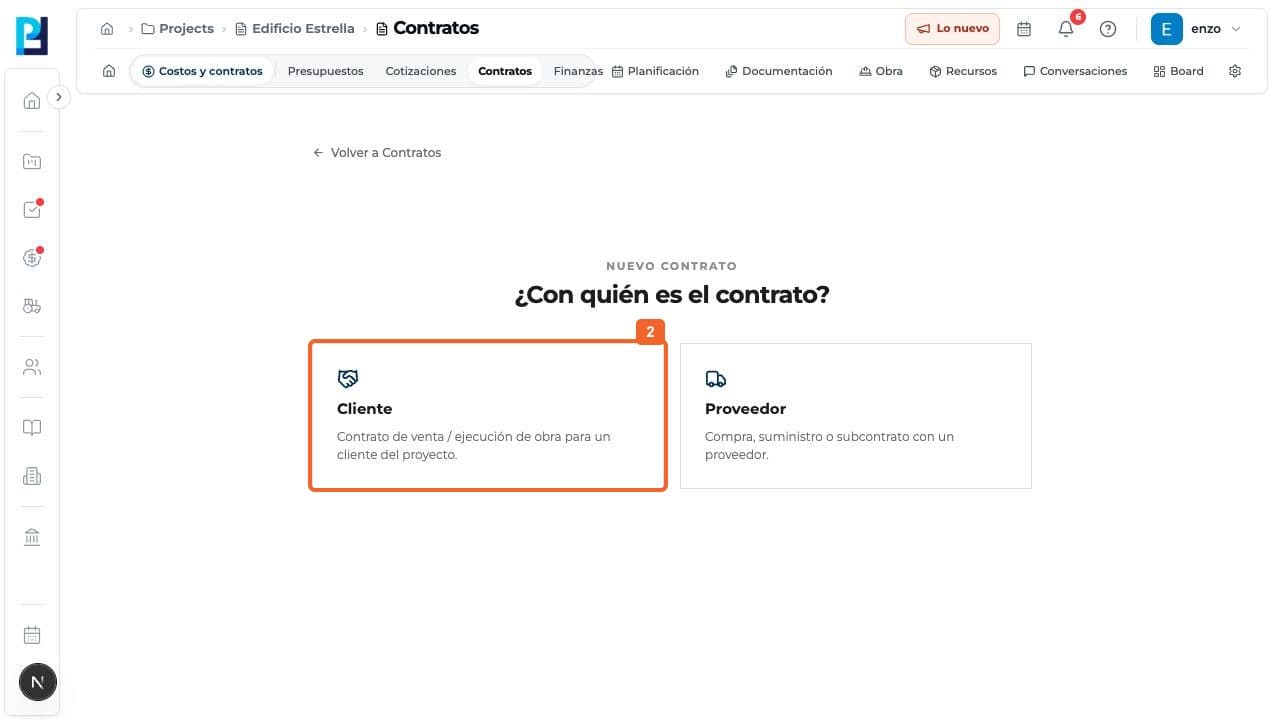
Choose Client for a sale or construction contract.
- 03
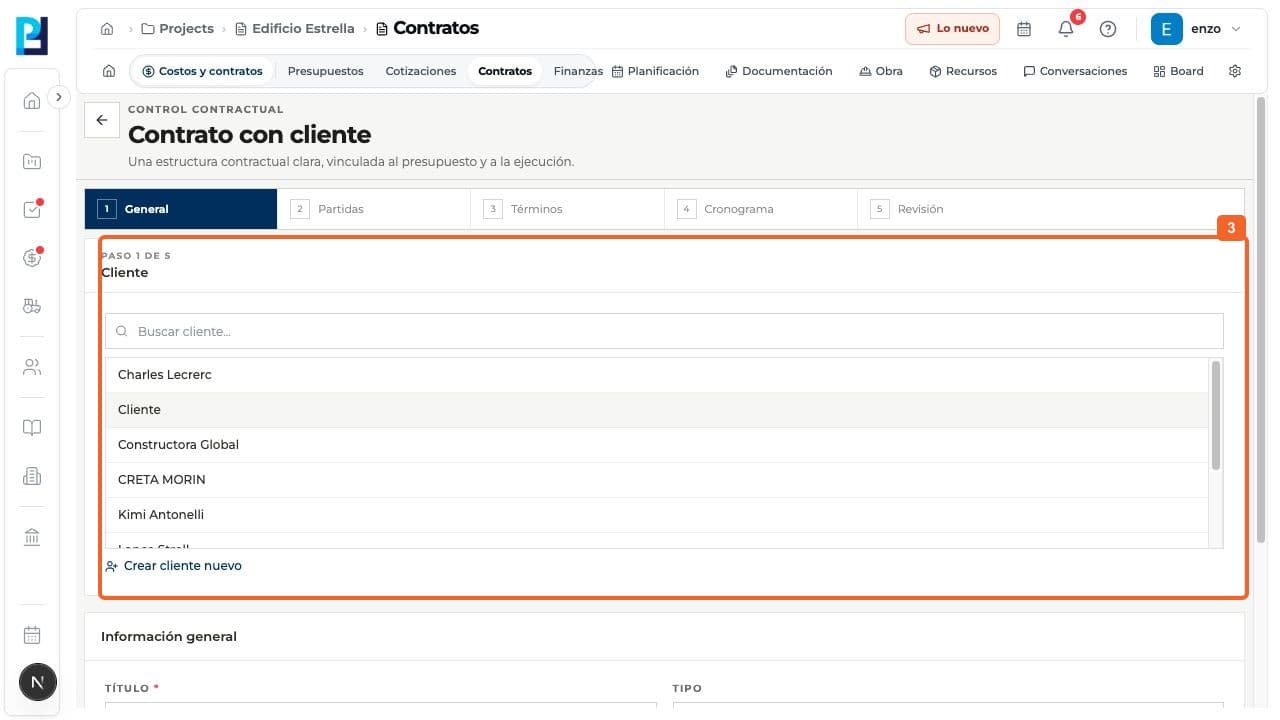
On General, find and select the correct client. You can also create a new client.
- 04
Review the suggested title, Client contract type and currency. Edit the title if needed.
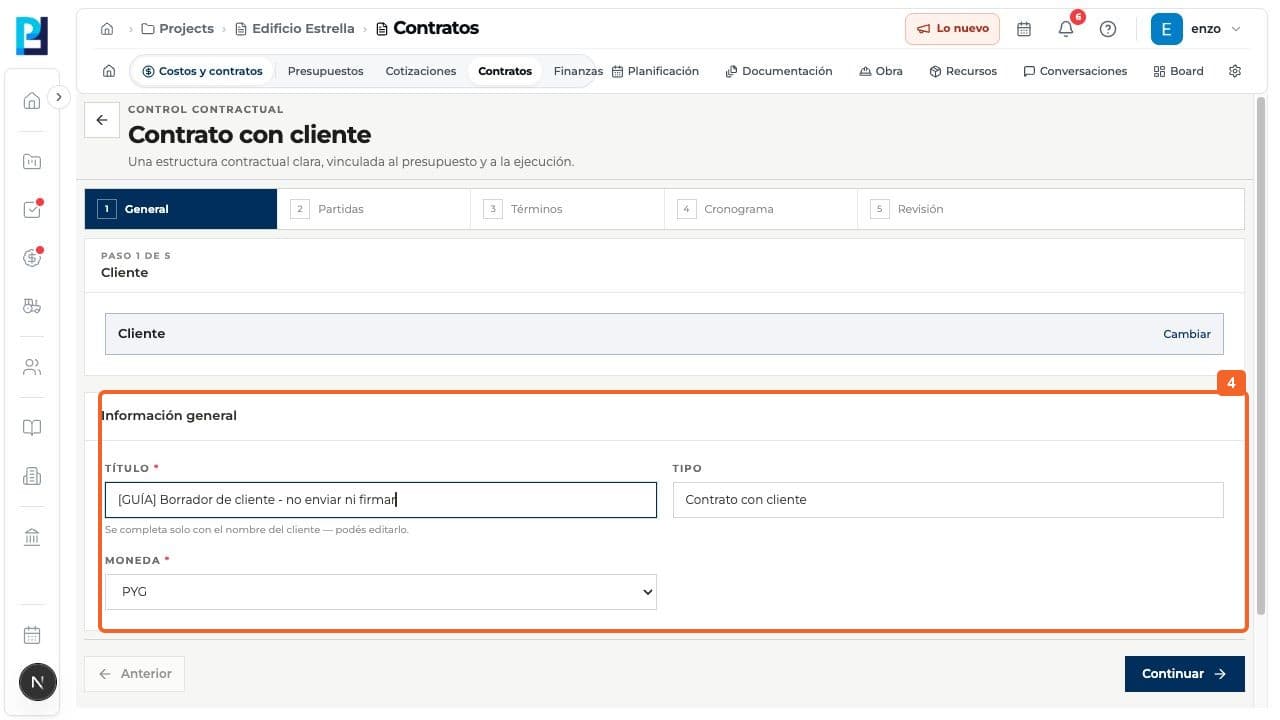
- 05
On Line items, review the selected budget, including its structure and sale prices, before creating a real contract.
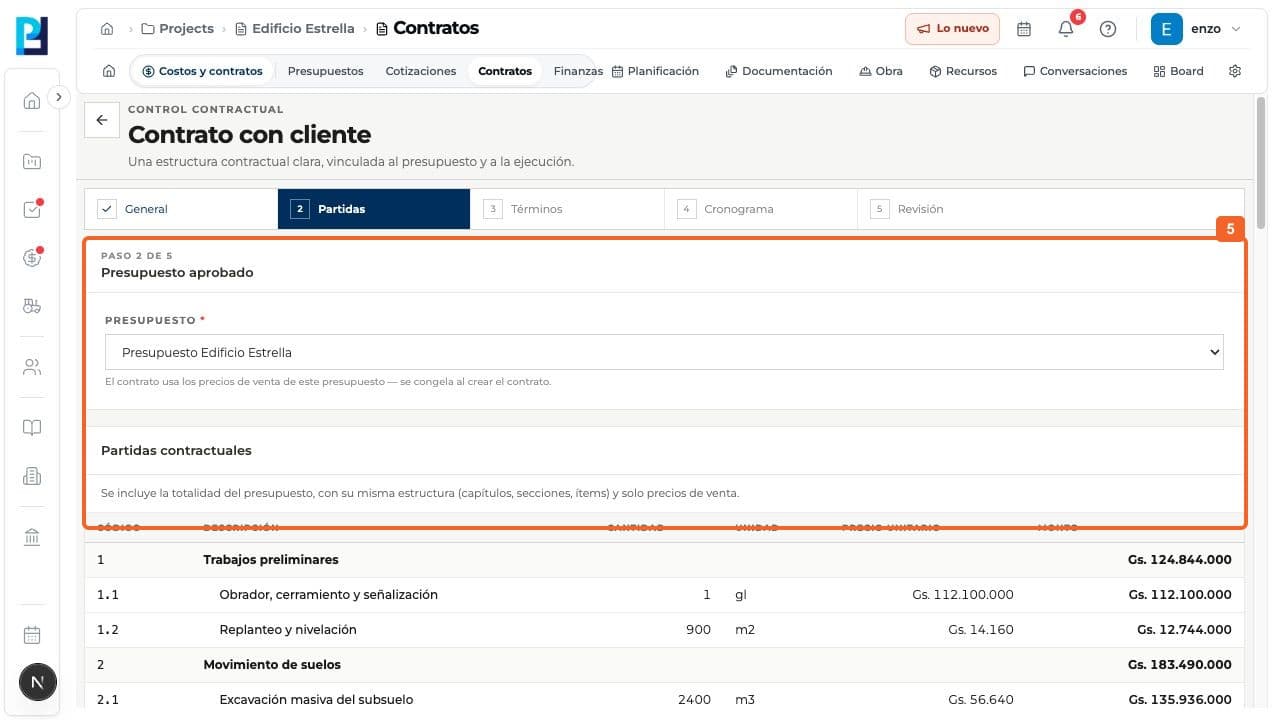
- 06
On Terms, add a suggested or custom section.
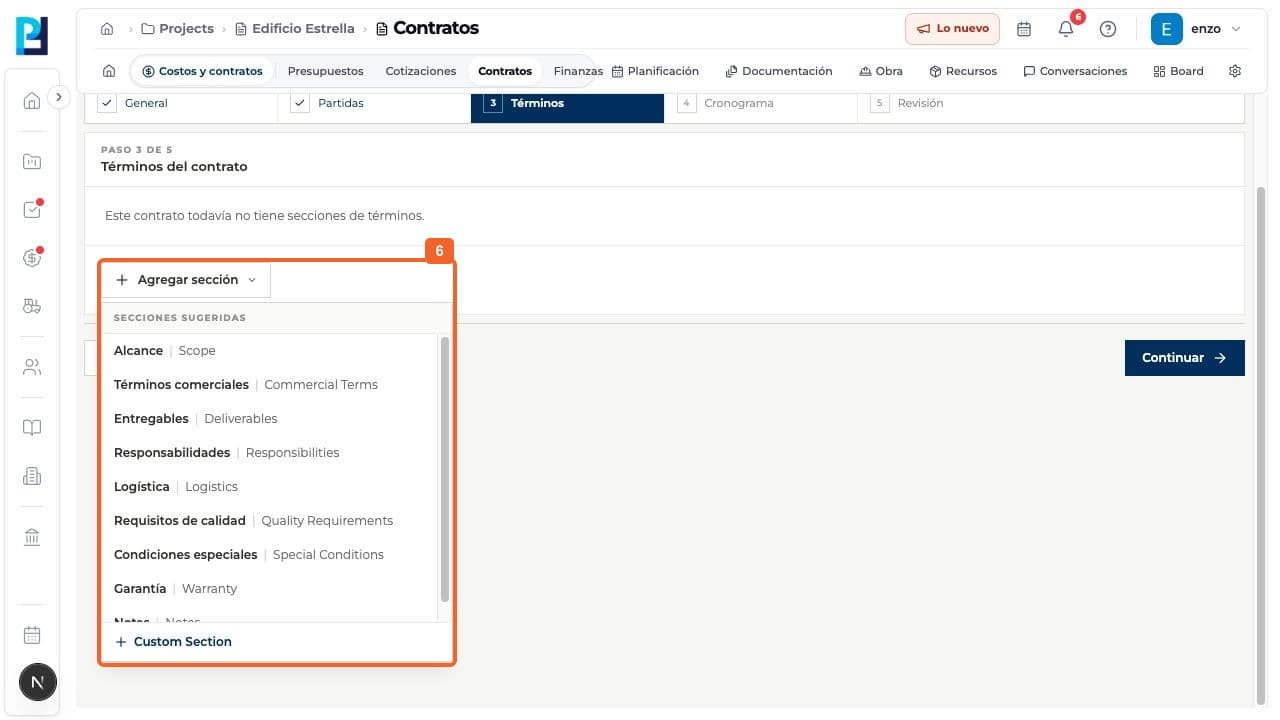
- 07
Fill in the section. The example used demonstration scope text; Continue was blocked while it was empty.
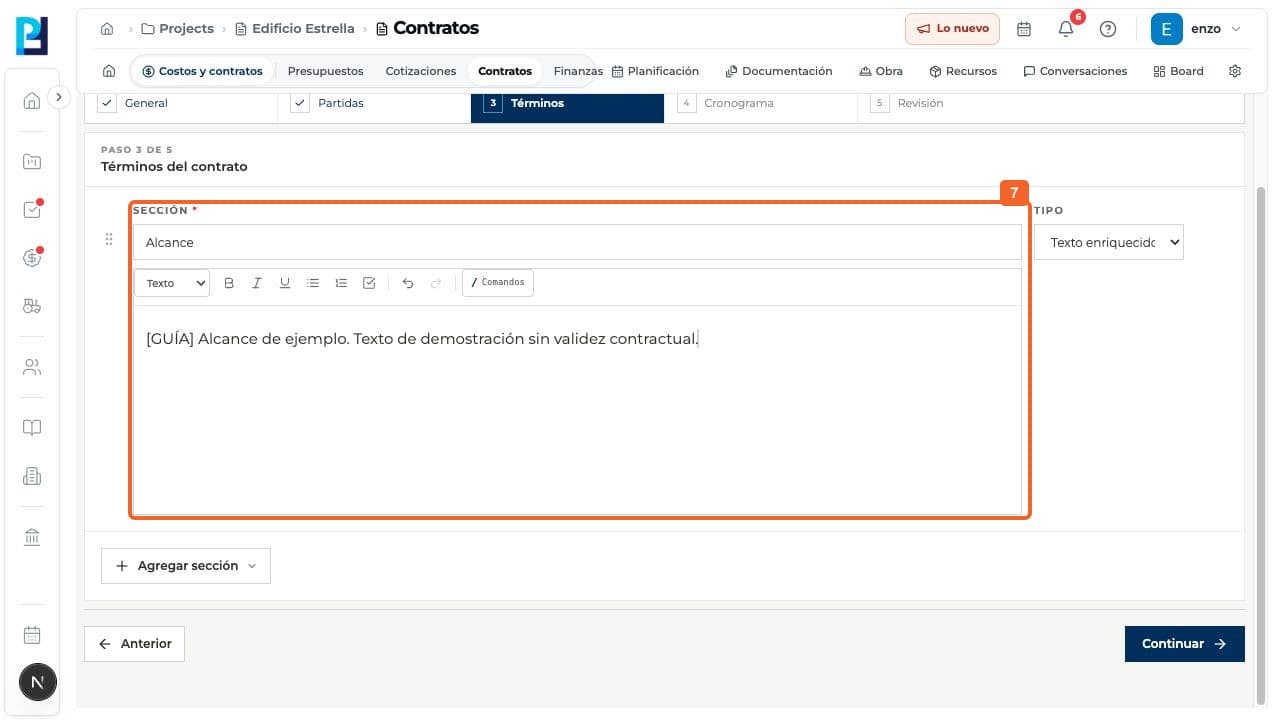
- 08
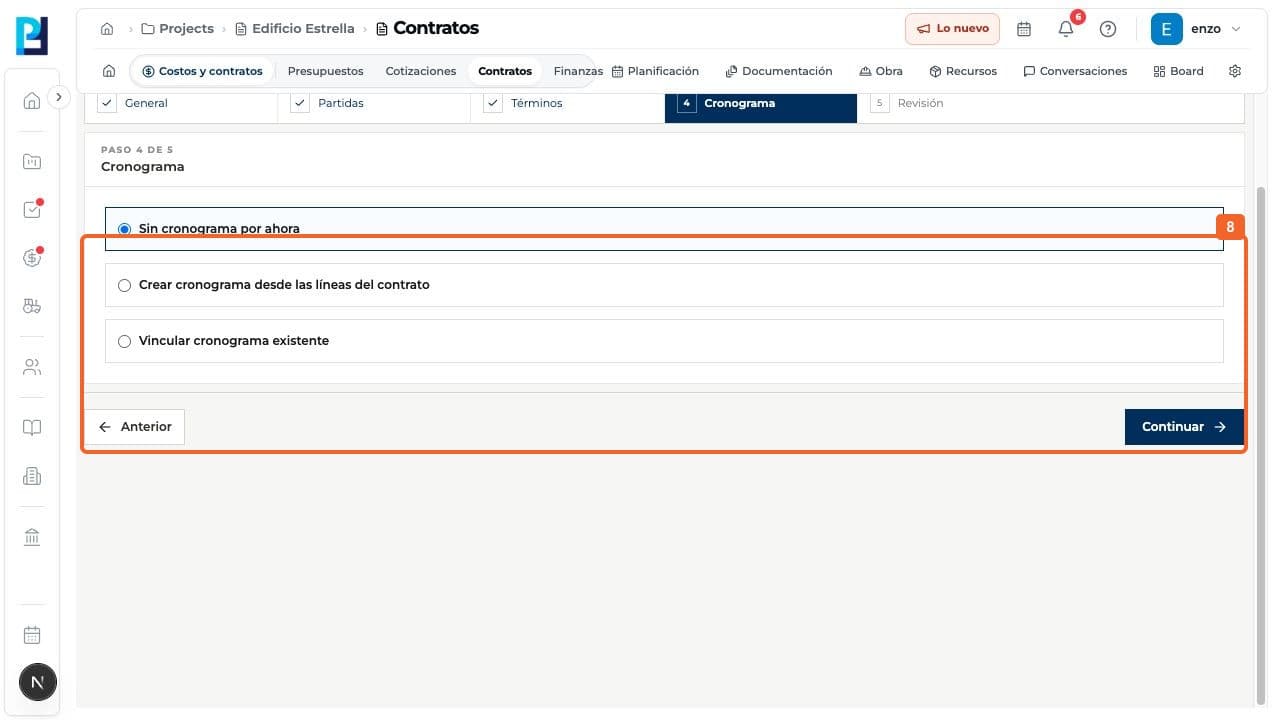
On Schedule, choose whether to leave it unlinked, create one or link an existing schedule.
- 09
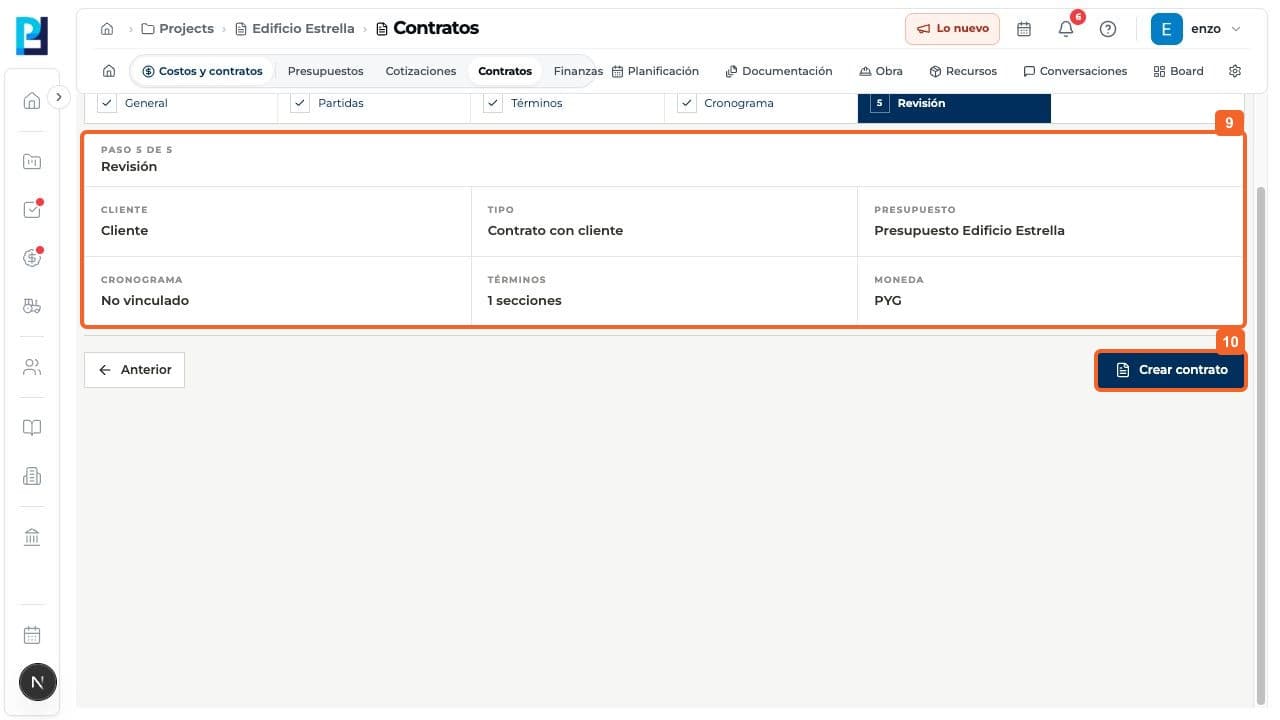
On Review, check the client, type, budget, schedule, terms and currency.
- 10
Create contract saves the record. Use it only after internal approval; this action was not tested.
FAQ
Frequently asked questions
What was verified and what remains untested?+
The wizard was checked through Review. Contract creation, external review and signatures were not tested. The sample scope has no contractual validity.
Keep learning