Visual guide
Prepare a supplier contract
Walk through the supplier contract wizard up to Review, checking the counterparty, commercial structure and terms before creating a record.
8 minutes
Step by step
Follow each step on screen
- 01
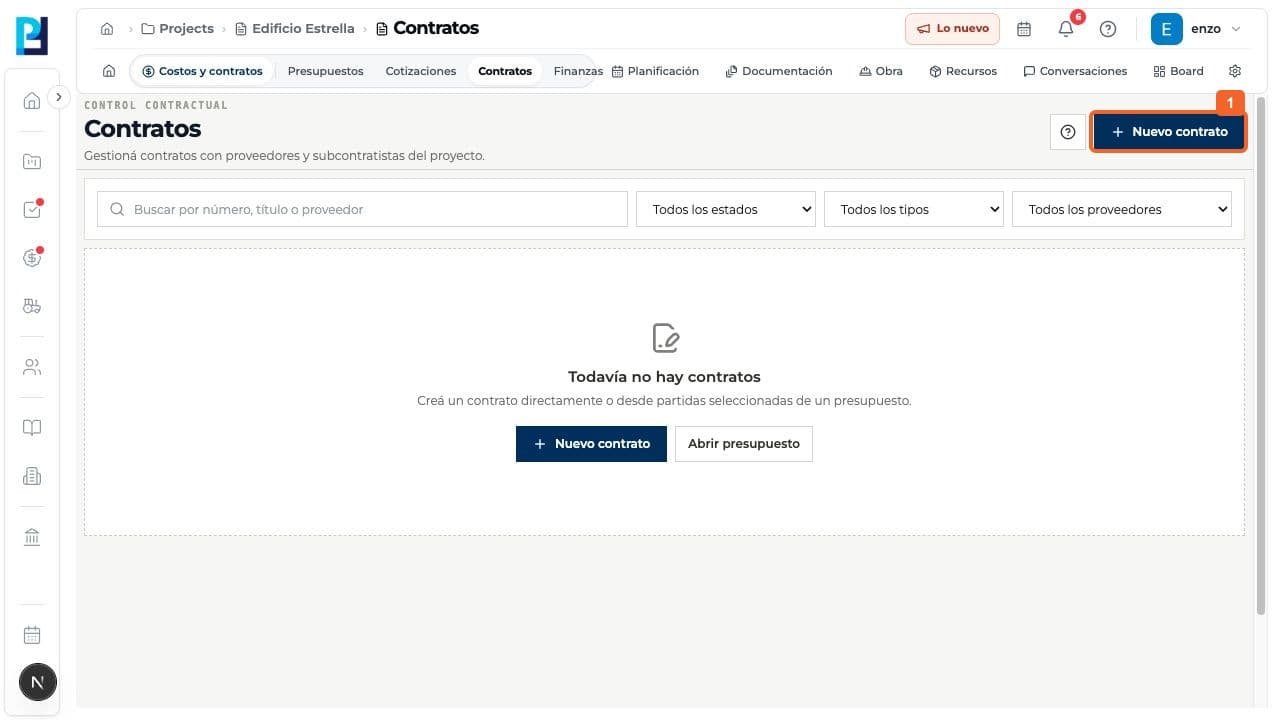
Open Costs and contracts > Contracts and select New contract.
- 02
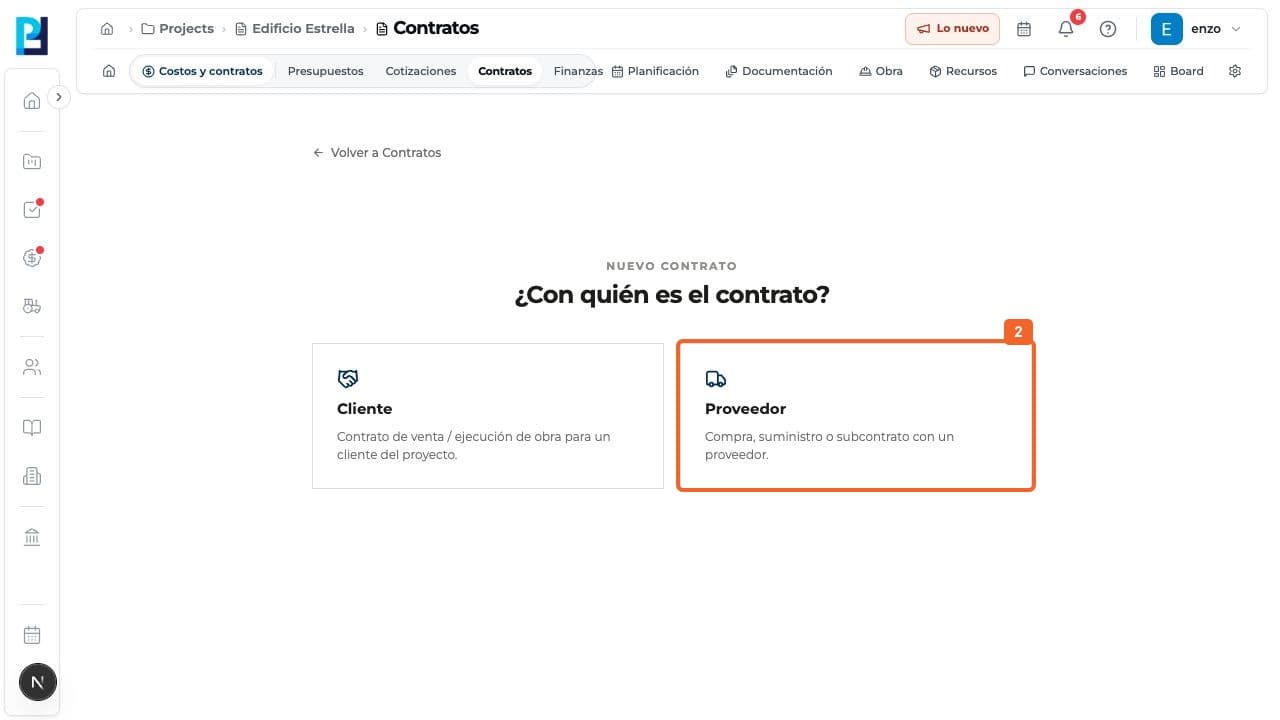
Choose Supplier for purchases, supplies or subcontracts.
- 03
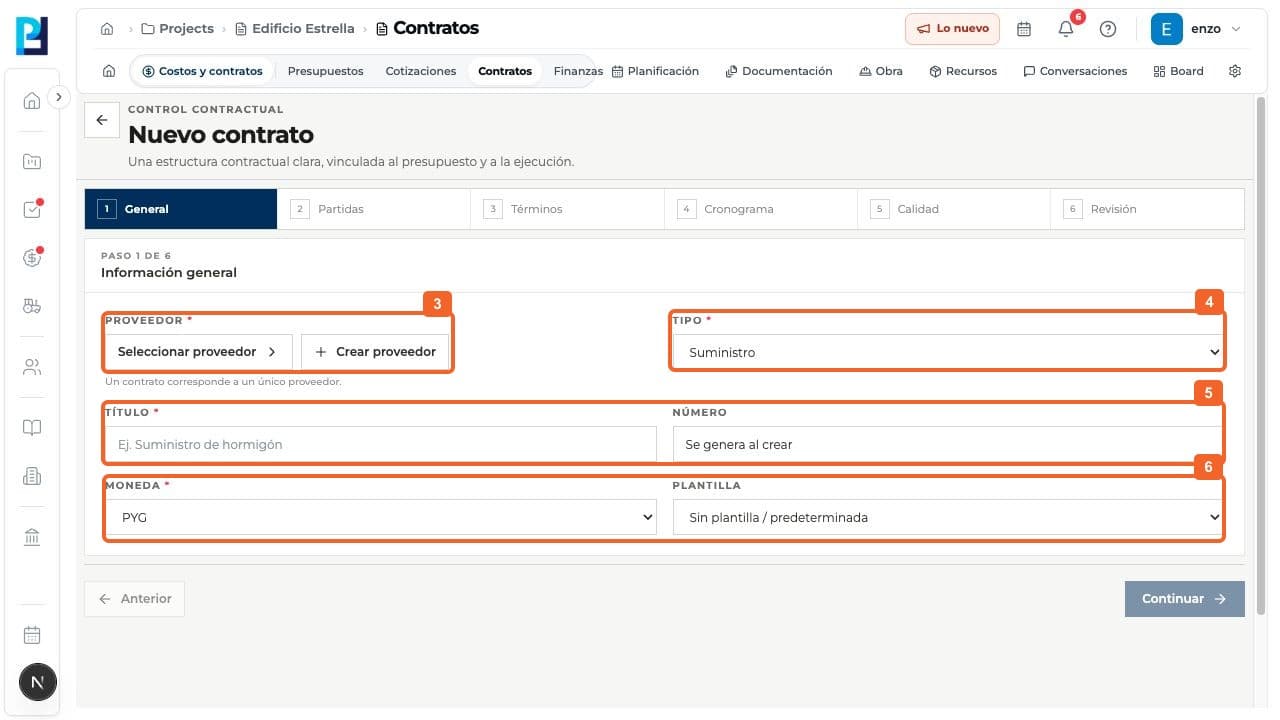
On General, select a project or organization supplier.
- 04
Choose the appropriate contract type.
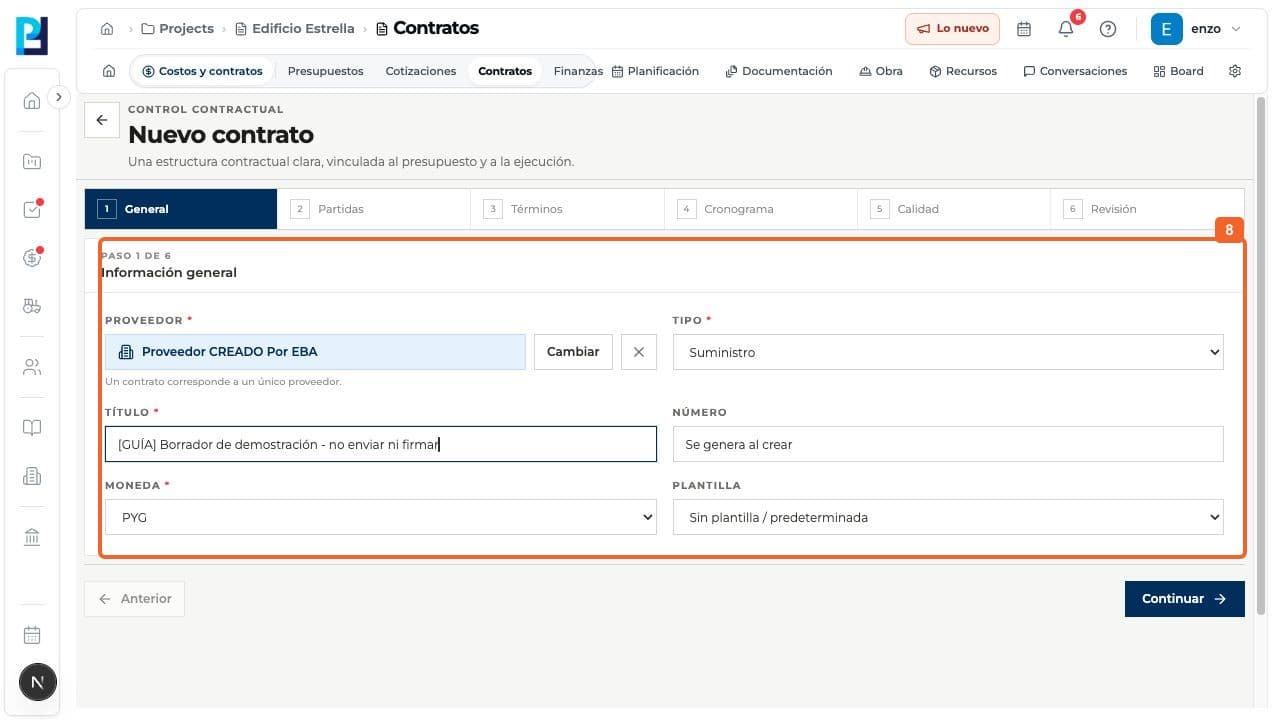
- 05
Enter a title. The contract number is generated when it is created.
- 06
Review the currency and template before continuing.
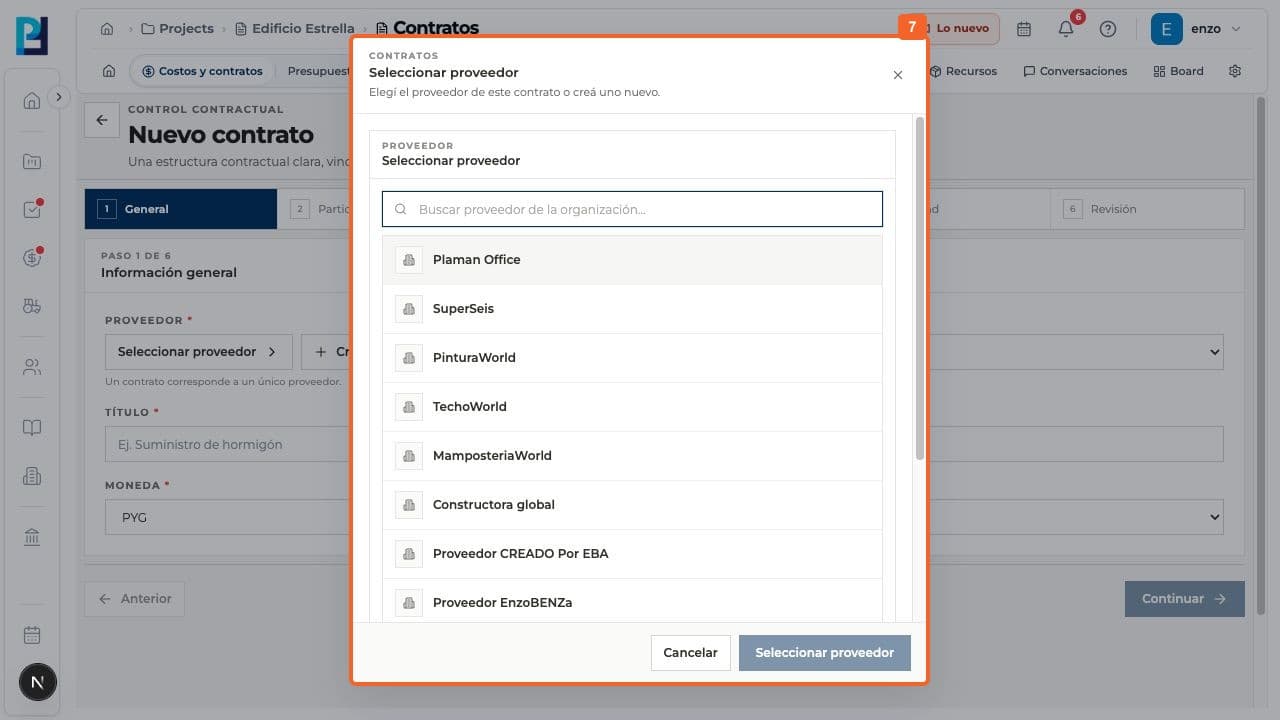
- 07
Find and confirm the correct supplier.
- 08
Confirm the selected supplier.
- 09
Check the general information and continue.
- 10
On Line items, choose item based, lump sum or no contract amount. The example adds no items.
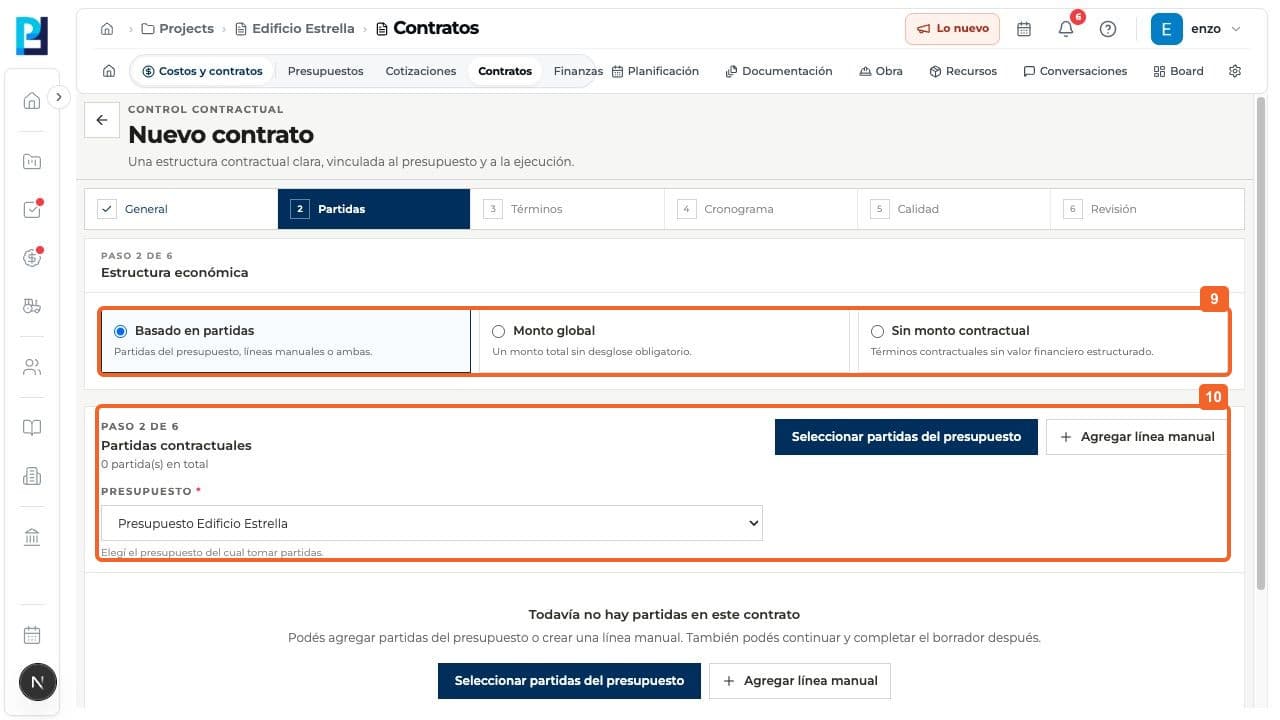
- 11
If using items, choose a budget and select items or add manual lines for the real contract.
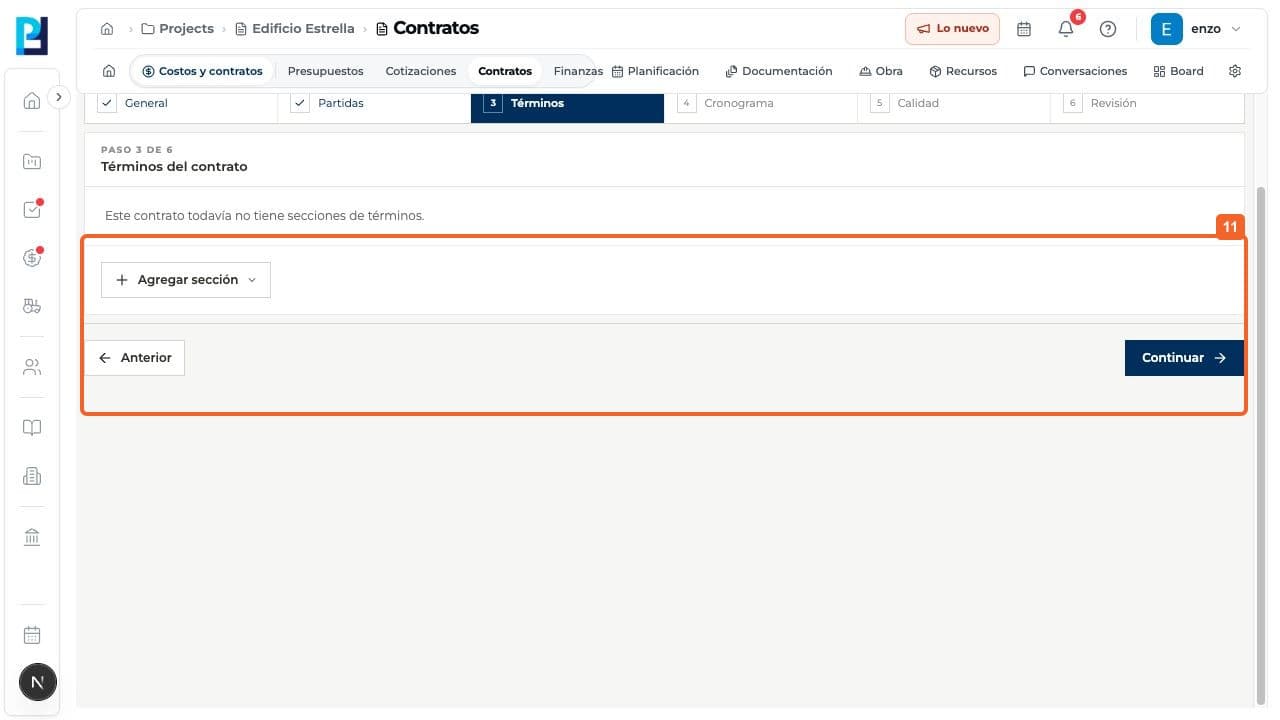
- 12
On Terms, add the required contractual sections and conditions. These were left empty in the test.
- 13
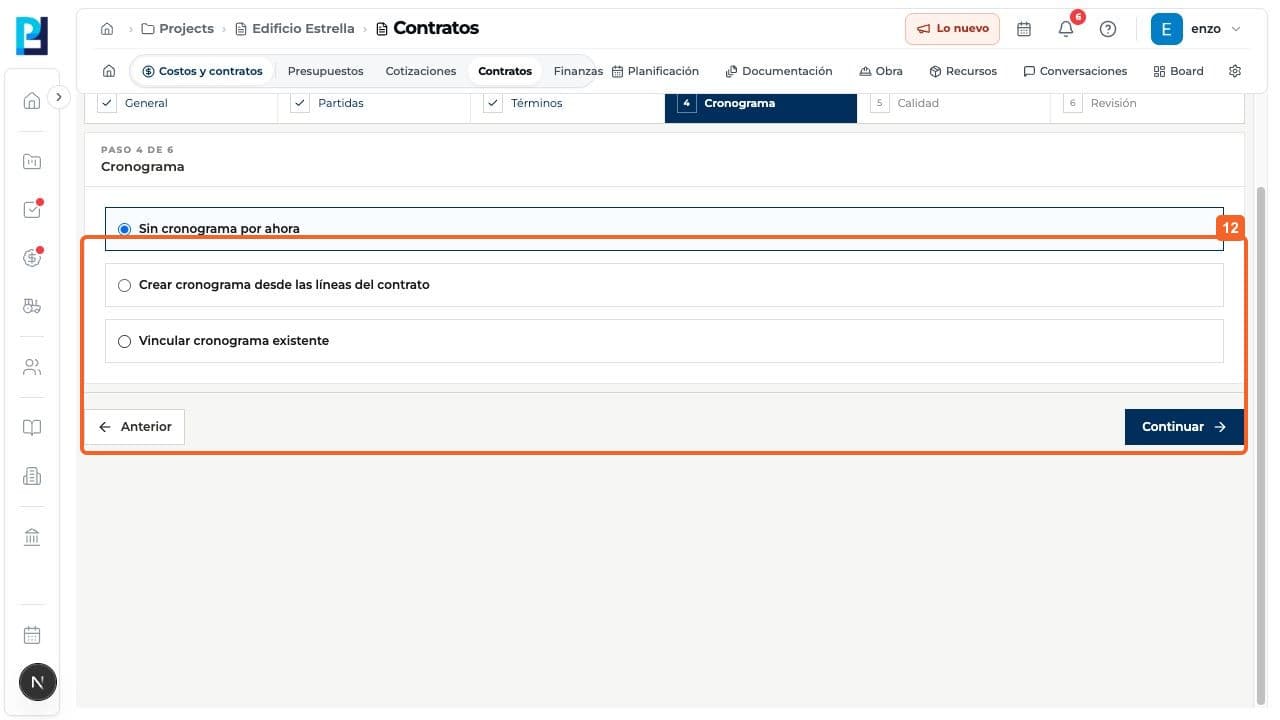
On Schedule, leave it unlinked, create it from lines or link an existing one.
- 14
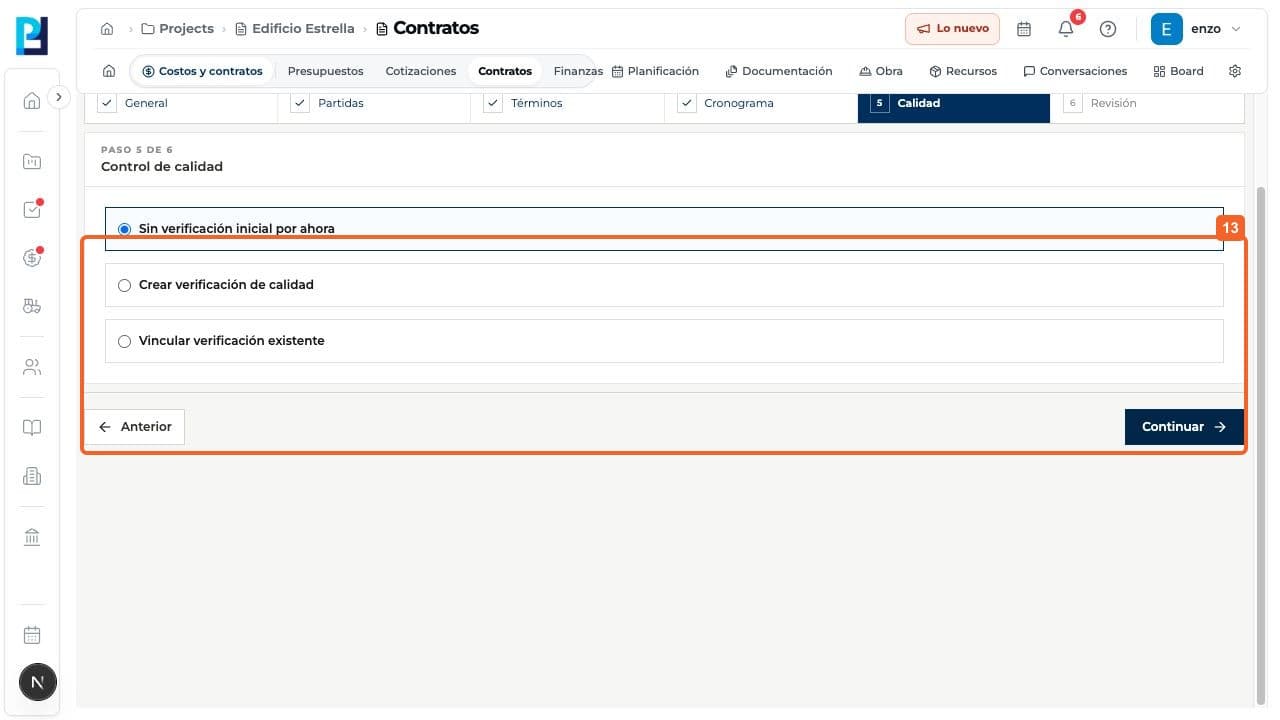
On Quality, create or link a check, or leave it for later.
- 15
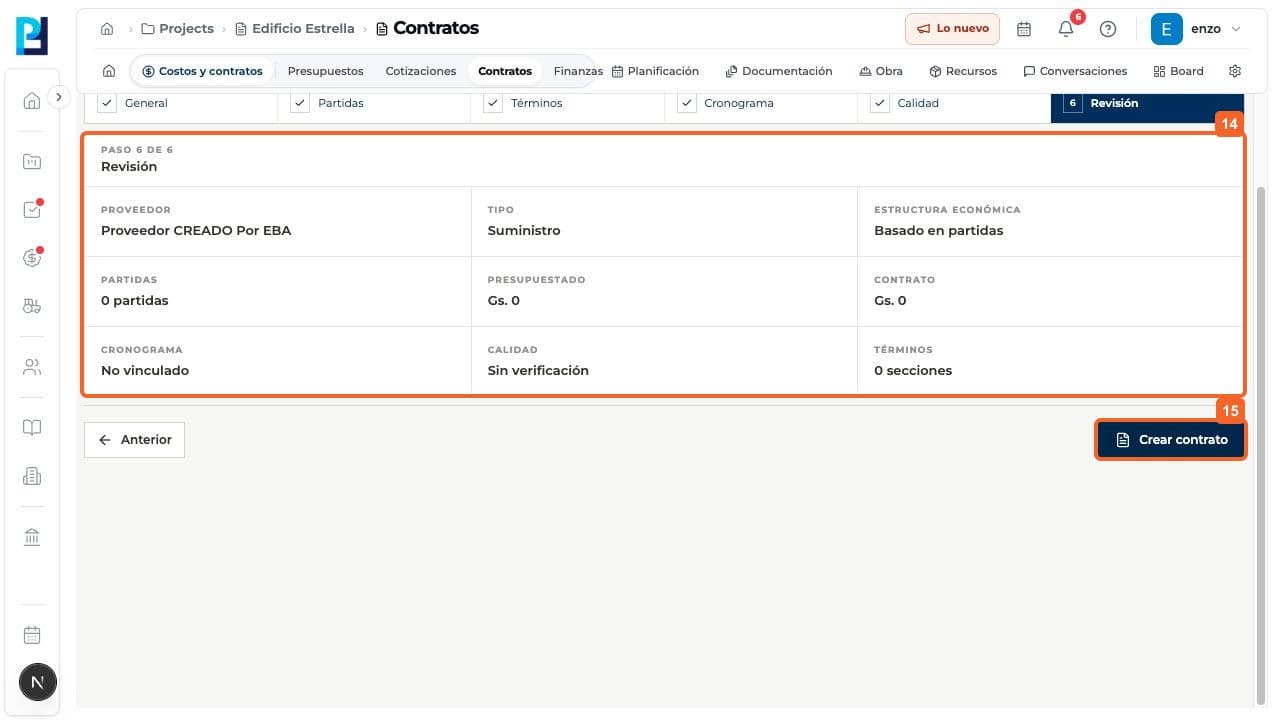
On Review, check the supplier, type, amounts, items, schedule, quality and terms.
- 16
Create contract is the final save action. It was not tested; use only approved real data.
FAQ
Frequently asked questions
What was verified and what remains untested?+
The wizard was explored through Review. No supplier contract was created and its later detail was not tested. The zero amounts in the example are not a contract template.
Keep learning