Visual guide
Read the financial summary
Find the view that compares budgeted cost, committed cost, expenses, invoicing and receipts.
2 minutes
Step by step
Follow each step on screen
- 01
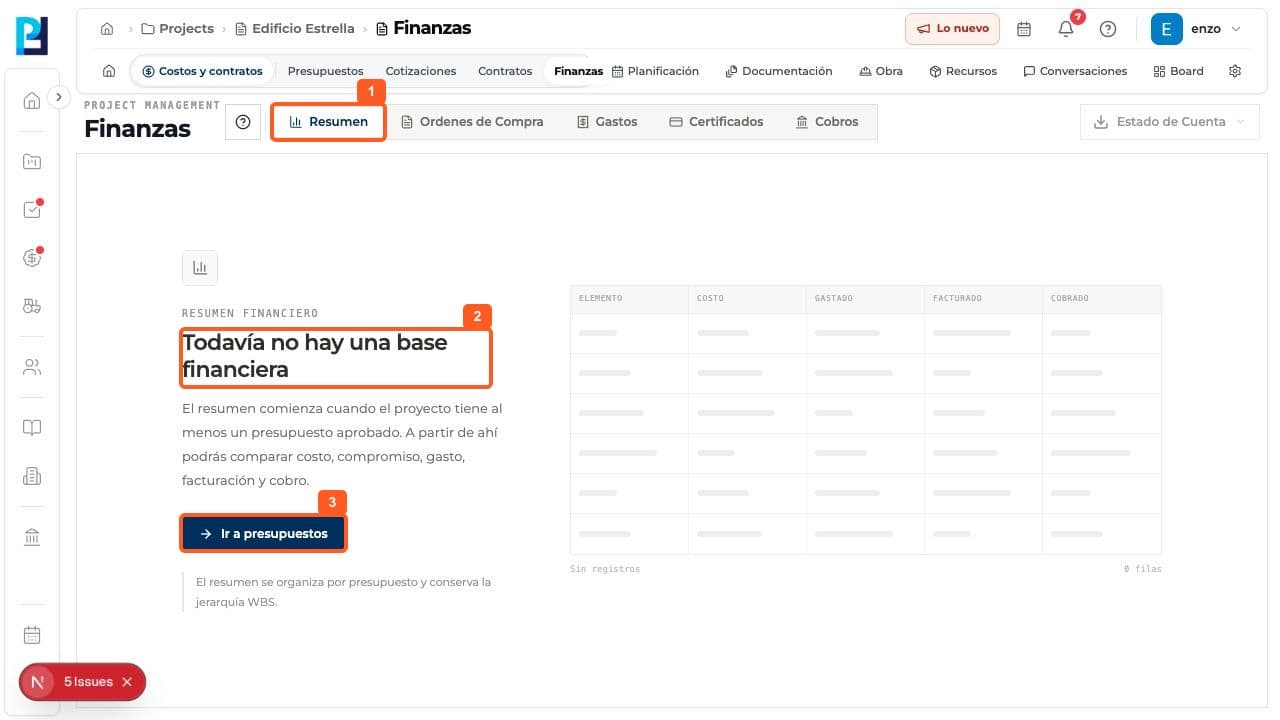
In the project, open Costs and contracts > Finance and select Summary.
- 02
If No financial baseline appears, note that at least one approved budget is required.
- 03
Use Go to budgets to prepare or review approval, then return once a budget is approved.
FAQ
Frequently asked questions
What was verified and what remains untested?+
Only the empty baseline state was verified. Figures and export were not tested because this project had no eligible approved budget.