Attach files and link the check
Add files when creating the check and link it to drawings, tasks, the schedule, submittals, RFIs or project files.
How to complete attachments and links
- 01
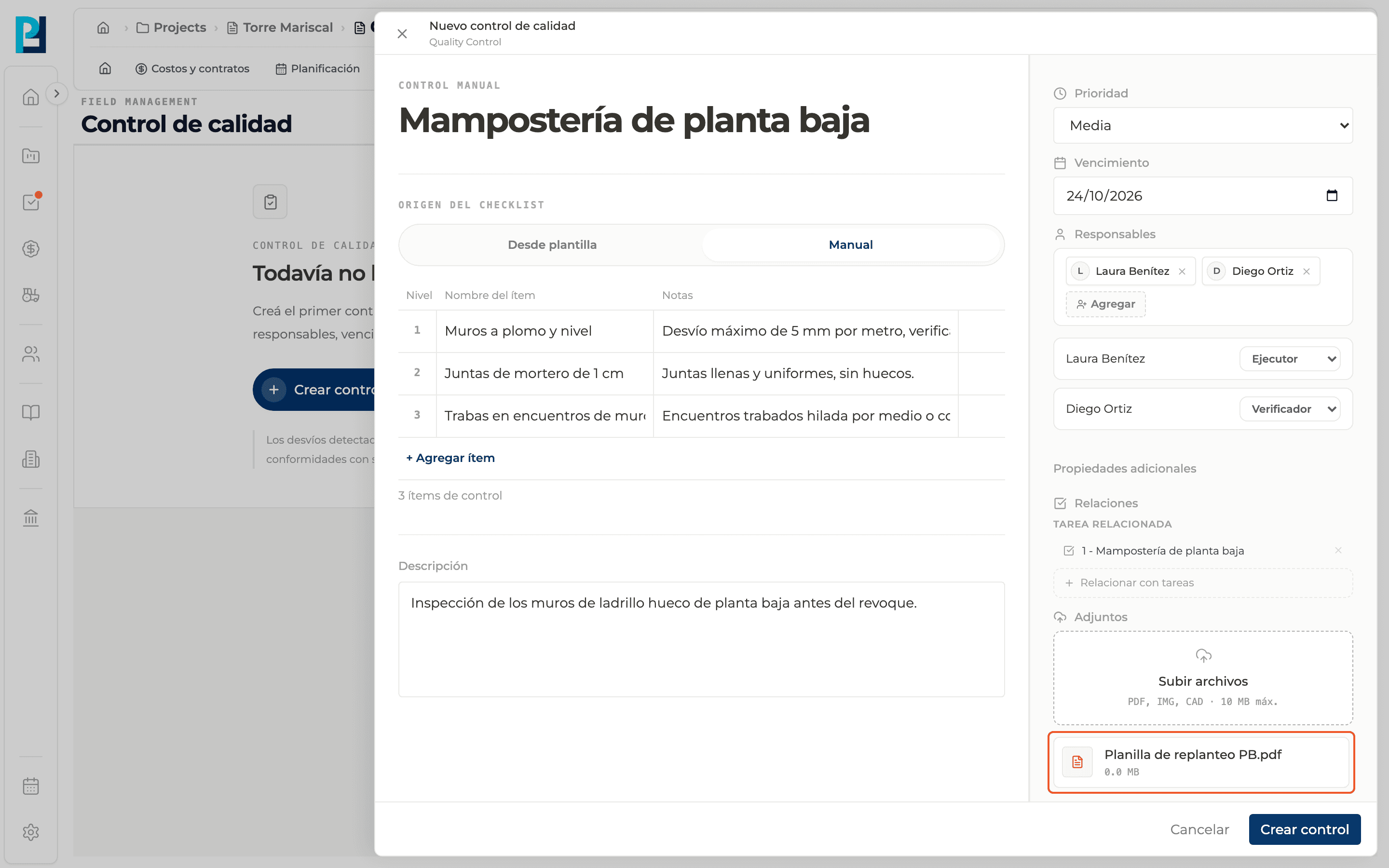
Attach when creating
Under Additional properties → Attachments click Upload files (PDF, images or CAD, up to 10 MB). You can pick several. Each file shows its size and a trash icon to remove it.
- 02
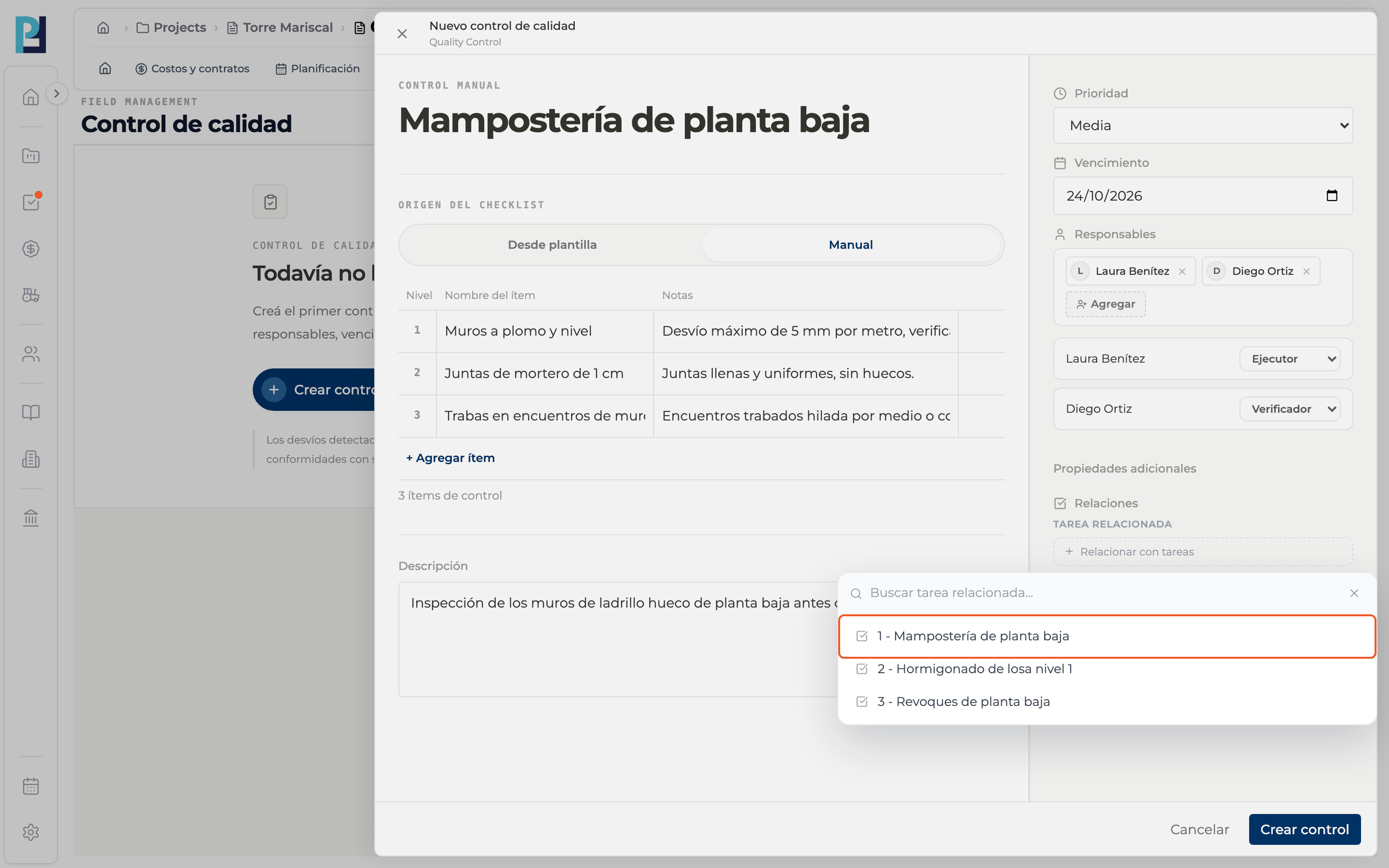
Relate a schedule activity
Under Relations use Relate to tasks and pick the activity from the project schedule (for example, "2 - Level 1 slab pour"). Use the relation's X to remove it.
- 03
Open the check's files
In the detail, the files uploaded at creation show under General files; click one to open it.
- 04
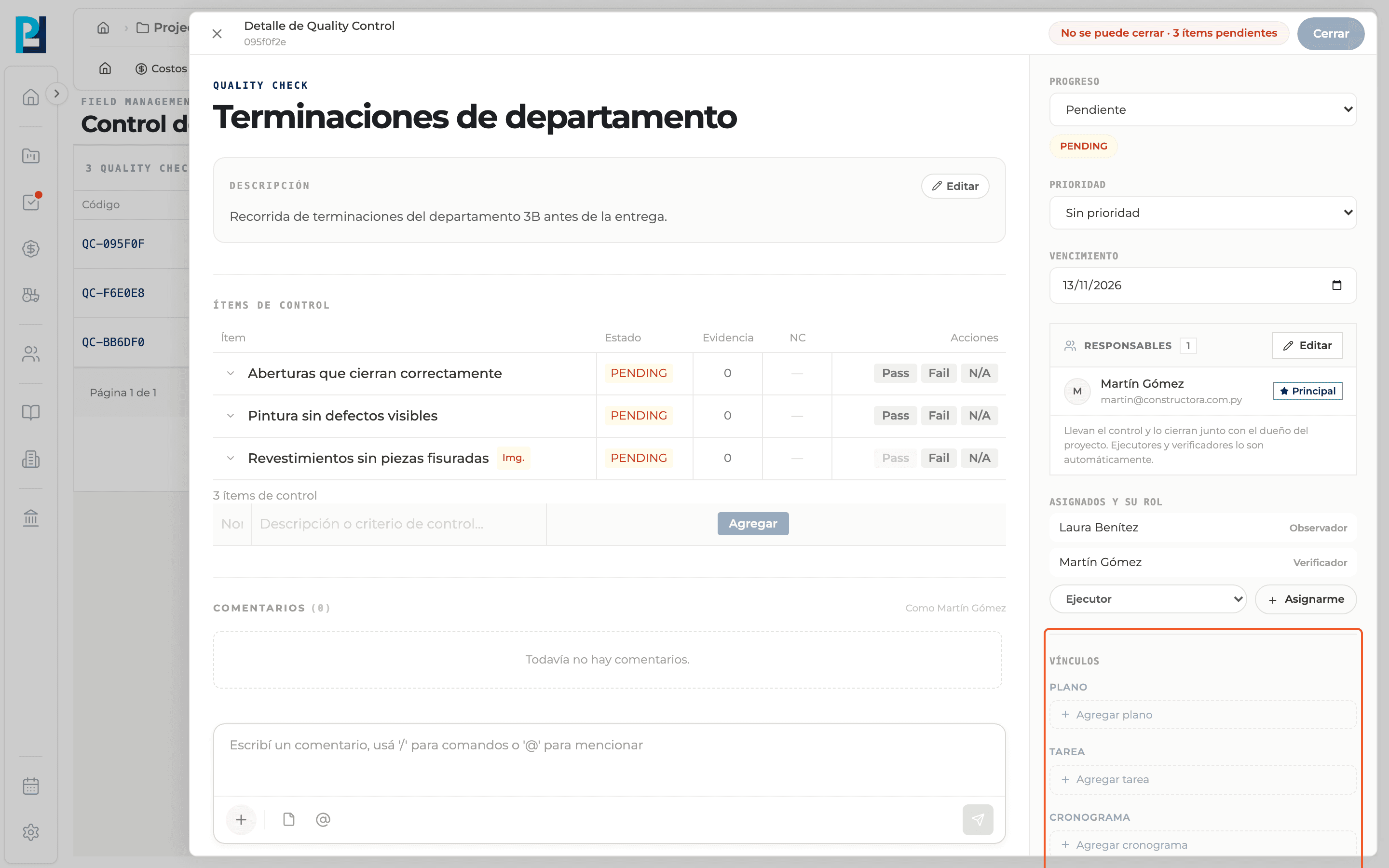
Link from the detail
In the right sidebar, Links has selectors for Drawing, Task, Schedule, Submittal, RFI and File. Pick the element and it is linked; to unlink it, remove it from the same selector.
What you'll learn
How attach files and link the check works inside Perfour.
What information you need and how it stays connected to Quality.
How to preserve traceability and find the record later.
Frequently asked questions
How big can a file be?+
Up to 10 MB per file.
What does Relate to tasks list?+
The activities of the project schedule. If the project has no schedule, the list is empty.
Where do I see the activity related at creation later?+
The check's detail does not show it today. If you need to see it, also link it from Links → Schedule or Task.