A check's status and how to close it
The check's status moves on its own with the checklist; closing requires no pending items and no unresolved non-conformities.
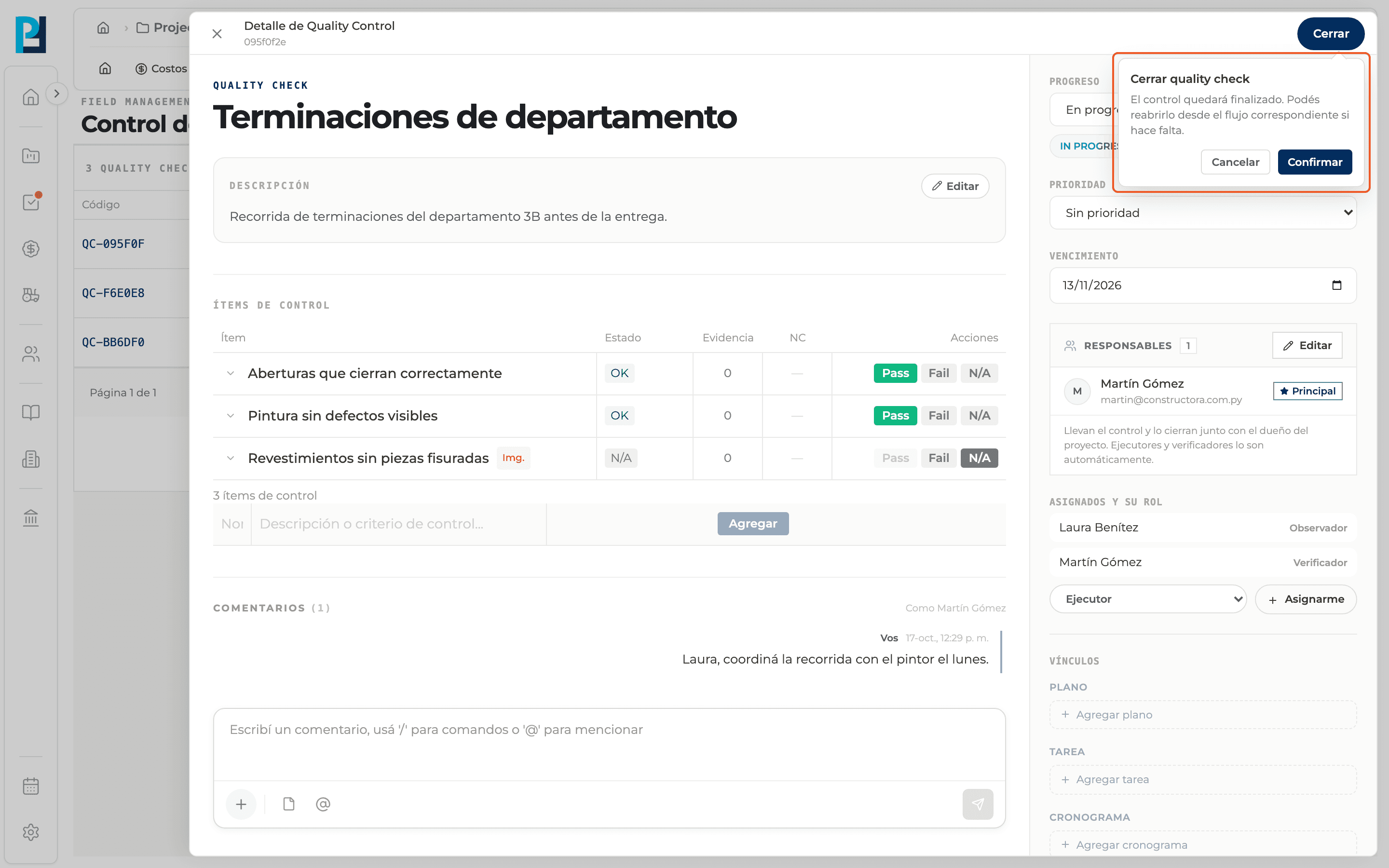
How to complete close a check
- 01
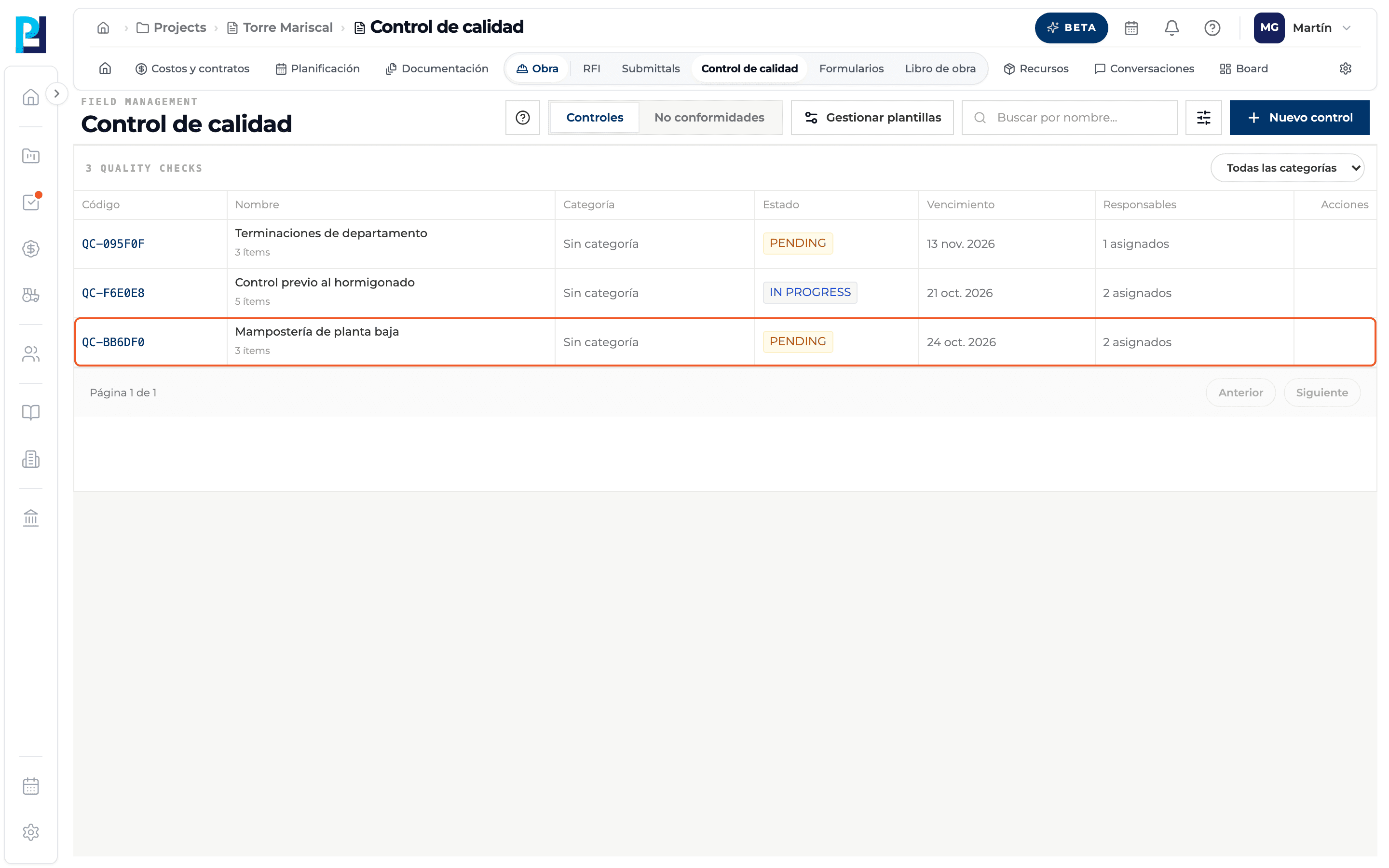
Open the check
In the Checks table click the check's row.
- 02
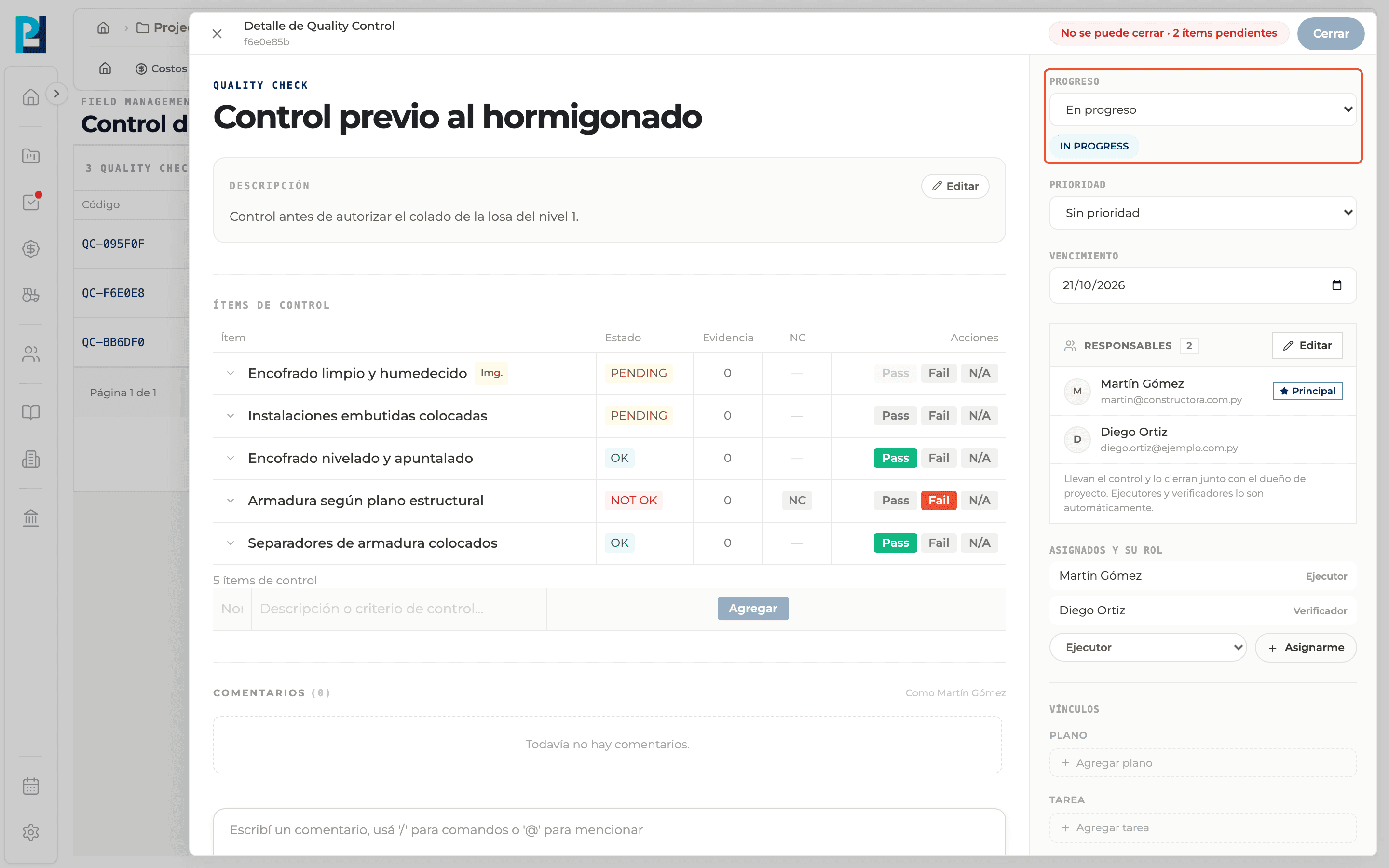
See the status
In the right sidebar, Progress shows the status: PENDING while no item has a result, IN PROGRESS once you mark the first one and COMPLETED after closing it. The status changes on its own.
- 03
Close the check
In the header click Close and then Confirm in the "Close quality check" bubble. Cancel backs out.
- 04
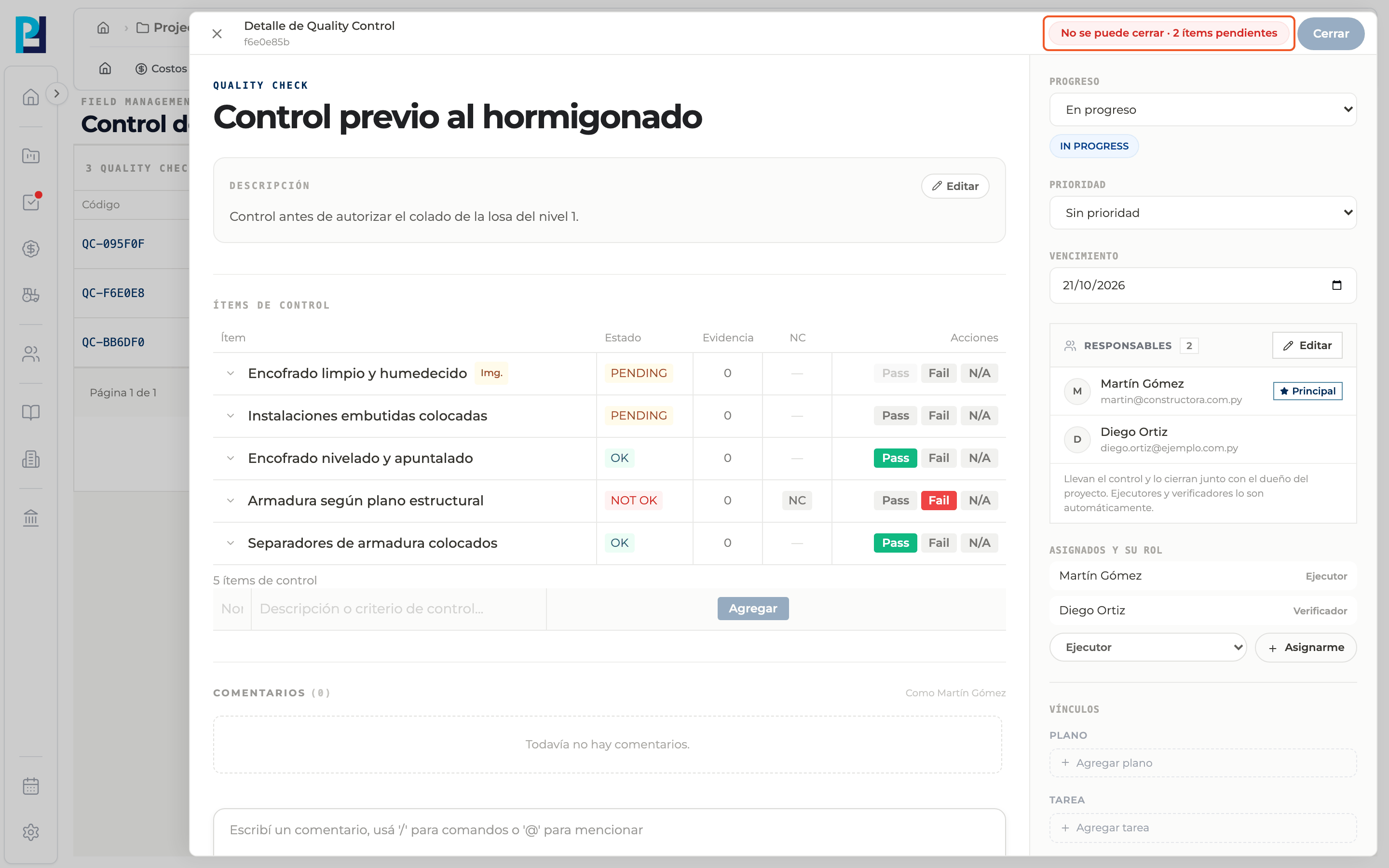
When closing is blocked
If items are still PENDING or non-conformities are unresolved, Close is disabled and the tag shows what is missing: pending items and unresolved non-conformities.
- 05
Quick close from the list
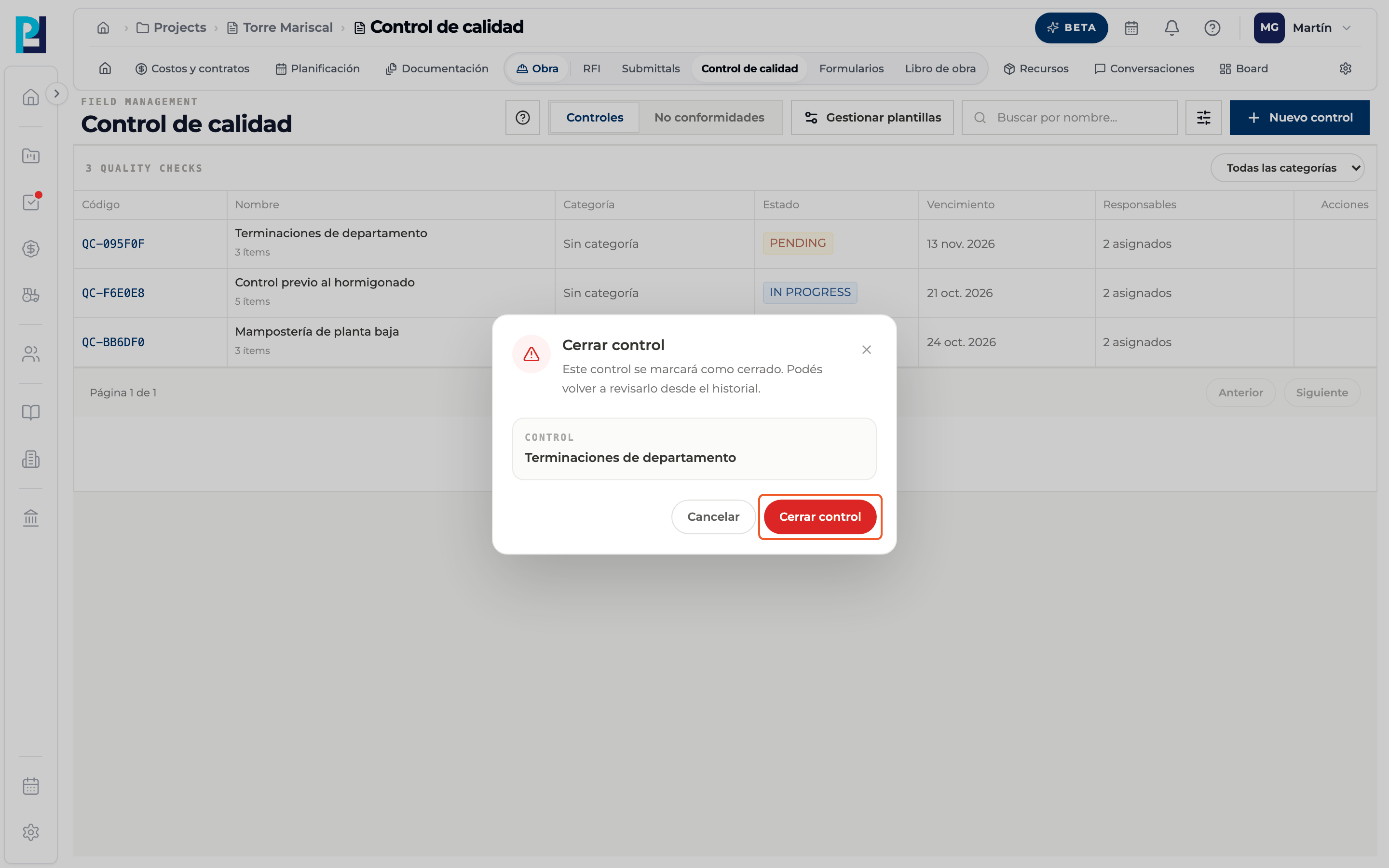
Hover the row and use the three-dot button under Actions. In the Close check dialog click Close check.
- 06
Result
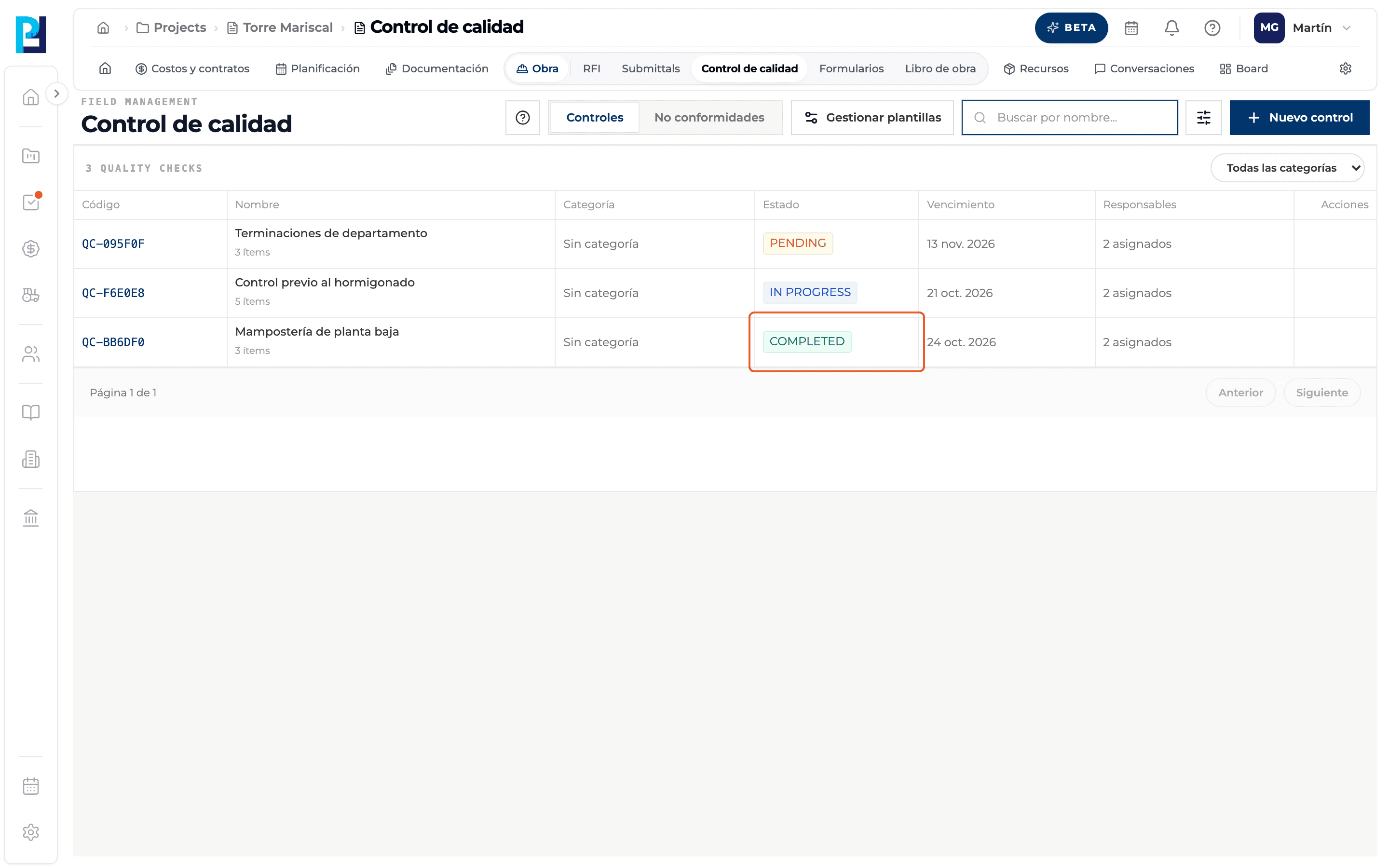
The check shows as COMPLETED in the table. Closing does not delete it.
What you'll learn
How a check's status and how to close it works inside Perfour.
What information you need and how it stays connected to Quality.
How to preserve traceability and find the record later.
Frequently asked questions
I closed it from the list and nothing changed. Why?+
It still had pending items or unresolved non-conformities. Open the detail: the tag at the top shows what is missing.
Can a check be closed with a failed item?+
Yes, if its non-conformity is already resolved. Still, it is best to mark the fixed item as Pass.
Can checks be deleted?+
No. There is no button to delete checks today.