Add notes and evidence to an item
Each item accepts notes and evidence files, such as photos or PDFs.
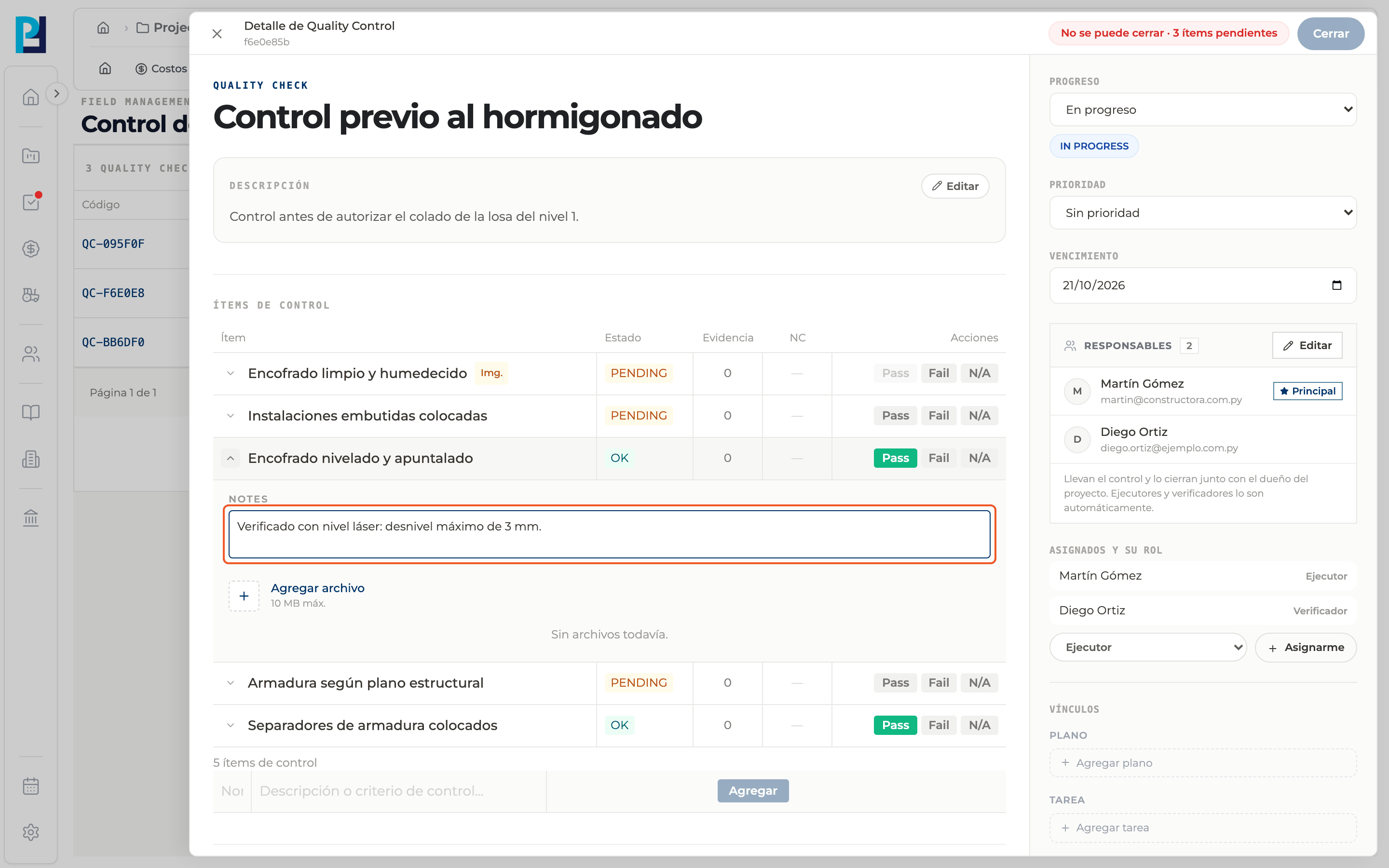
How to complete notes and evidence
- 01
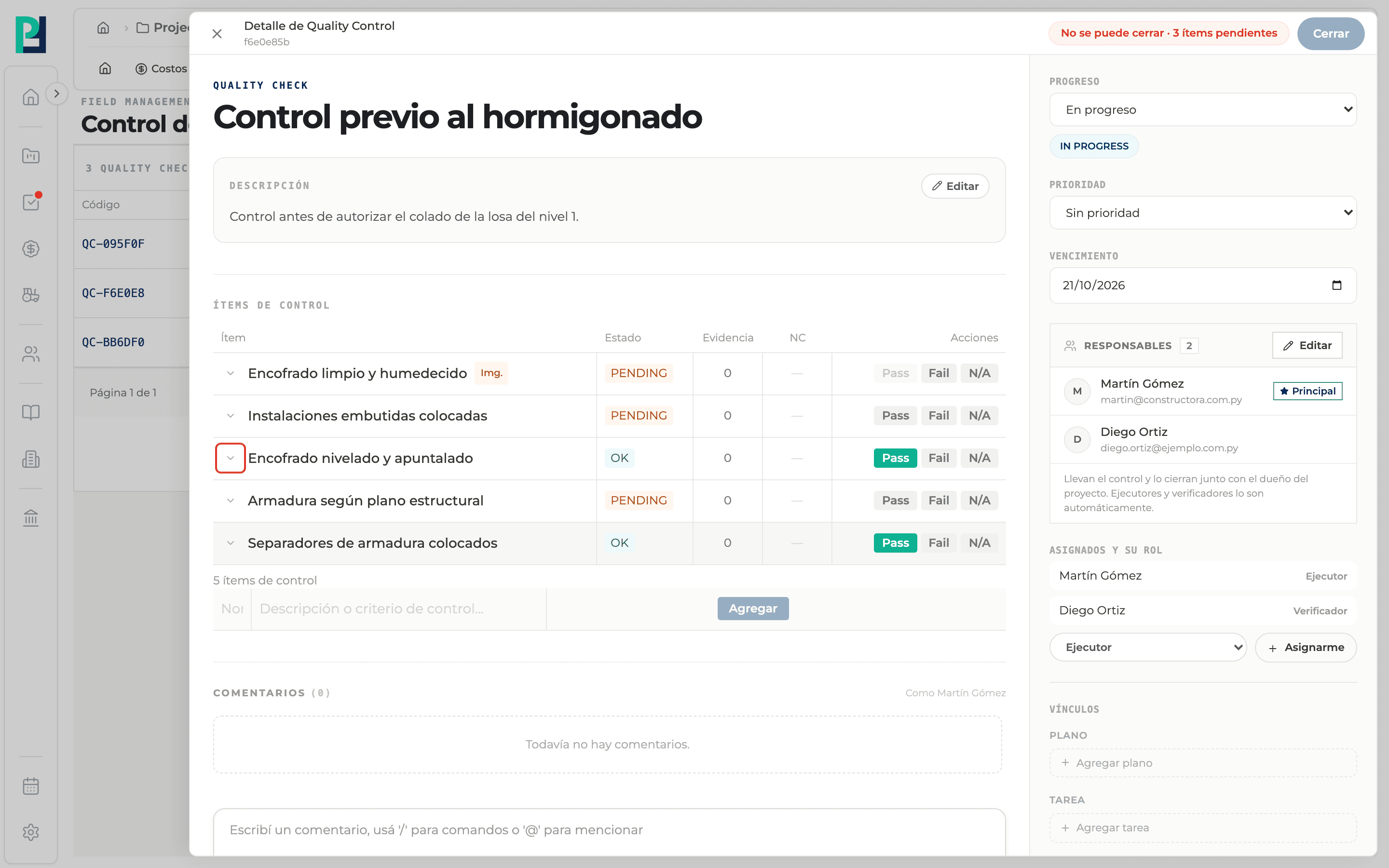
Expand the item
Click the row's arrow.
- 02
Write the notes
Type in Notes; it is saved when you leave the field.
- 03
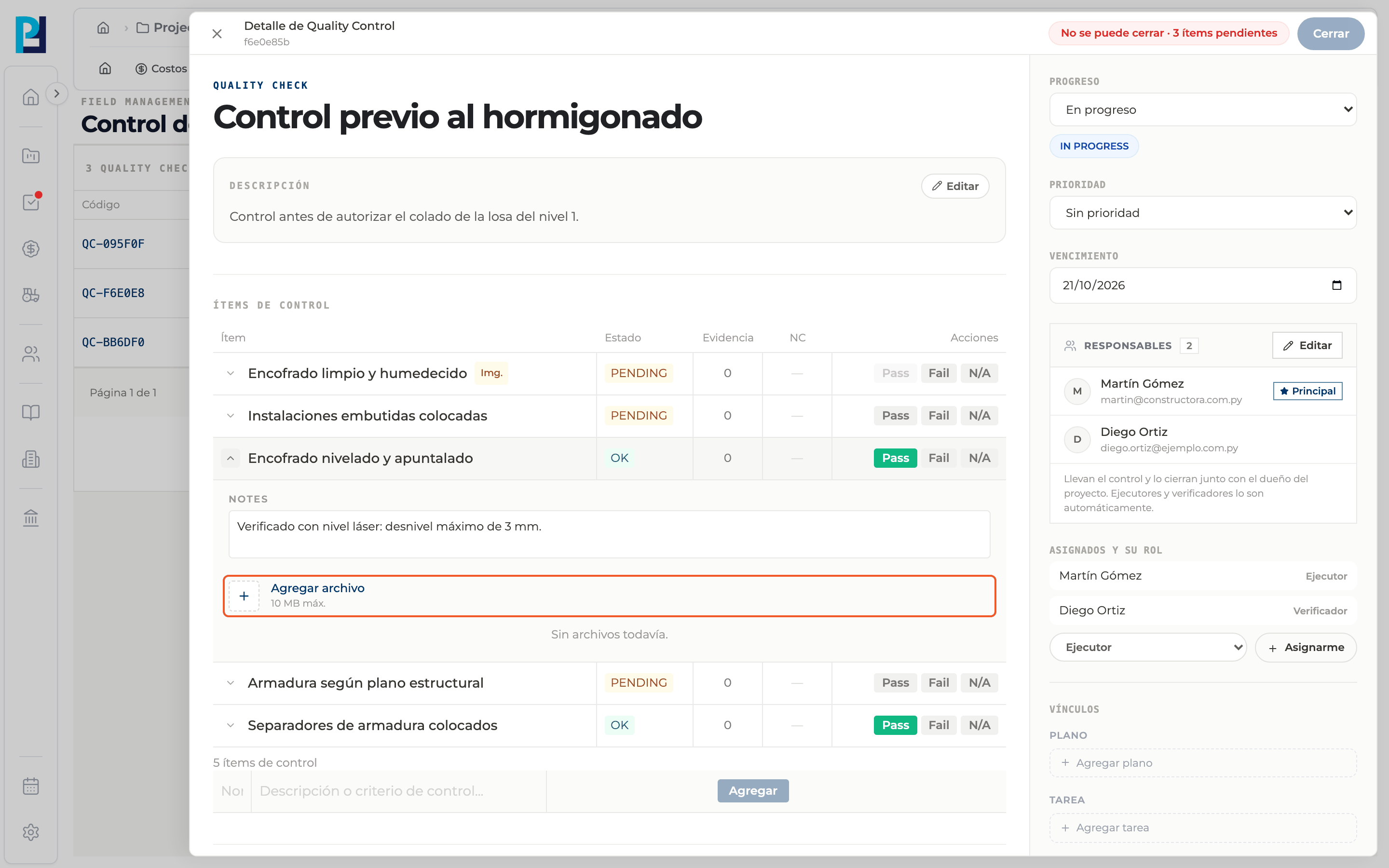
Upload evidence
Click Add file (up to 10 MB; images, PDF or .fig). An indicator shows while it uploads.
- 04
Review the evidence
Each file shows who uploaded it and when, and an icon to download it. If there are none, it says no files yet. The table's Evidence column shows the count.
- 05
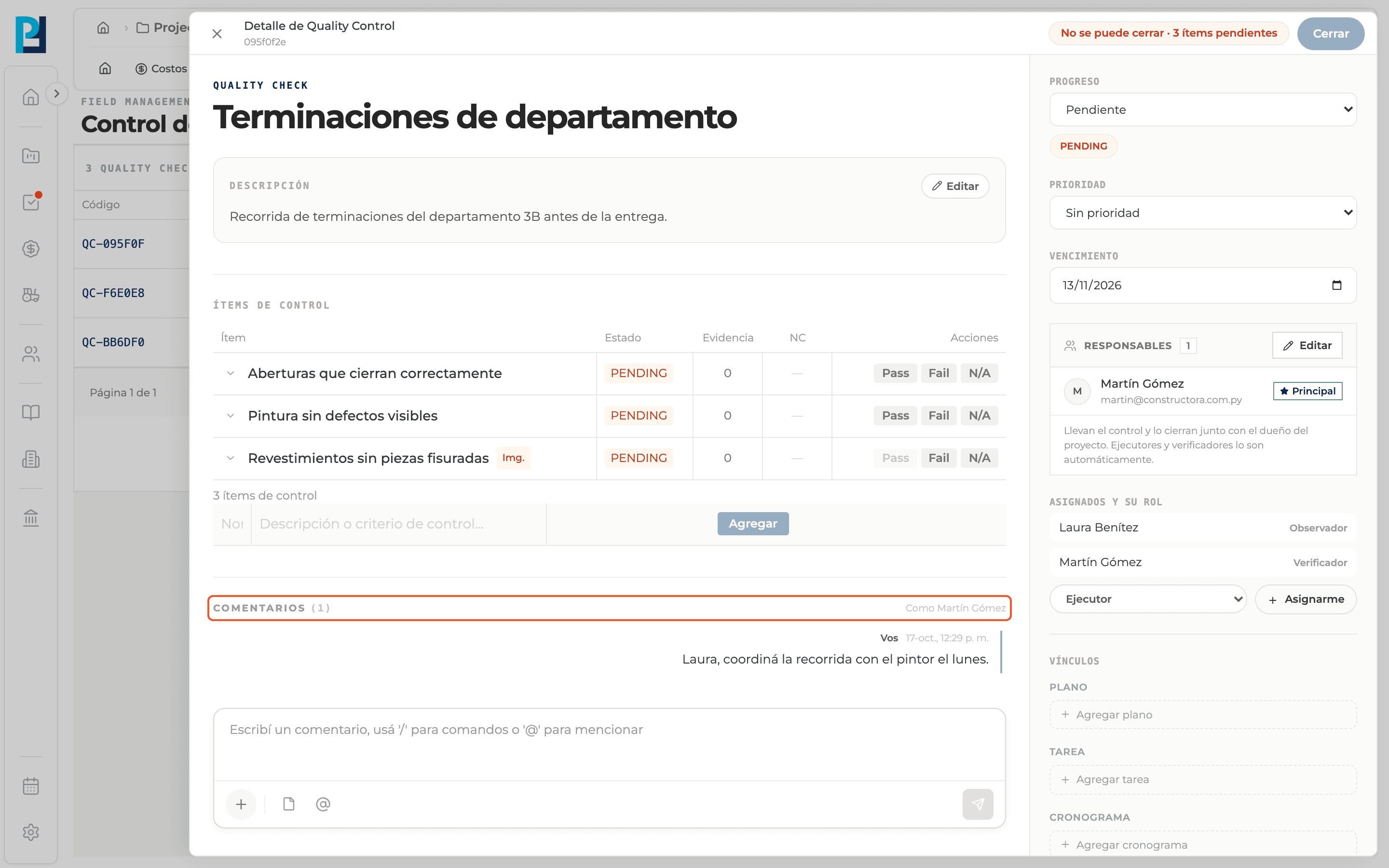
Comment on the check
At the bottom of the detail, under Comments, type and send. You can attach a file and mention people with @.
What you'll learn
How add notes and evidence to an item works inside Perfour.
What information you need and how it stays connected to Quality.
How to preserve traceability and find the record later.
Frequently asked questions
What is the Img. tag for?+
In templates an item can be marked as "Requires image for Pass": without evidence that item cannot be marked Pass.