Manage check templates
Templates are reusable checklists to create checks.
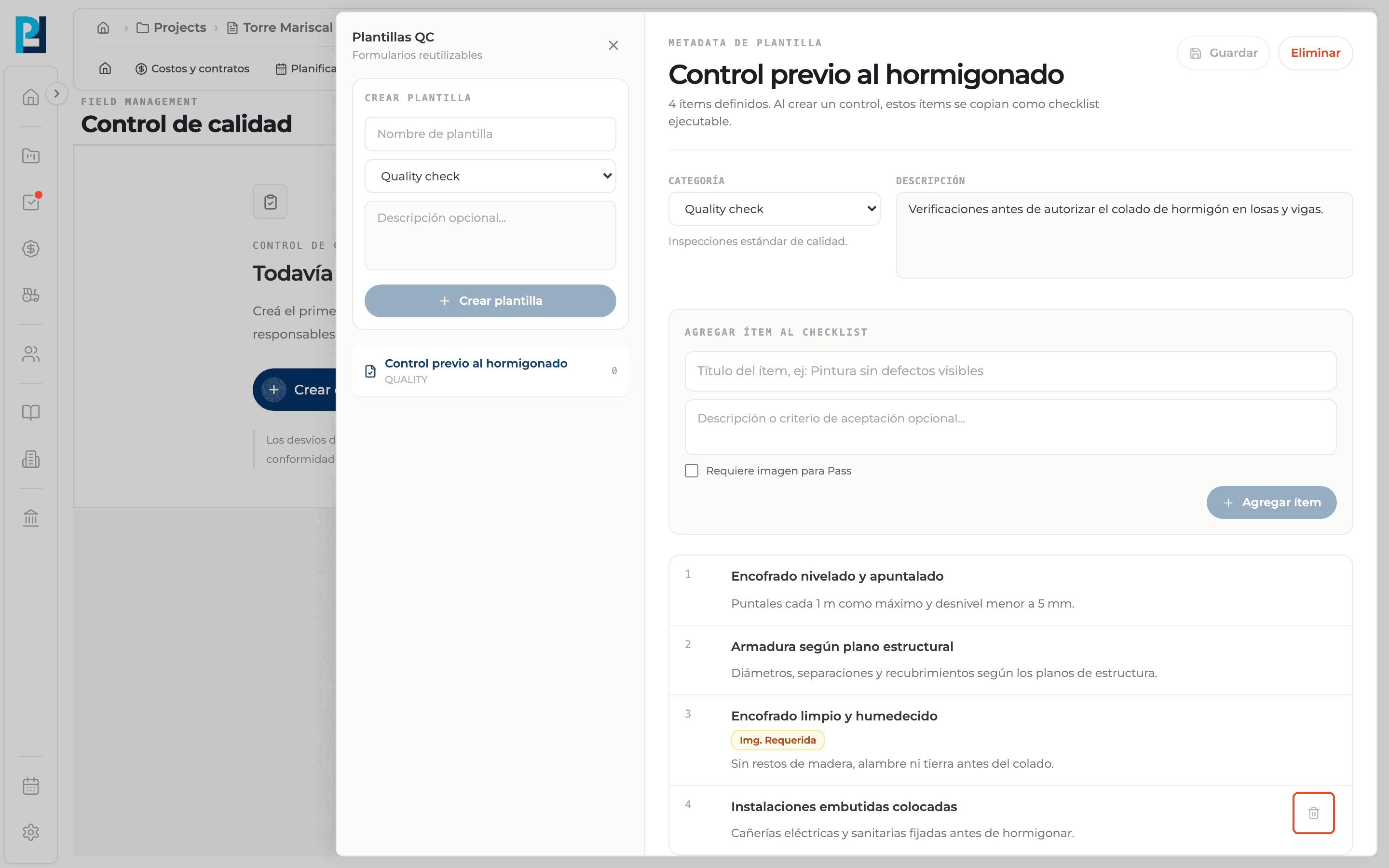
How to complete qc templates
- 01
Open the panel
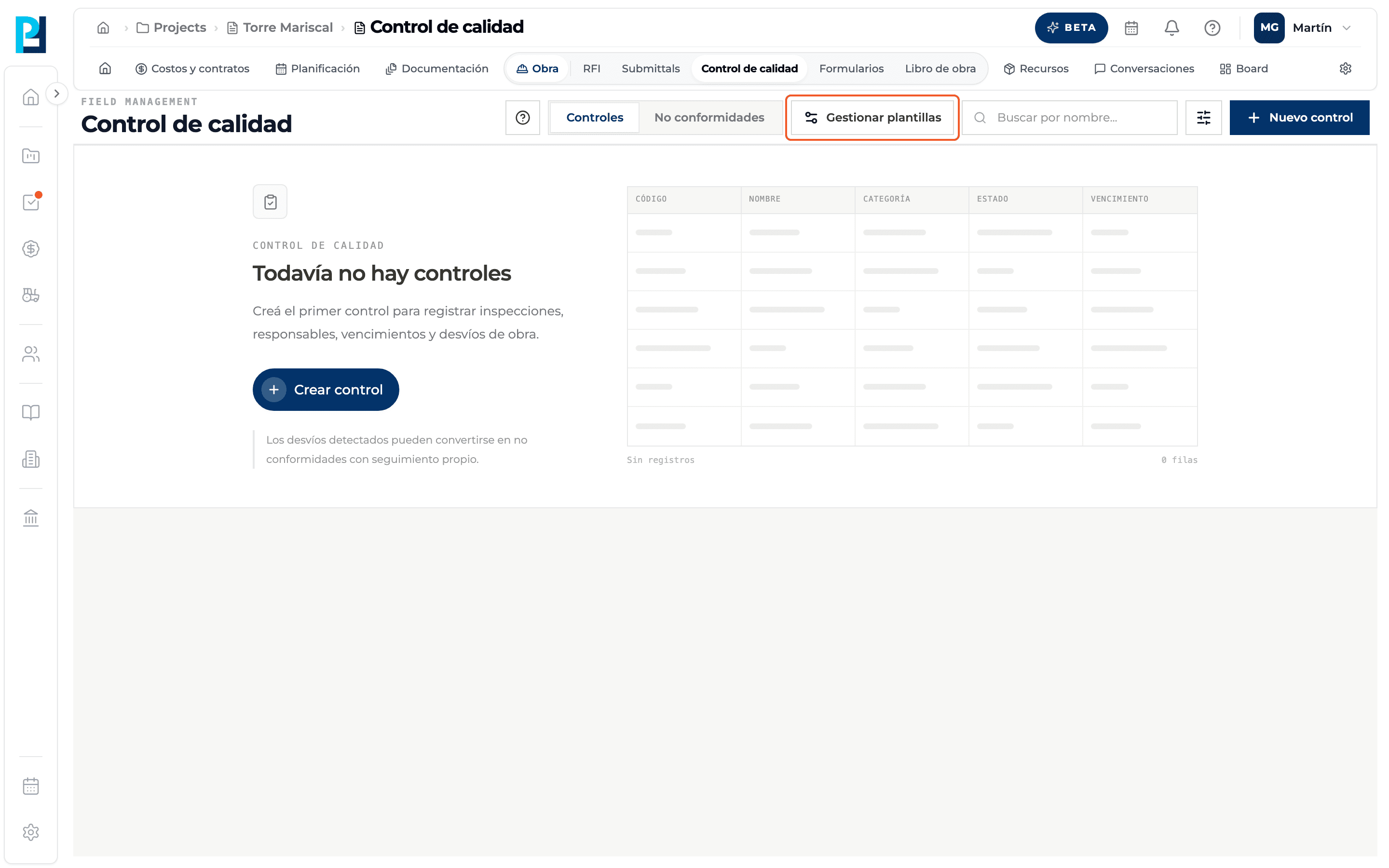
On the Checks tab click Manage templates. The QC templates panel opens.
- 02
Create a template
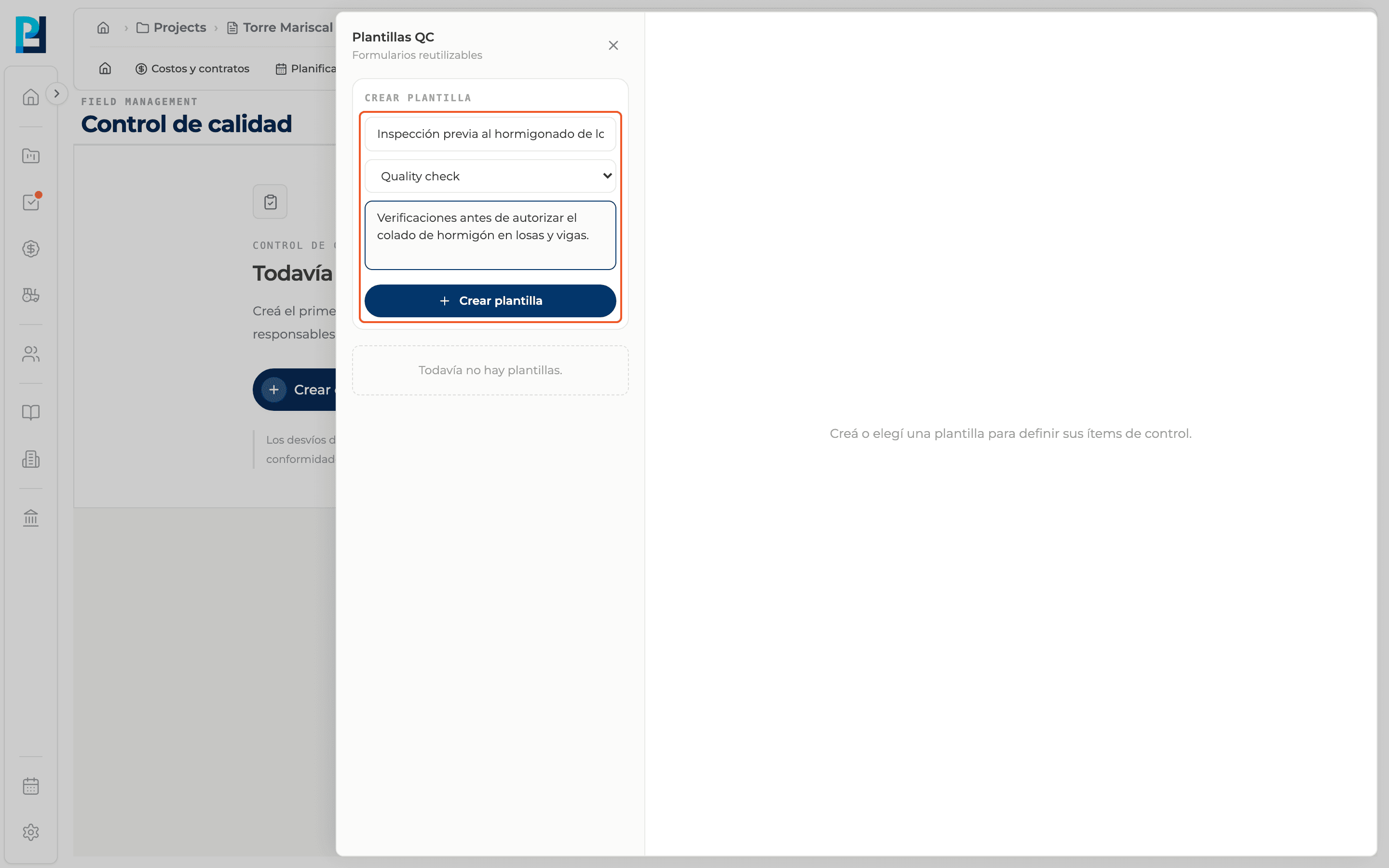
Under Create template enter the name, pick the category (Quality check, Punch list, Safety or Commissioning), add an optional description and click Create template.
- 03
Pick an existing one
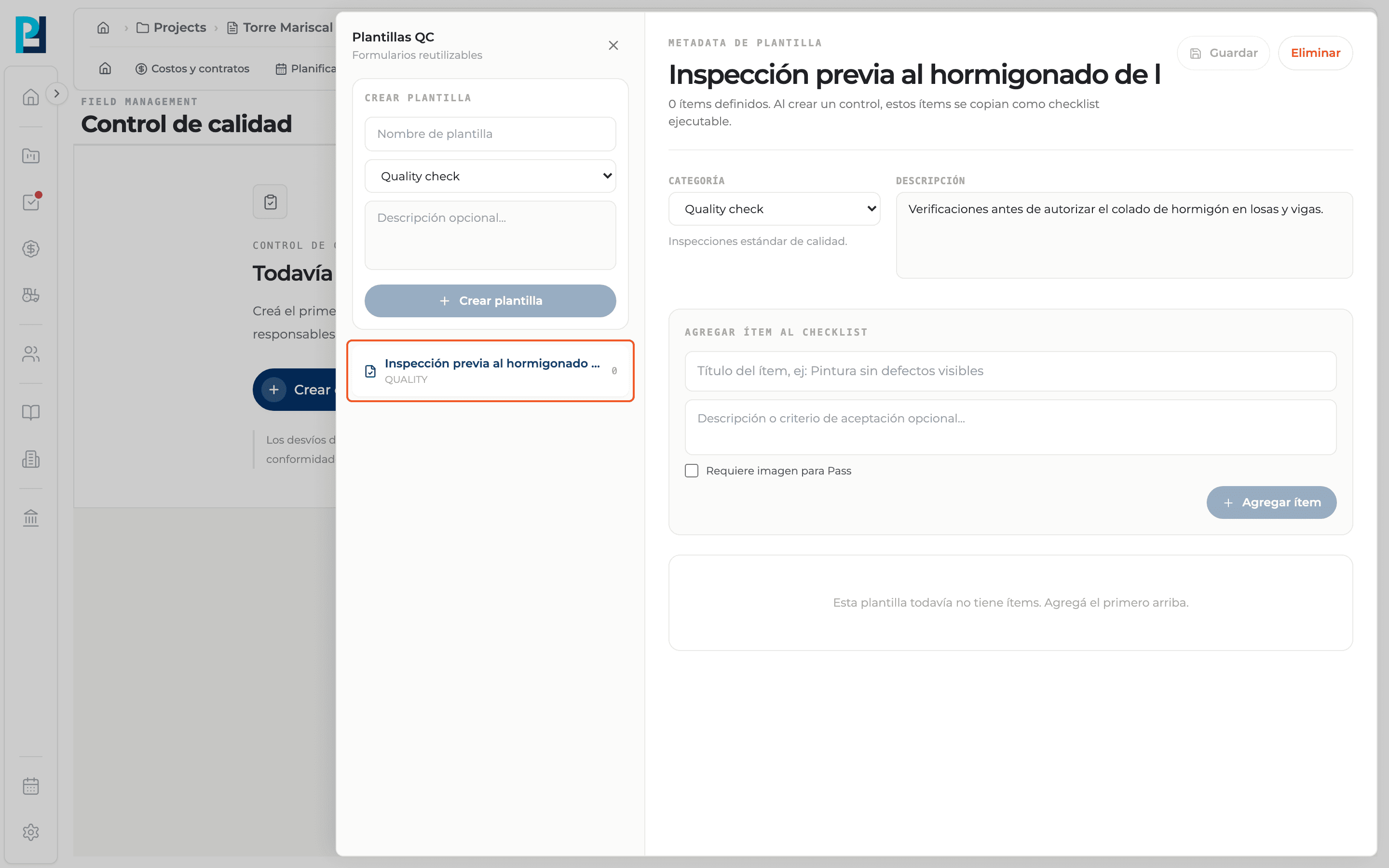
Select it in the list on the left. If there are none, it says there are no templates yet.
- 04
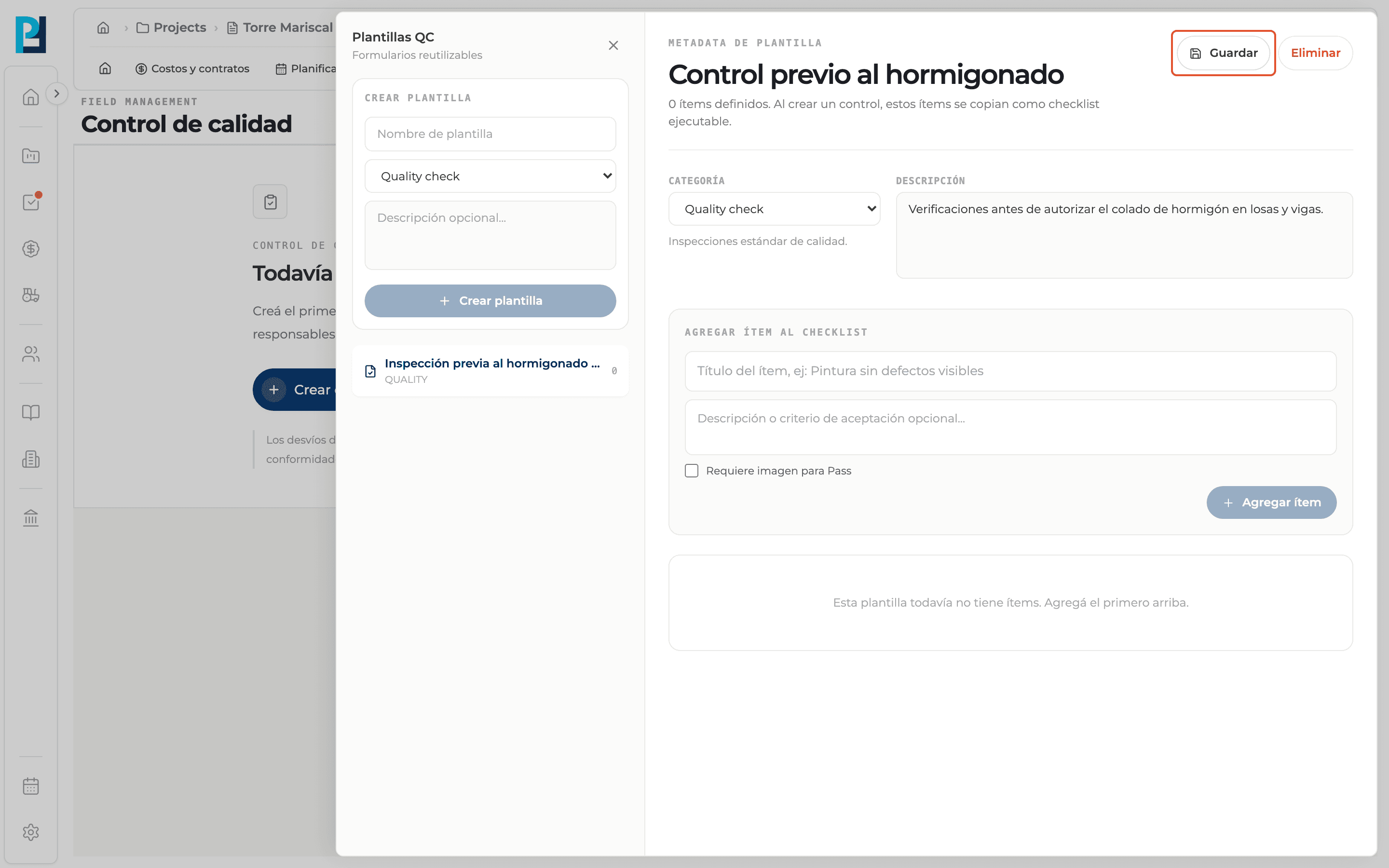
Edit its data
Change the name, Category or Description and click Save.
- 05
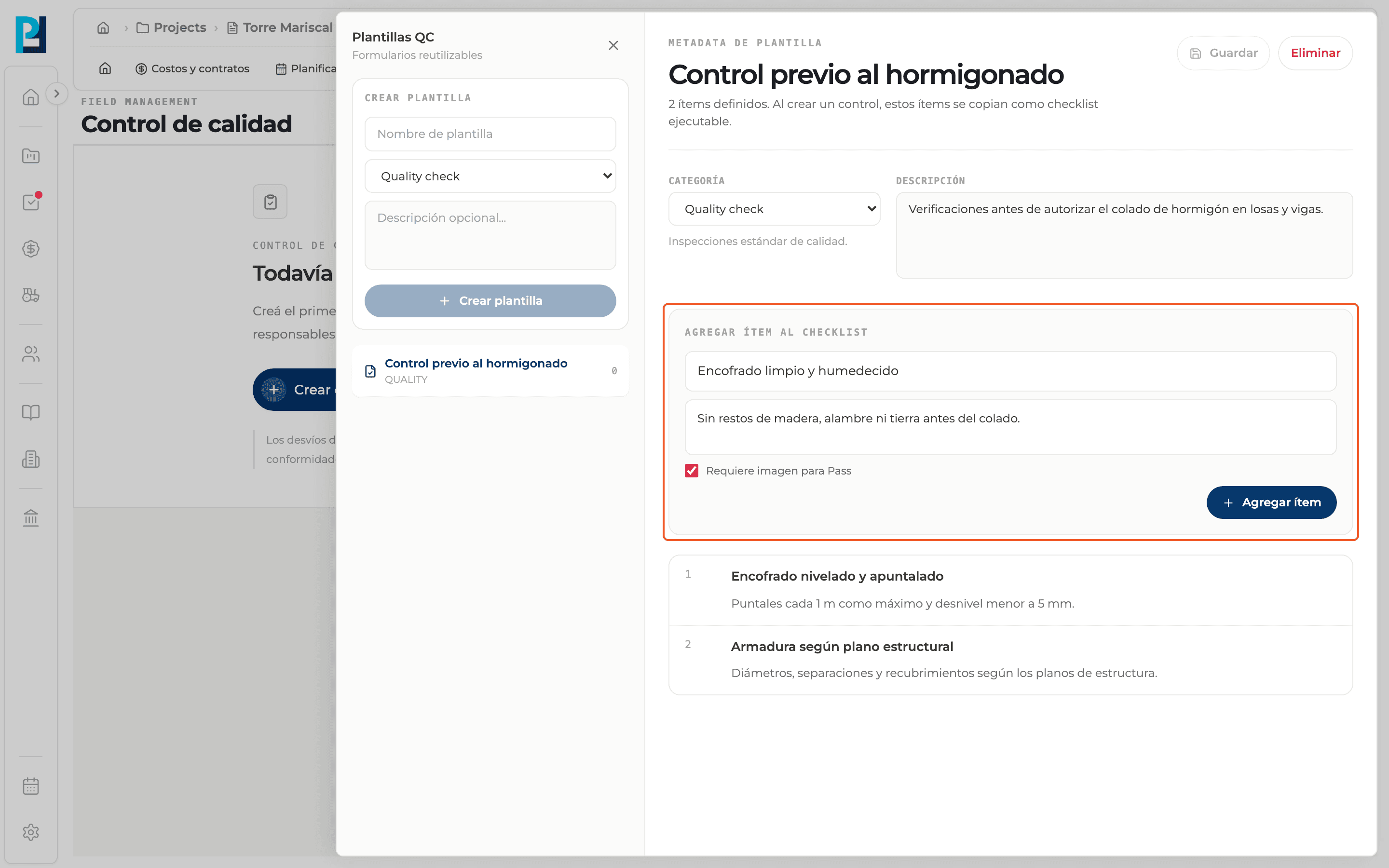
Add items
Under Add checklist item type the title and, optionally, the acceptance criterion. Tick Requires image for Pass if the item needs a photo. Click Add item. Items that require an image show "Img. Required".
- 06
Remove an item
Hover the item and click the trash icon.
- 07
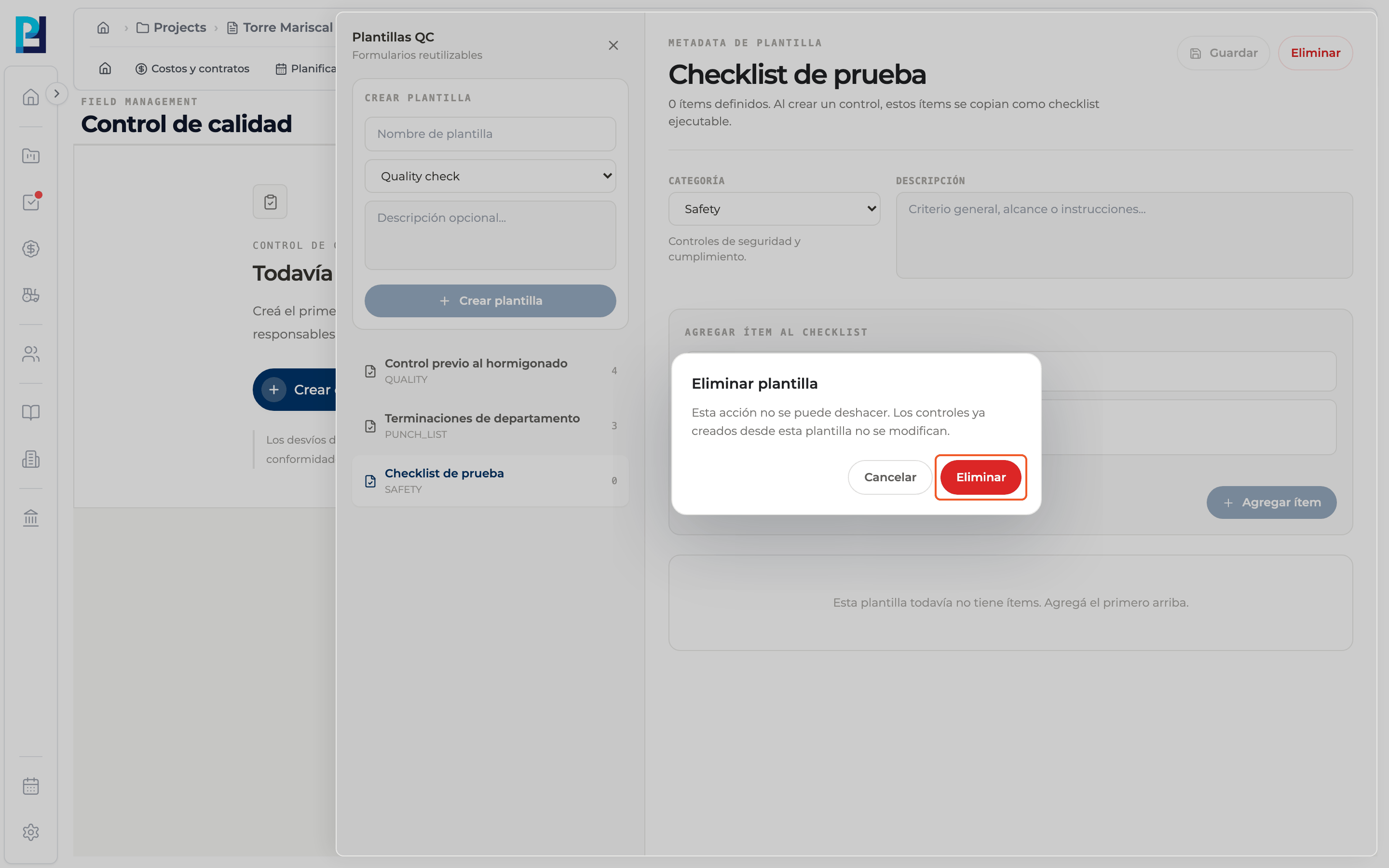
Delete the template
Click Delete and confirm in the dialog. It cannot be undone, and checks already created from the template are not modified.
- 08
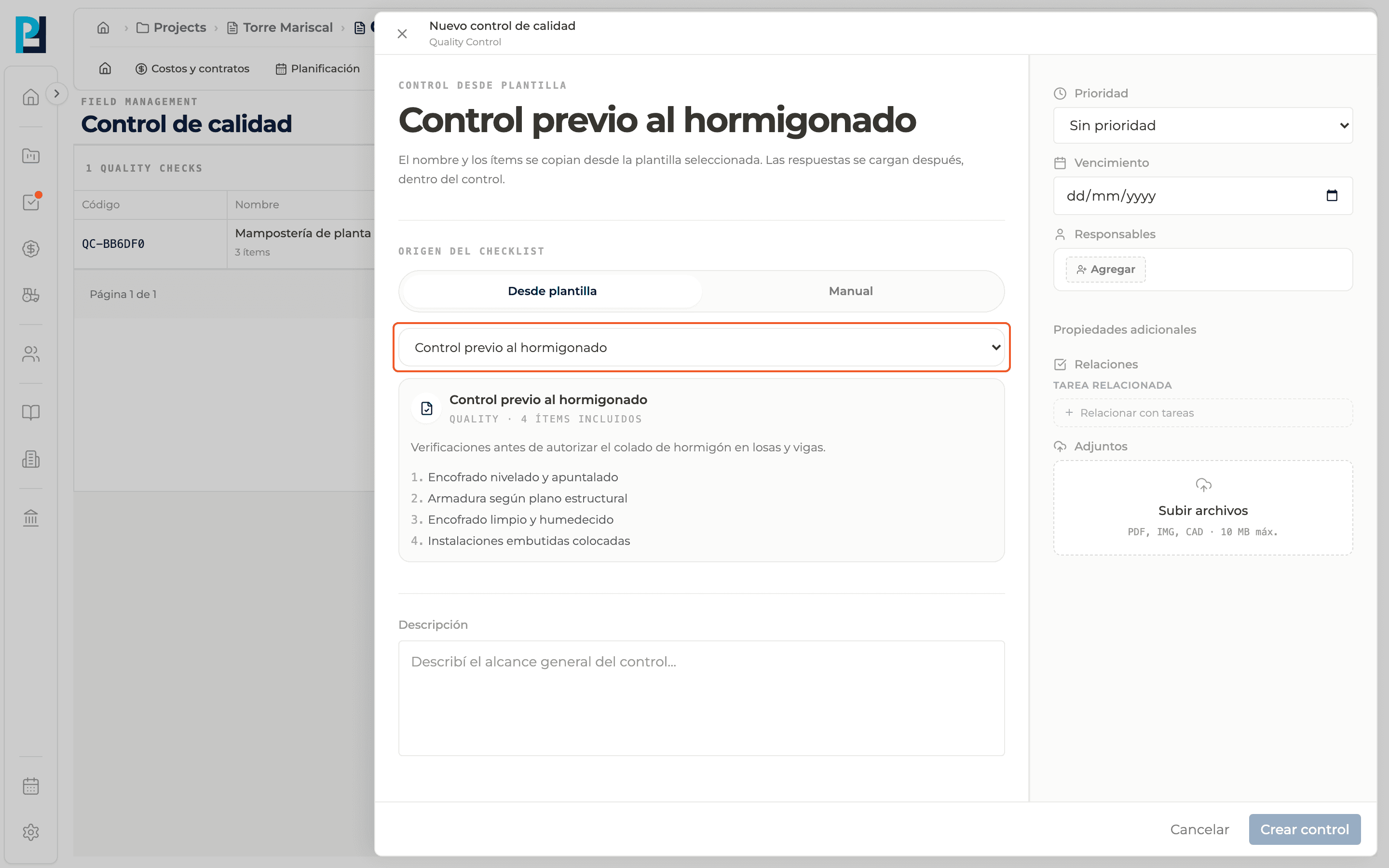
Use it
Close the panel and create a check with the From template origin.
What you'll learn
How manage check templates works inside Perfour.
What information you need and how it stays connected to Quality.
How to preserve traceability and find the record later.
Frequently asked questions
Is an empty template useful?+
A template without items says it has no items yet. Add items before using it.
Are templates per project?+
Yes, the panel lists the project's templates.