Activity history and add to Board
Track everything that happened with the submittal and reach it quickly from the Board.
How to complete activity
- 01
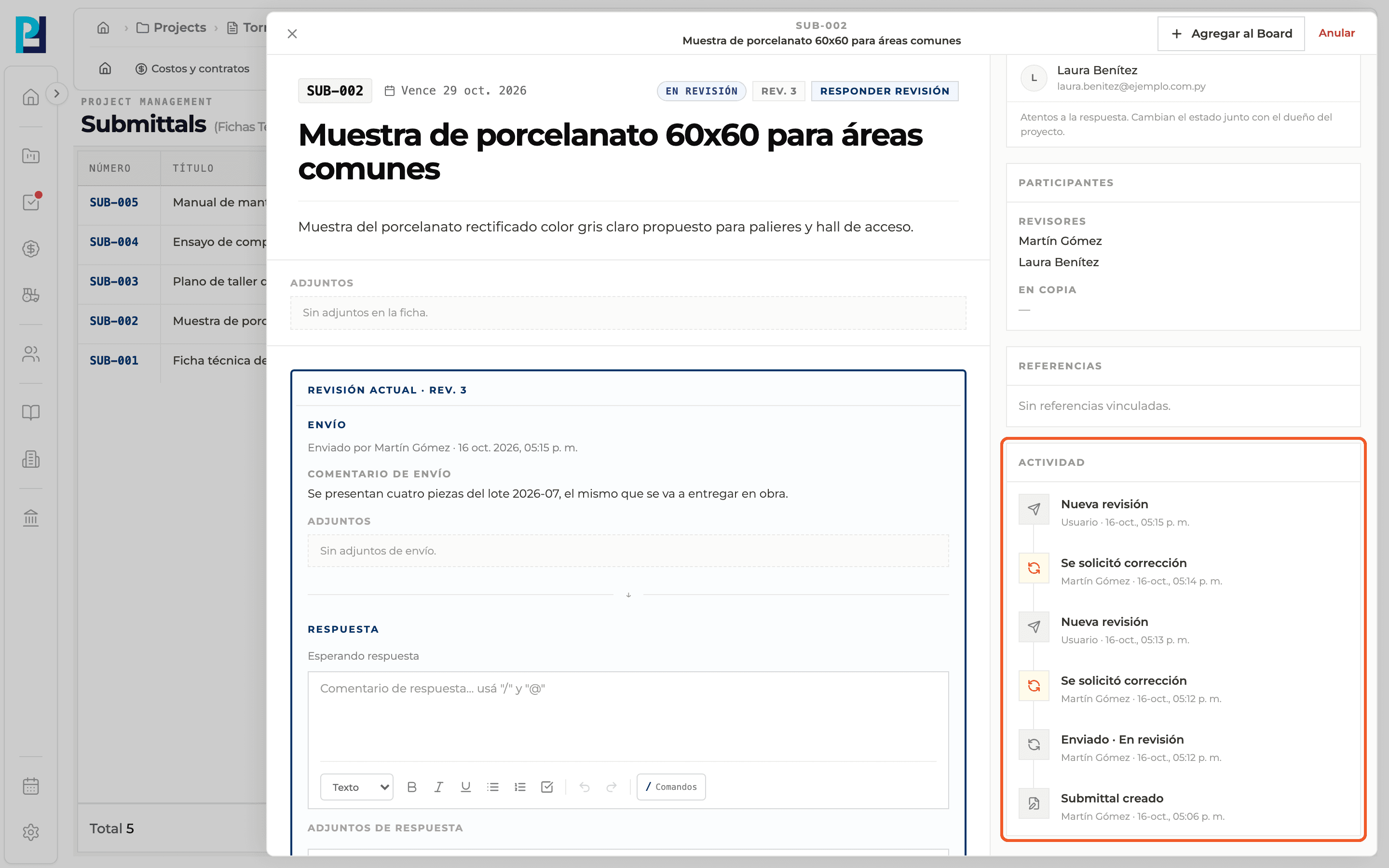
Check the activity
The Activity block in the sidebar shows the timeline: created, sent for review, changes requested, new revision, approved, rejected, voided and more, with author and date.
- 02
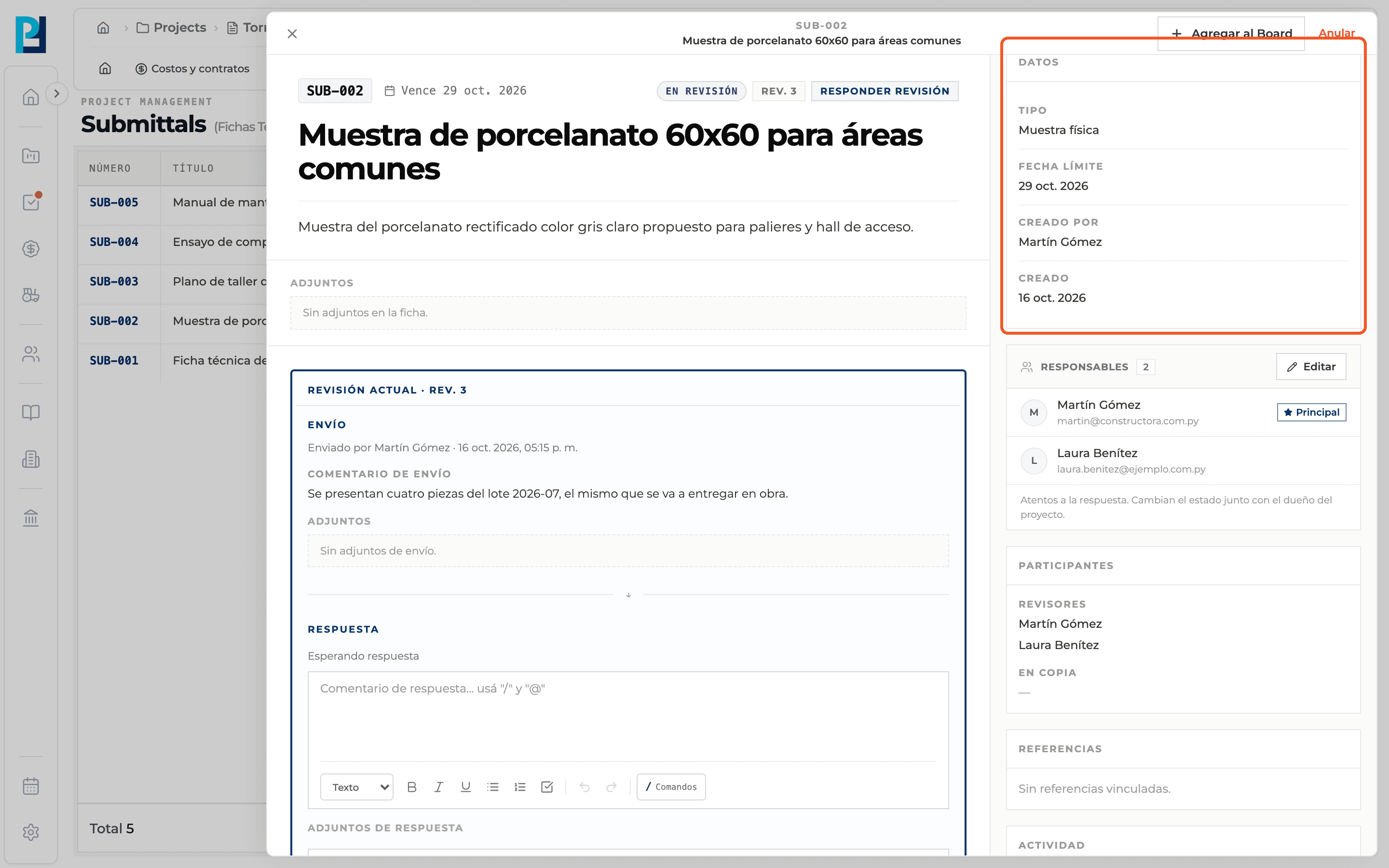
See the data
The Data block shows Type, Due date, Created by and Created.
- 03
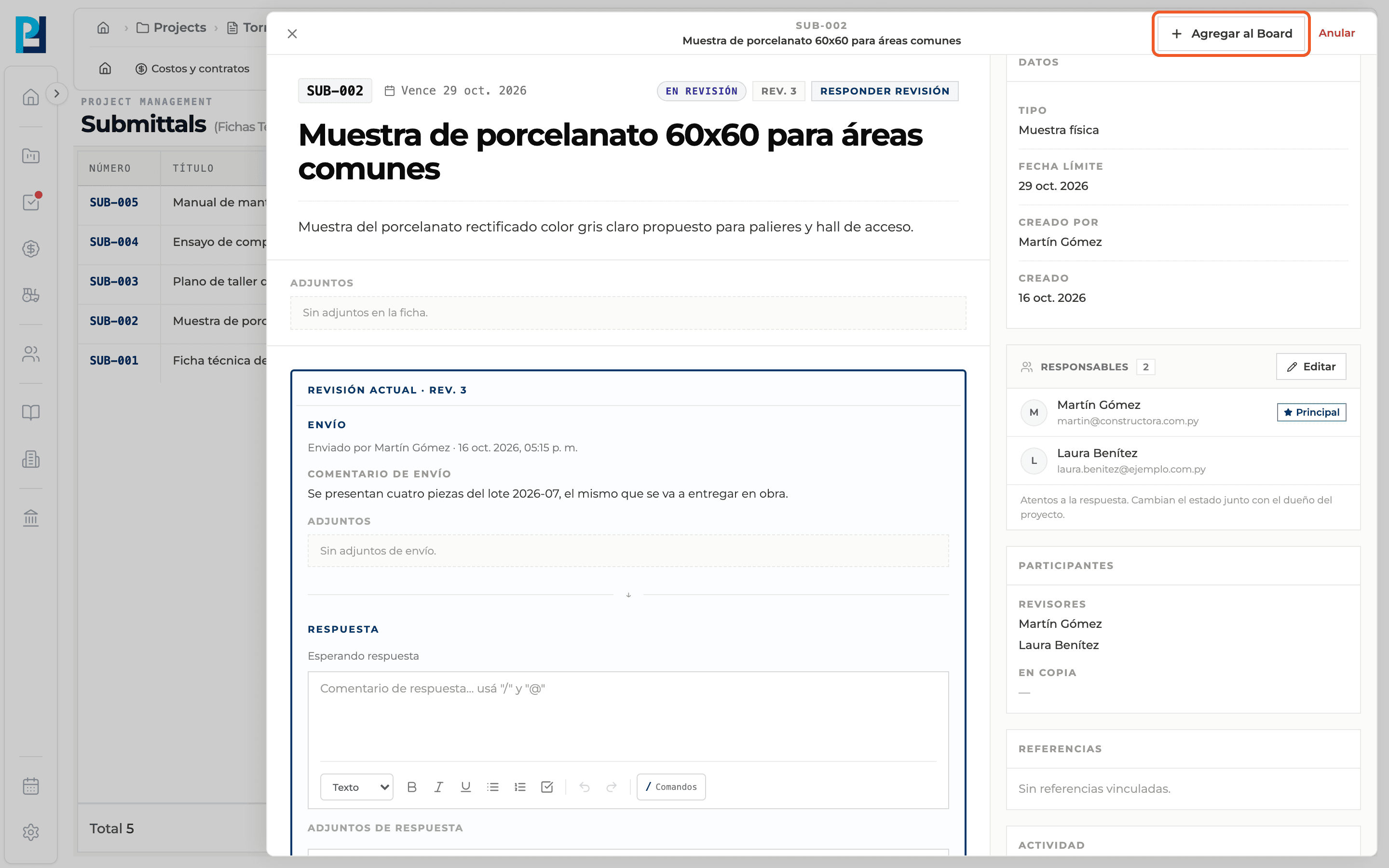
Add to Board
The Add to Board button in the header creates a card for the submittal on the project board.
- 04
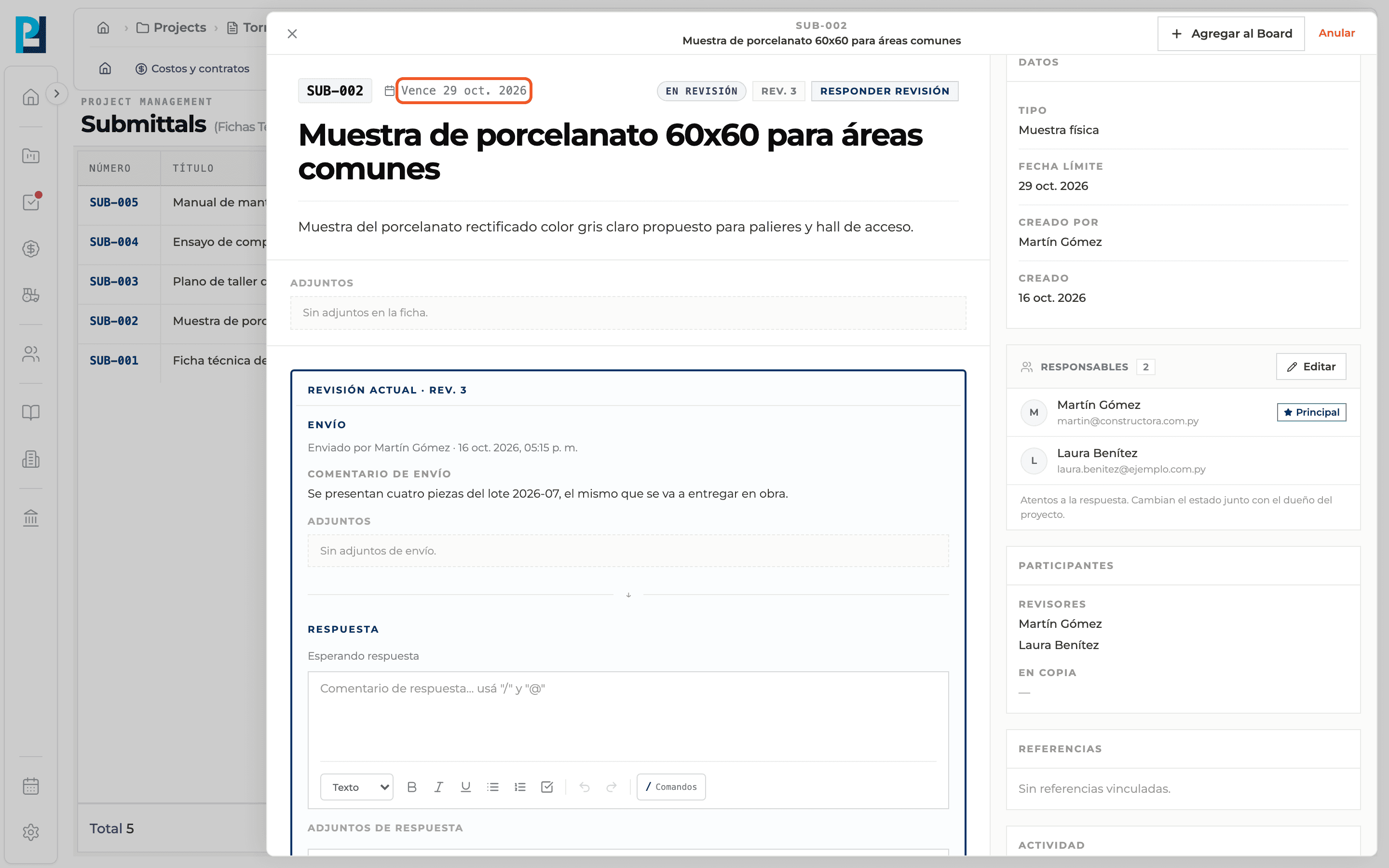
Track the due date
The due date appears as "Due" next to the submittal number and in the list's Due column.
What you'll learn
How activity history and add to board works inside Perfour.
What information you need and how it stays connected to Submittals.
How to preserve traceability and find the record later.
Frequently asked questions
Does the history include every revision?+
Yes: every submission and response is recorded in the Activity. Each revision's detail is under Previous revisions.
Are overdue submittals flagged?+
No. The list only shows the date.