Create a new revision and check previous ones
When the reviewer requests changes, a new revision is presented with the corrected comment and files. Previous revisions stay as history.
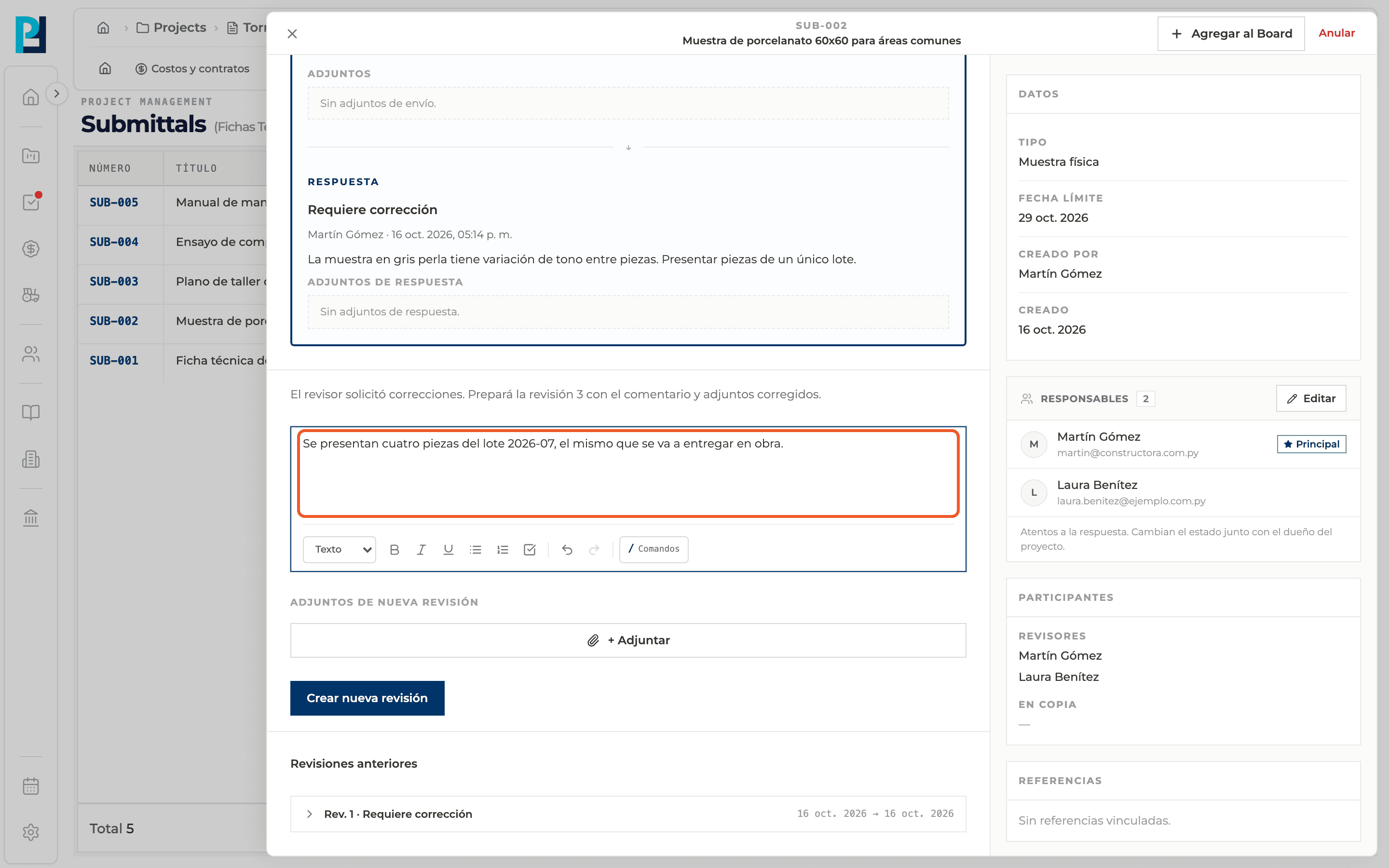
How to complete new revision
- 01
Find the change request
With the submittal in Revise and resubmit, below the current revision a message asks you to prepare the next revision with the corrected comment and attachments.
- 02
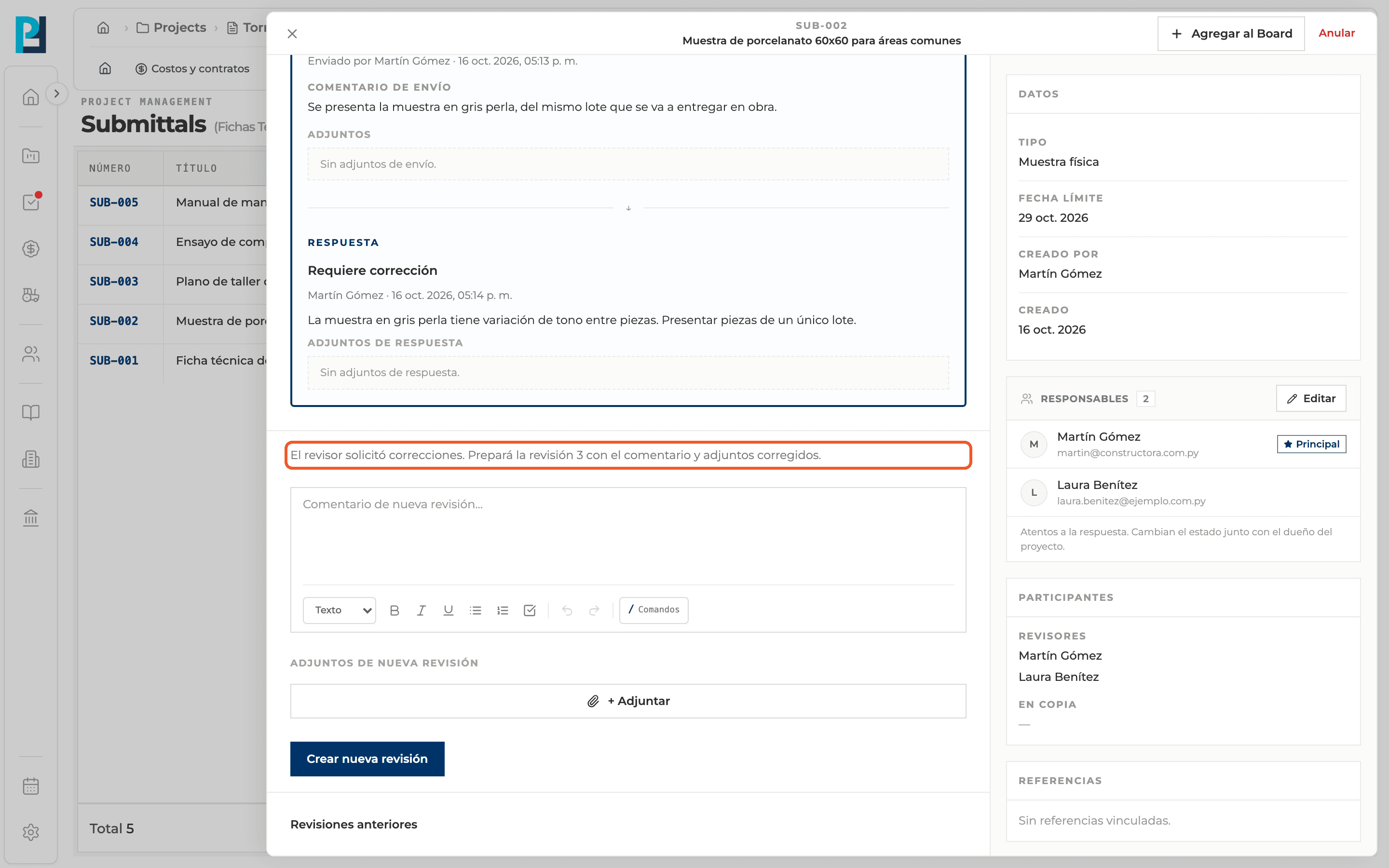
Write the comment
In the new revision comment, explain what changed. It supports / and @.
- 03
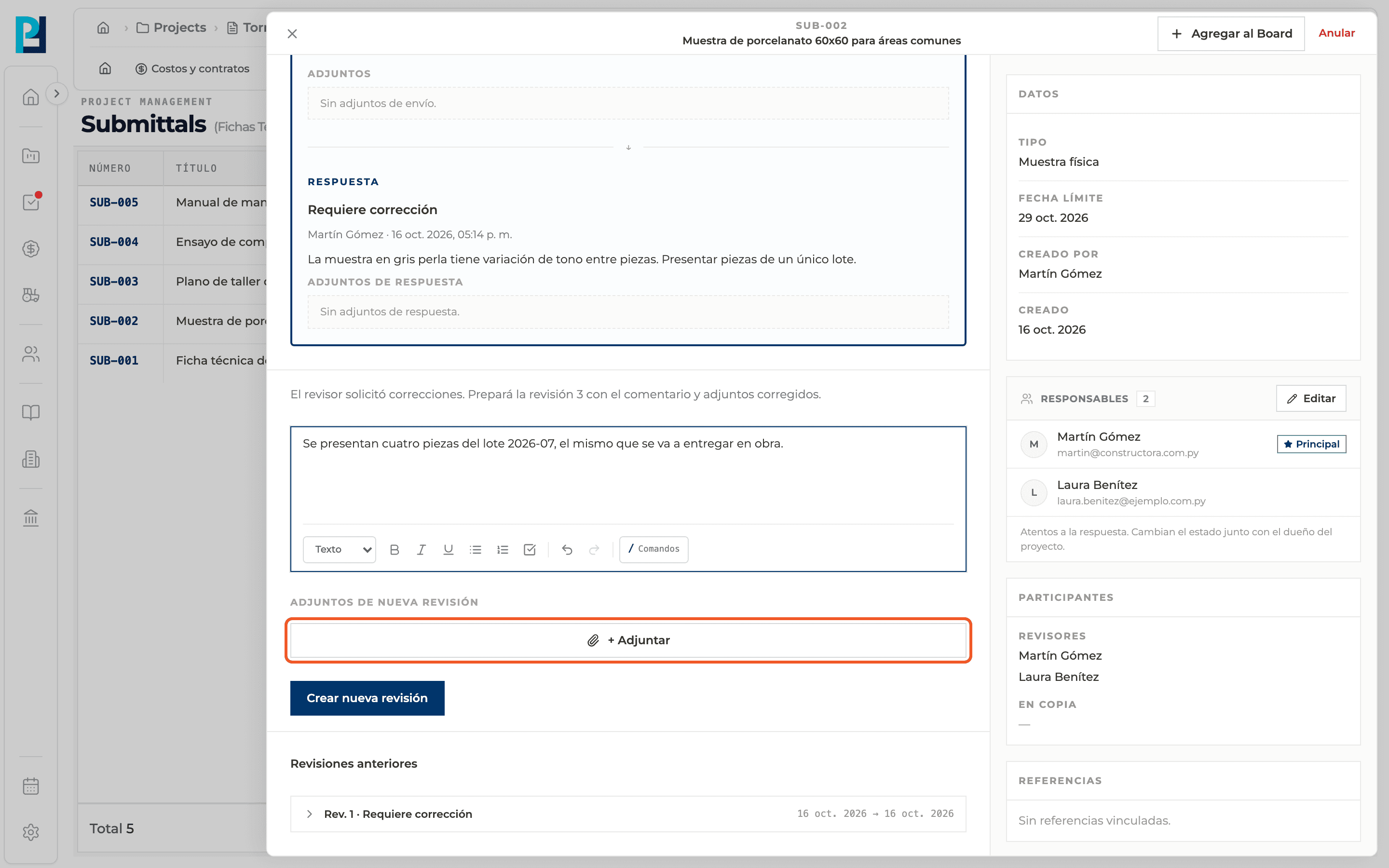
Add the corrected files
Under New revision attachments use + Attach. You can remove a file with the X.
- 04
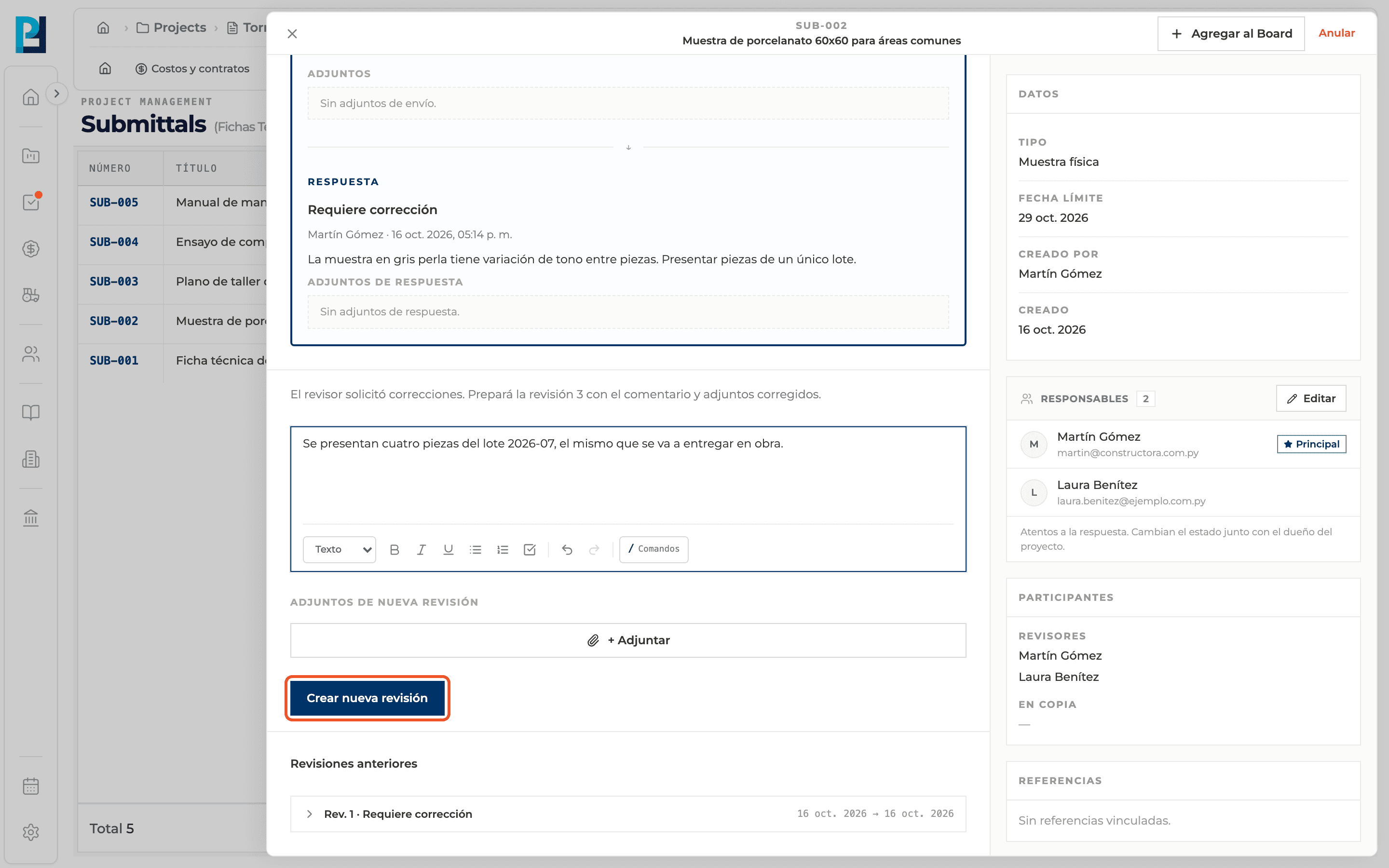
Create the revision
Click Create new revision. The revision number goes up and the submittal goes straight back to In review, with the same reviewers.
- 05
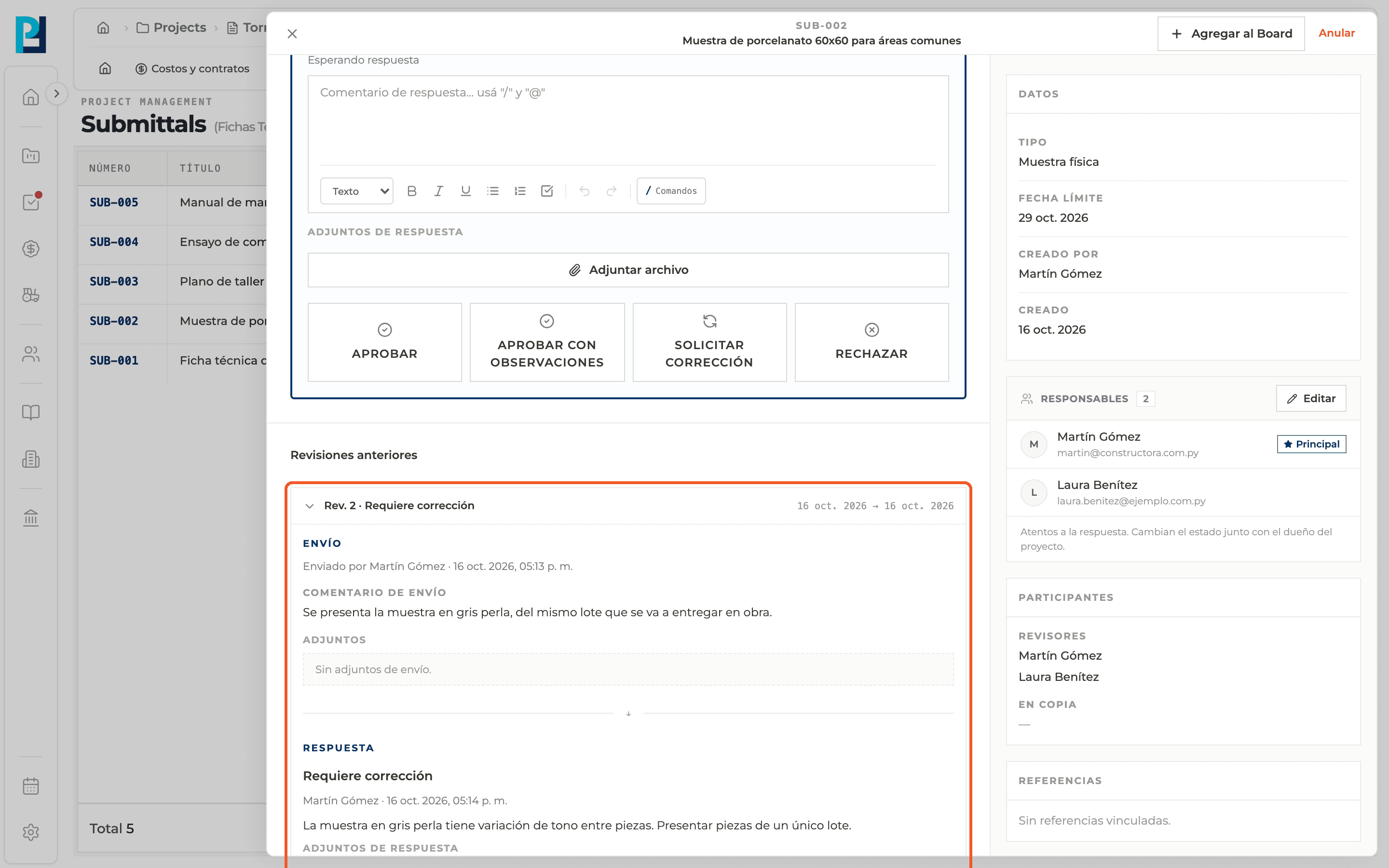
Check previous revisions
Under Previous revisions each revision expands with its decision and dates. Inside you see its submission (who, when, comment and attachments) and its response.
What you'll learn
How create a new revision and check previous ones works inside Perfour.
What information you need and how it stays connected to Submittals.
How to preserve traceability and find the record later.
Frequently asked questions
Do I have to send it for review again?+
No. When the new revision is created, the submittal goes back to In review on its own.
Are old revisions lost?+
No, they stay under Previous revisions.