Respond to the review: approve or reject
Reviewers, or the organization owner or admin, record the decision on the current revision.
How to complete respond to review
- 01
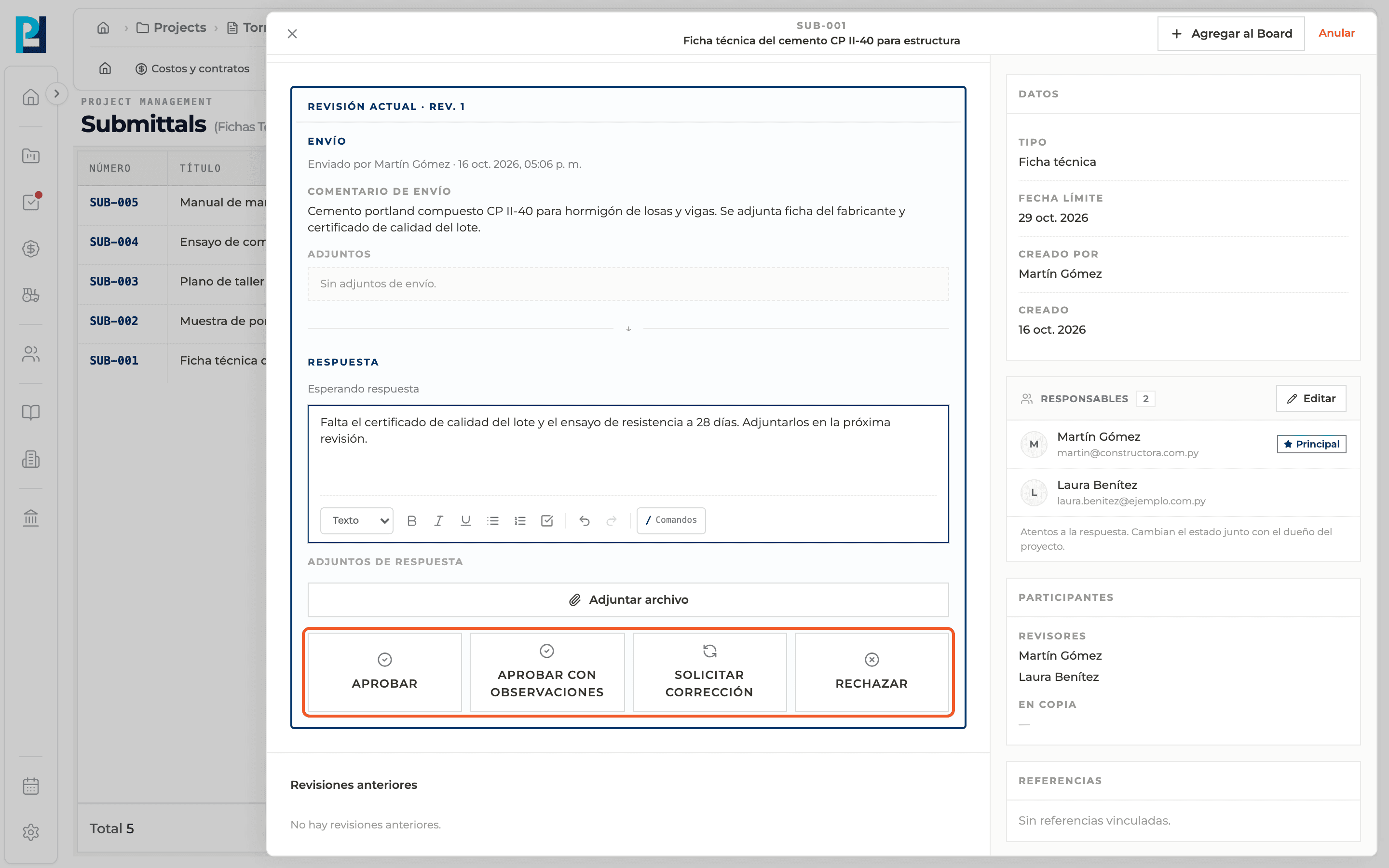
Open the submittal in review
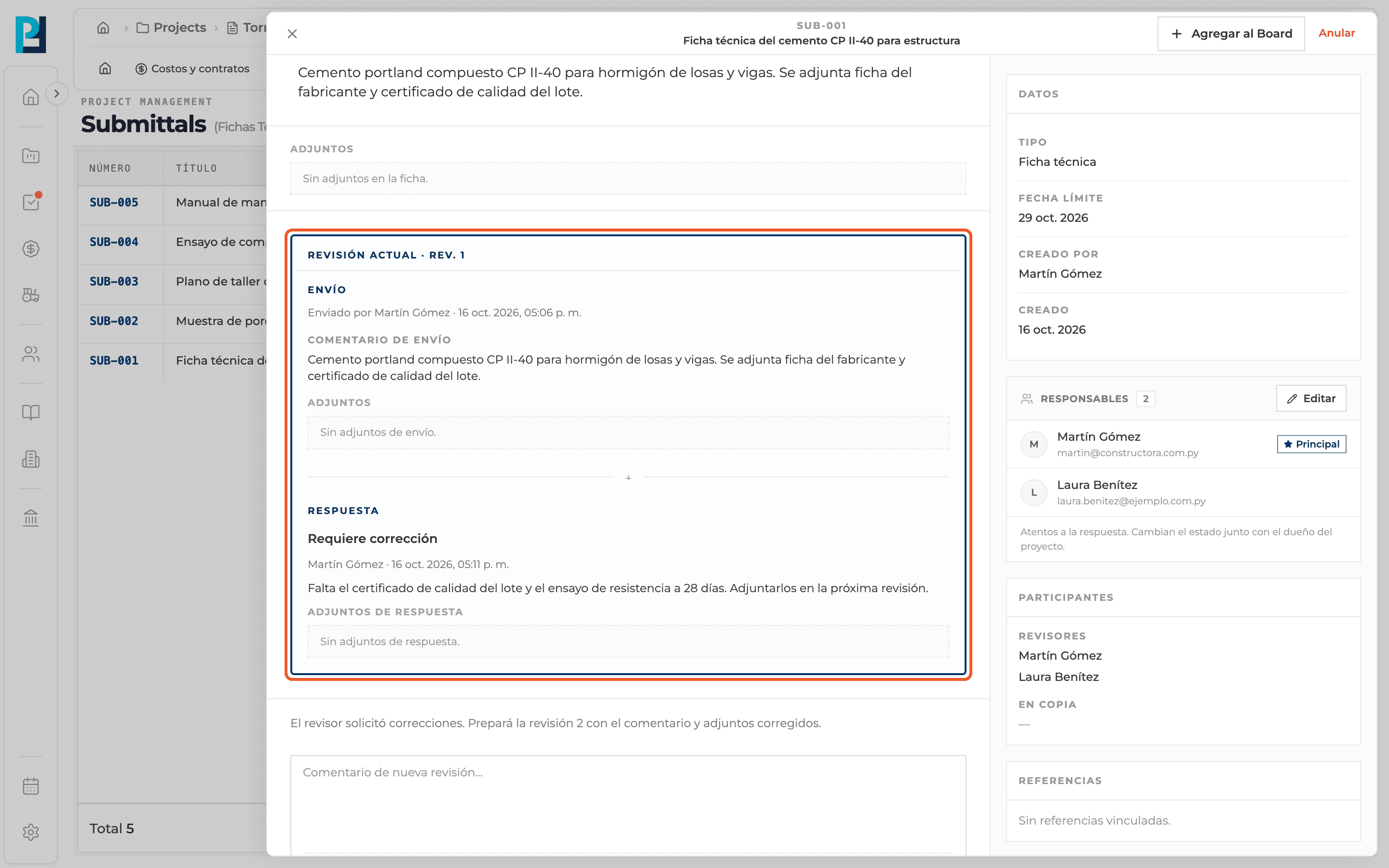
In the Current revision card, the Response block says it is waiting for a response. If it is your turn, you see the comment editor and the decision buttons.
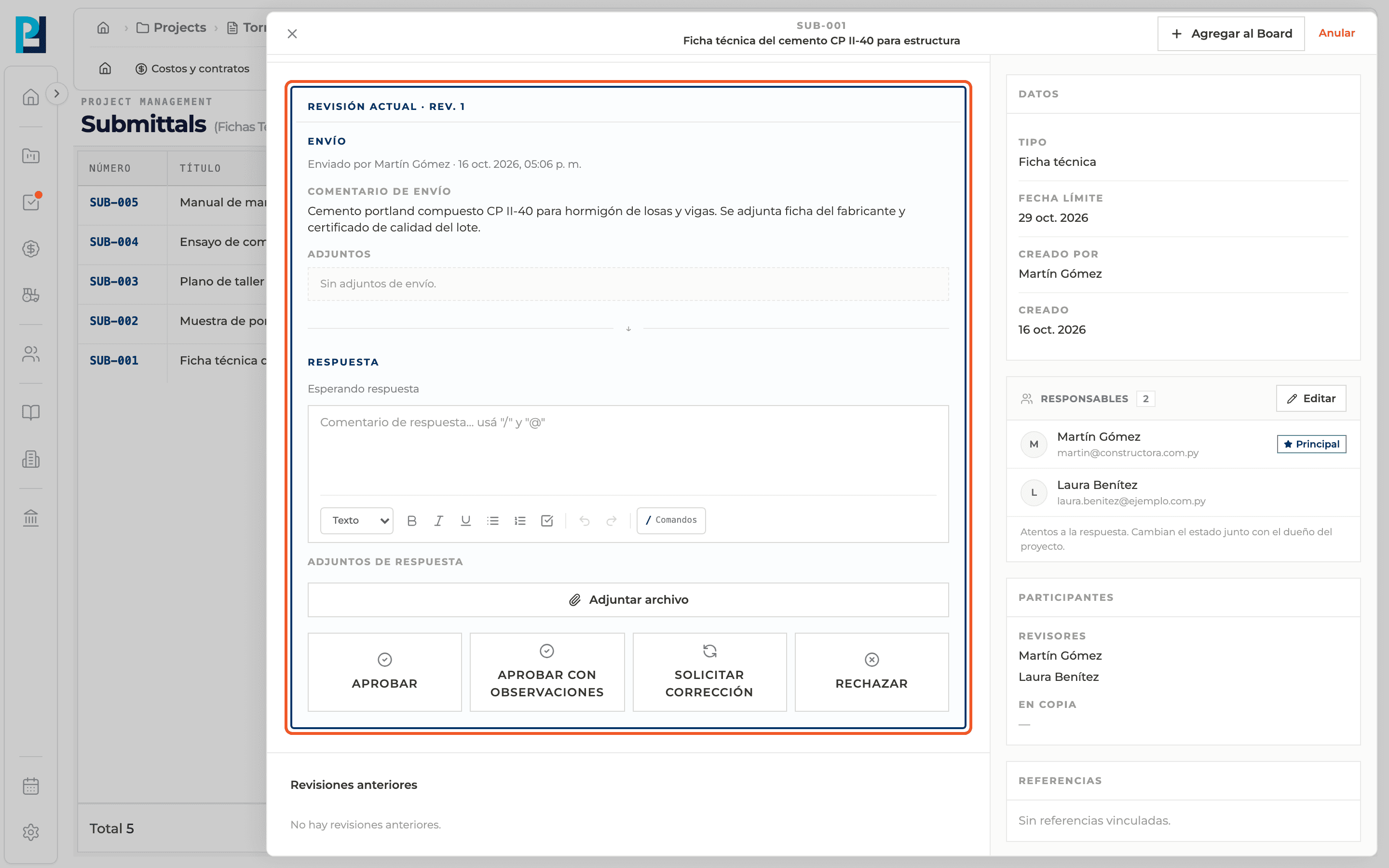
- 02
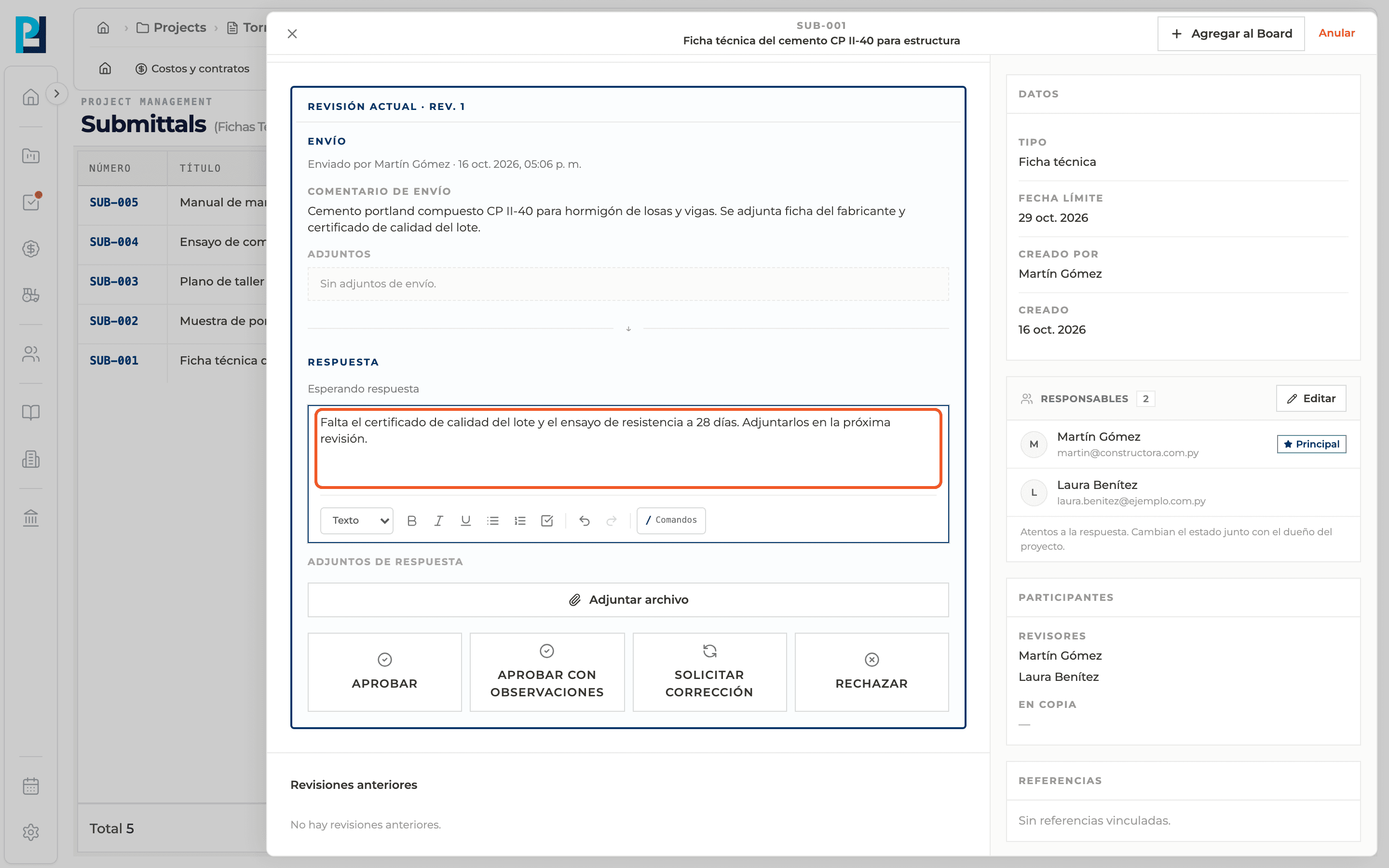
Write the comment
Explain your decision. It is required except for Approve.
- 03
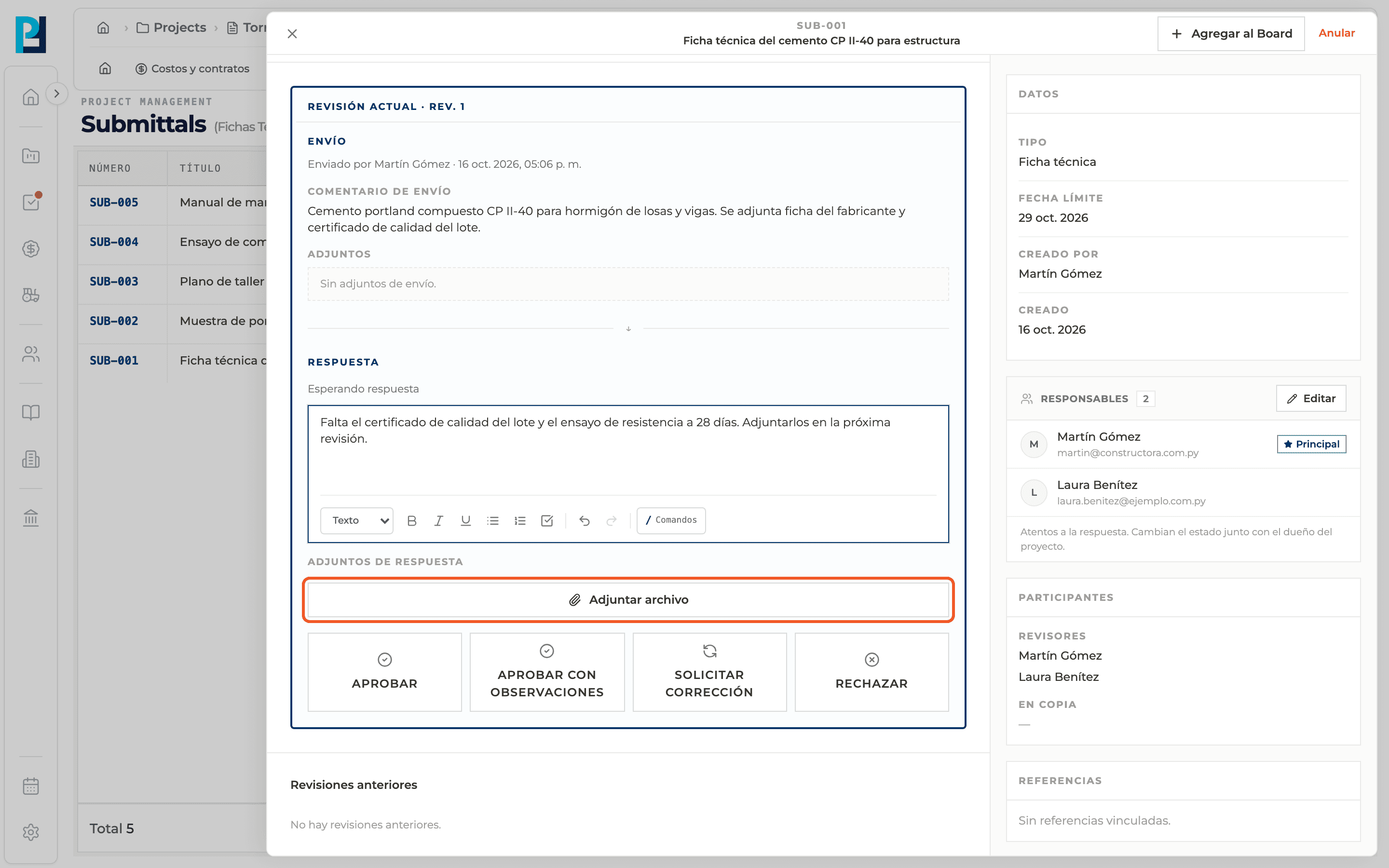
Add response attachments
If needed, use Attach file under Response attachments.
- 04
Choose the decision
Approve: the submittal is Approved. Approve with comments: it is approved with comments and not resubmitted. Request changes: it moves to Revise and resubmit and a new revision must be presented. Reject: it is Rejected and the flow ends.
- 05
See the recorded response
The response stays on the revision with the decision, the reviewer's name, the date and the comment.
What you'll learn
How respond to the review: approve or reject works inside Perfour.
What information you need and how it stays connected to Submittals.
How to preserve traceability and find the record later.
Frequently asked questions
Who can respond?+
The reviewers chosen when sending, and the organization owner or admin. If it is not your turn, you do not see the buttons.
Can I change the decision?+
No. Once answered, the revision becomes read-only.