Add content to the log
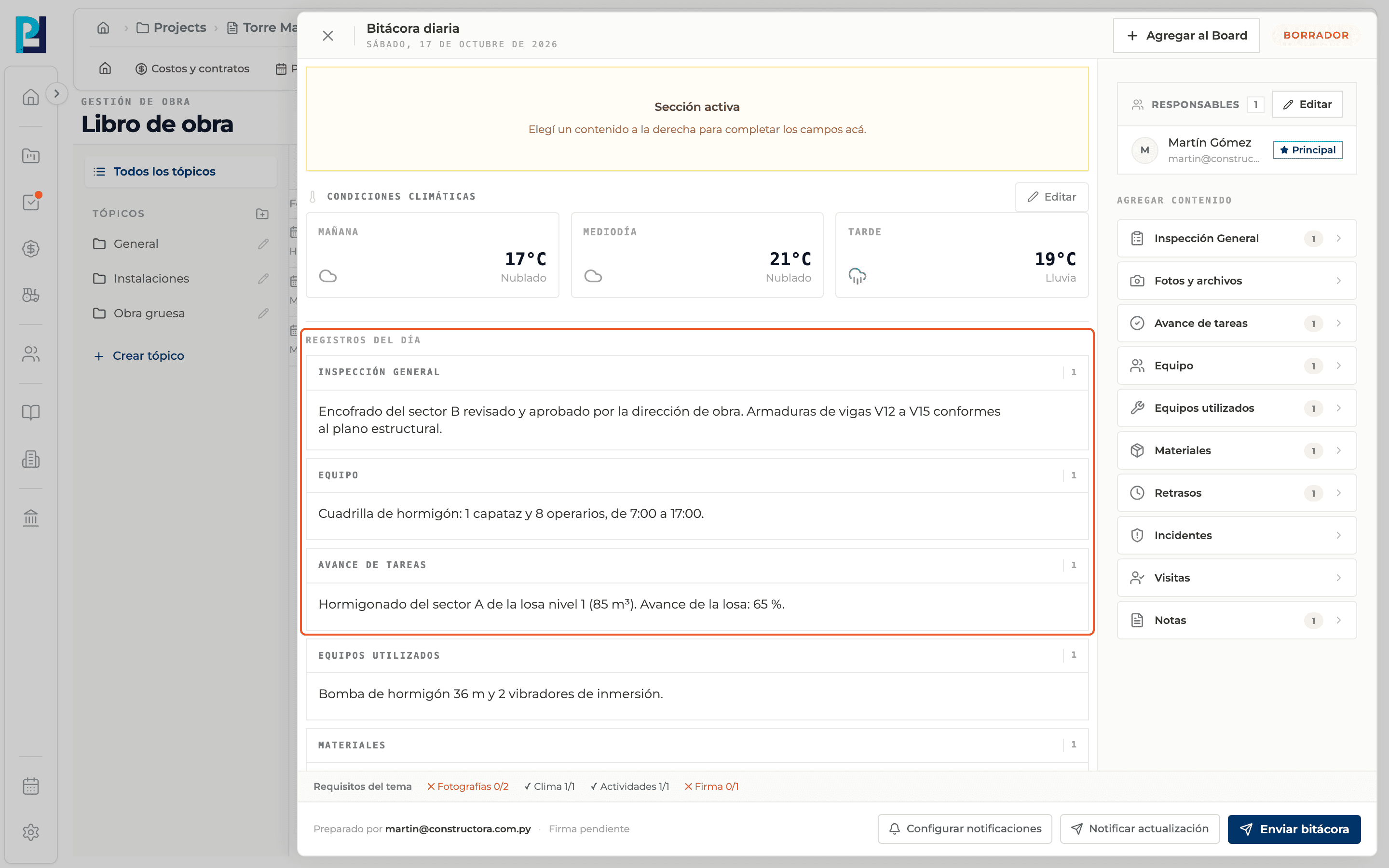
In the right column, Add content lists the day's sections. Each one opens an editor at the top, and what you save shows under Records of the day.
How to complete add content
- 01
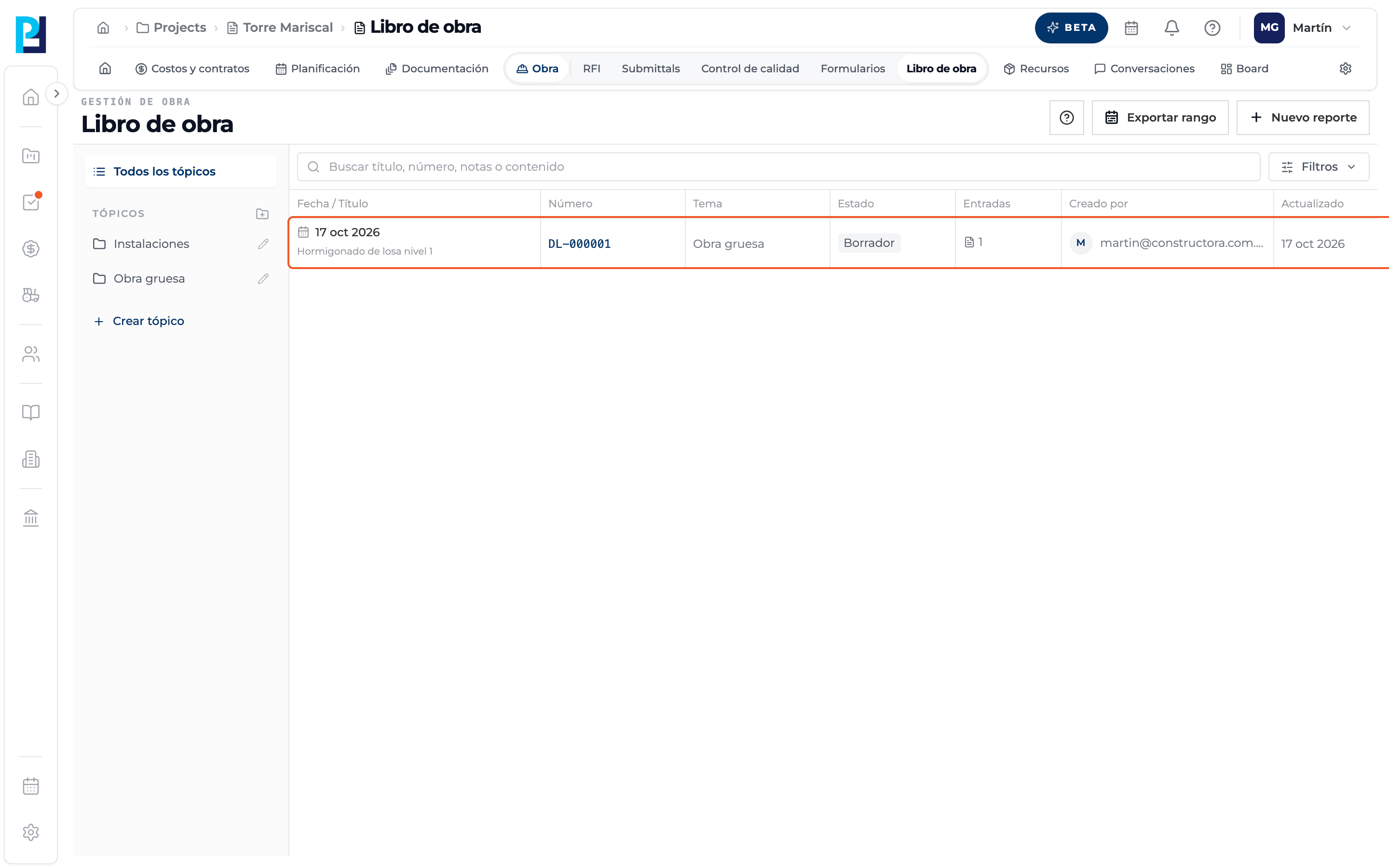
Open the log
It must be Draft, Rejected or Submitted but not approved, and you need edit permission.
- 02
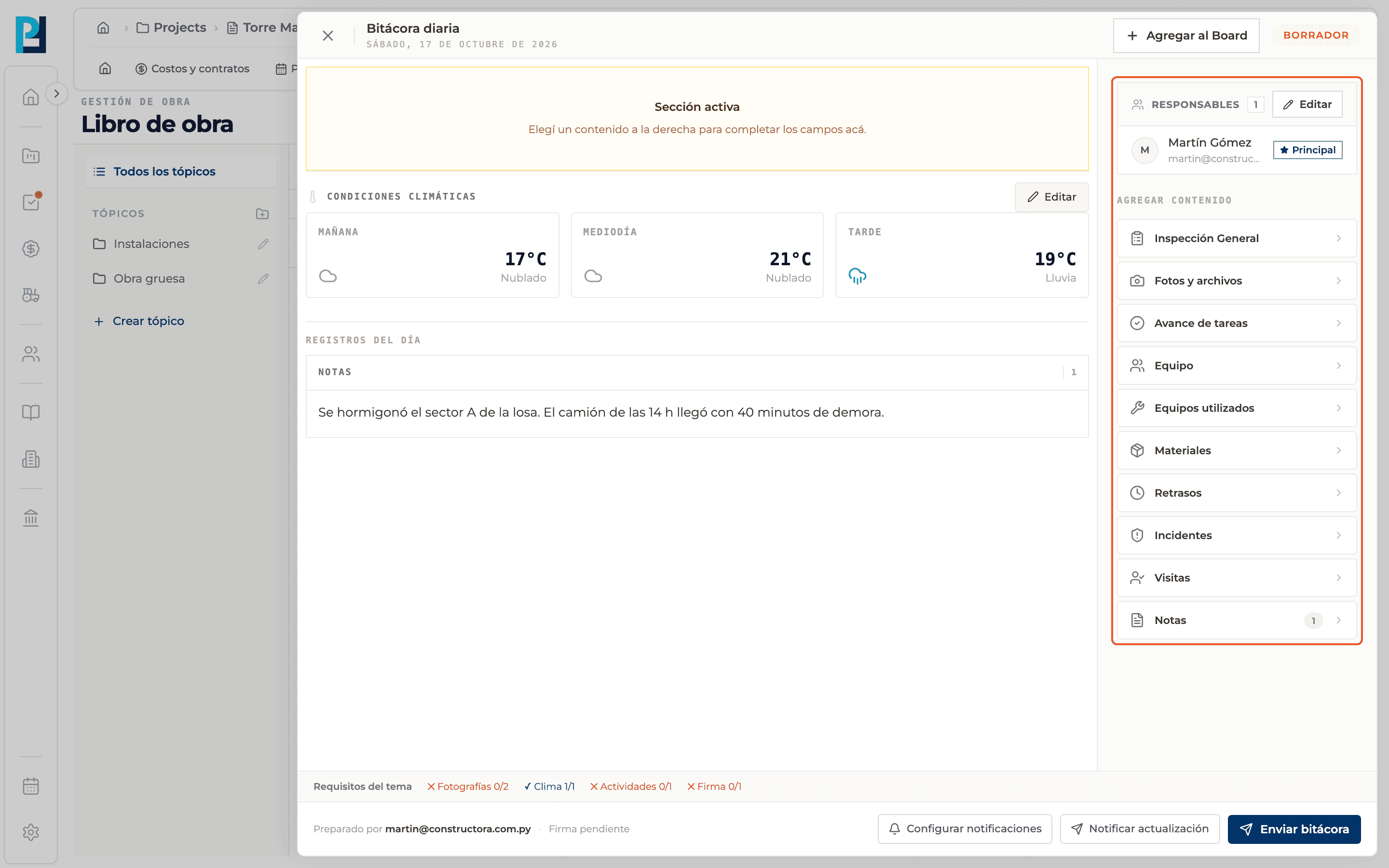
Pick a section
General inspection, Photos and files, Task progress, Crew (people and hours), Equipment used (machinery), Materials, Delays, Incidents, Visits and Notes. Each button shows a counter once it has records.
- 03
Write
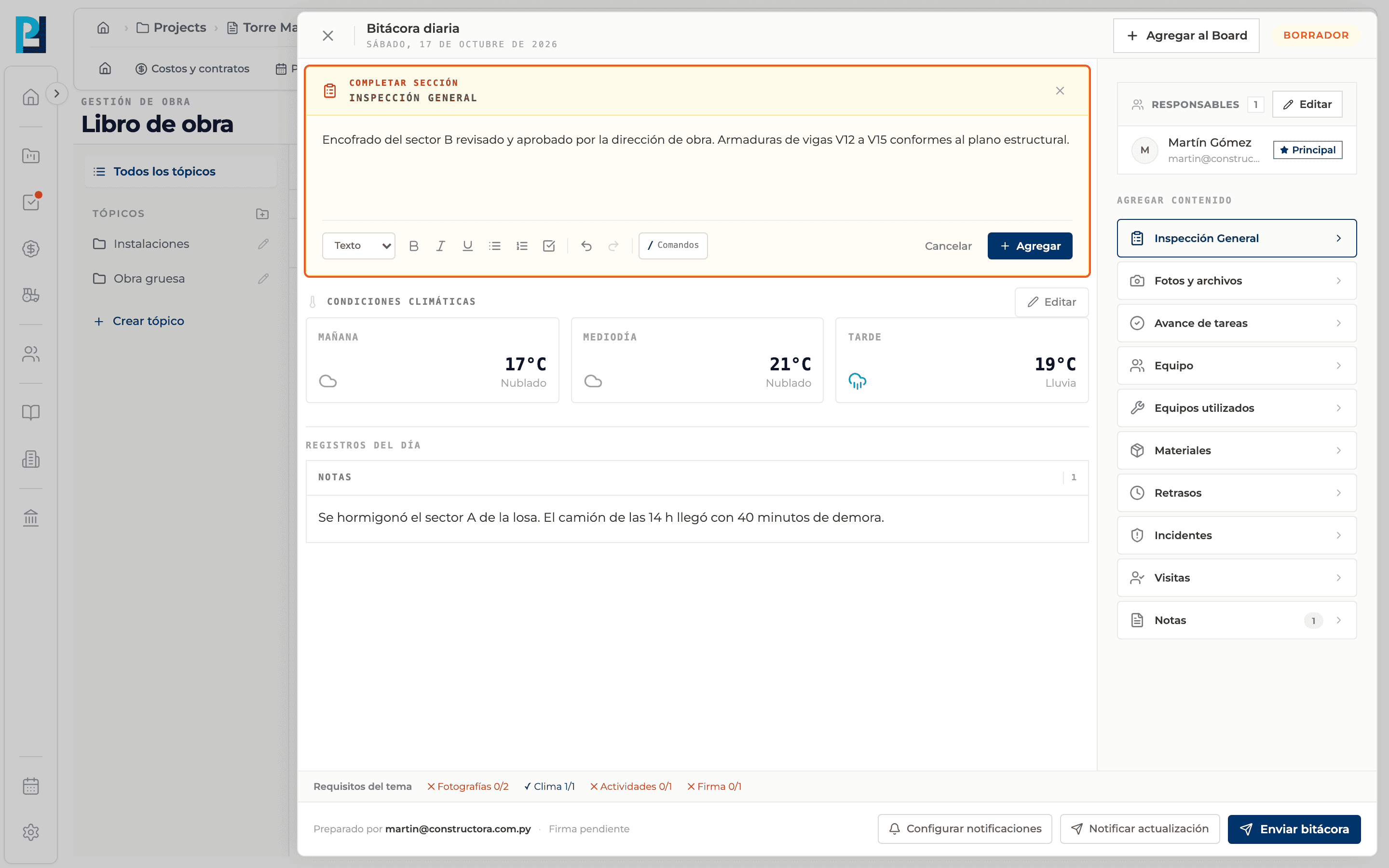
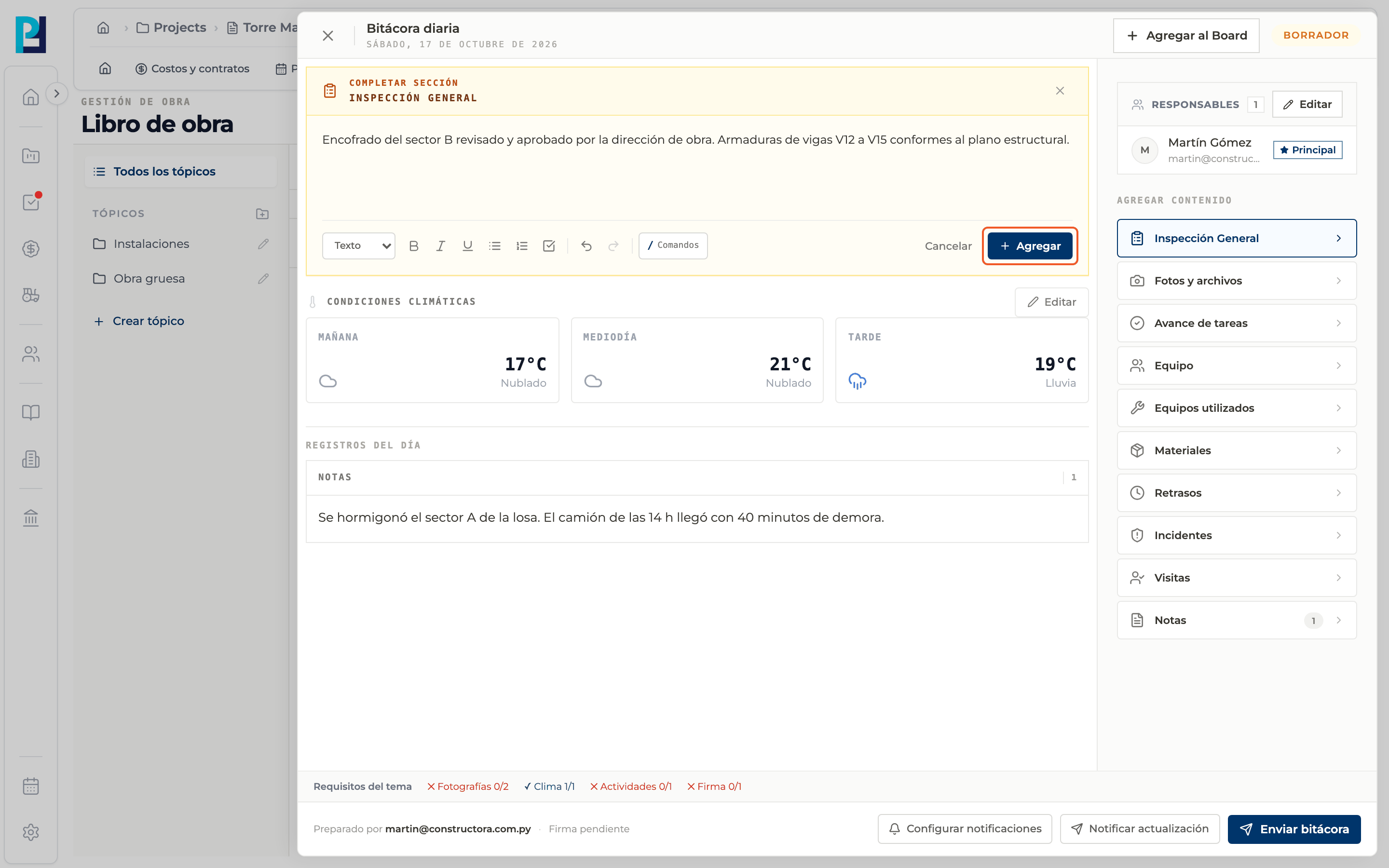
Complete section shows at the top with the chosen name. Type in the editor; use the toolbar for formatting and "/" to link items from other modules.
- 04
Save with Add
Each Add creates a new record in that section; you can add several. Cancel or the X close the editor without saving.
- 05
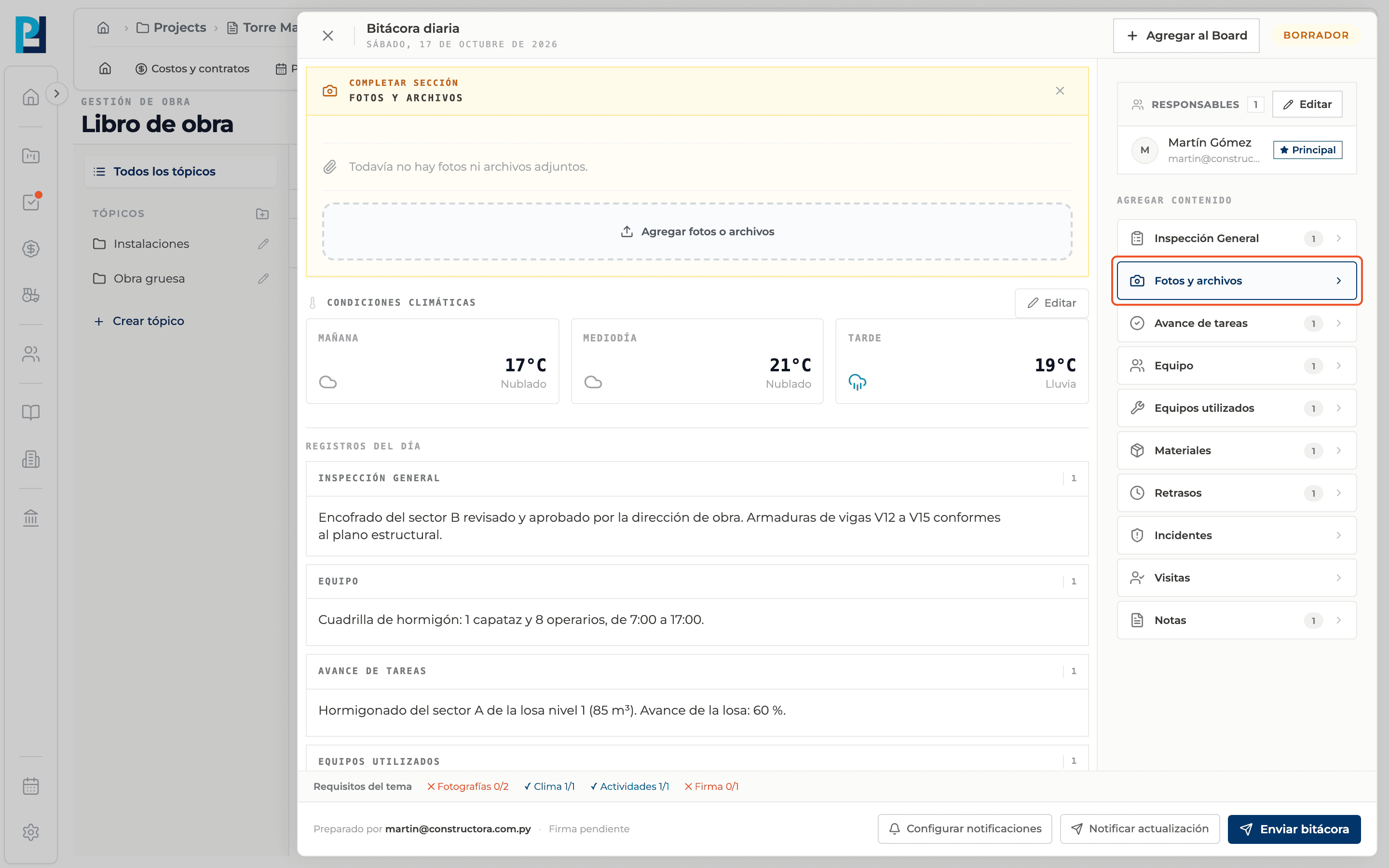
Photos and files
This section uses the file uploader instead of the text editor (see the photos and files guide).
- 06
Read what you added
Records show under Records of the day, grouped by section.
- 07
Follow the requirements
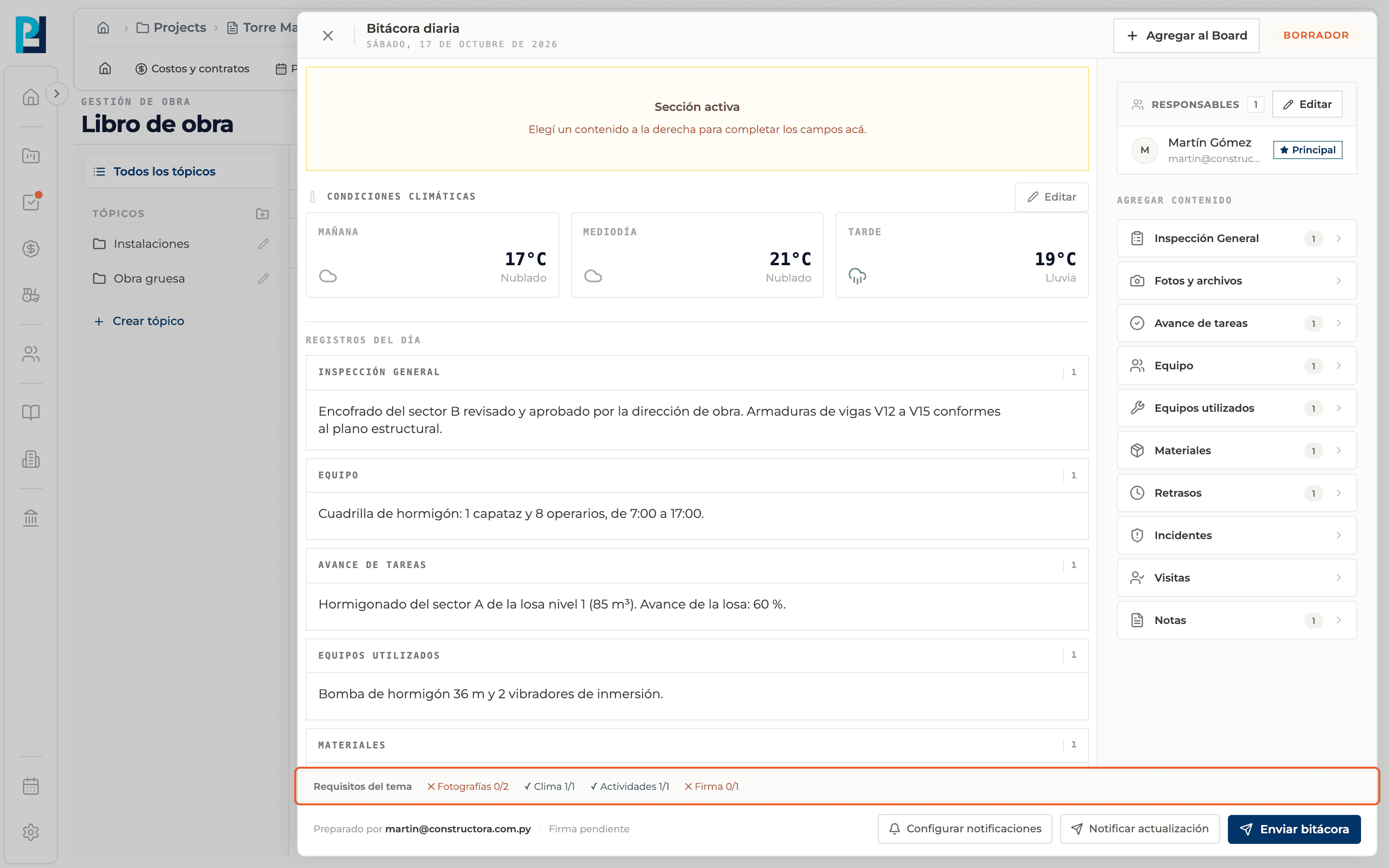
If the topic requires content, Topic requirements shows what is missing.
What you'll learn
How add content to the log works inside Perfour.
What information you need and how it stays connected to Daily Logs.
How to preserve traceability and find the record later.
Frequently asked questions
Is "Crew" the people?+
Yes: Crew is the people and their hours; machinery goes under Equipment used.
What is "/" for?+
To link tasks, RFIs, submittals, schedule activities and other project items inside the text.