Approve or reject a submitted log
Whoever can approve reviews submitted logs: approves them (they are closed and the PDF is sent) or sends them back with a reason.
How to complete approve or reject
- 01
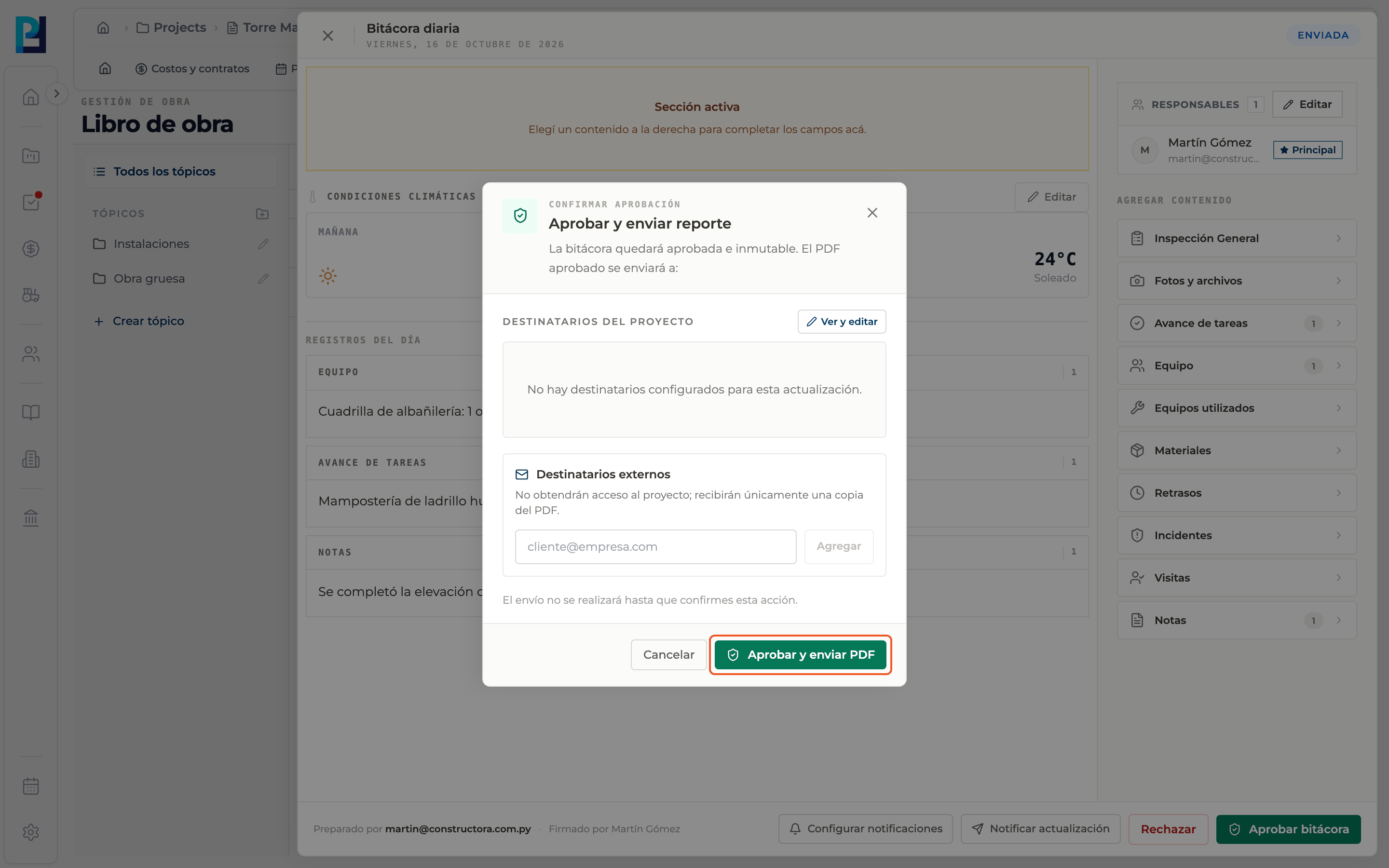
Open a Submitted log
If you can approve, the footer shows Reject and Approve log.
- 02
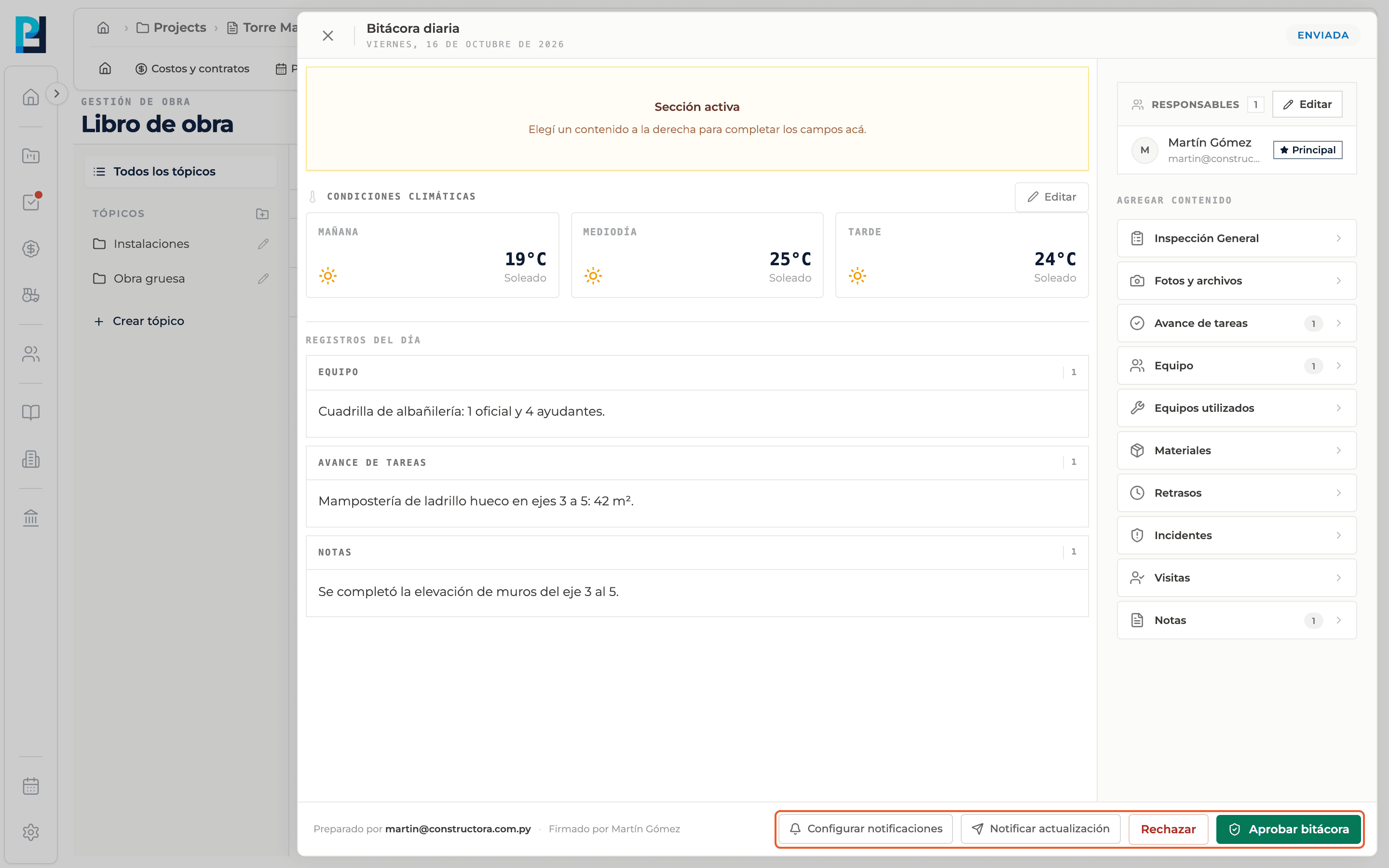
Approve
Click Approve log. In Approve and send report review the Project recipients (View and edit adjusts them) and optionally add External recipients, who only receive a PDF copy. Confirm with Approve and send PDF.
- 03
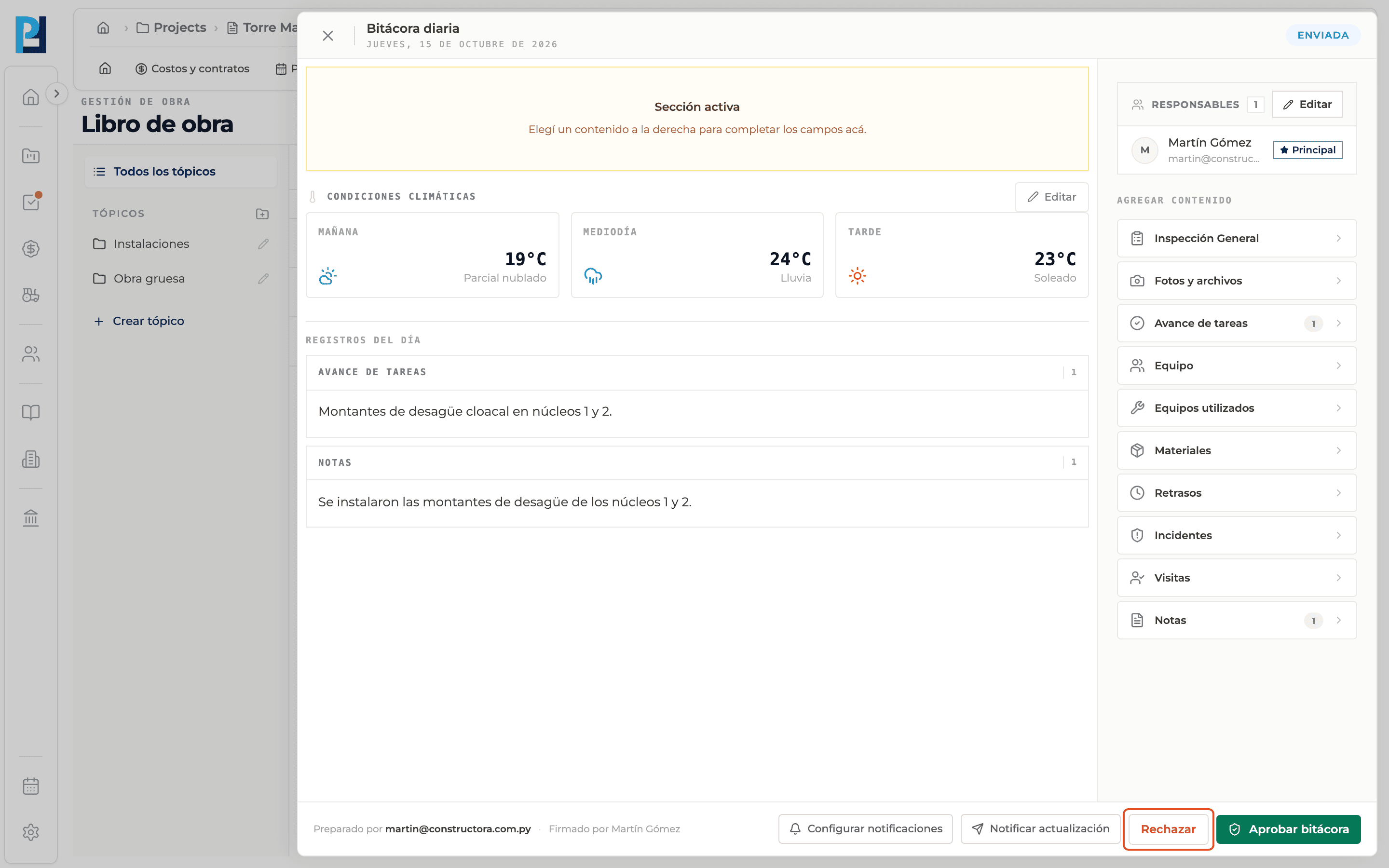
Reject
Click Reject, type the rejection reason in the window that appears and accept. Without a reason it is not rejected.
- 04
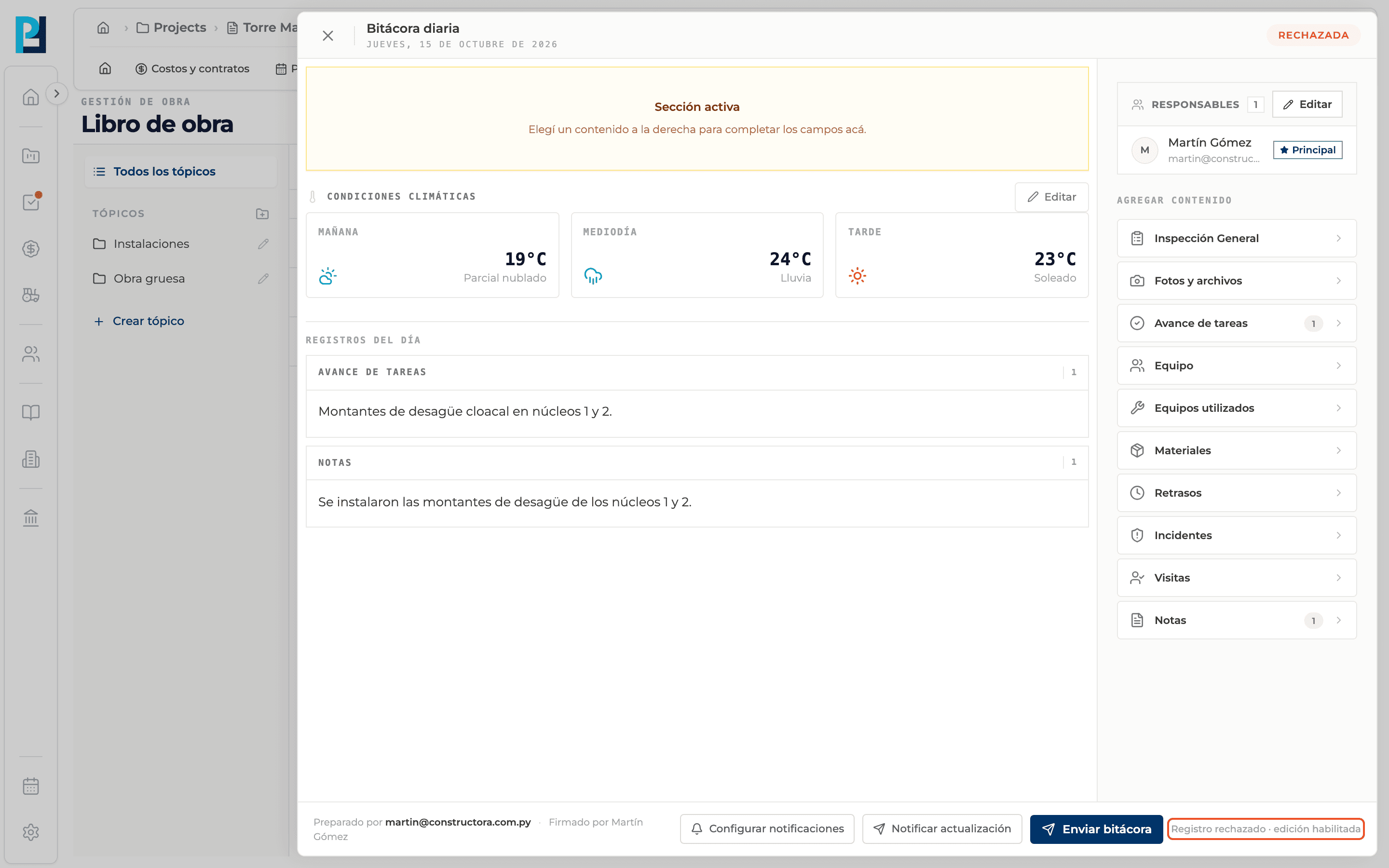
After rejecting
The log becomes Rejected, the footer says editing is enabled, and it can be corrected and submitted again.
- 05
After approving
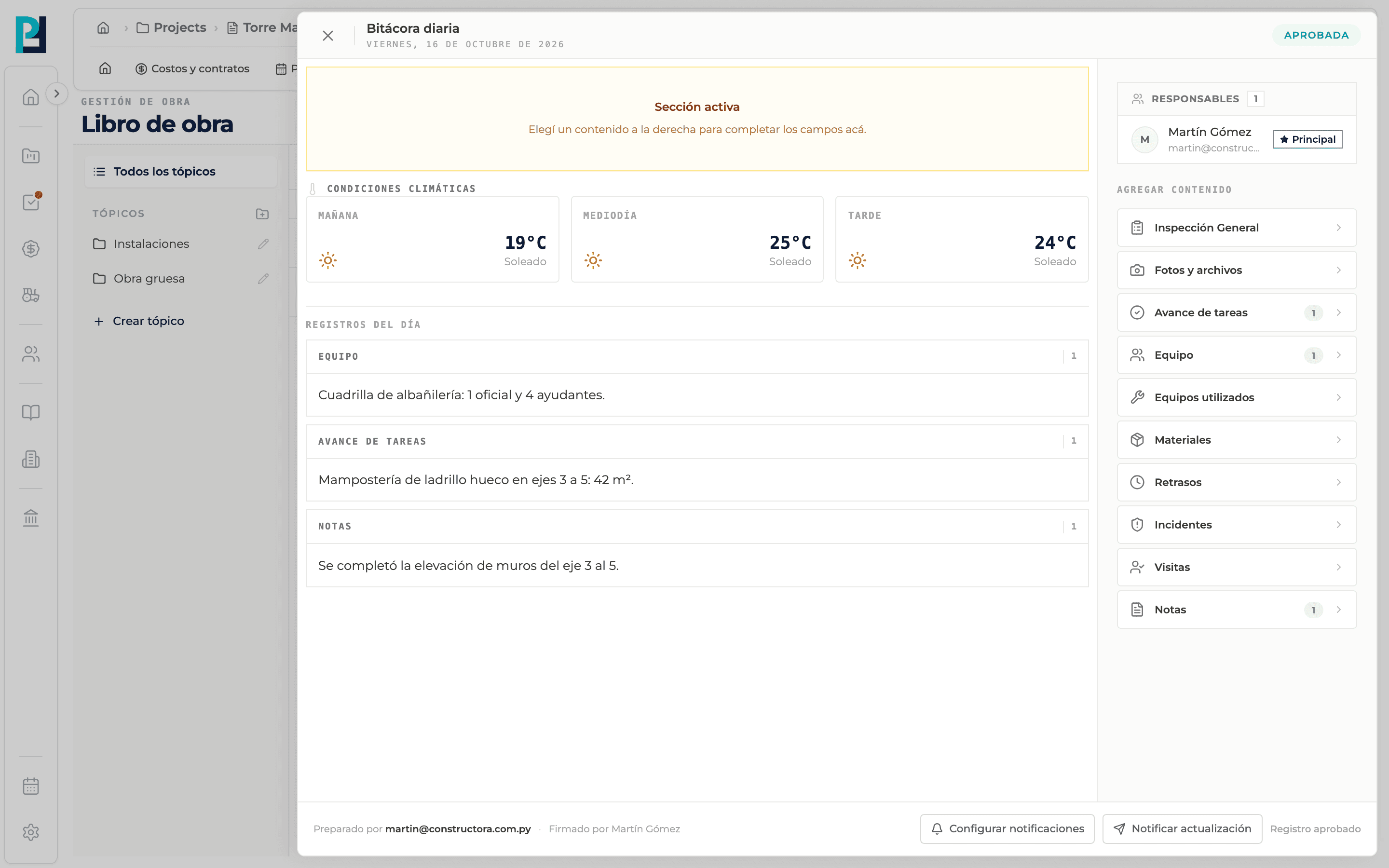
The status becomes Approved, the footer says the record is approved and the log is read-only.
What you'll learn
How approve or reject a submitted log works inside Perfour.
What information you need and how it stays connected to Daily Logs.
How to preserve traceability and find the record later.
Frequently asked questions
Can an approved log be reopened?+
No. An approved log stays closed.
Where do I see the rejection reason?+
The log does not show it today. It is best to also tell whoever filled it in through a comment or message.