Edit or delete records and logs
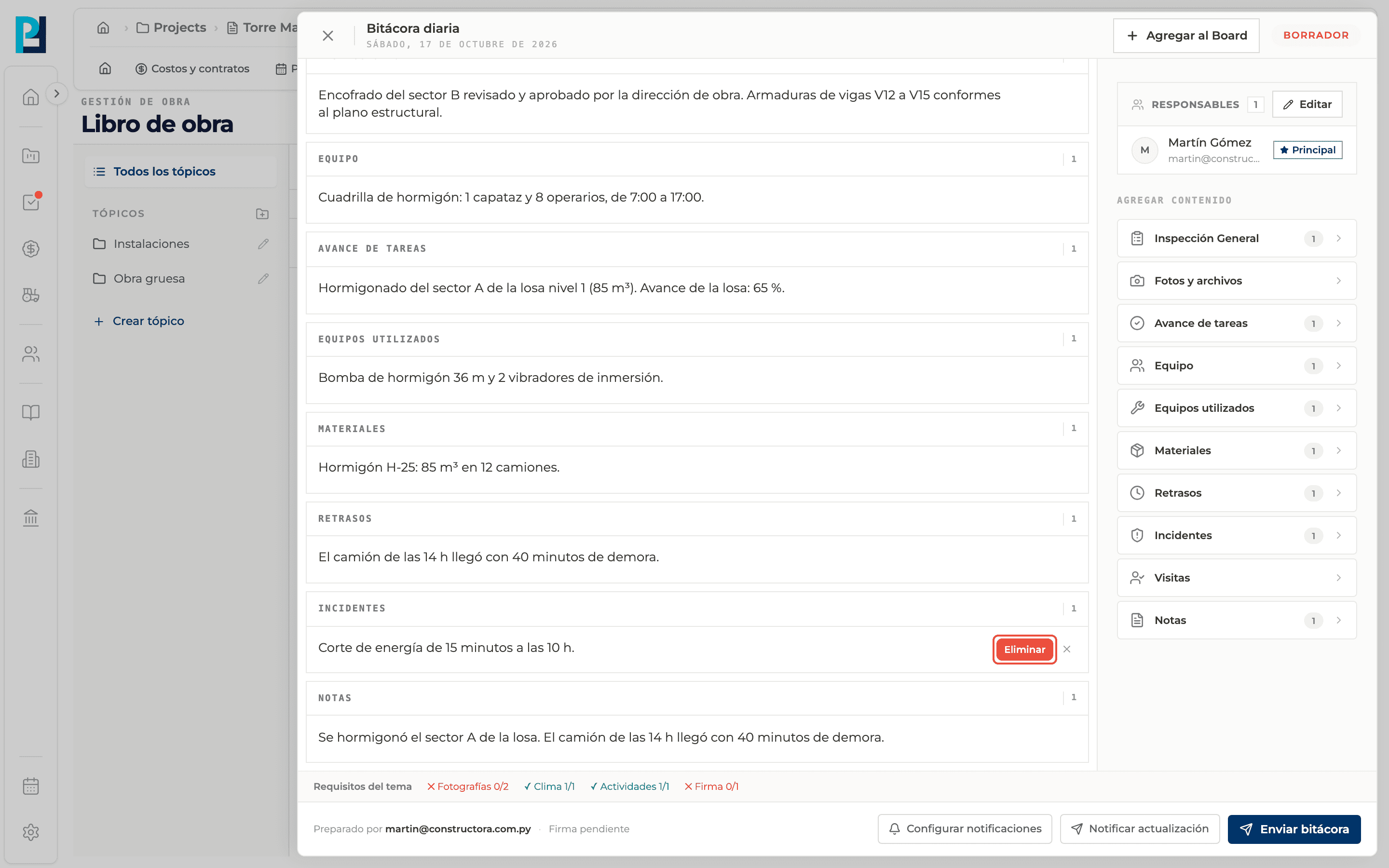
While the log is not approved, records can be corrected or deleted. A whole log can only be deleted while it is a Draft.
How to complete edit and delete
- 01
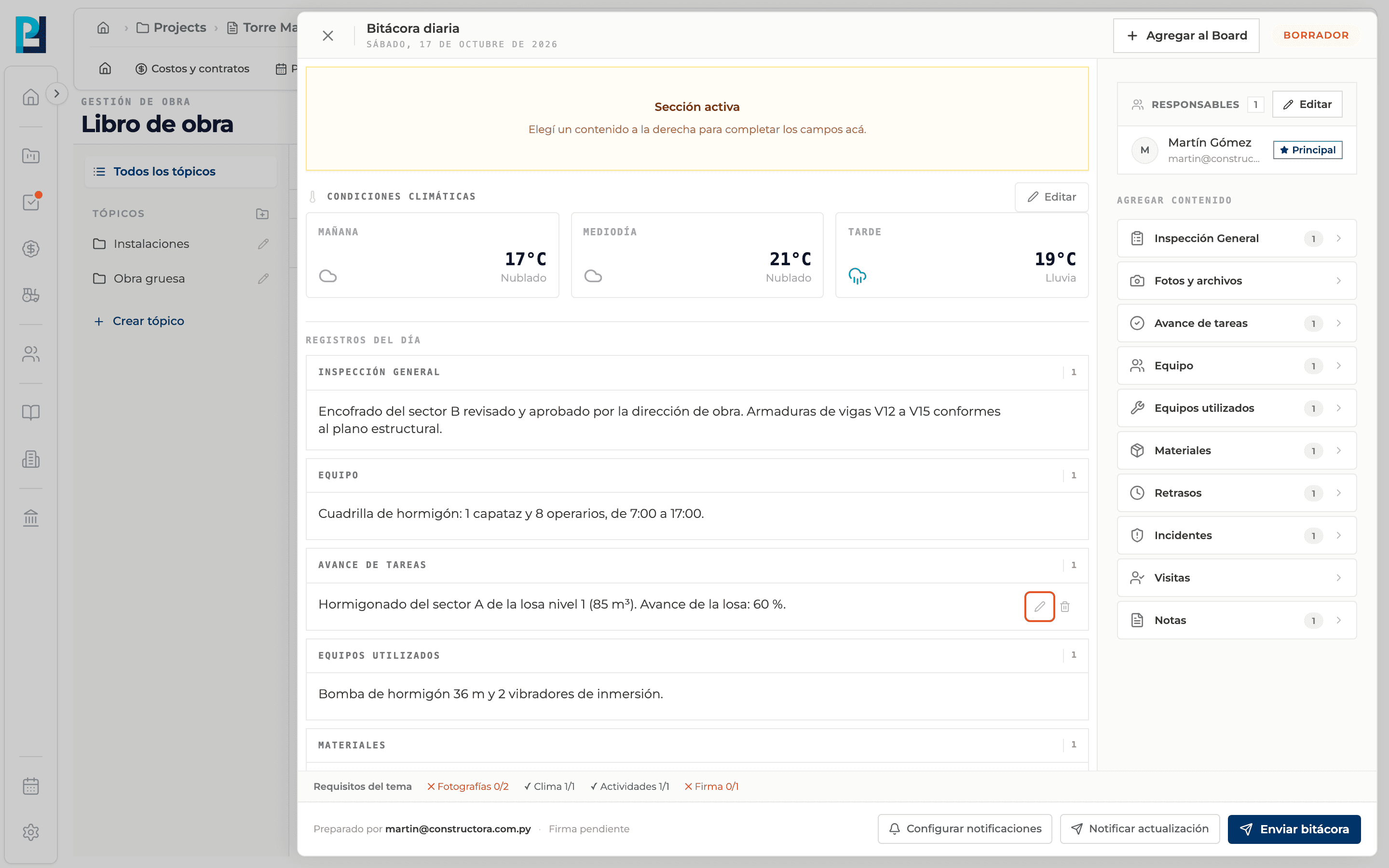
Edit a record
Under Records of the day hover the record and click the pencil. Change the text and click Save (or Cancel).
- 02
Delete a record
Hover and click the trash icon. Delete shows on the same row: click it to confirm or the X to back out. It cannot be undone.
- 03
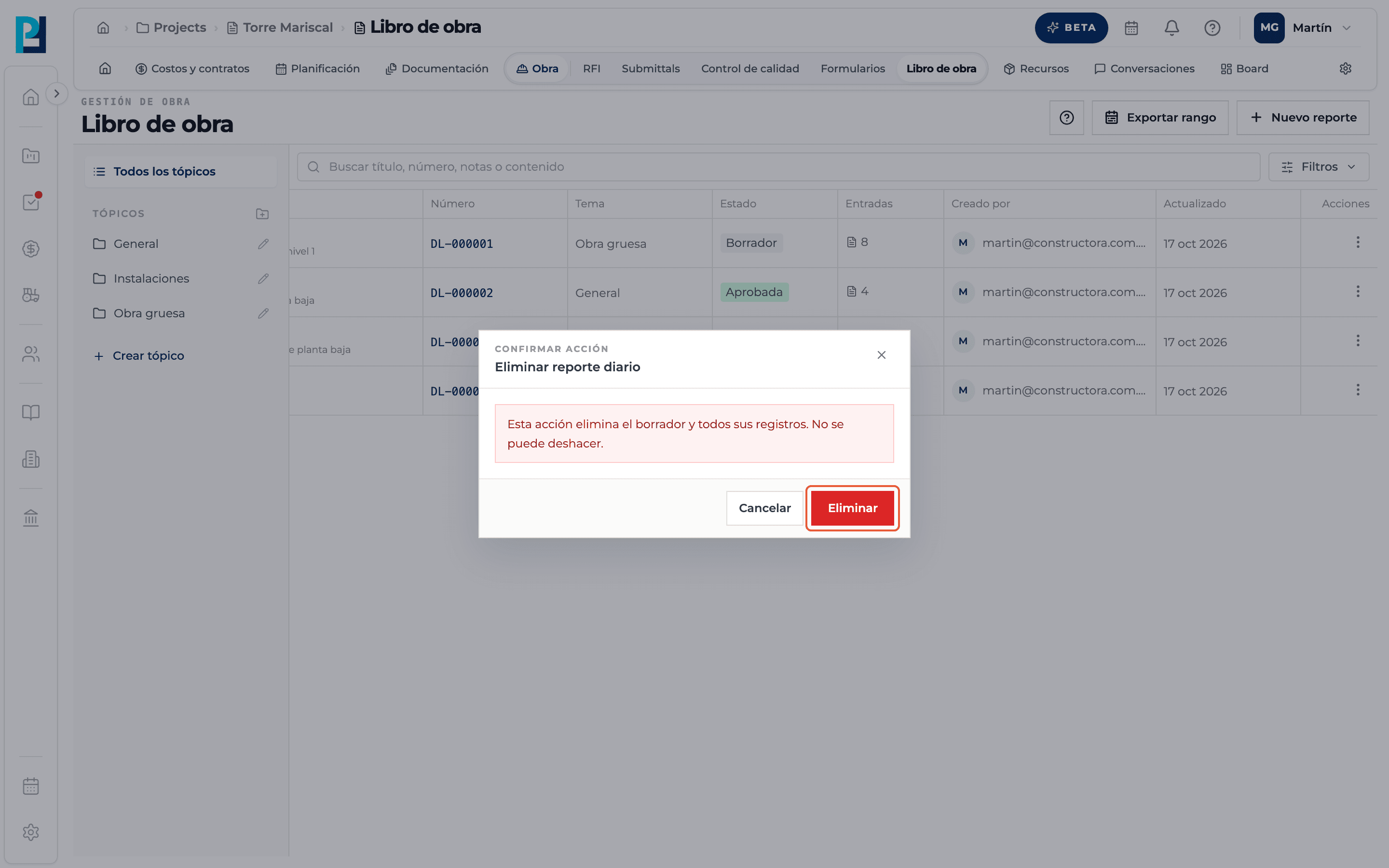
Delete a log
In the list, Actions → Delete (only for drafts and with edit permission). In the Delete daily report dialog confirm with Delete: the draft and all its records are removed.
- 04
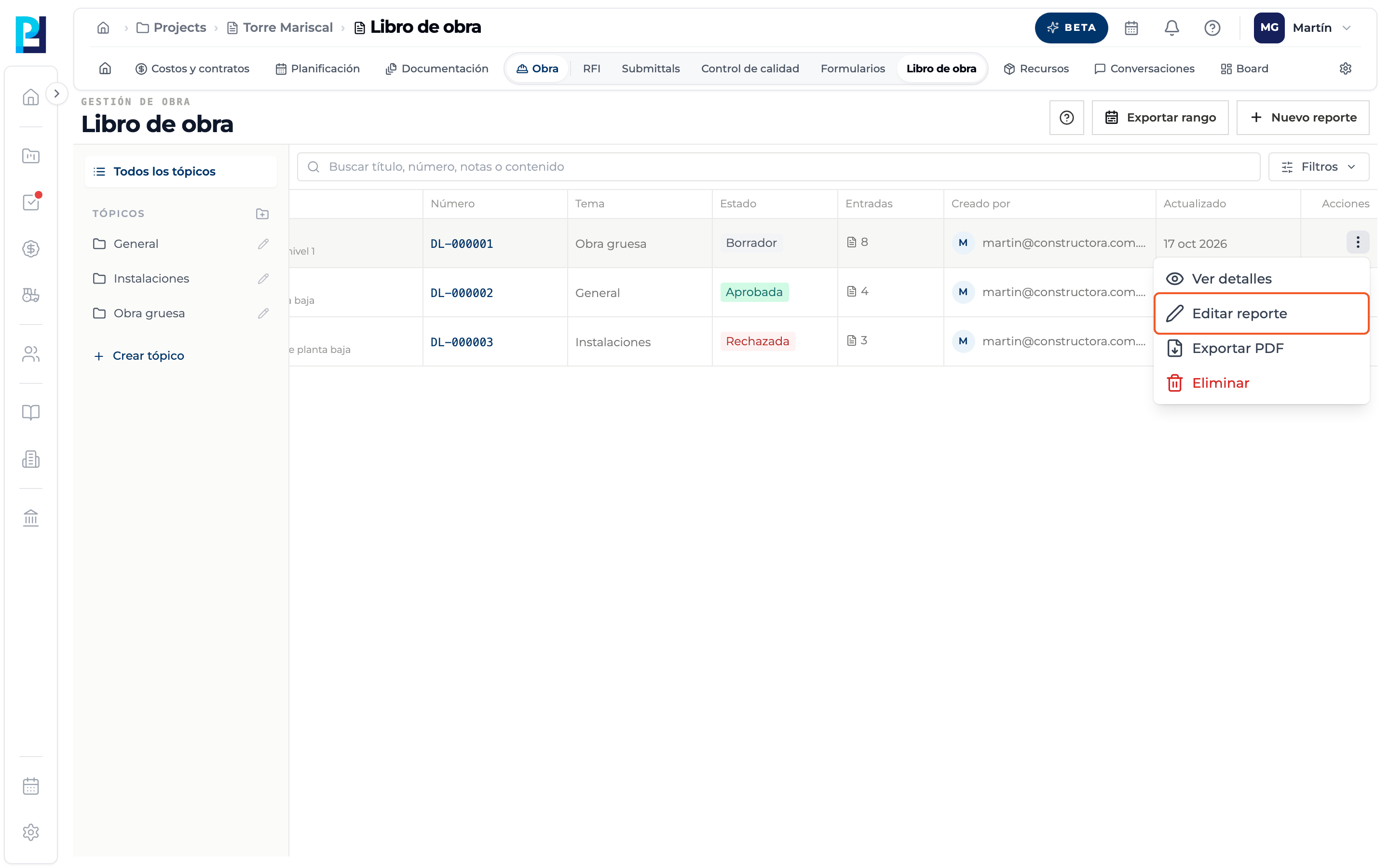
Open to edit
Actions → Edit report opens the log to keep adding content. It does not show for approved logs.
What you'll learn
How edit or delete records and logs works inside Perfour.
What information you need and how it stays connected to Daily Logs.
How to preserve traceability and find the record later.
Frequently asked questions
I can't see the pencil or the trash icon.+
The log is approved or you lack edit permission.
Can I delete a submitted log?+
No. Delete only shows for drafts.