Export to PDF and send it by email
Generate the PDF for one day or a period, with a preview, and email it if needed.
How to complete export pdf
- 01
One day
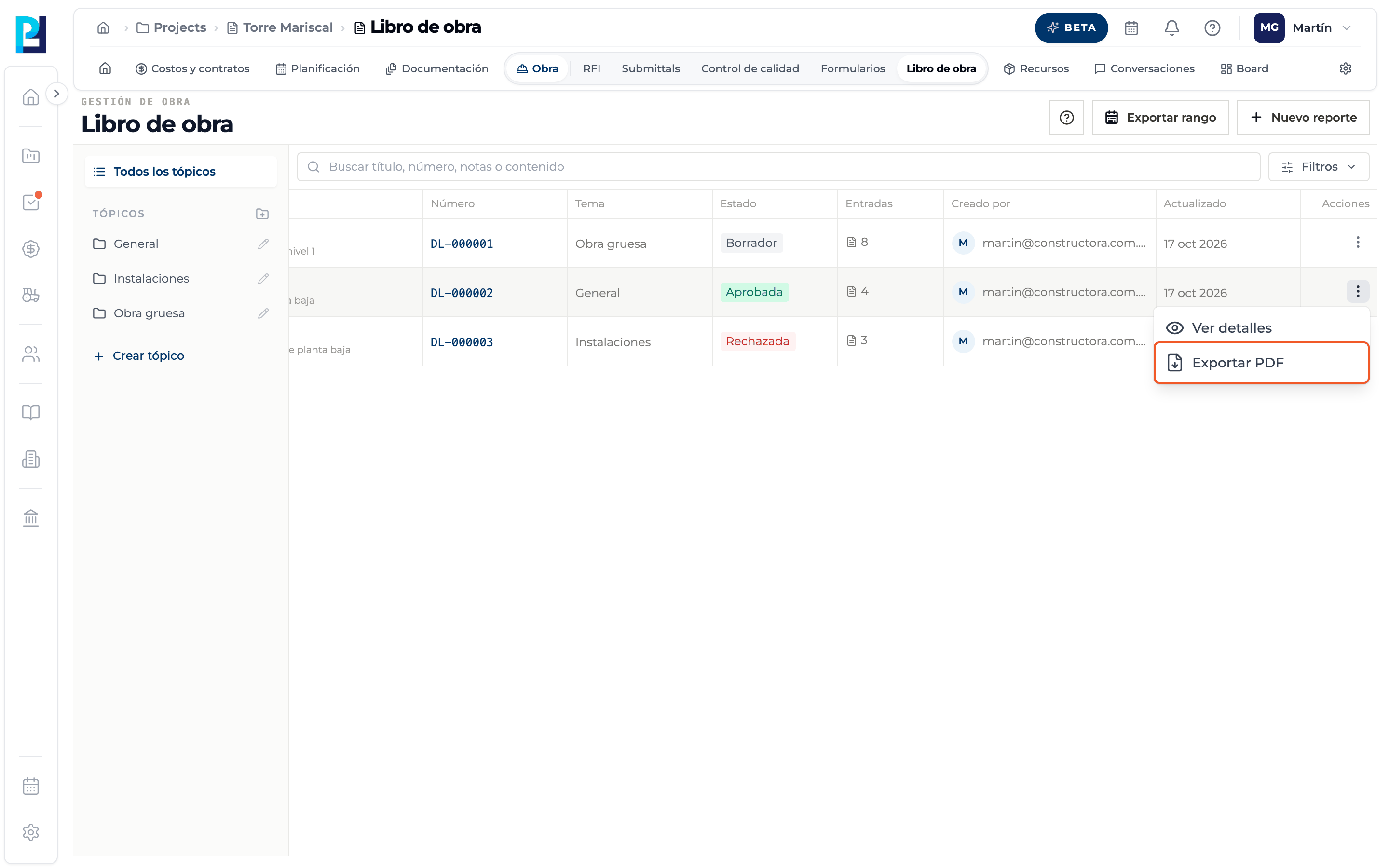
In the list use Actions → Export PDF.
- 02
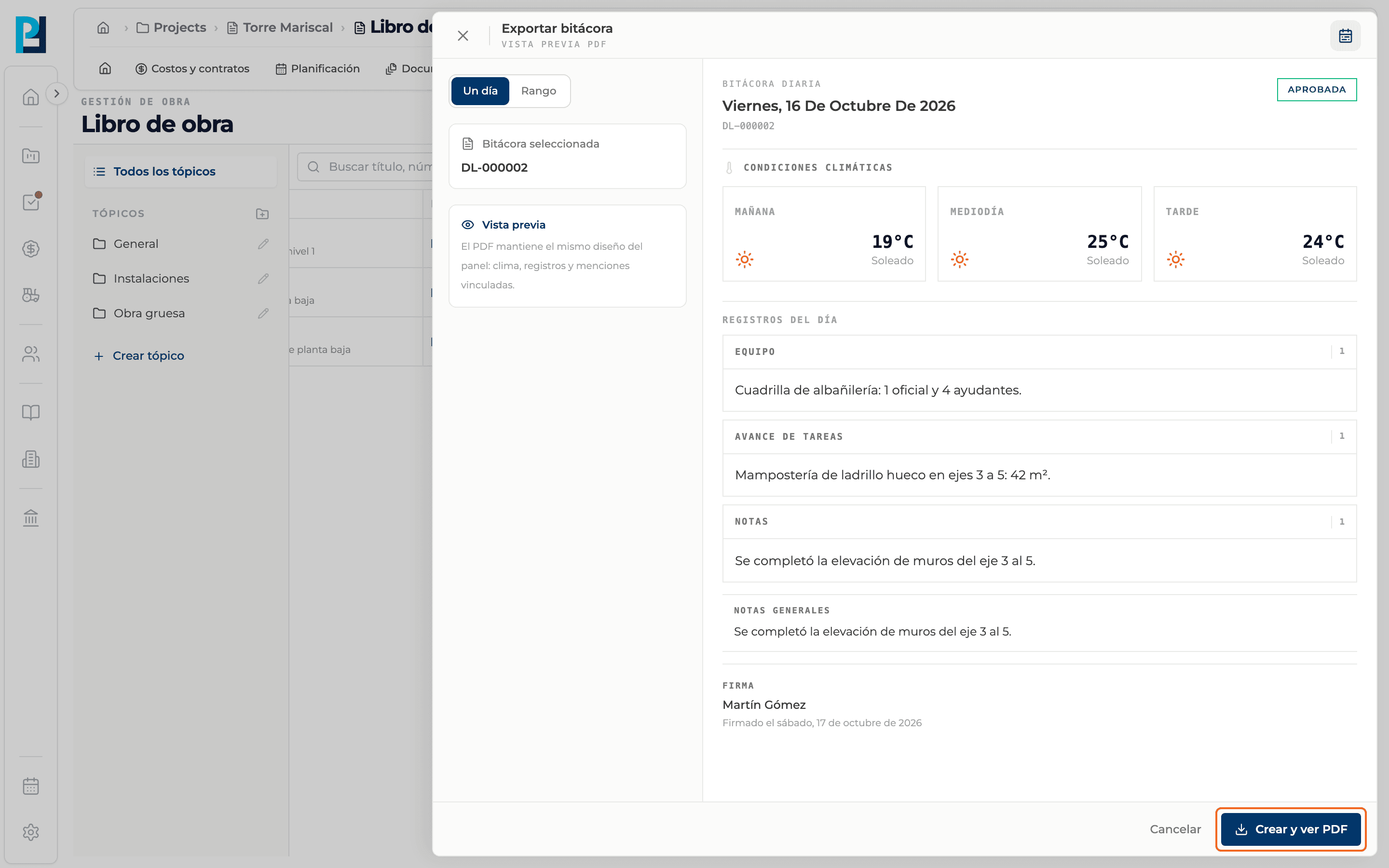
Day preview
Export log shows a preview with the PDF's layout. Click Create and view PDF and the PDF opens in a new tab.
- 03
A period
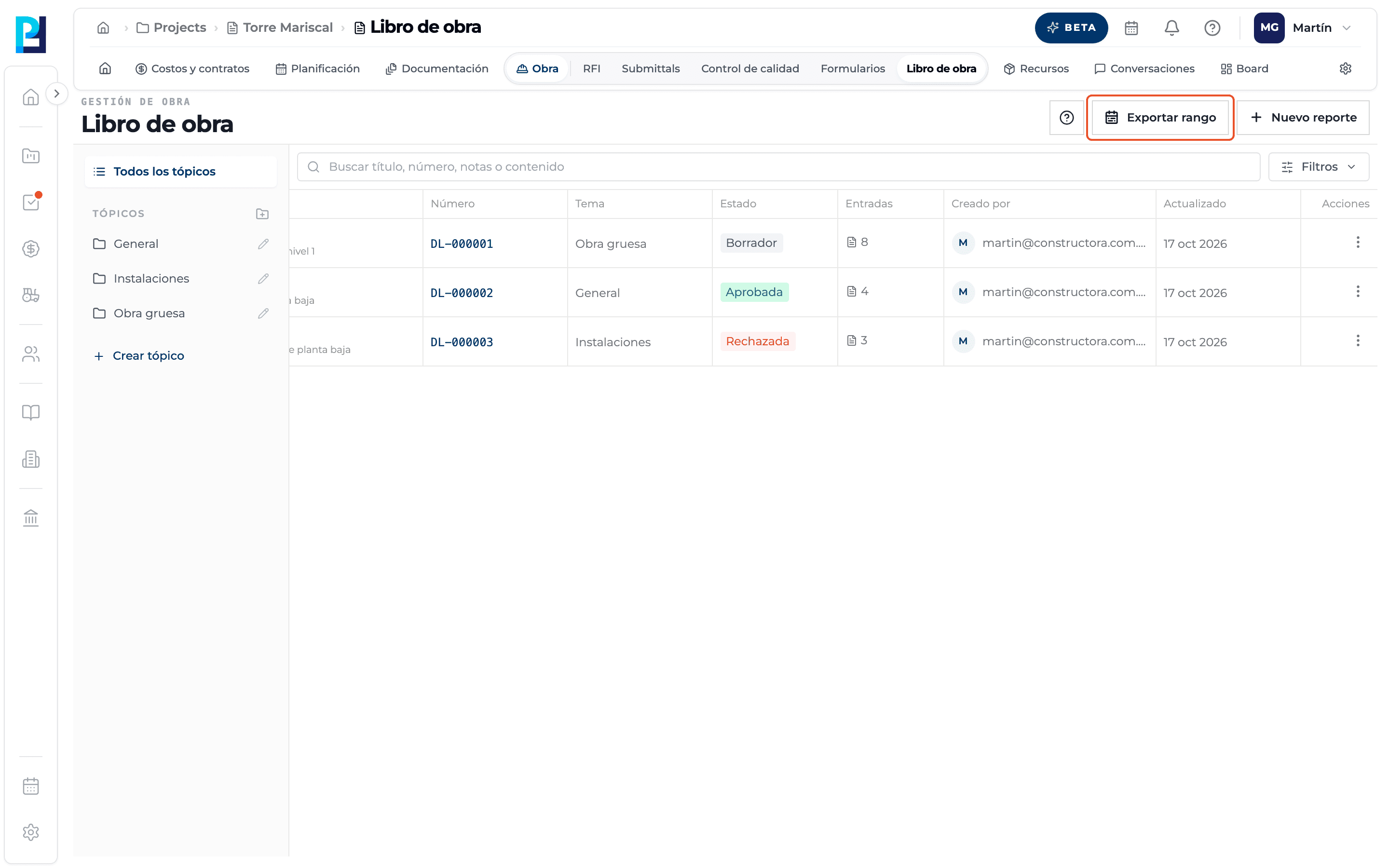
Click Export range (requires export permission).
- 04
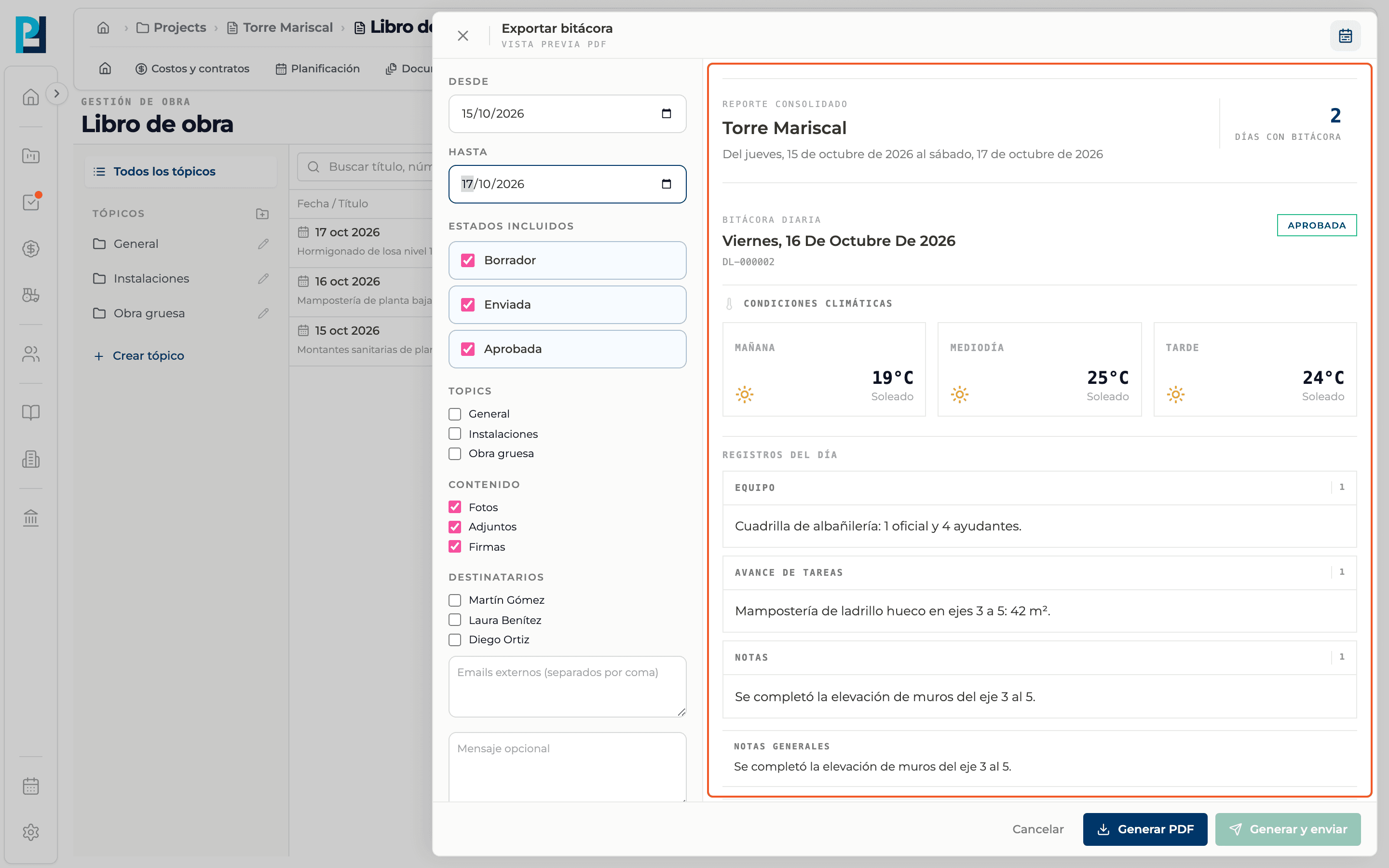
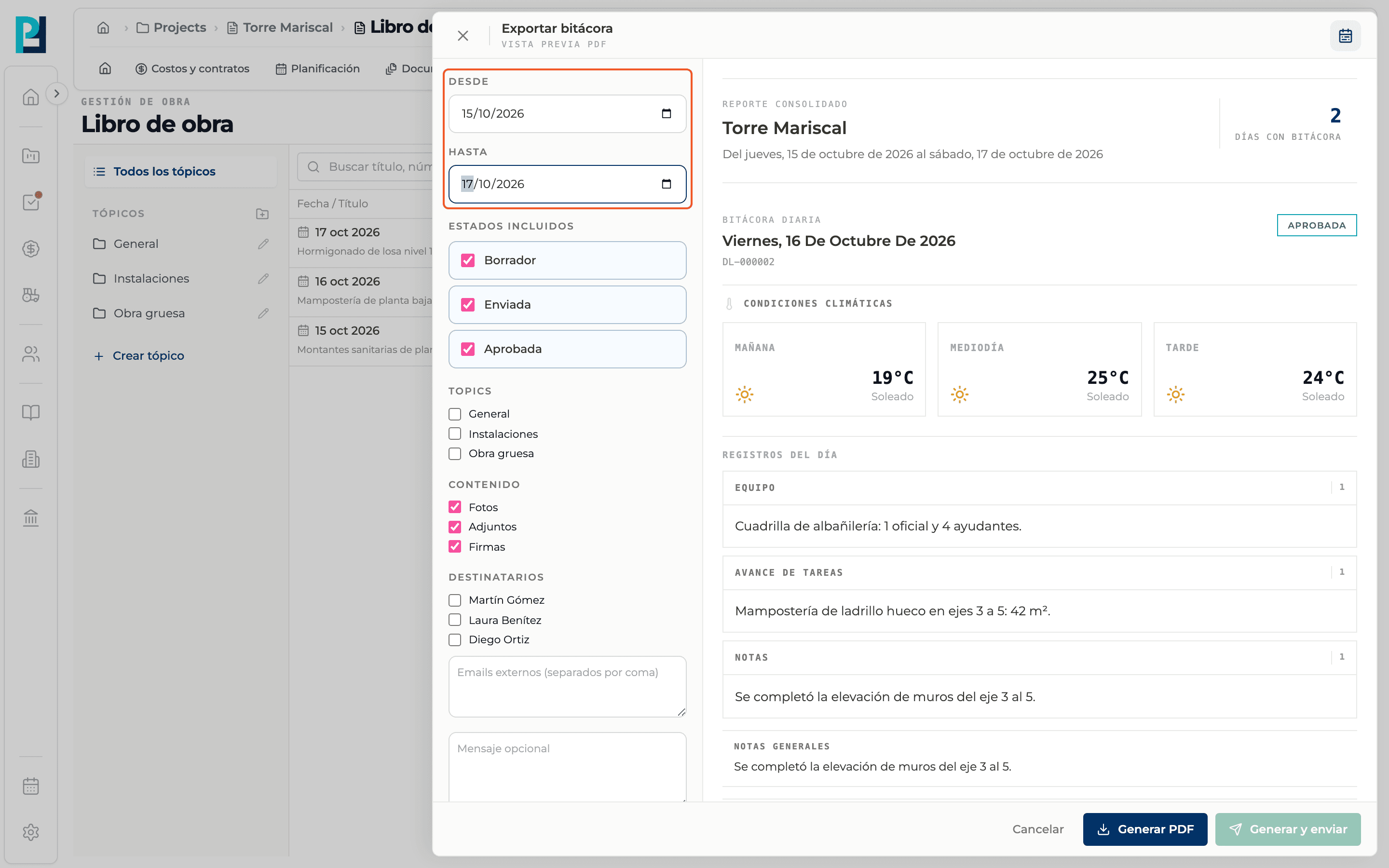
Pick the range
Fill in From and To.
- 05
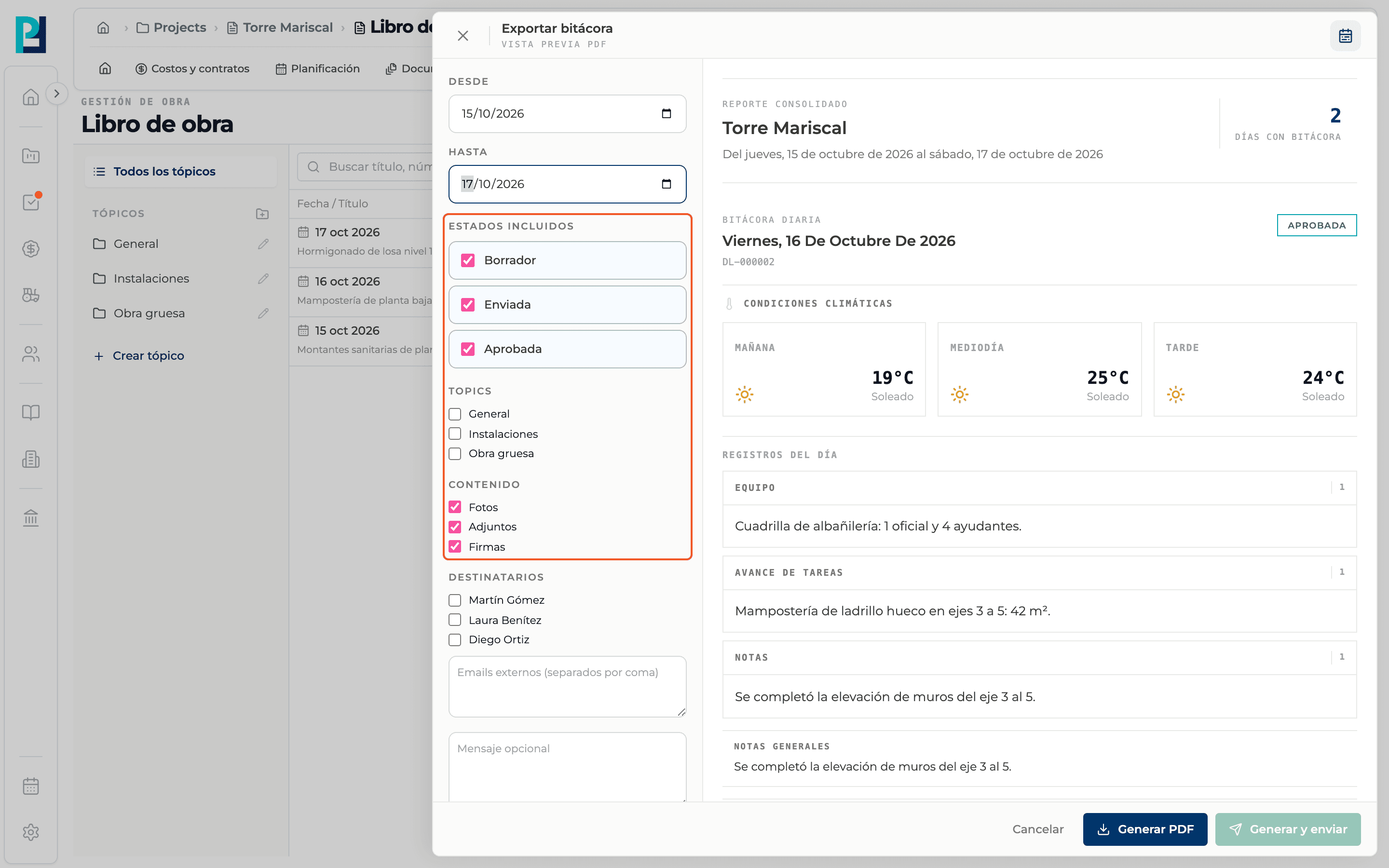
Pick what to include
Included statuses (Draft, Submitted, Approved; at least one), topics (optional) and content: Photos, Attachments and Signatures.
- 06
Review the preview
It is generated automatically once the range is valid: the project's consolidated report, the number of days with a log and each day.
- 07
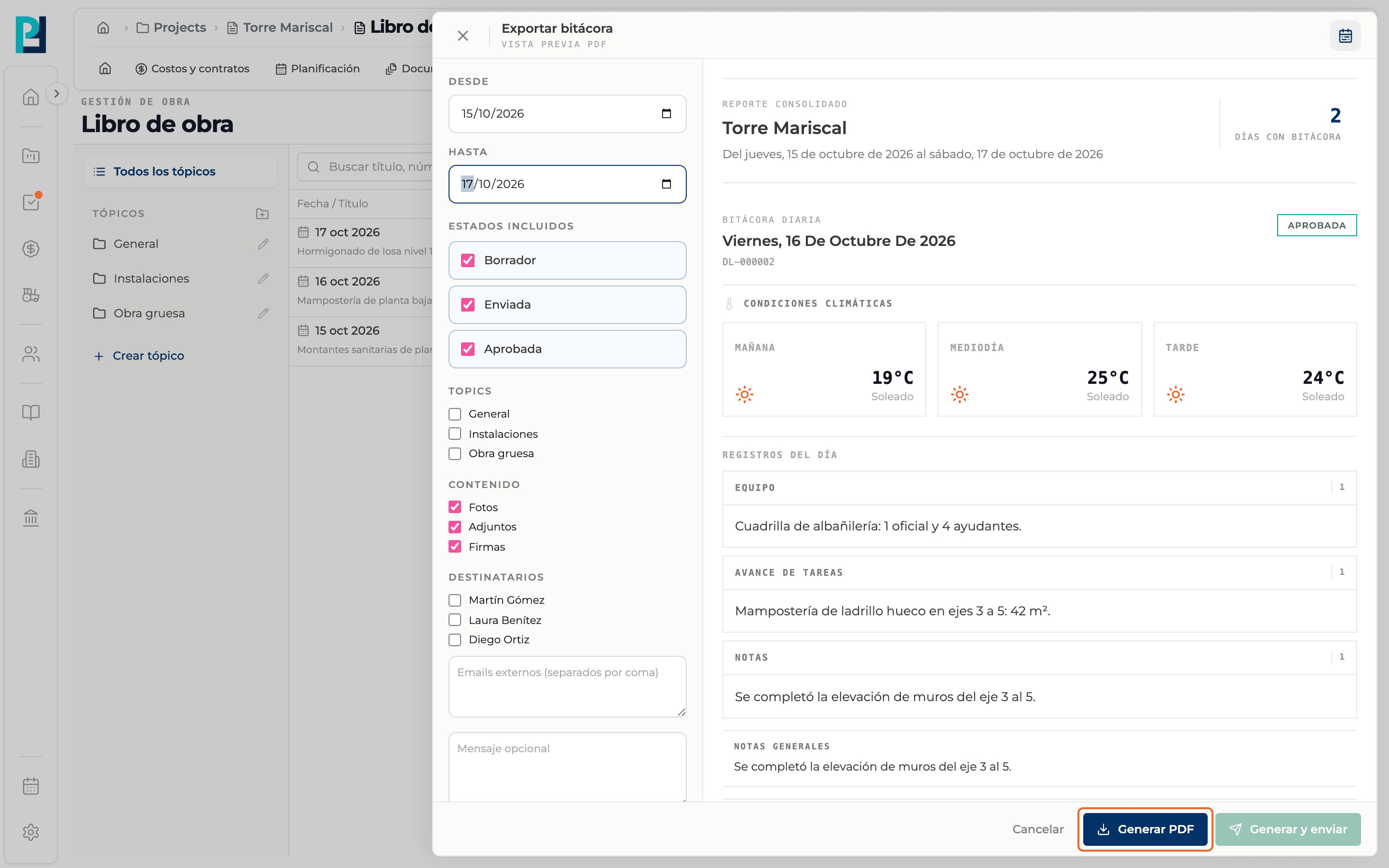
Generate
Click Generate PDF. The PDF opens when it is ready.
- 08
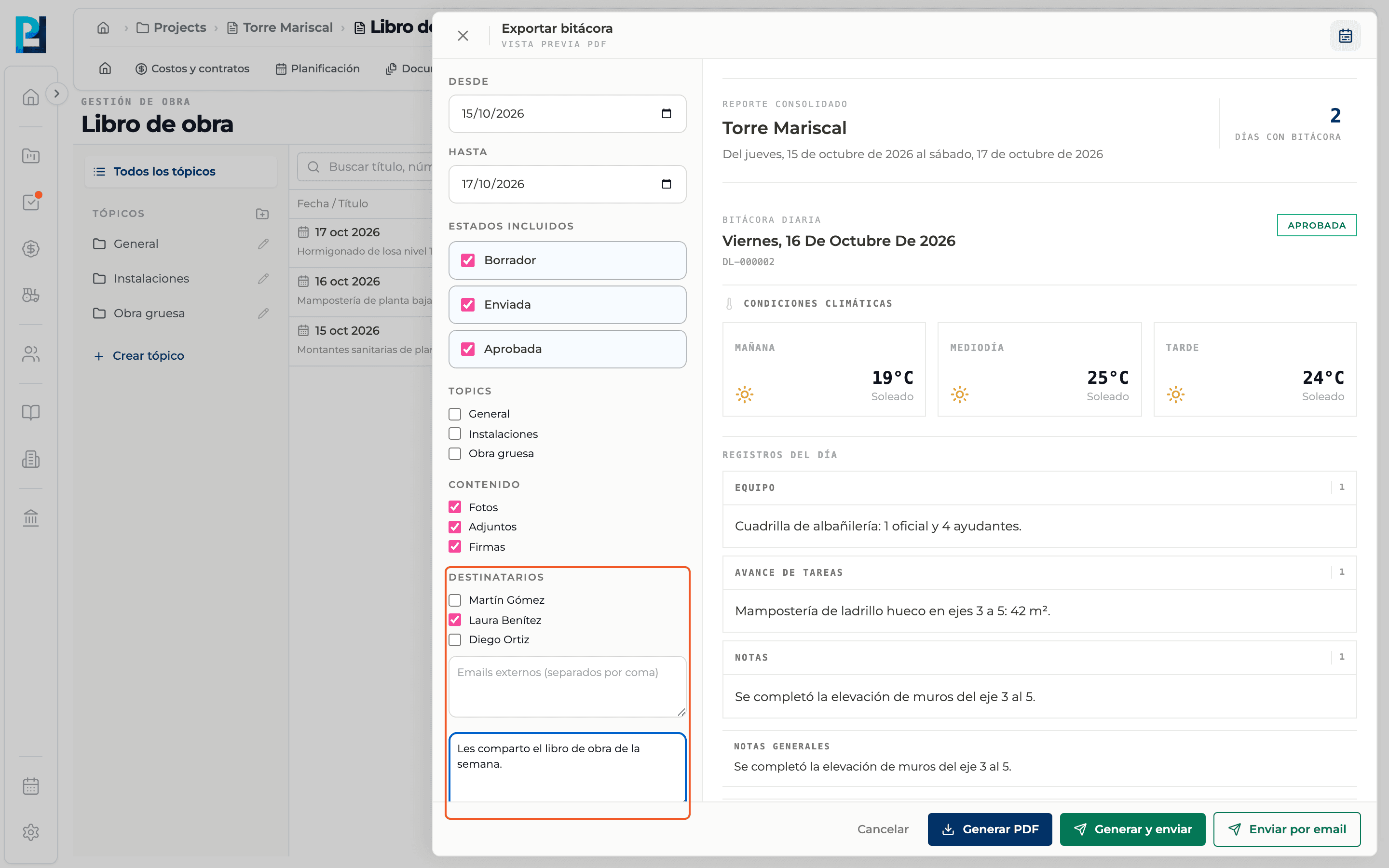
Email it
Under Recipients tick project members, add external emails if your role allows it and an optional message. Use Generate and send, or Send by email if the PDF is already ready.
What you'll learn
How export to pdf and send it by email works inside Perfour.
What information you need and how it stays connected to Daily Logs.
How to preserve traceability and find the record later.
Frequently asked questions
I can't see Export range.+
You lack the export permission.
Are rejected logs included?+
No: the export only offers Draft, Submitted and Approved.