Link the log with other modules
The log connects with the rest of the project through mentions, the Board and responsibles.
How to complete links
- 01
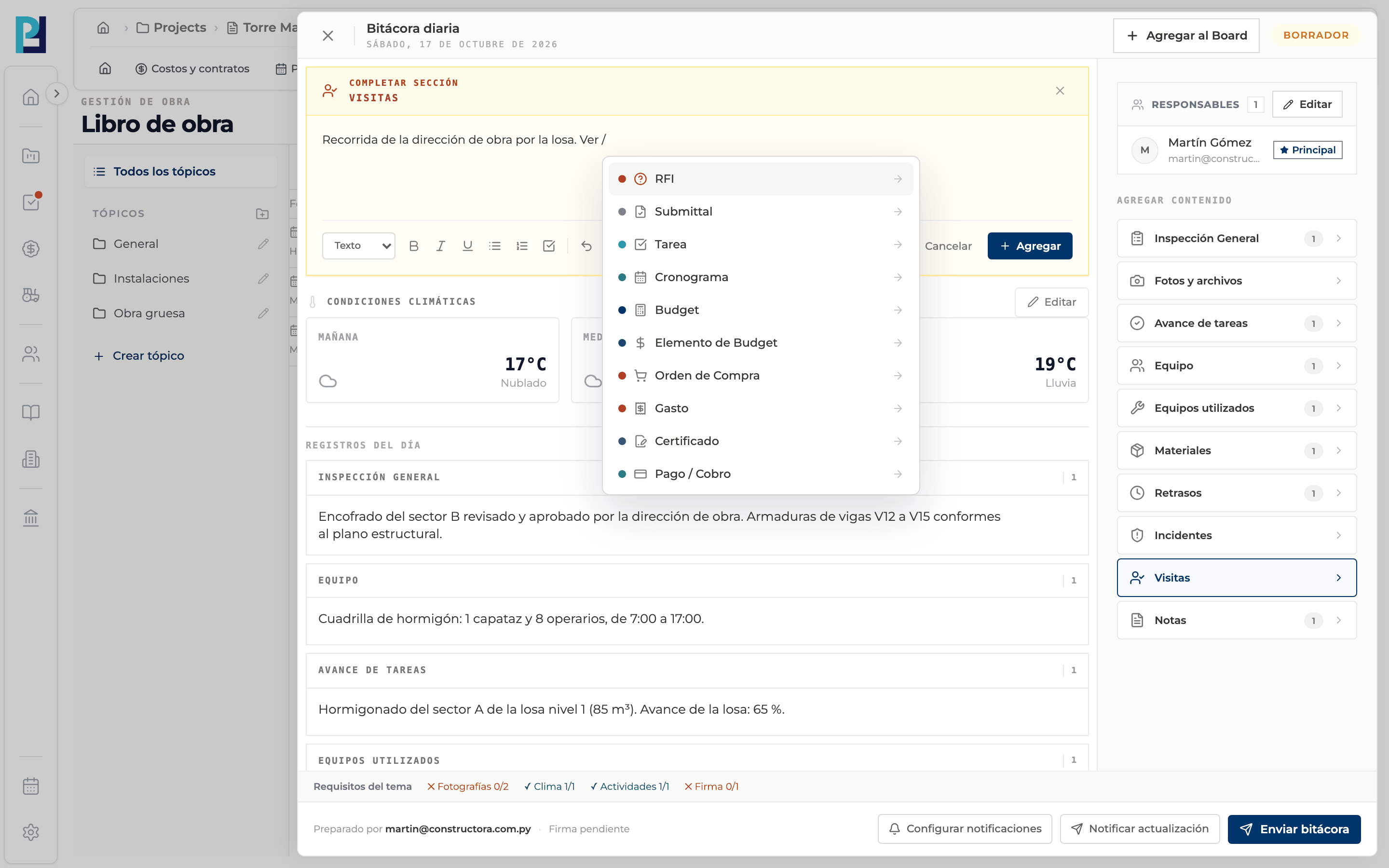
Type "/"
In any section's editor type "/" and pick the type: RFI, Submittal, Task, Schedule, Budget, Purchase order, among others.
- 02
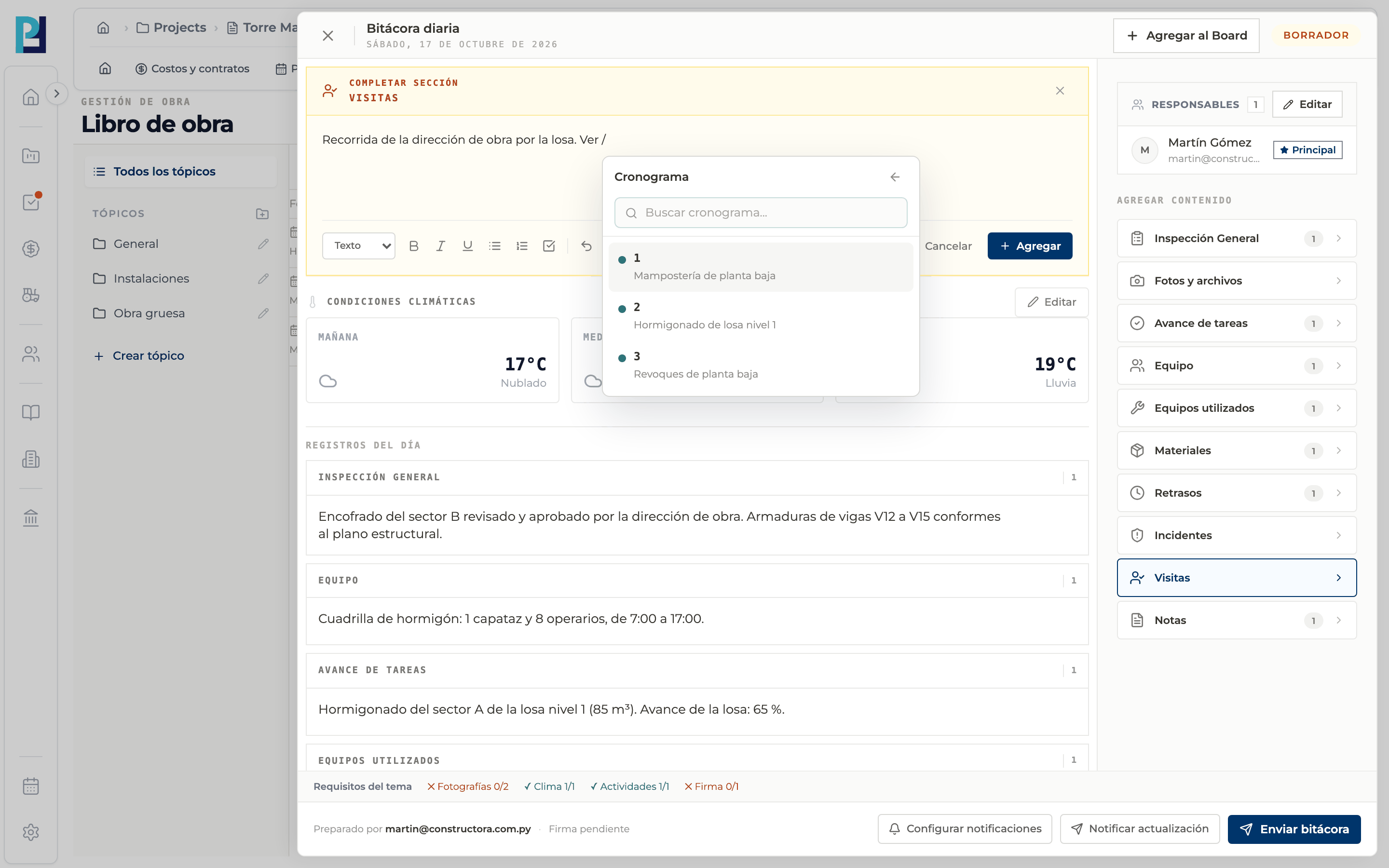
Pick the item
Search and select the item; it is inserted as a mention in the text.
- 03
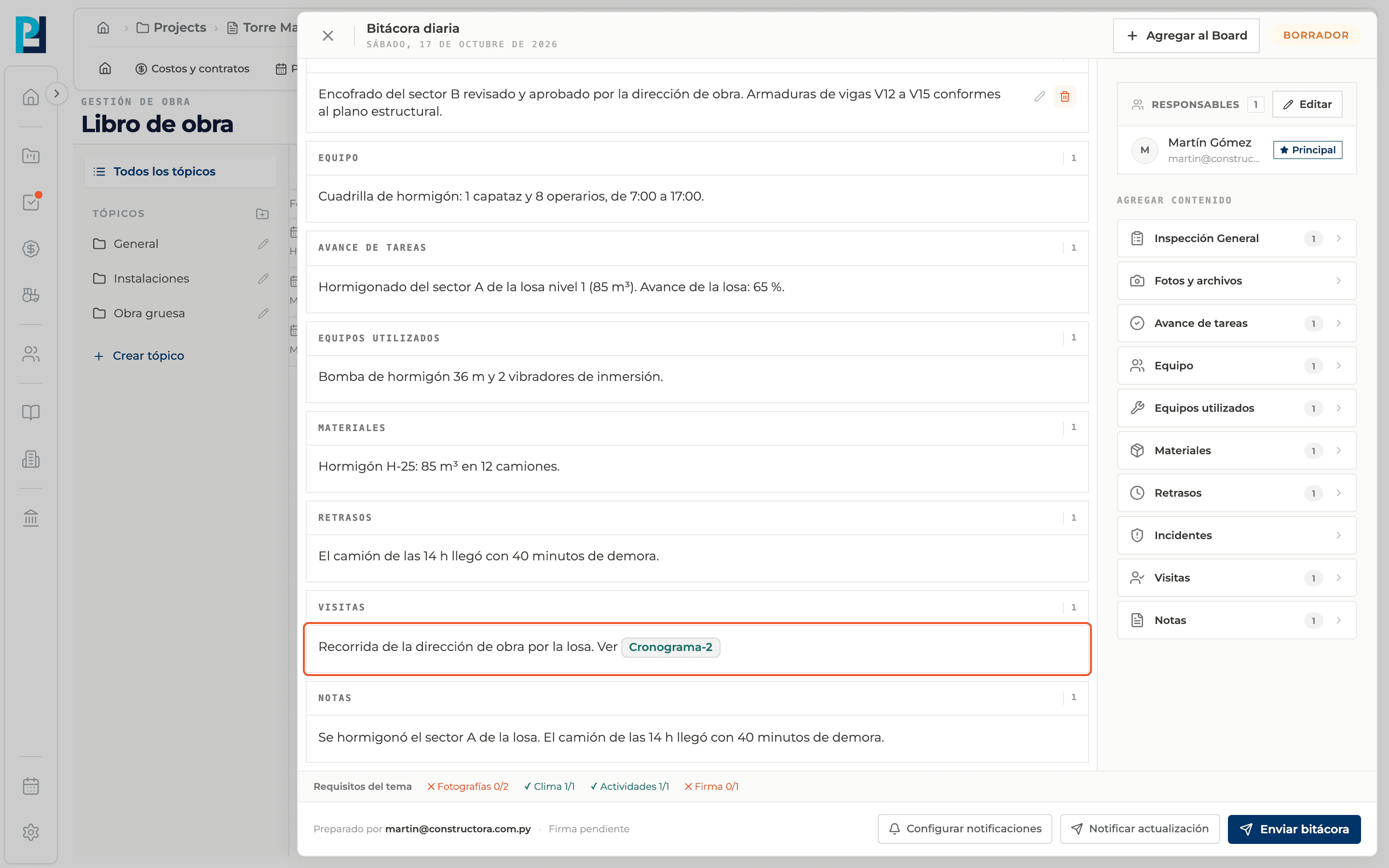
Save the record
Once you add the record, the mention is highlighted under Records of the day and shows in the PDF.
- 04
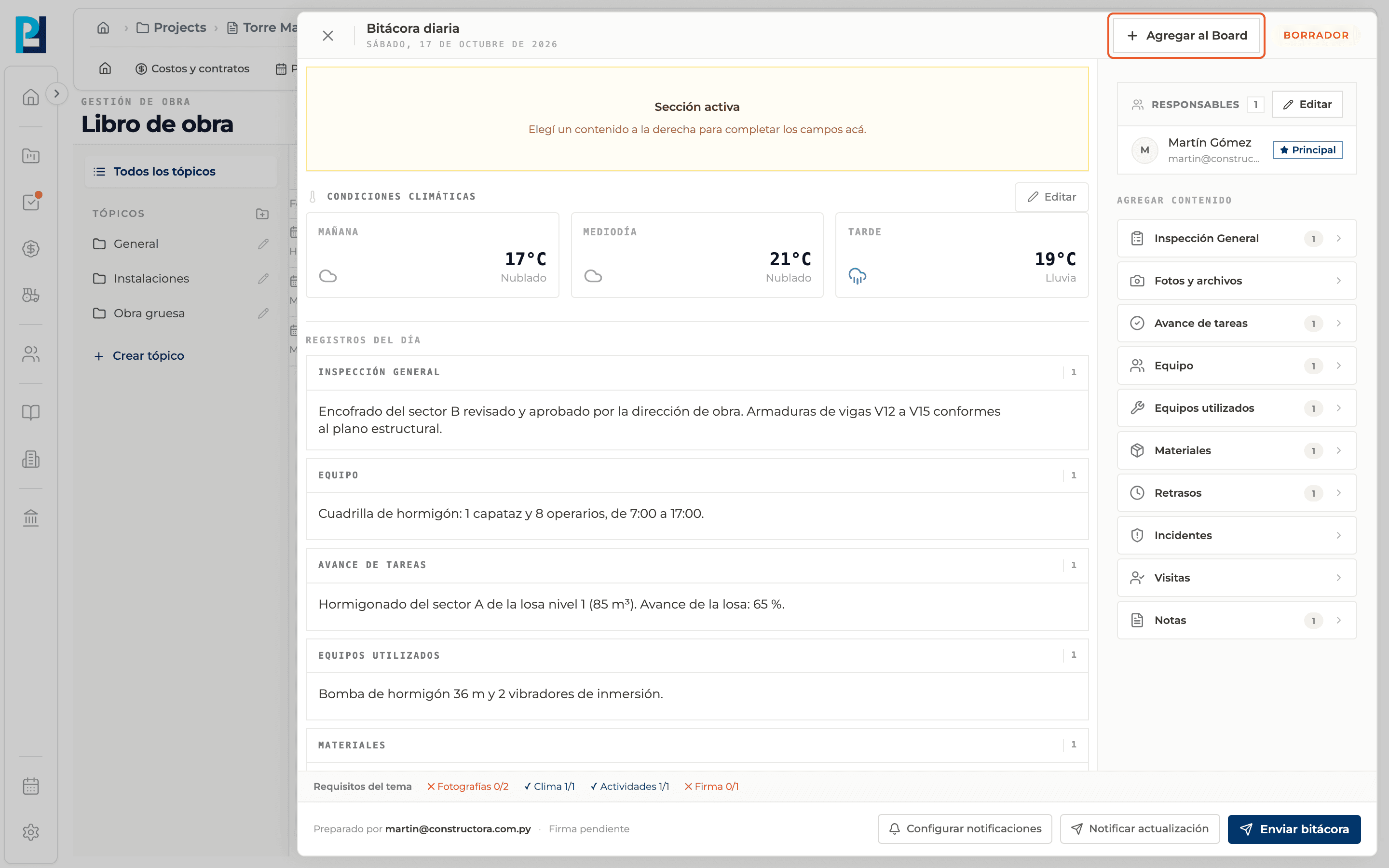
Add to the Board
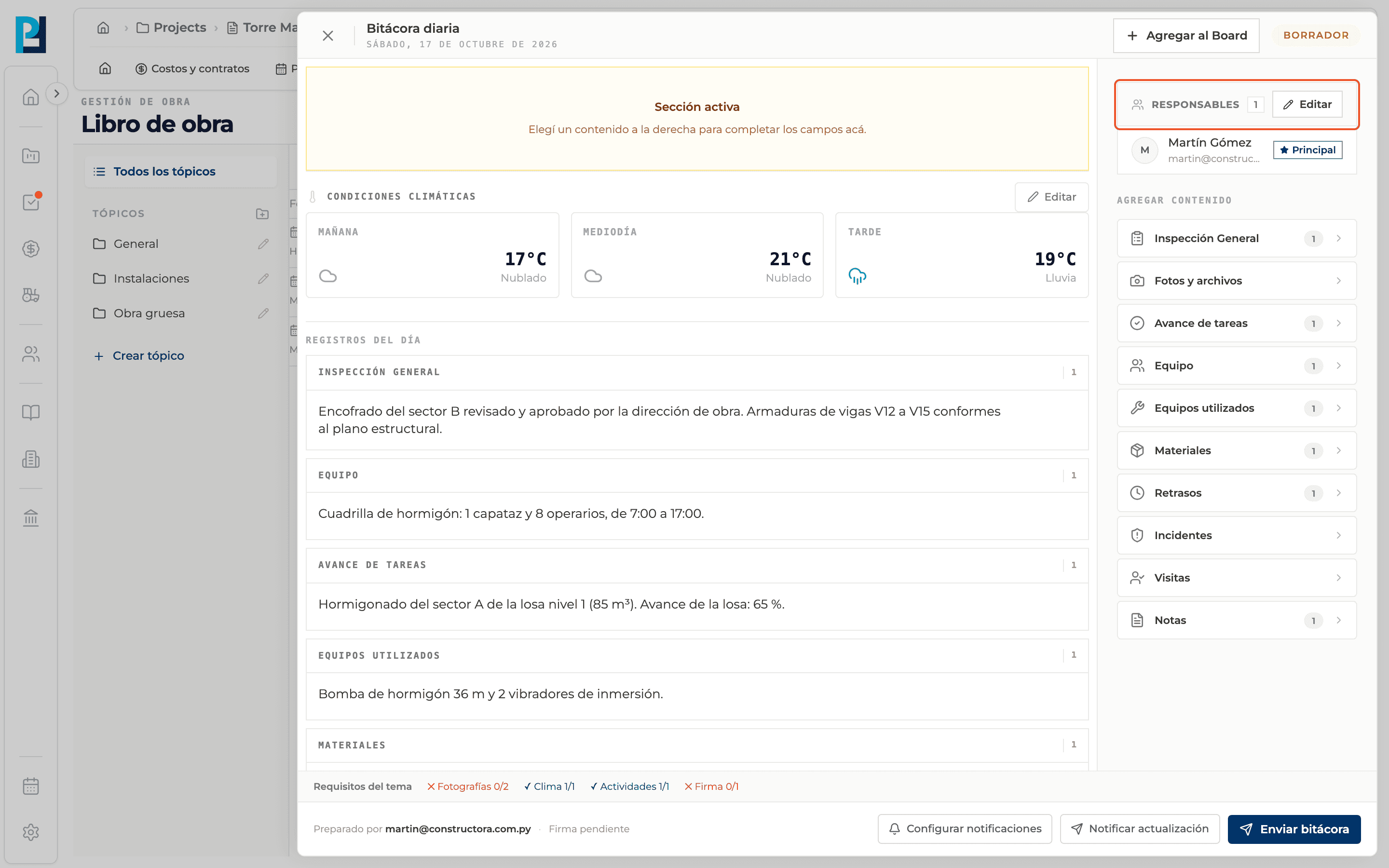
With the log open, Add to Board (top) opens the choice of the destination Board.
- 05
Review the responsibles
In the right column, Responsibles shows who is in charge; Edit adds or removes people. Approved logs cannot be edited.
What you'll learn
How link the log with other modules works inside Perfour.
What information you need and how it stays connected to Daily Logs.
How to preserve traceability and find the record later.
Frequently asked questions
Does it update the schedule automatically?+
No. Task progress records progress as text; mentioning an activity does not change its progress.