Set up notifications and notify an update
Each log has its own notification recipients. Notify update sends an updated PDF to whoever you choose.
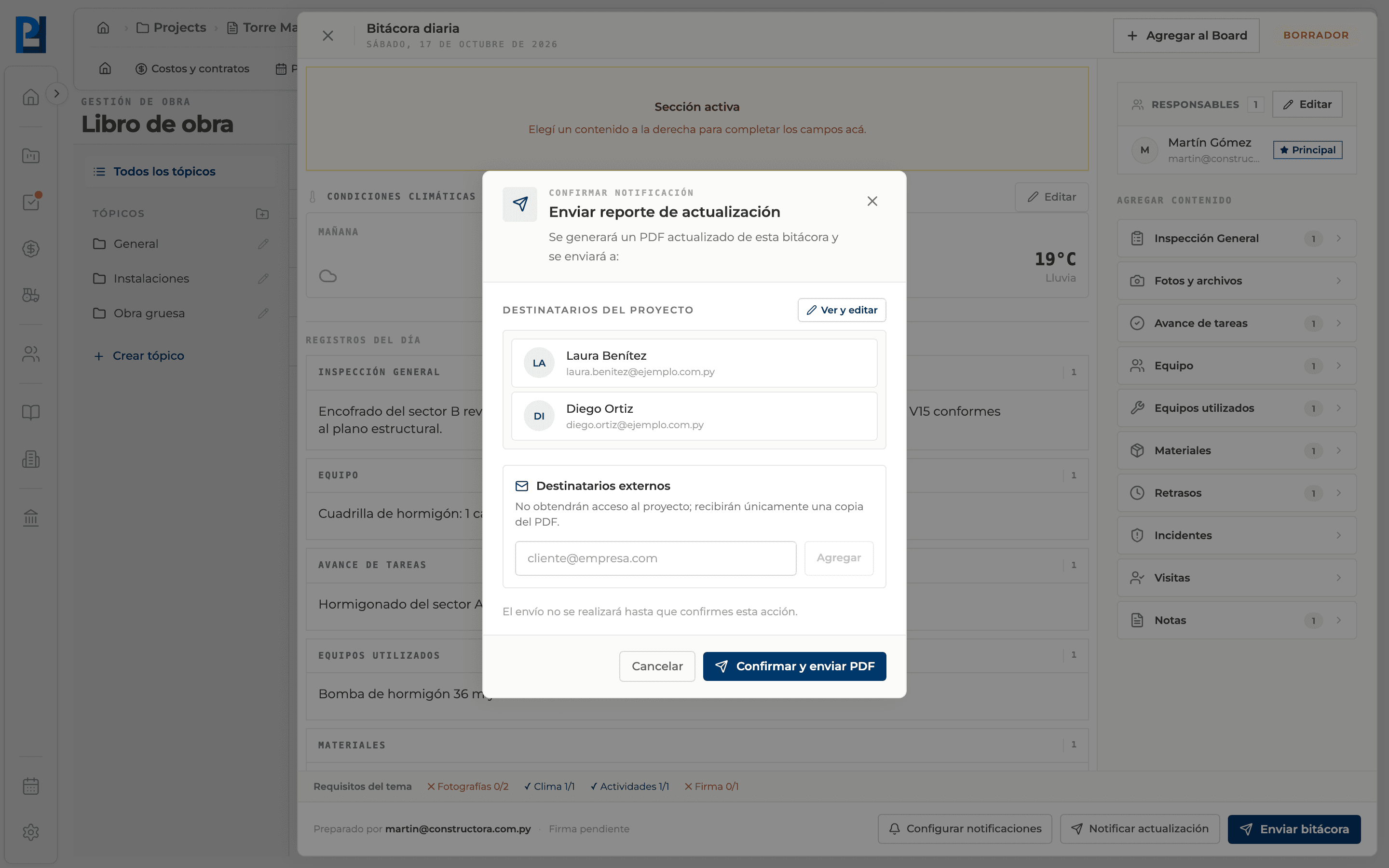
How to complete notifications
- 01
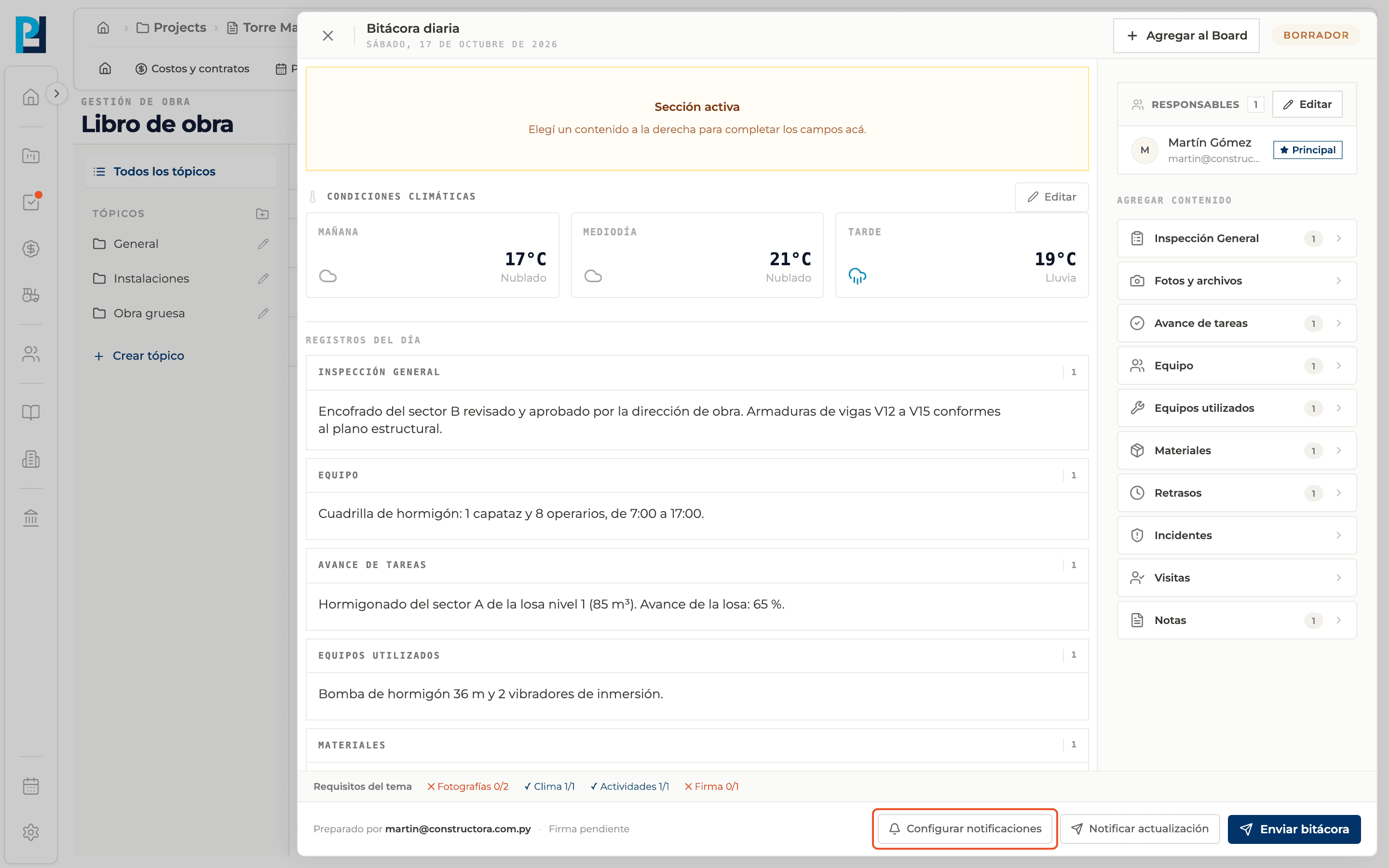
Open the settings
In the log's footer click Configure notifications.
- 02
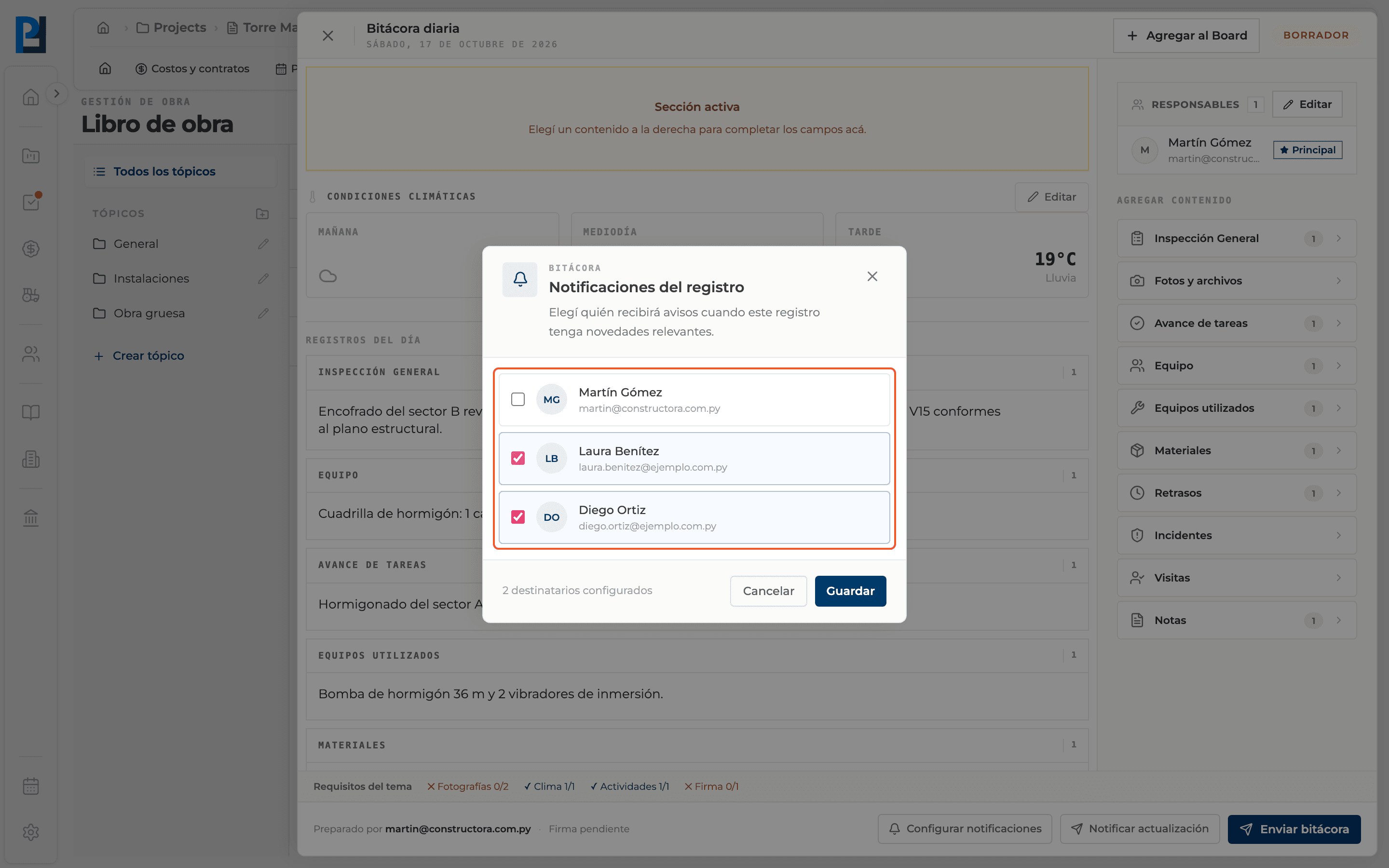
Pick the recipients
In Record notifications tick the project members who will be notified and click Save.
- 03
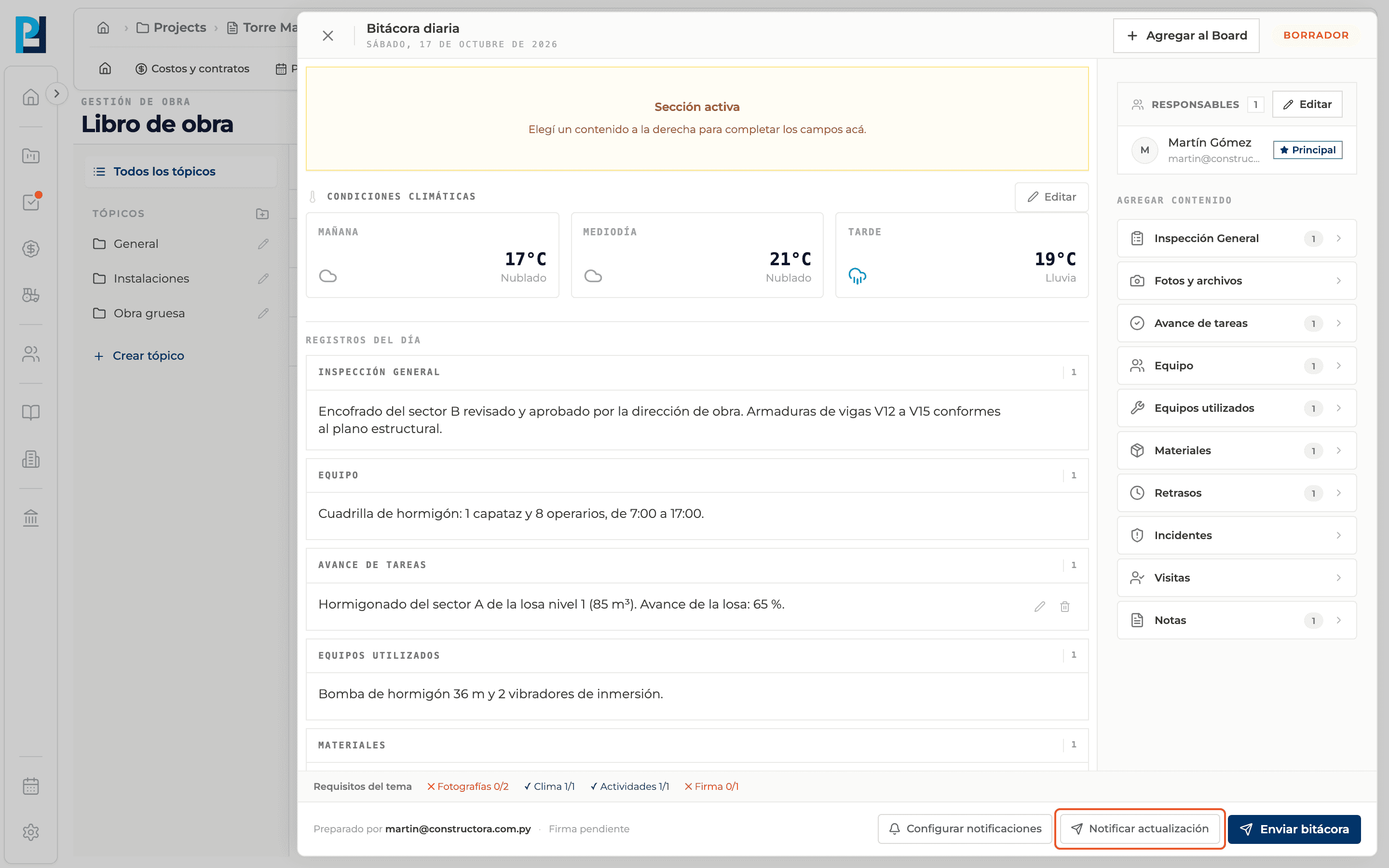
Notify an update
Click Notify update (requires edit permission).
- 04
Review the recipients
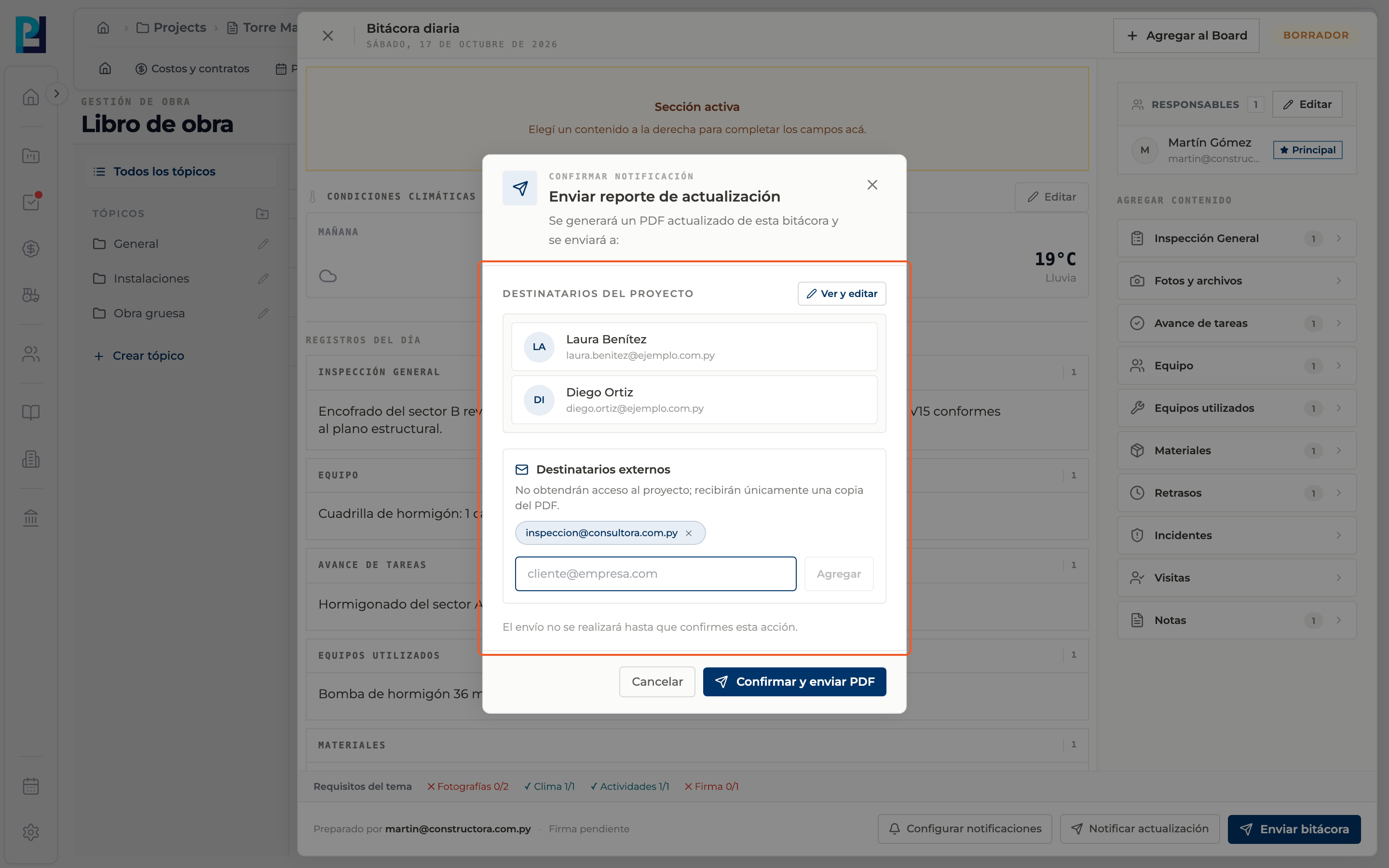
Send update report lists who will receive the updated PDF. View and edit opens the recipients editor.
- 05
Optional: external recipients
Type emails and press Enter or Add. They get no access to the project: they only receive a copy of the PDF. The maximum is 50.
- 06
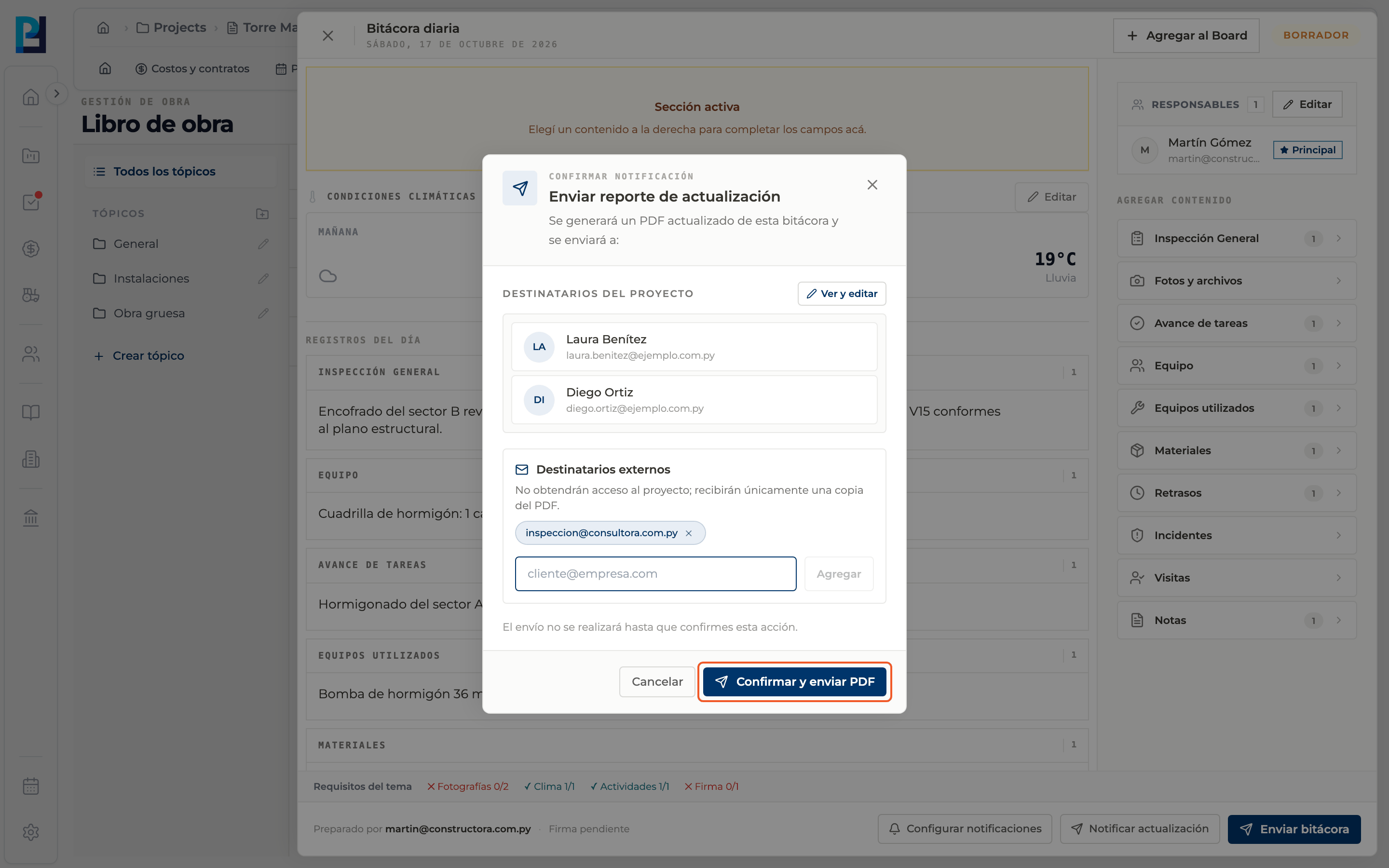
Confirm
Click Confirm and send PDF. Nothing is sent until you confirm. You see that the update was notified.
What you'll learn
How set up notifications and notify an update works inside Perfour.
What information you need and how it stays connected to Daily Logs.
How to preserve traceability and find the record later.
Frequently asked questions
Does Notify update change the status?+
No, it only sends the PDF.
How is it different from topic followers?+
Followers are set on the topic; these recipients belong to each log.