Photos and attached files
Upload photos, PDFs and Word or Excel documents to the log, with an optional description per file.
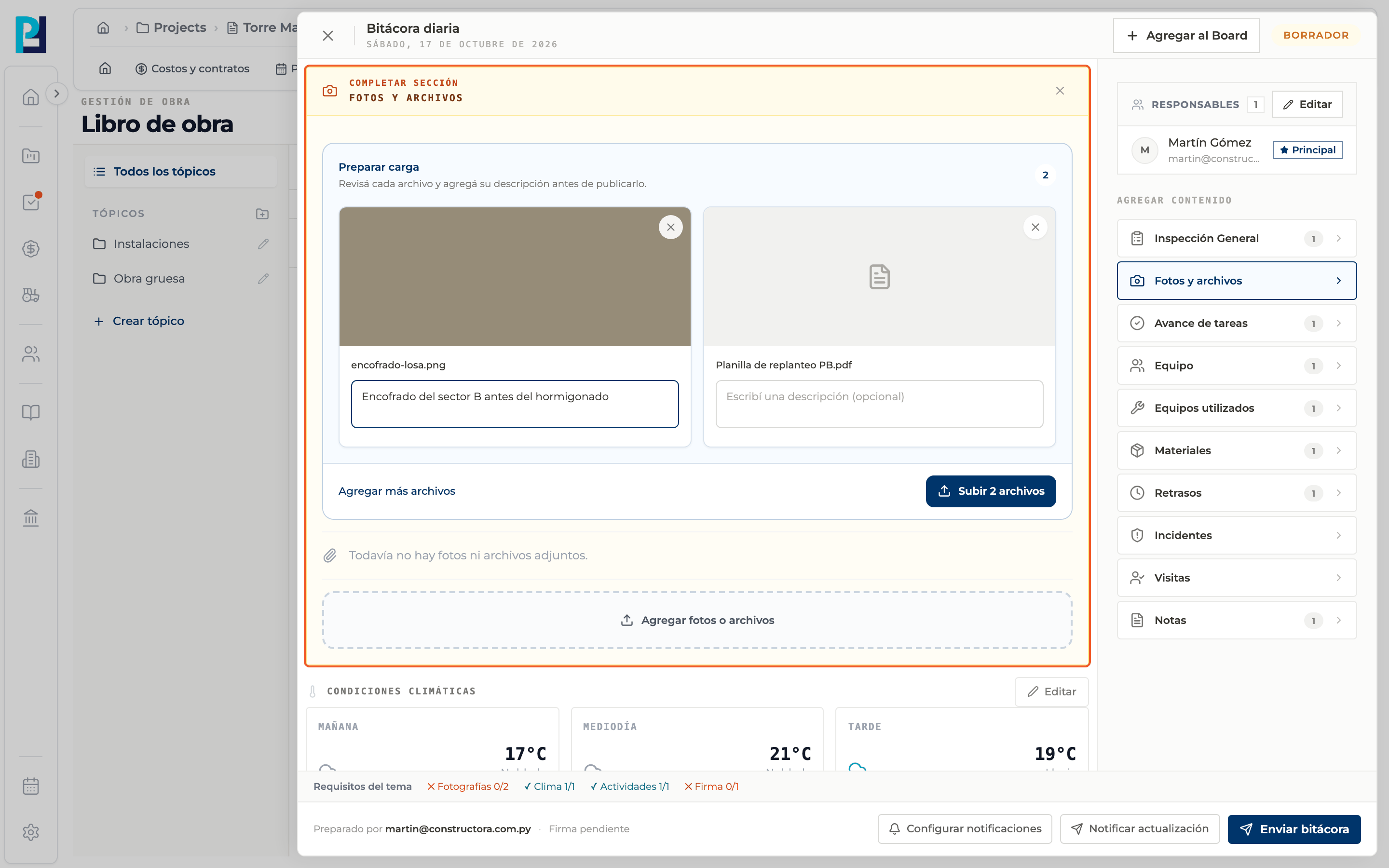
How to complete photos and files
- 01
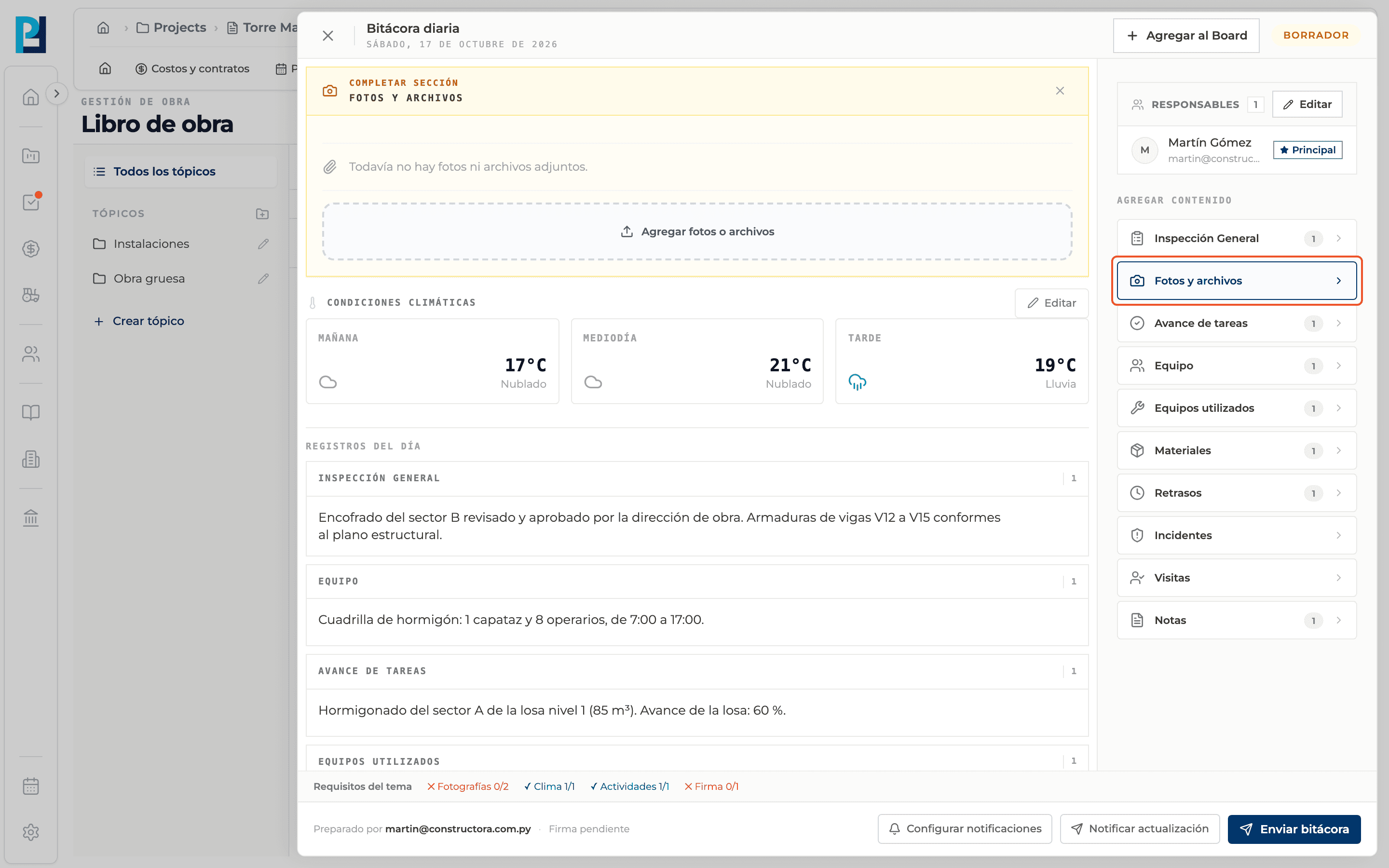
Open the section
Under Add content pick Photos and files.
- 02
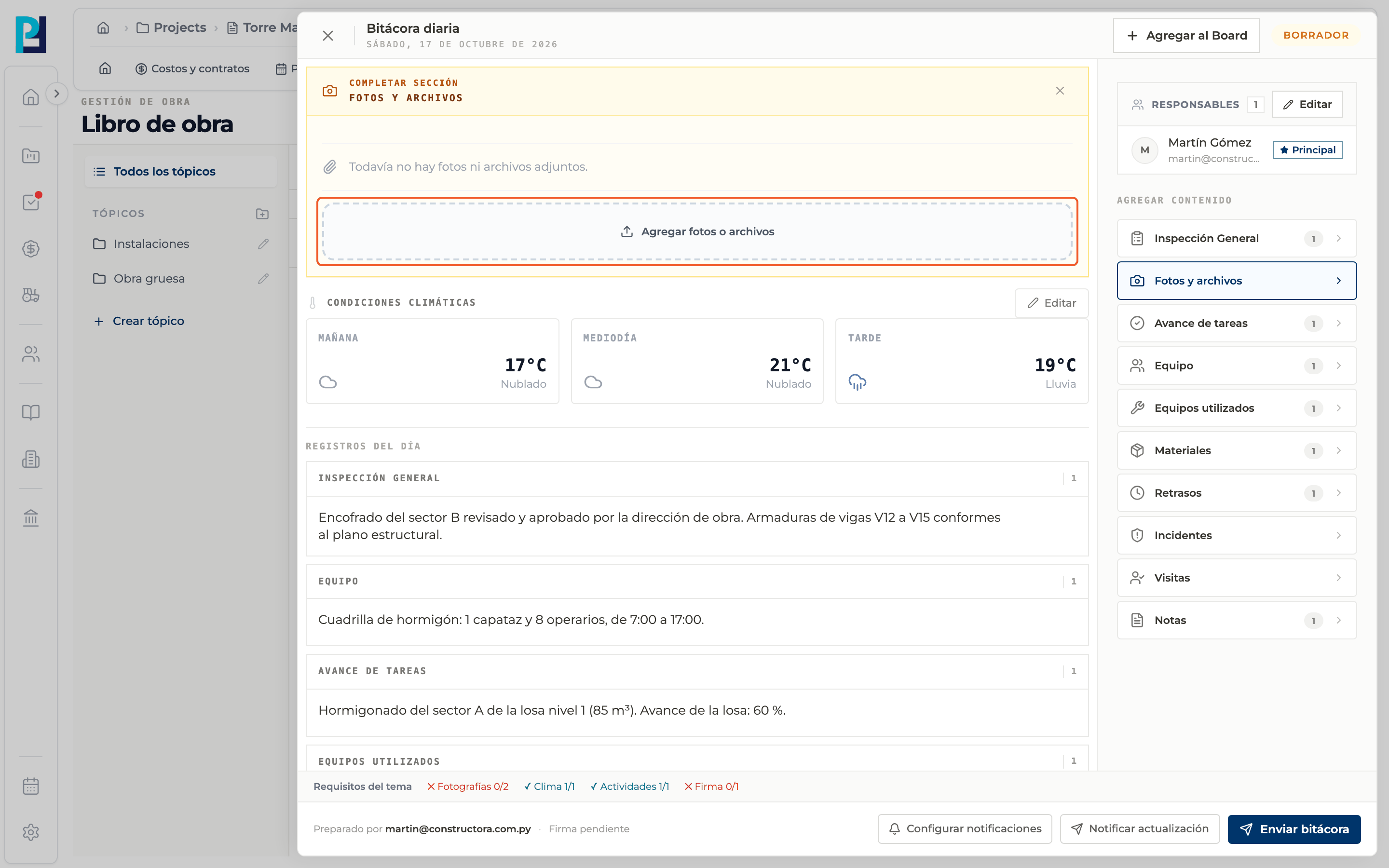
Choose the files
Click Add photos or files. Images, PDF, Word (.doc, .docx) and Excel (.xls, .xlsx) are accepted; you can pick several.
- 03
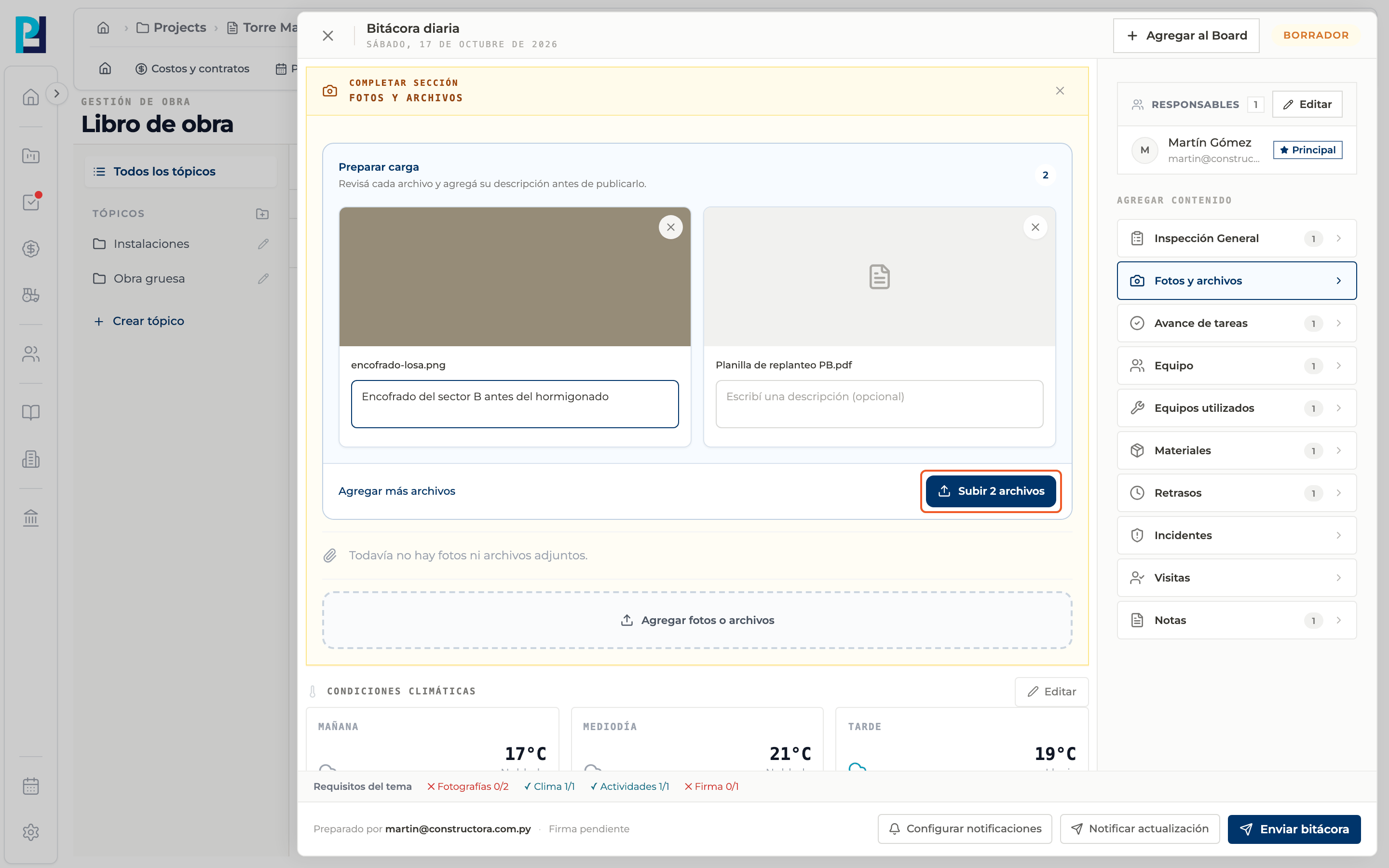
Prepare the upload
Under Prepare upload each file shows a thumbnail and an optional description field. The X removes it before uploading; Add more files adds others.
- 04
Upload
Click Upload N files. When done you see that the attachment was saved and the files stay in the log.
- 05
Open a file
Click the attachment's thumbnail or name.
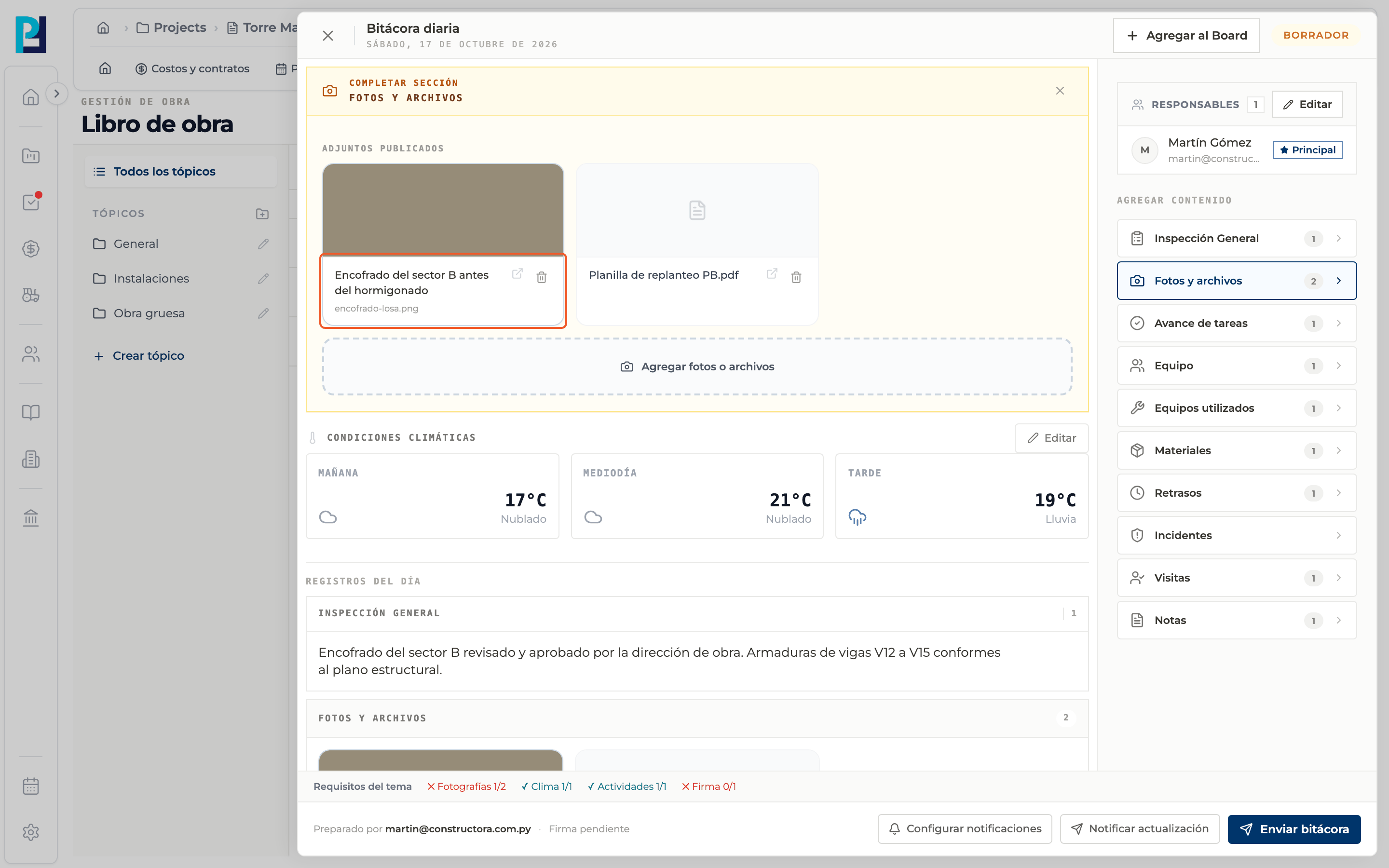
- 06
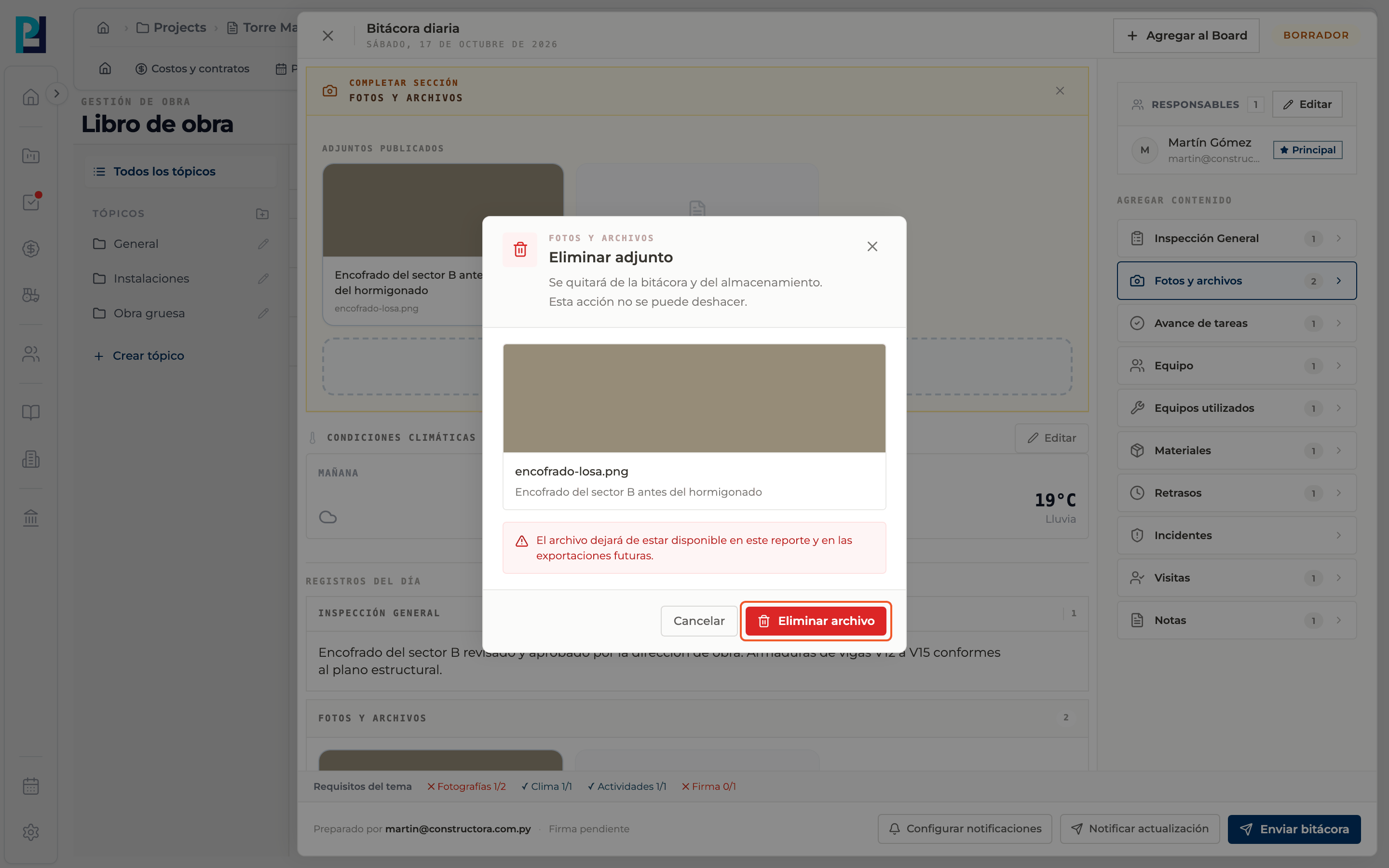
Delete a file
Click the attachment's trash icon and confirm with Delete file in the Delete attachment dialog. It cannot be undone.
What you'll learn
How photos and attached files works inside Perfour.
What information you need and how it stays connected to Daily Logs.
How to preserve traceability and find the record later.
Frequently asked questions
The upload fails.+
You see that the attachment could not be saved. If you were uploading several, check which ones made it before retrying.
Do they count as photos for the topic?+
Only images count toward the Photos requirement.