Sign and submit the log
Submitting signs the log with your name and leaves it ready for approval. The topic's requirements are checked first.
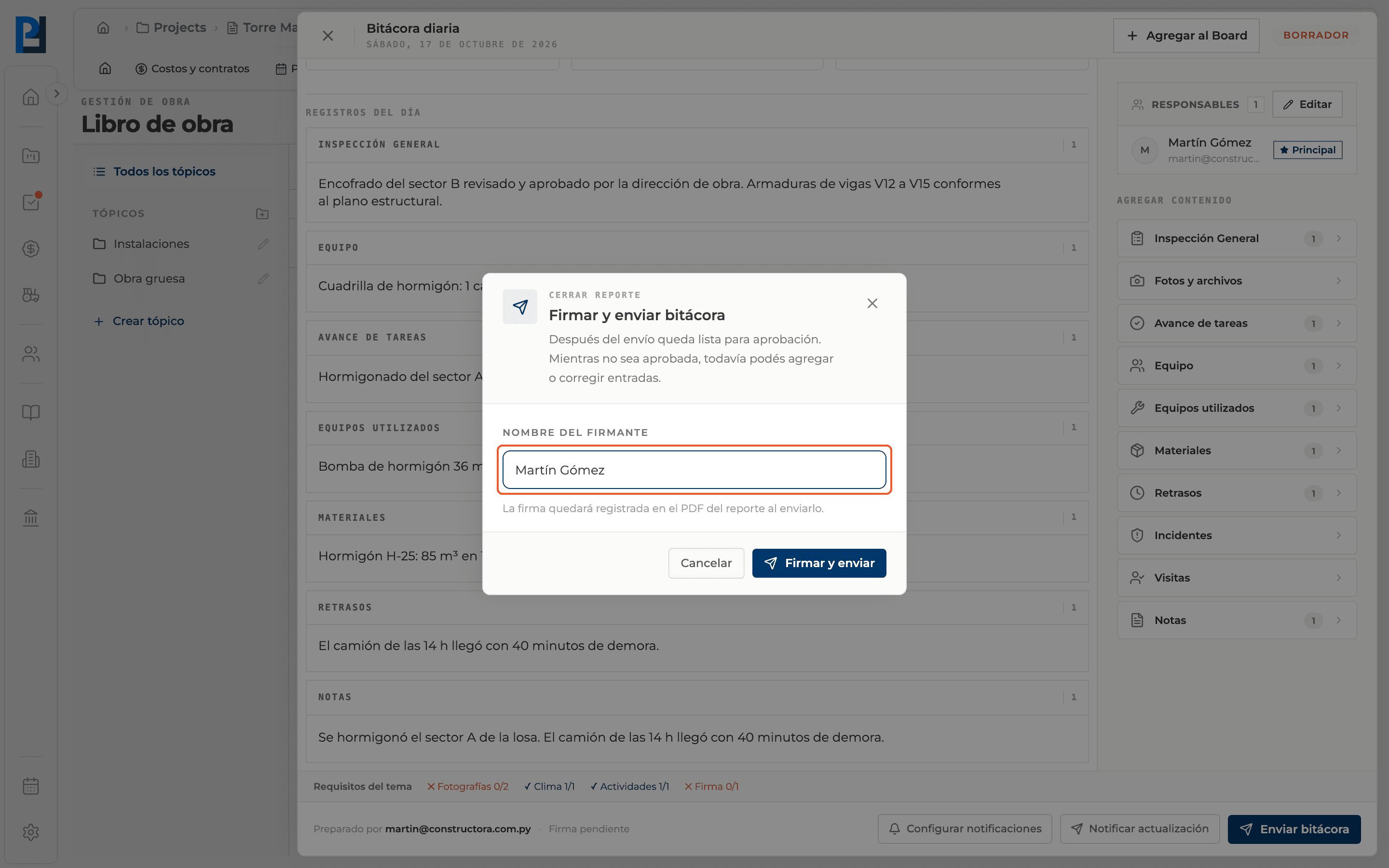
How to complete sign and submit
- 01
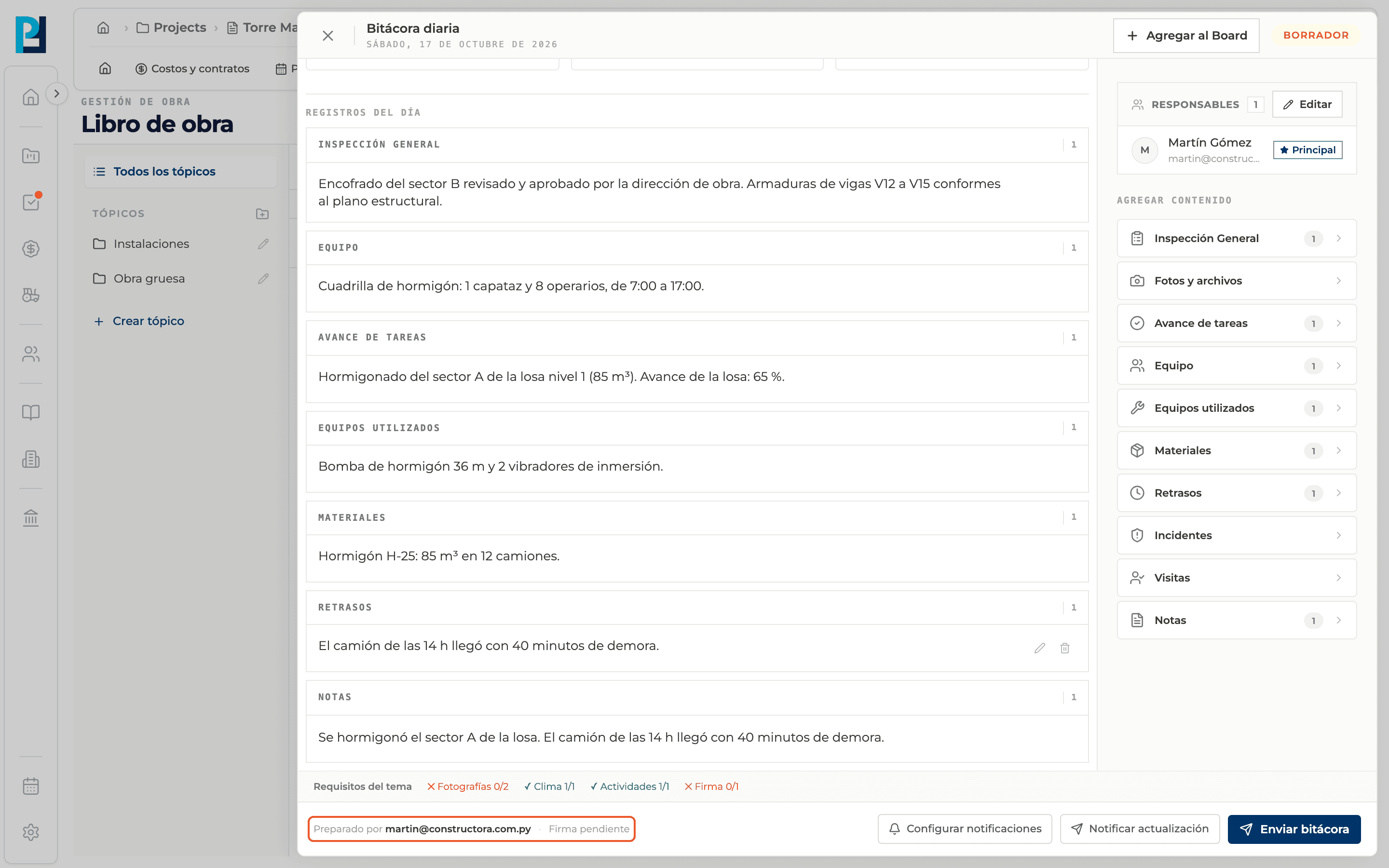
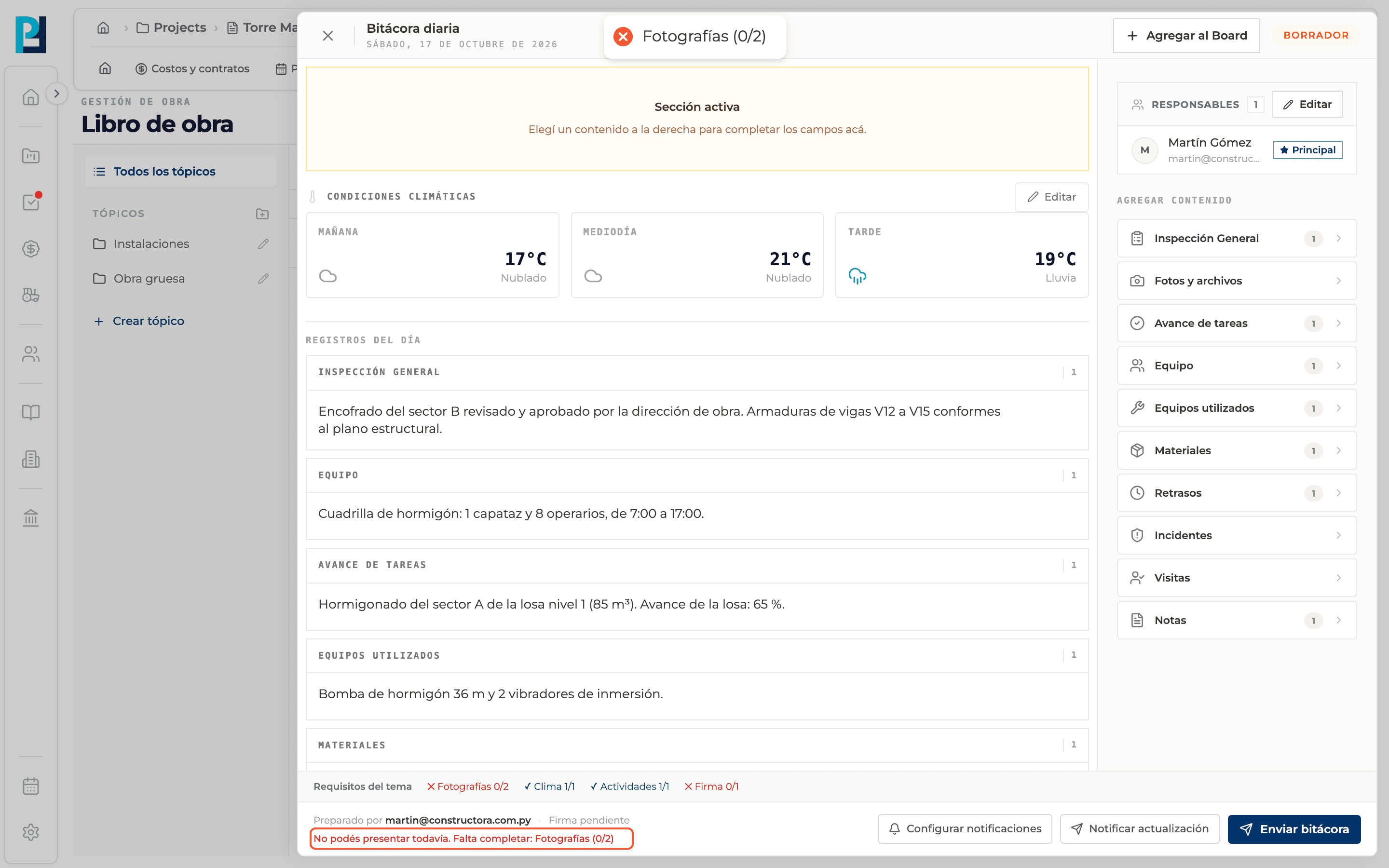
Check the footer
It shows Prepared by, the signature status (pending or signed by…) and, if the topic has requirements, what is missing.
- 02
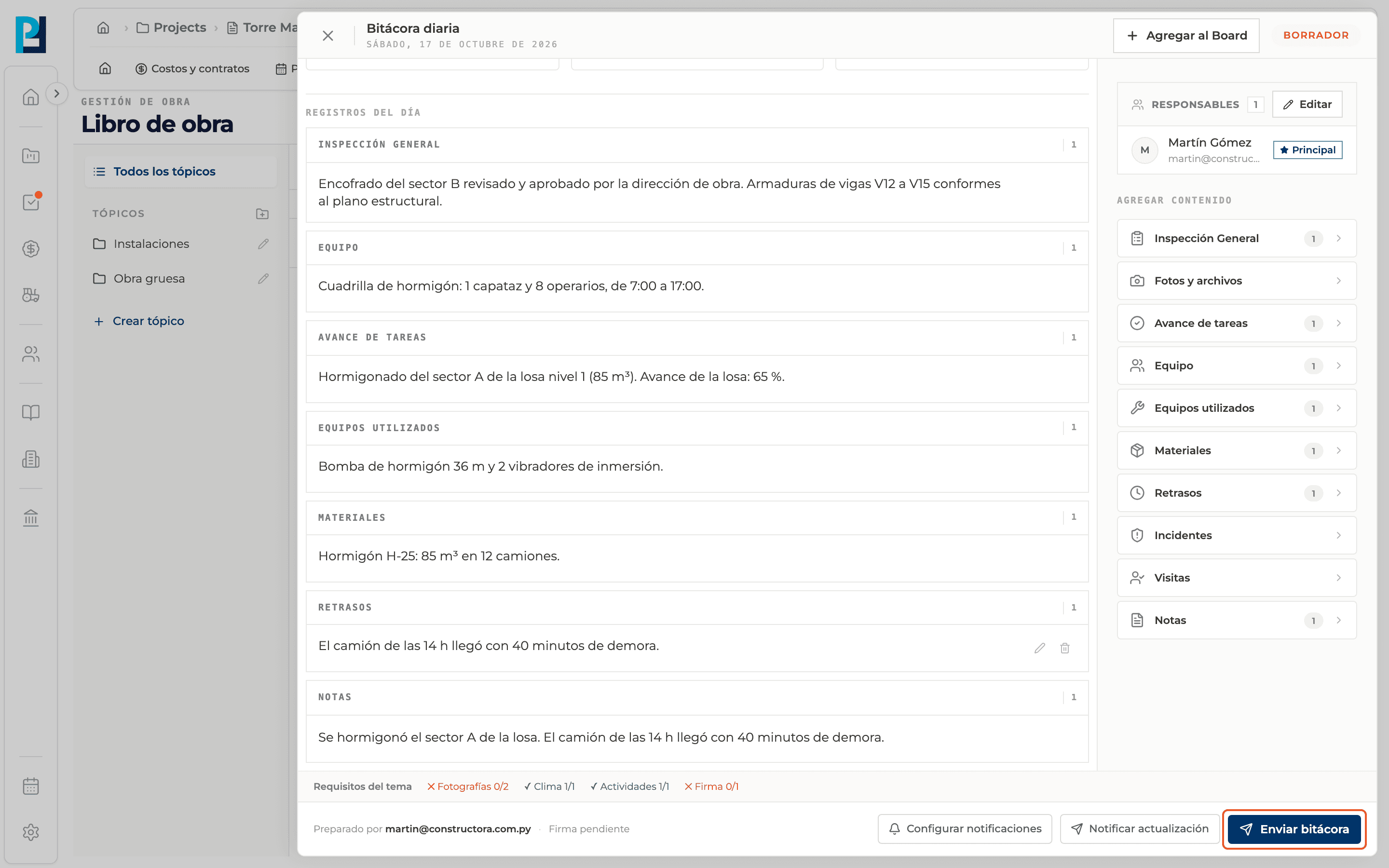
Click Submit log
It shows for Draft or Rejected logs, if you can edit.
- 03
Fill in the signature
Sign and submit log opens. Signer name defaults to your name and is required. The signature is recorded in the report PDF.
- 04
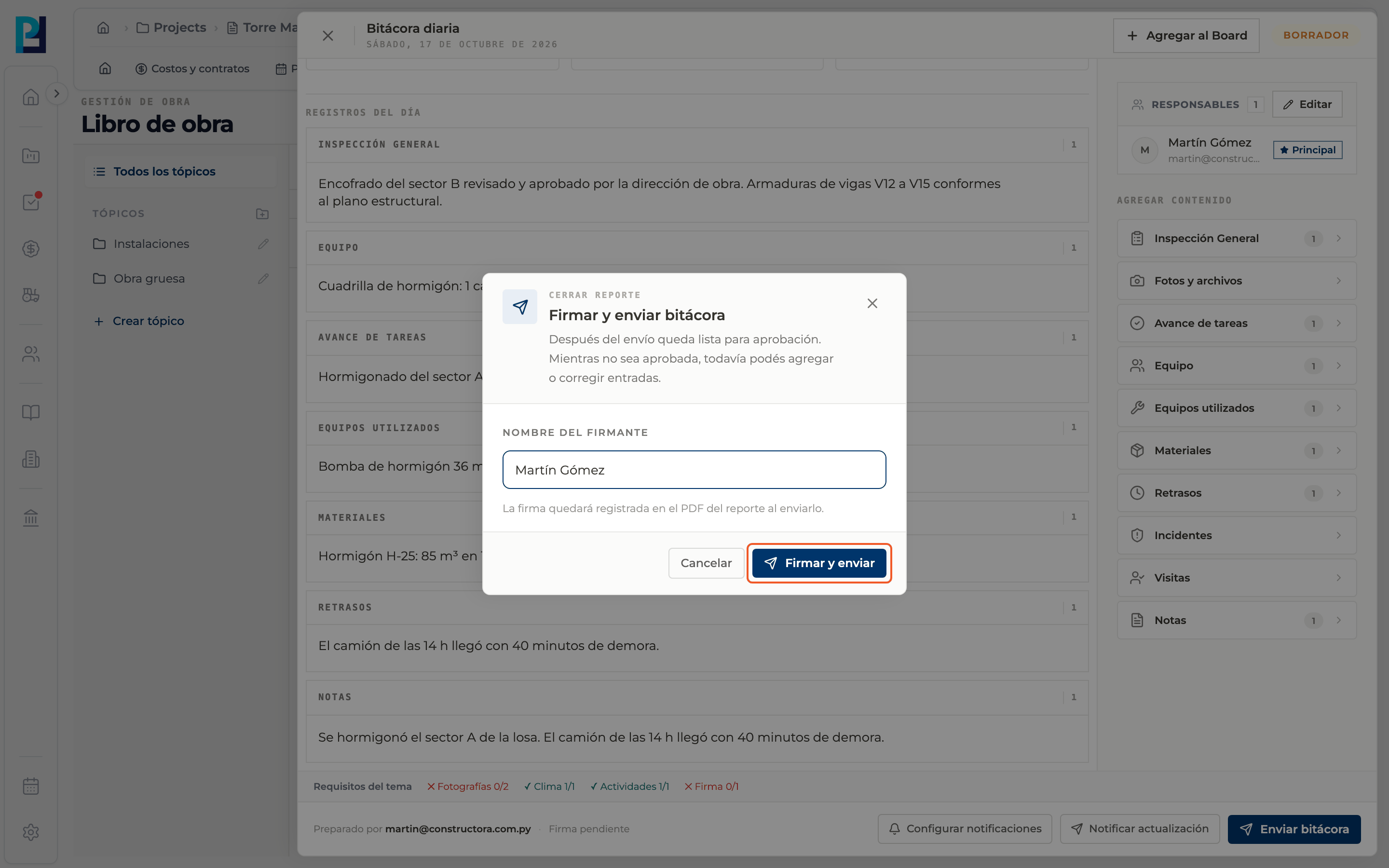
Confirm
Click Sign and submit. You see "Log submitted" and the status becomes Submitted.
- 05
If something is missing
The footer shows in red that you cannot submit yet, listing each requirement and its count, for example "Photos (0/2)". Complete it and submit again.
- 06
After submitting
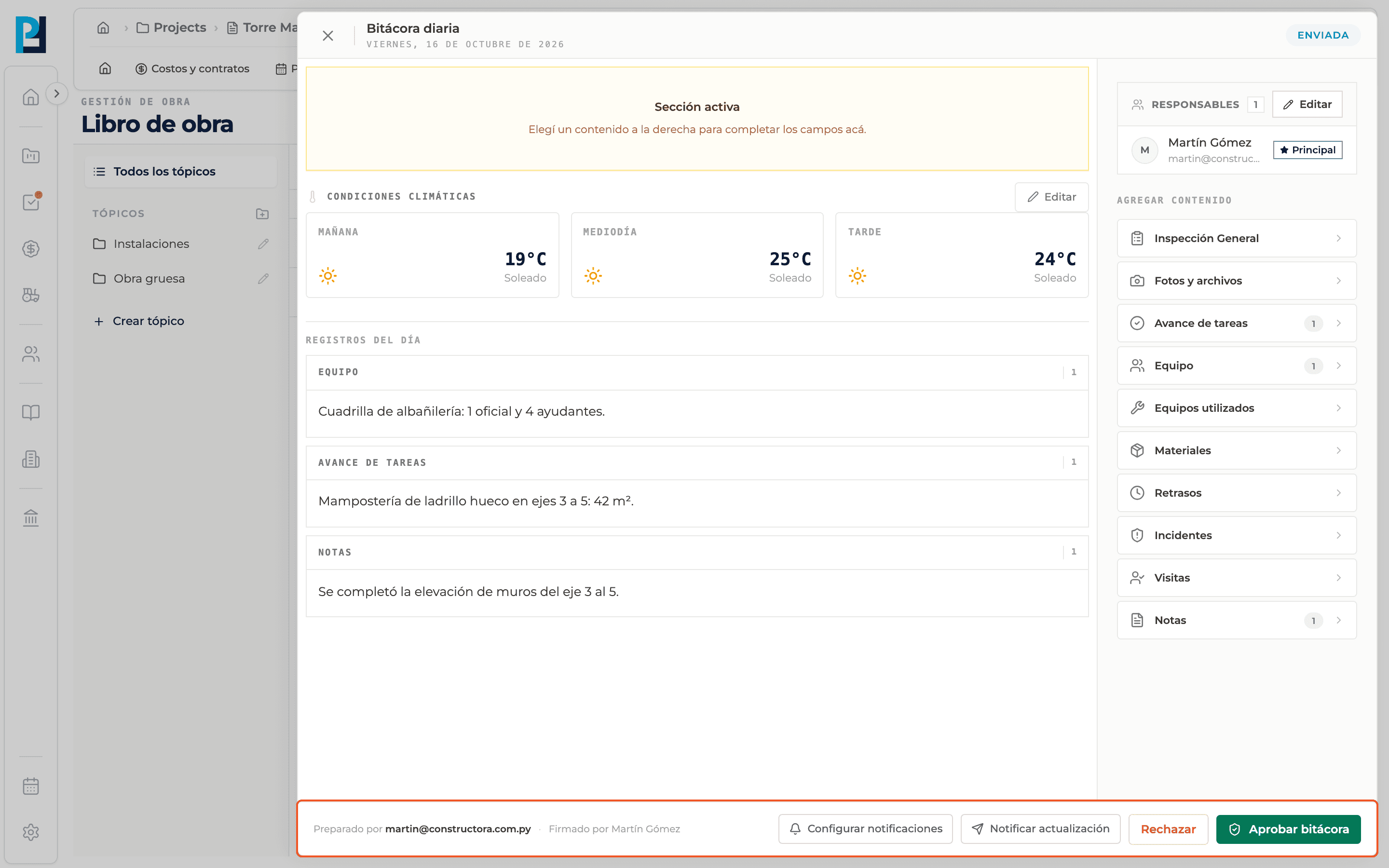
The footer shows who signed and, for whoever can approve, the Reject and Approve log buttons. Until it is approved, records can still be corrected.
What you'll learn
How sign and submit the log works inside Perfour.
What information you need and how it stays connected to Daily Logs.
How to preserve traceability and find the record later.
Frequently asked questions
I can't see Submit log.+
The log is already submitted or approved, or you lack edit permission.
Is it a handwritten signature?+
No: the signer's typed name is recorded.