Topics: create, edit and set requirements
Topics group logs by subject, such as "Structure" or "Building services". They can require minimum content before submitting and notify followers.
How to complete topics
- 01
Create a topic
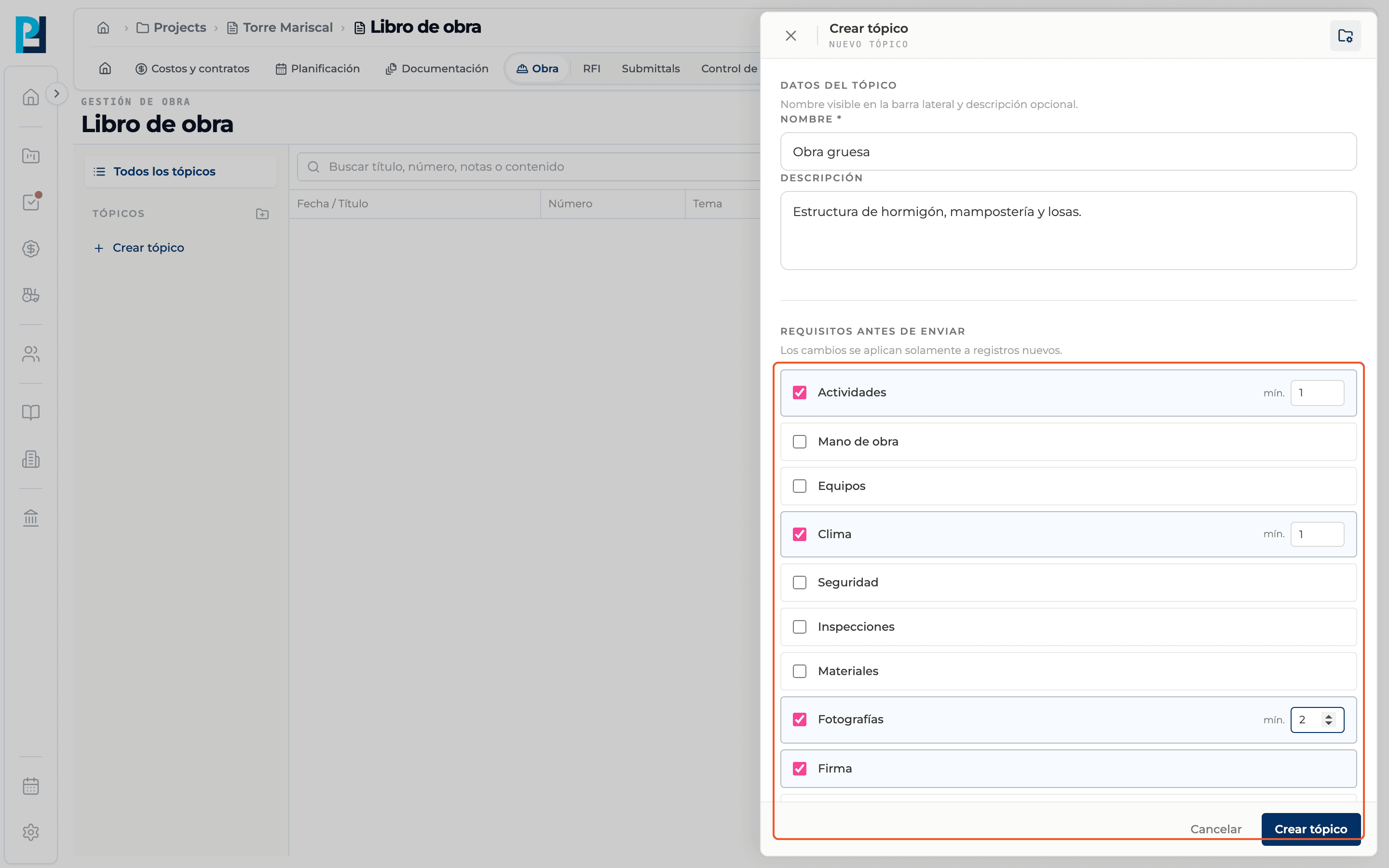
In the left bar, next to Topics, click the folder icon with "+" or Create topic at the bottom. You only see it if you can edit the Daily log.
- 02
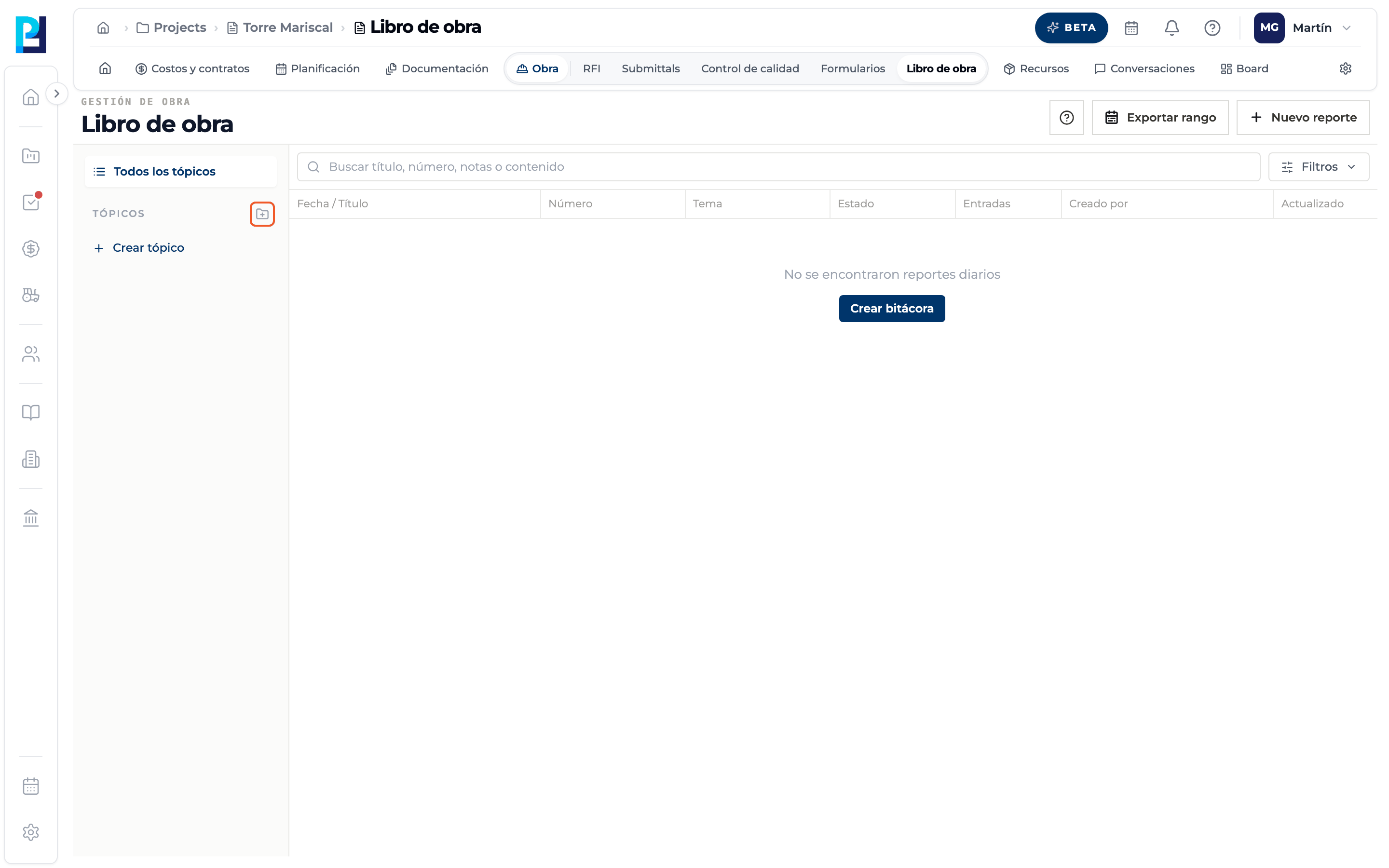
Fill in the data
Name (required, up to 120 characters) and an optional description. The name shows in the sidebar and in the Main topic selector.
- 03
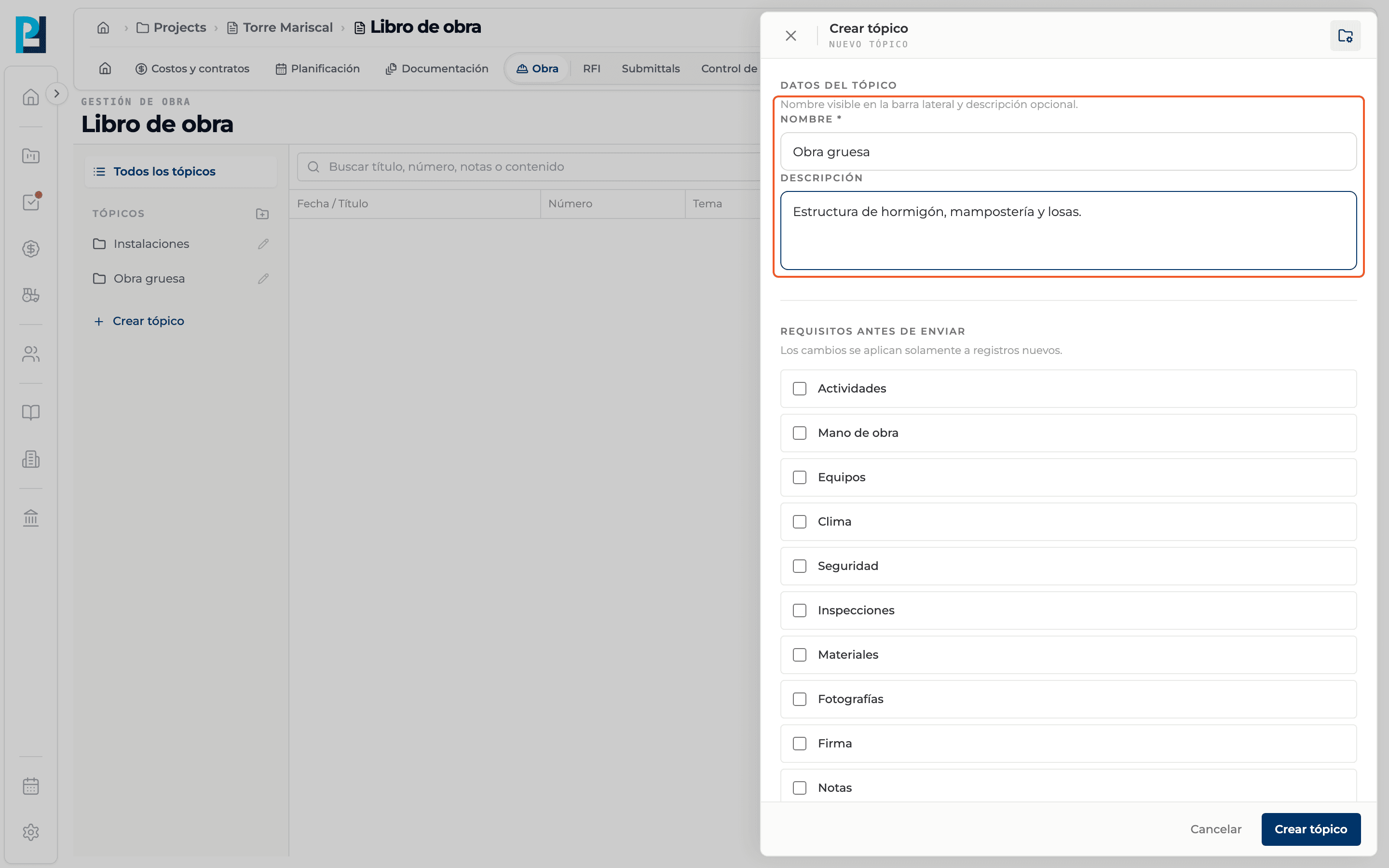
Set the requirements
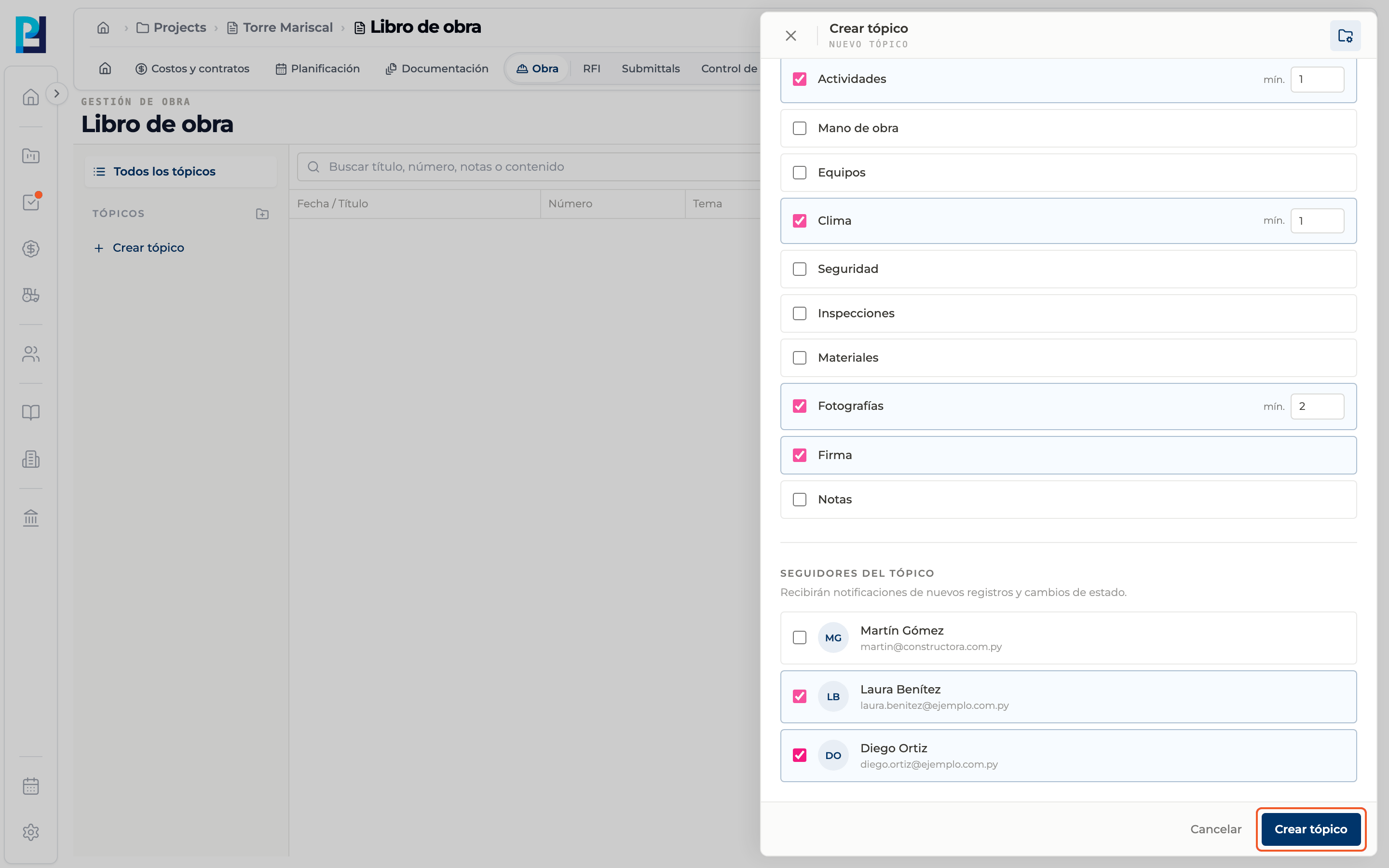
Under Requirements before submitting tick what the log must have: Activities, Labor, Equipment, Weather, Safety, Inspections, Materials, Photos (with its minimum), Signature and Notes. Changes apply only to new records.
- 04
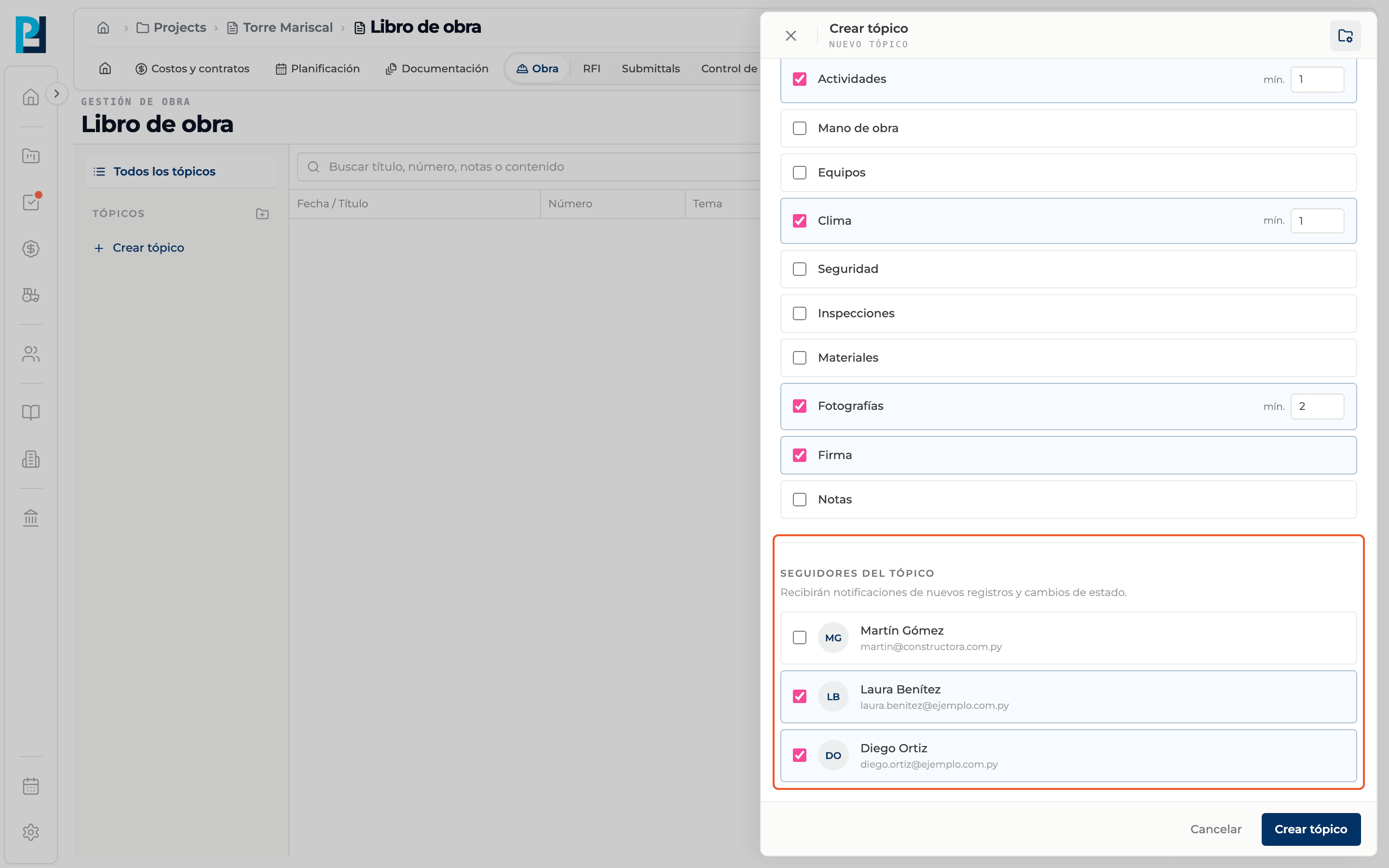
Pick the followers
Under Topic followers tick who gets notified about new records and status changes.
- 05
Save
Click Create topic. The topic shows in the sidebar.
- 06
Edit a topic
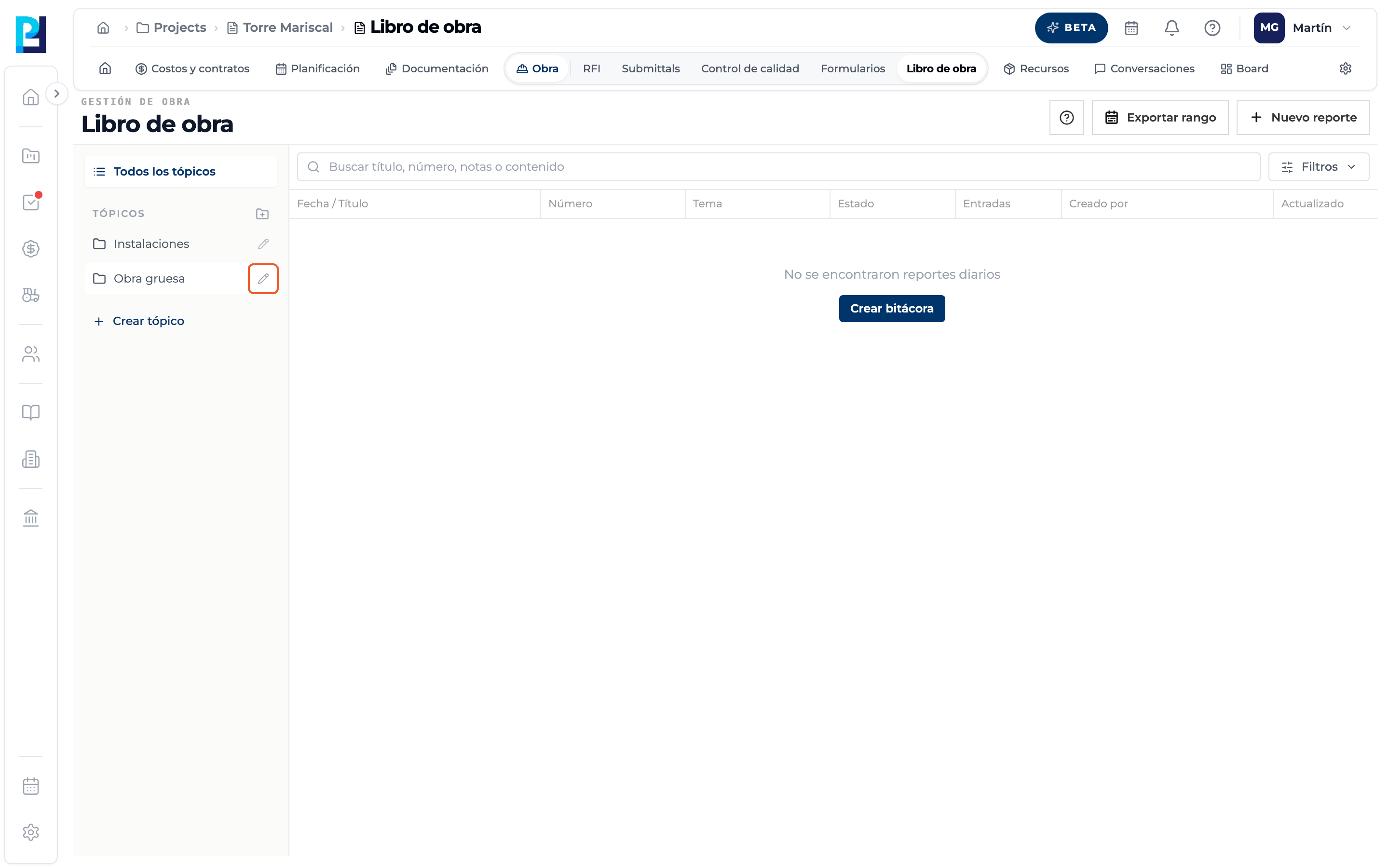
Hover the topic and use the pencil. The Edit panel opens with its data, requirements and followers; save with Save changes.
- 07
Filter by topic
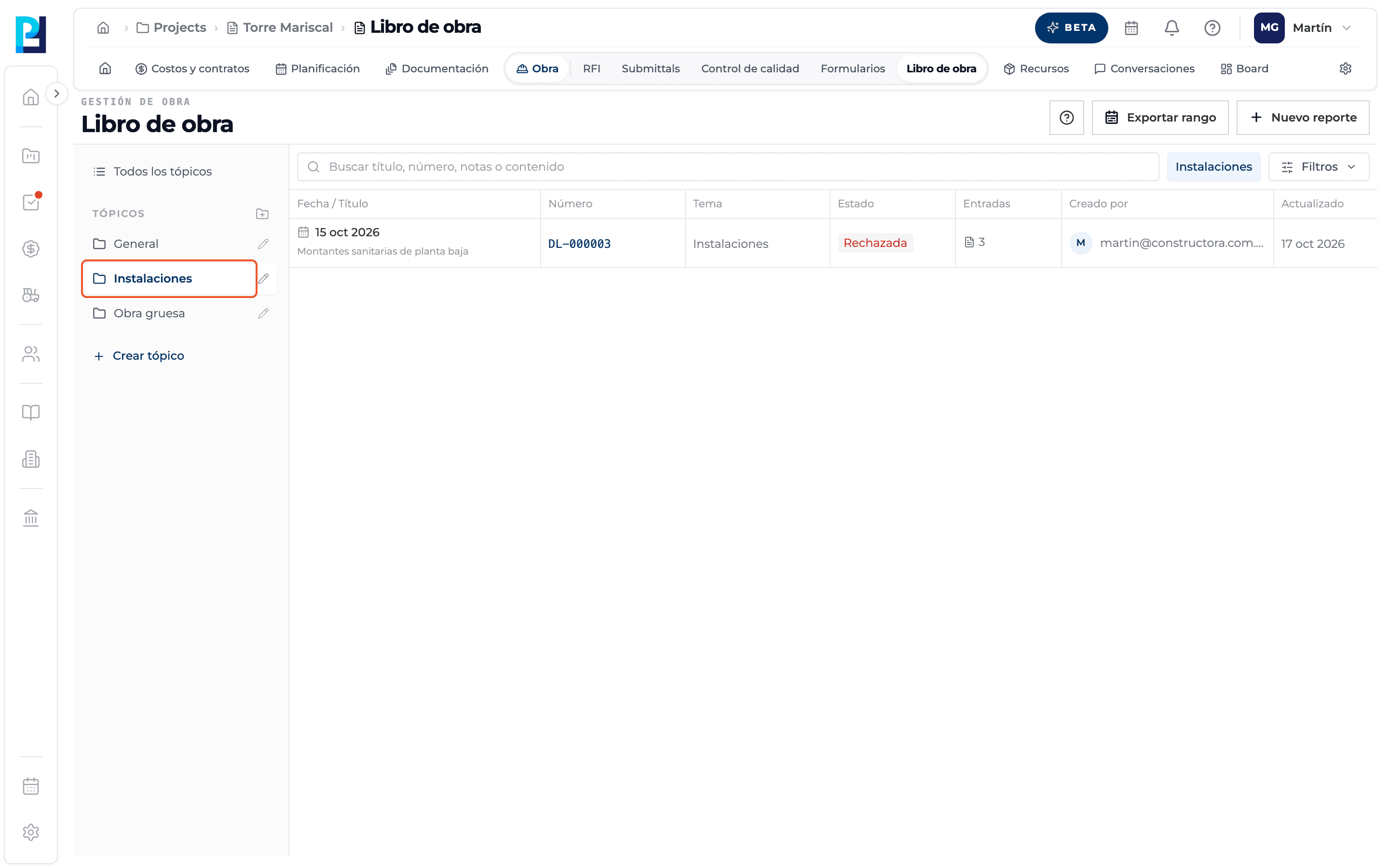
Click the topic in the sidebar to see only its logs. All topics clears the filter.
- 08
See the requirements in the log
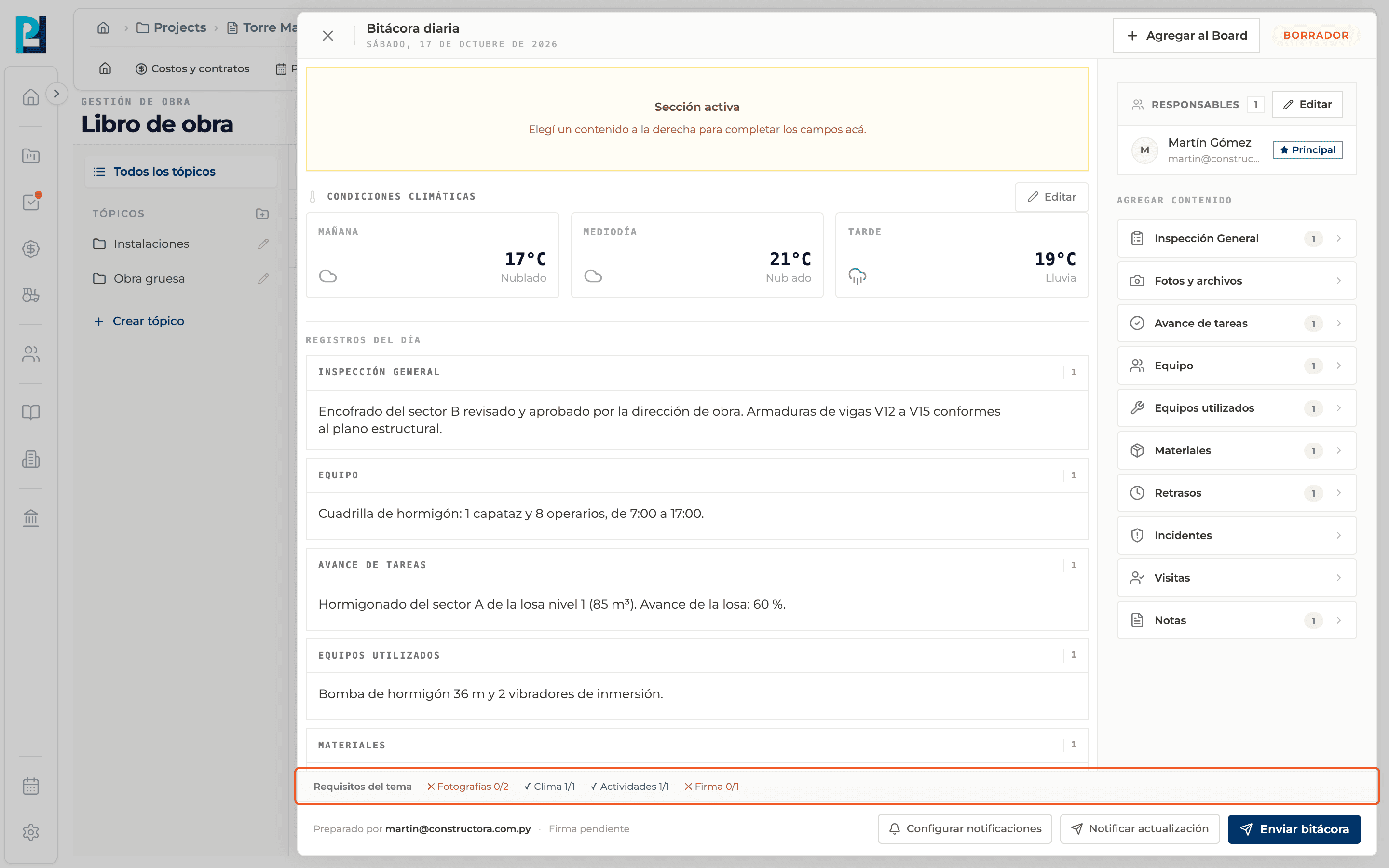
If the topic has requirements, the bottom of the log shows Topic requirements with green ticks (met) or red crosses (missing), for example "Photos 0/2".
What you'll learn
How topics: create, edit and set requirements works inside Perfour.
What information you need and how it stays connected to Daily Logs.
How to preserve traceability and find the record later.
Frequently asked questions
Do requirements block submitting?+
Yes. If something is missing, submitting shows what still needs to be completed.
What is General?+
The default topic. If the project does not have it yet, it is created the first time it is used.
What counts as Activities?+
Task progress records.