Visual guide
Close a form
Move an issued Custom Form to Closed and verify its detail, activity and list status.
3 minutes
Step by step
Follow each step on screen
- 01
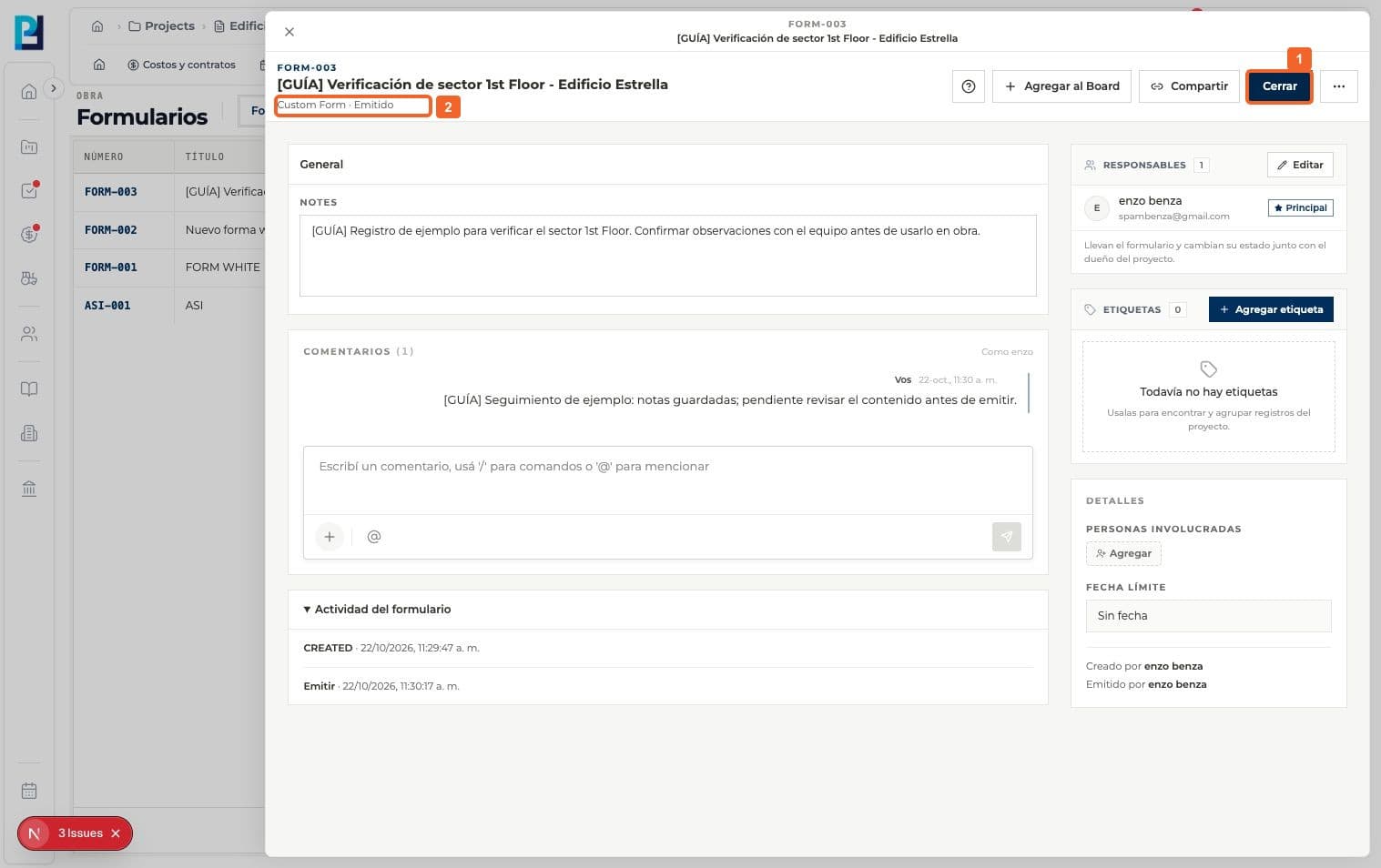
Open the form and confirm that it is Issued.
- 02
Select Close in the top bar.
- 03
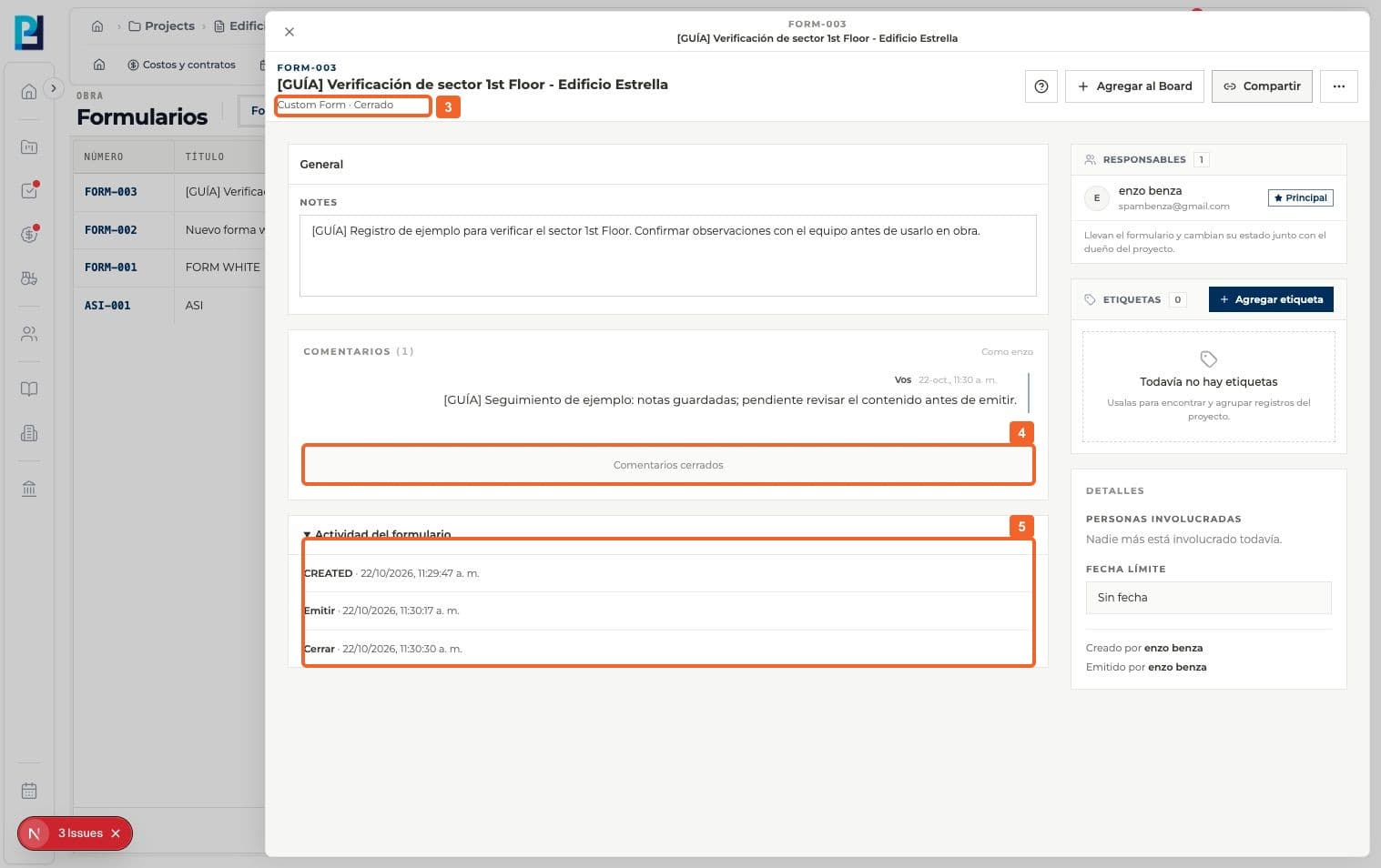
Verify that the detail status changes to Closed.
- 04
Check that the comments section says Comments closed.
- 05
Review form Activity for Created, Issue and Close.
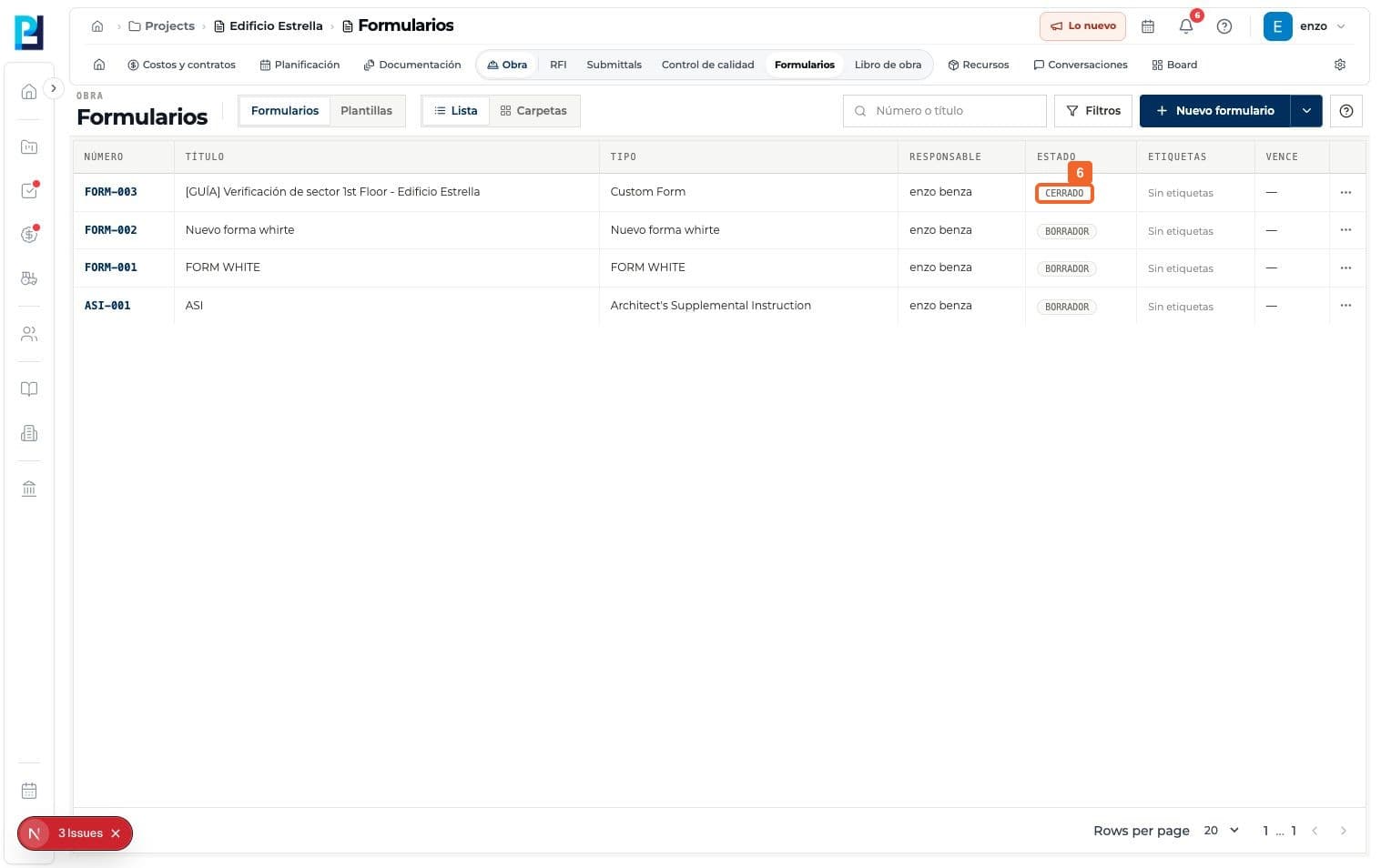
- 06
Return to the list and verify CLOSED beside the form number.
FAQ
Frequently asked questions
What was verified and what remains untested?+
Close changed the status directly without a visible confirmation dialog. Reopening and closing other form types were not tested.