Visual guide
Fill in and follow a form
Complete a draft Custom Form, save its content, add a comment and review activity.
5 minutes
Step by step
Follow each step on screen
- 01
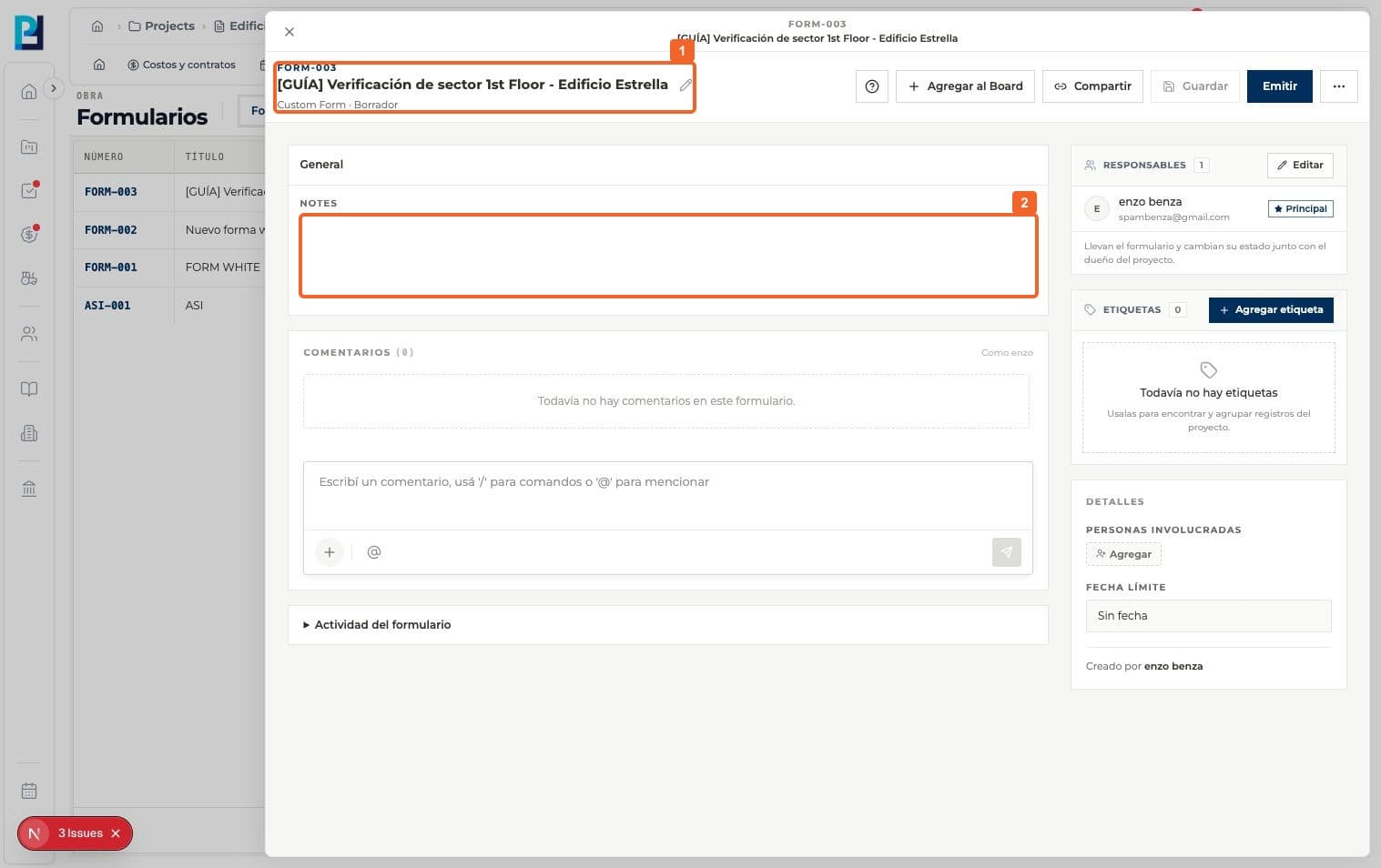
Open the form from the list and confirm Draft status.
- 02
Find the fields under General. This form type includes NOTES.
- 03
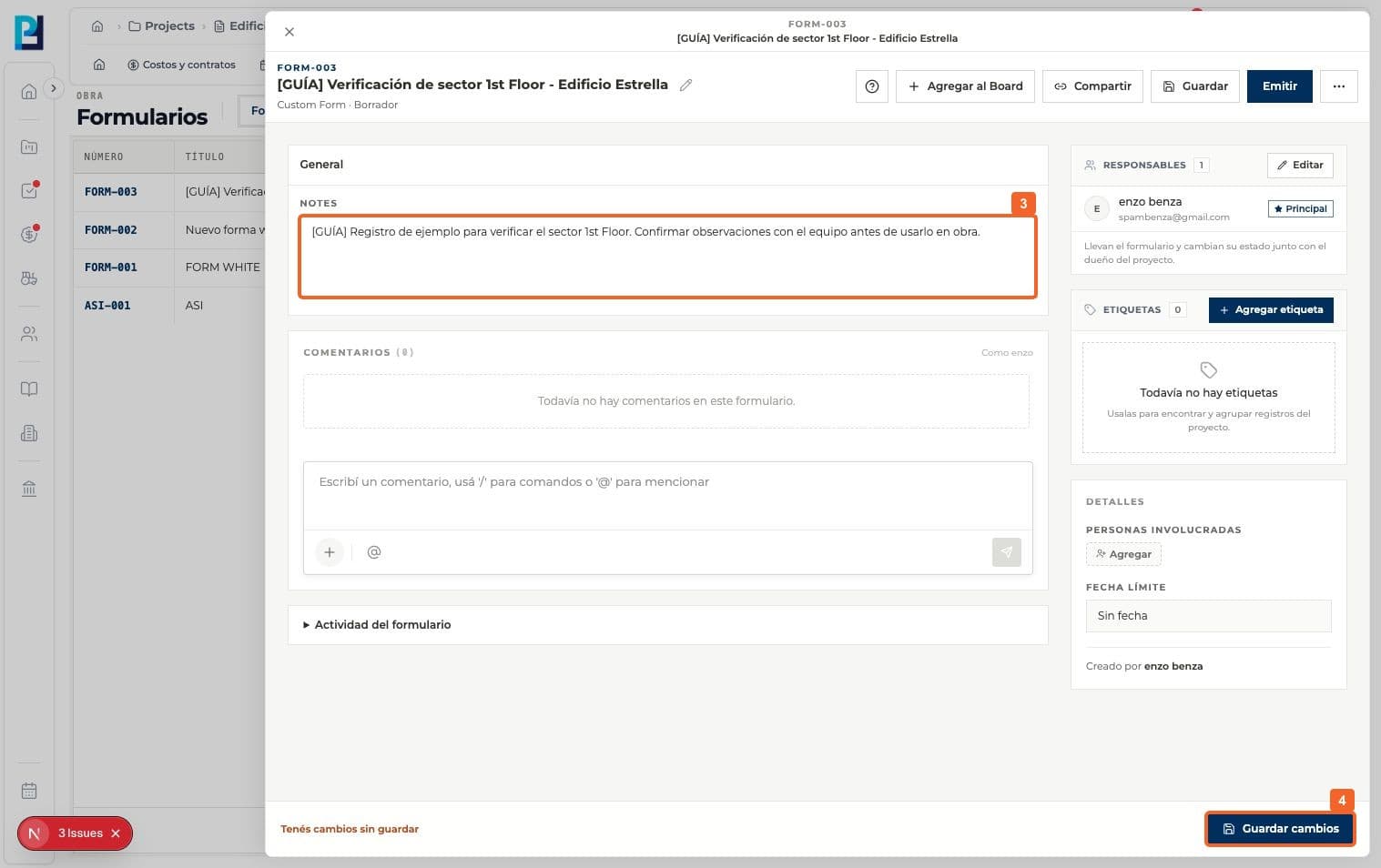
Enter the form notes.
- 04
When Unsaved changes appears, select Save changes.
- 05
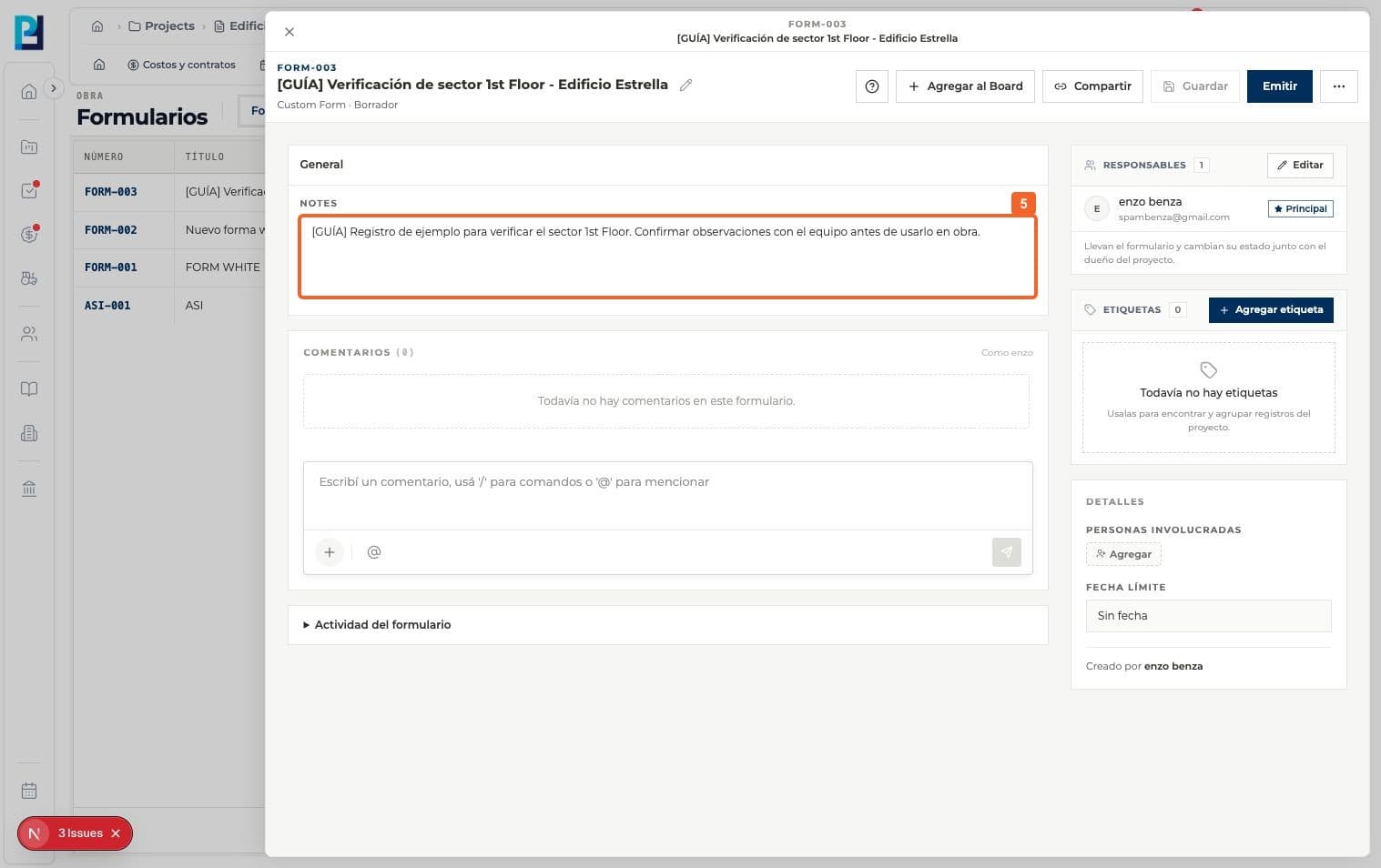
Verify the content remains visible and no unsaved changes remain.
- 06
If you need an update, write it in Comments.
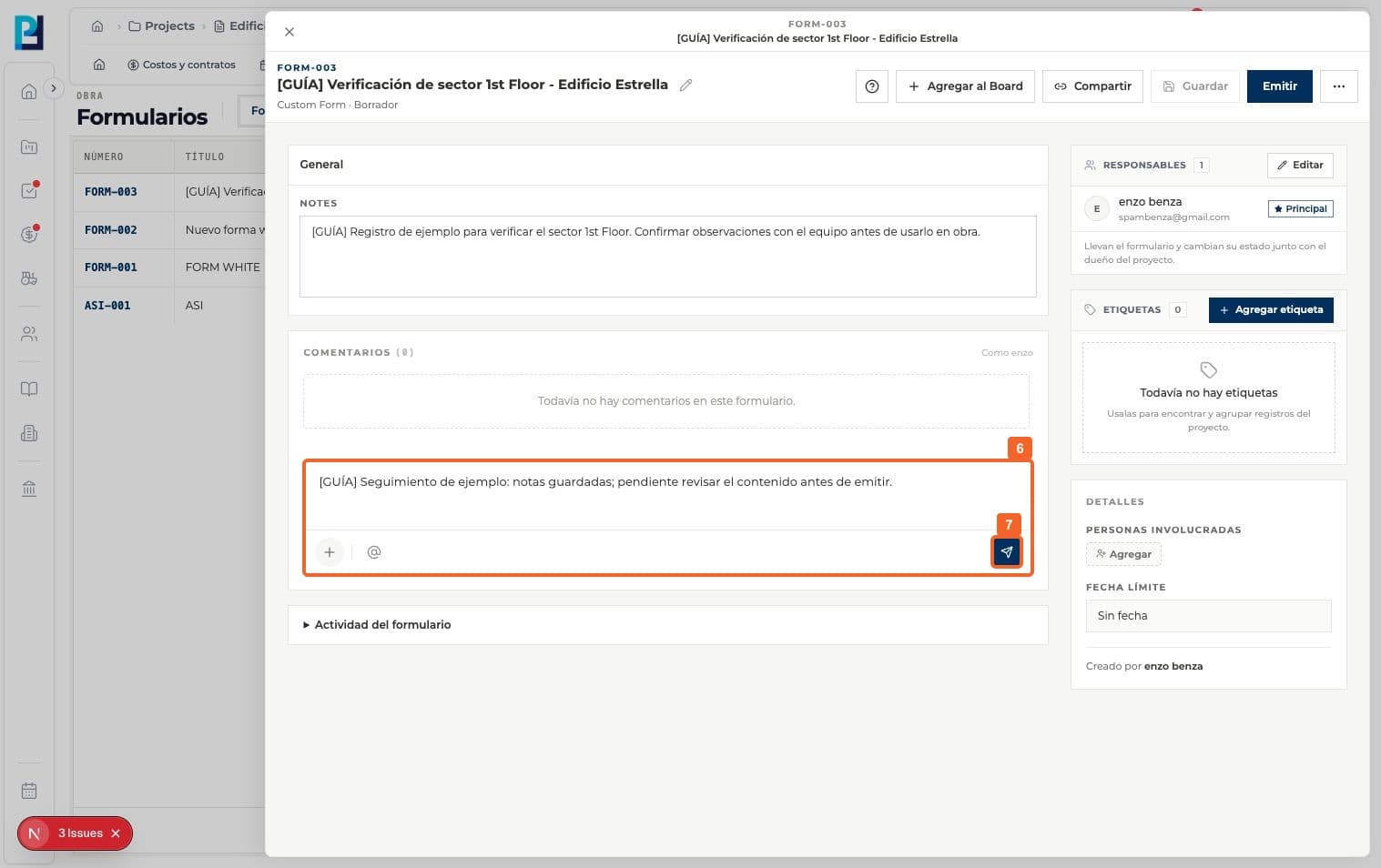
- 07
Send the comment.
- 08
Verify the comment appears in the conversation.
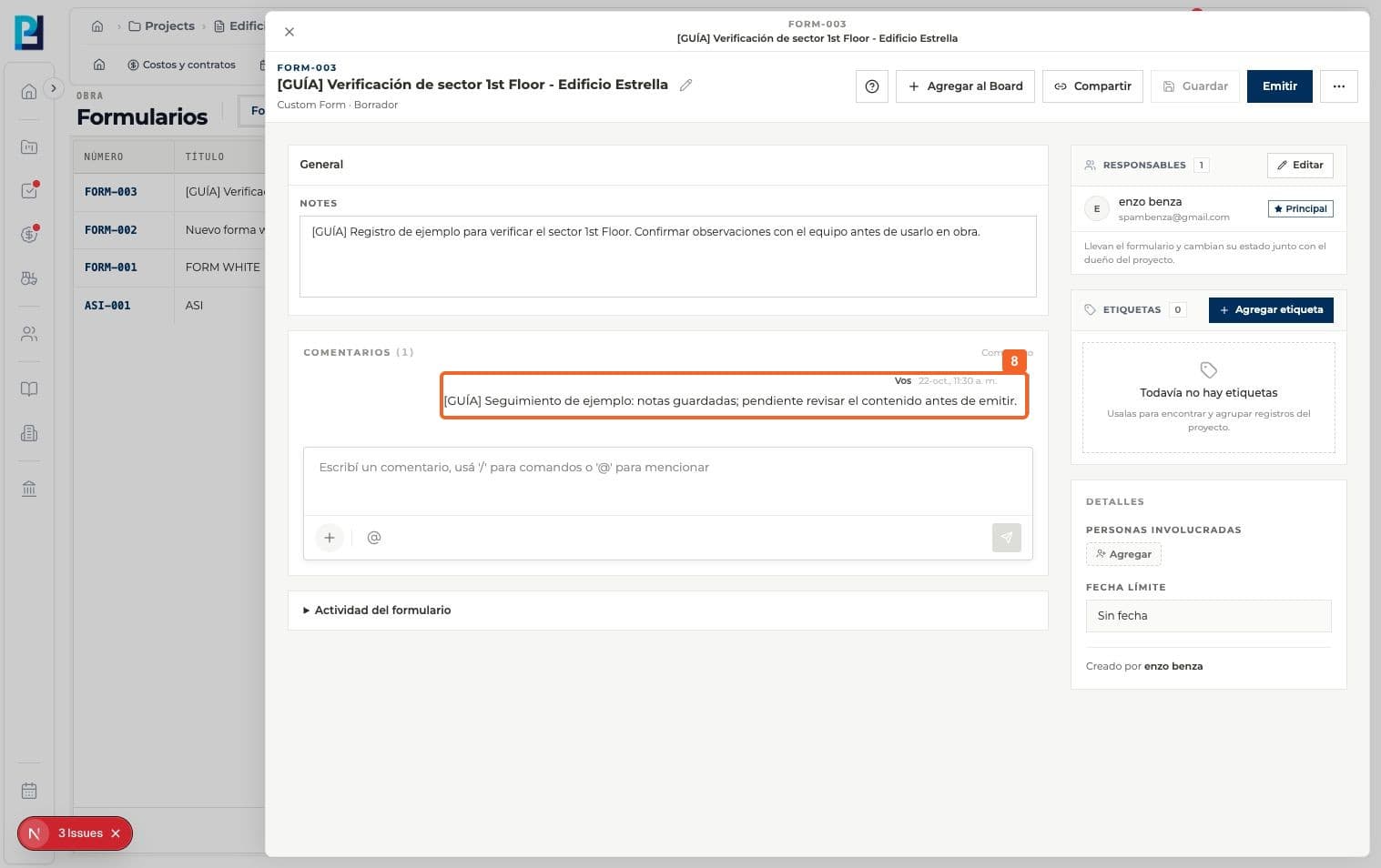
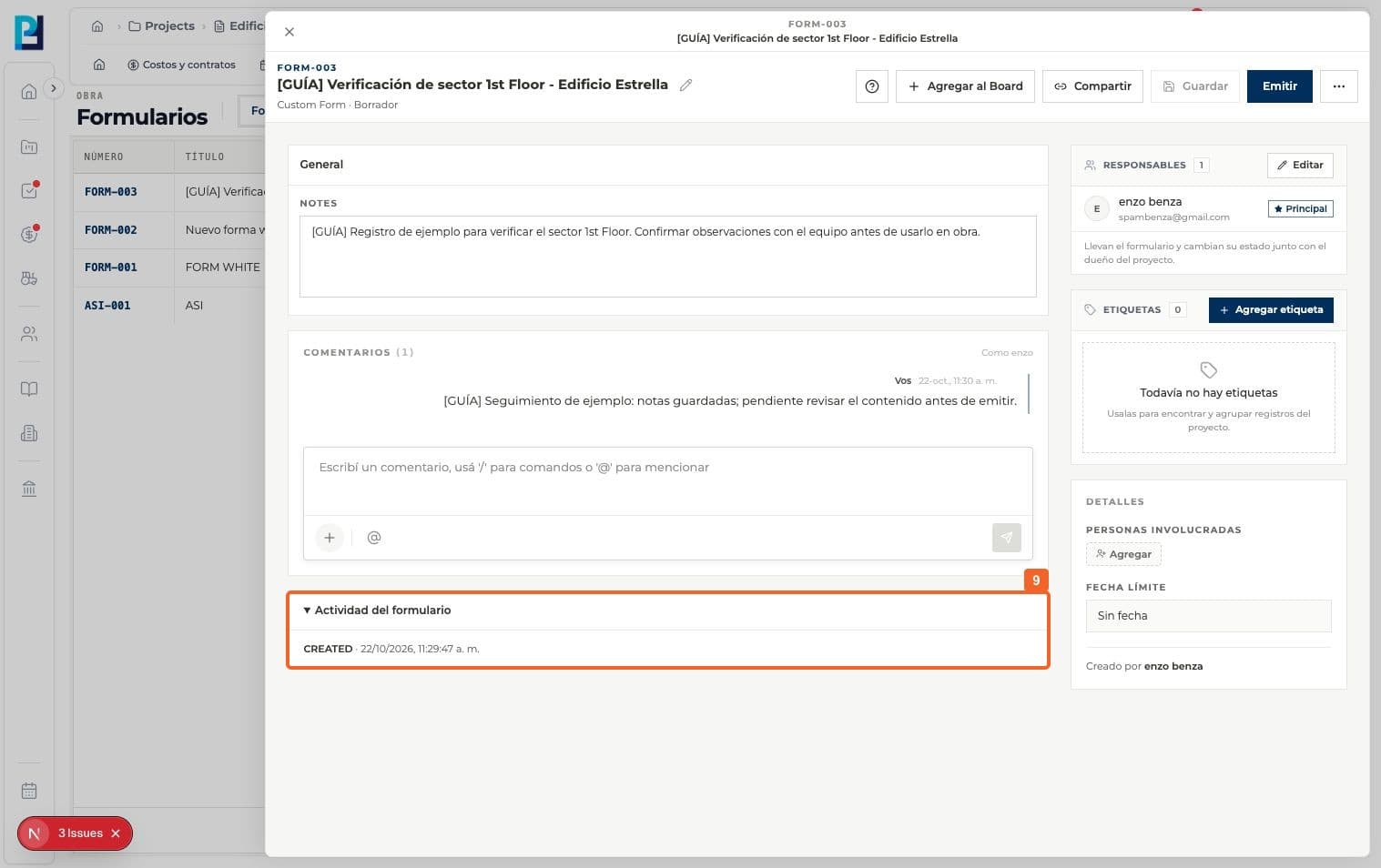
- 09
Expand form Activity to review status events. Before issue, the example shows CREATED.
FAQ
Frequently asked questions
What was verified and what remains untested?+
The comment appeared in Comments, not as a separate activity event. Other form templates may have different fields.
Keep learning