Visual guide
Create a quote request from a budget
Select budget items and create a draft request for quotation (RFQ).
5 minutes
Step by step
Follow each step on screen
- 01
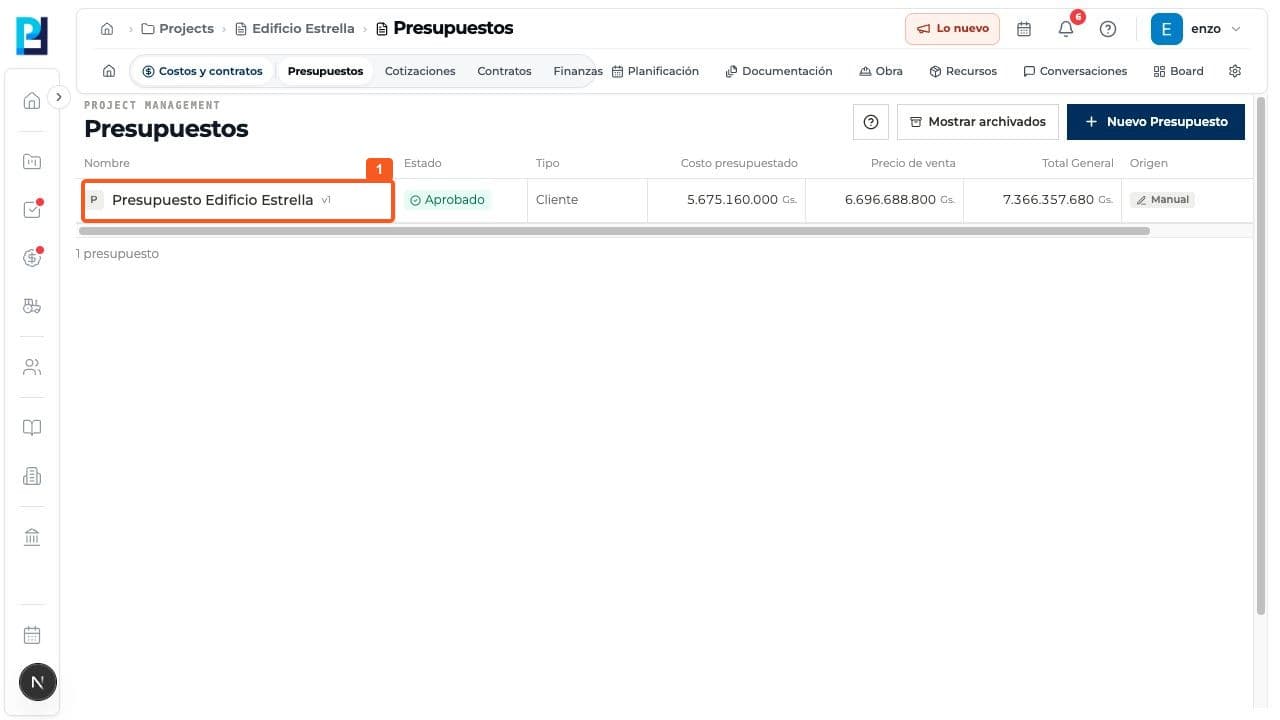
Open Costs and contracts > Budgets and enter the project budget.
- 02
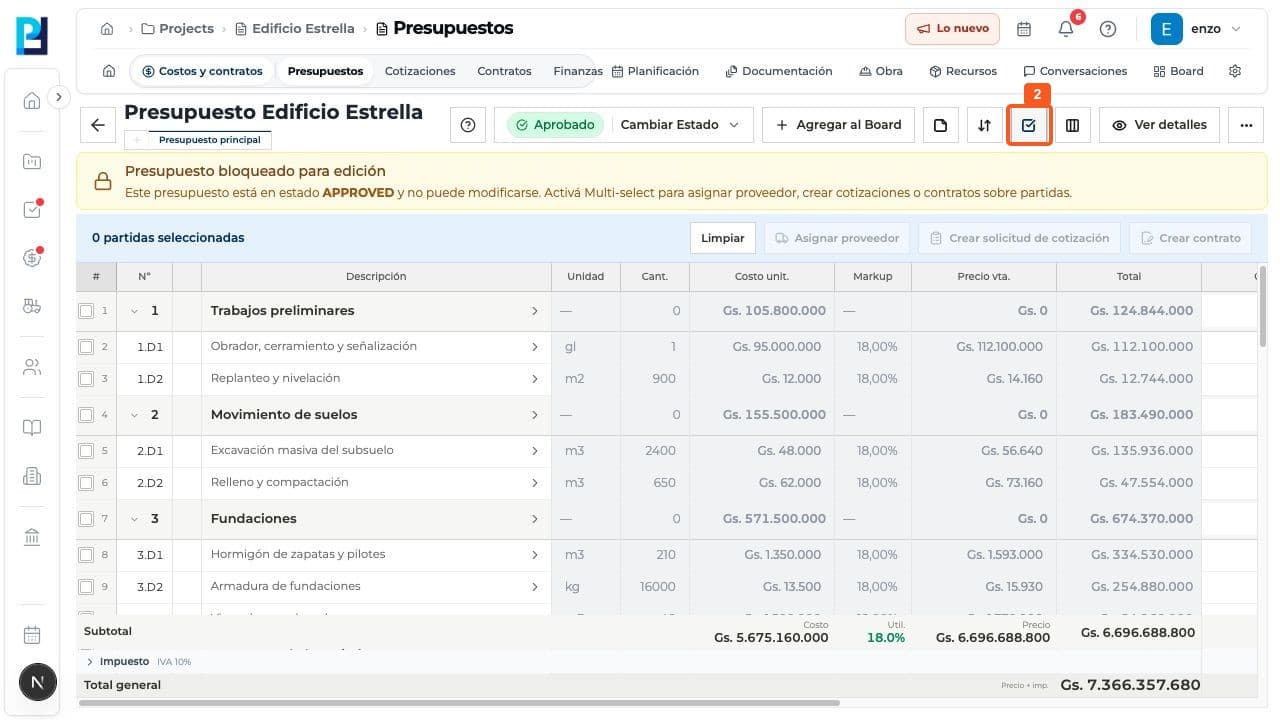
Turn on Multiple selection in the budget toolbar. It also works on an approved, read-only budget.
- 03
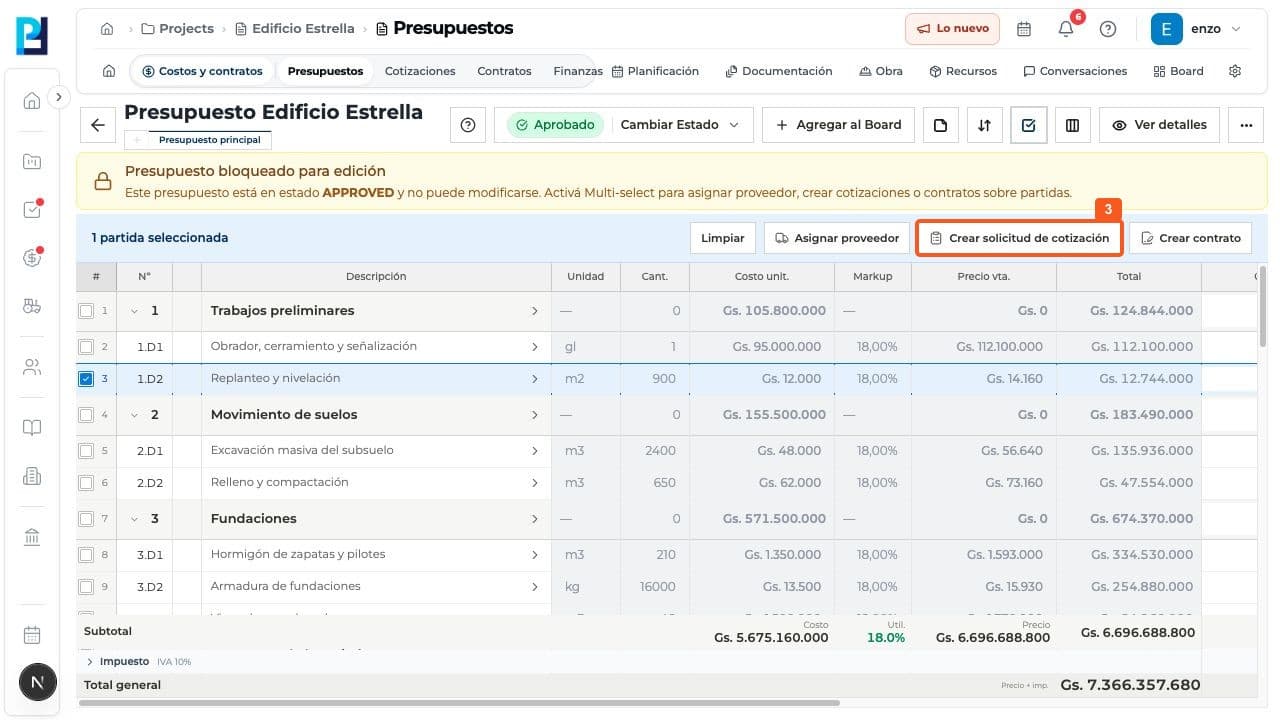
Select the items to quote and choose Create quote request.
- 04
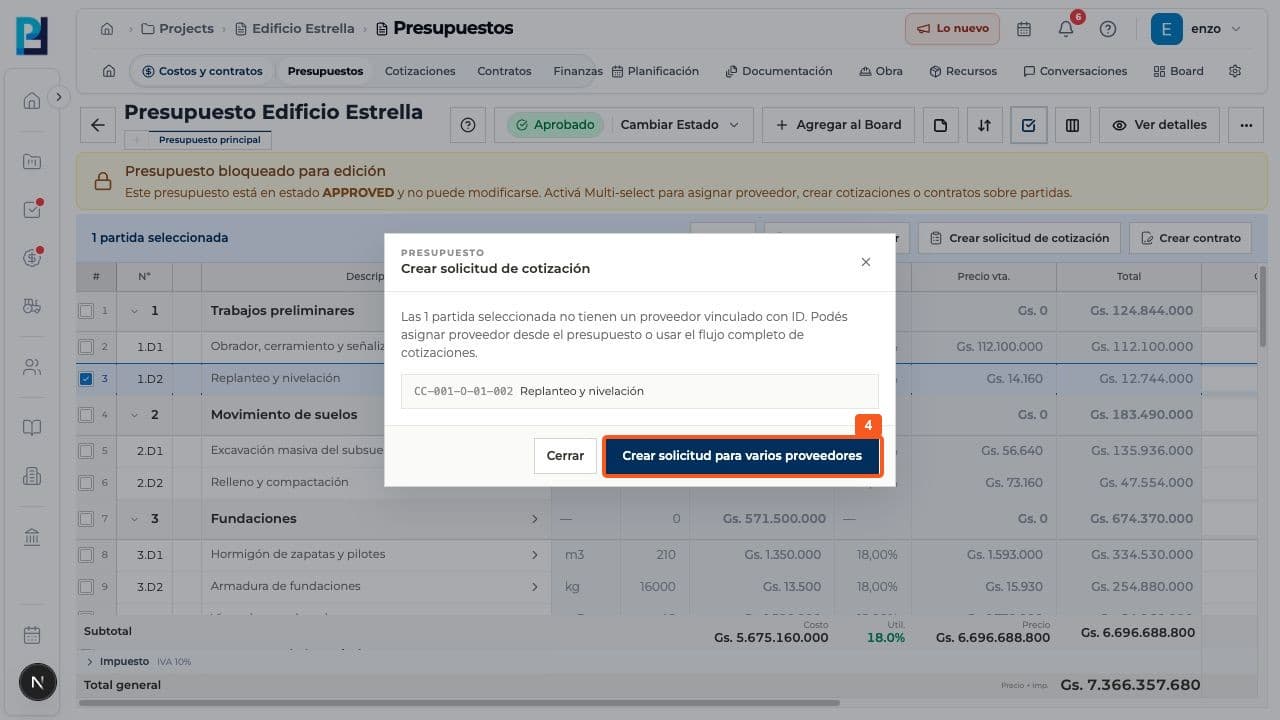
If the item has no linked supplier, choose Create request for multiple suppliers to open the full wizard.
- 05
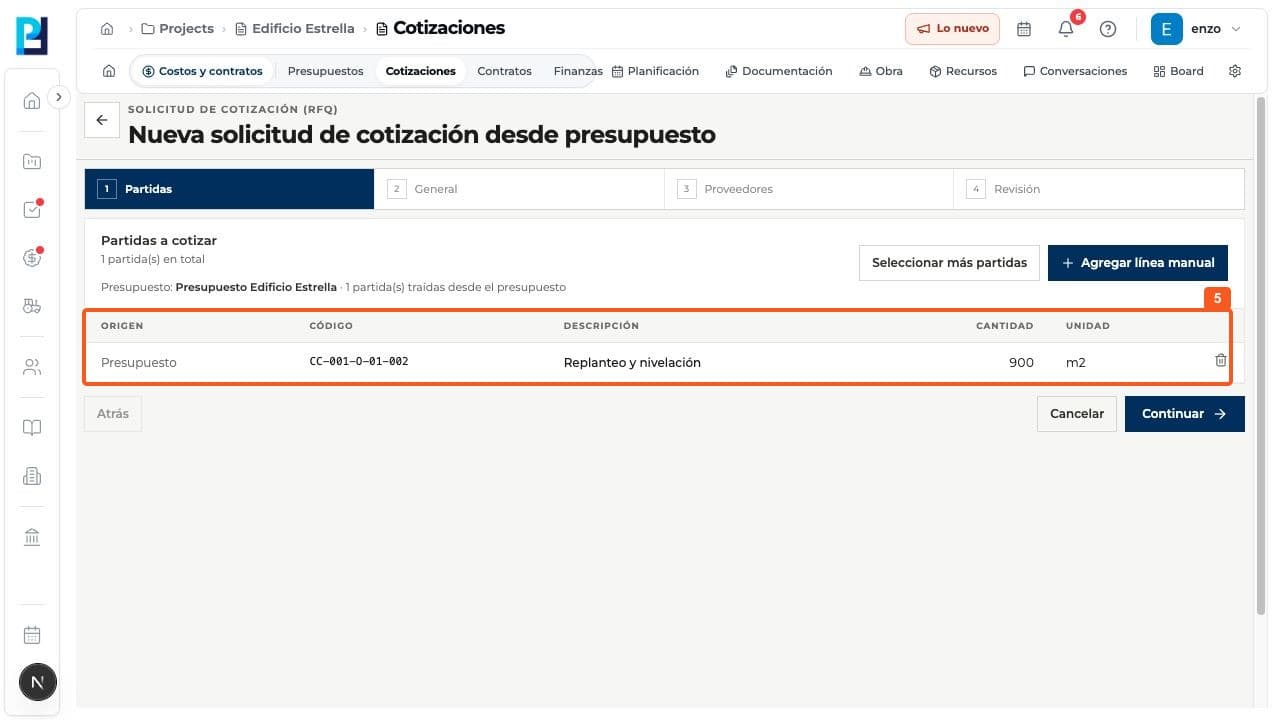
On Items, check the imported budget lines. Add other items or a manual line if needed.
- 06
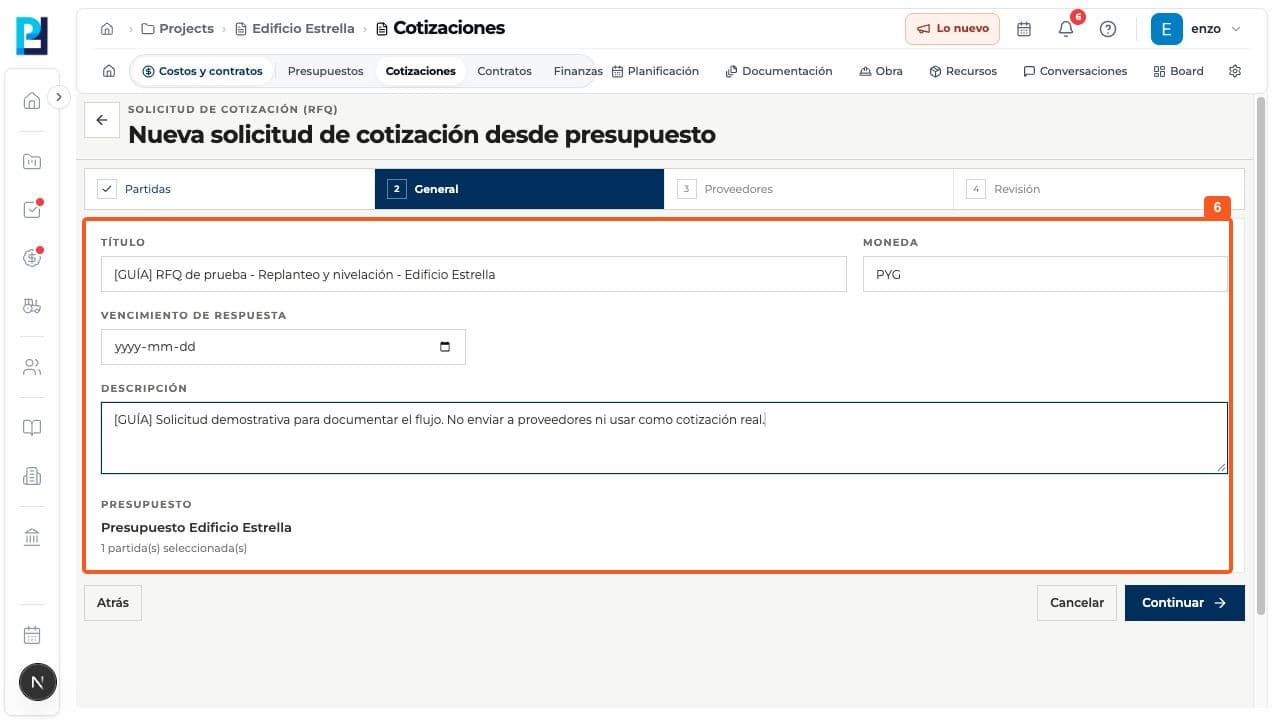
On General, enter title, currency, response deadline and description; confirm the budget link.
- 07
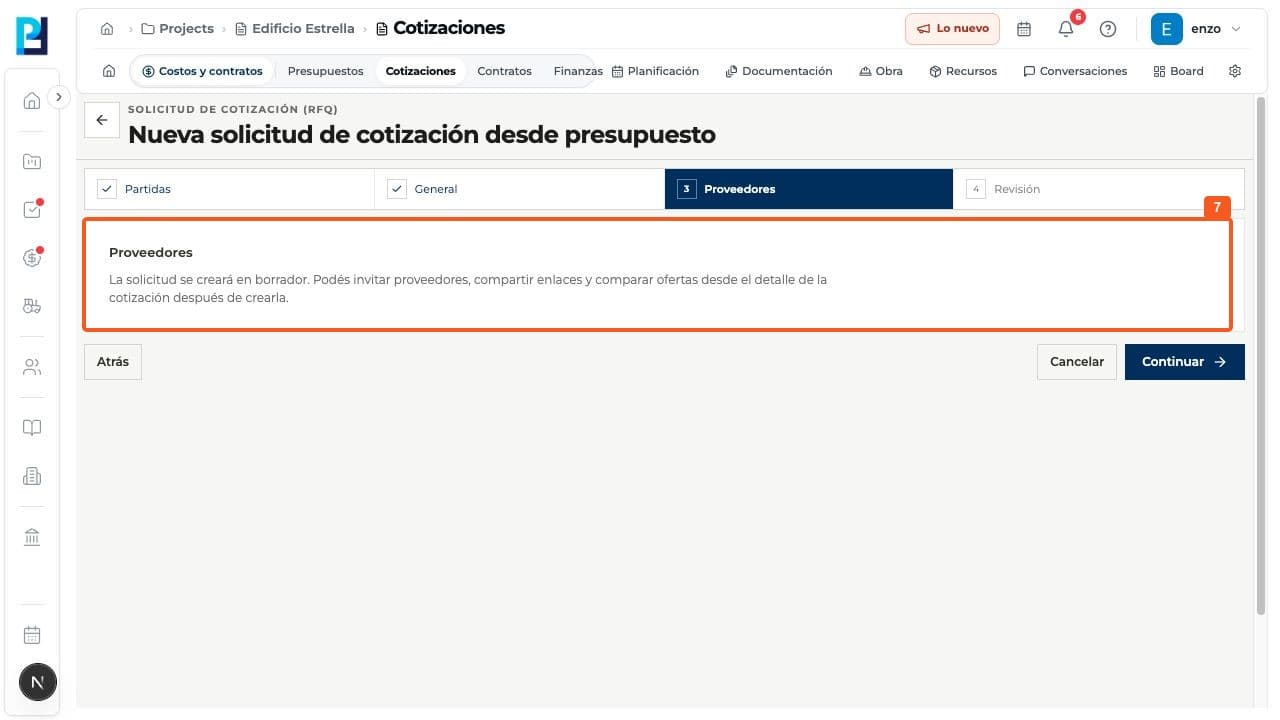
On Suppliers, read how invitations work. This request is saved as a draft first; invite suppliers from its detail later.
- 08
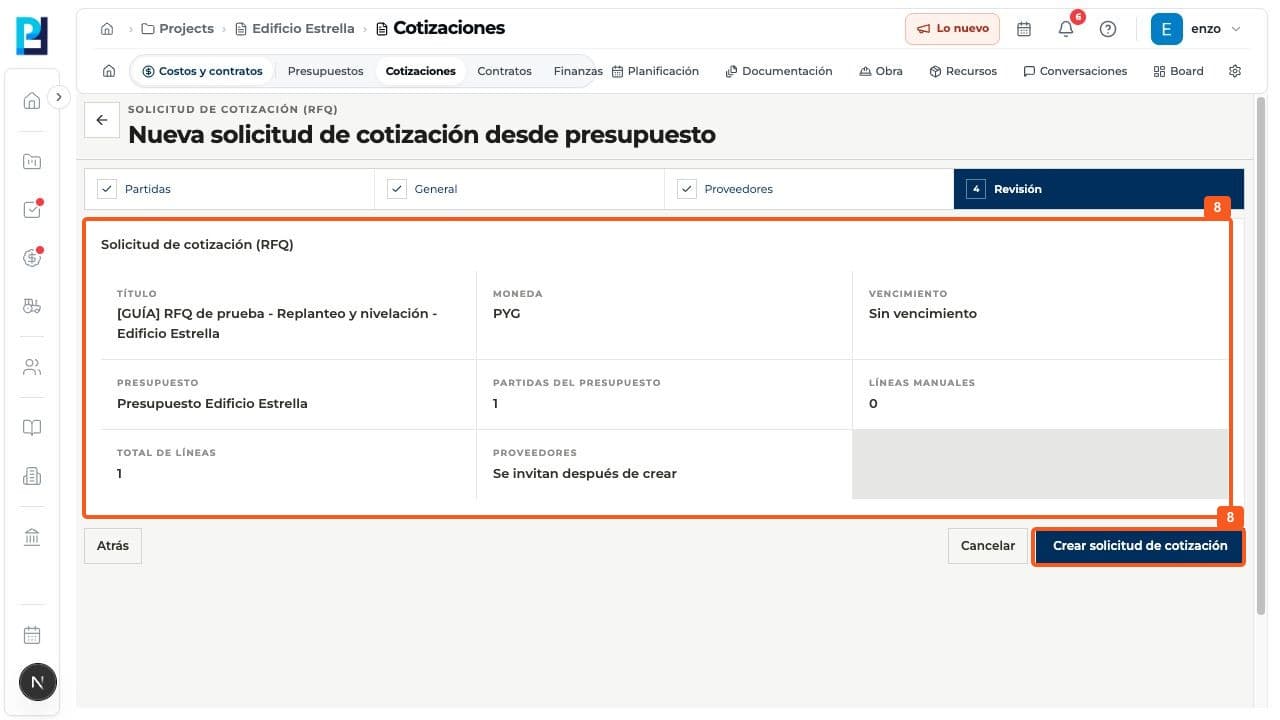
On Review, check the title, currency, deadline, budget and item count; then create the request.
- 09
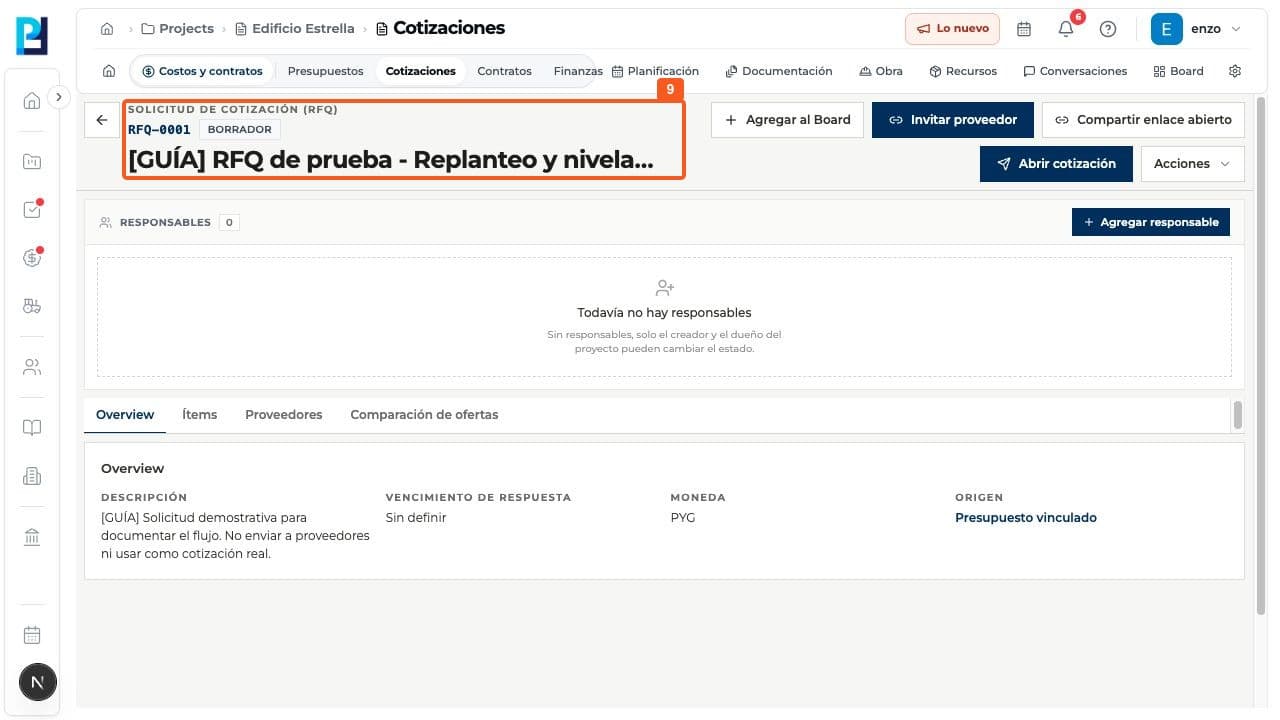
Verify the new RFQ number and Draft status. Overview shows description, currency and source budget.
FAQ
Frequently asked questions
What was verified and what remains untested?+
A draft RFQ with one item was created. No invitations, public links or bids were sent or received. A draft does not mean suppliers have been notified.
Keep learning