Create an RFI
Side panel to record a technical question with title, question, deadline, Ball in Court, responsibles and relations.
How to complete new rfi
- 01
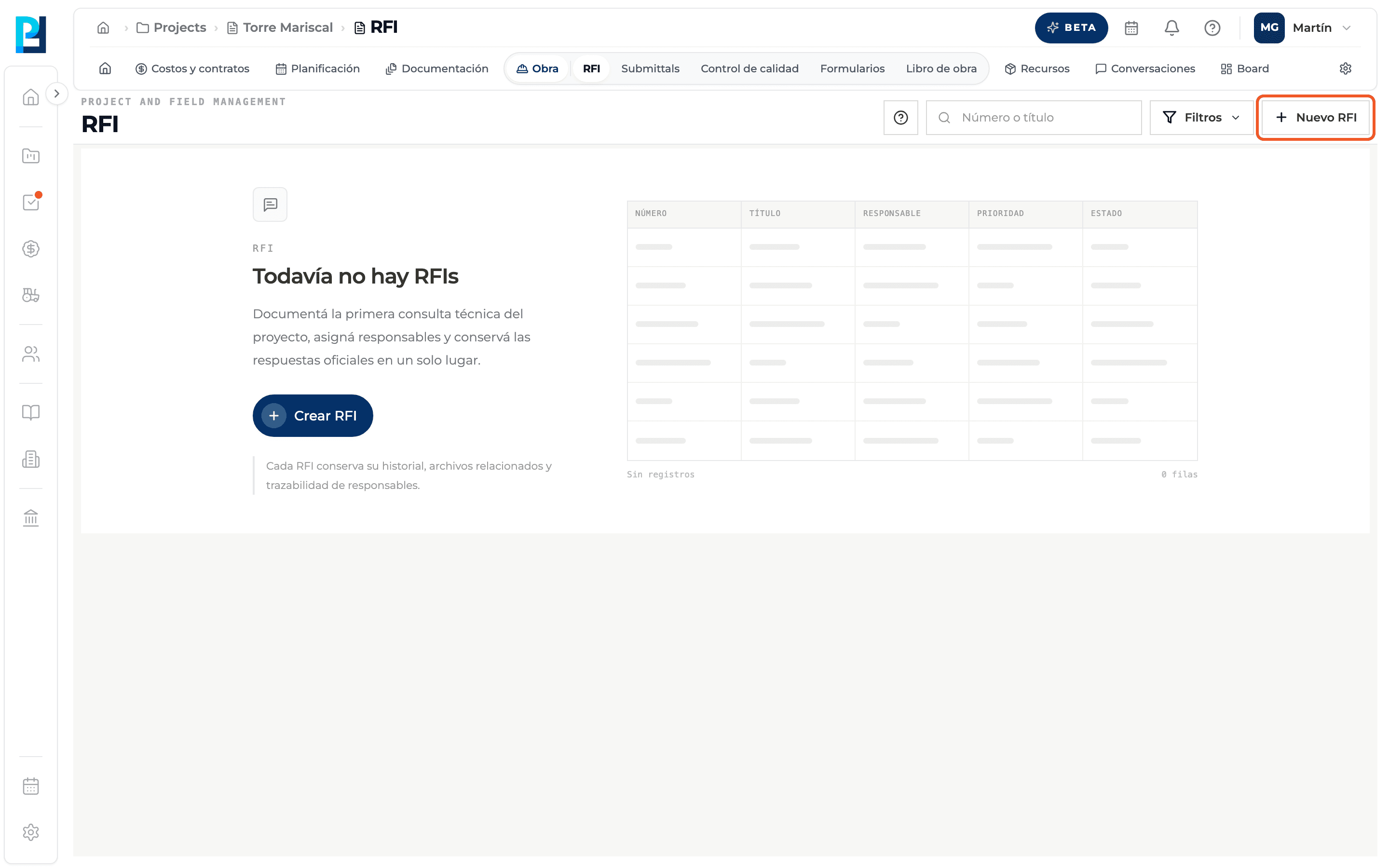
Open the panel
In RFI click New RFI, top right. If the project has no RFIs yet, you can also use Create RFI from the empty state.
- 02
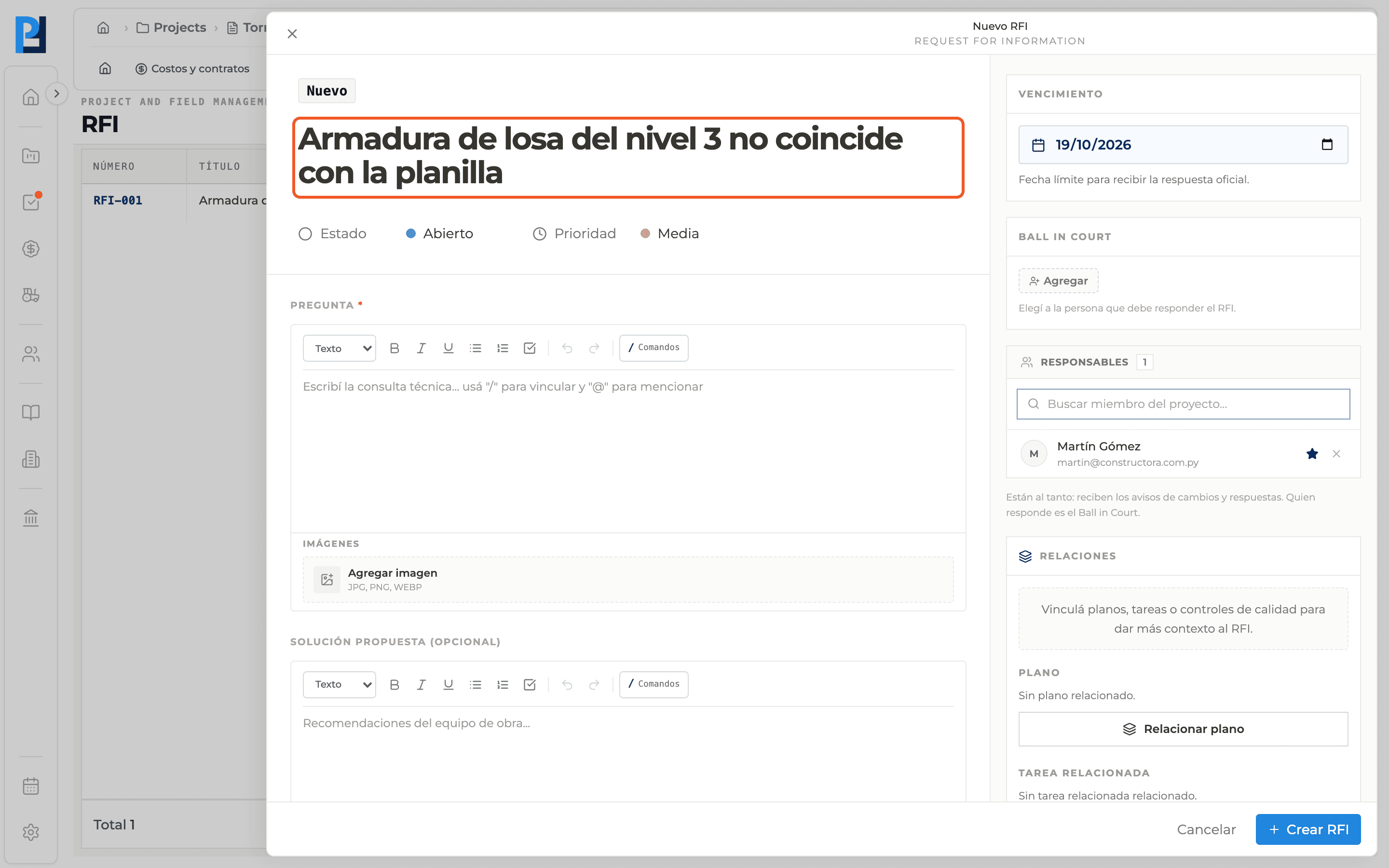
Write the title
It is required and must have at least 5 characters.
- 03
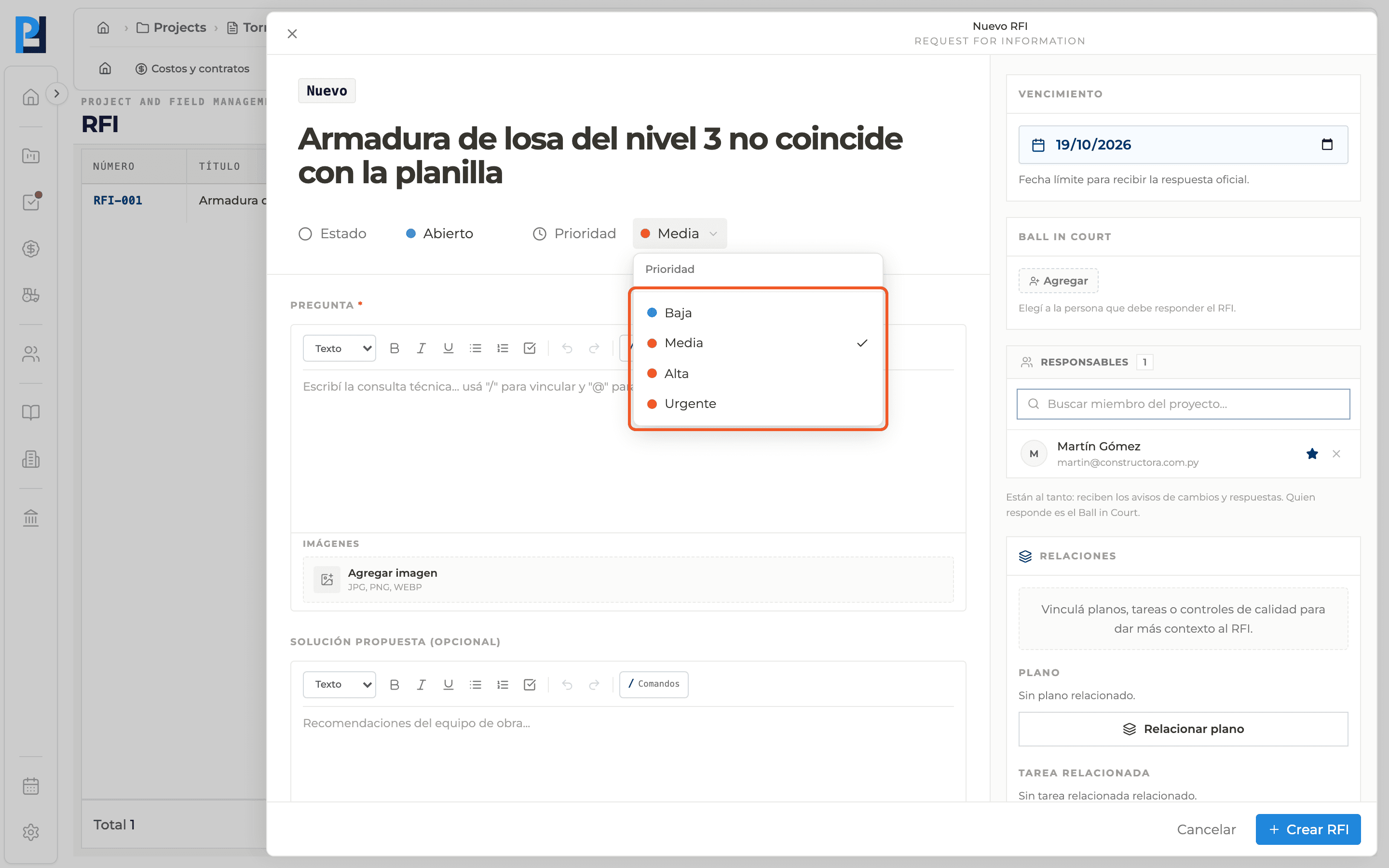
Choose the priority
Low, Medium (default), High or Urgent.
- 04
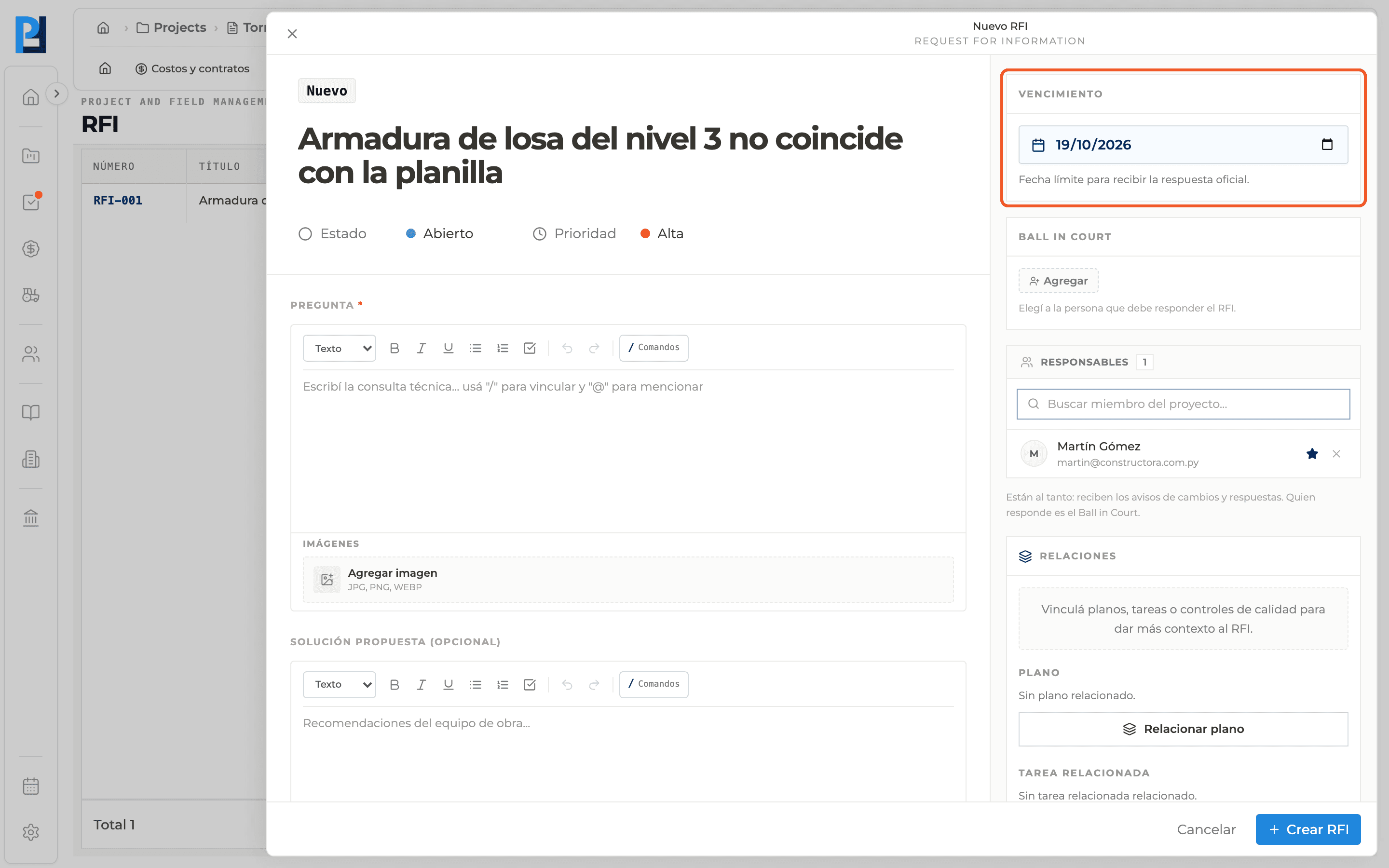
Check the due date
In the sidebar, Due date: it defaults to today plus 3 days. It is the deadline for the official response and past dates are not allowed.
- 05
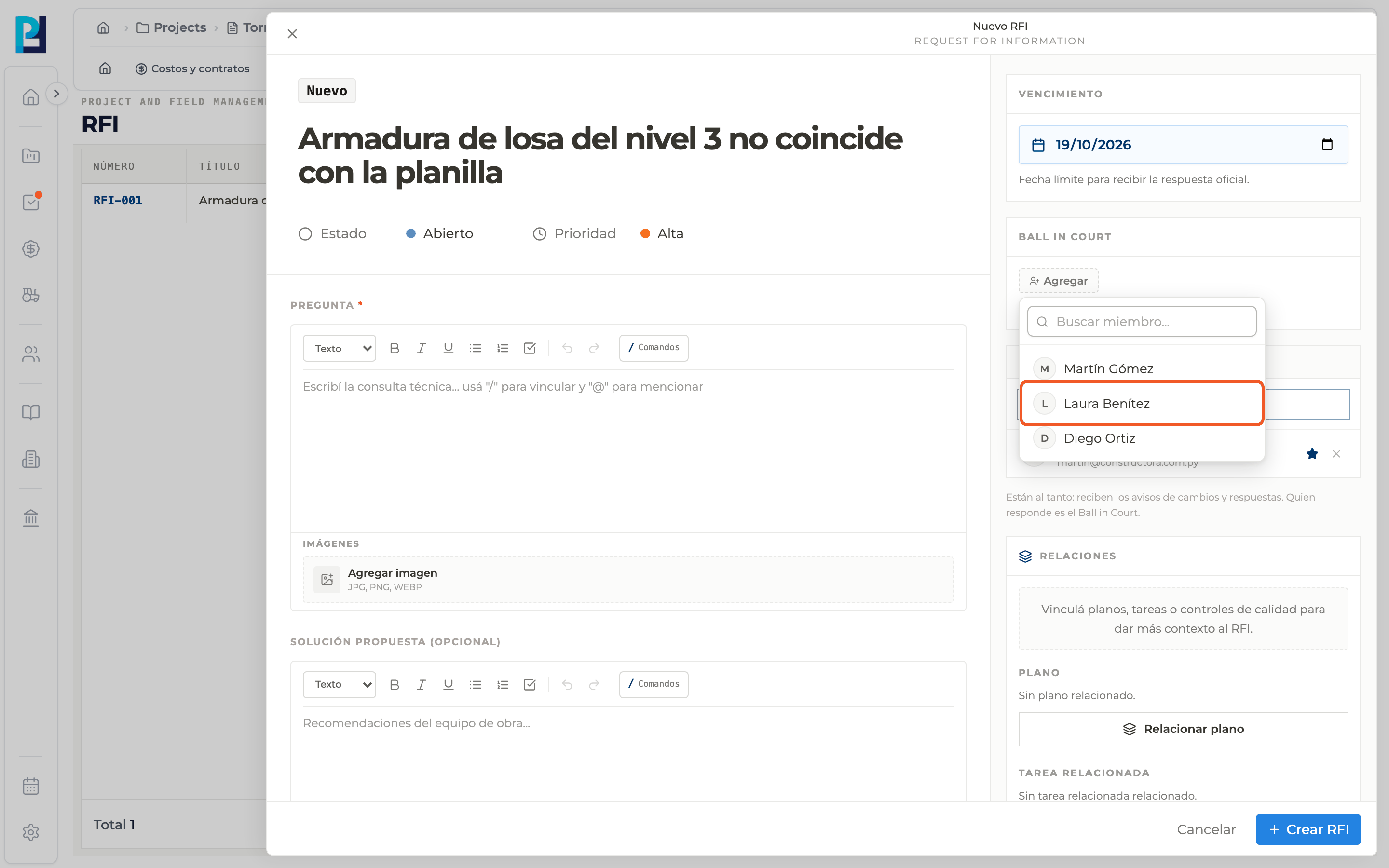
Choose the Ball in Court
In Ball in Court click Add and pick the project member who must answer. It is required and allows a single person.
- 06
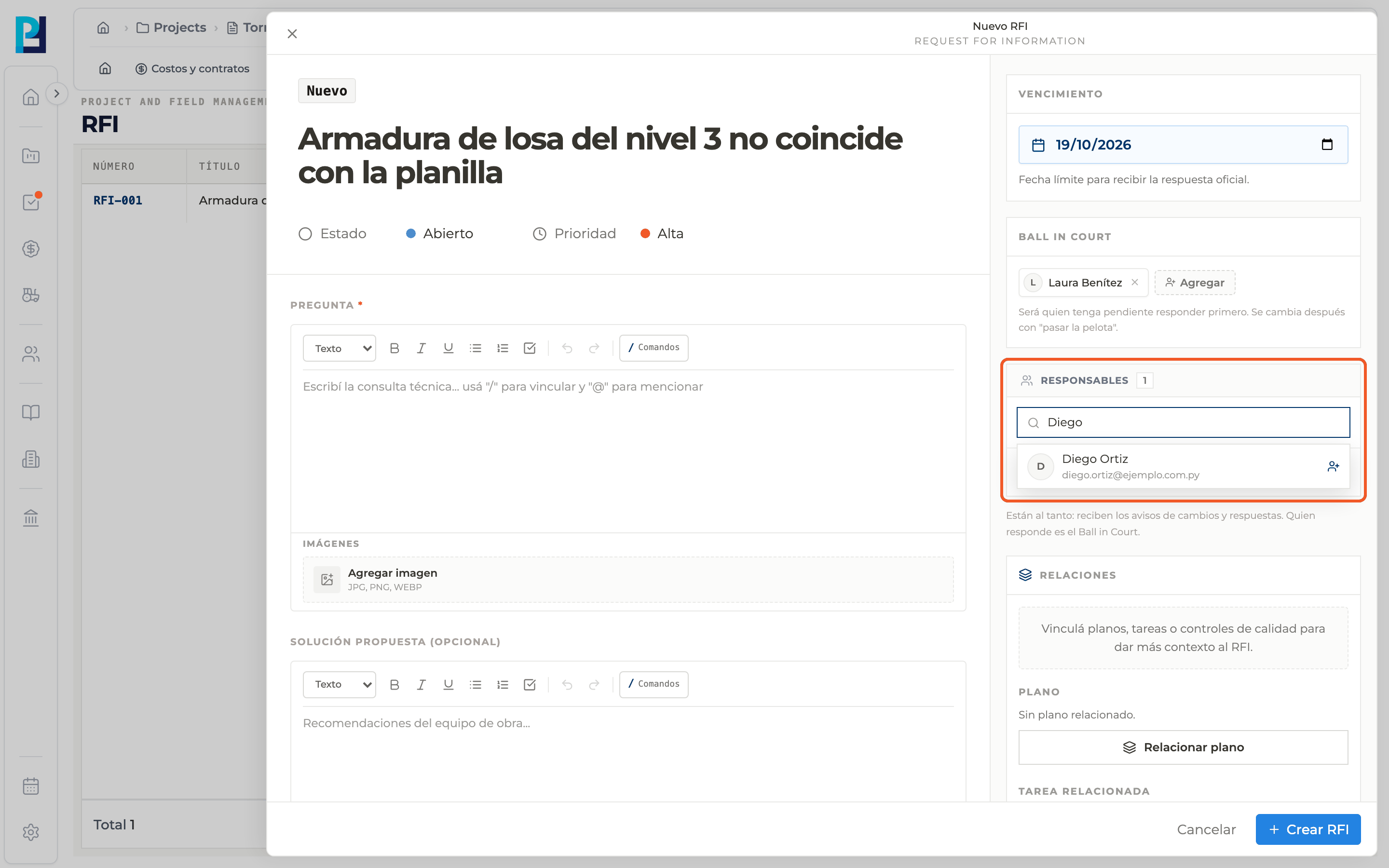
Add responsibles
You already appear as the main responsible. Search for other project members and add them so they receive notices.
- 07
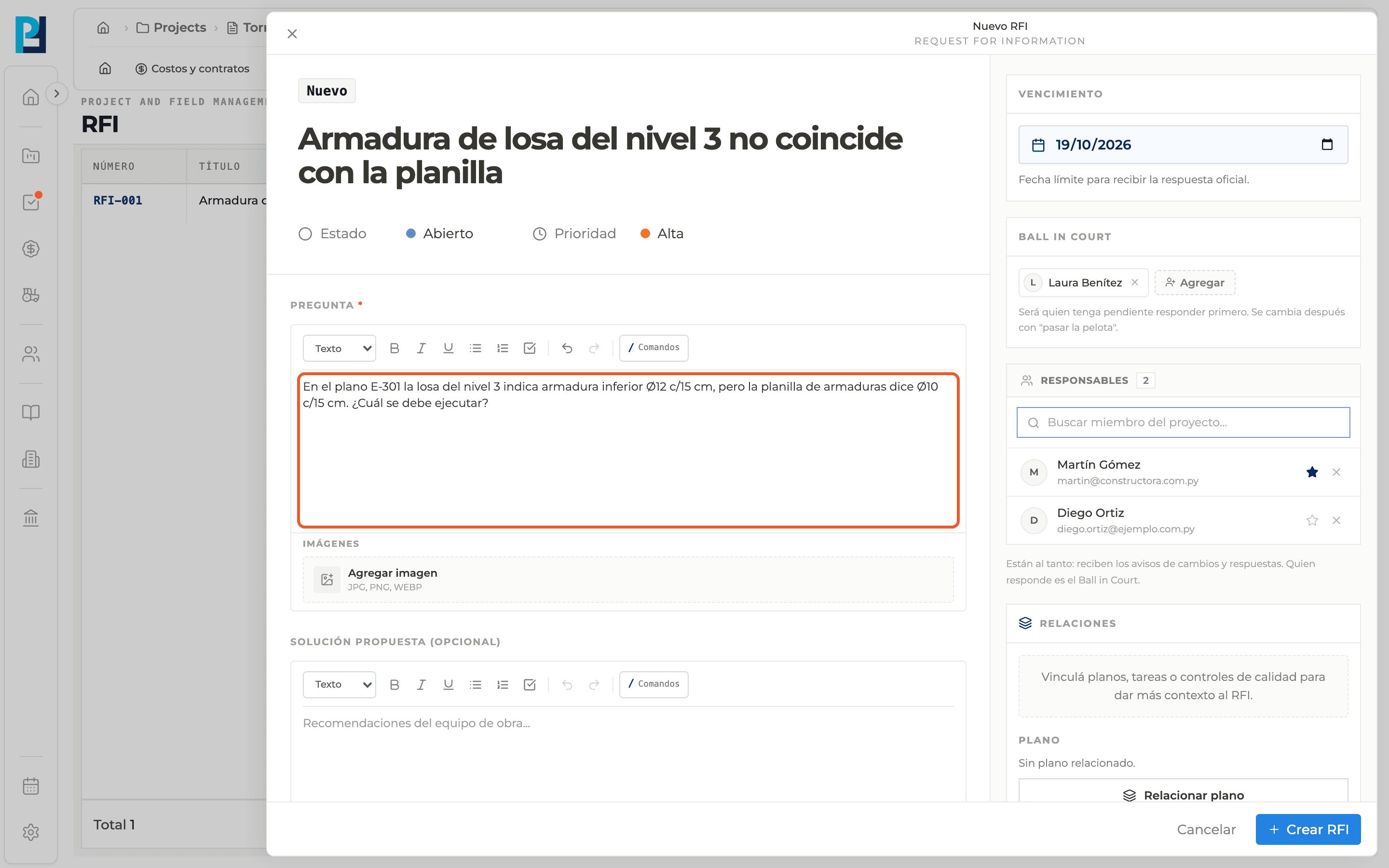
Write the question
It is required. Use "/" to link project items and "@" to mention people.
- 08
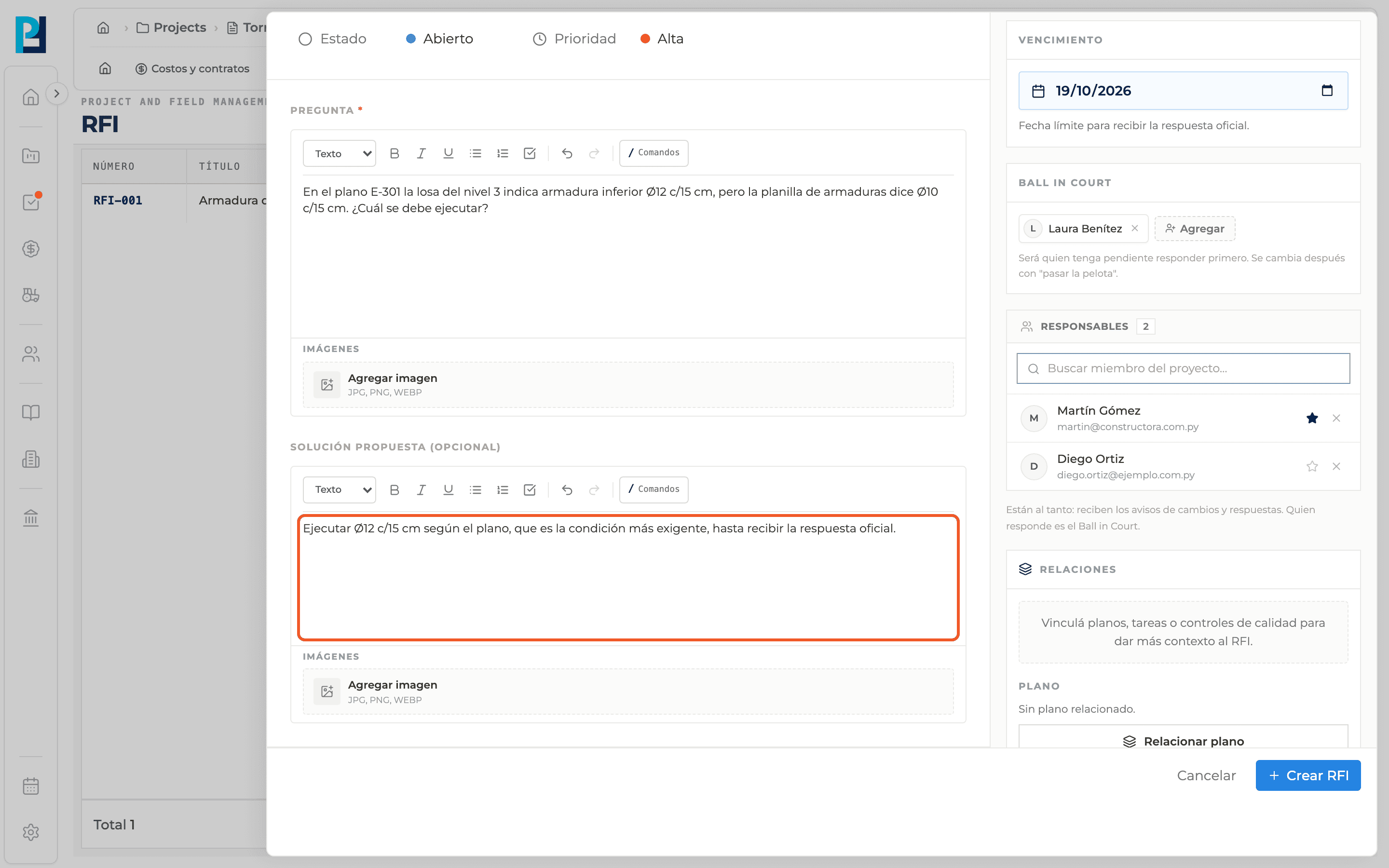
Fill in the optional parts
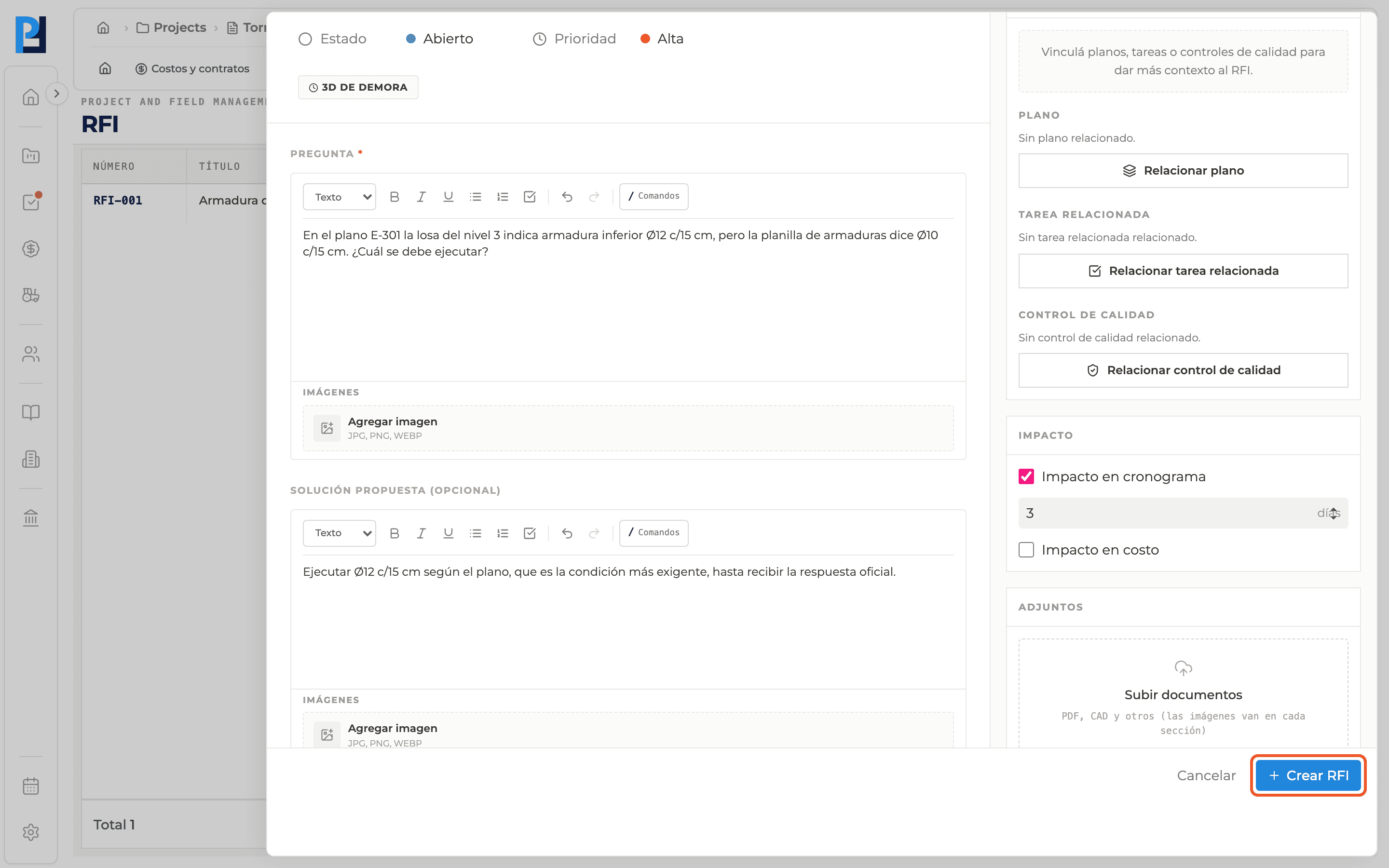
You can add a Proposed solution, images in each field, attached documents and relations to drawings, tasks or quality checks.
- 09
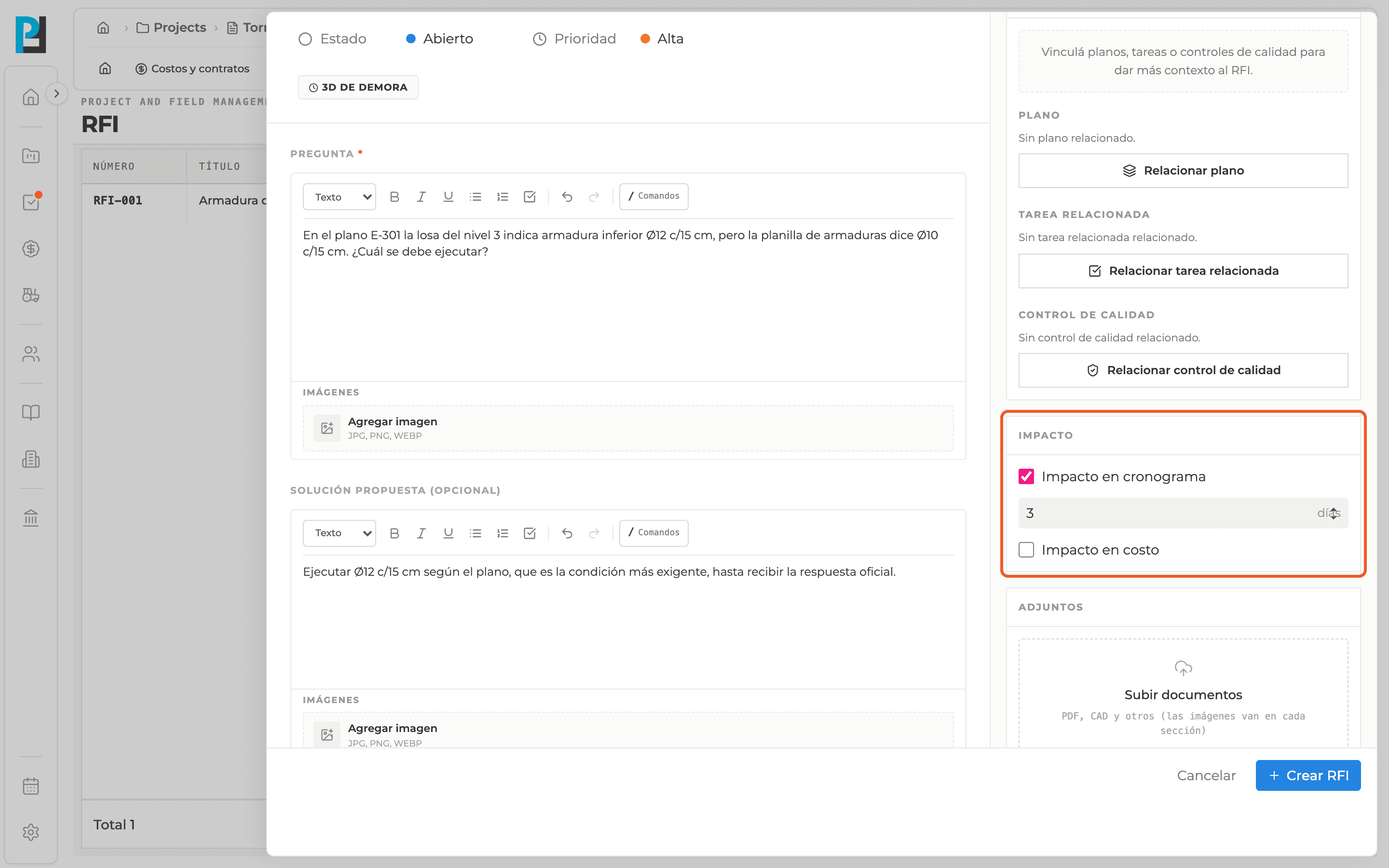
Set the impact
In Impact tick Schedule impact (enter the days) and/or Cost impact (enter the amount). The RFI shows a chip with the delay days.
- 10
Create the RFI
Click Create RFI. "RFI created successfully" appears and the RFI joins the list with its number.
What you'll learn
How create an rfi works inside Perfour.
What information you need and how it stays connected to RFIs.
How to preserve traceability and find the record later.
Frequently asked questions
Can I create an RFI without a Ball in Court?+
No, it is required when creating.
What if a file or relation fails to upload?+
The RFI is still created and the app warns you. Retry from the detail panel instead of creating another RFI.
I don't see the New RFI button+
You need permission to create RFIs in the project. Ask your administrator.