Check the history, create an ASI and add to the Board
Follow-up and output tools for the RFI.
How to complete history and asi
- 01
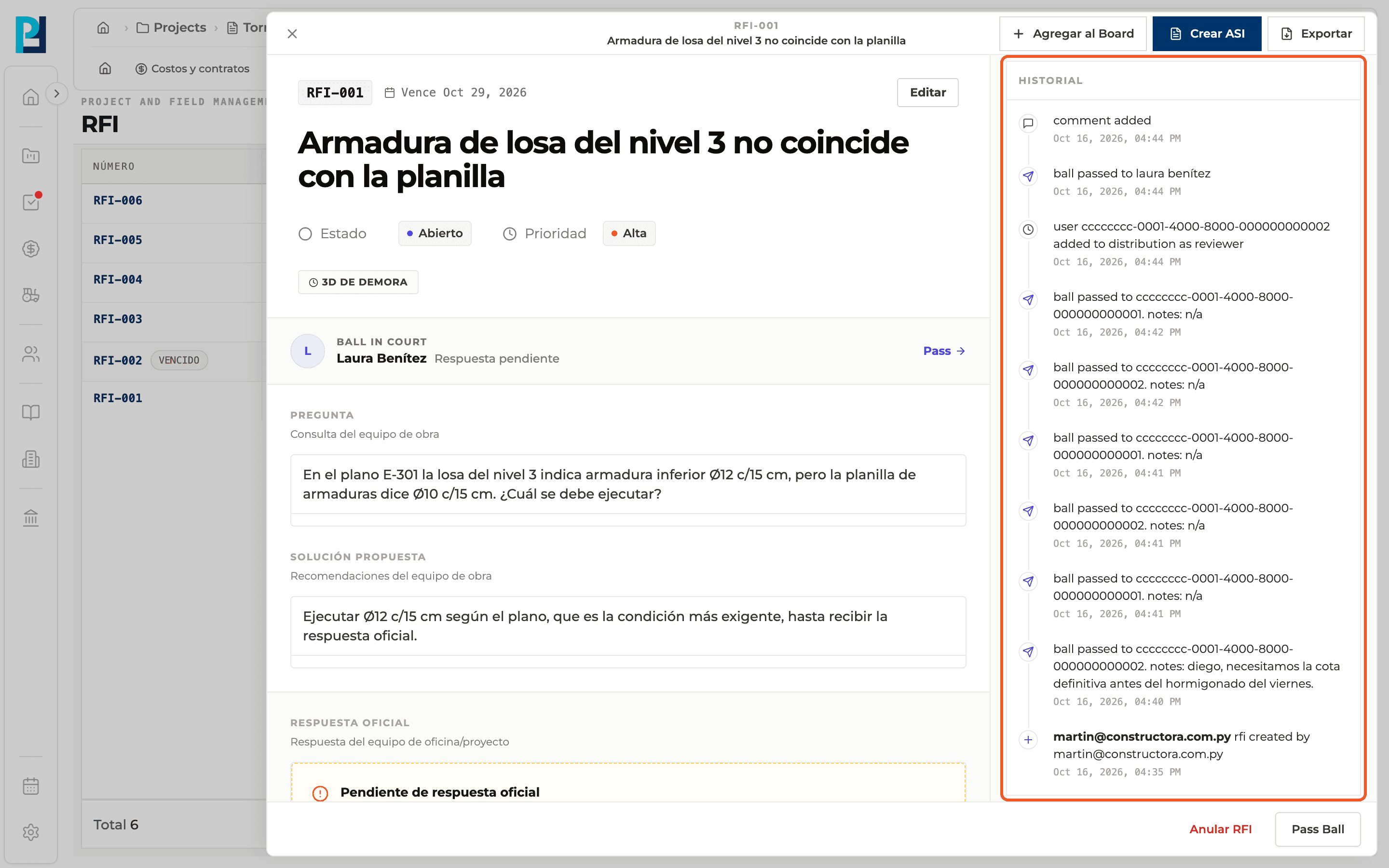
Check the history
In the sidebar, History: a timeline of who did what and when (creation, ball passes, distribution, comments, official response, status changes).
- 02
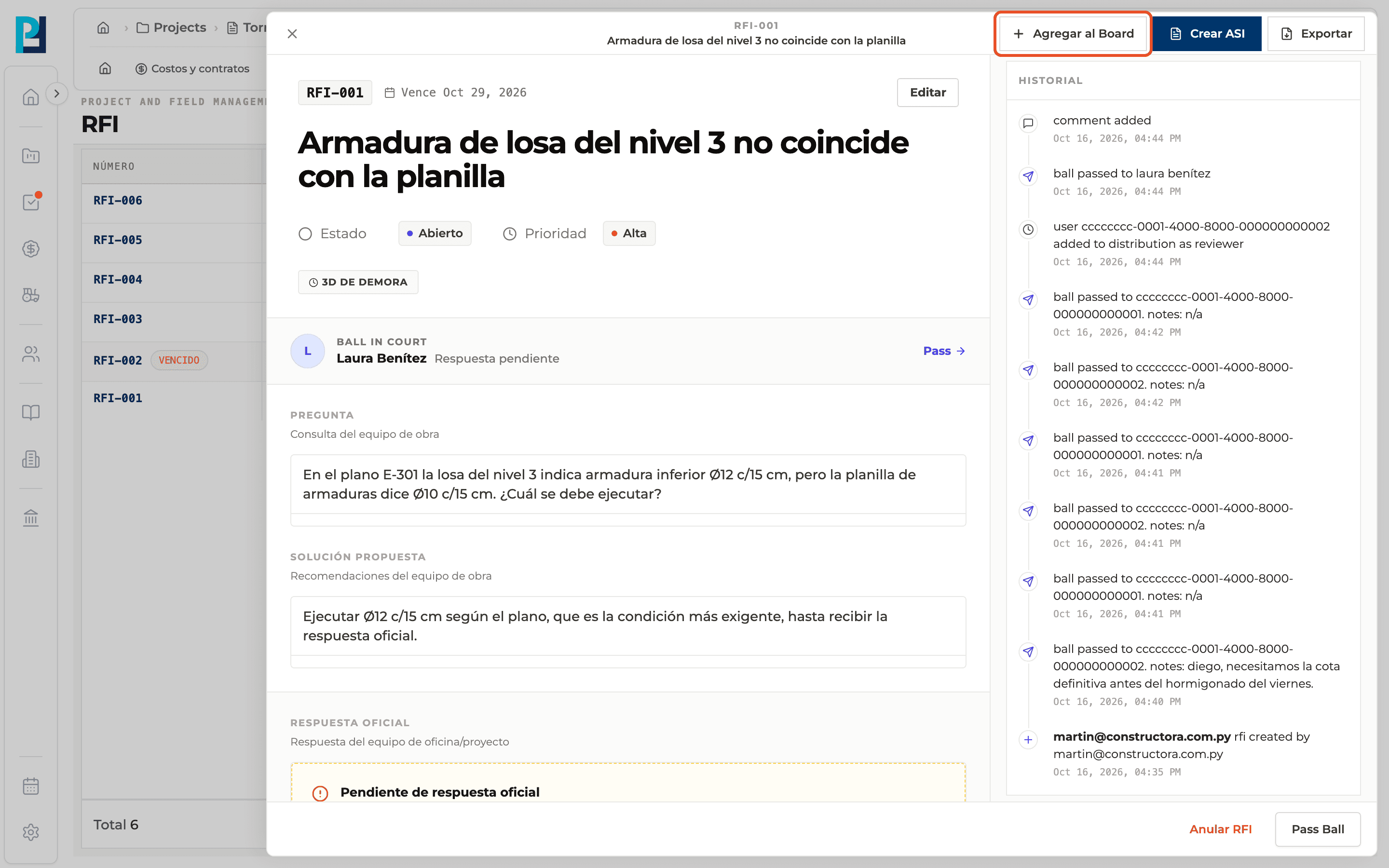
Add to the Board
Add to Board, in the panel header, opens the project's Board picker to add a card for the RFI.
- 03
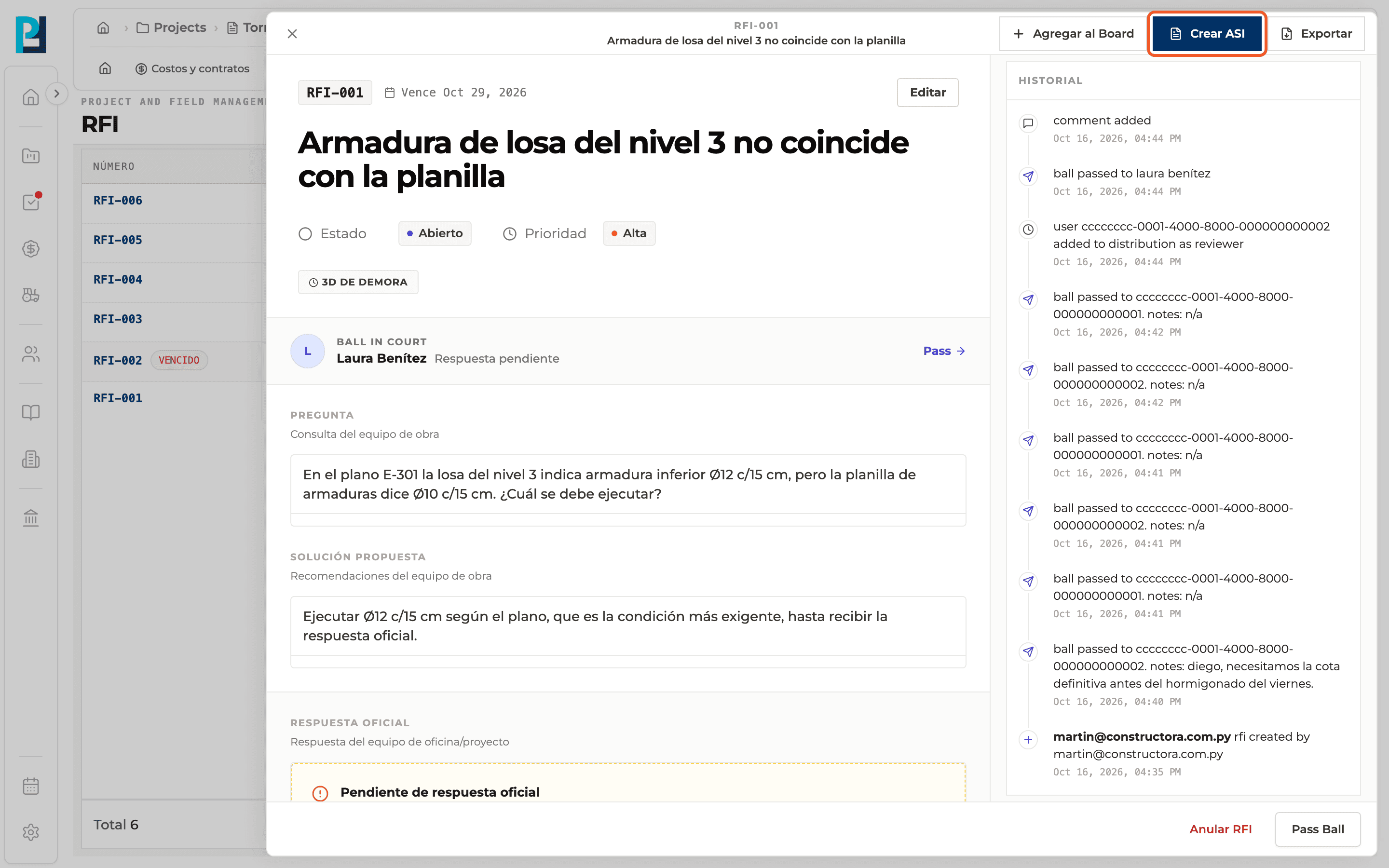
Create an ASI
If you can create forms, Create ASI generates the ASI form (Architect's Supplemental Instruction) from the RFI. If it already exists, the button says Open ASI-00X.
- 04
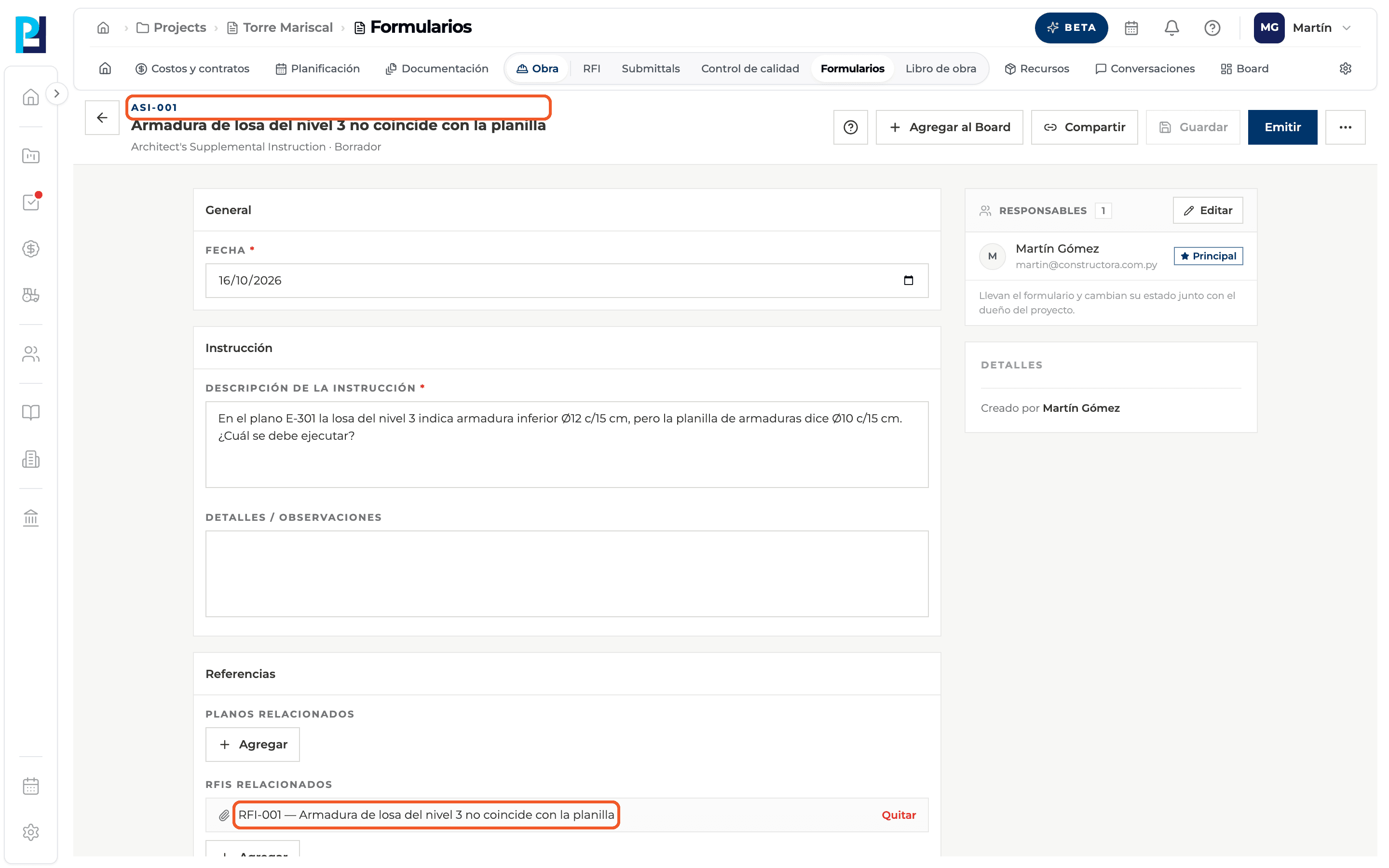
Complete the ASI
It opens in Forms as a draft, with the RFI question in Instruction description and the RFI already linked under Related RFIs.
- 05
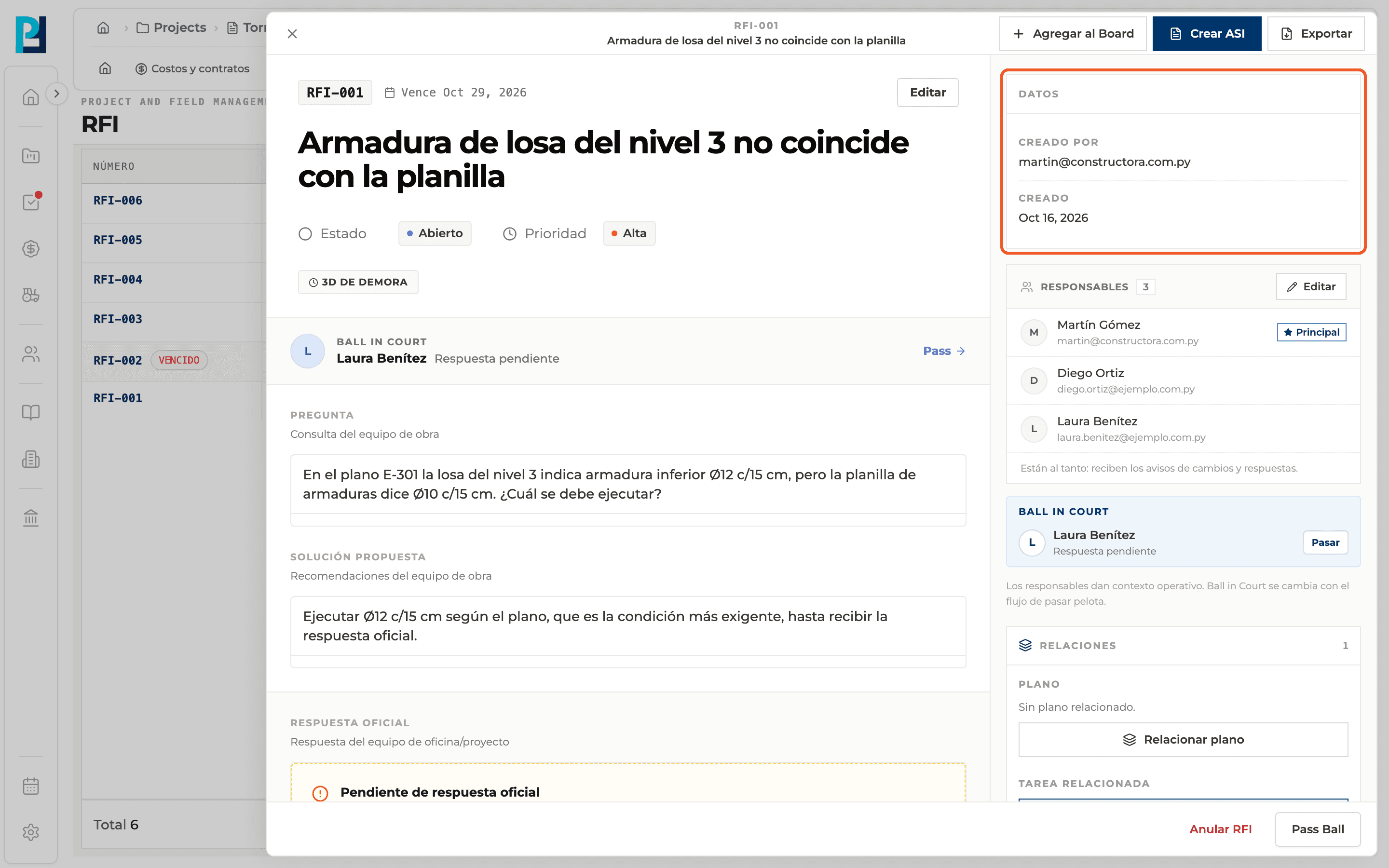
See the details
Details shows who created the RFI and when.
What you'll learn
How check the history, create an asi and add to the board works inside Perfour.
What information you need and how it stays connected to RFIs.
How to preserve traceability and find the record later.
Frequently asked questions
What is the ASI?+
A formal instruction generated from the RFI and tracked in Forms, where it is completed and issued.
Can I see the history of a voided RFI?+
Yes, the panel opens the same way.