Search and filter the RFI list
Search by number or title, filter by status, priority, responsible and dates, and quickly spot overdue RFIs or the ones waiting for you.
How to complete rfi list
- 01
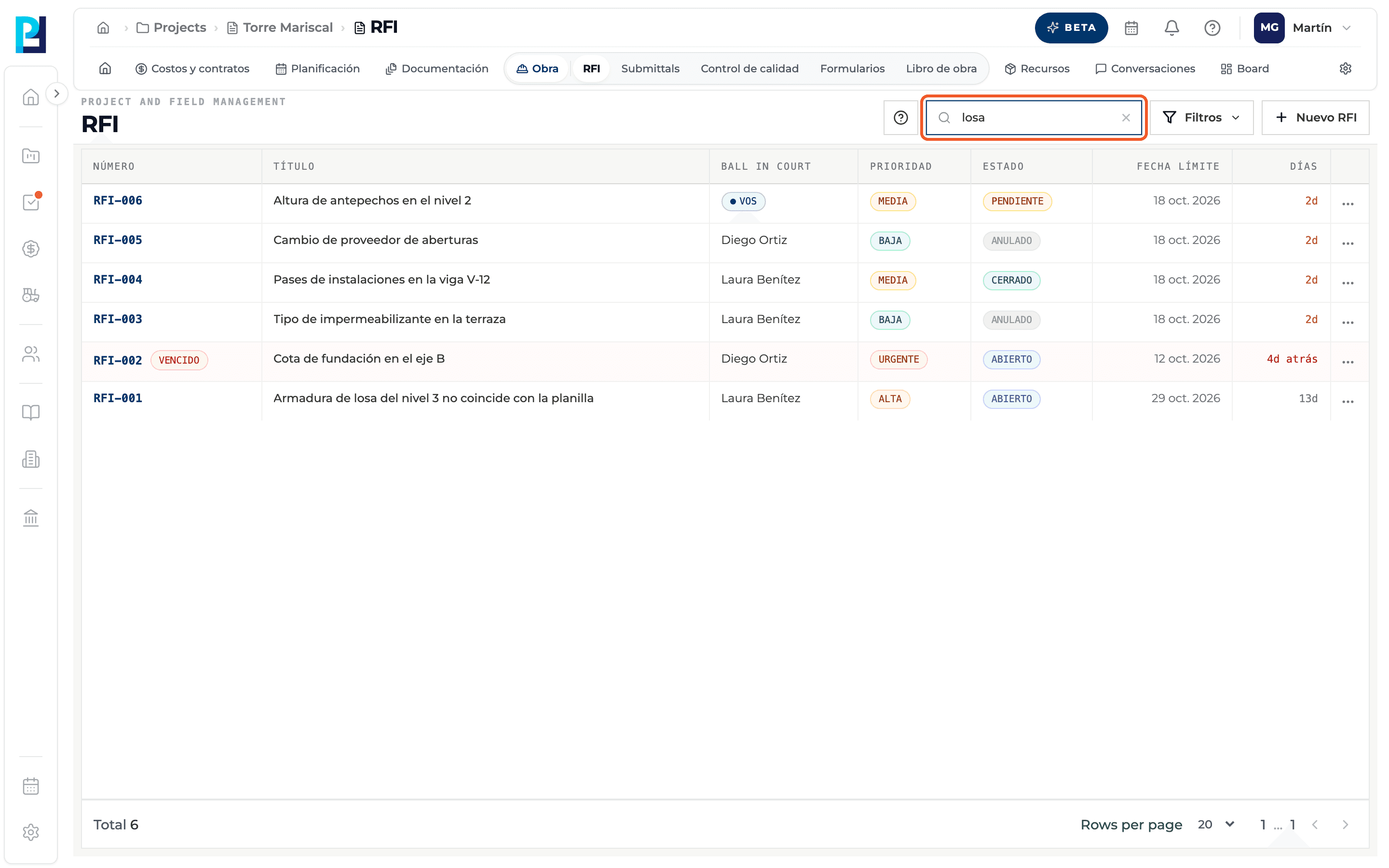
Search
The Number or title box, top right, filters as you type.
- 02
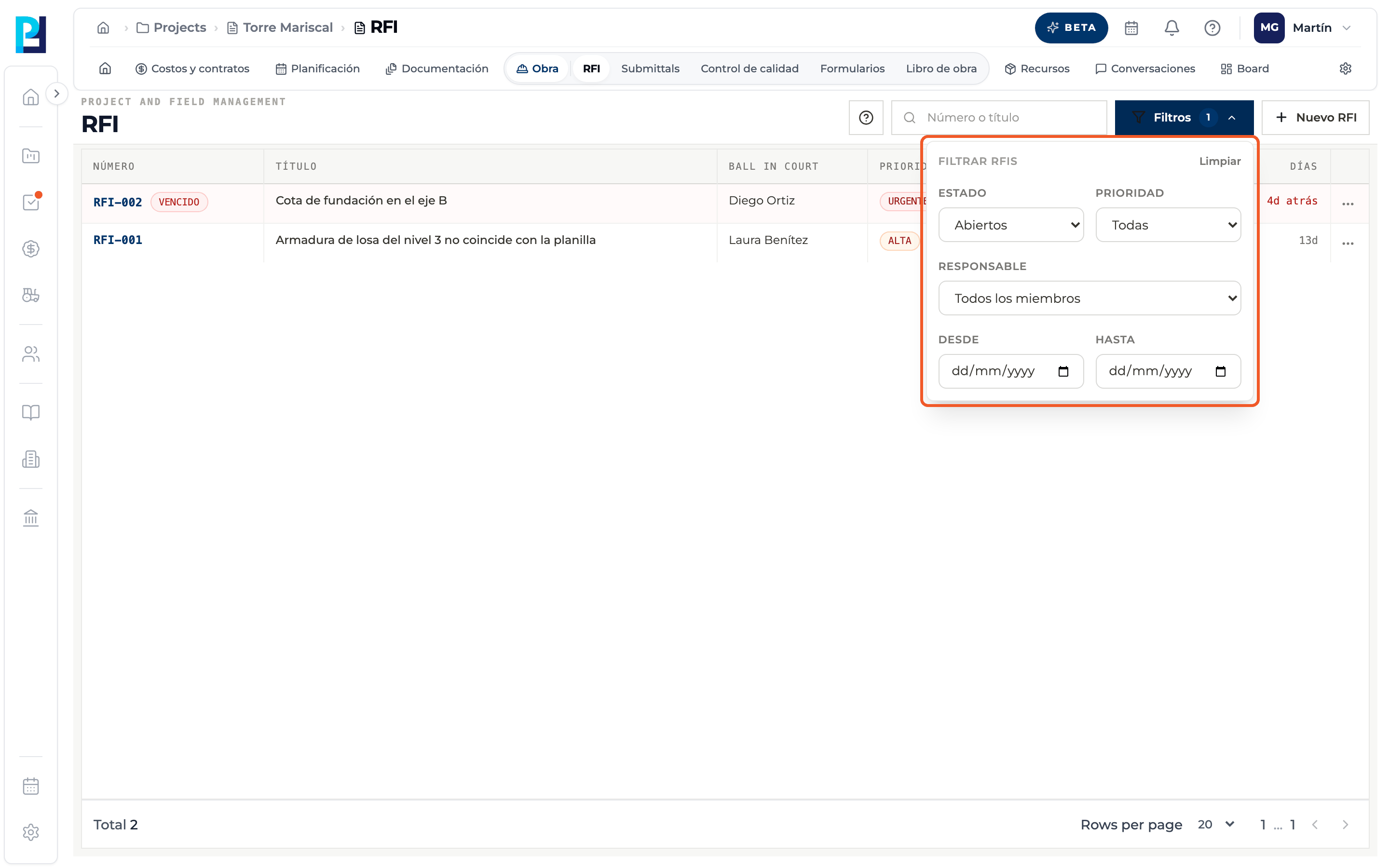
Open the filters
Filters opens the Filter RFIs panel: Status (Open, Pending, Closed, Void…), Priority, Responsible and the From / To range. The button shows how many filters are active.
- 03
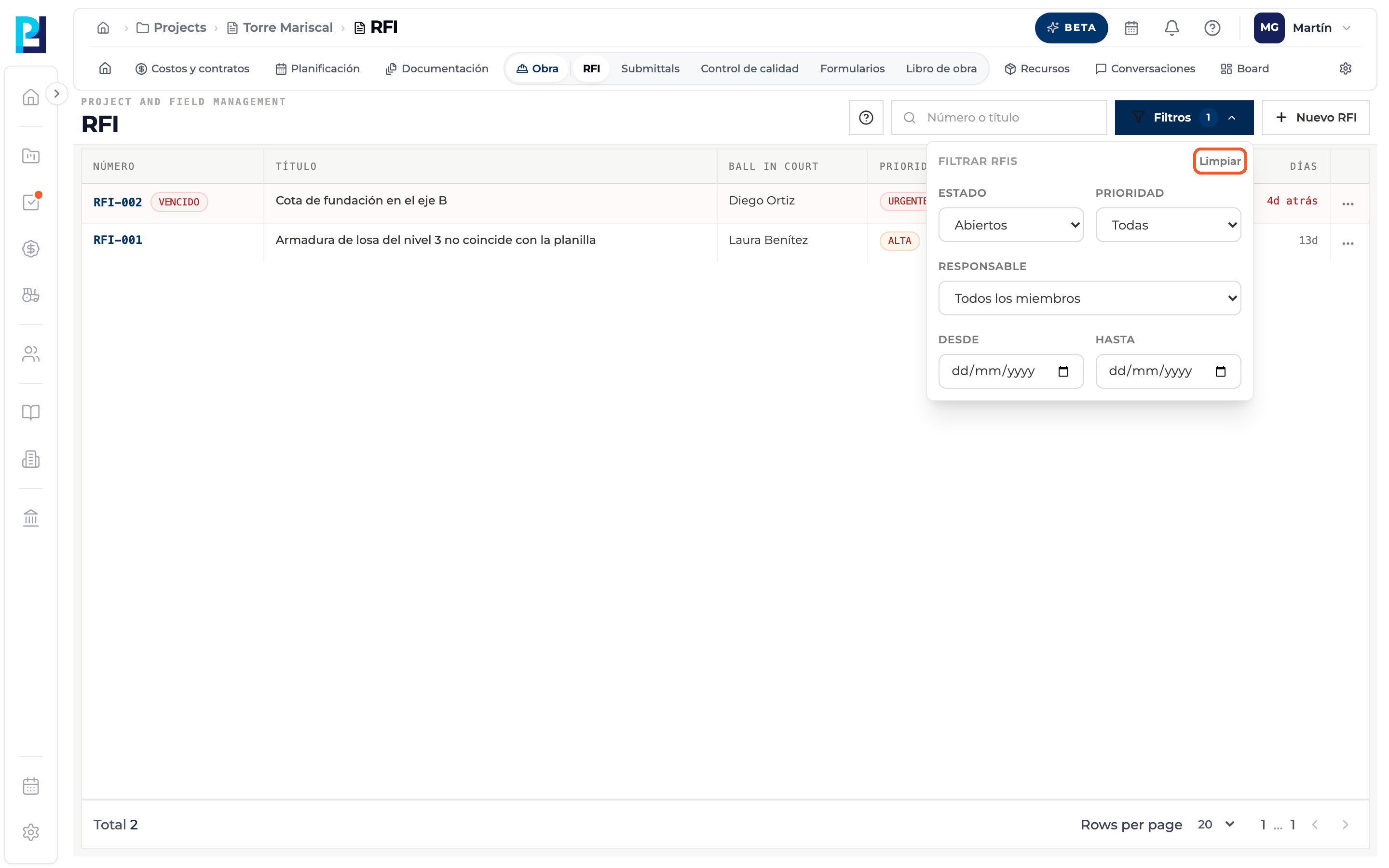
Clear
With a filter active, the panel shows Clear: it resets the search and filters.
- 04
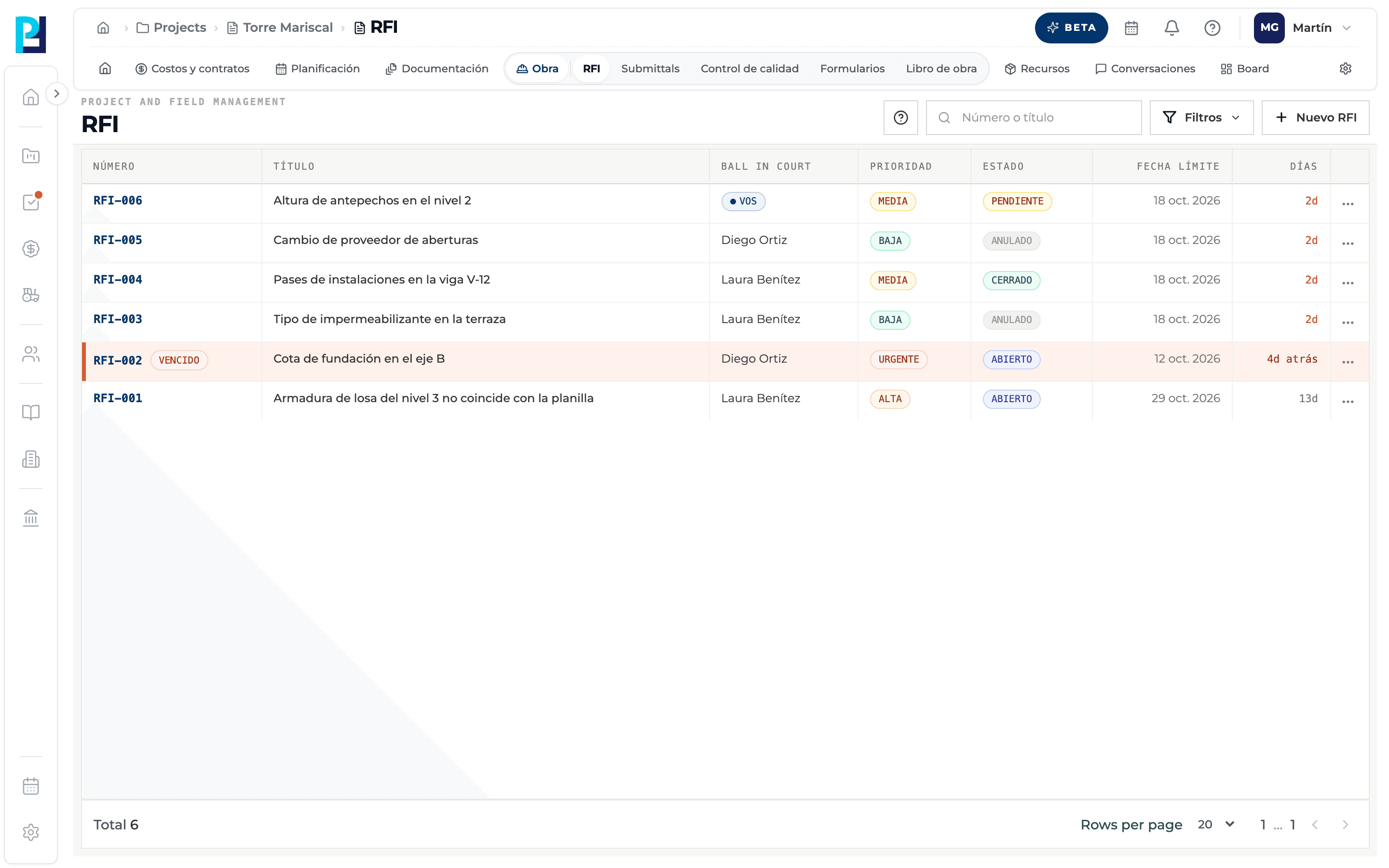
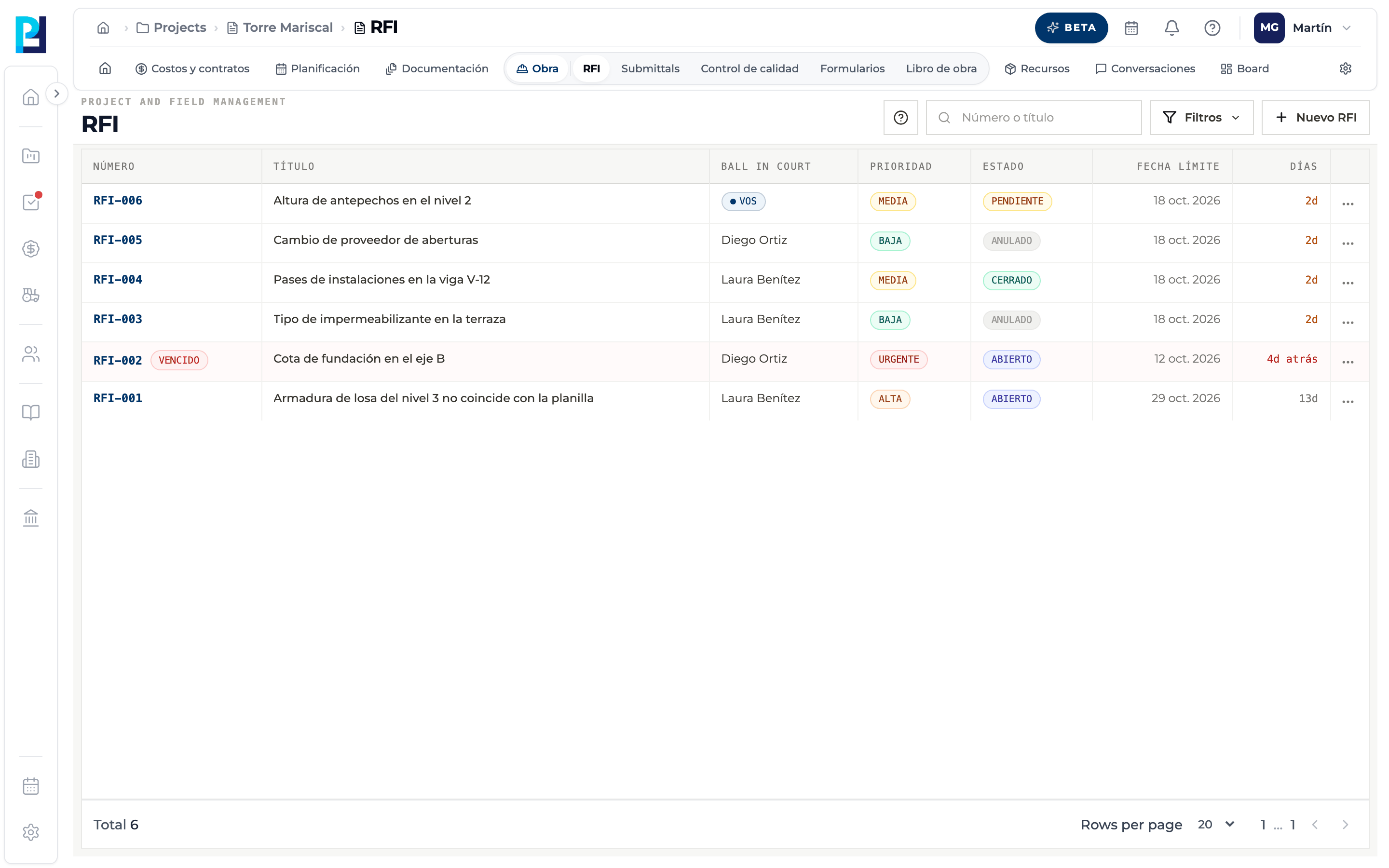
Read the list
Columns: Number, Title, Ball in court (says You when it is your turn), Priority, Status, Due date and Days.
- 05
Spot overdue items
Days turn amber when 3 or fewer remain and red once the date has passed. Overdue RFIs carry the Overdue tag. Closed or voided RFIs are never marked overdue.
- 06
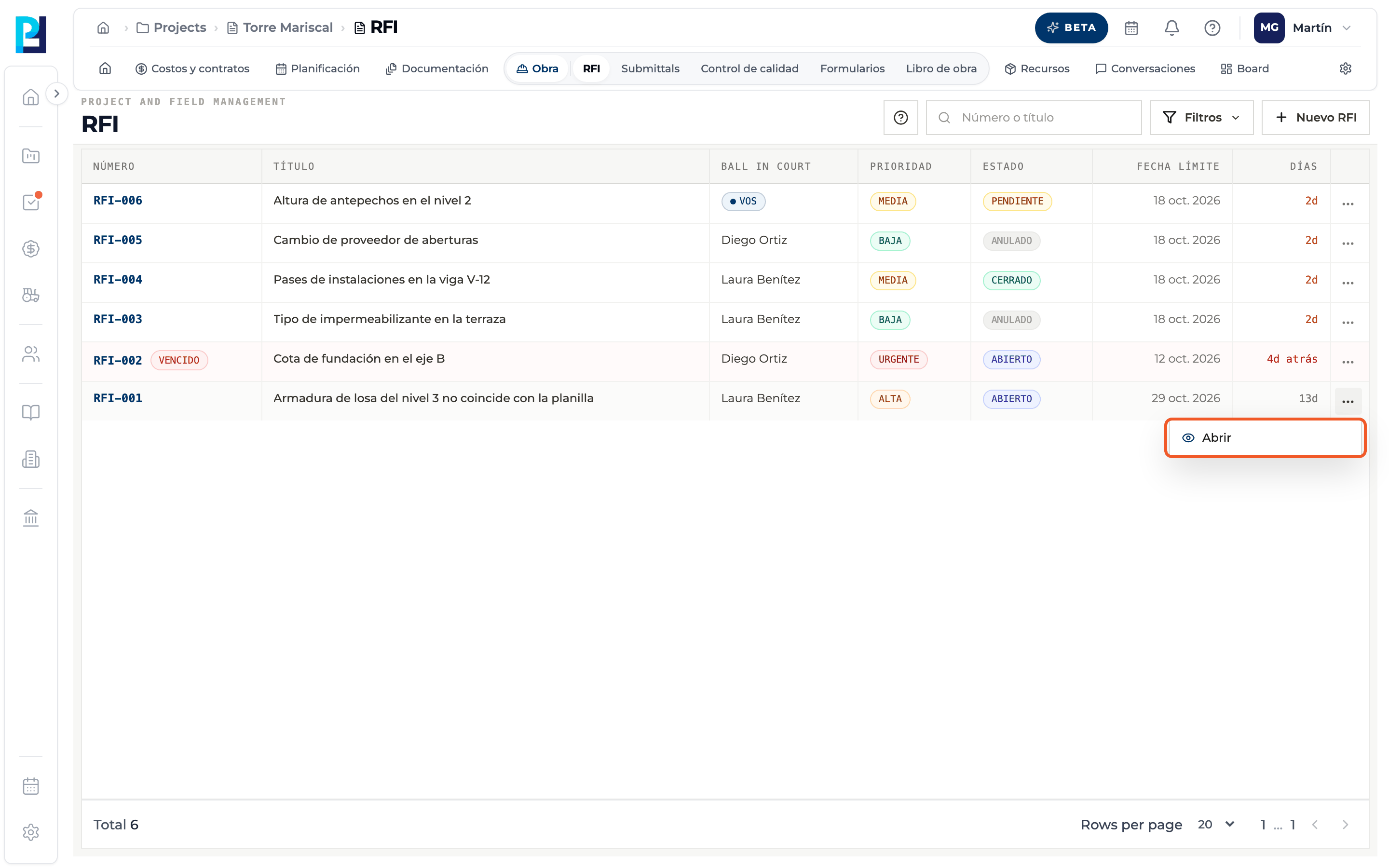
Open an RFI
Click the row or use the row's ⋯ menu → Open.
- 07
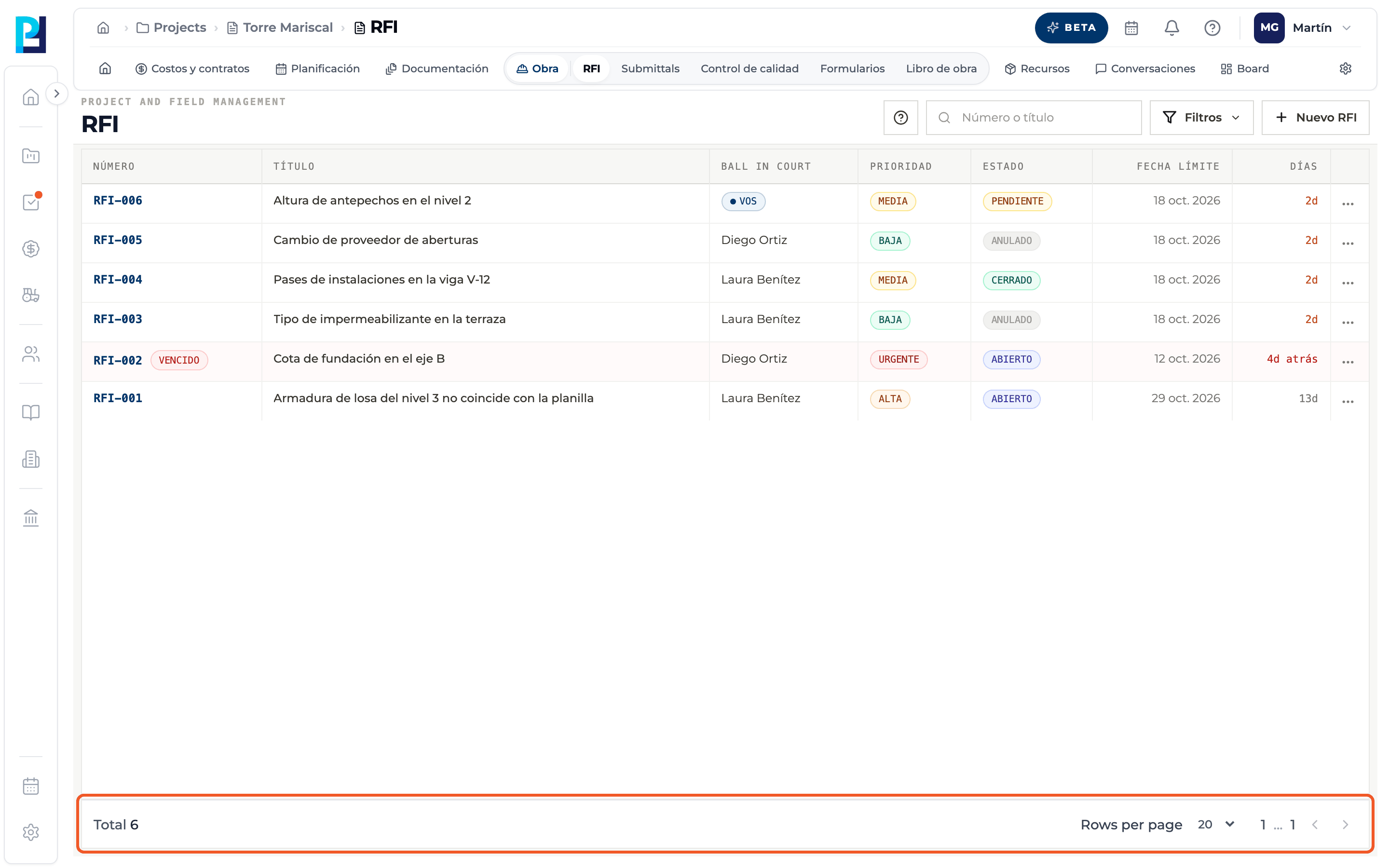
Paginate
The footer shows the total and lets you choose how many RFIs per page (20 by default).
What you'll learn
How search and filter the rfi list works inside Perfour.
What information you need and how it stays connected to RFIs.
How to preserve traceability and find the record later.
Frequently asked questions
How do I see the RFIs waiting for me?+
Look for You in the Ball in court column; you can also filter by Responsible.
What does it say when nothing matches?+
"No RFIs found with these criteria."