Relate the RFI to drawings, tasks and quality checks
Relations give the RFI context and let you jump between modules.
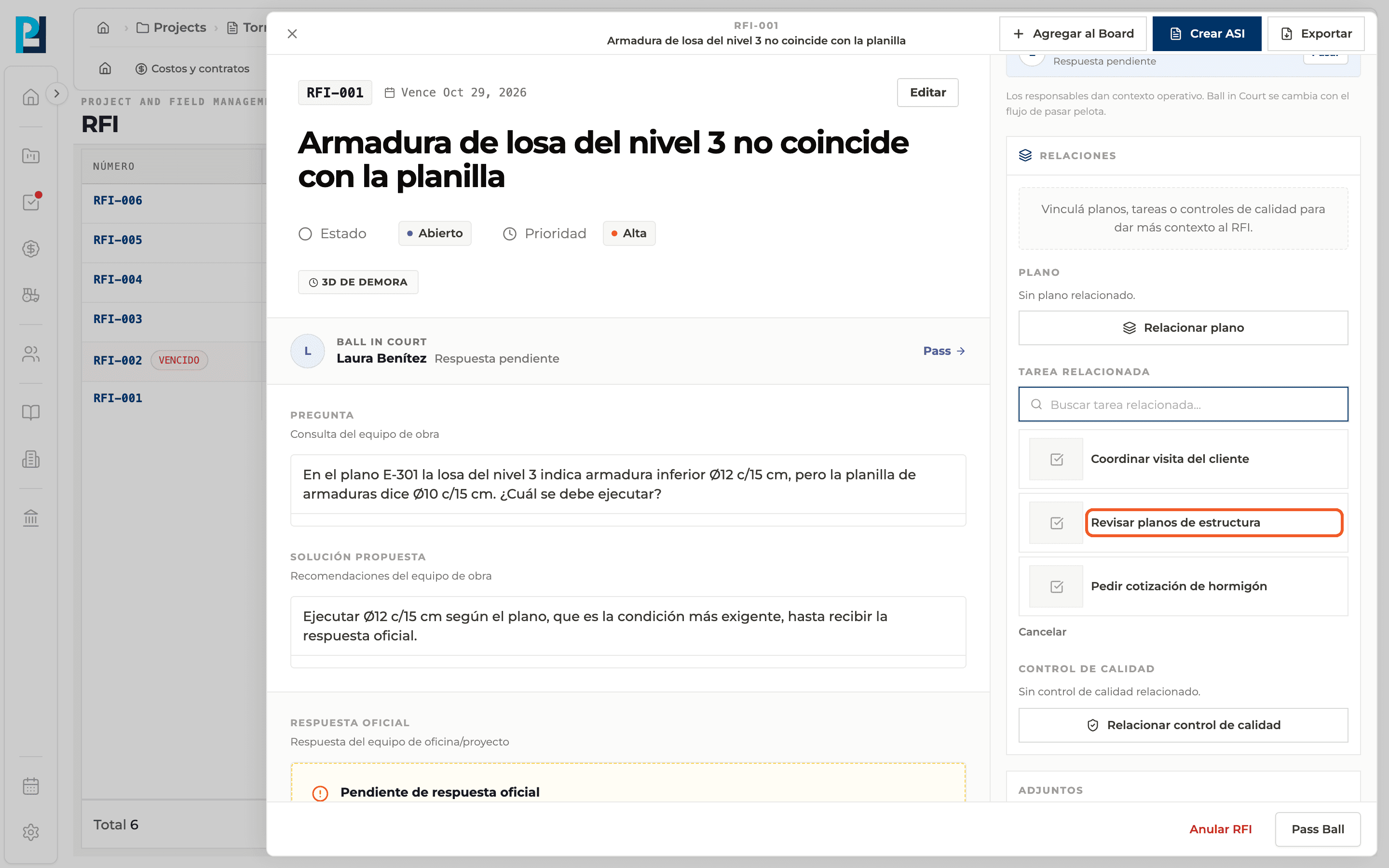
How to complete relations
- 01
Find the block
In the creation panel or the detail, sidebar, Relations. When empty it says "Link drawings, tasks or quality checks to give the RFI more context."
- 02
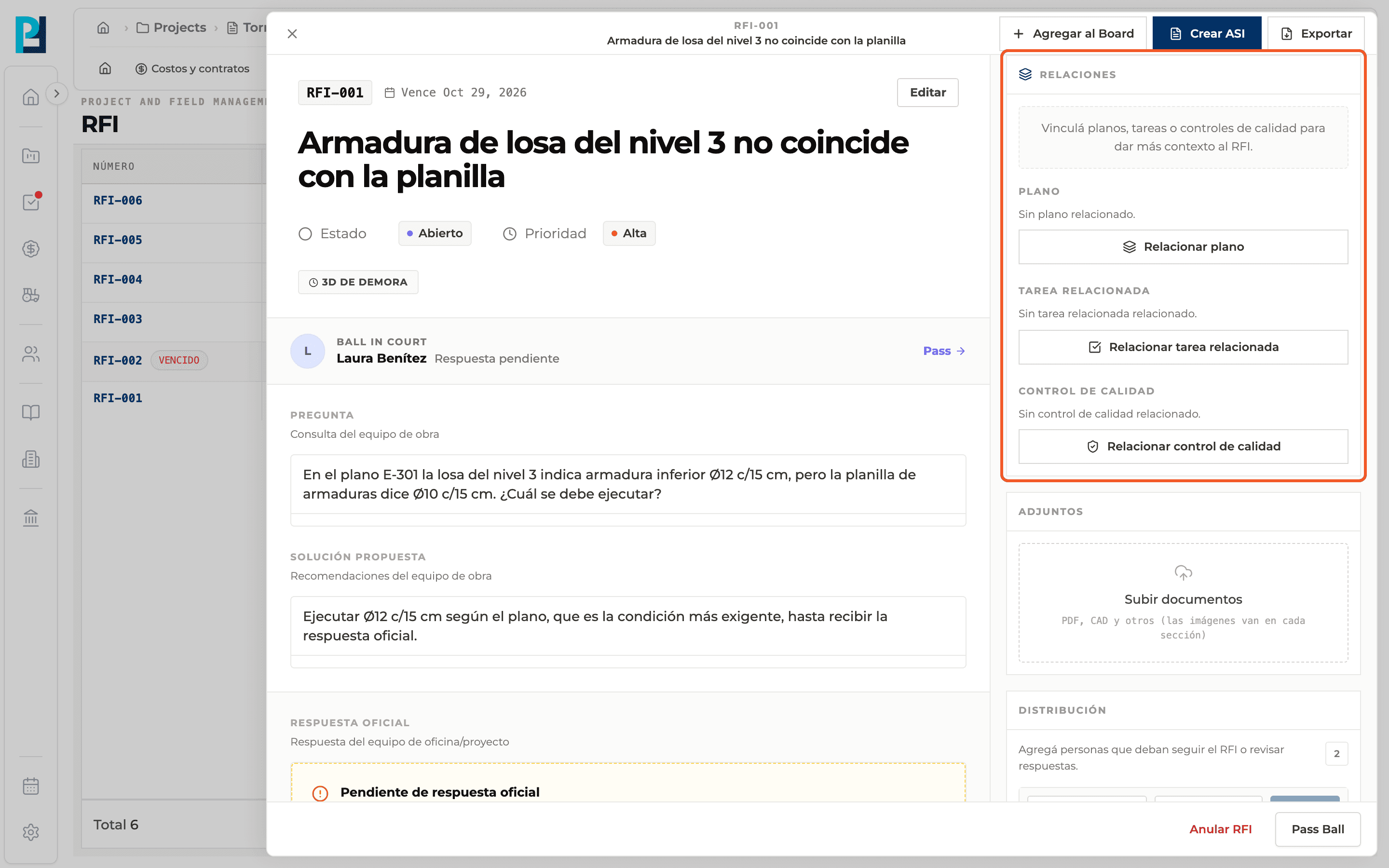
Choose the type
Relate drawing, Relate related task or Relate quality check.
- 03
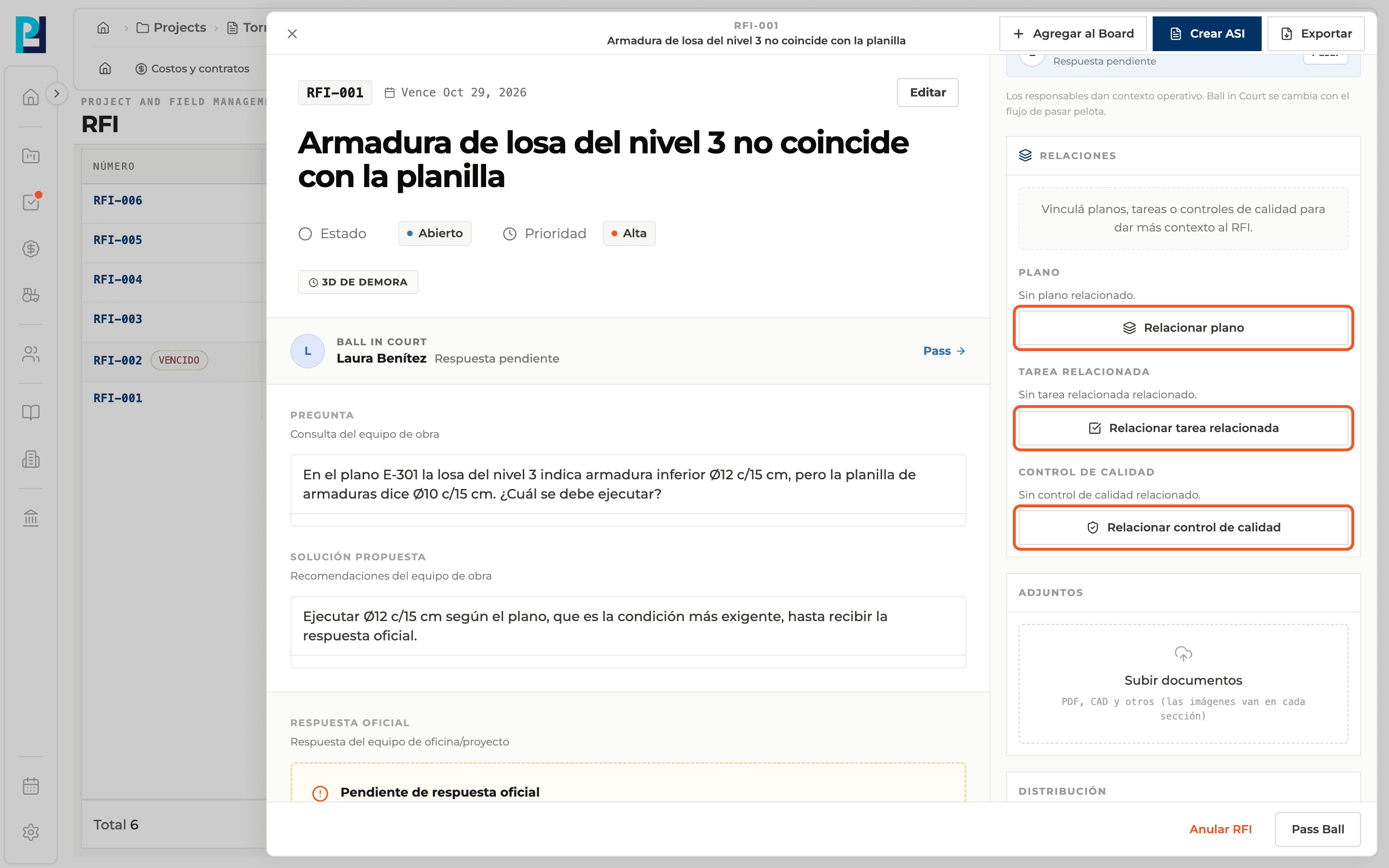
Select the item
Find it in the list and click it. You can add several per type.
- 04
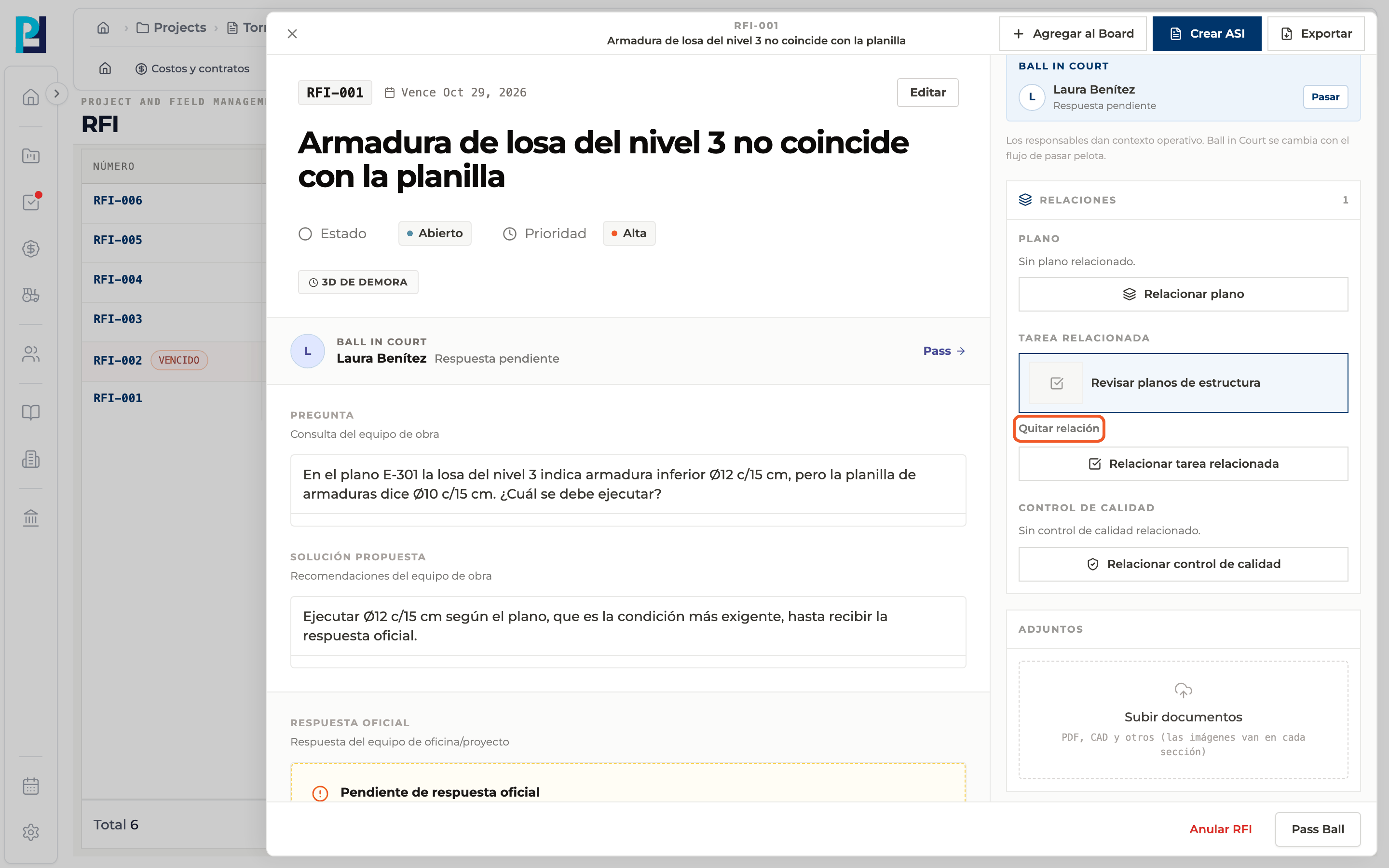
Remove a relation
Below the linked item, click Remove relation.
- 05
See the pin on the drawing
If the RFI was created from a pin on a drawing, Drawing shows View specific pin on drawing, which takes you to the drawing at that pin.
What you'll learn
How relate the rfi to drawings, tasks and quality checks works inside Perfour.
What information you need and how it stays connected to RFIs.
How to preserve traceability and find the record later.
Frequently asked questions
Are relations saved when creating?+
Yes, they are linked right after the RFI is created. If one fails, the app warns you and you can retry from the detail.
Can I link another RFI or a form?+
This block only links drawings, tasks and quality checks. In the question or solution you can insert links to other items with "/".