Visual guide
Follow a To-do task
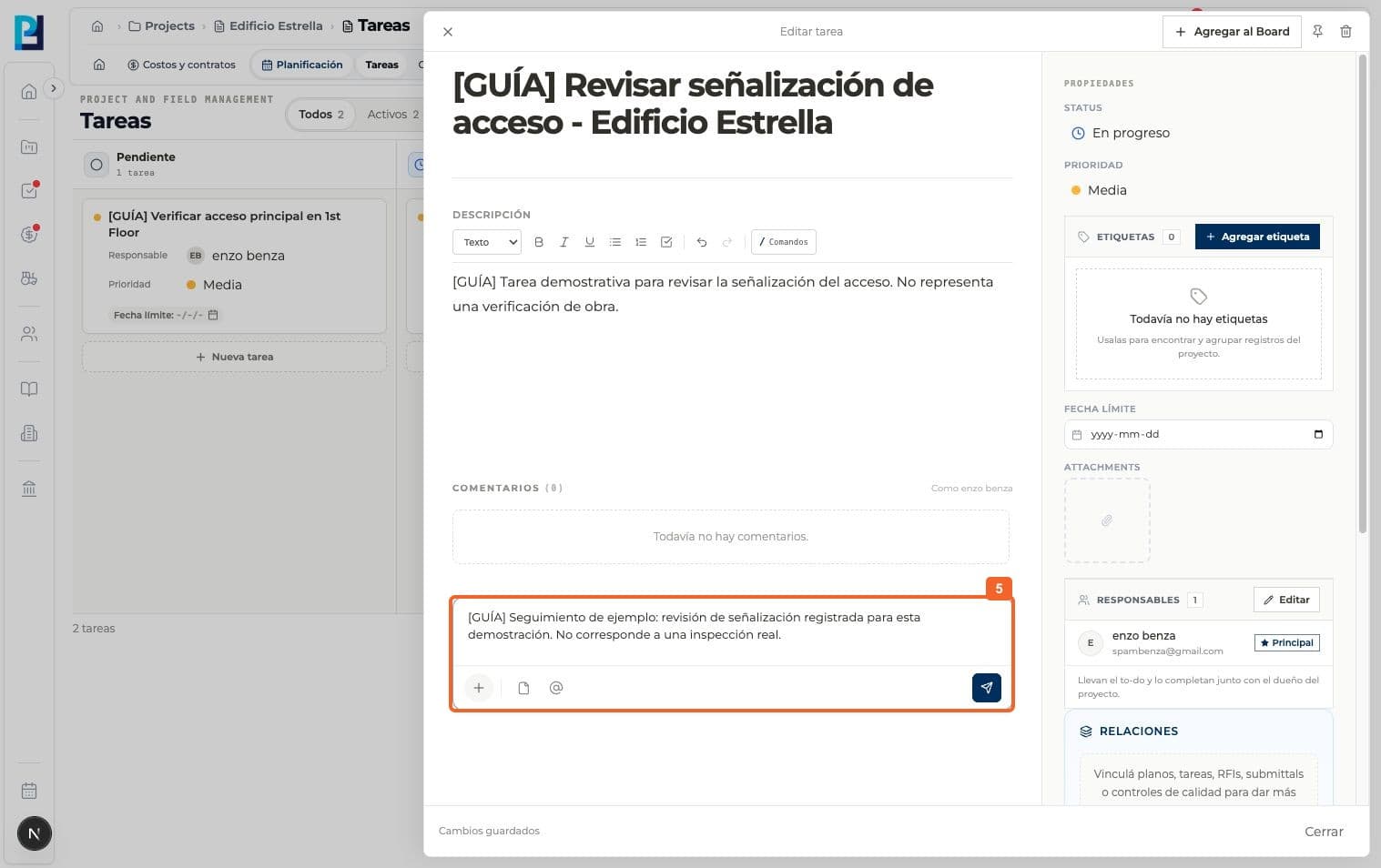
Move a task to In progress and record its progress in comments.
3 minutes
Step by step
Follow each step on screen
- 01
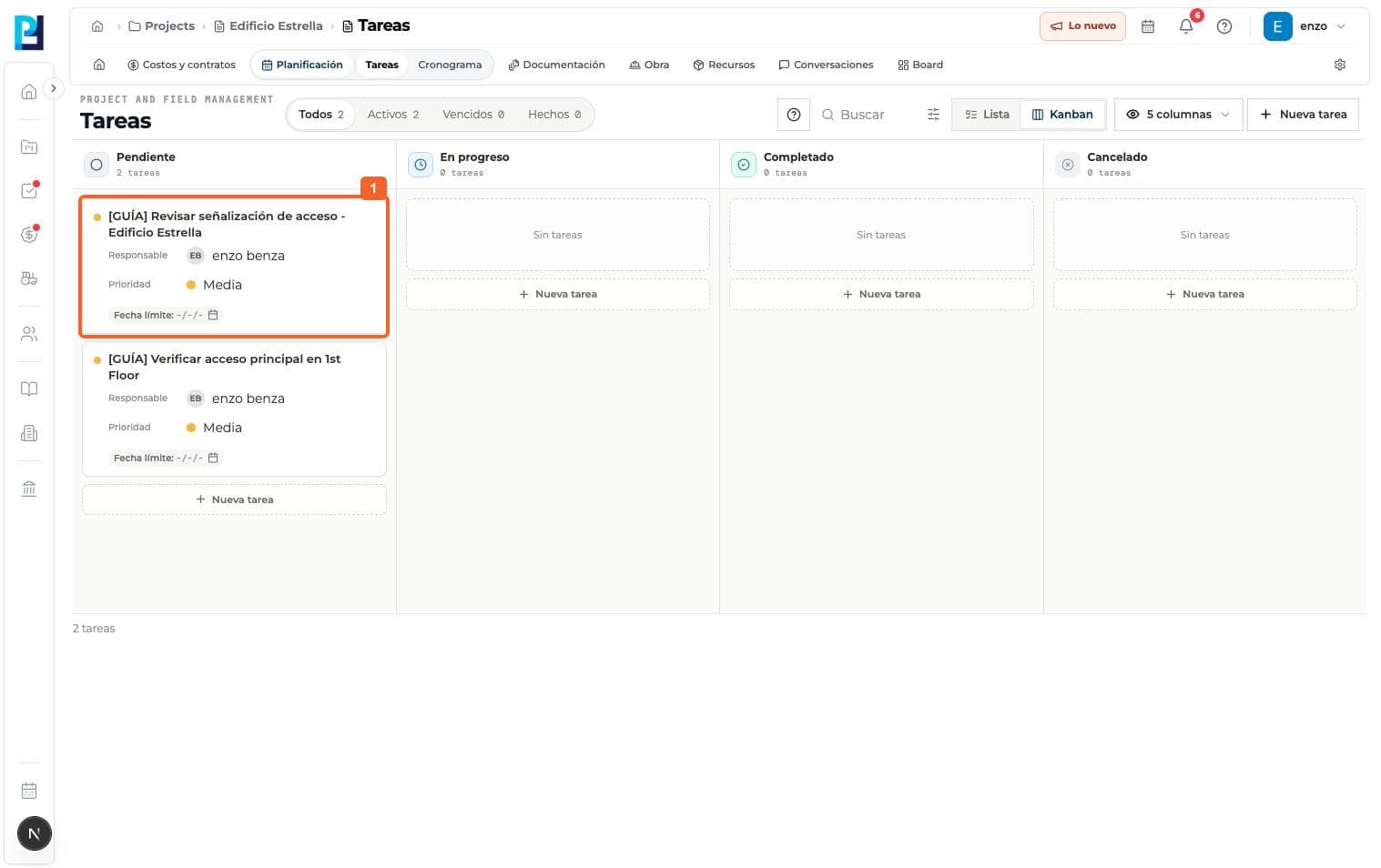
Open the task from its card in Planning > Tasks.
- 02
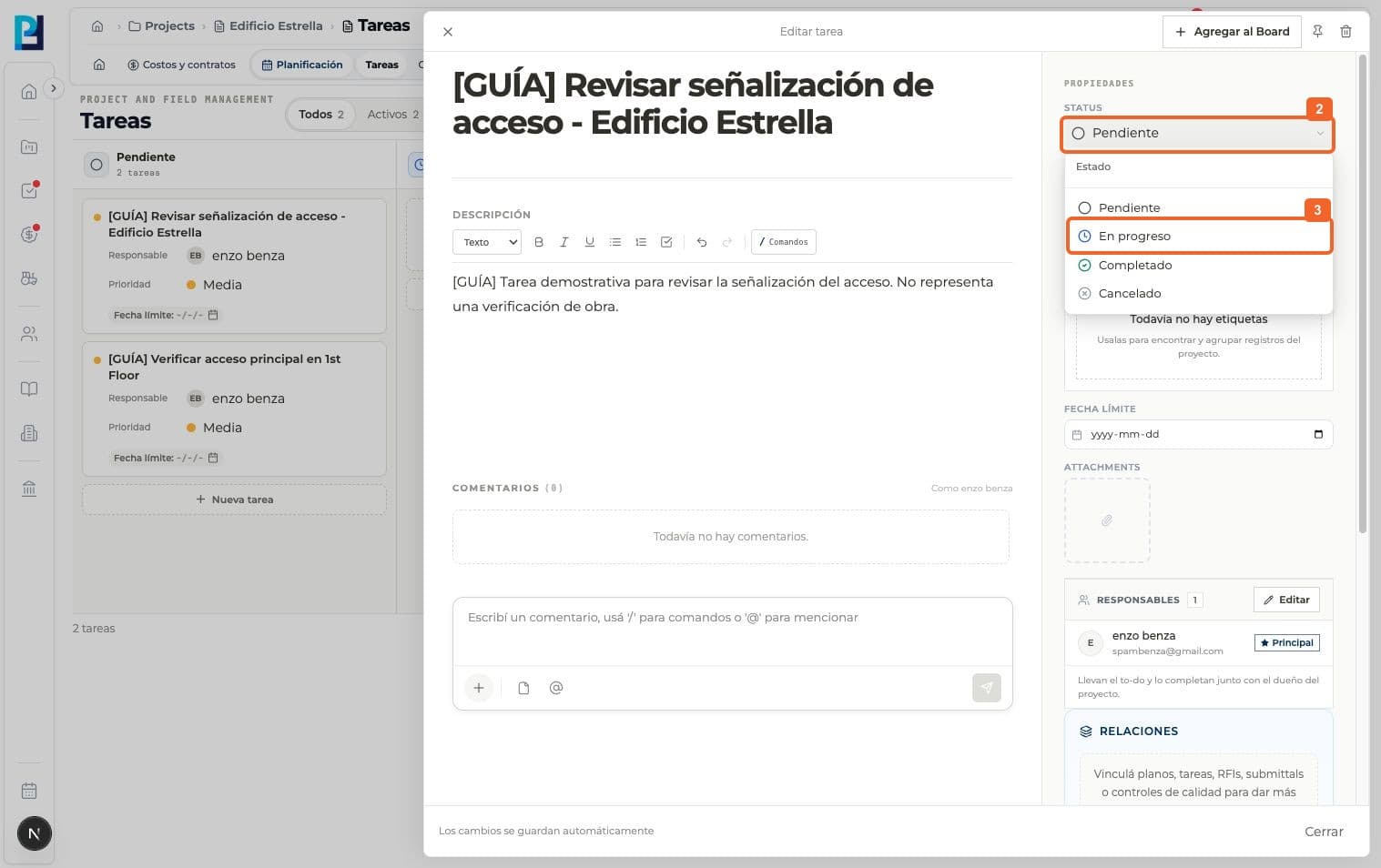
Open Status in the properties panel.
- 03
Choose In progress.
- 04
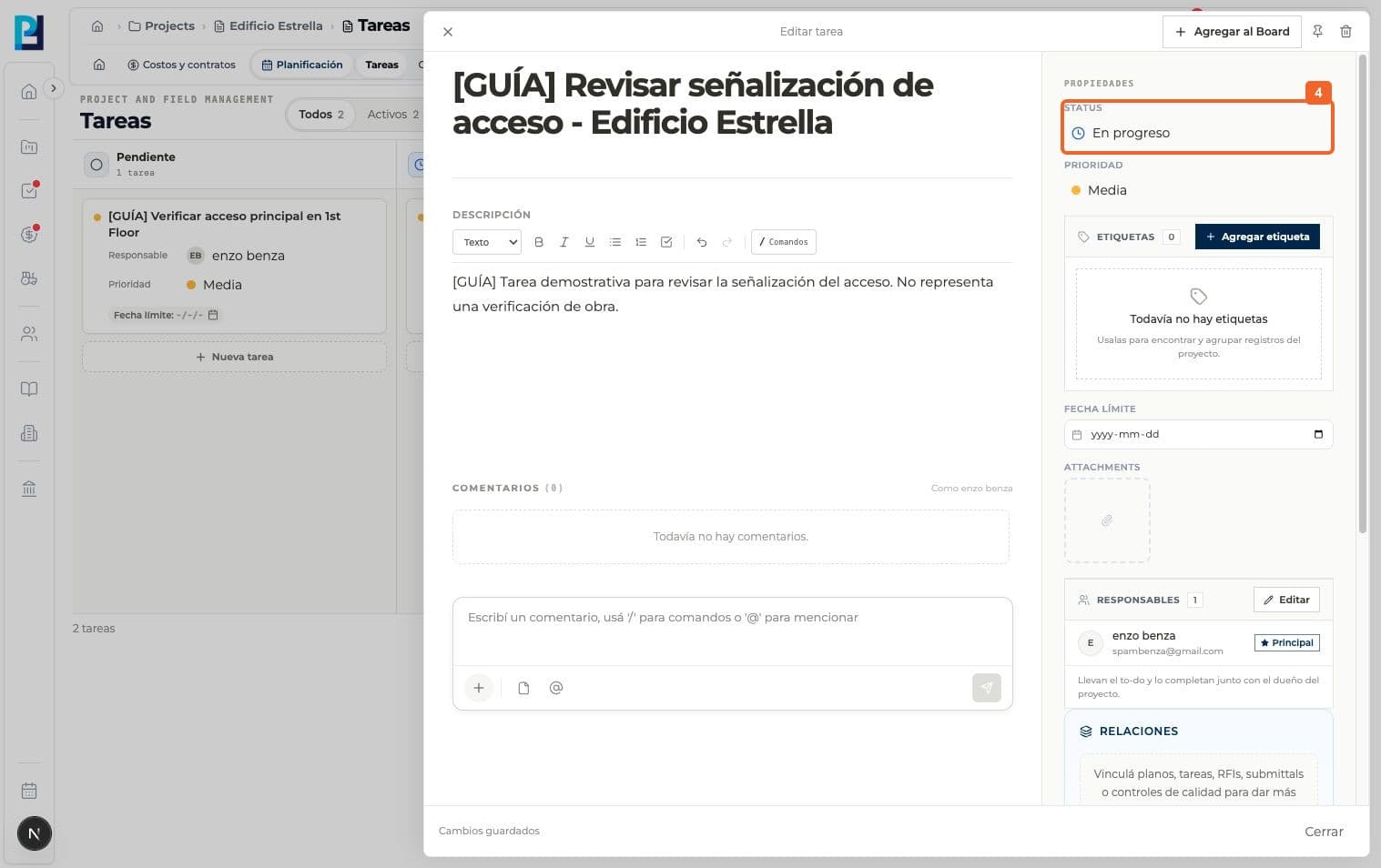
Verify the new status. Changes save automatically.
- 05
Under Comments, write a recognizable update and send it.
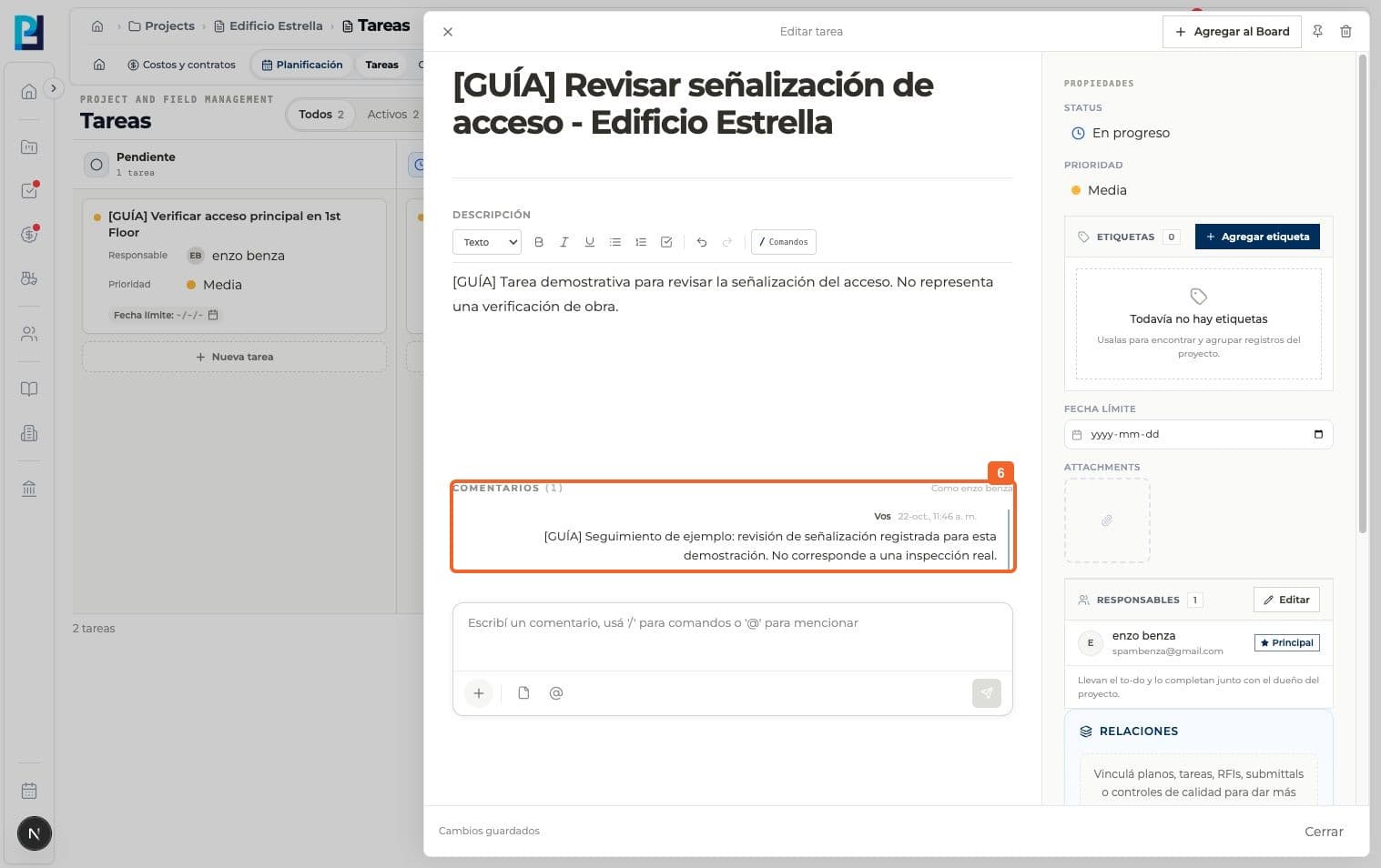
- 06
Verify the comment appears in the task history.
FAQ
Frequently asked questions
What was verified and what remains untested?+
No files were attached and no other members were mentioned. The example comment explicitly says it is not a real inspection.
Keep learning
View module