Visual guide
Build budget chapters and line items
Organize an editable budget sheet and check how its amounts update.
3 minutes
Step by step
Follow each step on screen
- 01
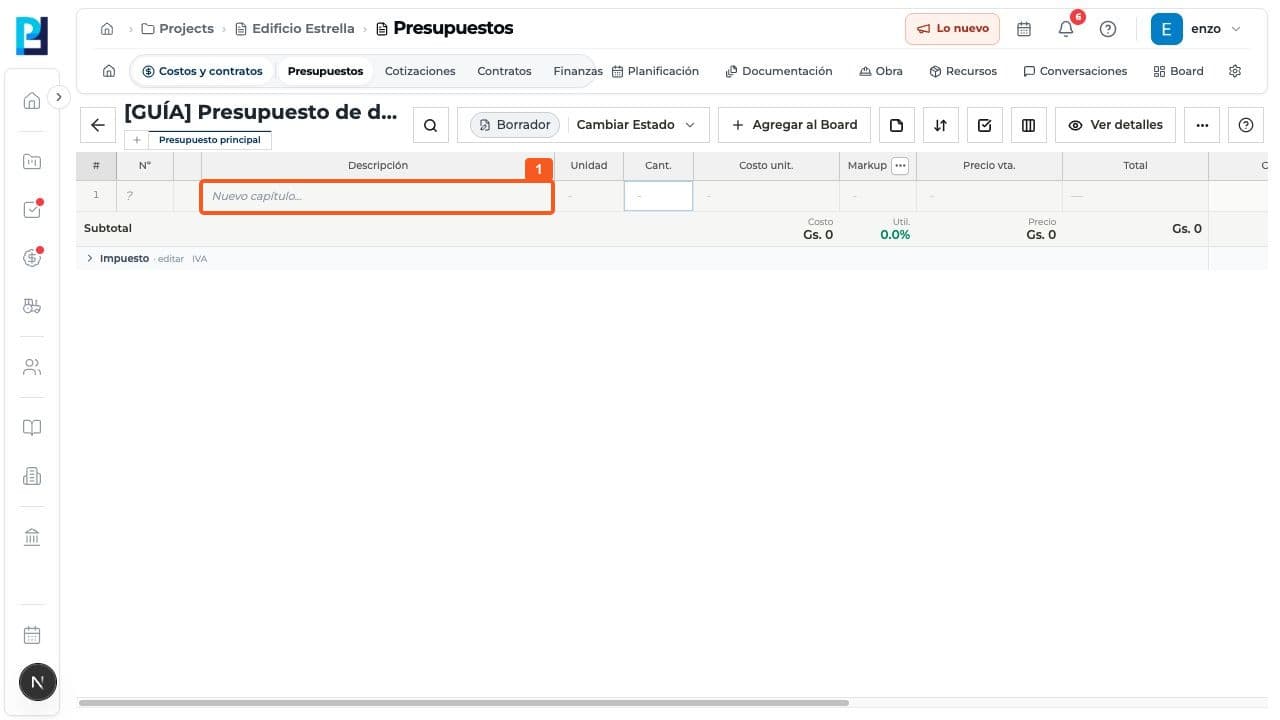
Open a Draft budget. Double-click New chapter on the main sheet, enter a name and press Enter.
- 02
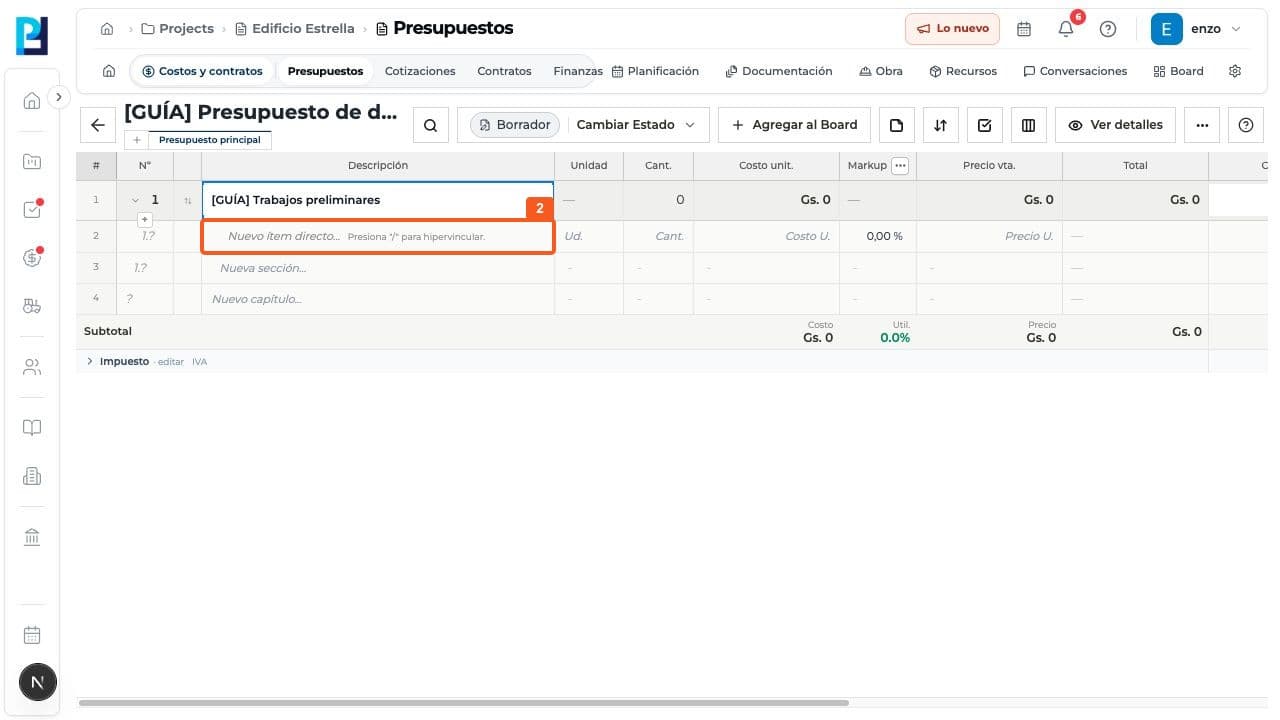
Inside it, double-click New direct item, enter the item name and confirm.
- 03
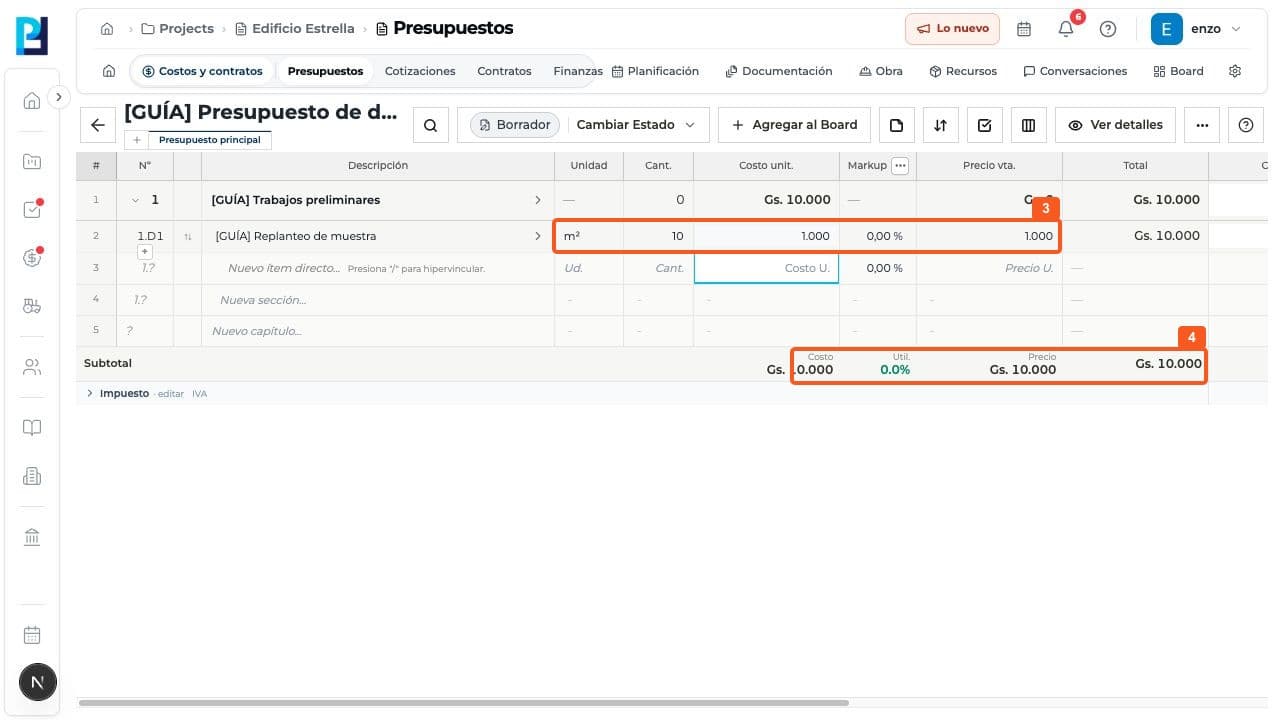
Fill Unit, Quantity and Unit cost, confirming each cell. The example uses 10 square meters at Gs. 1,000.
- 04
Check the calculated Subtotal and Total. The example shows Gs. 10,000 with zero markup.
- 05
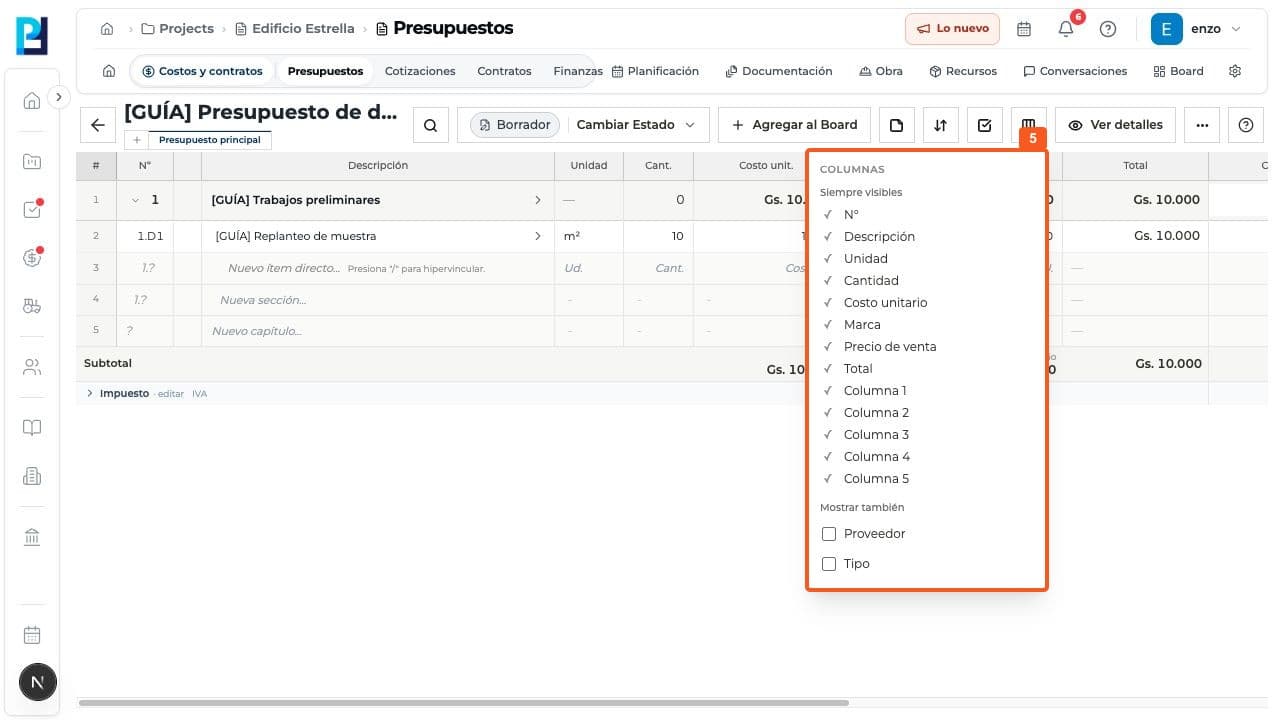
Under Columns, consider showing Supplier or Type. Only the selector was opened in this test.
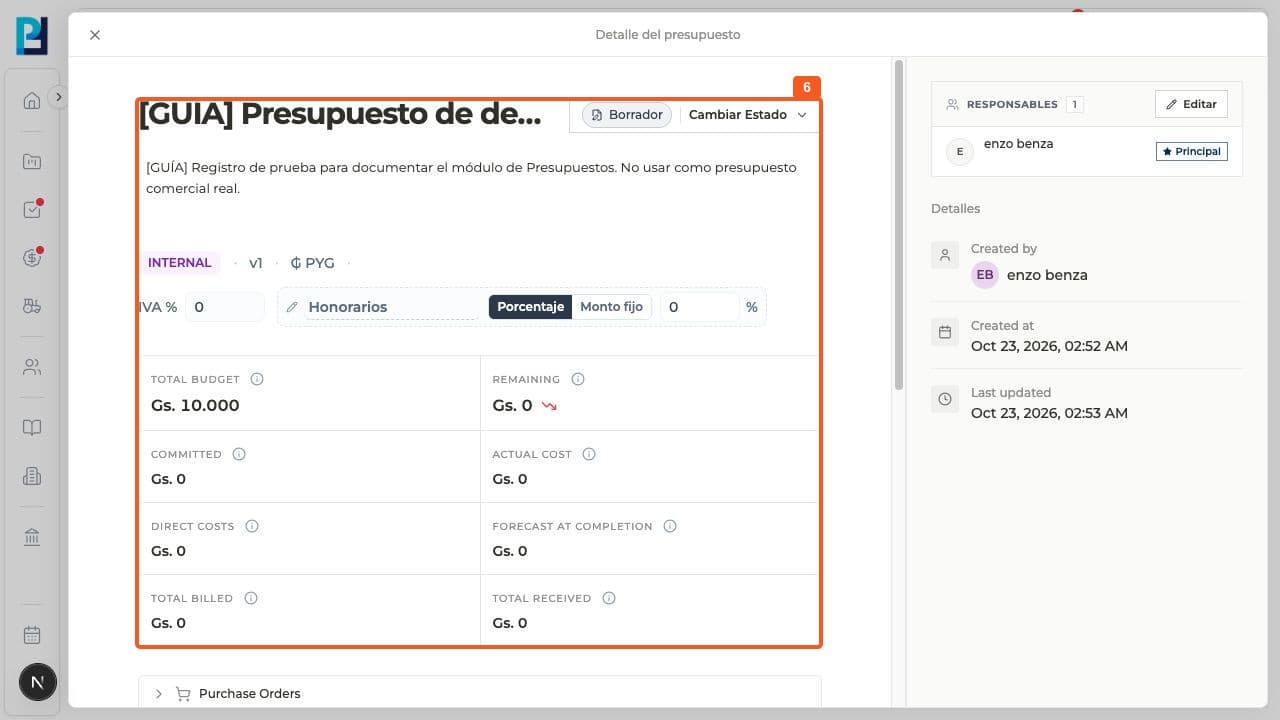
- 06
In View details, review name, description, tax, fees, financial summary and owners.
FAQ
Frequently asked questions
What was verified and what remains untested?+
One chapter and one item were saved with sample amounts. Supplier, markup and extra sheets were not tested; do not copy the fictitious amounts into a real budget.