Visual guide
Configure a budget export
Review PDF and Excel export controls before downloading a budget report.
3 minutes
Step by step
Follow each step on screen
- 01
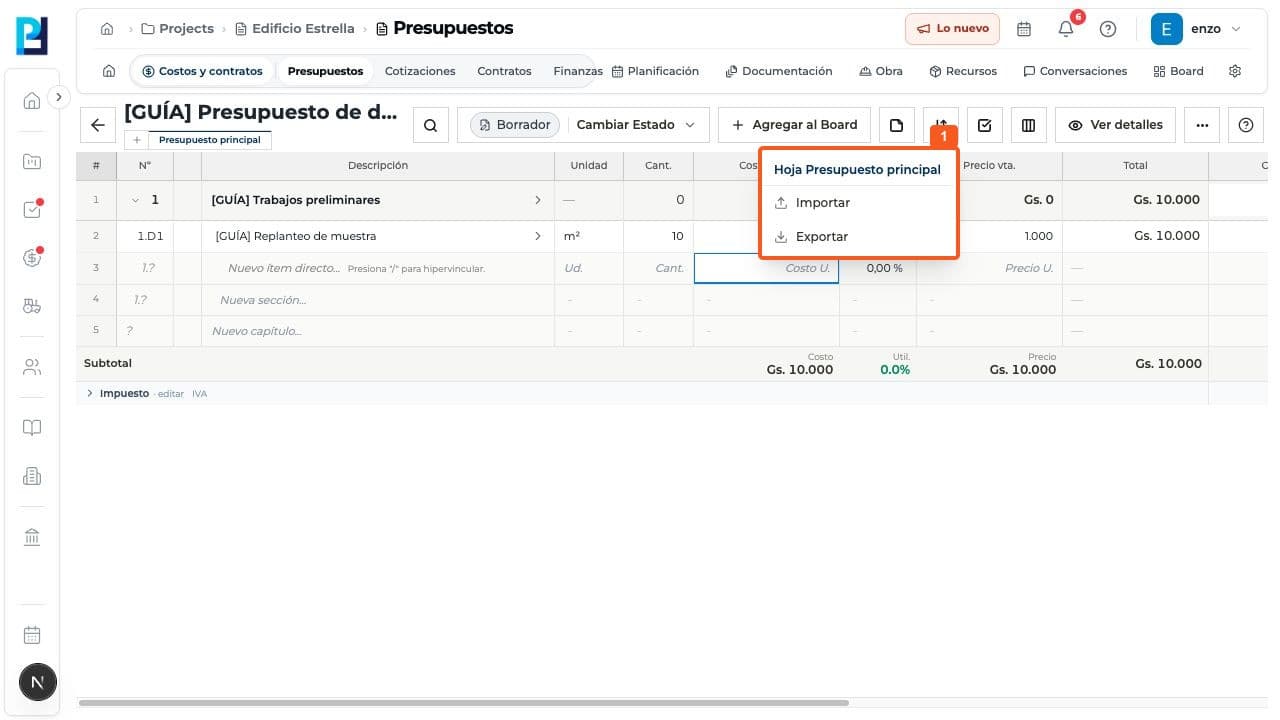
Open the sheet to export and choose Export under Import or export.
- 02
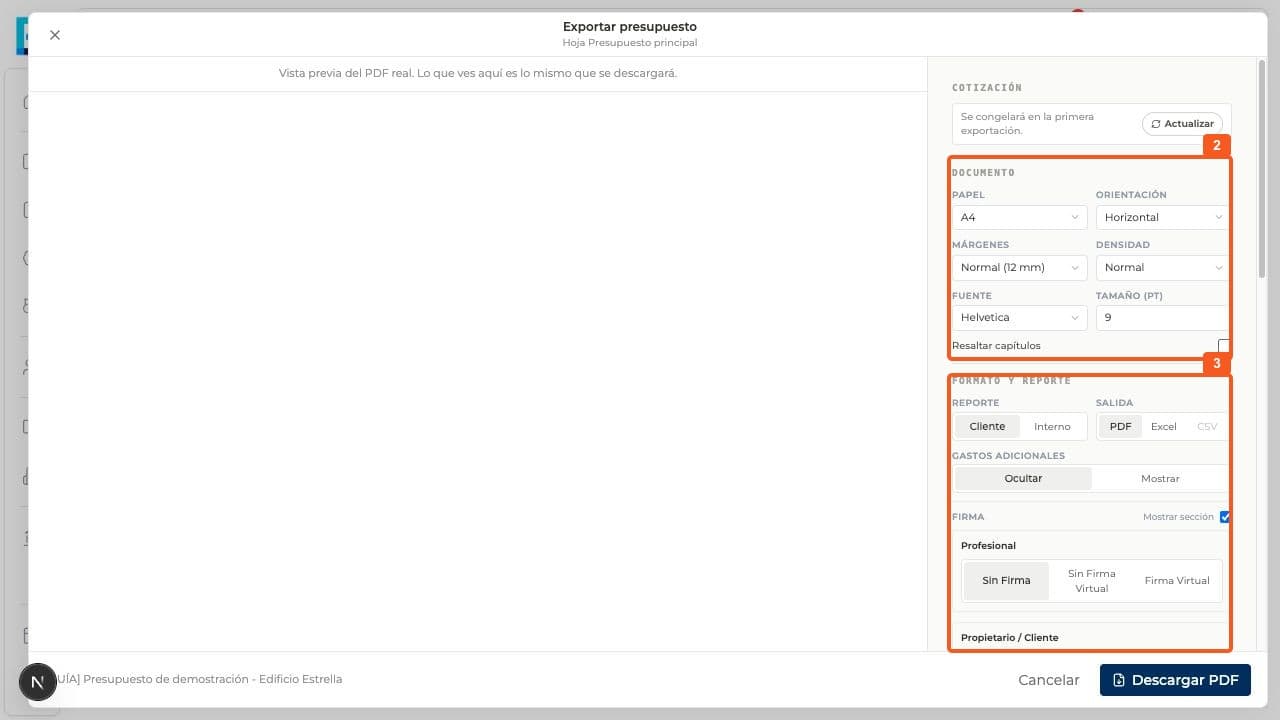
For PDF, review paper, orientation, margins, density, font and size; select Client or Internal report.
- 03
Adjust content, signatures, text and appearance after validating budget data. The quote freezes on its first export.
- 04
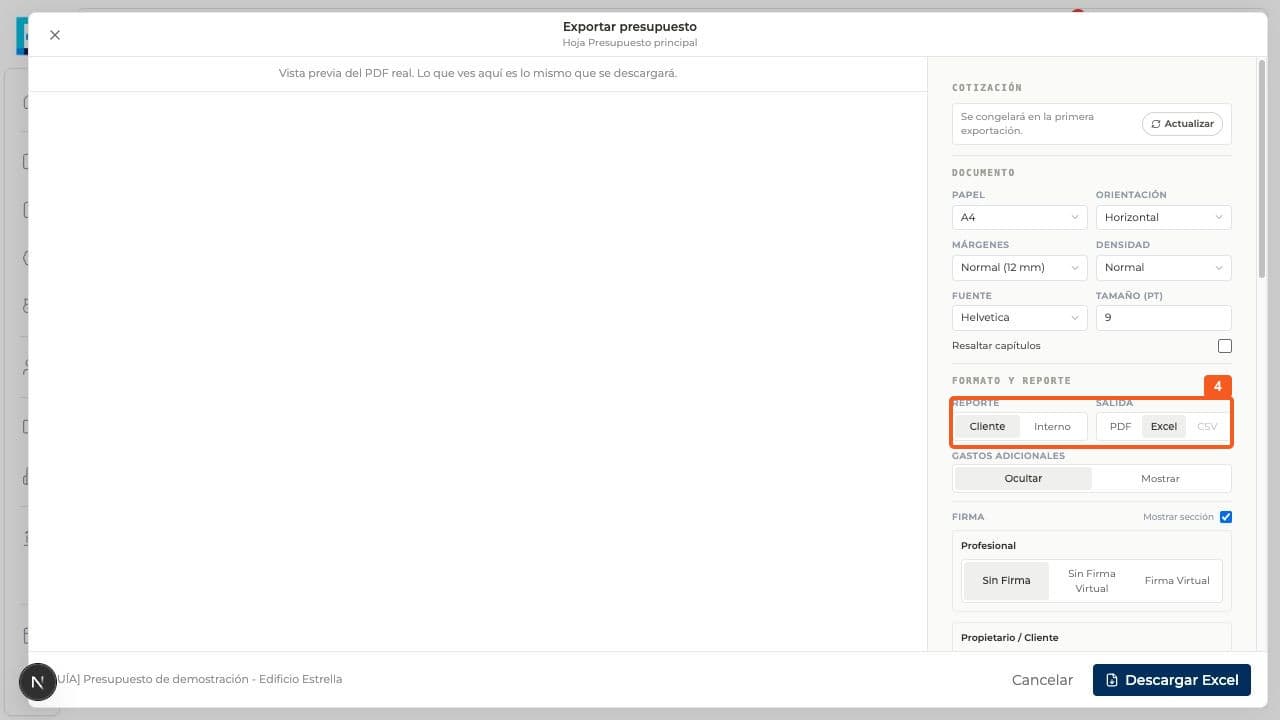
For a spreadsheet, select Excel under Output; the final action becomes Download Excel.
- 05
Download only after reviewing the report and preview. Neither PDF nor Excel download was used in this test.
FAQ
Frequently asked questions
What was verified and what remains untested?+
The controls were inspected but no file was generated. The PDF preview was blank in the test browser, so rendering must be checked before claiming a completed export.