Visual guide
Upload PDF drawings
Upload a batch of PDFs, choose their pages and confirm each sheet's details.
5 minutes
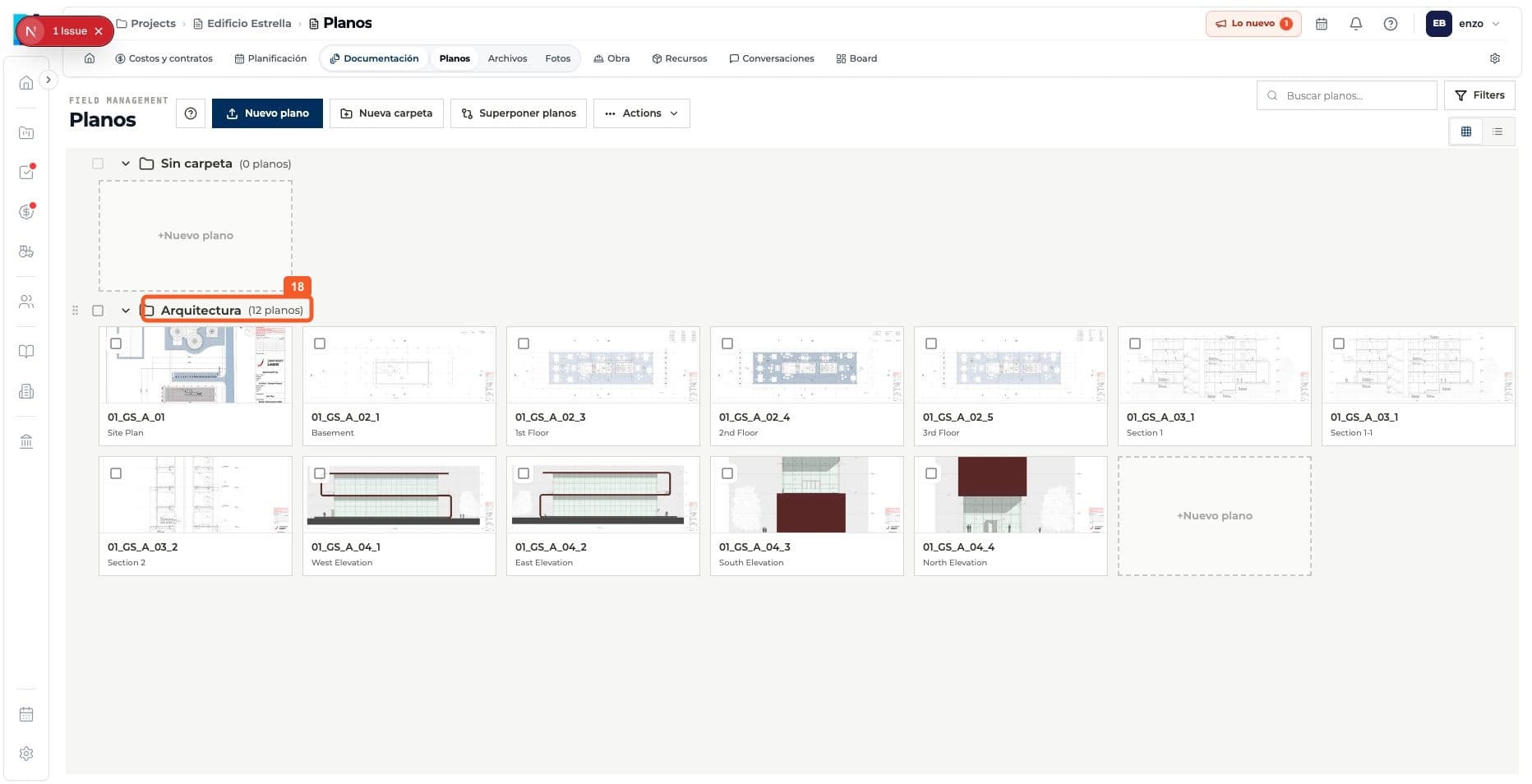
Step by step
Follow each step on screen
- 01
Inside the destination folder, select New drawing.

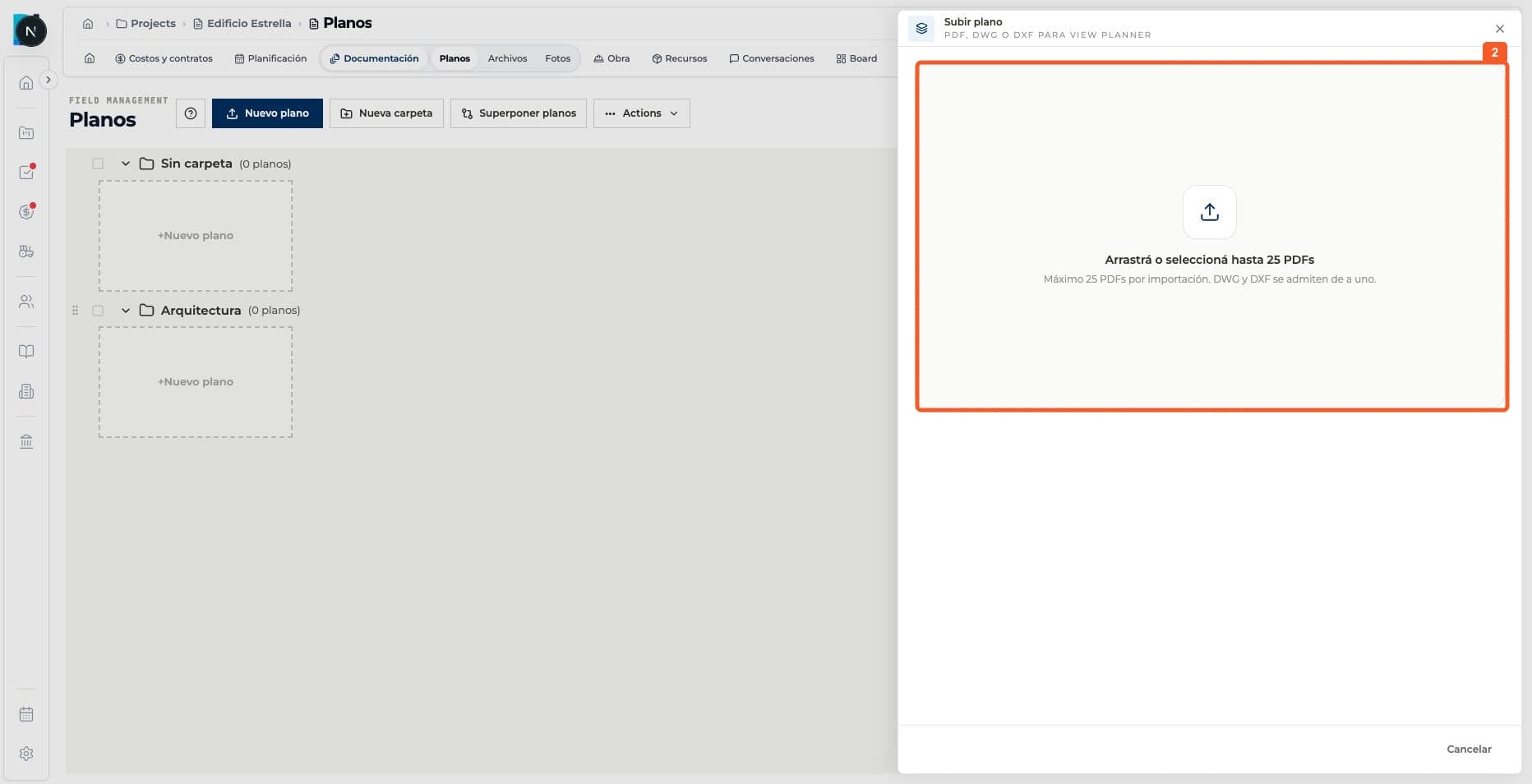
- 02
Select the PDF files from your computer.
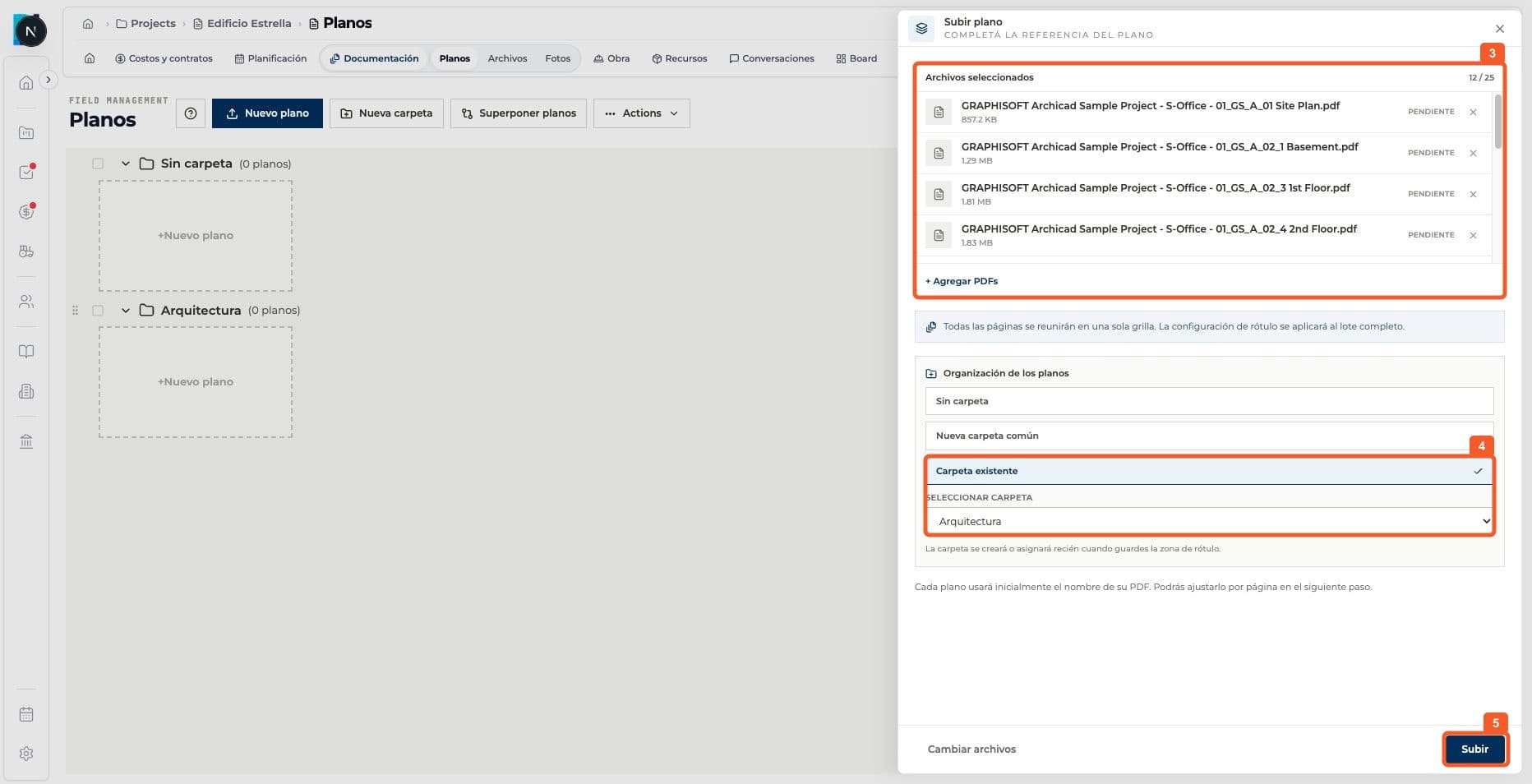
- 03
Review the batch and confirm the destination folder.
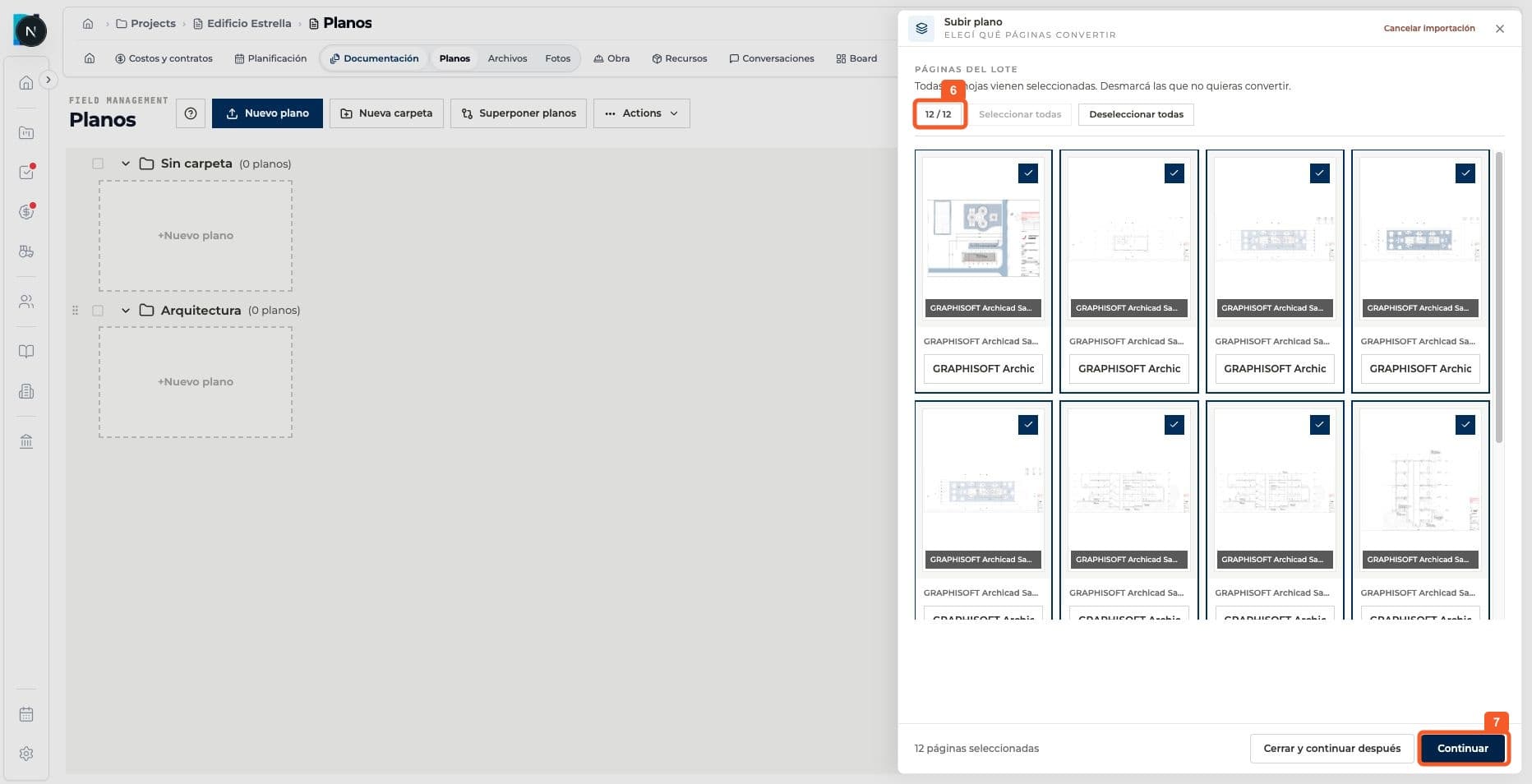
- 04
Choose the pages to add as drawings.
- 05
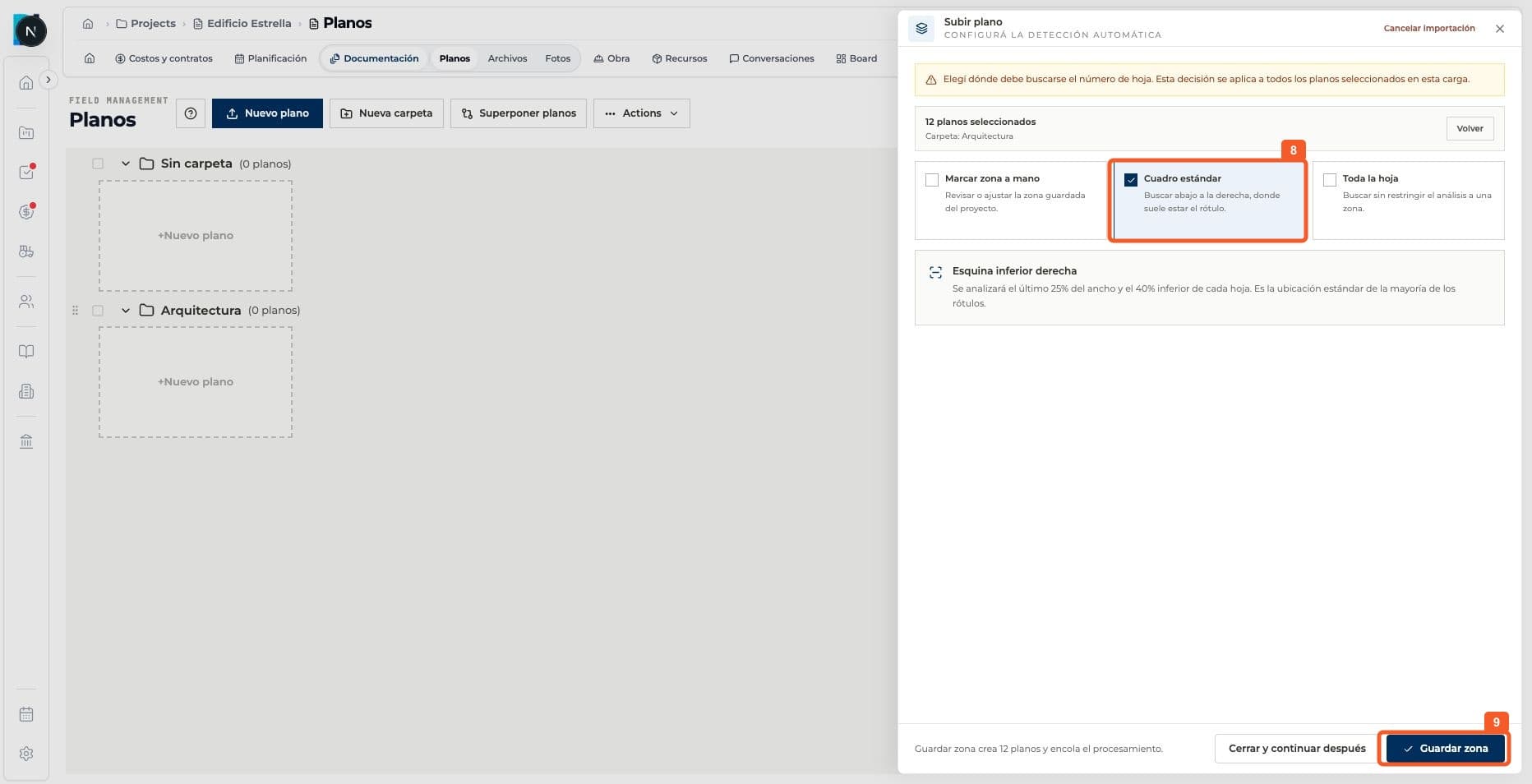
Configure or review where the sheet number will be detected.
- 06
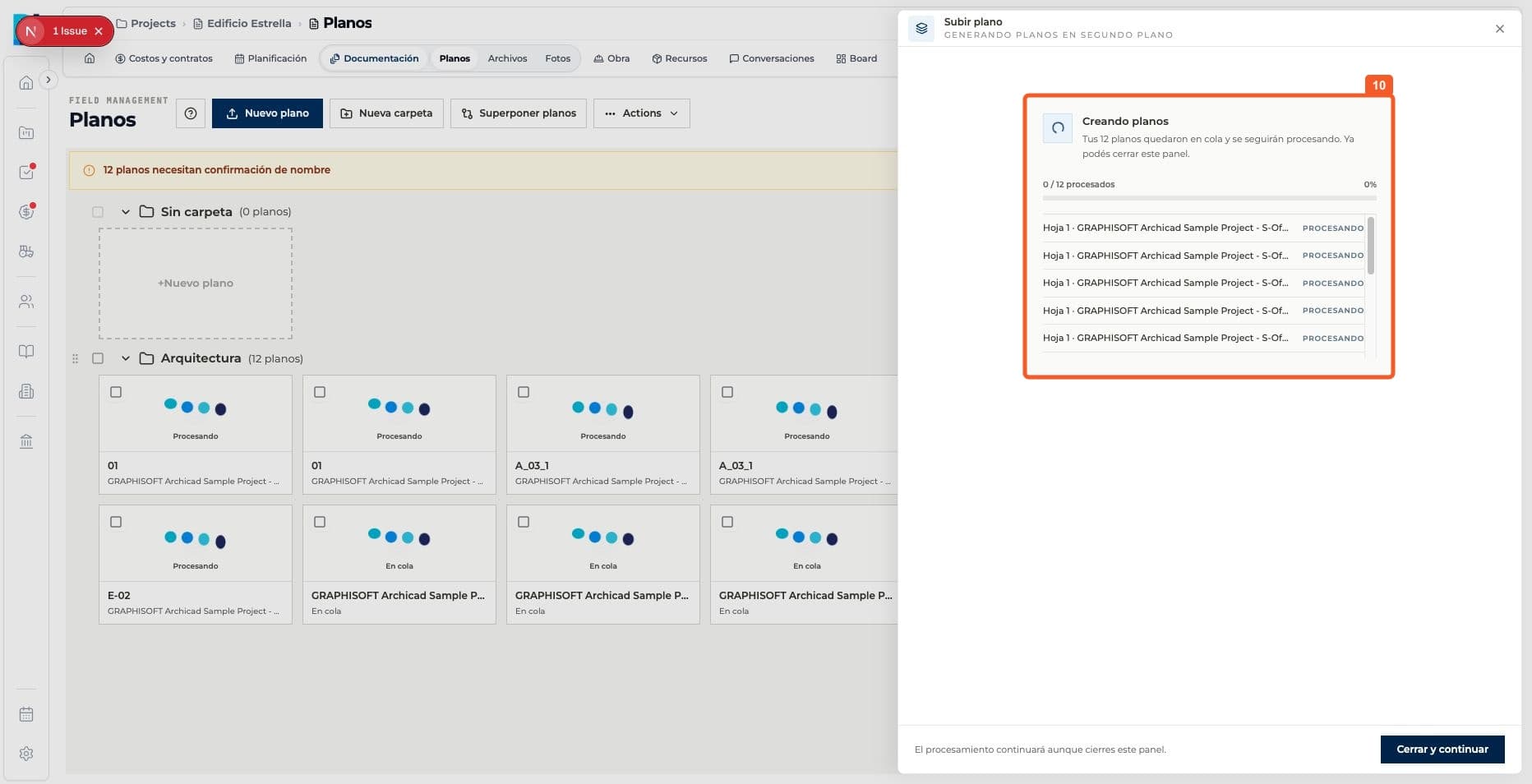
Wait for processing to finish.
- 07
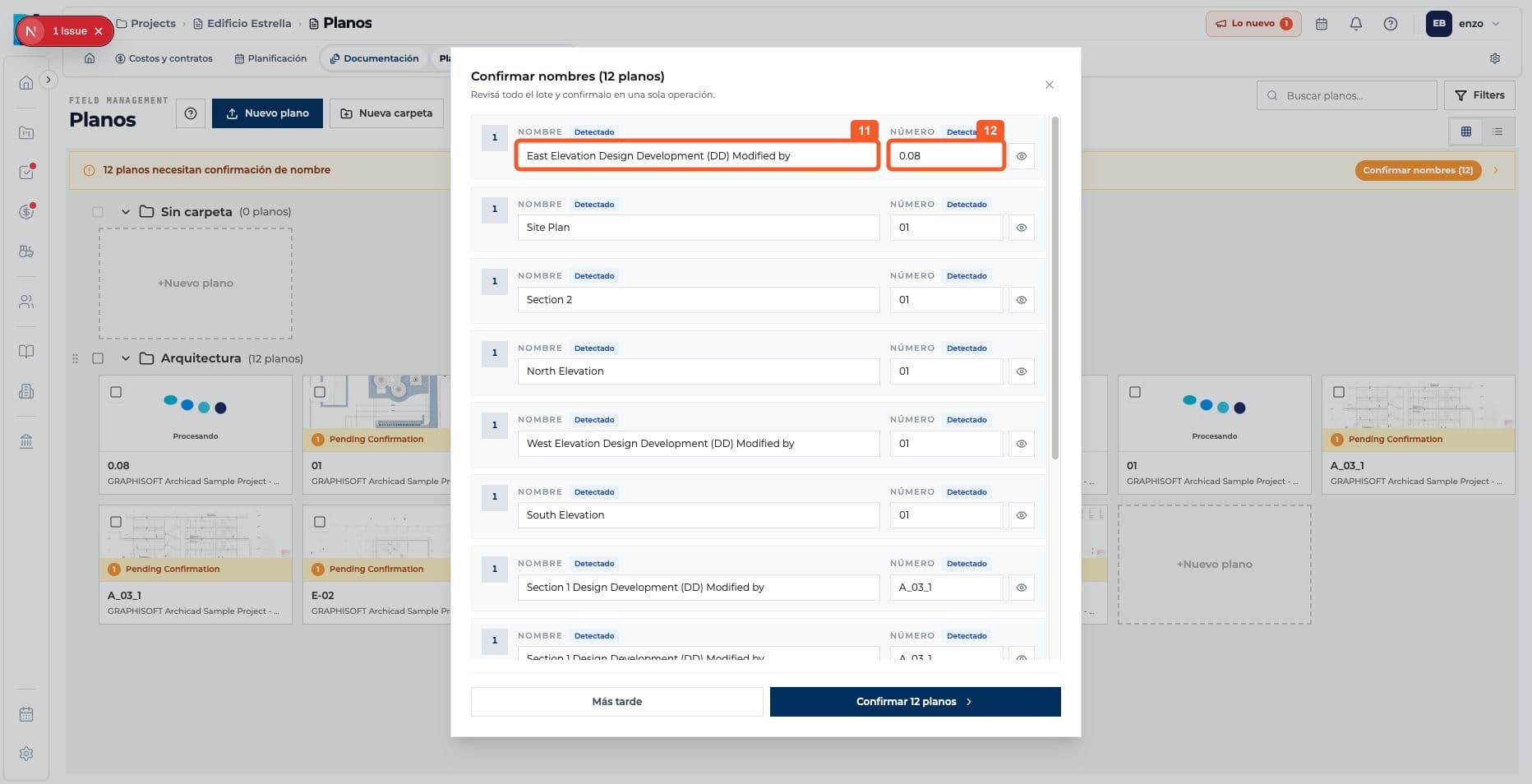
Review the detected names and sheet numbers.
- 08
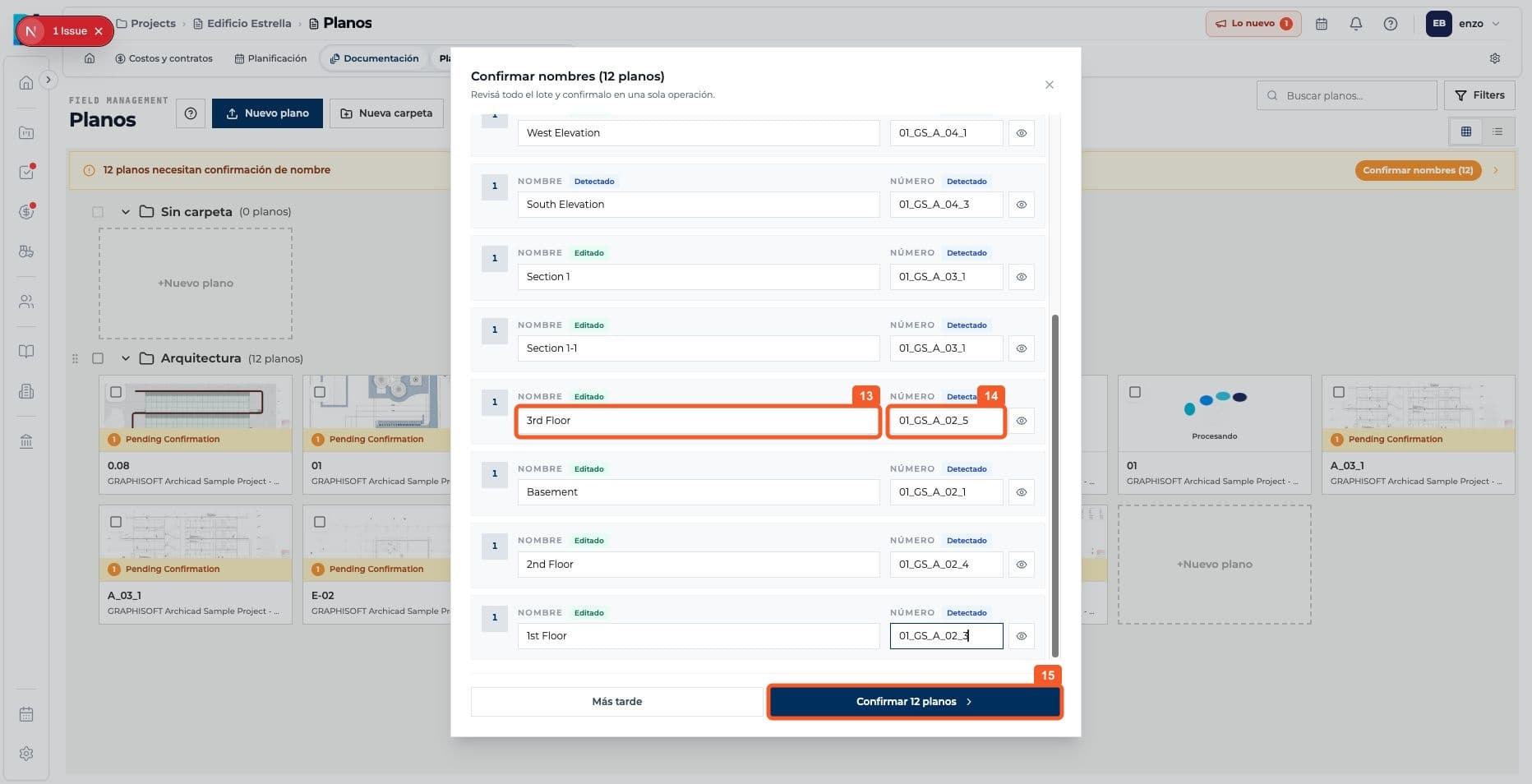
Correct sheet titles and codes before confirming.
- 09
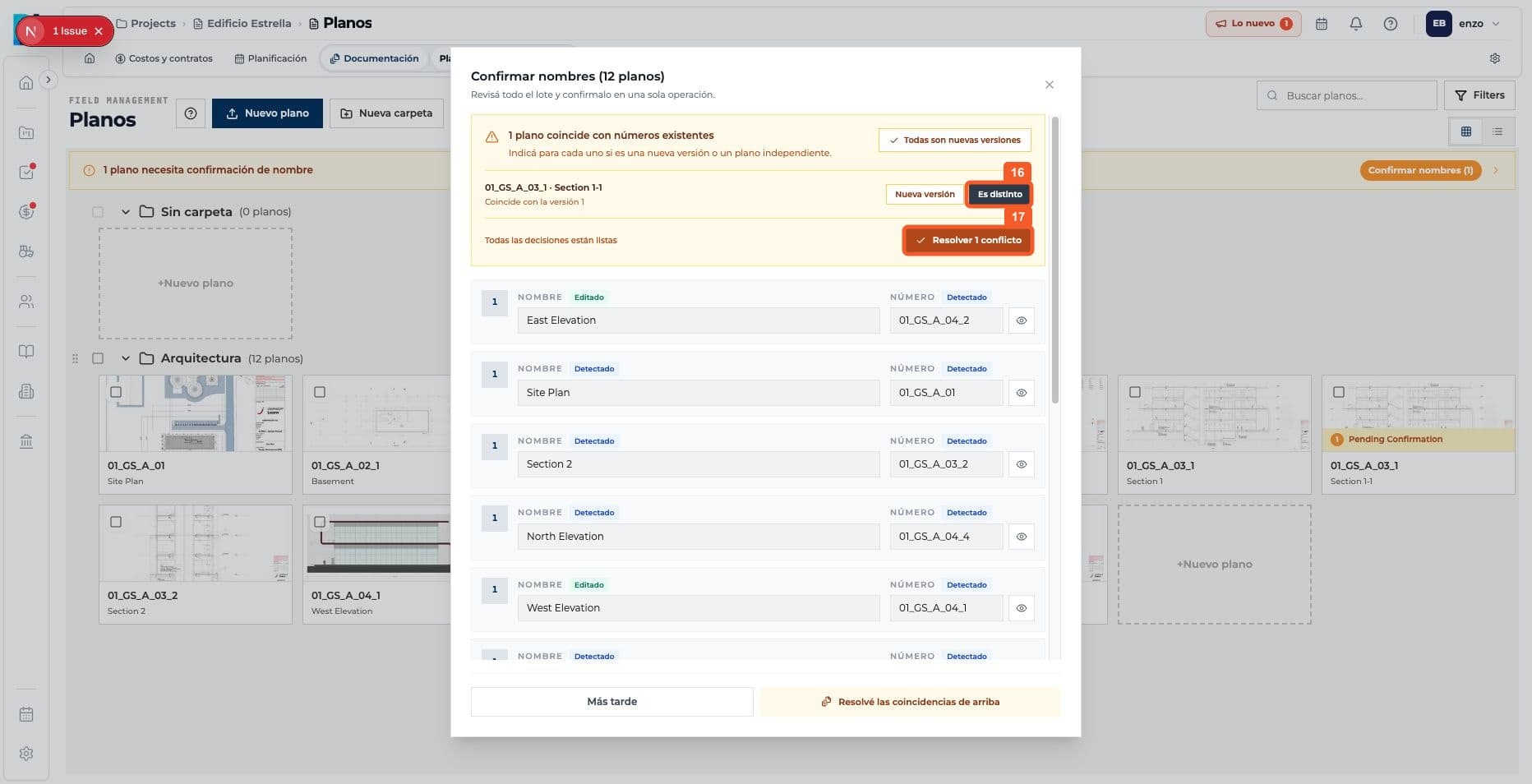
If a match is detected, review it and choose how to continue.
- 10
Check that the uploaded drawings appear in the folder.
Keep learning