Visual guide
Close a quality check
Check the closing conditions and move a finished quality check to Completed.
5 minutes
Step by step
Follow each step on screen
- 01
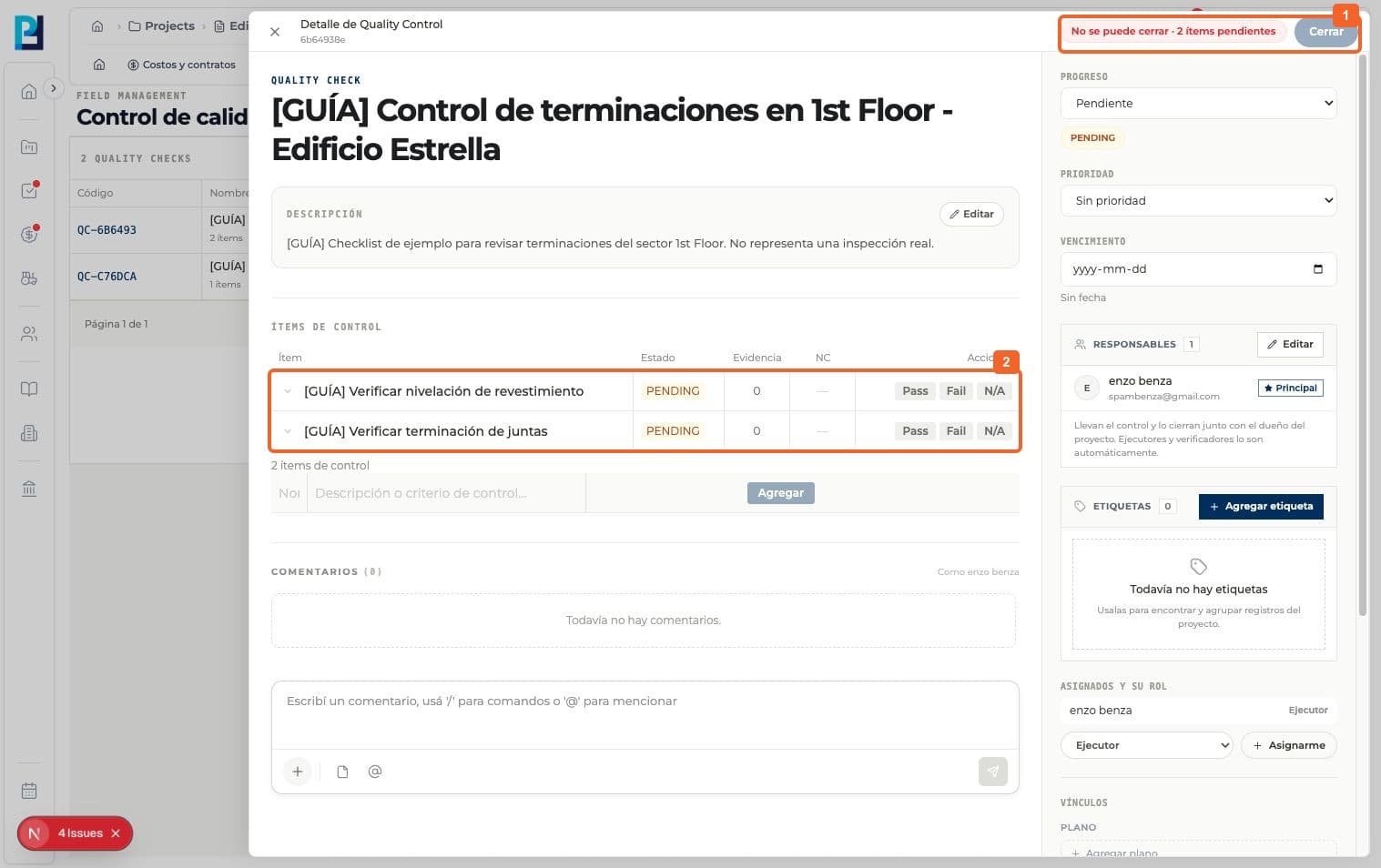
Open the check and read the header warning: Close is blocked while items are pending.
- 02
Identify the items that still need evaluation.
- 03
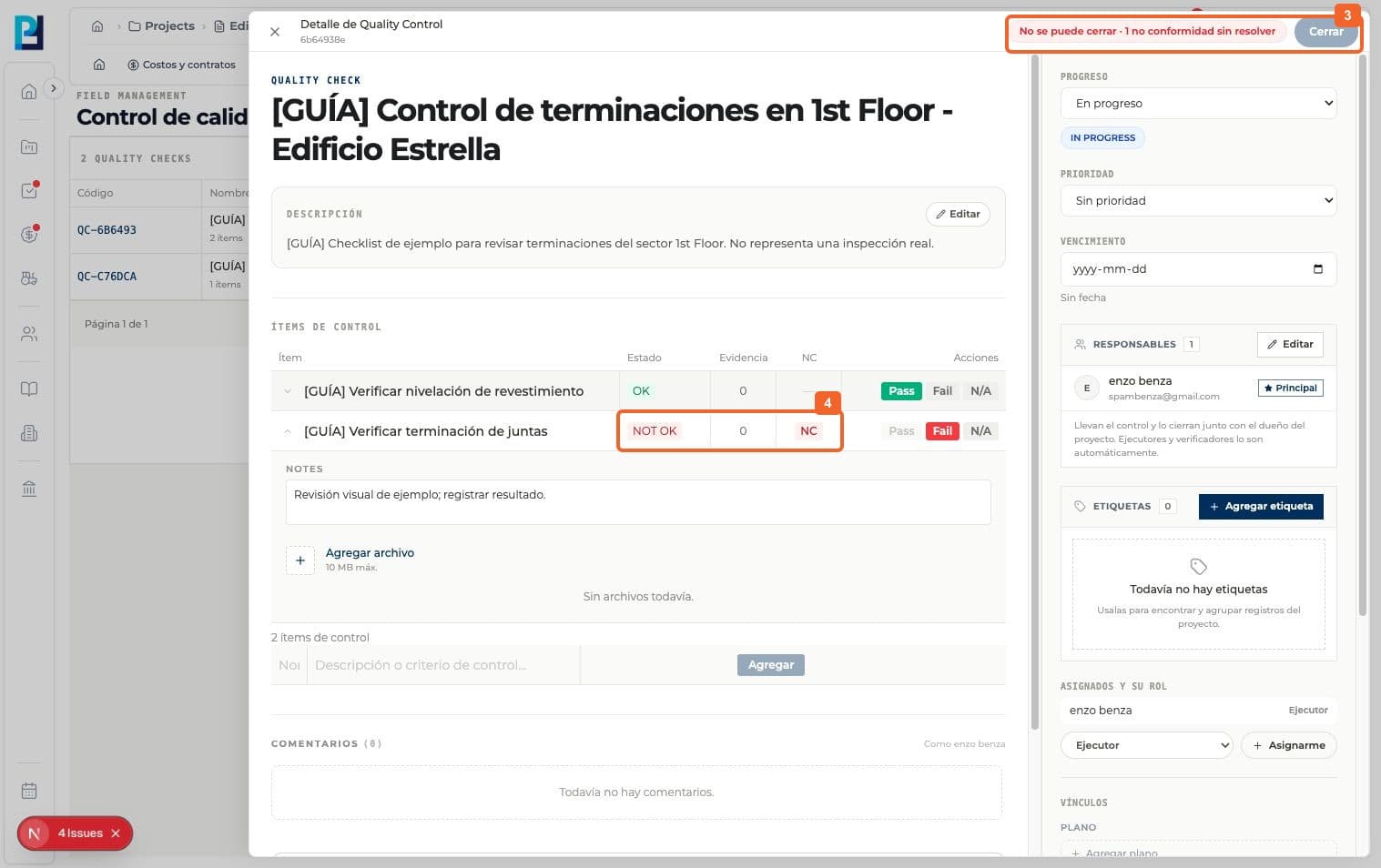
Resolve any linked nonconformity before closing. The header shows unresolved cases.
- 04
A failed item remains NOT OK until it is checked again; resolving the nonconformity does not change its result automatically.
- 05
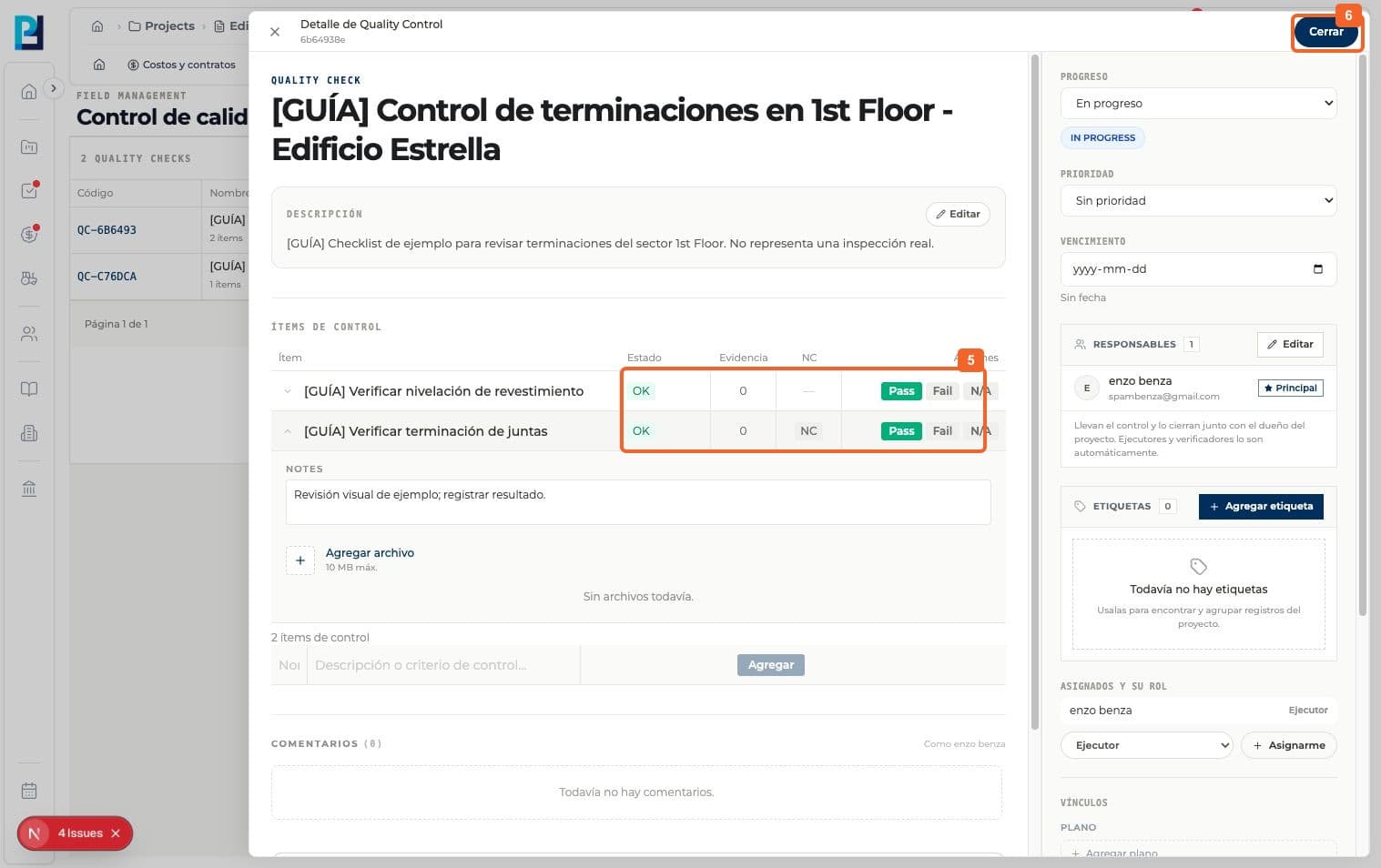
After verifying the correction, mark Pass and confirm every item is OK.
- 06
Select Close when it becomes available.
- 07
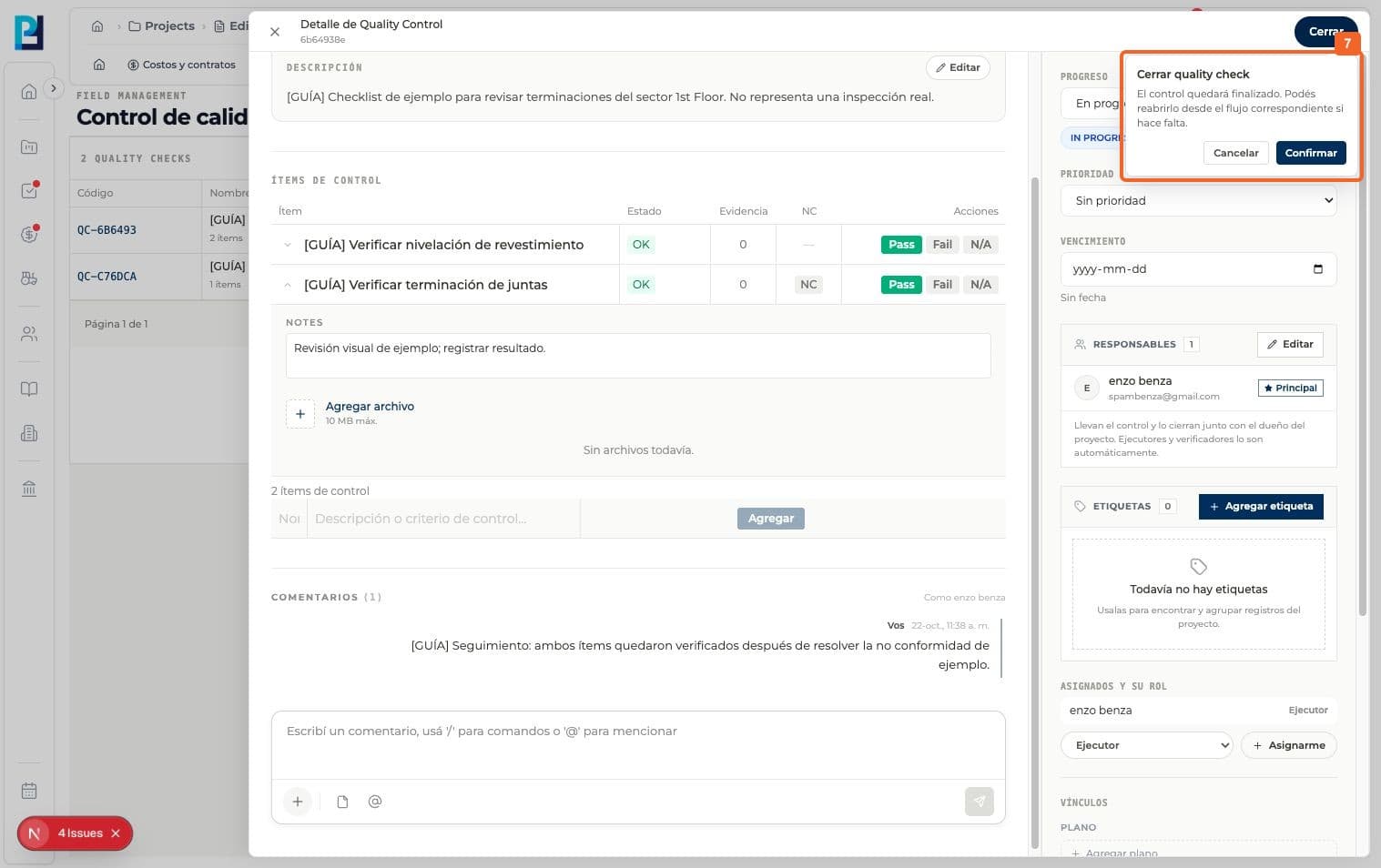
Read the confirmation and select Confirm.
- 08
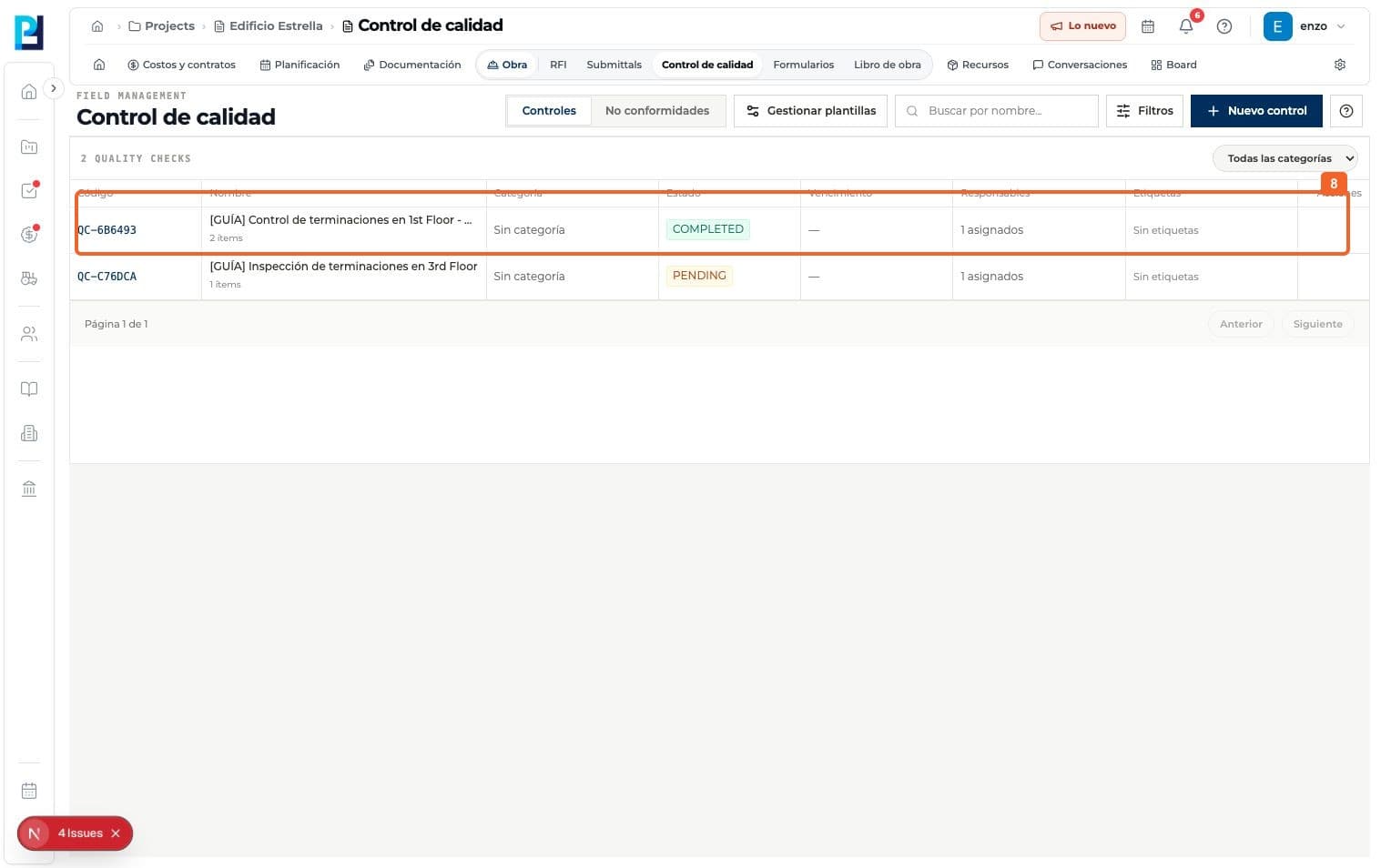
In the list, verify the check shows COMPLETED.
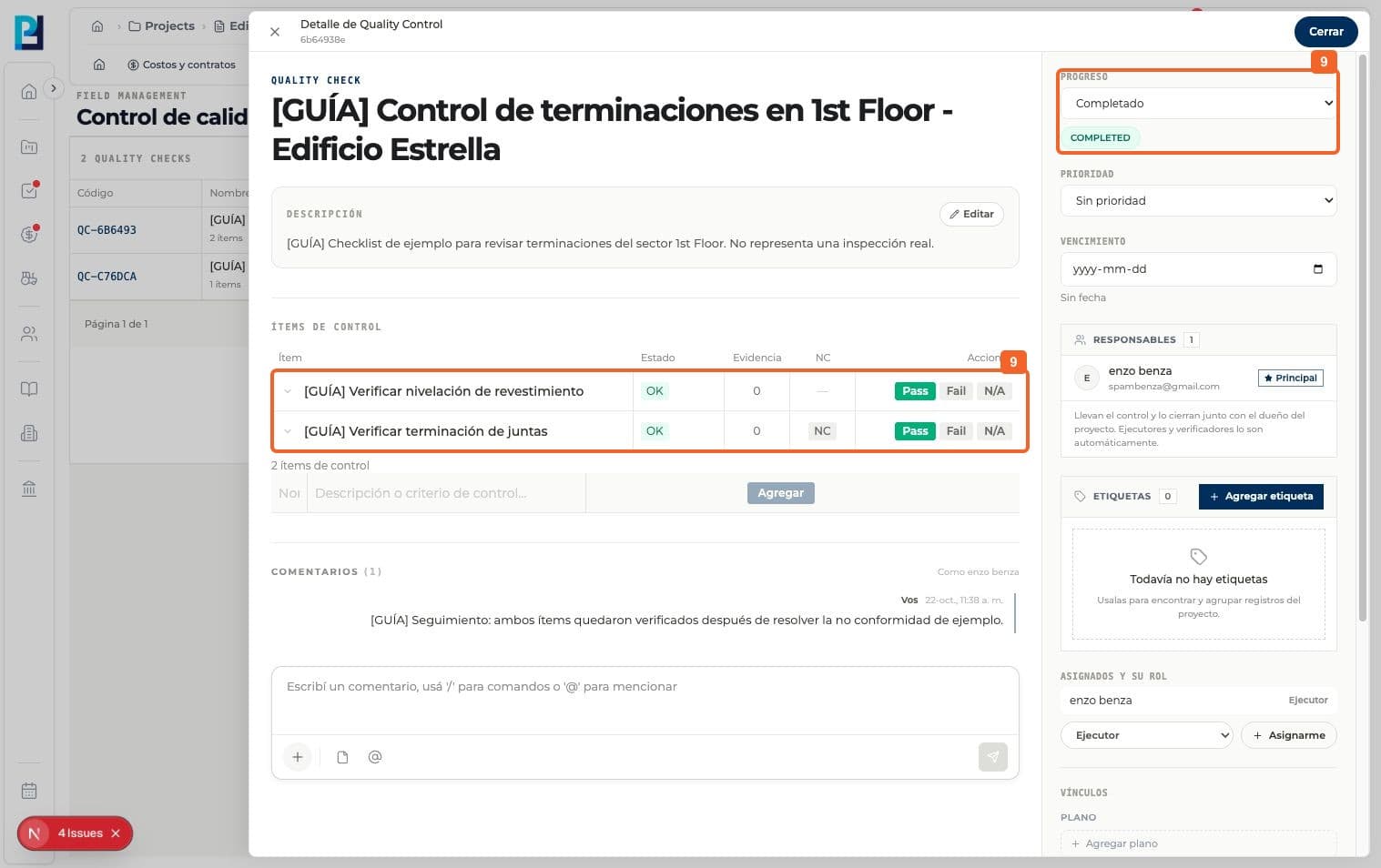
- 09
Open its detail and verify Completed / COMPLETED.
FAQ
Frequently asked questions
What was verified and what remains untested?+
The example was closed with two OK items and one resolved nonconformity. No evidence files were attached; check required evidence before closing a real case.