Visual guide
Create an RFI
Record a technical question, assign the person responsible for answering and leave the RFI Open.
6 minutes
Step by step
Follow each step on screen
- 01
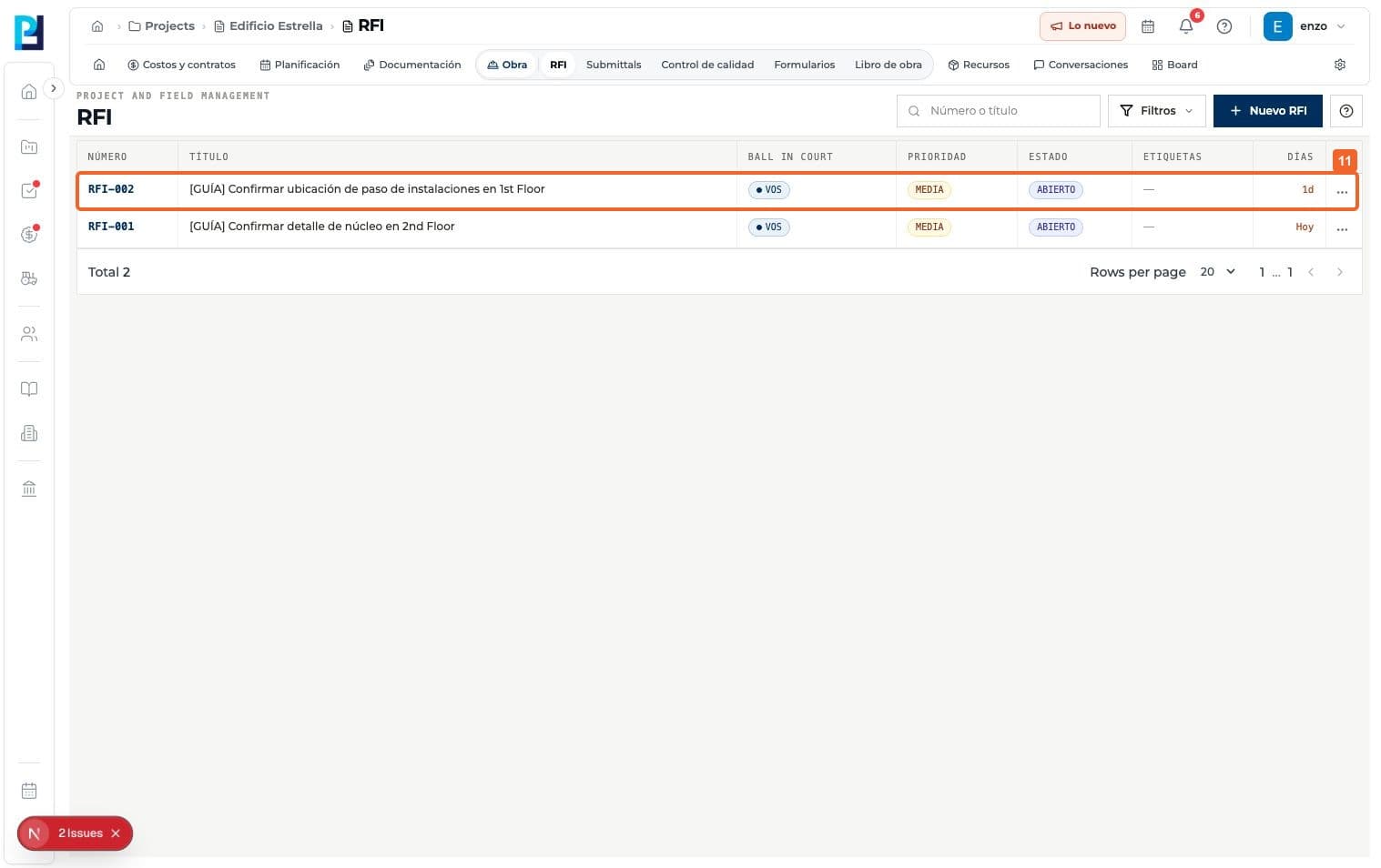
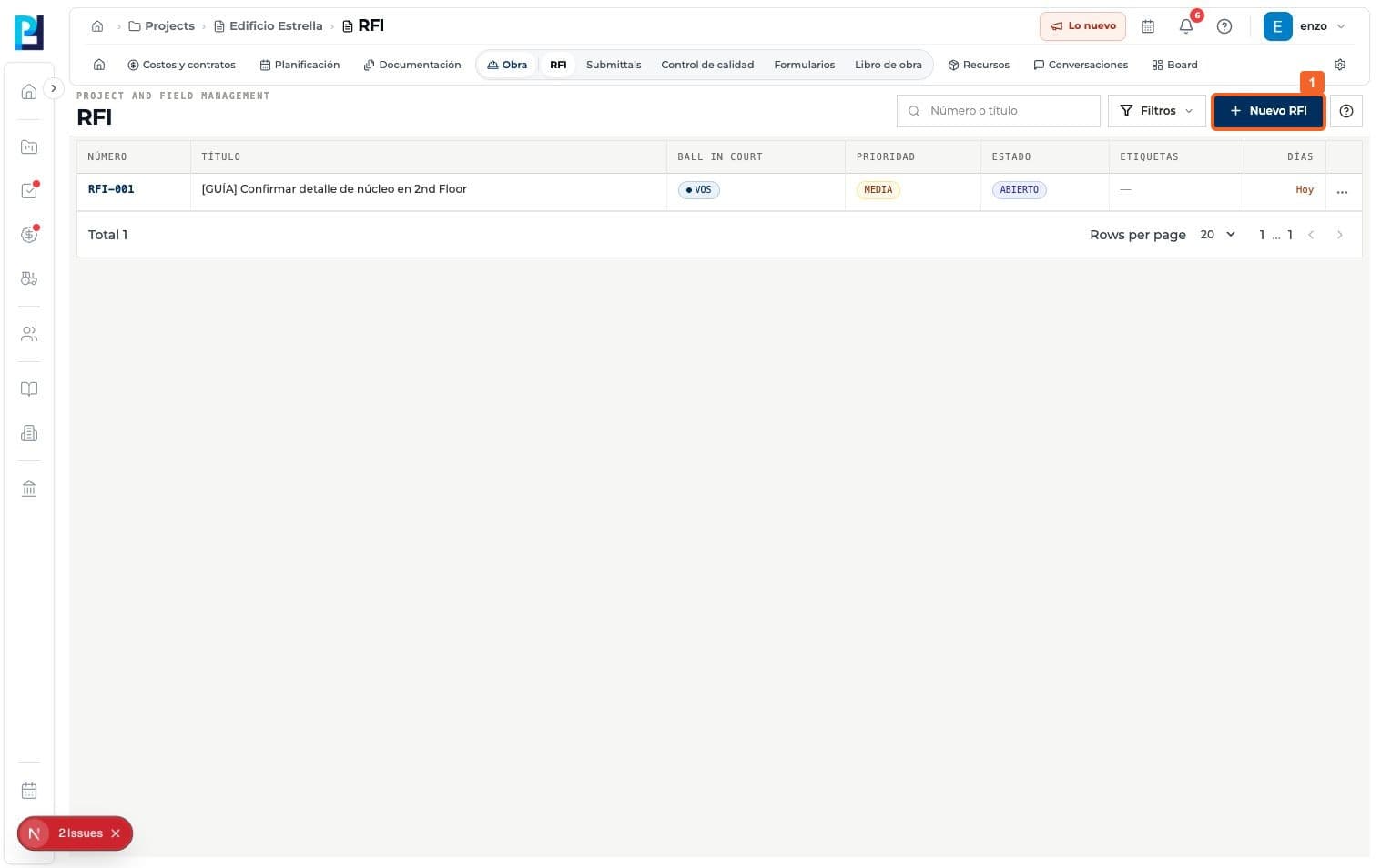
Open RFI in the project and select New RFI.
- 02
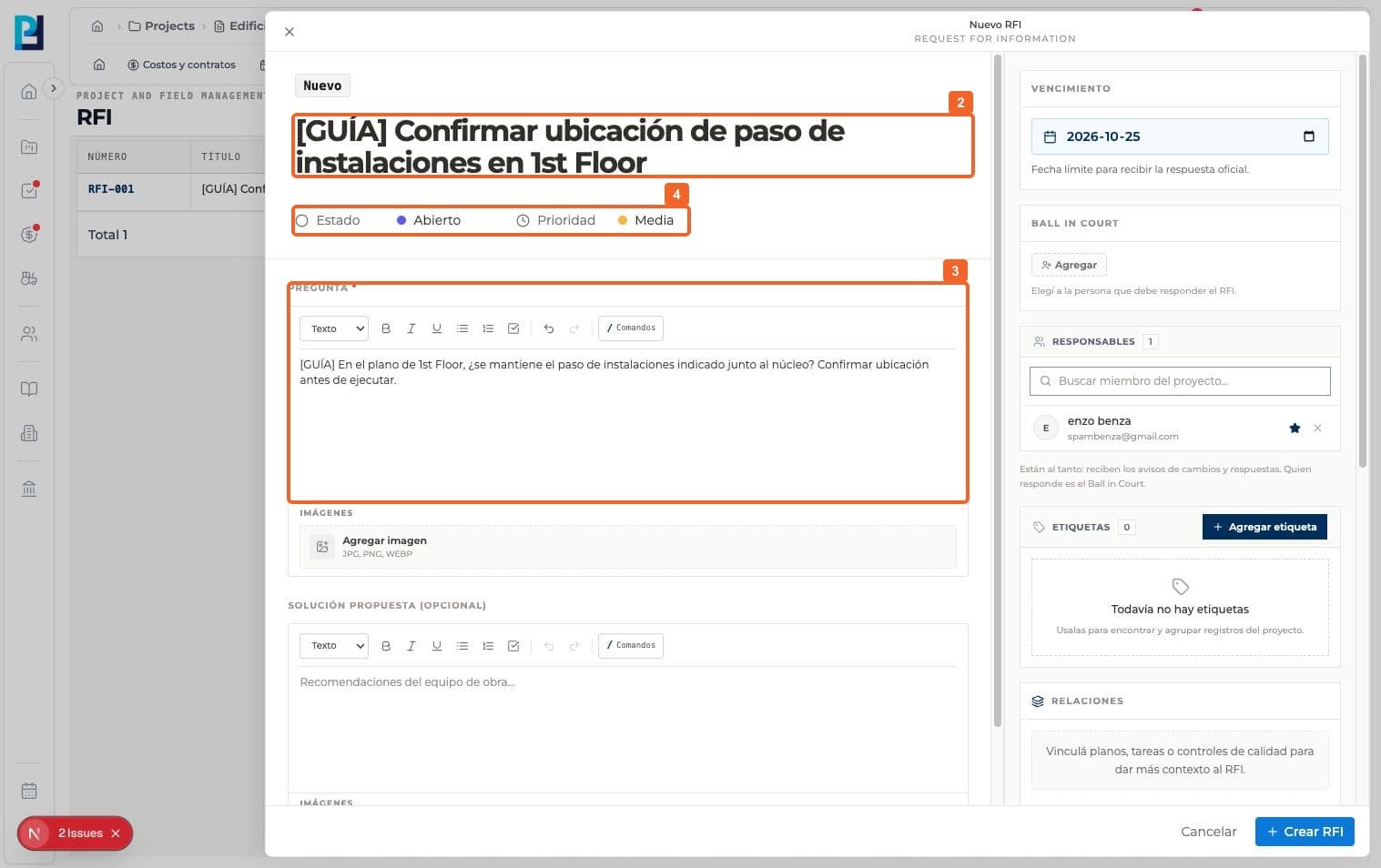
Enter a clear identifying title.
- 03
Enter the technical question. This field is required.
- 04
Review Status and Priority. The example kept Open and Medium.
- 05
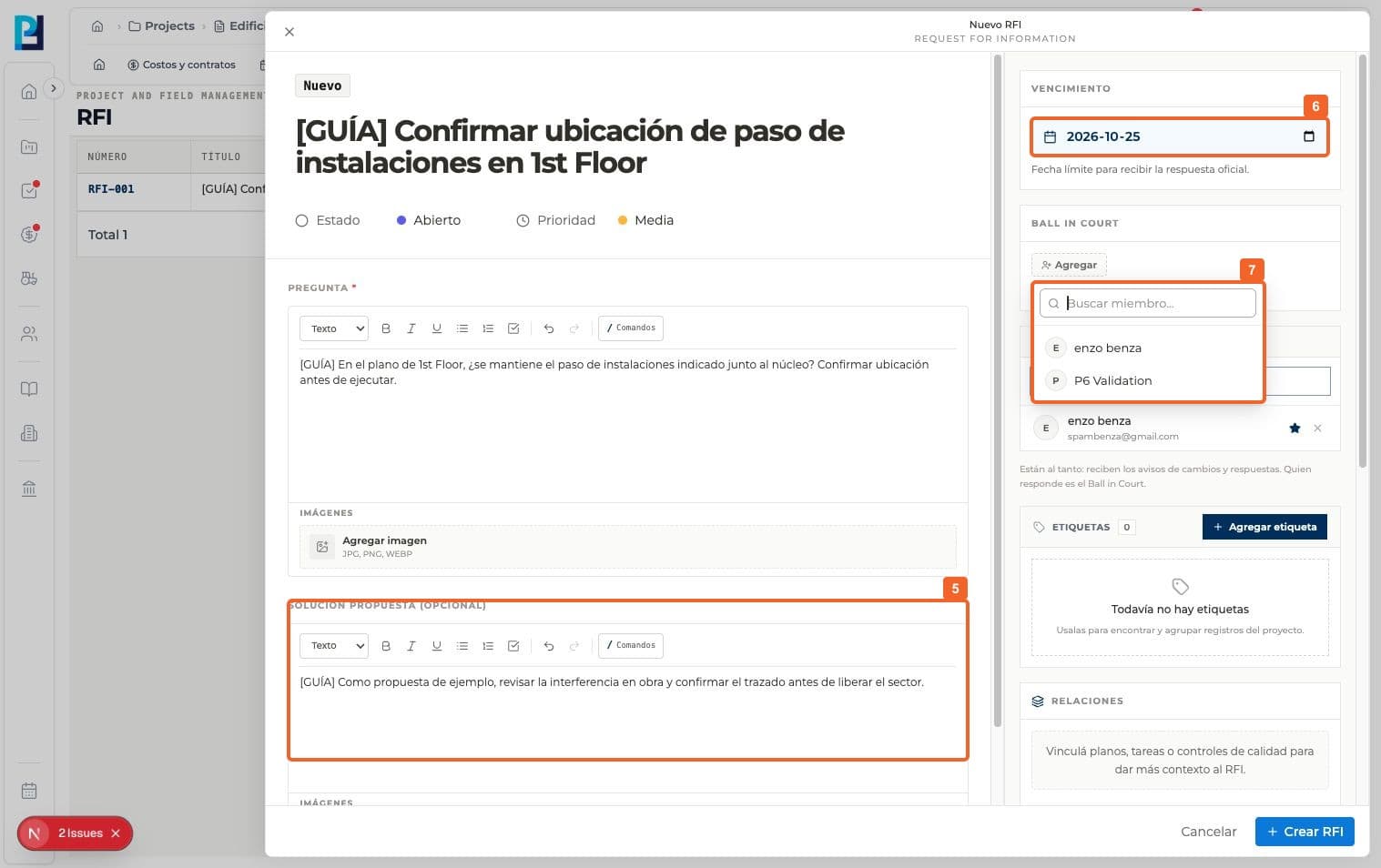
Optionally add a proposed solution. It is not the official answer.
- 06
Review the response due date.
- 07
Under Ball in Court, choose the required respondent. This differs from the people following the RFI.
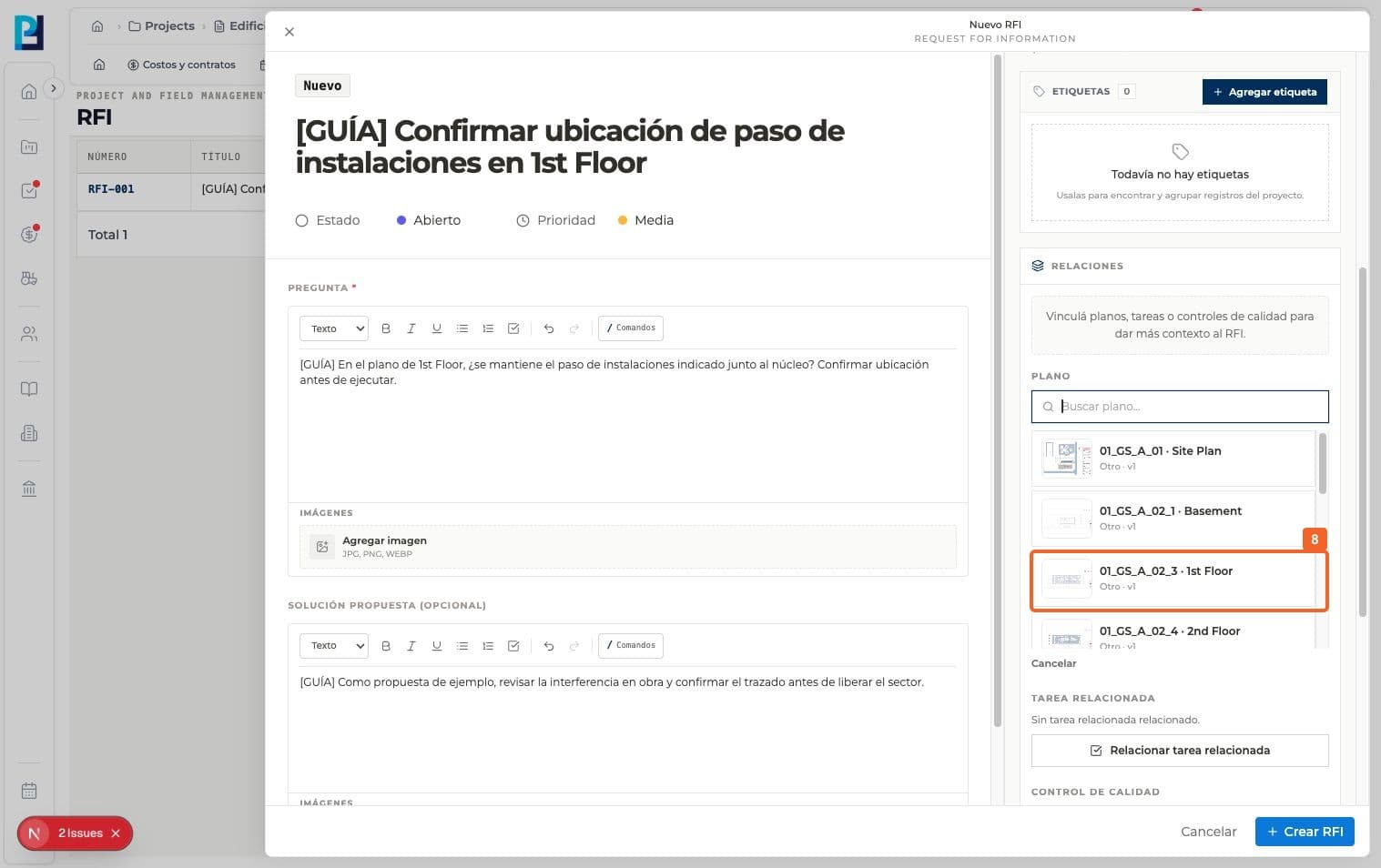
- 08
If relevant, link a drawing. The example selected 1st Floor.
- 09
Confirm the drawing appears under Relationships.
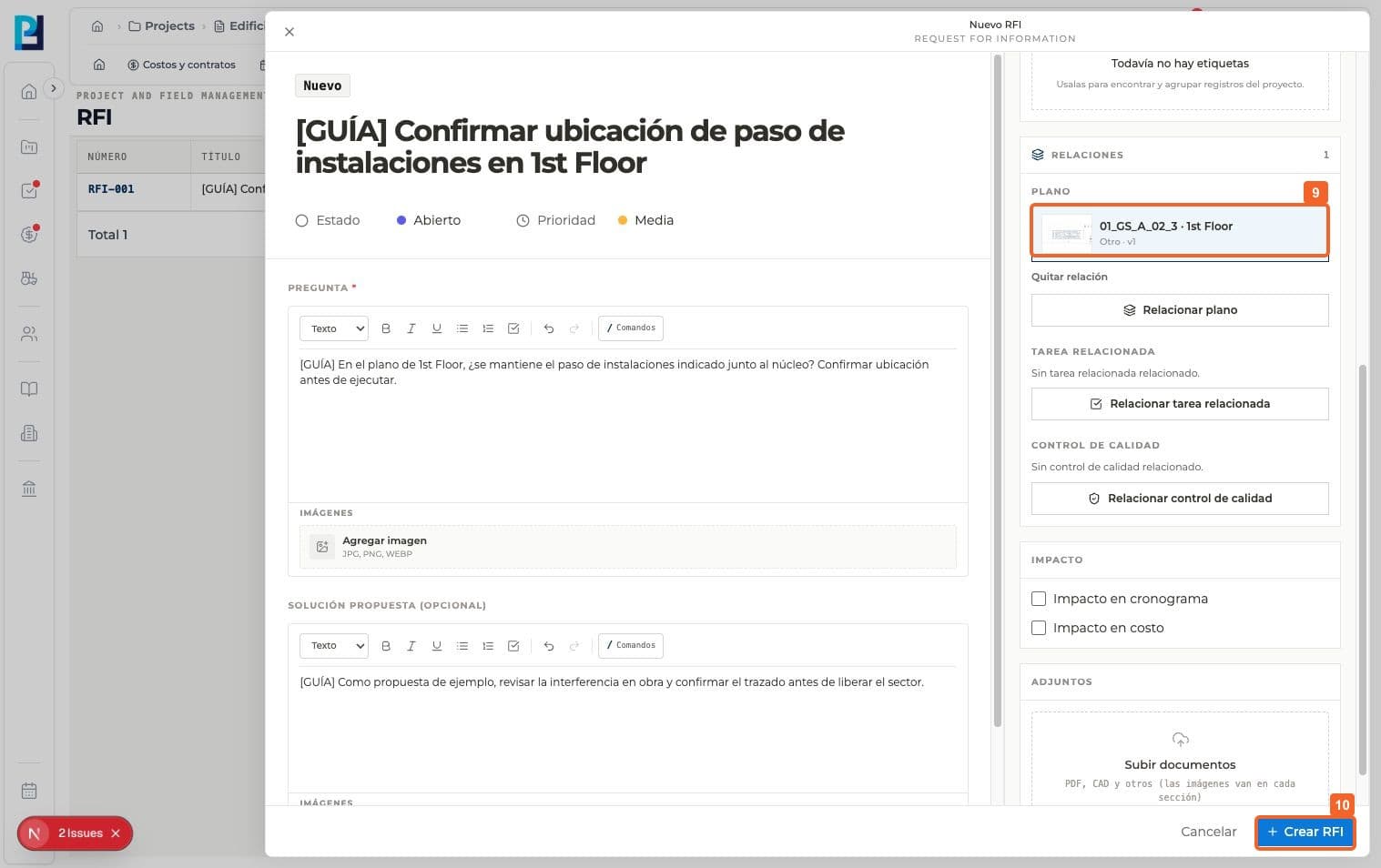
- 10
Select Create RFI.
- 11
Verify its number and Open status in the list.
FAQ
Frequently asked questions
What was verified and what remains untested?+
Attachments were not tested. The due date displayed on the form differed from the saved detail in this test and needs product review.