Visual guide
Create a technical submittal
Create a technical submittal in the project and leave it as Draft before review.
6 minutes
Step by step
Follow each step on screen
- 01
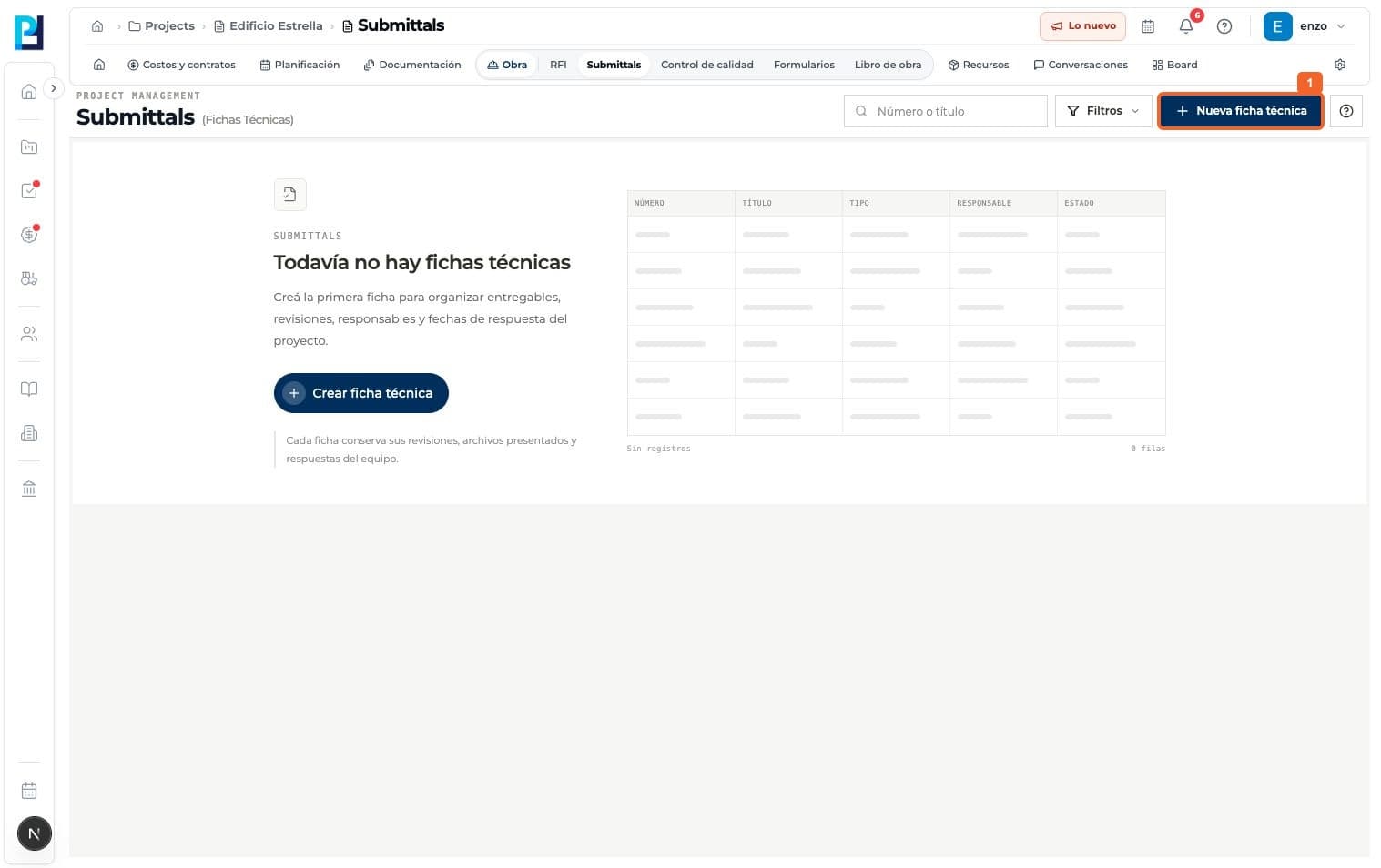
Open project Submittals and select New technical submittal.
- 02
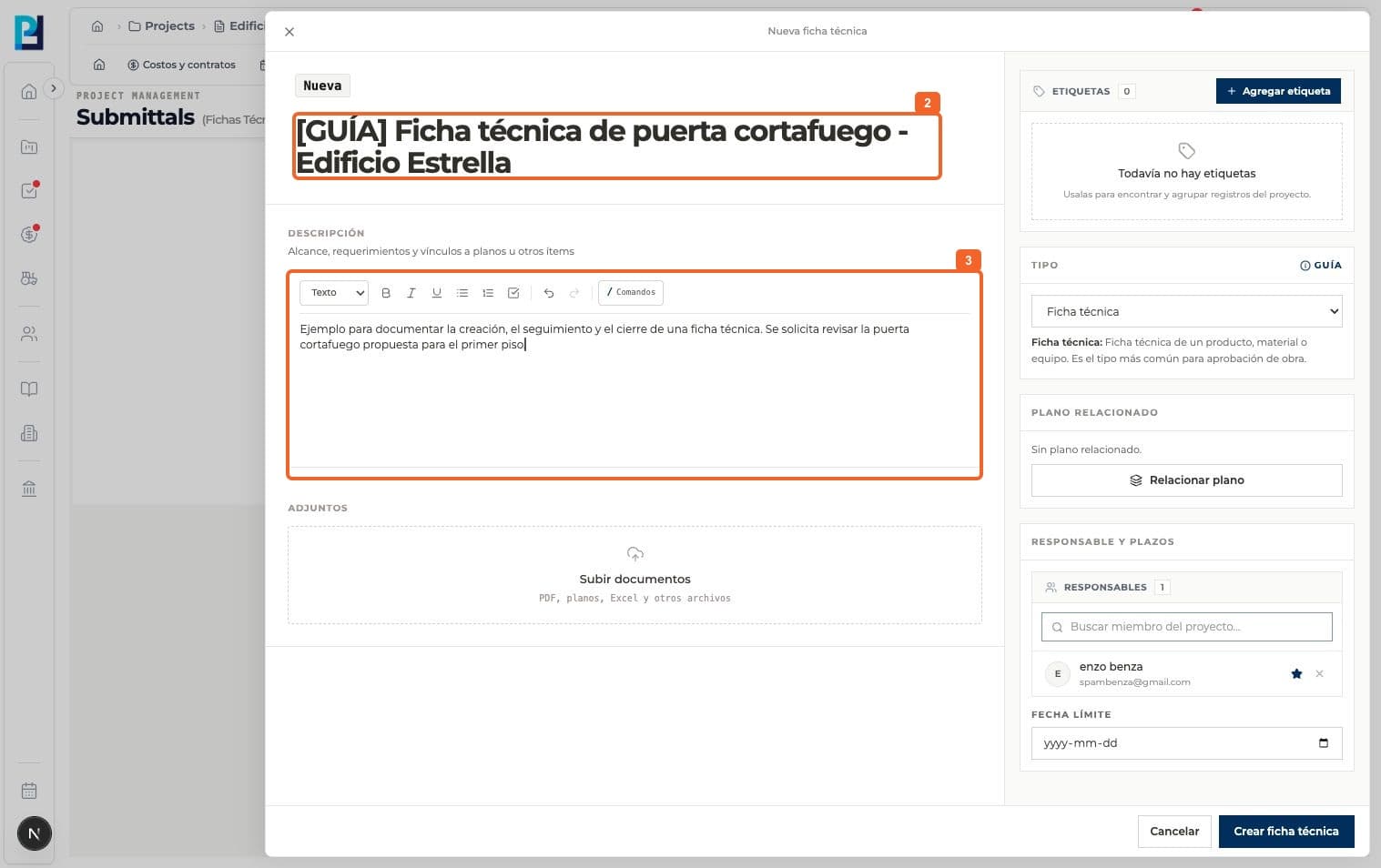
Enter a title identifying the product or document.
- 03
In Description, explain what the team should review.
- 04
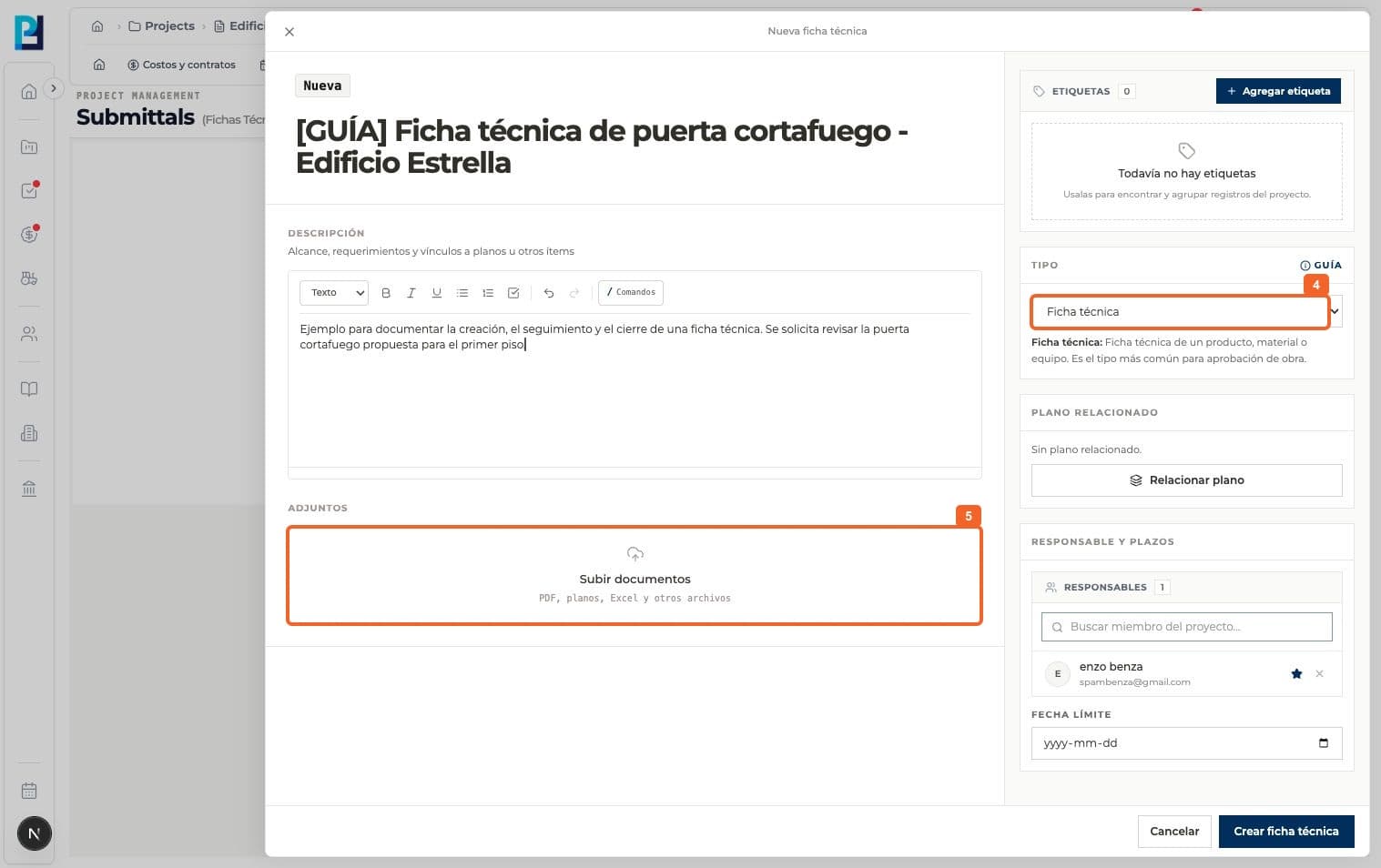
Select the submittal type. The example kept Technical data.
- 05
Optionally upload the technical document. No product file was uploaded in this test.
- 06
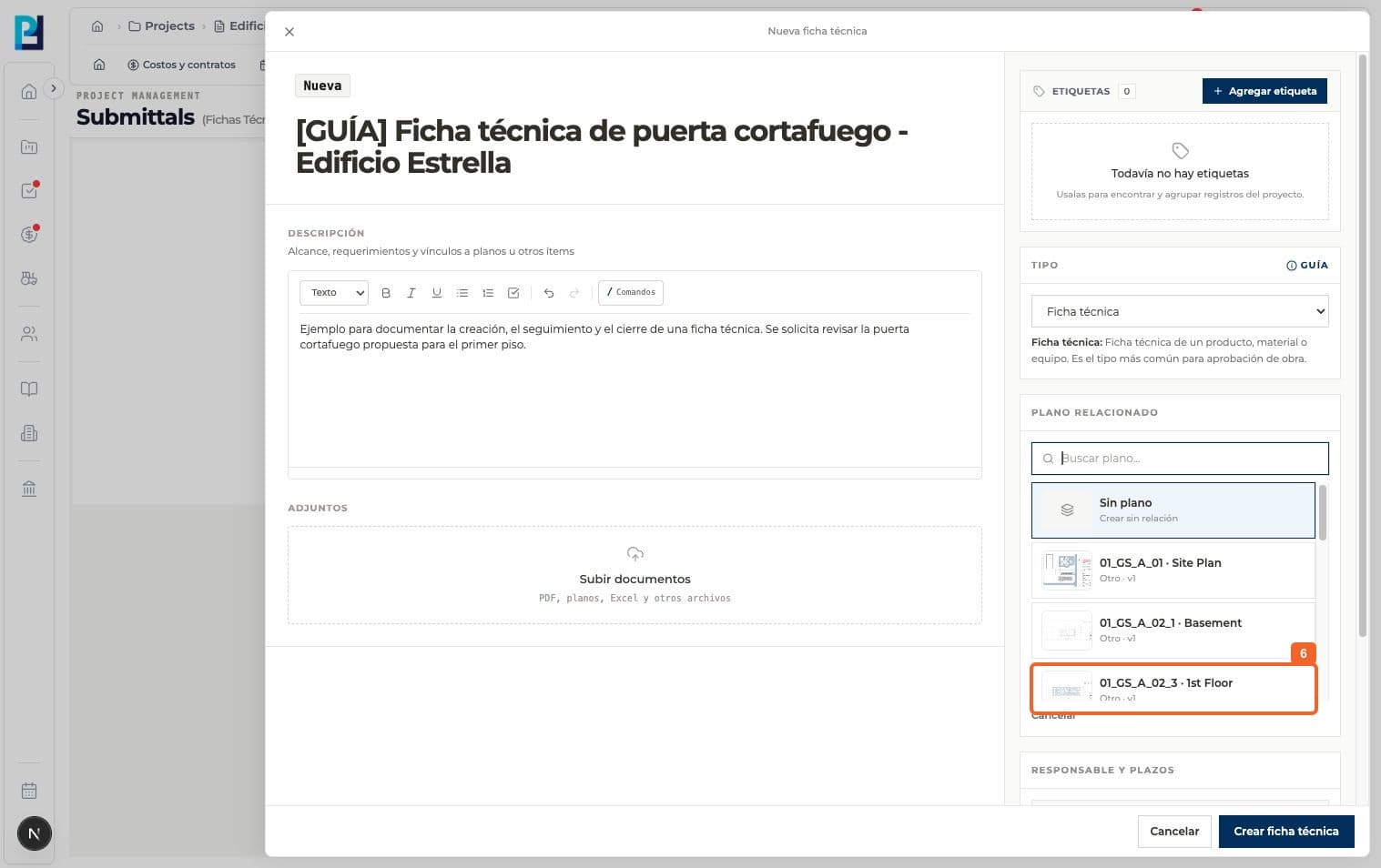
If relevant, link the drawing associated with the submittal.
- 07
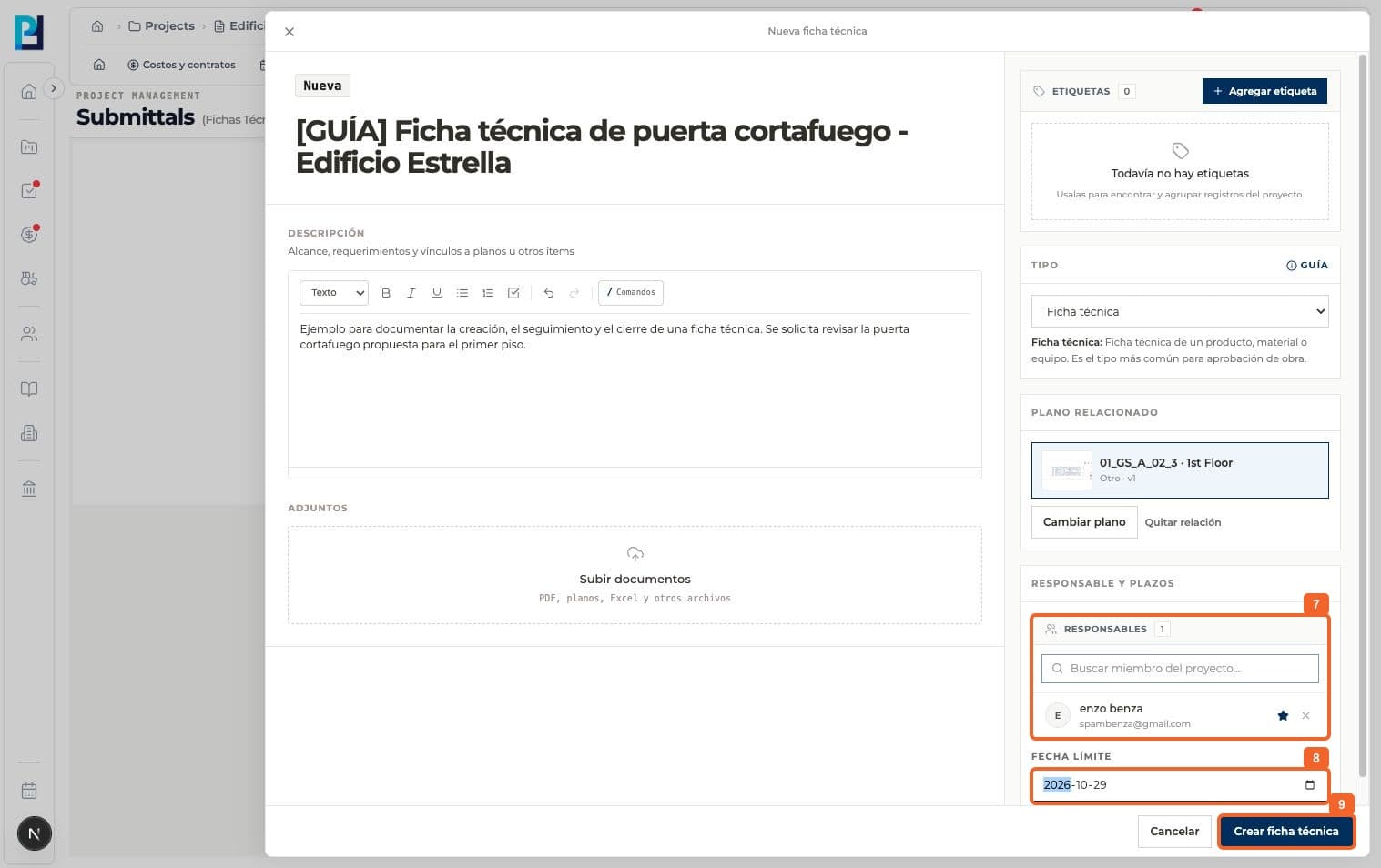
Review the owner. The creator is initially selected and can be changed.
- 08
Set a due date if needed.
- 09
Select Create technical submittal.
- 10
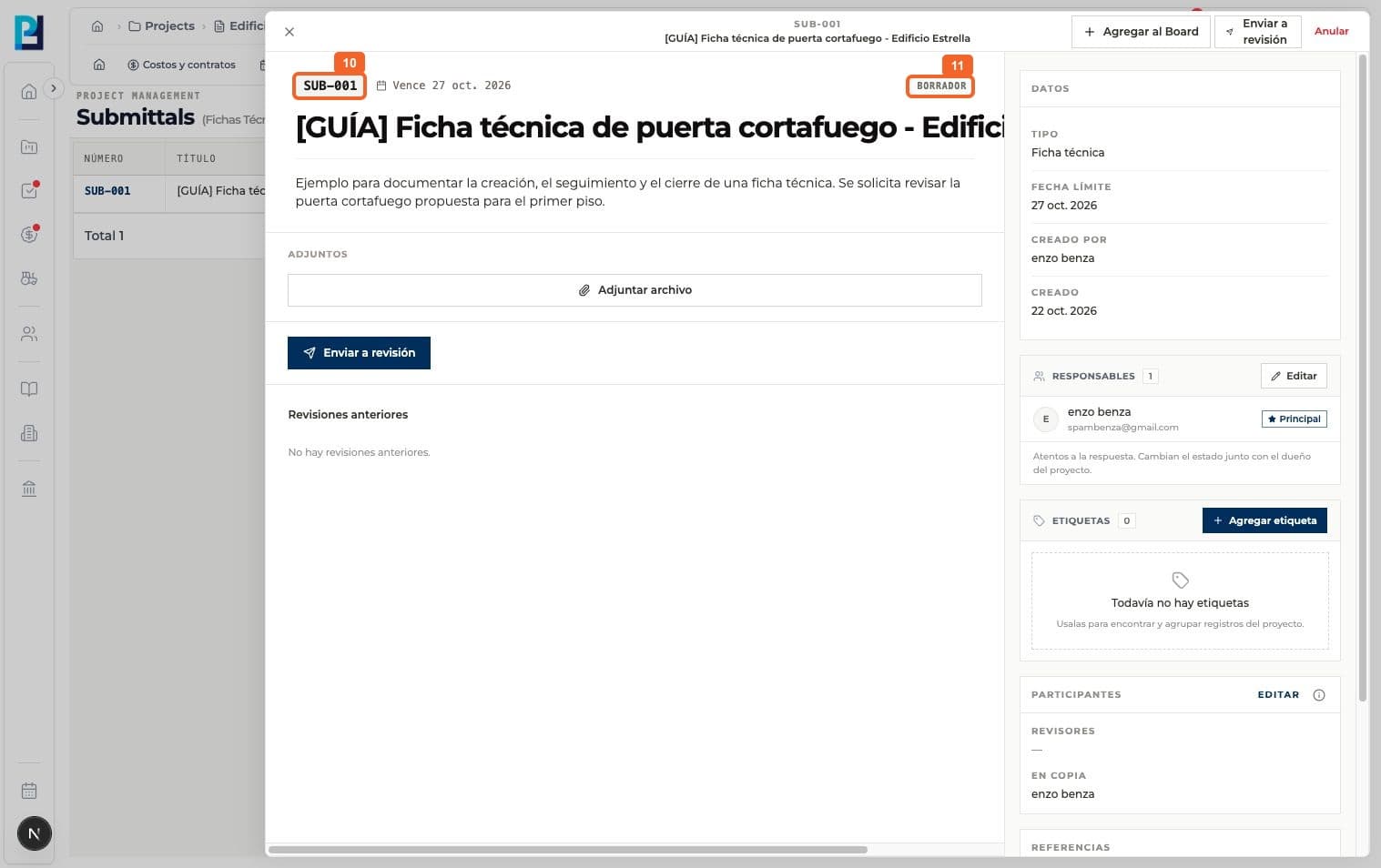
Verify a submittal number was generated.
- 11
Confirm Draft status: it has not yet been sent for review.
FAQ
Frequently asked questions
What was verified and what remains untested?+
The submittal was created as a draft. Uploading a product file and sending it for review were not part of this walkthrough.