Visual guide
Follow a technical submittal
Find a submittal, send it for review, check who must respond and manage a requested correction and new revision.
9 minutes
Step by step
Follow each step on screen
- 01
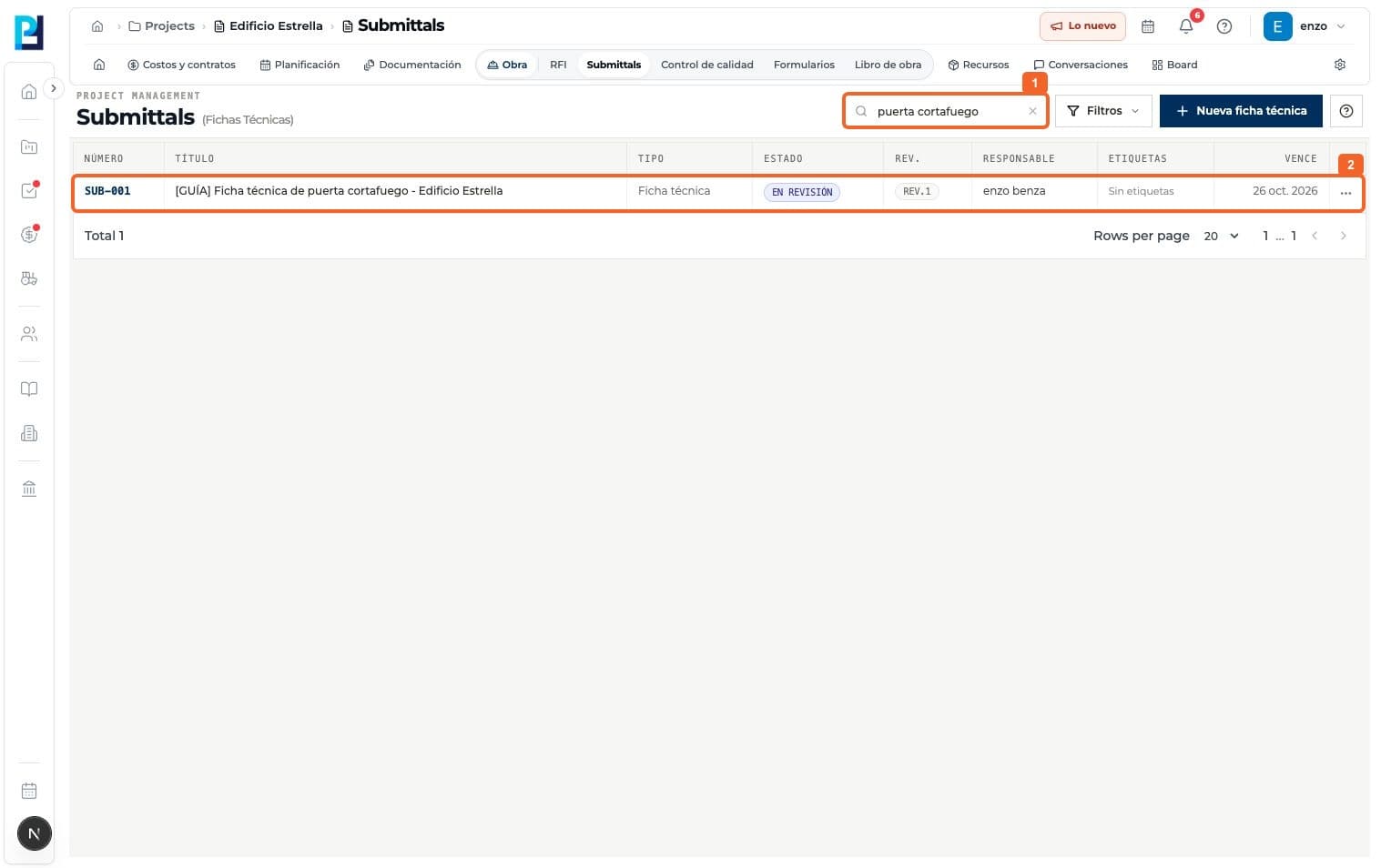
Search Submittals by number or title.
- 02
Open the result to inspect its detail.
- 03
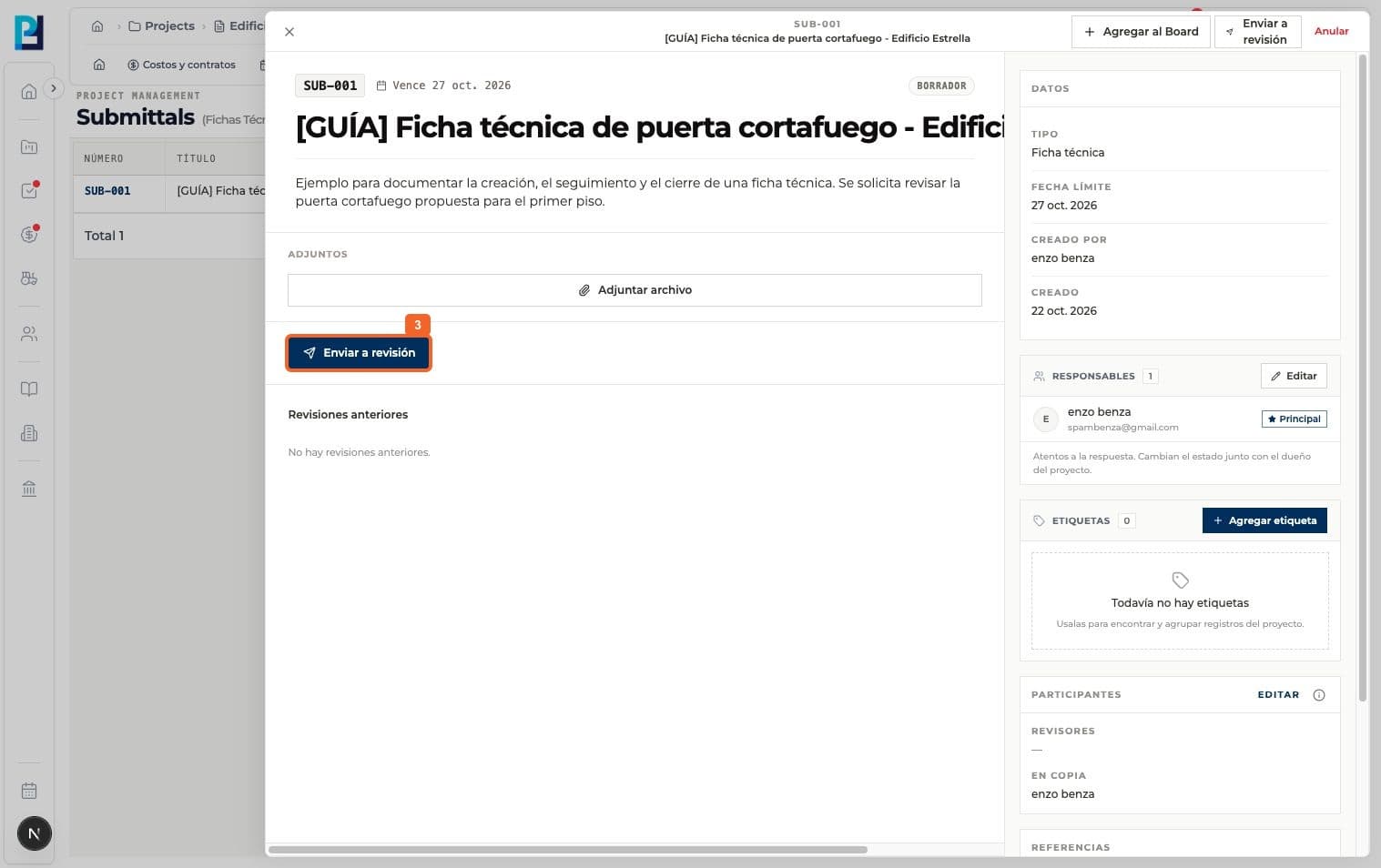
If it is Draft, select Send for review.
- 04
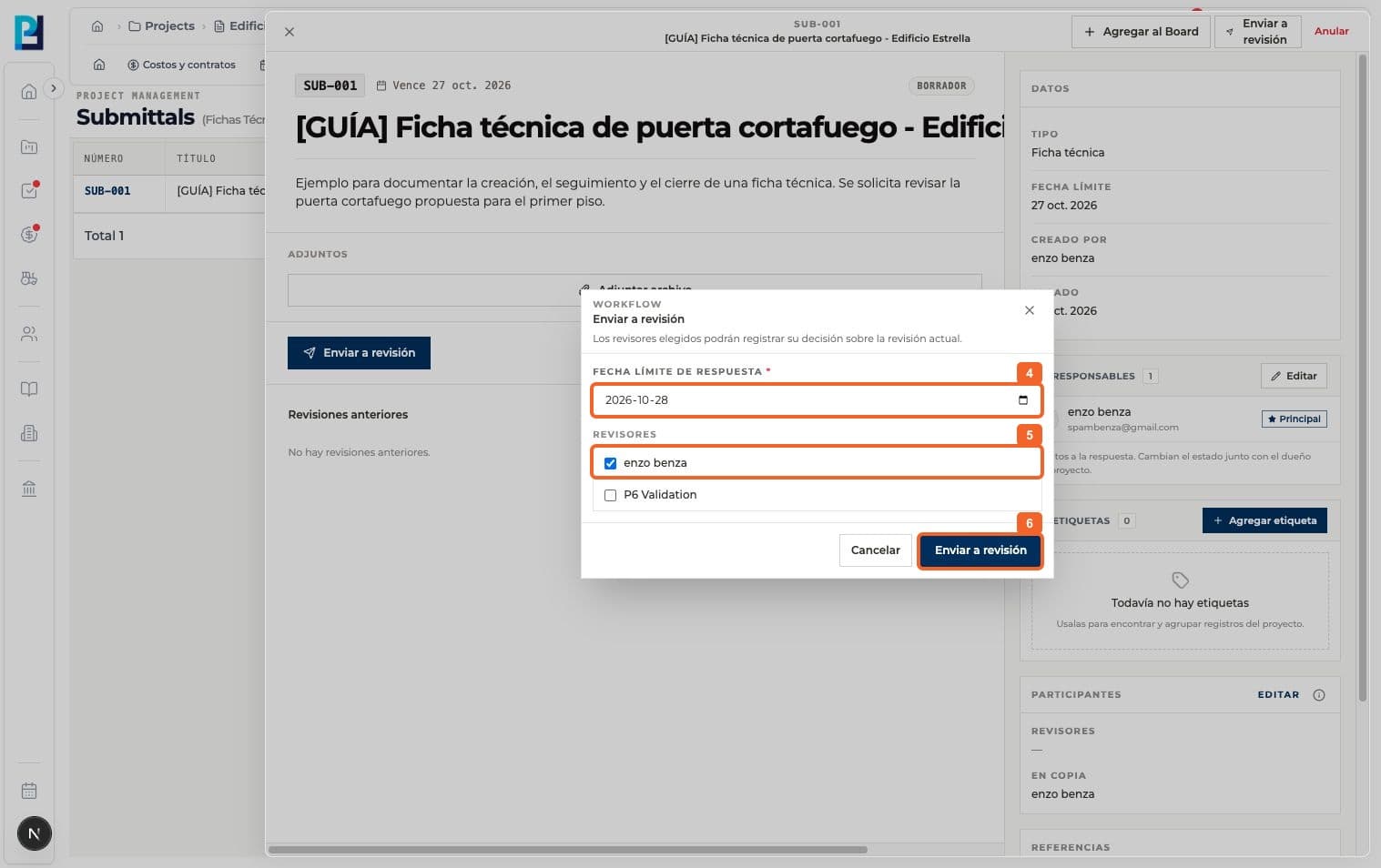
Set the response due date.
- 05
Choose at least one reviewer. Being an owner does not automatically grant official response permission.
- 06
Confirm Send for review.
- 07
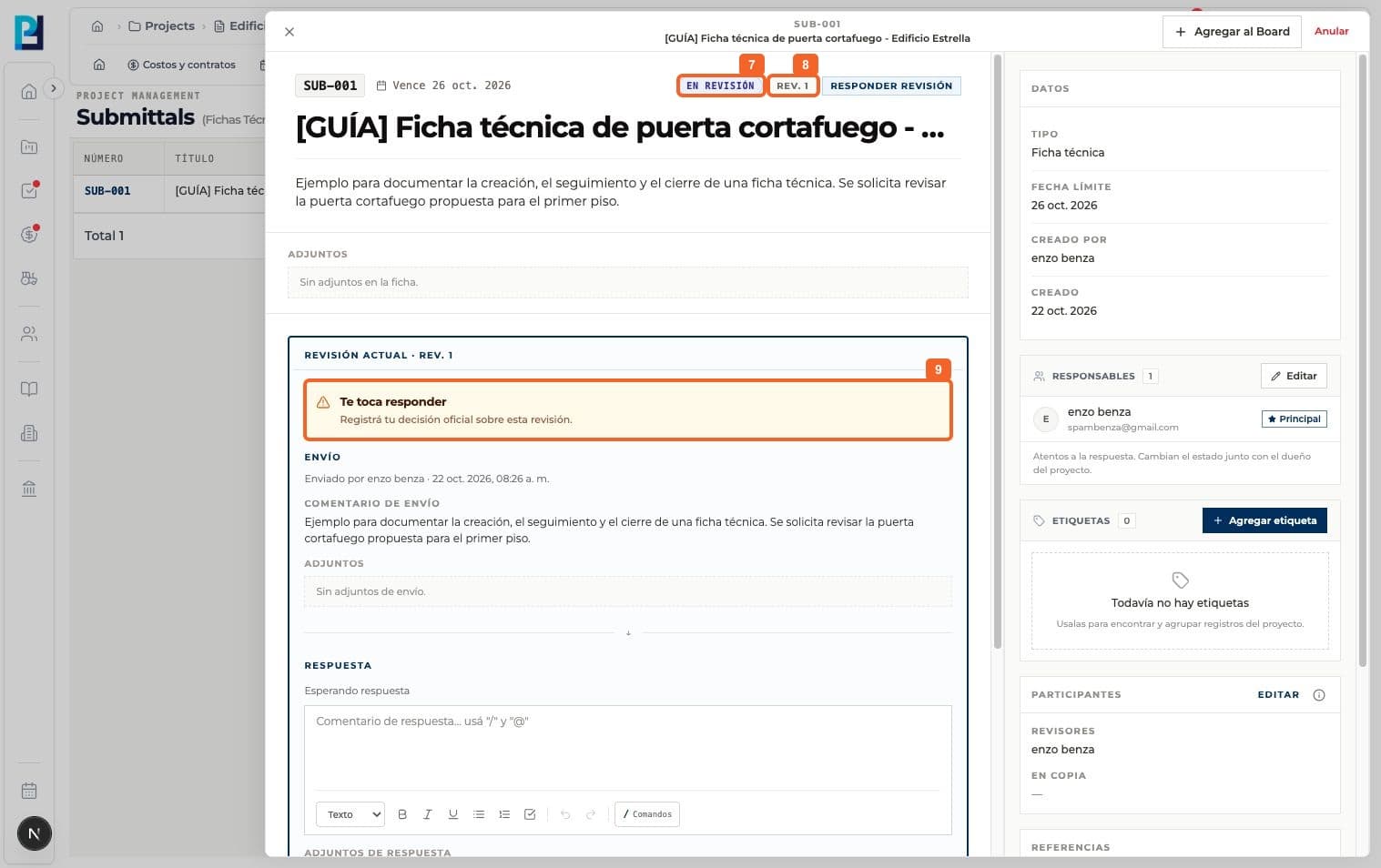
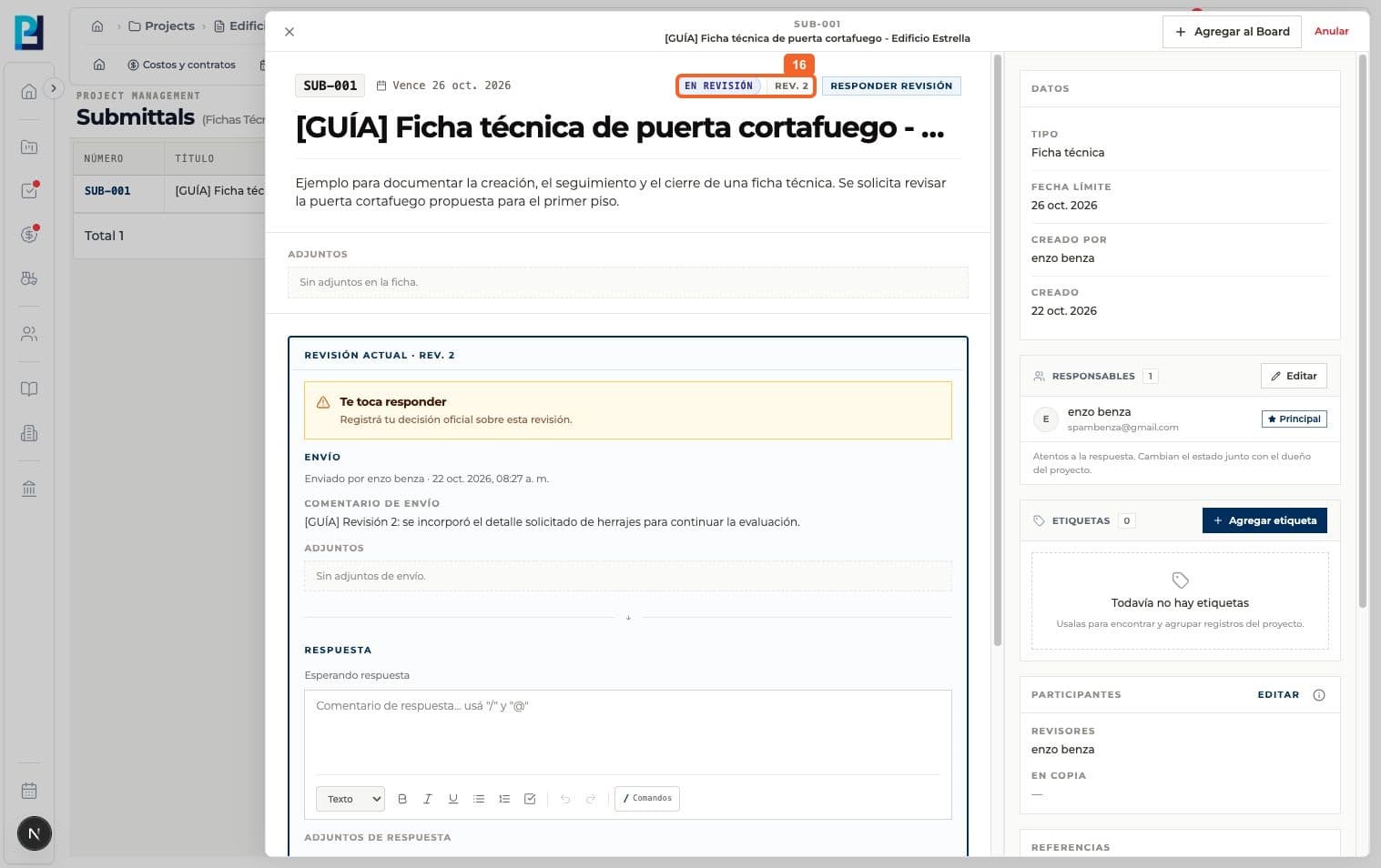
Verify In review status.
- 08
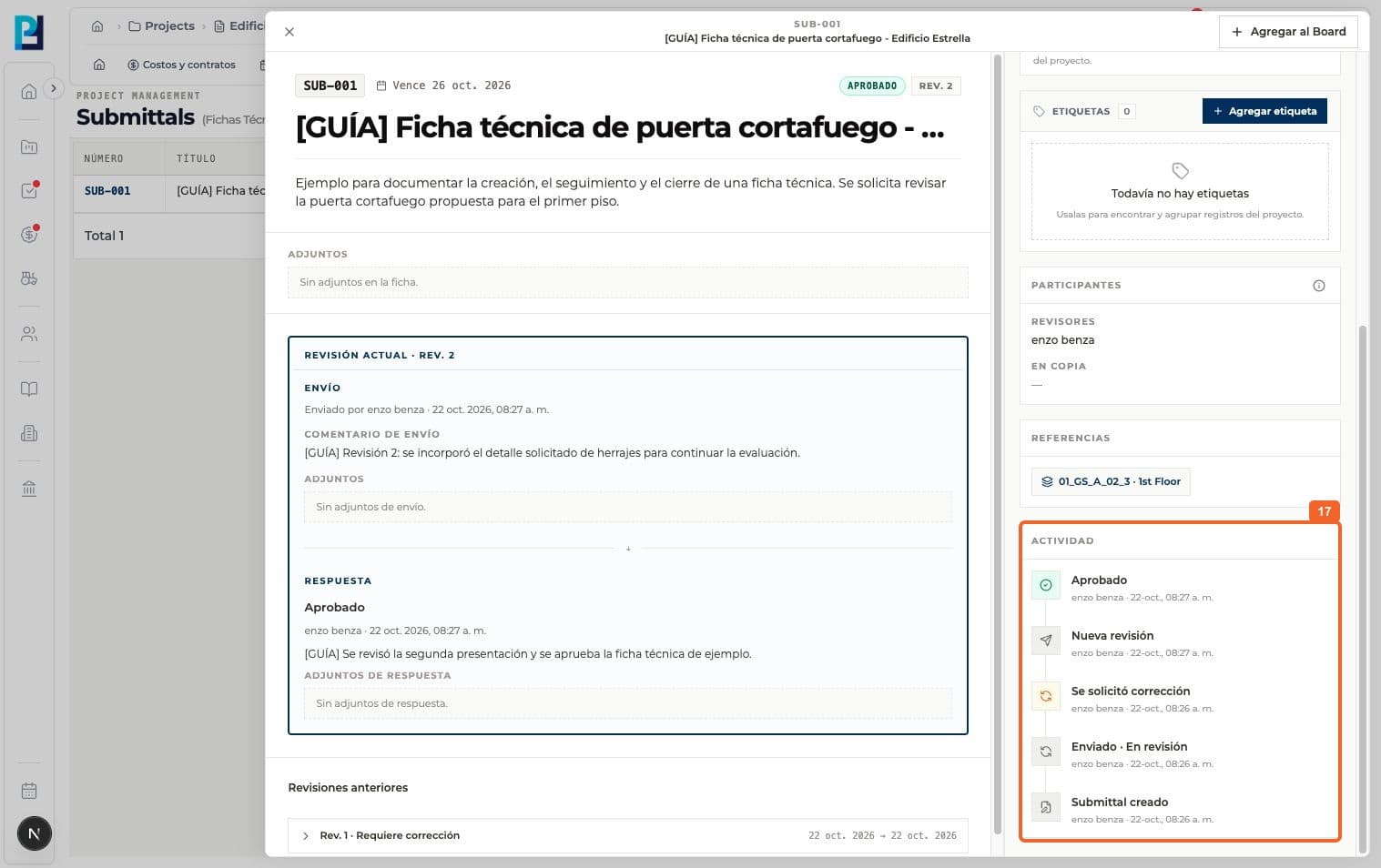
Identify the current revision number.
- 09
Check who must respond. The designated reviewer sees Your response is needed.
- 10
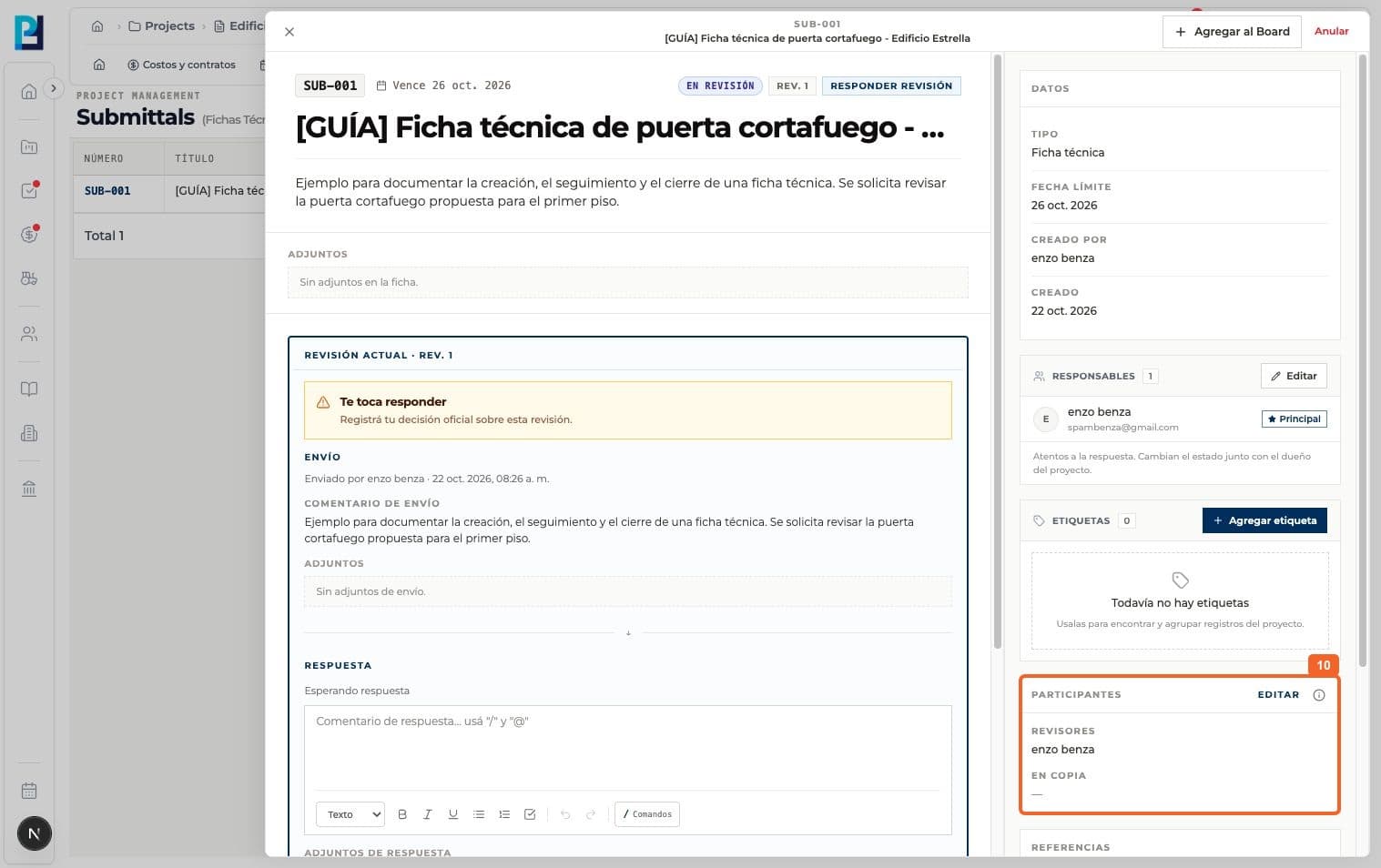
Under Participants, review reviewers and copied members.
- 11
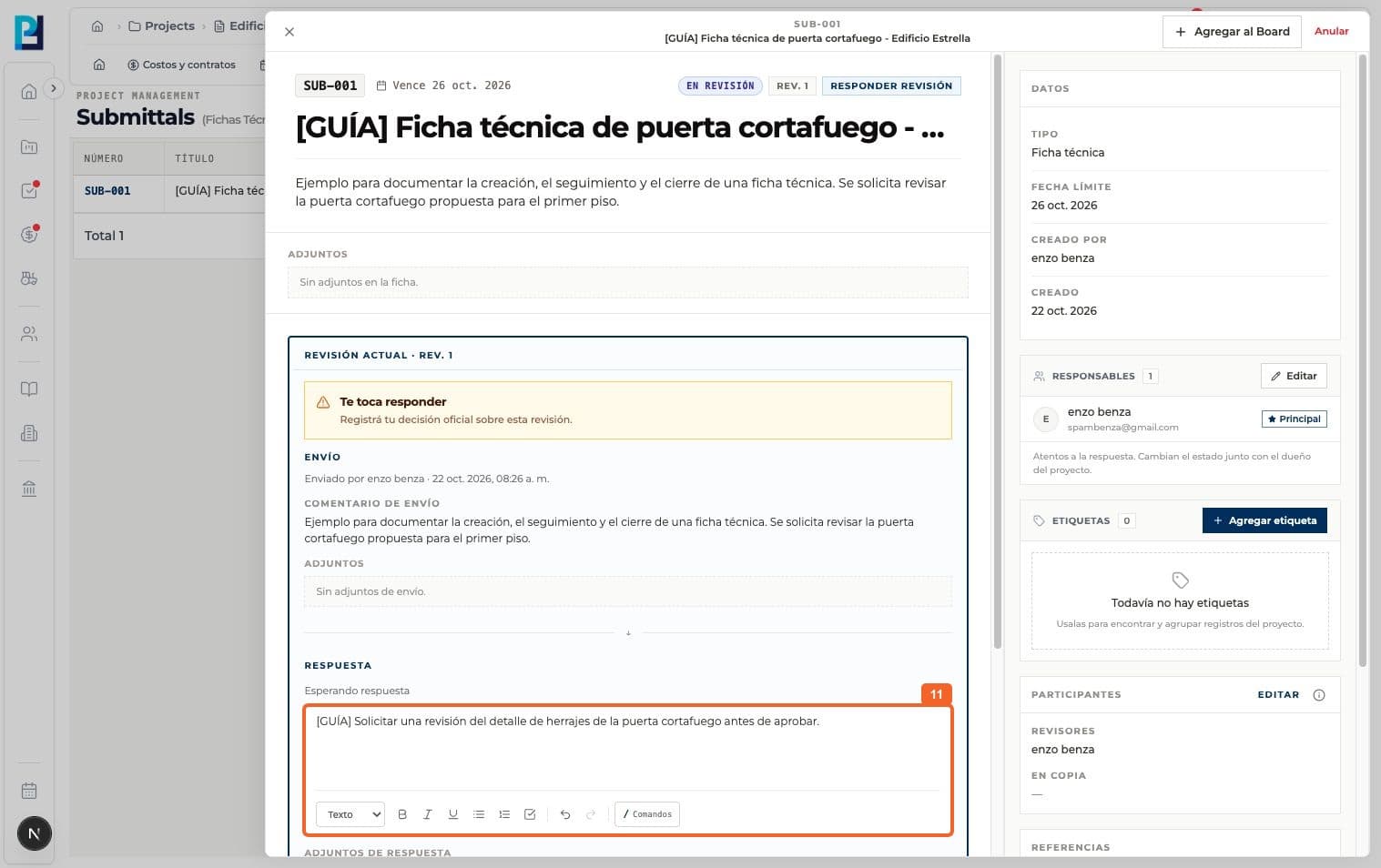
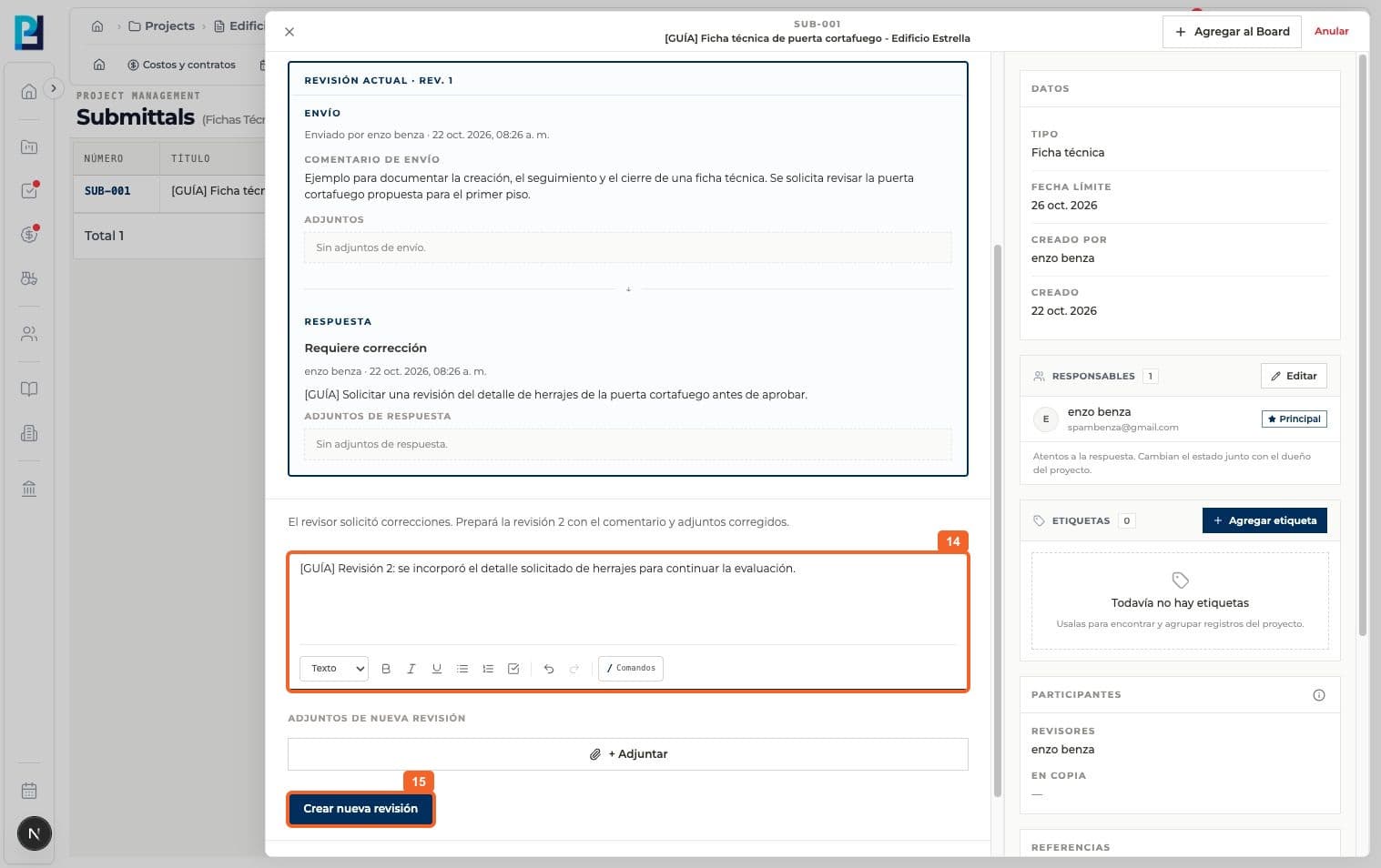
If changes are needed, the reviewer enters a reason and chooses Request correction.
- 12
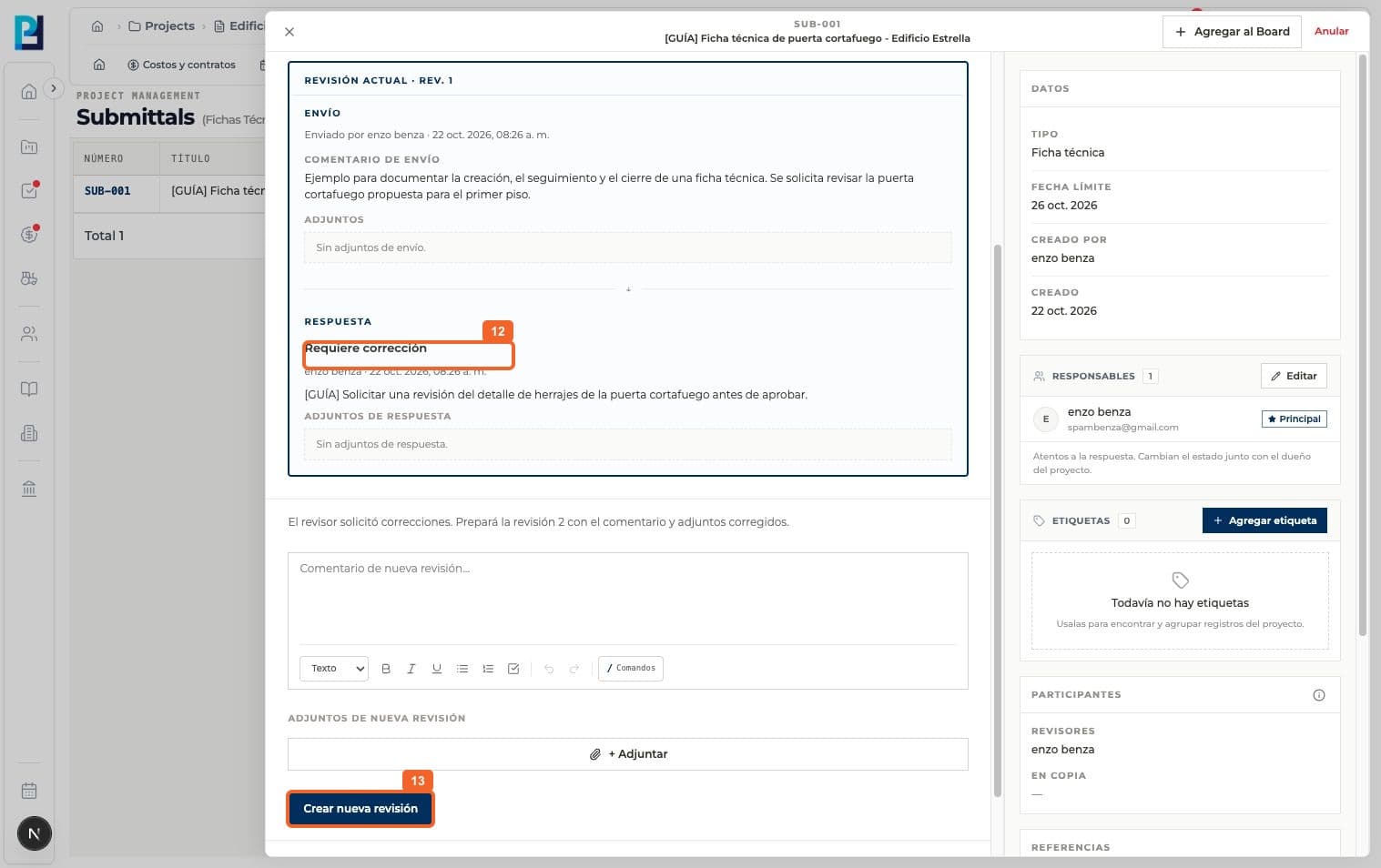
Verify the revision response says Correction required; this does not finish the process.
- 13
Find Create new revision and prepare changes before selecting it.
- 14
Enter a new revision comment and, if relevant, corrected attachments. This test added only a comment.
- 15
Select Create new revision.
- 16
Verify Rev. 2 and In review status.
- 17
Review Activity for creation, submission, correction, new revision and final answer. The capture was taken after the example was finished.
FAQ
Frequently asked questions
What was verified and what remains untested?+
Only a designated reviewer or project owner can give the official answer. Request correction is not approval or closure. Corrected attachments were not uploaded in the test.