Compare one version with another
Comparison overlays two versions of the same drawing so you can see what changed. It uses the same panel as Overlay.
How to complete compare versions
- 01
Open the history
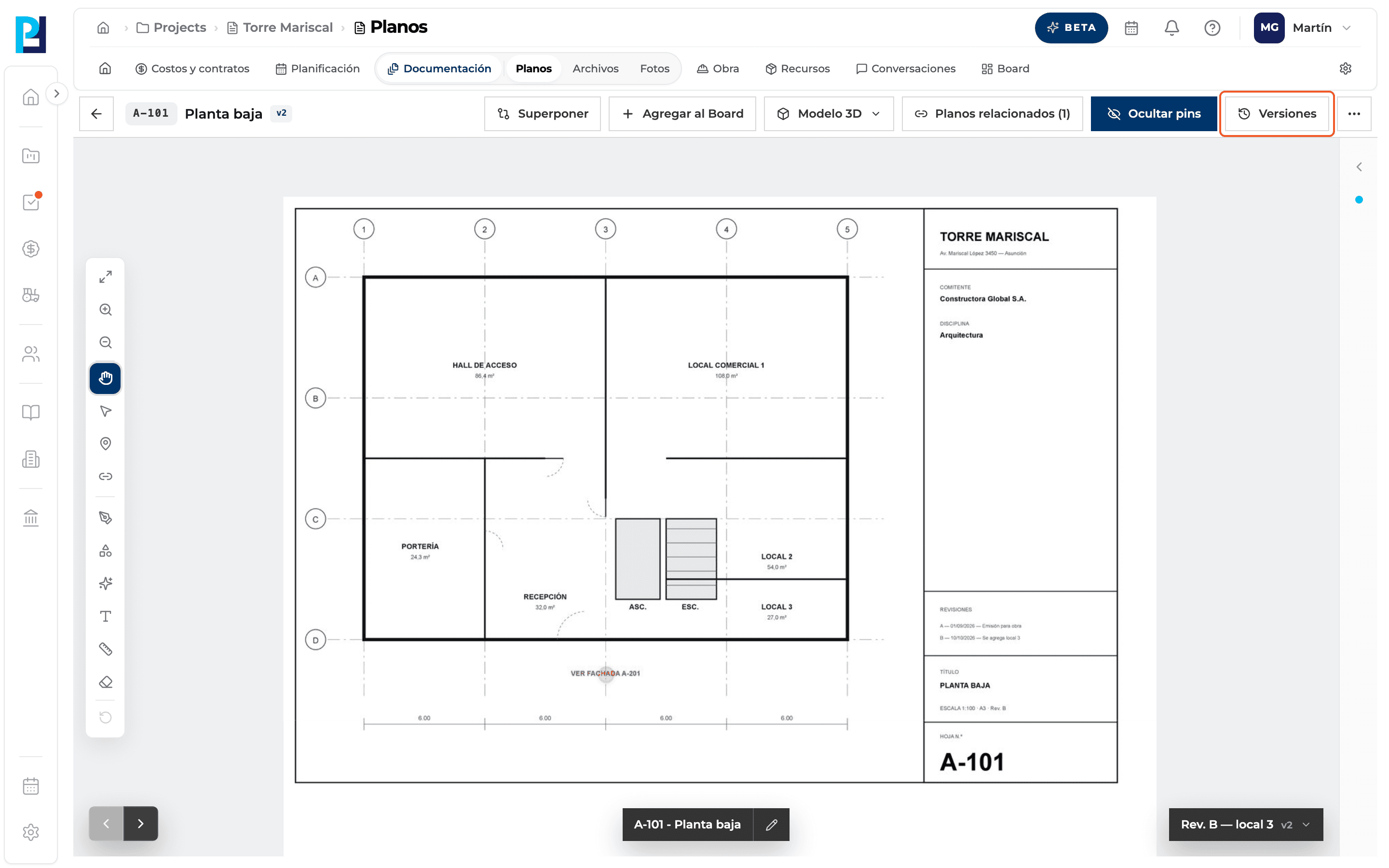
Click Versions in the viewer.
- 02
Or use the shortcut
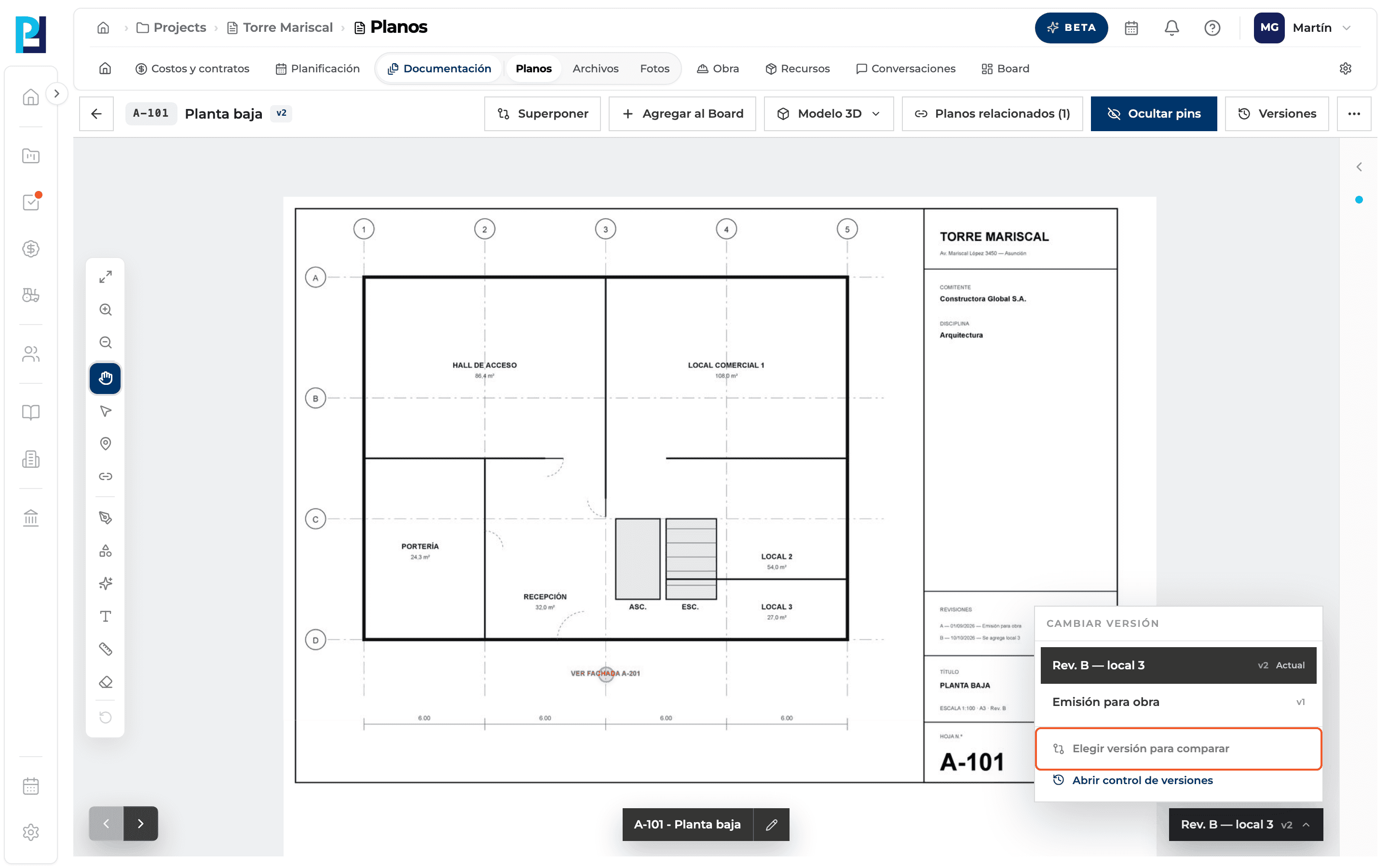
The version button at the bottom right → Choose version to compare opens the same history.
- 03
Choose what to compare with
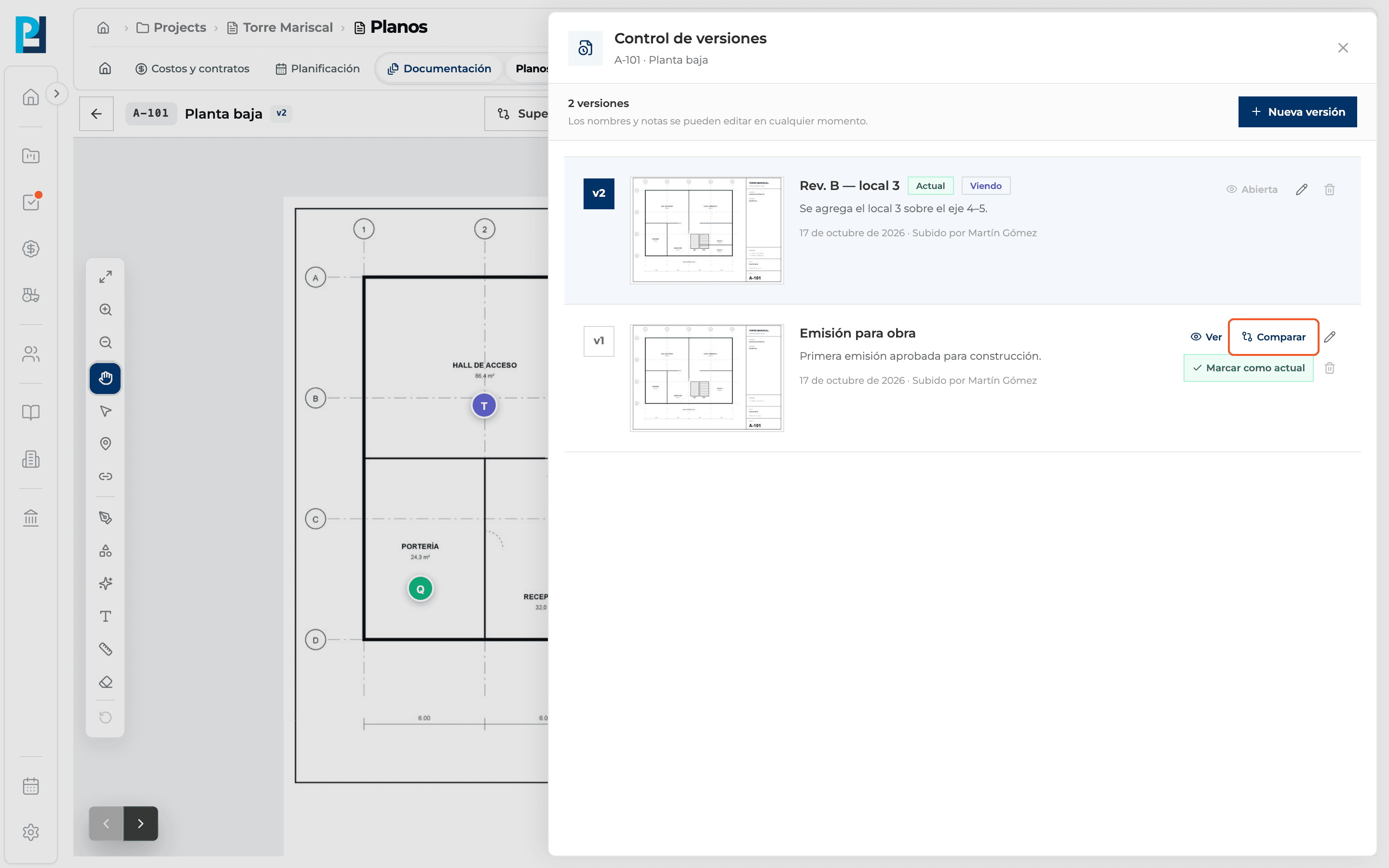
Click Comparar on the row of the version you want to check.
- 04
Read the difference
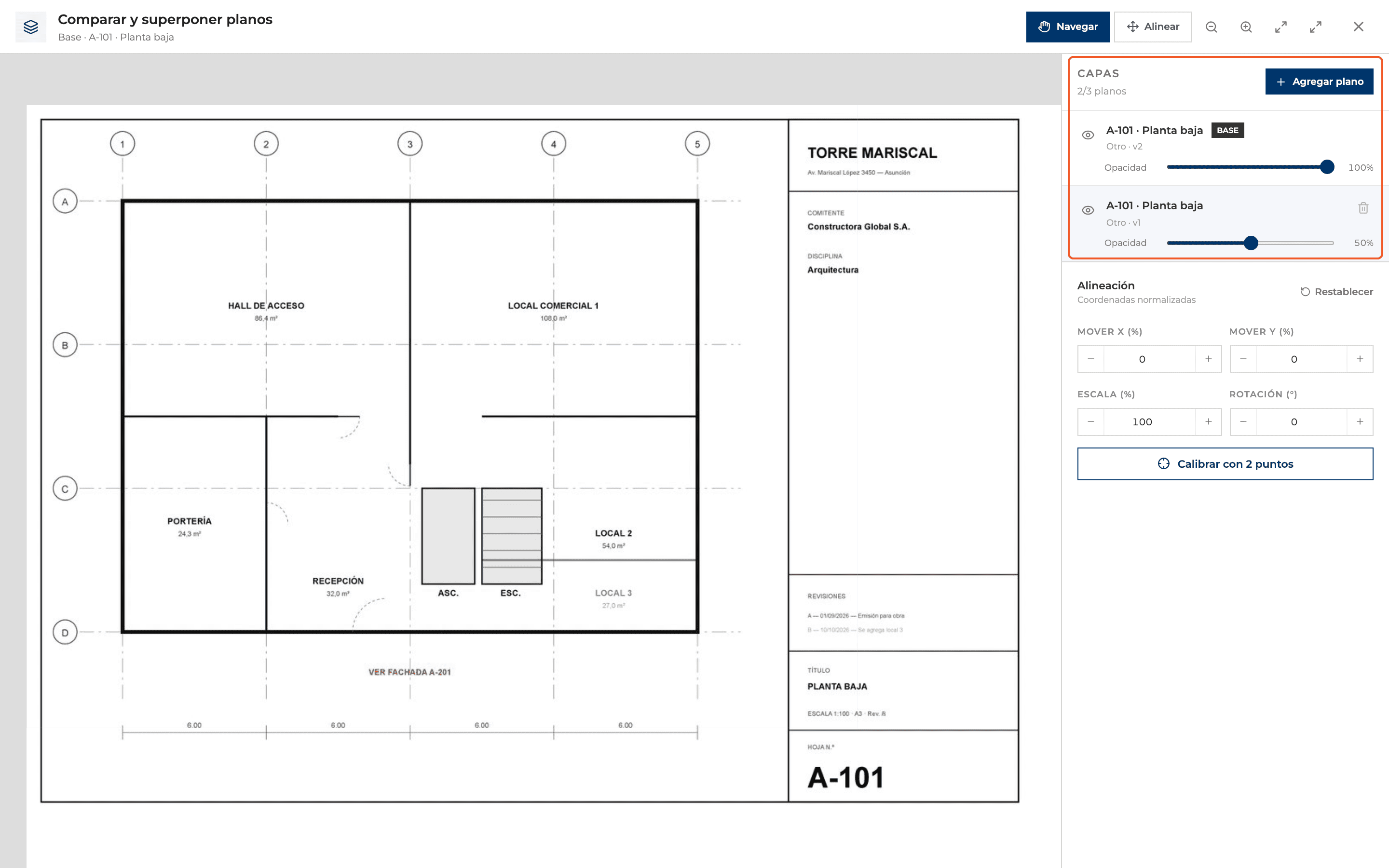
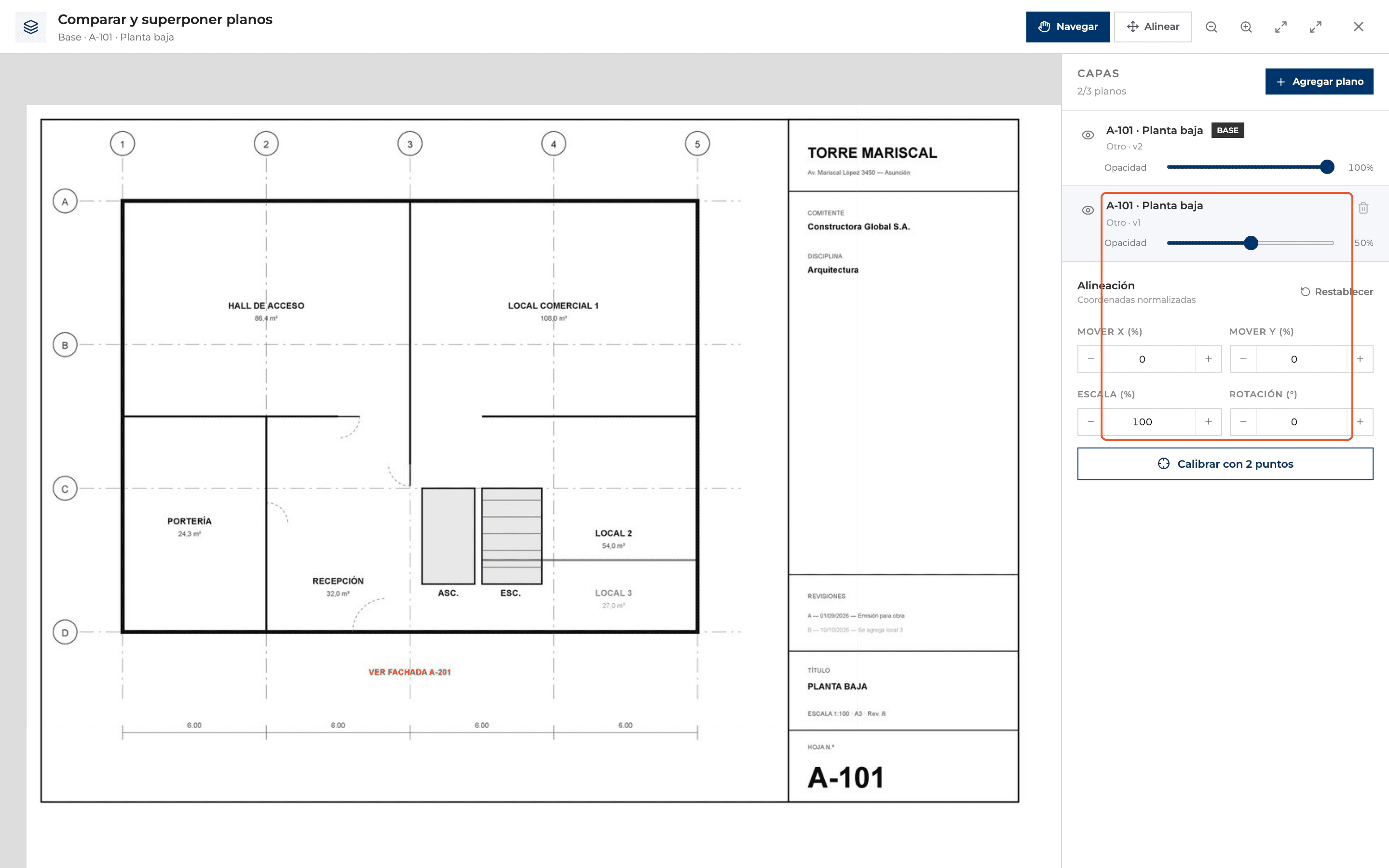
The Compare and overlay drawings panel opens: the version you had open is the base and the chosen one sits on top at 50% opacity.
- 05
Adjust the layer
Use each layer's opacity and eye to show or hide a version. If they don't line up, align it (see the alignment guide).
- 06
Close
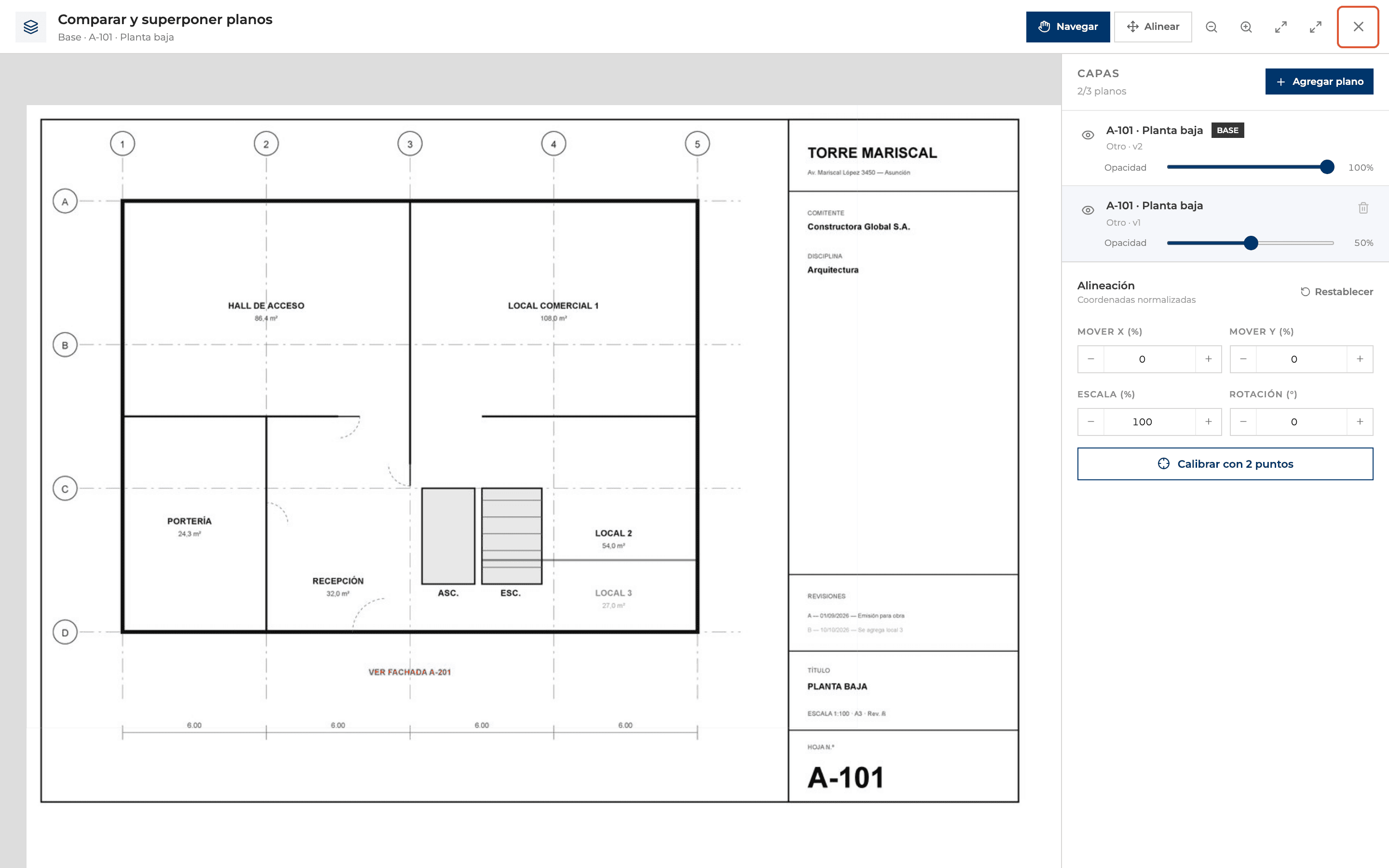
The X or the Esc key. The comparison is not saved.
What you'll learn
How compare one version with another works inside Perfour.
What information you need and how it stays connected to Drawings.
How to preserve traceability and find the record later.
Frequently asked questions
Are differences highlighted automatically?+
No: the comparison is visual, through transparency.
Can I compare with a drawing that isn't a version?+
Yes: in the same panel, Add drawing adds any ready drawing.