Upload one or more drawings (multi-page PDF, DWG or DXF)
The Upload drawing panel takes the files, uploads them and builds the batch of drawings to process.
How to complete upload drawing
- 01
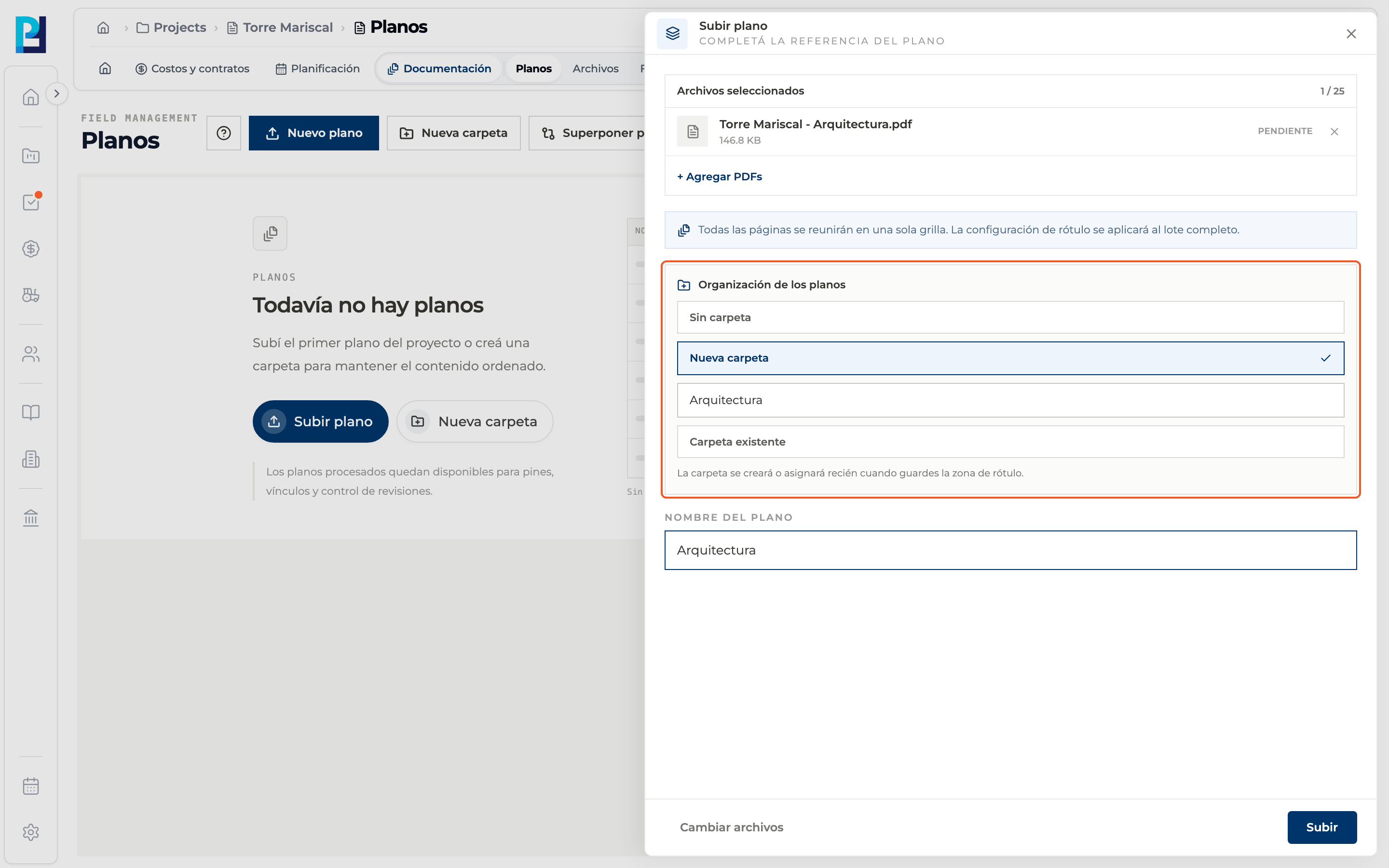
Open the panel
Click New drawing. You can also use +Nuevo plano at the end of each folder, which uploads straight into that folder.
- 02
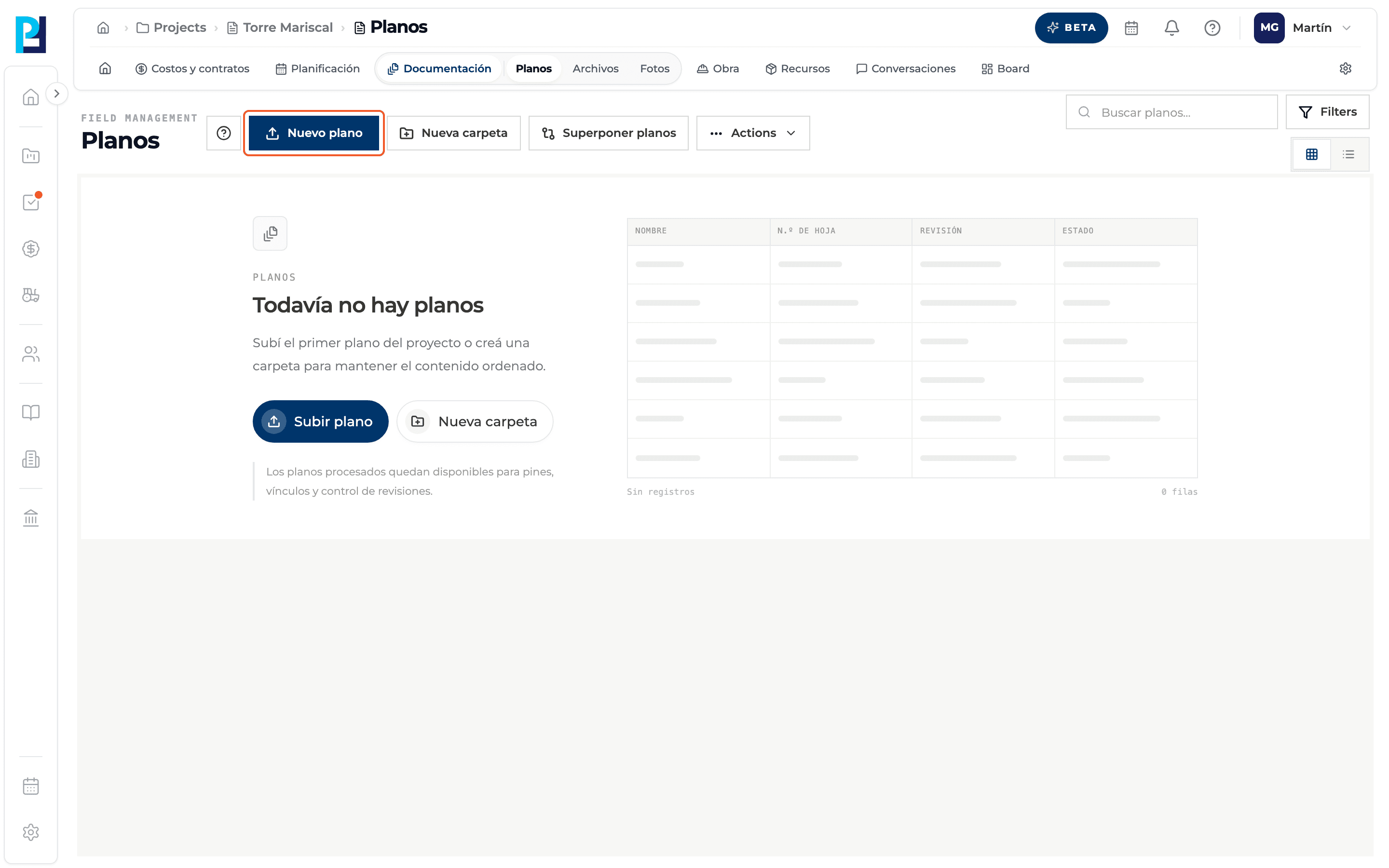
Choose the files
Drag or select up to 25 PDFs per import. DWG and DXF are uploaded one at a time; multiple upload only accepts PDF.
- 03
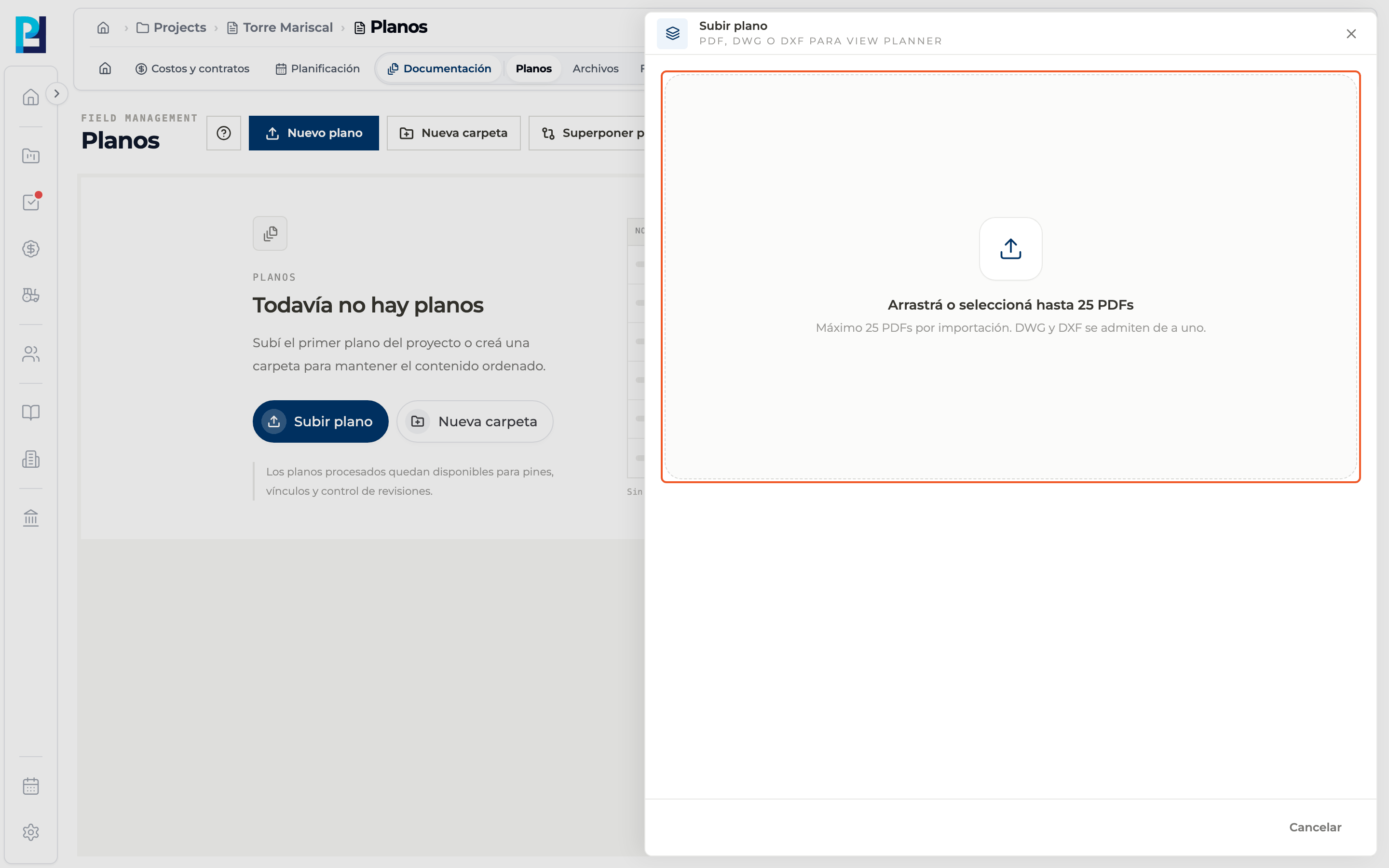
Review the files
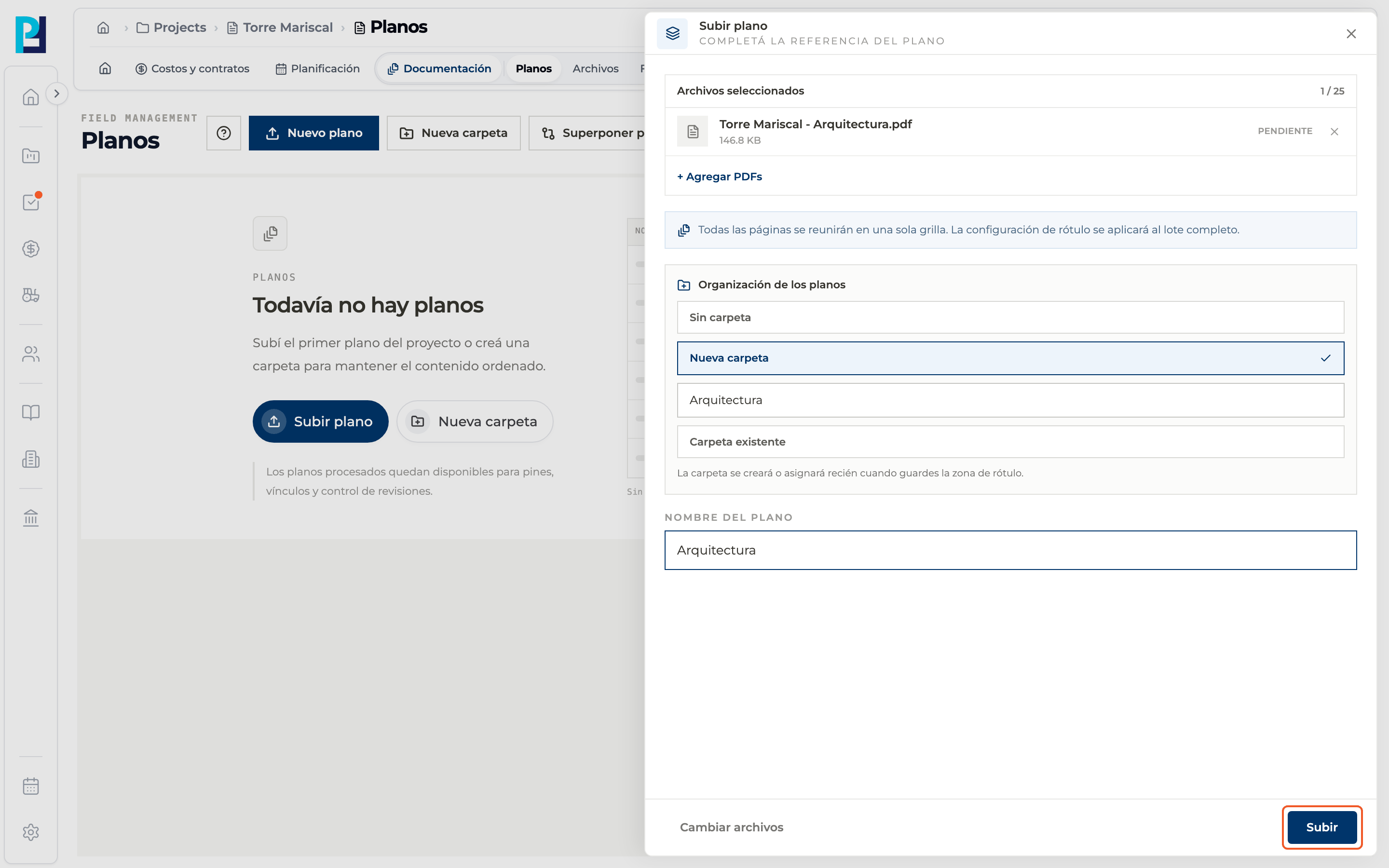
Under Archivos seleccionados (Selected files) you see each file and its status. Remove one with the X or add more with + Agregar PDFs. With a single file, fill in the drawing name.
- 04
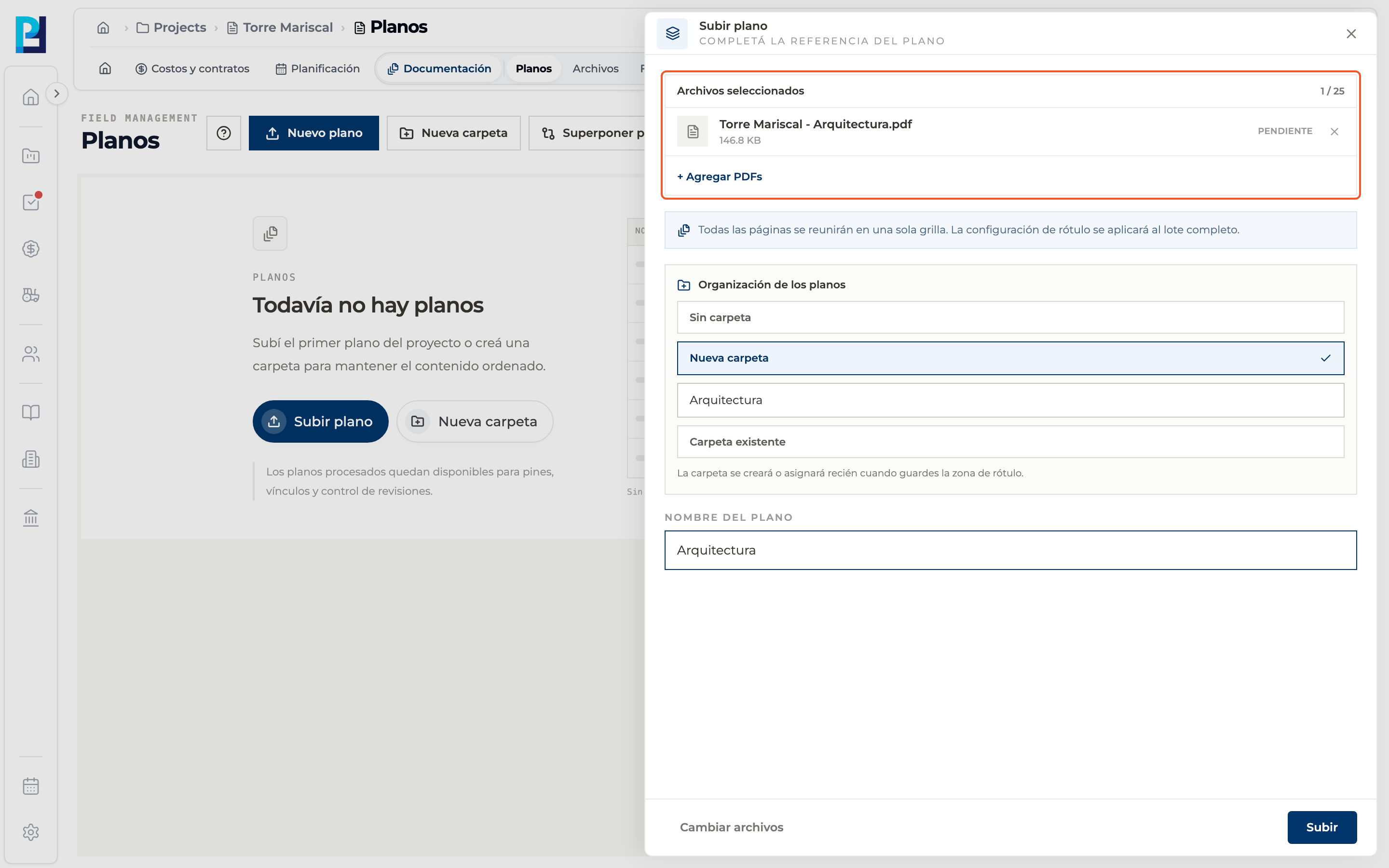
Choose the folder
Under Organización de los planos choose No folder, New folder or Existing folder. The folder is created or assigned only when you save the title block zone.
- 05
Upload
Click Subir (Upload). If a file fails, the button stays disabled until you retry or remove it.
- 06
Continue with the pages
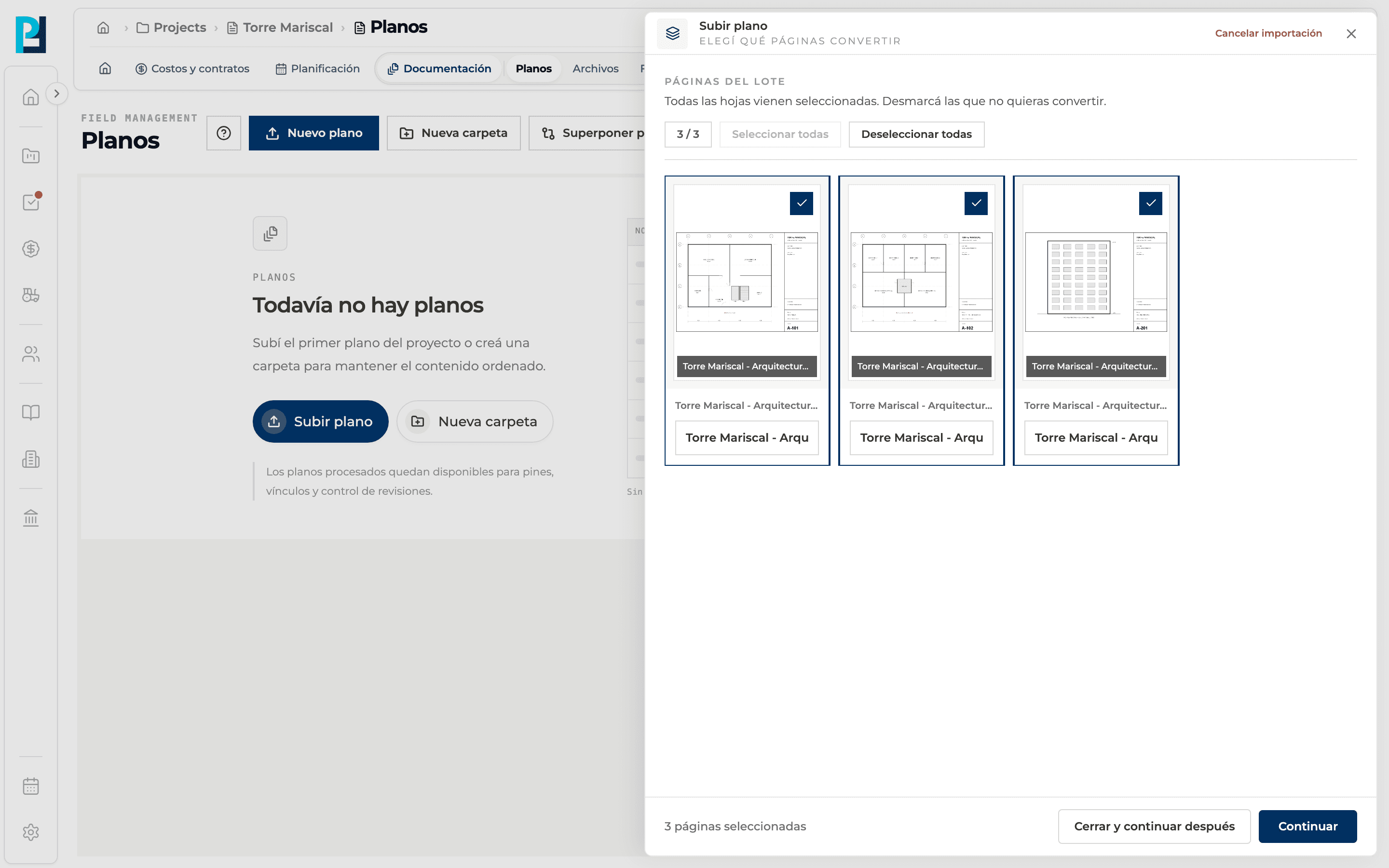
When the upload finishes you choose which pages to convert and where to read the sheet number (see the next guide). A DWG or DXF is created right away, without that step.
What you'll learn
How upload one or more drawings (multi-page pdf, dwg or dxf) works inside Perfour.
What information you need and how it stays connected to Drawings.
How to preserve traceability and find the record later.
Frequently asked questions
I closed the panel halfway, did I lose everything?+
No: with Close and continue later the import is saved and processing keeps going in the background. Cancel import, instead, discards the selection; the PDF stays in Files.
A file fails to upload.+
It is marked with an error and the rest continue. Retry only the failed ones.
Where is the original PDF kept?+
In the project's Files. It is also used to reprocess the drawing.